

Windows 11 isn’t a static polish job on Windows 10 — it’s a living platform that, with a few settings flips and a little curiosity, can be reshaped into a far faster, more secure, and more capable desktop than most people realize. The widely shared “31 tricks” roundups are useful maps to that territory, but they only tell half the story: behind the list are platform-level changes (Copilot, passkeys, File Explorer upgrades, Windows Backup, and 24H2 enhancements) whose practical value — and the rollout caveats that come with them — every user should understand before flipping toggles or trusting a new workflow. This feature walks through the most consequential items from those lists, verifies the technical claims against Microsoft’s own documentation and independent reporting, and gives concrete guidance so you can adopt the wins while avoiding surprises. 1’s development since launch has followed a clear pattern: iterate the interface, then layer in higher‑impact capabilities (AI helpers, modern authentication, richer file handling, and cross‑device flows) via feature updates. Microsoft’s 23H2/24H2 cadence and Insider channels are the delivery mechanism: features appear in preview channels, get polished, and then roll to the stable channel in stages. That staged rollout matters — not every device gets every capability at once, and many features are gated by hardware (for example, Copilot+ acceleration) or by account type (consumer Microsoft accounts versus enterprise/Entra). Treat the list of tips as a menu, not a mandate.
Key patterns to keep in mind:
Microsoft has also introduced premium‑tier and hardware‑accelerated features under the Copilot+ naming: on qualified Copilot+ PCs (initially devices with on‑board NPUs), Copilot can run more capabilities locally such as semantic search and Click to Do suggestions, and receive performance boosts. Independent reporting confirms Microsoft is expanding Copilot+ features across chip vendors and that some features (local AI search, Recall, advanced image tools) are being rolled out progressively.
Practical behavior to expect:
Practical notes:
Critical takeaways:
That said, the ecosystem is complicated: features are conditioned on hardware, account type, subscription, and region. Privacy, telemetry, and storage economics are the primary tradeoffs users must weigh. The smart approach is incremental: enable one capability, use it for a week, and then expand. That minimizes disruption while letting you harvest the genuine productivity gains Microsoft and reviewers have documented.
If you want the biggest leverage for the least risk, start with Snap Layouts + clipboard history + passkeys. If you value creative flows, experiment with Copilot Vision and the Photos/Paint AI actions on non‑sensitive images. And always keep an external backup strategy separate from OneDrive: cloud convenience is great, but physical backups are still the most reliable insurance.
Windows 11 no longer needs to be treated like a boxed, one‑size‑fits‑all OS. A short, deliberate set of changes — learned shortcuts, a couple of toggles, and an understanding of the rollout caveats — turns the system from “just another desktop” into a workflow center that both accelerates everyday tasks and raises your security baseline. The trick is to adopt deliberately, validate features against your security and cost constraints, and keep a rollback plan (restore points or system images) whenever you experiment with system‑level features.
Conclusion: Windows 11’s hidden tricks are best treated as a toolkit, not a checklist to flip all at once. Use the wins that match your work style, keep an eye on entitlements and storage limits, and you’ll stop using Windows 11 like a beginner.
Source: PCMag Stop Using Windows 11 Like a Beginner: 31 Hidden Tricks Microsoft Never Taught You
Key patterns to keep in mind:
- Microso as a platform that integrates AI and cloud services into day‑to‑day tasks, but many items require opt‑in, subscriptions, or specific hardware.
- Enterprise and managed devices often see different UX and reduced features, so your mileage will vary if your PC is domain‑joined or controlled by Group Policy.
- Staged rollouts and server‑side flags mean features can appear, disappear, or behave differently across machines even on the same build.
 Copilot: your new desktop assistant — but read the fine print
What Copilot actually does now
Copilot is embedded in Windows as a first‑class assistant: it’s reachable from the taskbar, supports the wake word “Hey Copilot,” and can operate via typed or spoken conversation. It’s designed to hold context across turns, summarize documents, help edit text, generate images, and — crucially — see your screen with Copilot Vision to guide step‑by‑step tasks in other apps. Microsoft documents these capabilities and the wake‑word/voice flows in its Copilot guidance.Microsoft has also introduced premium‑tier and hardware‑accelerated features under the Copilot+ naming: on qualified Copilot+ PCs (initially devices with on‑board NPUs), Copilot can run more capabilities locally such as semantic search and Click to Do suggestions, and receive performance boosts. Independent reporting confirms Microsoft is expanding Copilot+ features across chip vendors and that some features (local AI search, Recall, advanced image tools) are being rolled out progressively.
Practical strengths
- Contextual assistance: Copilot can summarize or act on documents stored on the PC and in indexed OneDrive folders; that’s a real time saver for research and editing tasks.
- Hands‑free voice: “Hey Copilot” turns Windows into a voice-first assistant for desktop workflows — useful for accessibility and for hands‑on tasks.
- Copilot Vision: being able to point to an app window and get step‑by‑step help is a unique desktop use case that bridges documentation and interaction.
Limits and risks
- Privacy and data flows: some Copilot operations use cloud processing, and Copilot’s access to files and screen content raises legitimate privacy questions; check the Copilot settings and Microsoft’s privacy controls before enabling the wake word or screen‑reading features.
- Gating and subscription entanglement: advanced Copilot features cilot+ hardware, a Microsoft 365 subscription, or a Copilot license (for Microsoft 365 Copilot), depending on the action — verify entitlements before building workflows around them. Independent reporting and Microsoft documentation both make this clear.
- Not a replacement for expert judgment: Copilot can synthesize and suggest, but for legal, medical, or high‑stakes work you should treat it as an assistant, not an oracle. (This is a general AI‑safety principle frequently emphasized by analysts.)
File Explorer: tabs, AI actions, and modern compression — the long overdue upgrade
Tabs, context upgrades, and AI actions
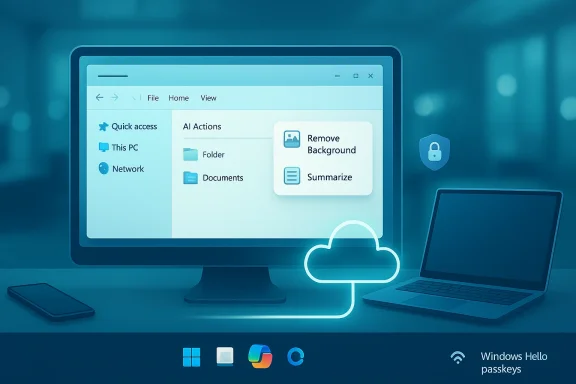
File Explorer now supports tabs (open folders like browser tabs), more contextual ribbon actions, and a new “AI actions” umbrella in the right‑click menu that surfaces tasks like Remove Background, Erase Objects, Blur Background, and Summarize for Office files stored in OneDrive/SharePoint. Microsoft’s notes and reporting from Windows Central and The Verge show these actions calling into Paint, Photos, Copilot, or cloud AI as appropriate; some AI Document actions require Microsoft 365/Copilot entitlements. You can also control or hide these actions via Settings > Apps > Actions.Practical behavior to expect:
- Image AI actions typically operate on JPG/PNG files and open the Photos or Paint apps to perform the edit; they are entry points to existing app capabilities rather than in‑place editor replacements.
- Document summarization requires both OneDrive/SharePoint storage and the appropriate Copilot/Microsoft 365 license in many cases.
Native compression: ZIP, 7z, TAR
One of the most practical 24H2 additions is native support to compress files into ZIP, 7z, and TAR right from File Explorer’s context menu. Microsoft’s support documentation and contemporaneous reporting confirm the feature: choose “Compress to…” and pick ZIP, 7z, or TAR; there’s an advanced dialog for compression level and method. Independent outlets tested the feature and found it functional — though heavy users may still prefer dedicated tools like 7‑Zip for speed and encryption options.Why this matters
These changes move Windows closer to being a one‑stop file workstation: tabs reduce Explorer window sprawl, AI actions provide quick edits and previews, and native 7z/TAR support removes a common third‑party dependency for basic archiving. That combination reduces friction for everyday file work — but with caveats about feature gating and enterprise policies (below). (windowscentral.com)Multitasking and the taskbar: Snap Layouts, virtual desktops, and the return of choice
Snap Layouts and Snap Groups
Snap Layouts (hover the maximize button or press Windows+Z) remains one of the fastest productivity multipliers. Microsoft’s Learning Center documents the keyboard and mouse options; Snap Groups also let you recall arrangement clusters by hovering a taskbar icon. These features have matured with additional layout options and are worth learning — they remove the manual resizing dance that used to waste minutes every day.Taskbar alignment, Start menu customization, widgets
The centered taskbar was controversial at launch, but Microsoft preserved alignment options (Settings > Personalization > Taskbar) so you can left‑align if you prefer. The Start menu now uses pinned tiles and a Recommended section; you can pin/unpin, create folders, and aa Settings. Widgets remain an optional information rail; they can be personalized and even appear on the lock screen in current builds. These are minor UX wins that matter for daily ergonomics. (The original list of tips covers several of these quick toggles.)CroPhone Link, projecting, clipboard sync
Phone Link and Phone integration
Phone Link (formerly Your Phone) continues to expand capabilities for Android: notifications, SMS, calls, and — on supported models — running multiple phone apps on the PC screen. Recent updates add toggles in Start for phone activity and cross‑device copy/paste. These are helpful if you routinely move content between your phone and PC; if you need full device parity (for app continuity), check model compatibility.Projecting to a PC and wireless display
Windows lets you project other devices to your PC once the Wireless Display optional feature is installed — handy for remote presentation setups or using a tablet/phone as a secondary input source. You enable it under Settings > System > Optional features and then configure Projecting to this PC. If you expect to control the remote machine from the receiver, note that some control modes require specific permission prompts.Clipboard history and cross‑device paste
Clipboard history (Win+V) and cloud sync makes juggling snippets, code, and images between devices simpler. Enable it once and use Win+V to choose recent items. This is a low‑risk, immediate productivity boost for power users.Security modernized: passkeys, Dynamic Lock, and improved authentication UX
Passkeys — a practical path away from passwords
Windows 11 provides native passkey support integrated with Windows Hello, letting you create passkeys for websites and apps and store them locally or in a sync‑backed vault such as Microsoft Password Manager. Microsoft’s documpasskeys are created, where they can be stored, and how Windows uses Windows Hello (biometrics or PIN) to unlock them. Independent reporting confirms that Microsoft is adding a modernized Windows Hello UI and compatibility with third‑party passkey managers to make passkeys more broadly usable. This is one of the most important security wins for everyday users: passkeys are phishing‑resistant cryptographic credentials.Practical notes:
- You can save passkeys locally or sync them to your Microsoft account (with end‑to‑end encryption and an encryption passkey for recovery). Treat the encryption passkey carefully — losing it can complicate recovery.
- Passkey adoption requires both website/app support and user-side enrollment. It’s real but incremental; expect mixed availability across sites for now.
Dynamic Lock and biometric unlocking
Dynamic Lock (pairing your phone via Bluetooth) lets Windows automatically lock when you walk away. Combine this with Windows Hello for quick unlock and you get a practical physical‑security improvement without specialty hardware. It’s easy to enable and useful in shared/public spaces.Windows Backup and migration: convenience with a push toward OneDrive
Microsoft added a unified Windows Backup experience that saves files, settings, apps (where supported), and credentials to OneDrive, easing migration to a new PC. Microsoft’s support docs describe the flows and limitations: it’s intended for consumer Microsoft accounts and depends on OneDrive storage quotas (free accounts get 5 GB). That means the feature significantly simplifies clean migrations — but also nudges users toward paid OneDrive plans for full‑volume migrations. Independent coverage flags this storage‑tethering and the enterprise limitations (Windows Backup may be hidden or blocked on Azure AD/enterprise systems).Critical takeaways:
- Windows Backup makes onboarding a new device faster, but it’s not a substitute for a full image backup or external disk strategy if you care about third‑party apps and large media libraries.
- Expect a OneDrive dependency for cloud restoration; if you prefer alternatives, use external drives and image backup tools.
Accessibility and productivity micro‑wins: Focus Sessions, keyboard shortcuts, and Title Bar Shake
Small features add up:- Focus Sessions (Clock app) gives a built‑in way to block notifications and schedule work/break intervals. It’s simple but effective for deep‑work habits.
- Title Bar Shake quickly minimizes everything except the active window — a tactile declutter trick some users love.
-**: Win+Z (Snap Layouts), Win+V (clipboard), Win+W (Widgets), Win+A (Quick Settings) — learning a handful saves minutes daily.
Rollout caveats, enterprise effects, and safety checklist
Rollout behavior and gated features
Microsoft uses staged rollouts and feature flags; two machines on the same build can behave differently. Some features are limited to Copilot+ hardware, Insider channels, or specific account types (consumer vs Entra). Always check Settings and the Windows Insider Blog before assuming a feature is available on a given device.Privacy and telemetry
AI features that read local files or capture screen content carry privacy implications. Review Copilot and File Explorer AI action permissions, and disable wake‑word/vision features if you’re uncomfortable. For enterprise devices, consult IT — these settings may be centrally managed.OneDrive and backup economics
Windows Backup’s convenience is real, but default OneDrive quotas are small; heavy users must plan for storage costs or rely on local/external backups. Additionally, enterprise and education tenants will see different availability.Recommended quick‑start checklist (do these first)
- Review Copilot privacy and enable only the modalities you want (voice vs text vs vision).
- Try Snap Layouts (Win+Z) and configure virtual desktops for project separation.
- Enable Clipboard history (Win+V) and try cross‑device paste if you use multiple Windows machines.
- Test File Explorer tabs and AI Actions on harmless images to see what they do before using them on sensitive material. Control AI Actions in Settings if you prefer not to see them.
- Set up passkeys for one low‑risk account (email or social) to see how Windows Hello and passkey sync feel in practice before moving critical accounts.
- Use Windows Backup for settings and small folders, but maintain an external image backup for apps and large media archives. Check your OneDrive quota first.
Final analysis: where Windows 11 wins — and where to be careful
Windows 11’s steady additions are not cosmetic fluff; they are pragmatic features that reduce friction for everyday tasks. Copilot changes how you research and edit on the desktop, File Explorer upgrades and archive format additions remove routine third‑party dependencies, passkeys materially improve security, and Windows Backup simplifies the pain of moving to a new PC. Collectively, these changes shift the baseline expectation for what a modern desktop OS can do.That said, the ecosystem is complicated: features are conditioned on hardware, account type, subscription, and region. Privacy, telemetry, and storage economics are the primary tradeoffs users must weigh. The smart approach is incremental: enable one capability, use it for a week, and then expand. That minimizes disruption while letting you harvest the genuine productivity gains Microsoft and reviewers have documented.
If you want the biggest leverage for the least risk, start with Snap Layouts + clipboard history + passkeys. If you value creative flows, experiment with Copilot Vision and the Photos/Paint AI actions on non‑sensitive images. And always keep an external backup strategy separate from OneDrive: cloud convenience is great, but physical backups are still the most reliable insurance.
Windows 11 no longer needs to be treated like a boxed, one‑size‑fits‑all OS. A short, deliberate set of changes — learned shortcuts, a couple of toggles, and an understanding of the rollout caveats — turns the system from “just another desktop” into a workflow center that both accelerates everyday tasks and raises your security baseline. The trick is to adopt deliberately, validate features against your security and cost constraints, and keep a rollback plan (restore points or system images) whenever you experiment with system‑level features.
Conclusion: Windows 11’s hidden tricks are best treated as a toolkit, not a checklist to flip all at once. Use the wins that match your work style, keep an eye on entitlements and storage limits, and you’ll stop using Windows 11 like a beginner.
Source: PCMag Stop Using Windows 11 Like a Beginner: 31 Hidden Tricks Microsoft Never Taught You
