Windows 11’s File Explorer has quietly become a real contender for everyday compression tasks, but if you move large files regularly you’ll save the most time by combining the built‑in tools with a few proven power‑user techniques and third‑party utilities. This article distills the step‑by‑step methods, explains when to use Windows’ native “Compress” flow versus 7‑Zip and Robocopy, and lays out practical hardware and workflow tweaks that cut transfer time without sacrificing safety or compatibility.
Background
Windows has supported ZIP files for decades, but recent Windows 11 updates broadened native archive support and added convenience features that matter for large transfers. Microsoft’s support documentation now shows that Windows 11, version 24H2, recognizes and can create and extract multiple archive formats — including ZIP, RAR, 7z and TAR — while noting limitations around encrypted archive creation and manipulation. Third‑party archivers remain essential for advanced tasks. 7‑Zip’s 7z format offers higher compression ratios and AES‑256 encryption, and tools such as WinRAR, Bandizip and PeaZip provide format breadth, speed tuning and split‑archive features that the native tools don’t. The official 7‑Zip documentation outlines LZMA/LZMA2 compression, multi‑threading and AES‑256 support — features that make it a go‑to option when file size or security is important. Community testing and hands‑on guides also stress that compression is only one part of the transfer equation. Hardware (SSDs vs HDDs), connection type (USB 2.0 vs USB 3.x / USB‑C), file system (NTFS vs FAT32), background services (cloud sync, antivirus), and the copy tool you choose (File Explorer vs Robocopy with /MT) all influence end‑to‑end speed. Practical community tips and benchmark summaries show that combining compression with a fast copy method often delivers the best real‑world outcome.What changed in Windows 11 (and why it matters)
Native archive support and the “Create Archive” wizard
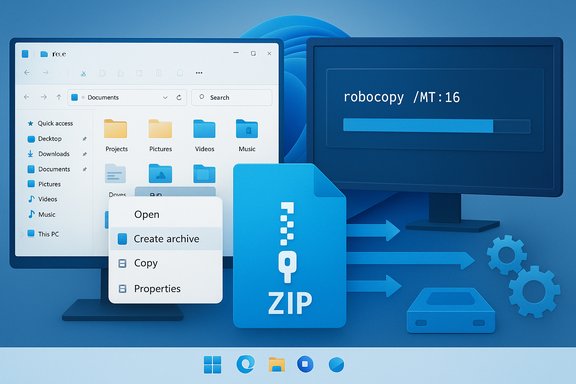
Microsoft has expanded File Explorer’s archive capabilities. On systems updated to Windows 11, version 24H2, File Explorer includes a “Create Archive” experience that can generate common formats such as Zip, 7z and Tar directly from the right‑click menu. This reduces friction for quick, lightweight archives without installing extra software — useful when you want a single file container fast. However, the native UI deliberately omits encrypted archive creation; for password‑protected archives you still need dedicated tools.Usability tweaks that speed workflows
Windows 11’s File Explorer improvements — cleaner context menus, better “Show more options” behavior and faster explorer preload in recent builds — mean fewer clicks and slightly faster interaction for just‑in‑time compression. These quality‑of‑life upgrades matter when you’re archiving dozens of folders per day.The smart ways to zip files in Windows 11 (step‑by‑step)
Below are practical, reproducible methods ranked by speed/complexity tradeoffs: quick built‑in zips, higher compression/security with 7‑Zip, and best‑throughput workflows for very large transfers.1) Quick: Built‑in ZIP from File Explorer (fastest for small jobs)
Use Windows’ native flow for small folders or when you need compatibility and zero installs.- Select files or folder in File Explorer.
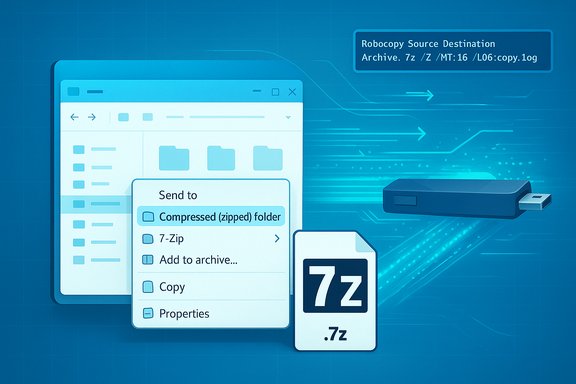
- Right‑click → Show more options → Send to → Compressed (zipped) folder.
- Rename the resulting .zip file as needed.
2) Pro compression and encryption: 7‑Zip (best balance of size and security)
7‑Zip gives you the best compression ratios in many scenarios and supports AES‑256 encryption for confidentiality.- Install 7‑Zip and use the context menu: Right‑click → Show more options → 7‑Zip → Add to archive.
- Recommended settings for distribution:
- Format: 7z (best compression) or Zip for broad compatibility.
- Compression level: Ultra or Maximum for smallest size (longer CPU time).
- Compression method: LZMA2 (default for modern multi‑core systems).
- Enable AES‑256 encryption if you need password protection.
3) Split archives: send huge files across limits
If an email/file share has limits, use 7‑Zip or WinRAR to create multi‑part archives (e.g., .001, .002). In 7‑Zip’s Add to archive dialog specify “Split to volumes, bytes” and enter a size like 100M or 2G to generate manageable chunks. PeaZip and WinRAR offer similar splitting controls. Community how‑tos and compressed‑file discussions show this is reliable and well supported by recipients who can reassemble with the same tool.4) For massive transfers: compress, then copy with Robocopy (or preserve archive and stream)
When you need to move terabytes or many thousands of files between drives or over a network, compressing first minimizes I/O overhead and consolidates many small files into one heavy stream.- Create the archive locally using 7‑Zip.
- Use Robocopy to transfer the archive (or the original files if you prefer Robocopy’s advanced copying semantics).
- Robocopy multithread tip: use /MT[:n] to enable multi‑threaded copying; the documented default for /MT when used without a number is 8 threads, and the parameter accepts 1–128 threads. For many SSDs and modern CPUs, /MT:16 or /MT:32 can give a big speed boost, but you should experiment because excessive threads will thrash some drives or saturate a network.
- Open administrative PowerShell or Command Prompt.
- Run:
- robocopy "C:\Source" "D:\Destination" Archive.7z /Z /MT:16 /LOG:copy.log
Hardware and system tweaks that reduce transfer time
Even the best compression method can be throttled by slow hardware or background processes. Apply these checks before starting long jobs:- Use SSDs (prefer NVMe) for source or destination drives; HDD speeds are often the biggest bottleneck. Modern NVMe SSDs deliver multiple GB/s, vastly outpacing HDDs.
- Connect external drives to USB 3.0/3.2 or Thunderbolt ports (look for SS or 10G/40G markings) — plugging a USB 3.x device into a USB 2.0 jack will cap throughput.
- Ensure the destination uses NTFS for large files and robust metadata handling; FAT32 caps file size at 4 GB. Convert with care: convert X: /fs:ntfs or reformat after backing up.
- Pause cloud sync (OneDrive, Dropbox) while copying; real‑time sync can cause spikes in I/O and slow transfers. Community guides consistently recommend stopping background sync during bulk moves.
- Temporarily disable real‑time antivirus only if you trust the files and will re‑enable it right after; scanning each file can significantly slow large copies. Documented tips and forum advice flag this as a practical — but risky — speed hack.
Which format should you choose (compatibility vs. size vs. speed)
- ZIP: Default for broad compatibility and fastest decompression on most systems. Use for general sharing. Windows’ built‑in ZIP uses the Deflate method and trades compression for maximum compatibility.
- 7z: Best compression ratio and strong AES‑256 encryption. Use when size reduction or security is required. Ideal for backups and archives intended for users who can run 7‑Zip or compatible software.
- TAR/GZ/XZ: Useful for cross‑platform workflows (Unix/Linux), but not as universally user‑friendly for casual Windows recipients.
- RAR: Historically strong, but RAR creation requires WinRAR (proprietary). Windows 11 can read some RAR files natively now, but RAR creation and encryption are handled by WinRAR.
Critical analysis: strengths, weaknesses and risks
Strengths of the new native approach
- Convenience: Native creation and extraction for multiple formats reduces friction for basic archiving tasks and lowers the need to install third‑party tools for casual use.
- Integration: File Explorer changes and a streamlined context menu make quick compress/uncompress operations feel natural and faster.
When native tools fall short
- No encrypted archive creation: Windows’ built‑in compressor does not support creating encrypted archives; that’s where 7‑Zip and WinRAR remain indispensable for confidentiality. If you need AES‑256 encryption, rely on 7‑Zip.
- Performance vs. advanced tools: Built‑in ZIP does not provide advanced compression parameters, multi‑threaded compression tuning, or fine‑grained splitting. Benchmarks shared in community reports show third‑party tools routinely outpace File Explorer on both compression speed and compressed size for large jobs. These community tests are useful but can vary by CPU, storage medium and exact settings — treat single benchmarks as indicative, not definitive.
Practical risks and caveats
- Disabling antivirus is risky: Turning off real‑time protection speeds transfers but exposes you to threats; only do this briefly and for trusted data. Always re‑enable protections immediately after the operation.
- Multithreading tradeoffs: Robocopy’s /MT and 7‑Zip’s multithreaded compression can boost throughput, but they consume CPU and can increase random I/O on spinning disks—sometimes making transfers slower on older HDDs. Test /MT values (start with /MT:8 then tweak) and monitor disk and CPU use. Microsoft’s documentation clarifies /MT’s parameters; community tests advise balancing threads with hardware capability.
- Privacy concerns with web tools: Online compressors are convenient for one‑off small files, but uploading sensitive documents exposes them to third‑party servers. For confidential material, prefer local tools. Community guidance strongly warns against web tools for sensitive data.
Quick reference: recommended workflows
- Fast, small job (email attachments): Windows Explorer ZIP (built‑in).
- Reduced size + encryption for backup: 7‑Zip (.7z, LZMA2, AES‑256, Ultra).
- Many small files for transfer across network: Create one archive locally, then copy the single archive using Robocopy /MT.
- Drive‑to‑drive sync or migration: Robocopy with /MT tuned to CPU/drive, or specialized migration tools for OS‑level moves.
- Cross‑platform sharing (Linux/macOS recipients): Use TAR.GZ or ZIP depending on target platform.
Step‑by‑step “zip like a pro” checklist
- Choose the right format: ZIP for general sharing, 7z for size/security.
- If files are already compressed (MP4, JPEG, ZIP), don’t expect large wins from further compression.
- Use SSDs and USB 3.x / Thunderbolt where possible.
- Pause cloud sync and heavy background apps; consider briefly disabling real‑time antivirus only for trusted transfers.
- Create the archive locally (7‑Zip: Ultra, LZMA2 for best results).
- Transfer the single archive using Robocopy with /MT tuned to your CPU (start at /MT:8 or /MT:16 and measure).
- Re‑enable antivirus and resume cloud sync.
Flags and verification notes
- The claim that Windows 11 version 24H2 supports multiple formats (ZIP, RAR, 7z, TAR) and that the built‑in tool cannot create encrypted archives is documented by Microsoft’s support pages; those statements are verifiable in Microsoft documentation.
- 7‑Zip’s compression algorithms (LZMA/LZMA2) and AES‑256 encryption are documented in 7‑Zip’s own materials and LZMA documentation. Compression ratios and benchmark numbers vary by dataset and hardware; user‑published times should be treated as indicative rather than absolute.
- Robocopy’s /MT behavior and recommended tuning are documented on Microsoft Learn; community testing supplements those guidelines and highlights that the best /MT value depends on CPU, disk type, and contention. Test settings before running production moves.
- Community benchmark snippets and forum reports referenced in this article are helpful for real‑world context but often lack standardized test conditions — use them as pragmatic guidance, not formal benchmarks.
Conclusion
Compressing files in Windows 11 is no longer a purely trivial task: the OS now handles more archive formats natively, but the real time savings when moving large data come from combining compression with tuned copy strategies and the right hardware. For everyday use, Windows’ built‑in ZIP is the fastest no‑install option. For smaller archives with strong compression and encryption, 7‑Zip is still the best choice. For bulk moves and migrations, compress locally and copy with Robocopy’s multithreaded options while tuning /MT for your hardware. Above all, balance speed with security: don’t leave antivirus off, and avoid web compressors for sensitive files.Practical, repeatable workflows — compress locally, pick the right archive format, use SSDs and fast ports, then copy with a tuned tool — will save hours over repeated transfers and make “waiting on large file transfers” an occasional annoyance instead of daily work.
Source: ZDNET Waiting on large file transfers? How to zip files in Windows 11 like a pro (and save time)