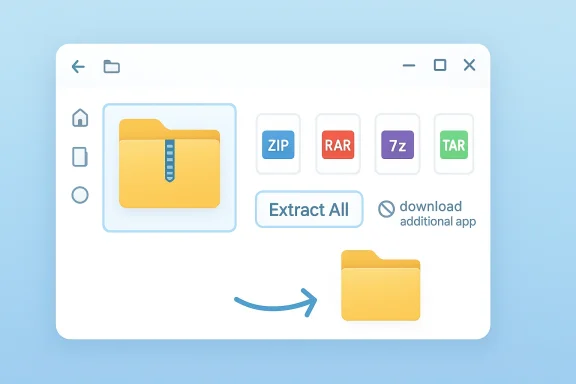
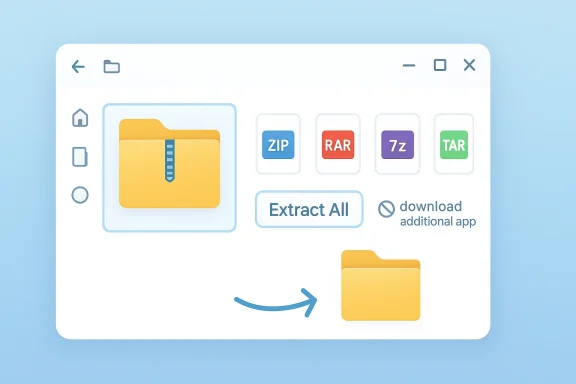
When you open a ZIP file in Windows 11, the “wrong app” may actually be the one you’ve been using all along. Microsoft has steadily expanded File Explorer’s archive handling, and on Windows 11 version 24H2 the built-in experience now supports ZIP, RAR, 7z, and TAR archives without requiring a third-party utility for basic open-and-extract tasks. That shift matters because it changes the default answer for everyday users: if you just want to look inside an archive or pull out a few files, Windows itself is increasingly enough.
For years, Windows users have relied on familiar third-party tools such as WinRAR and 7-Zip for almost any archive work. That habit made sense when File Explorer could only do the basics, and even then mostly with ZIP files. Microsoft’s newer archive support changes the calculus by making the built-in file manager a real lightweight option for common formats.
This is not a flashy headline feature, but it is one of those platform changes that quietly reshapes day-to-day computing. File handling is one of the most repetitive tasks on any PC, so shaving off a few clicks every time you open an archive can add up. It also reduces the friction that comes from launching a separate utility just to inspect a downloaded package. That small convenience is the whole story here.
Microsoft first teased native support for additional archive types through Windows Insider builds in 2023, describing the feature as part of work based on the libarchive open-source project. The broader rollout arrived later through Windows 11 24H2, and Microsoft’s own support documentation now lists ZIP, RAR, 7z, and TAR as supported formats.
That does not mean WinRAR or 7-Zip are obsolete. Far from it. It means Windows has finally crossed the threshold where the built-in experience is good enough for many users who only need simple extraction, quick browsing, or occasional compression. Basic archive work is now a first-party Windows feature, not just a third-party workaround.
That means the archive experience is no longer limited to the old “compressed folder” story that many Windows users remember from earlier versions. Microsoft is effectively turning File Explorer into a broader archive viewer and extractor, not a full replacement for power-user compression software. That distinction matters because it defines the intended use case: casual and routine tasks first, advanced workflows second.
The practical result is that a user downloading software, documents, or media archives from the web may no longer need to install anything at all just to inspect the contents. For new PCs, especially, that lowers the software burden right at setup time. It also reduces the “default app drift” that happens when a third-party archive utility quietly takes over all file associations.
A few implications stand out:
It also fits the Windows design philosophy of fewer surprises and less software sprawl. Instead of teaching every user to download, install, and configure an archive app, Microsoft can keep the workflow inside the shell they already use for everything else. That is a subtle but important simplification for mainstream Windows adoption.
That limitation is important because many archive users are not just extracting files. They are creating portable packages, setting passwords, splitting huge archives into pieces, or optimizing compression for storage and transfer. Those tasks are where dedicated archive tools still pull ahead.
For ordinary Windows users, though, all that complexity can feel like overkill. If the goal is simply to inspect a download and extract a PDF or installer, File Explorer is easier and faster. The built-in route is also less intimidating for people who do not want to learn a separate archive interface.
Consider the practical split:
Power users, IT admins, and anyone who regularly manipulates large archives may still prefer the extra control and performance of a dedicated app. But the average user does not need to optimize a tarball at the command-line level just to open a downloaded package. For them, the native path is the cleaner one.
Microsoft’s default-app system is the mechanism that changes this behavior. The company’s support guidance explains that users can go to Settings, then Apps, then Default apps, and set a preferred app by file type. That is the central control point for reclaiming archive associations from older tools.
The result is a misleading impression: people believe Windows still cannot open a RAR or 7z file directly, when in reality the archive association is simply pointing elsewhere. In that sense, the “wrong app” is often not technically wrong at all—it is just no longer the best default.
That flexibility is useful because it lets users keep WinRAR or 7-Zip installed for special cases while making File Explorer the everyday handler. The system becomes more intentional: a lightweight default for common work, plus a specialized app on standby when needed.
That simplicity is the real advantage. People do not open archives because they enjoy archive software; they open them because they want the file inside. File Explorer’s native handling removes one layer between the user and the content.
For IT departments, this also reduces the number of “help me open this file” questions from less technical staff. If the workstation is on Windows 11 24H2, the native stack now covers more of the common archive landscape than before. That can simplify standard images and reduce training overhead.
Useful scenarios for the native experience include:
For enterprises, the calculus is a little different. Security policy, compatibility with legacy encrypted archives, and automation needs may still favor specialized software. Enterprise environments also tend to standardize on tools that offer predictable behavior across edge cases, not just the happy path.
There is also the matter of feature depth. Archive tools have long been useful not because they can open files, but because they let you shape how files are packaged, secured, and distributed. That depth becomes valuable quickly once your workflow goes beyond casual extraction.
That is also why file encryption remains a decisive boundary. If the archive is protected, Windows’ native support may hit a wall. In those cases, the specialist tool is not just preferable; it is necessary.
A simple rule of thumb helps here:
Microsoft’s support documentation even warns users about encrypted file handling and about the risks of decompressing encrypted files into exposed content. That is a useful reminder that archive convenience and security are separate issues.
That means the built-in Windows feature should be paired with the same caution users should already apply to any download. Open the archive, inspect the contents, and verify the source before launching anything. Native support reduces friction, but it does not reduce risk.
In practical terms, the security posture remains unchanged:
By embedding more functionality into File Explorer, Microsoft strengthens the case for its built-in shell as the center of everyday work. That does not eliminate the Windows app ecosystem; it just reduces the number of tools users need for routine chores.
That strategy is attractive because it balances simplicity with ecosystem health. Microsoft does not need to outmuscle WinRAR or 7-Zip at every feature. It just needs to cover the broad middle where most users live.
That split is exactly how platform software should evolve. A good operating system makes the obvious things easy and the hard things possible. Windows 11 24H2 now does that a little better when it comes to archives.
For most users, the present answer is already good enough: keep the native option as the default and leave the advanced apps installed for edge cases. That is a pragmatic setup, and it reflects how most people actually work. The right tool is increasingly the one that is already there.
Source: How-To Geek You’re using the wrong app to open ZIP files on Windows
 Overview
For years, Windows users have relied on familiar third-party tools such as WinRAR and 7-Zip for almost any archive work. That habit made sense when File Explorer could only do the basics, and even then mostly with ZIP files. Microsoft’s newer archive support changes the calculus by making the built-in file manager a real lightweight option for common formats.This is not a flashy headline feature, but it is one of those platform changes that quietly reshapes day-to-day computing. File handling is one of the most repetitive tasks on any PC, so shaving off a few clicks every time you open an archive can add up. It also reduces the friction that comes from launching a separate utility just to inspect a downloaded package. That small convenience is the whole story here.
Microsoft first teased native support for additional archive types through Windows Insider builds in 2023, describing the feature as part of work based on the libarchive open-source project. The broader rollout arrived later through Windows 11 24H2, and Microsoft’s own support documentation now lists ZIP, RAR, 7z, and TAR as supported formats.
That does not mean WinRAR or 7-Zip are obsolete. Far from it. It means Windows has finally crossed the threshold where the built-in experience is good enough for many users who only need simple extraction, quick browsing, or occasional compression. Basic archive work is now a first-party Windows feature, not just a third-party workaround.
What Changed in Windows 11
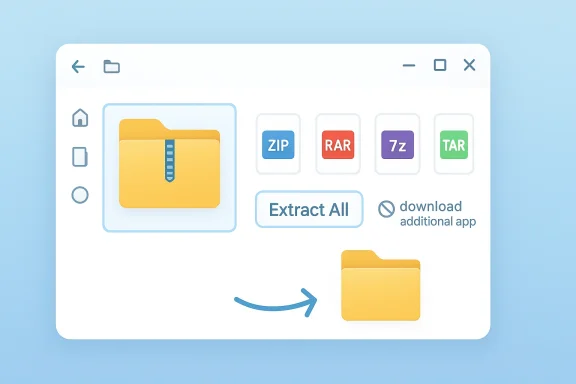
The biggest change is straightforward: Windows 11 version 24H2 can natively open more archive formats from File Explorer. Microsoft’s support page explicitly states that the operating system now supports ZIP, RAR, 7z, and TAR, while still warning that encrypted archives are not supported for those native operations.That means the archive experience is no longer limited to the old “compressed folder” story that many Windows users remember from earlier versions. Microsoft is effectively turning File Explorer into a broader archive viewer and extractor, not a full replacement for power-user compression software. That distinction matters because it defines the intended use case: casual and routine tasks first, advanced workflows second.
From ZIP Only to Multi-Format Support
Windows has long handled ZIP files, but support for RAR, 7z, and TAR is the meaningful expansion. Microsoft previewed the feature in Windows Insider builds in mid-2023, and the company later documented it as part of Windows 11 24H2.The practical result is that a user downloading software, documents, or media archives from the web may no longer need to install anything at all just to inspect the contents. For new PCs, especially, that lowers the software burden right at setup time. It also reduces the “default app drift” that happens when a third-party archive utility quietly takes over all file associations.
A few implications stand out:
- File Explorer can now serve as the default “good enough” archive browser.
- RAR and 7z are no longer automatic reasons to install extra software.
- TAR support is useful in developer and Linux-adjacent workflows.
- Encrypted archives still need specialized tools in many cases.
The Role of File Explorer
Microsoft’s implementation treats archives more like virtual folders than like special-purpose files. That makes the experience feel closer to opening a directory than to launching a utility. For users who mostly want to peek inside and copy out a few items, that is a big usability win.It also fits the Windows design philosophy of fewer surprises and less software sprawl. Instead of teaching every user to download, install, and configure an archive app, Microsoft can keep the workflow inside the shell they already use for everything else. That is a subtle but important simplification for mainstream Windows adoption.
Why Third-Party Archive Apps Still Matter
None of this means WinRAR and 7-Zip lost their purpose. In fact, Microsoft’s own support guidance makes clear that encrypted archives are still outside the built-in feature’s comfort zone. It also points users back to non-Microsoft tools for encrypted compression and decompression.That limitation is important because many archive users are not just extracting files. They are creating portable packages, setting passwords, splitting huge archives into pieces, or optimizing compression for storage and transfer. Those tasks are where dedicated archive tools still pull ahead.
More Than Just Unzipping
Third-party tools exist because archive management can become surprisingly technical. WinRAR and 7-Zip expose controls for compression level, dictionary size, archive format, splitting, encryption, and more. That complexity is not a flaw; it is exactly why those tools remain valuable for advanced users.For ordinary Windows users, though, all that complexity can feel like overkill. If the goal is simply to inspect a download and extract a PDF or installer, File Explorer is easier and faster. The built-in route is also less intimidating for people who do not want to learn a separate archive interface.
Consider the practical split:
- File Explorer for simple browsing and extraction.
- WinRAR or 7-Zip for advanced compression settings.
- Dedicated tools for password-protected archives.
- Third-party apps for batching, splitting, and specialized workflows.
Performance and Workflow Tradeoffs
There is also the question of speed. Specialized archive tools are often tuned for heavy-duty operations, large file sets, and repetitive tasks. File Explorer is designed to be convenient first, not necessarily the fastest engine for every compression scenario. Convenience and peak efficiency are not the same thing.Power users, IT admins, and anyone who regularly manipulates large archives may still prefer the extra control and performance of a dedicated app. But the average user does not need to optimize a tarball at the command-line level just to open a downloaded package. For them, the native path is the cleaner one.
How File Associations Shape the Experience
One reason people still think they need third-party archive software is simple inertia. If WinRAR or 7-Zip has been installed for years, it may still be the default app for all archive types. That means double-clicking a file launches the external utility even when Windows could handle the task natively.Microsoft’s default-app system is the mechanism that changes this behavior. The company’s support guidance explains that users can go to Settings, then Apps, then Default apps, and set a preferred app by file type. That is the central control point for reclaiming archive associations from older tools.
Why Old Defaults Persist
Legacy defaults can stick around for years, especially on machines that have been upgraded rather than freshly installed. Users often install a tool once, forget about it, and then let it own every related file type indefinitely. That creates a mismatch between what the OS can do now and what the system is configured to do by habit.The result is a misleading impression: people believe Windows still cannot open a RAR or 7z file directly, when in reality the archive association is simply pointing elsewhere. In that sense, the “wrong app” is often not technically wrong at all—it is just no longer the best default.
The Windows 11 Default-App Path
Microsoft says you can change file-type associations through Settings > Apps > Default apps, then search for the extension and assign a new app. That means archive formats can be reassigned one by one rather than requiring a wholesale uninstall of older tools.That flexibility is useful because it lets users keep WinRAR or 7-Zip installed for special cases while making File Explorer the everyday handler. The system becomes more intentional: a lightweight default for common work, plus a specialized app on standby when needed.
What Windows Handles Well
For a lot of users, Windows’ built-in archive support is already “good enough” in the best possible sense. The core tasks—opening an archive, browsing contents, and extracting files—are what most people need most of the time. Microsoft’s support page confirms that even the extraction workflow remains simple: right-click and choose Extract All, or drag items out of the archive folder.That simplicity is the real advantage. People do not open archives because they enjoy archive software; they open them because they want the file inside. File Explorer’s native handling removes one layer between the user and the content.
Day-to-Day Use Cases
The built-in tool is especially compelling for everyday consumer use. A user downloading a photo bundle, a work document archive, or a set of installers can now often handle it without extra software. That makes Windows feel more complete out of the box.For IT departments, this also reduces the number of “help me open this file” questions from less technical staff. If the workstation is on Windows 11 24H2, the native stack now covers more of the common archive landscape than before. That can simplify standard images and reduce training overhead.
Useful scenarios for the native experience include:
- Opening routine downloads.
- Pulling out a few files from a large archive.
- Avoiding extra software on a fresh PC.
- Handling common archive formats without setup work.
The Consumer vs Enterprise Divide
For consumers, the built-in tool is about convenience and cleanliness. Fewer apps, fewer prompts, fewer decisions. It is the kind of change that feels invisible unless you notice the saved time.For enterprises, the calculus is a little different. Security policy, compatibility with legacy encrypted archives, and automation needs may still favor specialized software. Enterprise environments also tend to standardize on tools that offer predictable behavior across edge cases, not just the happy path.
Where Third-Party Tools Still Win
There are still several strong reasons to keep a dedicated archive utility installed. Microsoft explicitly notes that encrypted archives are not supported by the native feature, which alone is enough to keep WinRAR and 7-Zip relevant in many environments.There is also the matter of feature depth. Archive tools have long been useful not because they can open files, but because they let you shape how files are packaged, secured, and distributed. That depth becomes valuable quickly once your workflow goes beyond casual extraction.
Advanced Compression and Security
WinRAR and 7-Zip offer advanced compression settings that go well beyond what most casual users will ever touch. They support password protection, splitting archives into parts, and tuning compression behavior for different kinds of data. Those capabilities matter if you are sending large datasets, distributing software, or archiving sensitive material.That is also why file encryption remains a decisive boundary. If the archive is protected, Windows’ native support may hit a wall. In those cases, the specialist tool is not just preferable; it is necessary.
Batch Work and Power Usage
Batch operations are another area where specialist tools often have the edge. Power users frequently need to process many archives at once, or repeatedly package files in consistent formats. Dedicated tools can be faster, more scriptable, and easier to automate.A simple rule of thumb helps here:
- Use File Explorer when you want speed and simplicity.
- Use WinRAR or 7-Zip when you need control.
- Use a specialized tool when security or scale matters.
- Keep both options installed if you work across different archive types.
Security and Malware Risks
Archive support may be more convenient now, but it does not make downloads safer. In fact, archives are a common vehicle for malware because they can hide executable payloads inside a familiar-looking package. Simply being able to open an archive natively does not make it trustworthy.Microsoft’s support documentation even warns users about encrypted file handling and about the risks of decompressing encrypted files into exposed content. That is a useful reminder that archive convenience and security are separate issues.
The Hidden Threat in a Familiar Format
Archives often look harmless because they are just containers. But the danger is inside the package, not the package itself. A malicious archive can contain scripts, executables, or booby-trapped shortcuts that become dangerous once extracted.That means the built-in Windows feature should be paired with the same caution users should already apply to any download. Open the archive, inspect the contents, and verify the source before launching anything. Native support reduces friction, but it does not reduce risk.
Why Scanning Still Matters
Users should continue to scan downloaded archives before executing their contents. That advice is especially important for archives received through email, messaging apps, or untrusted websites. A cleaner file-handling workflow should not turn into a careless one.In practical terms, the security posture remains unchanged:
- Trust the source, not the file extension.
- Scan suspicious downloads before extraction.
- Be cautious with password-protected archives.
- Treat unknown executables as potentially dangerous.
The Strategy Behind Microsoft’s Move
Microsoft’s archive expansion is part of a broader trend: make Windows feel more complete without forcing users to install as much third-party software. The company has done similar things across search, media handling, and default app management. This is a quiet form of platform consolidation.By embedding more functionality into File Explorer, Microsoft strengthens the case for its built-in shell as the center of everyday work. That does not eliminate the Windows app ecosystem; it just reduces the number of tools users need for routine chores.
Reducing Software Friction
Every extra app introduces more setup, more updates, and more decisions. For a narrow task like archive extraction, those costs can outweigh the benefits. Microsoft’s approach is to absorb the most common archive workloads into the OS itself and leave specialized needs to third-party developers.That strategy is attractive because it balances simplicity with ecosystem health. Microsoft does not need to outmuscle WinRAR or 7-Zip at every feature. It just needs to cover the broad middle where most users live.
A Better Default, Not a Total Replacement
This is the key strategic point: Windows is becoming a better default, not a universal replacement. The native archive feature is designed to handle the most common 80 percent of cases, while advanced tools remain available for the remaining 20 percent.That split is exactly how platform software should evolve. A good operating system makes the obvious things easy and the hard things possible. Windows 11 24H2 now does that a little better when it comes to archives.
Strengths and Opportunities
The biggest strength of the new Windows archive experience is that it removes friction from a task almost everyone performs at some point. It also lowers the barrier to entry for less technical users, who can now rely on File Explorer instead of learning a separate utility. Over time, that may reduce clutter on fresh installations and simplify support for IT teams.- Native support for ZIP, RAR, 7z, and TAR broadens the everyday Windows toolkit.
- File Explorer integration makes archive handling feel natural and familiar.
- Less software sprawl helps new PCs stay cleaner.
- Default app control lets users keep specialist tools only where needed.
- Better onboarding means fewer downloads and fewer setup steps.
- Consumer convenience improves immediately for casual file extraction.
- Enterprise standardization becomes easier when the OS handles more common tasks.
Risks and Concerns
The main risk is that users may assume native support equals complete support. That is not true, and Microsoft’s own documentation makes clear that encrypted archives remain outside the built-in feature set. There is also a security risk if users become complacent and stop scrutinizing the contents of downloaded archives.- Encrypted archives still require third-party tools in many cases.
- Feature expectations may outpace what File Explorer can actually do.
- Malware risk remains if users trust archives blindly.
- Performance limits may appear in large or repetitive workflows.
- Power users could be frustrated by the lack of advanced controls.
- Association confusion may persist on older systems with legacy defaults.
- Support ambiguity may arise when users do not know which app should handle which format.
Looking Ahead
Microsoft’s native archive support looks like a foundation rather than an endpoint. The company has already shown that it can extend File Explorer in meaningful ways, and future updates could refine performance, expand format support, or improve handling for more demanding scenarios. The more important question is not whether Windows can absorb more archive features, but how far Microsoft wants to go before the built-in experience starts overlapping too much with specialist tools.For most users, the present answer is already good enough: keep the native option as the default and leave the advanced apps installed for edge cases. That is a pragmatic setup, and it reflects how most people actually work. The right tool is increasingly the one that is already there.
- More formats could arrive if Microsoft continues the current path.
- Performance improvements may make native handling feel even smoother.
- Security handling may evolve, especially around protected archives.
- UI polish could make archive browsing more seamless in File Explorer.
- Power-user workflows will likely remain the domain of third-party tools.
Source: How-To Geek You’re using the wrong app to open ZIP files on Windows