

Windows notifications are useful, but when they stack up they become interruptions — here’s a practical, crystal‑clear guide to turning them off on both Windows 10 and Windows 11, tuning Do Not Disturb / Focus, and keeping the alerts you actually need without sacrificing security or important system messages.
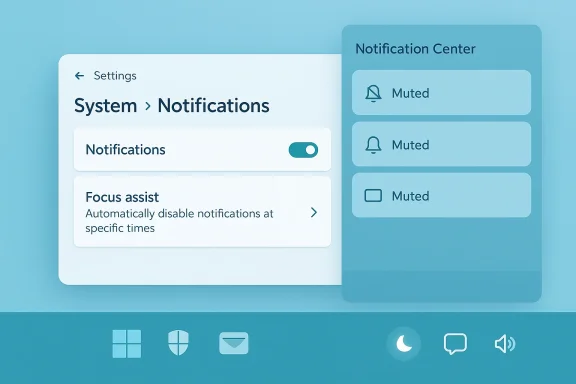
Notifications on Windows appear as brief banners and live up in the Notification Center (Action Center). They cover everything from app alerts (messaging, email, calendar) to system prompts (updates, security warnings) and promotional nudges (app suggestions, OneDrive reminders). The basic control point for these alerts is the Settings app — but Windows exposes multiple layers: per‑app toggles, global notification switches, Do Not Disturb (Windows 11) / Focus Assist (Windows 10), and advanced controls (Group Policy, Registry, PowerShell) for power users and administrators. Microsoft documents the primary workflows in Settings > System > Notifications and the Focus/Do Not Disturb features.
Community guides and forum threads repeatedly recommend a two‑step approach: (1) quiet the channel you don’t want, and (2) preserve critical alerts (security, updates) — a pragmatic balance that avoids blindspots while restoring focus.
The primary weakness is discoverability: some toggles are buried or renamed between builds (Focus Assist vs Do Not Disturb vs Focus), and promotional prompts can reappear after updates. For administrators, Group Policy and registry approaches exist but add complexity and risk if applied indiscriminately. Community posts repeatedly recommend a pragmatic checklist for new installs: disable Spotlight and Start suggestions, silence “suggested” notifications, and remove unnecessary built‑ins — but warn that heavy‑handed scripts may have side effects.
If you want a clean, predictable desktop, follow this plan: use Do Not Disturb for immediate silence; then audit Settings > System > Notifications and disable suggestions and per‑app noise; finally, preserve security and update alerts and document any advanced changes you make. That approach restores focus without increasing risk.
In short: Windows makes it simple to silence interruptions — a few clicks in Settings or a single quick toggle in the Notification Center can mute most noise — but the best results come from a selective cleanup that keeps essential alerts active while silencing promotional and low‑value chatter.
Source: Technobaboy How to turn off Windows notifications - Technobaboy
 Background / Overview
Notifications on Windows appear as brief banners and live up in the Notification Center (Action Center). They cover everything from app alerts (messaging, email, calendar) to system prompts (updates, security warnings) and promotional nudges (app suggestions, OneDrive reminders). The basic control point for these alerts is the Settings app — but Windows exposes multiple layers: per‑app toggles, global notification switches, Do Not Disturb (Windows 11) / Focus Assist (Windows 10), and advanced controls (Group Policy, Registry, PowerShell) for power users and administrators. Microsoft documents the primary workflows in Settings > System > Notifications and the Focus/Do Not Disturb features.Community guides and forum threads repeatedly recommend a two‑step approach: (1) quiet the channel you don’t want, and (2) preserve critical alerts (security, updates) — a pragmatic balance that avoids blindspots while restoring focus.
Why you might want to turn notifications off (and what you lose)
Notifications are productivity tools — but they also act as interruptions. Turning them off can help you:- Reduce context switching and improve focus during deep work.
- Prevent accidental interruptions during full‑screen tasks (presentations, gaming).
- Remove promotional or redundant prompts you never asked for.
- Critical security alerts (antivirus, Windows Update failures).
- Time‑sensitive calendar or meeting reminders.
- Backup or device‑failure warnings.
Quick at‑a‑glance steps (fastest way to silence everything temporarily)
- Open Notification Center: click the date/time or notification (bell) icon on the taskbar.
- Toggle Do not disturb (Windows 11) or Focus Assist → Priority only / Alarms only (Windows 10).
- To immediately stop banners without changing longer policies: open Settings → System → Notifications and flip the top-level Notifications switch off.
Windows 11: Detailed walk‑through
1) The simplest: use the taskbar quick toggle
- Click the date/time or the notification bell at the lower right to open the Notification Center.
- Turn on Do not disturb to mute banners and sounds until you turn it off. This is a convenient “pause everything” control.
2) Permanently turn off most notifications (Settings)
- Press Windows + I to open Settings.
- Go to System > Notifications.
- Use the top Notifications switch to disable all notification banners and sounds.
- Scroll down to the “Get notifications from these apps” list and use the per‑app toggles to silence specific apps you don’t want. For example, you might disable social media and store promotions while keeping Mail and Windows Security on.
3) Turn off “tips, tricks, and suggestions”
Windows sometimes surfaces tips and “finish setting up” cards that feel like ads. To suppress these:- In Settings > System > Notifications, turn off options like Get tips, tricks, and suggestions as you use Windows and Suggest ways I can finish setting up my device. This stops many promotional prompts and OOBE nags.
4) Focus sessions and Focus mode
Windows 11 expanded the focus tooling (Focus Sessions + Focus mode). Key points:- Focus/Do Not Disturb mutes notifications for a defined period. You can start a Focus session from the Clock app or the Notification Center.
- Focus integrates with tasks (Microsoft To Do) and can hide notifications automatically when certain full‑screen activities are detected.
Windows 10: Detailed walk‑through (Focus Assist)
Windows 10 uses Focus Assist — functionally similar but with slightly different UI names.- Open Settings (Windows + I).
- Go to System > Focus Assist.
- Choose between:
- Off — you get all notifications.
- Priority only — only pinned priority apps and contacts will show banners.
- Alarms only — only alarms are allowed through.
- Use Automatic rules to silence notifications during specific events (during presentations, while duplicating display, during certain hours).
Per‑app control: how to silence a single noisy app
- Open Settings → System → Notifications.
- Under “Get notifications from these apps,” find the app and toggle it off.
- For more granular control click the app to:
- Disable Show notification banners (no pop‑ups).
- Disable Play a sound when a notification arrives.
- Hide notk screen or in the notification center.
Browser and website notifications (Edge, Chrome, Firefox)
Desktop browsers can push notifications independent of Windows. To stop them:- In Microsofokies and site permissions → Notifications. Use the site list to block or remove permissions. Edge also supports “quiet notification requests” that reduce interruptive prompts.
- In Chrome/Chromium browsers: Settings → Privacy and security → Site settings → Notifications.
- In Firefox: Options → Privacy & Security → Permissions → Notifications → Settings.
Advanced options for power users (GPO, Registry, PowerShell)
If you manage multiple maistent, enforceable configuration, Windows exposes higher‑level controls:- Group Policy: On Pro/Enterprise/Education SKUs you can use Administrative Templates to suppress consumer experiences and block promotional content. Look for policies referencing “Microsoft consumer experiences” and “Cloud Content.” Be careful — these settings require admin rights and are not available on Home editions.
- Registry edits: Some experienced admins adjust Notification settings via HKCU\Software\Microsoft\Windows\CurrentVersion\Notifications\Settings. Changes here can control toast behavior and toast s. Registry editing is powerful but risky; always export the key before modifying it. (ninjaone.com)
- PowerShell: You can remove built‑in UWP apps with Remove‑AppxPackage for unwanted store apps, and some scripts toggle notification settings. Removing apps may impair integrations and future servicing. Always document and keep recovery steps.
Troubleshooting: notifications still appear after turning them off
If you turned off notifications and they persist, try these steps:- Confirm per‑app toggles: some notifications come from Settings itself or built‑in system apps that appear on a different list. Check the full list in Settings → System → Notifications.
- Restart Explorer / Sign out and back in: some changes require a sign‑out or reboot to take full owser permissions: a site may be issuing notifications that look like system toasts. See your browser’s Site settings.
- Inspect Group Policy or MDM: corporate policies or Intune profiles can re‑apply notification rules. If you’re on a managed device, coordinate with your admin.
- Registry overrides: as a last resort, inspect notifications settings under HKCU and toggle the NOC_GLOBAL_SETTING_TOASTS_ENABLED or similar keys — but only if you understand the implications. Several community posts show how registry settings can override UI toggles; treat this as advanced troubleshooting.
Risks, caveats, and recommended defaults
- Always keep Windows Security and Windows Update notifications enabled unless you have an alternate monitoring strategy. These are your last line of defense for patches and threat warnings.
- Avoid wholesale uninstalls of core store apps on production or managed machines; they can affect system integration and future servicing. Document changes carefully.
- If you use Focus or Focus Assist, understand automatic rules (full‑screen games, duplicating the display, scheduled hours). Automatic triggers save time for many users but can surprise you if enabled by default after feature updates. Some users report Do Not Disturb enabling automatically for a short period after major updates — if this behavior bothers you, check the automatic rules and disable the “for the first hour after a feature update” option if present. This behavior has been discussed in community posts and may vary by build. Flagged as user‑reported and subject to change with updates.
A recommended, balanced configuration (one practical profile)
- Keep enabled:
- Windows Security / antivirus notifications.
- Windows Update critical alerts.
- Calendar and calls for meetings (if you rely on timely reminders).
- Turn off:
- Suggested app promotions, “finish setting up your PC” cards, and Windows Spotlight promotional content. (Settings → Personalization / Notifications).
- Per‑app toggles for game stores, promotional stores, and social apps you don’t use.
- Use Focus/Do Not Disturb for deep work, with a scheduled Focus session if you prefer a timed block.
Quick reference: step‑by‑step cheatsheetings → System → Notifications → Toggle top Notifications off to stop all banners. Or open Notification Center and toggle Do not disturb for a temporary pause.
- Windows 10: Settings → System → Focus Assist → Choose Priority only or Alarms only, and configure Automatic rules.
- Per ap→ Notifications → “Get notifications from these apps” → toggle unwanted apps off.
- Stop tips: Settings → System → Notifications → turn off Get tips, tricks, and suggestions.
- Browser sites: Edge → Settings → Cookies and site permissions → Notifications → remove or block sites.
Final analysis: strengths, weaknesses, and practical advice
Windows gives you layered control: quick toggles for immediate silence and granular per‑app and policy options for durable configurations. The strength of this model is flexibility — you can be completely hands‑off or surgically selective. Microsoft’s official docs clearly map out these controls and the product teams continue to refine focus experiences.The primary weakness is discoverability: some toggles are buried or renamed between builds (Focus Assist vs Do Not Disturb vs Focus), and promotional prompts can reappear after updates. For administrators, Group Policy and registry approaches exist but add complexity and risk if applied indiscriminately. Community posts repeatedly recommend a pragmatic checklist for new installs: disable Spotlight and Start suggestions, silence “suggested” notifications, and remove unnecessary built‑ins — but warn that heavy‑handed scripts may have side effects.
If you want a clean, predictable desktop, follow this plan: use Do Not Disturb for immediate silence; then audit Settings > System > Notifications and disable suggestions and per‑app noise; finally, preserve security and update alerts and document any advanced changes you make. That approach restores focus without increasing risk.
In short: Windows makes it simple to silence interruptions — a few clicks in Settings or a single quick toggle in the Notification Center can mute most noise — but the best results come from a selective cleanup that keeps essential alerts active while silencing promotional and low‑value chatter.
Source: Technobaboy How to turn off Windows notifications - Technobaboy
