

Mapping a network drive is one of those deceptively simple Windows tasks that keeps end users productive and systems administrators awake at night — done right it’s smooth and reliable, done wrong it’s a recurring help‑desk ticket that cost an hour of productivity and a box of coffee.
A mapped network drive gives a Windows PC a persistent, drive‑letter shortcut (for example Z that points to a shared folder on another computer, server, or NAS on the network. The mapping makes a remote share behave like a local drive in File Explorer and many apps, simplifying workflows, backups, and legacy application compatibility. The basic user flows — File Explorer GUI, Command Prompt (net use), and PowerShell (New‑PSDrive) — are consistent across Windows 10 and Windows 11, with a few security and session‑scope caveats administrators must understand.
This article summarizes the practical how‑to from the community and technical guidance, verifies the key commands and behaviors, highlights common pitfalls, and offers robust troubleshooting and automation patterns for both small networks and enterprise environments. Where behavior varies by Windows build or on systems with legacy hardware, this article flags the uncertainty and recommends conservative mitigations.
If a mapped drive scenario in your environment behaves differently than described above, the most likely culprits are: session scope (elevation), credential collisions, network readiness at sign‑in, or legacy SMB device compatibility — each of which can be diagnosed with the step‑by‑step checks and mitigations listed in this article.
Source: Petri IT Knowledgebase How to Map a Network Drive on Windows
 Background
A mapped network drive gives a Windows PC a persistent, drive‑letter shortcut (for example Z that points to a shared folder on another computer, server, or NAS on the network. The mapping makes a remote share behave like a local drive in File Explorer and many apps, simplifying workflows, backups, and legacy application compatibility. The basic user flows — File Explorer GUI, Command Prompt (net use), and PowerShell (New‑PSDrive) — are consistent across Windows 10 and Windows 11, with a few security and session‑scope caveats administrators must understand.This article summarizes the practical how‑to from the community and technical guidance, verifies the key commands and behaviors, highlights common pitfalls, and offers robust troubleshooting and automation patterns for both small networks and enterprise environments. Where behavior varies by Windows build or on systems with legacy hardware, this article flags the uncertainty and recommends conservative mitigations.
Quick summary: How mapping works (GUI and command line)
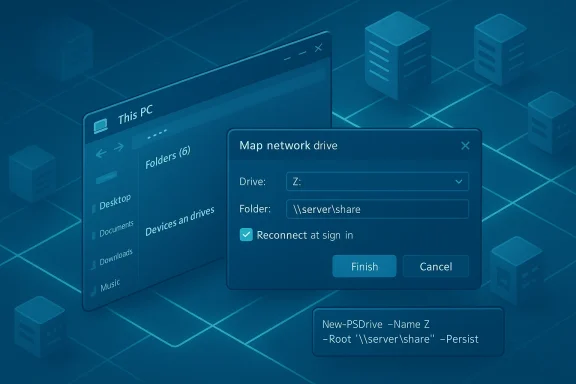
- File Explorer (GUI): Open File Explorer → This PC → Map network drive. Pick a drive letter, enter the UNC path (\servername\sharename), and optionally check Reconnect at sign‑in. Click Finish. This is the simplest approach for one‑off mappings.
- Command line (net use): Open an interactive Command Prompt and run:
- net use Z: \server\share /persistent:yes
- To provide credentials: net use Z: \server\share /user
 OMAIN\username
 - To remove: net use Z: /delete
This is fast and scriptable for automation. - PowerShell (New‑PSDrive): Use New‑PSDrive -Name Z -PSProvider FileSystem -Root "\server\share" -Persist (optionally with a PSCredential object). New‑PSDrive integrates with PowerShell credential handling and is the preferred method when building secure automation.
Step‑by‑step: Mapping with File Explorer (GUI)
- Open File Explorer (Windows key + E) and click This PC in the left pane.
- In the ribbon or three‑dot menu choose Map network drive. Select an unused drive letter (Z: is a common choice).
- Enter the share path using UNC syntax: \ServerName\ShareName. If you don’t know the exact path, use Browse to find available network computers and shares.
- Check Reconnect at sign‑in if you want the drive to persist across reboots. Check Connect using different credentials to supply a separate username/password. Click Finish and authenticate if prompted.
Command line: net use (fast and ubiquitous)
net use has been Windows’ staple for mapped drives for decades because it’s:- Scriptable and suitable for login scripts or automation.
- Explicit about persistence via /persistent:yes.
- Simple to remove via /delete.
- Map with persistence:
- net use Z: \fileserver\public /persistent:yes
- Map with explicit credentials:
- net use Z: \fileserver\private /userOMAIN\backupAcct
- Remove mapping:
- net use Z: /delete
PowerShell: New‑PSDrive (modern automation with safer credential handling)
PowerShell’s New‑PSDrive offers better integration with secure credential objects:- Interactive mapping:
- New-PSDrive -Name "Z" -PSProvider FileSystem -Root "\fileserver\share" -Persist
- Scripted secure mapping using DPAPI:
- $cred = Get-Credential
- $cred | Export-Clixml -Path $env:USERPROFILE\Scripts\netcreds.xml
- In the logon script: $cred = Import-Clixml -Path $env:USERPROFILE\Scripts\netcreds.xml; New-PSDrive -Name "Z" -PSProvider FileSystem -Root "\fileserver\share" -Credential $cred -Persist
Persistence and the “disappearing drive” problem
If a mapped drive disappears after a reboot, common causes include:- Reconnect not requested (GUI box unchecked or /persistent not used).
- The mapping was created in an elevated session and is not visible to the user’s interactive session.
- The host providing the share was offline or in a sleep/hibernation state when Windows tried to reconnect.
- Network wasn’t ready when Windows attempted to reconnect mapped drives during sign‑in.
- Use Reconnect at sign‑in or /persistent:yes.
- Prefer a logon scheduled task that runs in the interactive user context with a brief delay (Start‑Sleep) to allow network initialization.
- For enterprise scale, deploy drive maps with Group Policy Preferences (Drive Maps) so mappings are created reliably at logon.
Common errors, what they mean, and how to fix them
- “Network path not found” / 0x80070035: typically a malformed UNC, DNS resolution problem, or the target is offline. Quick checks: ping the server, Test‑NetConnection -ComputerName SERVER -Port 445, and verify the share exists on the host.
- “System error 67: The network name cannot be found”: often caused by using a single backslash or incorrect path format. Ensure you use double backslashes: \server\share.
- “Access denied”: credential or permission issue. Confirm both the share permissions and underlying NTFS permissions grant the user account access. For password‑protected shares ensure correct credentials; use Credential Manager or Export‑Clixml instead of plaintext scripts.
- Red X on mapped drive after reboot: indicates reconnect failed at sign‑in because the network stack or host wasn’t ready. Fix with a delayed logon task or GPO mapping that accounts for network readiness.
Credentials and session scope: the gotchas that bite admins
- Windows only allows one set of credentials per remote server inside a given user session. Connecting to the same server with different credentials will cause collisions and “Access denied” until previous sessions are disconnected. Use a consistent service account for scheduled jobs or centralize mappings via GPO.
- Mappings created under elevated context (Administrator) may not be visible to a non‑elevated Explorer; this is a common UAC‑related gotcha. Avoid creating mappings from an elevated shell unless you expressly want them scoped to that elevated session. Use Task Scheduler with “Run only when user is logged on” to create mappings in the right session.
- Prefer DPAPI‑backed Export‑Clixml or Credential Manager over embedding plaintext passwords in scripts. Beware that Credential Manager entries may be visible to administrators, so document and manage vault access carefully.
Security considerations: don’t trade convenience for exposure
- Avoid enabling SMBv1. It’s obsolete and insecure; if a device requires SMB1, treat it as temporary and isolate or upgrade the device.
- Recent Windows 11 builds have tightened SMB defaults (signing and guest restrictions). Some legacy NAS or printer/scanner devices may fail to connect unless client settings are loosened; those workarounds reduce security and should be strictly temporary while you update firmware or replace legacy devices. Flag this as an operational risk and plan remediation. If you modify SMB client settings for compatibility, document and reverse those changes once the legacy devices are replaced.
- Least privilege: grant only the required share and NTFS permissions (Read vs Modify) and use dedicated service accounts for non‑interactive automation like backups. Use snapshots or versioned backups on backup targets to defend against accidental deletion or ransomware.
Automation patterns: Task Scheduler, Group Policy, and enterprise scale
- Single machines: Use Task Scheduler to run a PowerShell mapping script at logon with a short delay. Configure the task to “Run only when user is logged on” so the created mapping is visible to Explorer. Protect credentials using Export‑Clixml or run the task under the user’s account.
- Domain fleets: Use Group Policy Preferences > Drive Maps for controlled and scalable drive distribution. GPO gives central management, targeting by group membership, and avoids per‑machine credential handling. This is the recommended enterprise approach over ad‑hoc scripts.
- Avoid storing plain passwords in files or scripts. If credentials must be automated, use DPAPI‑encrypted files or domain service accounts that can be centrally managed and rotated.
Troubleshooting checklist (copy this into your runbook)
- Verify UNC and basic network reachability:
- ping server
- Test‑NetConnection -ComputerName server -Port 445
- Validate share listing:
- Open \server\ in File Explorer and confirm the share is present.
- Check permissions:
- Verify both share permissions and NTFS security for the user account.
- Check services:
- Ensure Function Discovery Provider Host and Function Discovery Resource Publication are running for discovery to work.
- Check for credential conflicts:
- Run net use without parameters to list active sessions; disconnect collisions with net use * /delete if necessary.
- If drives fail at sign‑in:
- Replace GUI persistence with a delayed Task Scheduler job or deploy via GPO.
Notable strengths and trade‑offs of the typical how‑to
What works well:- The GUI makes mapping straightforward for non‑technical users and covers most home/small office use cases.
- net use is a reliable, minimal dependency option for scripts and batch files.
- PowerShell offers safer credential handling and flexibility for automation, logging, and error handling.
- UAC/session scope and credential collisions are frequent sources of confusion; documentation and runbooks must explicitly call these out for admins.
- Security workarounds to support legacy SMB devices (disabling SMB signing or allowing insecure guest logons) materially weaken the network’s security posture and must be treated as temporary fixes only.
Advanced tips and diagnostics
- Use IP addresses instead of hostnames to rule out DNS issues when testing connectivity. If IP works but name doesn’t, investigate DNS or local hosts file entries.
- For slow mapped drive performance: measure network throughput, check server disk health, and ensure antivirus isn’t aggressively scanning remote SMB paths. Consider SMB multichannel for large servers and enable SMB2/SMB3 where possible.
- If a mapped drive shows a Red X but works when double‑clicked, it’s likely the automatic reconnect attempt occurred before the network stack finished initializing; add a short logon delay to mapping scripts.
Conclusion
Mapping a network drive remains a core productivity feature on Windows that bridges user experience and backend storage. The fundamentals — GUI mapping, net use, and New‑PSDrive — are simple to execute, but reliability and security hinge on understanding session scope, credential management, SMB protocol expectations, and Windows startup timing. Build automation around secure credential handling (DPAPI / Export‑Clixml or domain service accounts), prefer Group Policy for scale, and treat any SMB security relaxations as strictly temporary remediation while modernizing legacy hardware. Following those patterns reduces help‑desk churn, improves startup reliability, and keeps user workflows fast and familiar.If a mapped drive scenario in your environment behaves differently than described above, the most likely culprits are: session scope (elevation), credential collisions, network readiness at sign‑in, or legacy SMB device compatibility — each of which can be diagnosed with the step‑by‑step checks and mitigations listed in this article.
Source: Petri IT Knowledgebase How to Map a Network Drive on Windows
