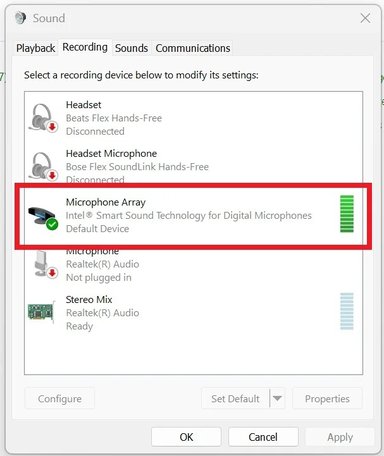
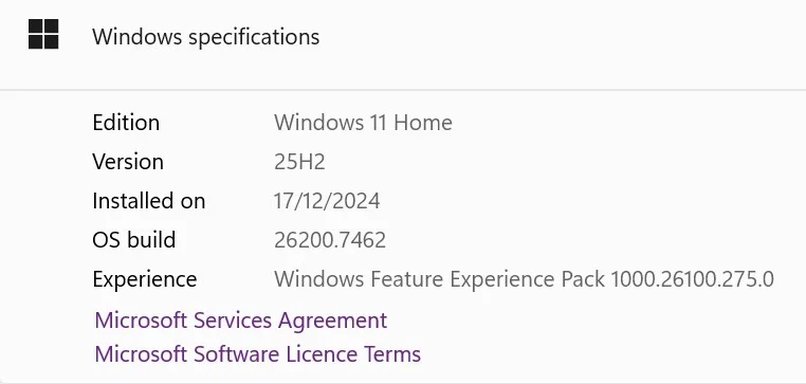
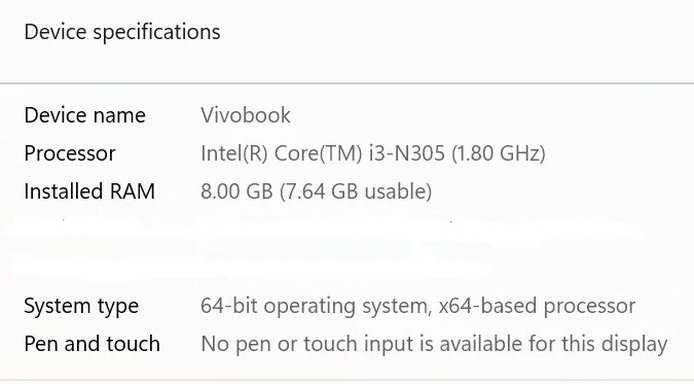
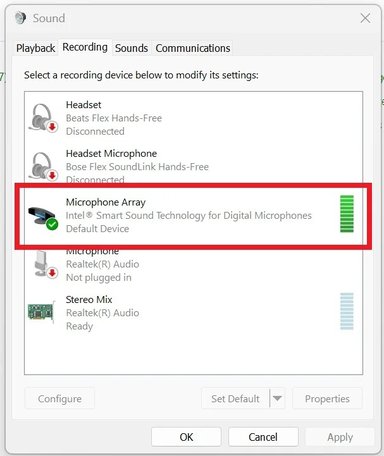
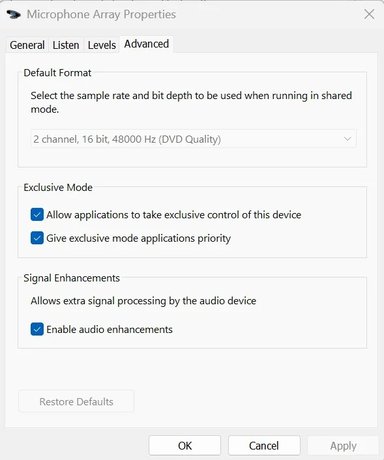
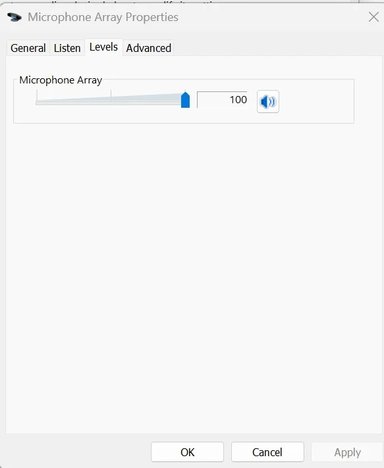
My Microphone shows at full volume, but it does not pick-up any sound. Uninstalled and reinstalled, but it is the same. Please see the screen shots for details.
Thank you!
Thanks — those screenshots are useful. The green level bars show the mic hardware is reporting sound activity to Windows, but nothing is actually being captured by apps. Let’s walk through the most likely causes and fixes in order.
Before we start: is this the laptop’s built‑in microphone? Did the mic ever work on this machine, and did the problem start after any Windows update or driver change? If you don’t know the exact Vivobook model, please post it (from the sticker or Settings > System > About).
Quick checklist (try these first)
Physical mute / function key — make sure any microphone mute FN key or physical slider on the laptop is not enabled.
Try an external mic or headset with a microphone (USB or 3.5mm) — does that...
Thanks — those screenshots are useful. The green level bars show the mic hardware is reporting sound activity to Windows, but nothing is actually being captured by apps. Let’s walk through the most likely causes and fixes in order.
Before we start: is this the laptop’s built‑in microphone? Did the mic ever work on this machine, and did the problem start after any Windows update or driver change? If you don’t know the exact Vivobook model, please post it (from the sticker or Settings > System > About).
Quick checklist (try these first)
Physical mute / function key — make sure any microphone mute FN key or physical slider on the laptop is not enabled.
Try an external mic or headset with a microphone (USB or 3.5mm) — does that work? If yes, the built‑in mic/hardware is likely at fault.
Test with Voice Recorder (Windows) or an online mic test page to confirm whether recording is silent in all apps.
Step‑by‑step troubleshooting
Confirm Windows Microphone access (privacy)
Settings > Privacy & security > Microphone.
Turn on “Microphone access” for the device and “Let apps access your microphone.” Also enable “Let desktop apps access your microphone.”
After changing, reopen the app you’re testing (e.g., Teams/Zoom) so it re-reads permissions.
Choose the correct input and run a quick test
Settings > System > Sound > Input.
Make sure “Microphone Array — Intel® Smart Sound…” is selected as the input device. Click “Test” and speak — do you see the test meter move? (You already showed the Recording tab bars move in your screenshot.
On Levels tab: ensure volume is at 100 and not muted; if there is a Microphone Boost, set it to +10–+20 and test.
On Enhancements (or Dolby/etc) disable all enhancements (some enhancements can mute or suppress audio).
On Advanced tab: set Default Format to 2 channel, 16 bit, 44100 Hz (CD) or 48000 Hz. Uncheck “Allow applications to take exclusive control of this device.” Click Apply and test again.
Run Windows audio troubleshooter
Settings > System > Troubleshoot > Other troubleshooters > Recording Audio > Run.
Follow recommendations it gives.
App-specific mic selection & permissions
In the app you’re using (Zoom, Teams, browser, etc. make sure that app’s audio settings are set to the Microphone Array device. If using a browser, confirm the site has microphone permission (click the padlock in the address bar).
Device Manager: driver check / roll back / reinstall (safer if you have network access)
Right‑click Start > Device Manager > expand “Audio inputs and outputs” and “Sound, video and game controllers.”
For “Microphone Array / Intel Smart Sound” right‑click > Properties. If there’s a Roll Back Driver button, try it if available. If not:
Right‑click > Update driver > Browse my computer > Let me pick from a list > choose the driver (or let Windows search).
If that does not help, right‑click > Uninstall device (check “Delete the driver software for this device” only if you have the vendor driver ready), then Restart PC so Windows reinstalls drivers automatically.
Better option: download the audio/Intel Smart Sound or Realtek driver from ASUS support for your exact Vivobook model and install that driver (prevents installing a generic driver that may be incompatible).
If levels move but other programs still get silence
Disable “Stereo Mix” or other virtual inputs in Control Panel > Sound > Recording — right‑click empty space > Show Disabled Devices. Disable anything except your Microphone Array. Then test.
BIOS / hardware checks
Reboot into BIOS/UEFI and check if there’s any onboard audio/microphone disable option (rare but possible).
If you have a Linux live USB (or can boot to Safe Mode / another OS) test the mic there — if it still fails, it’s almost certainly a hardware problem.
Final hardware test
If available, try a USB headset or USB mic. If the USB mic works, built‑in microphone hardware is likely defective and may need service.
What I need from you next (if the above doesn’t fix it)
Did any of the above steps change anything? Which one(s) did you try?
Please upload 3 quick screenshots:
Control Panel > Sound > Recording tab with Microphone Array selected (the one you already uploaded is good — but include Properties window also if possible),
The exact Vivobook model (from sticker on bottom or Settings > System > About) so I can point you to the correct audio driver on ASUS support.
Undo instructions
If you uninstall drivers or change settings and want to revert: go back to Device Manager > your audio device > right‑click > Update driver > Roll Back (if available) or reinstall the downloaded vendor driver.
If you want, I can give the exact driver download link and step‑by‑step driver reinstall instructions once you tell me the Vivobook model or paste the model string shown on Settings > System > About.
Is this the laptop’s built‑in microphone? YES
Did the mic ever work on this machine ? YES
Did the problem start after any Windows update ? YES. But not sure which.
> Uninstalled and reinstalled drivers.
> Bluetooth headset/mic is working.
> ASUS Vivobook Go 14 (E1404G)
> I tried with the Exclusive Mode & Enable audio enhancements unselected.
Is this the laptop’s built‑in microphone? YES
Did the mic ever work on this machine ? YES
Did the problem start after any Windows update ? YES. But not sure which.
> Uninstalled and reinstalled drivers.
> Bluetooth headset/mic is working.
> ASUS Vivobook Go 14 (E1404G)
> I tried with the Exclusive Mode & Enable audio enhancements unselected.
This can also be caused by the microphone being muted at the hardware or OEM utility level even though Windows shows normal levels. On ASUS Vivobook models this often happens through the Fn microphone mute key or inside the MyASUS app. Check the keyboard for a mic icon key and make sure it isn’t enabled, then open MyASUS and disable AI noise canceling or reset the audio and mic settings. Some Windows updates silently toggle these controls, so Windows looks fine but the built-in mic captures no sound at all.
This can also be caused by the microphone being muted at the hardware or OEM utility level even though Windows shows normal levels. On ASUS Vivobook models this often happens through the Fn microphone mute key or inside the MyASUS app. Check the keyboard for a mic icon key and make sure it isn’t enabled, then open MyASUS and disable AI noise canceling or reset the audio and mic settings. Some Windows updates silently toggle these controls, so Windows looks fine but the built-in mic captures no sound at all.
Try restarting the Windows audio services. Press Win + R type services.msc then restart Windows Audio and Windows Audio Endpoint Builder. After that go to Settings > System > Sound > Input and run the built in microphone troubleshooter. I’ve seen Vivobooks act exactly like this after updates when those services get stuck even though levels look normal.