

Microsoft 365 Business Premium customers should not remove Exchange Online Plan 2 solely because a mailbox appears eligible for 100 GB. Microsoft confirmed on July 10, 2026, that eligible Business Basic, Standard, and Premium primary mailboxes are receiving a move from 50 GB to 100 GB, but the safe licensing decision still depends on the quota actually applied to each mailbox and on archive or compliance requirements that remain in place.
Microsoft’s published limits information has continued to distinguish Business plans from Exchange Online Plan 2 and Microsoft 365 E3/E5 in some areas. That makes the tenant—not an old licensing spreadsheet or a general comparison table—the practical source of truth for a removal decision.
WindowsForum members have repeatedly highlighted that Exchange Online storage is layered: primary mailbox capacity, archive capacity, and recoverable or compliance-related storage are separate considerations. The Business mailbox increase changes the primary-mailbox calculation for some users. It does not automatically make every Plan 2 assignment unnecessary.
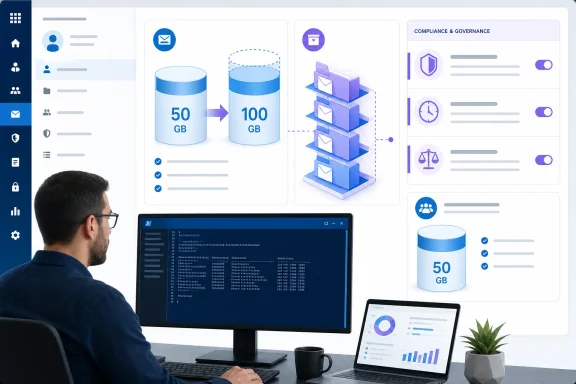
For years, the simple reason to add Exchange Online Plan 2 to a Business Premium user was primary mailbox capacity: 50 GB versus 100 GB. Where Microsoft has applied the new 100 GB primary quota to a Business Premium mailbox, that narrow capacity argument may no longer apply.
That does not mean Plan 2 is automatically redundant. Plan 2 can still be needed where an organization depends on advanced archiving or compliance capabilities. Microsoft’s published mailbox limits describe an online archive that begins at 100 GB and can grow in increments to as much as 1.5 TB when auto-expanding archiving is enabled.
The distinction matters operationally:
In the Exchange admin center, open Recipients > Mailboxes, select the user, and review the mailbox’s usage and quota information. Interface labels can change, so use the mailbox details page to locate the current quota settings rather than relying only on the usage bar.
For a repeatable audit, use Exchange Online PowerShell. This is tested editorial guidance: the administrator needs the Exchange Administrator role, or another role that grants Exchange recipient read access, and the Exchange Online PowerShell module installed.
After authenticating with an eligible admin account, check the applied primary quota:
The important result is the applied
Check current consumption separately. Quotas establish what Exchange permits, while mailbox statistics show whether the user is approaching that limit:
For a broader review, export the applied primary quotas for user mailboxes:
This evidence should drive the licensing decision. Microsoft has confirmed the rollout, but an administrator should not treat one successful pilot as proof that every mailbox is ready for the same change.
With the same Exchange Online PowerShell connection, review the archive state and archive quota information:
If
These commands establish whether an archive exists and whether it contains material the organization still needs. They do not, by themselves, establish that Business Premium provides an equivalent archive entitlement after Plan 2 is removed. If the user relies on advanced archiving or auto-expanding archive capacity, retain Plan 2 unless the organization has confirmed an alternative licensed design.
The expected licensing outcome is straightforward: removing the standalone Exchange Online Plan 2 assignment removes that add-on from the user. It does not convert archive, auto-expanding archive, retention, or hold requirements into Business Premium features. The validation step is therefore to document the current archive configuration and archive contents before any license change, then confirm that the mailbox’s remaining license assignment still meets the documented requirement.
Do not treat “the primary mailbox is now 100 GB” as a replacement for that review.
In the Microsoft Purview portal, review:
For a command-line inventory, connect to the Security & Compliance PowerShell endpoint with an account that has the required Purview permissions:
List retention policies and their rules:
Review eDiscovery hold policies where the administrator has permission to view them:
The purpose is not to claim that every retention policy, label, or hold requires Plan 2. Licensing for Purview features varies by capability and subscription. The purpose is to identify whether the mailbox is covered by a requirement that must be reviewed before its existing archive or compliance design is changed.
WindowsForum’s coverage of Exchange Online administration has consistently shown that licensing changes become risky when the mailbox owner, Exchange team, and compliance team make separate assumptions. A mailbox can be small today while its archive or preservation requirements remain significant.
Maintain a separate shared-mailbox report before removing any Plan 2 assignments. Include mailbox type, current size, primary quota, and whether the mailbox is licensed.
A quick PowerShell inventory can help identify shared mailboxes and their applied quotas:
Do not apply a user-mailbox licensing conclusion to a shared mailbox. Support, finance, sales, and executive shared mailboxes may have different capacity and access requirements even when their names appear in the same licensing cleanup project.
The immediate savings opportunity is real for Business Premium users who received 100 GB primary mailboxes and had Plan 2 only to overcome the old 50 GB limit. The operational rule is just as clear: verify the applied quota, inspect archive status, review Purview dependencies, and handle shared mailboxes as a separate licensing case before reclaiming a seat.
Microsoft’s published limits information has continued to distinguish Business plans from Exchange Online Plan 2 and Microsoft 365 E3/E5 in some areas. That makes the tenant—not an old licensing spreadsheet or a general comparison table—the practical source of truth for a removal decision.
WindowsForum members have repeatedly highlighted that Exchange Online storage is layered: primary mailbox capacity, archive capacity, and recoverable or compliance-related storage are separate considerations. The Business mailbox increase changes the primary-mailbox calculation for some users. It does not automatically make every Plan 2 assignment unnecessary.
 The License Comparison Has Become a Mailbox-State Check
For years, the simple reason to add Exchange Online Plan 2 to a Business Premium user was primary mailbox capacity: 50 GB versus 100 GB. Where Microsoft has applied the new 100 GB primary quota to a Business Premium mailbox, that narrow capacity argument may no longer apply.That does not mean Plan 2 is automatically redundant. Plan 2 can still be needed where an organization depends on advanced archiving or compliance capabilities. Microsoft’s published mailbox limits describe an online archive that begins at 100 GB and can grow in increments to as much as 1.5 TB when auto-expanding archiving is enabled.
The distinction matters operationally:
- A larger primary mailbox increases the amount of mail that can stay in the user’s main mailbox.
- An online archive is a separate mailbox location with its own capacity and lifecycle considerations.
- Retention and compliance controls may depend on the organization’s Microsoft Purview configuration, licenses, and policies—not just the size of the user’s primary mailbox.
Verify the Effective Quota Before Changing Any License
Do not infer a mailbox’s capacity from the SKU assignment shown in the Microsoft 365 admin center. Check the mailbox itself, beginning with a pilot group that includes users assigned both Business Premium and Exchange Online Plan 2.In the Exchange admin center, open Recipients > Mailboxes, select the user, and review the mailbox’s usage and quota information. Interface labels can change, so use the mailbox details page to locate the current quota settings rather than relying only on the usage bar.
For a repeatable audit, use Exchange Online PowerShell. This is tested editorial guidance: the administrator needs the Exchange Administrator role, or another role that grants Exchange recipient read access, and the Exchange Online PowerShell module installed.
Code:
Install-Module ExchangeOnlineManagement -Scope CurrentUser
Connect-ExchangeOnline
Code:
Get-Mailbox [email][email protected][/email] |
Format-List DisplayName,PrimarySmtpAddress,IssueWarningQuota,ProhibitSendQuota,ProhibitSendReceiveQuotaProhibitSendReceiveQuota. A mailbox that has received the service change should show a 100 GB primary-mailbox limit; one that has not may still show 50 GB.Check current consumption separately. Quotas establish what Exchange permits, while mailbox statistics show whether the user is approaching that limit:
Code:
Get-EXOMailboxStatistics -Identity [email][email protected][/email] |
Format-List DisplayName,TotalItemSize,ItemCount,LastLogonTime
Code:
Get-Mailbox -ResultSize Unlimited -RecipientTypeDetails UserMailbox |
Select-Object DisplayName,PrimarySmtpAddress,IssueWarningQuota,ProhibitSendQuota,ProhibitSendReceiveQuota |
Export-Csv .\MailboxQuotaAudit.csv -NoTypeInformationCheck Archive Dependencies Before Removing Plan 2
Before removing Plan 2, determine whether the mailbox has an online archive and whether that archive is part of the organization’s intended storage or records-management design.With the same Exchange Online PowerShell connection, review the archive state and archive quota information:
Code:
Get-Mailbox [email][email protected][/email] |
Format-List DisplayName,ArchiveStatus,ArchiveQuota,ArchiveWarningQuota,AutoExpandingArchiveEnabledArchiveStatus is Active, inspect the archive’s current contents:
Code:
Get-EXOMailboxStatistics -Identity [email][email protected][/email] -Archive |
Format-List DisplayName,TotalItemSize,ItemCount,LastLogonTimeThe expected licensing outcome is straightforward: removing the standalone Exchange Online Plan 2 assignment removes that add-on from the user. It does not convert archive, auto-expanding archive, retention, or hold requirements into Business Premium features. The validation step is therefore to document the current archive configuration and archive contents before any license change, then confirm that the mailbox’s remaining license assignment still meets the documented requirement.
Do not treat “the primary mailbox is now 100 GB” as a replacement for that review.
Verify Retention and Hold Dependencies
Retention and hold checks require more than an Exchange mailbox inspection. Administrators need access to Microsoft Purview and, depending on the feature being reviewed, appropriate permissions such as Compliance Administrator, Records Management, eDiscovery Manager, or a role group delegated by the organization.In the Microsoft Purview portal, review:
- Solutions > Data Lifecycle Management > Microsoft 365 > Retention policies.
- Solutions > Data Lifecycle Management > Microsoft 365 > Retention labels.
- Solutions > eDiscovery to identify cases and holds that may involve the mailbox.
For a command-line inventory, connect to the Security & Compliance PowerShell endpoint with an account that has the required Purview permissions:
Connect-IPPSSessionList retention policies and their rules:
Code:
Get-RetentionCompliancePolicy |
Format-Table Name,Enabled,Mode

Get-RetentionComplianceRule |
Format-Table Name,Policy,RetentionDuration,RetentionAction
Code:
Get-CaseHoldPolicy |
Format-Table Name,CaseId,EnabledWindowsForum’s coverage of Exchange Online administration has consistently shown that licensing changes become risky when the mailbox owner, Exchange team, and compliance team make separate assumptions. A mailbox can be small today while its archive or preservation requirements remain significant.
A Safe Plan 2 Removal Sequence
Use a conservative, documented sequence:- Confirm the user has Business Premium and a separately assigned Exchange Online Plan 2 license.
- Record the mailbox’s applied primary quota and current primary-mailbox size.
- Check
ArchiveStatus, archive quota, archive size, and auto-expanding archive status where applicable. - Review applicable Purview retention policies, labels, and eDiscovery holds with the responsible compliance team.
- Decide whether Plan 2 was assigned only for the former 50 GB primary-mailbox limit or for an archive or compliance requirement.
- Remove only the standalone Exchange Online Plan 2 assignment when the documented review supports removal.
- Re-run the primary-quota and archive commands after the licensing change, and retain the before-and-after results with the change record.
Shared Mailboxes Remain a Separate Exception
The Business mailbox change does not raise the limit for unlicensed shared mailboxes. Microsoft’s stated limit remains 50 GB for an unlicensed shared mailbox. A shared mailbox that must reach 100 GB still requires Exchange Online Plan 2.Maintain a separate shared-mailbox report before removing any Plan 2 assignments. Include mailbox type, current size, primary quota, and whether the mailbox is licensed.
A quick PowerShell inventory can help identify shared mailboxes and their applied quotas:
Code:
Get-Mailbox -ResultSize Unlimited -RecipientTypeDetails SharedMailbox |
Select-Object DisplayName,PrimarySmtpAddress,ProhibitSendReceiveQuota,ArchiveStatus |
Export-Csv .\SharedMailboxQuotaAudit.csv -NoTypeInformationFrequently Asked Questions
Does Business Premium now guarantee a 100 GB mailbox?
No. Microsoft confirmed that eligible Business Basic, Standard, and Premium mailboxes are receiving the increase, but administrators should verify the quota applied to each mailbox before making licensing changes.Can a 100 GB Business Premium mailbox replace Exchange Online Plan 2?
It can replace Plan 2 only when Plan 2 was assigned solely for primary-mailbox capacity and the mailbox has an applied 100 GB quota. Keep Plan 2 where advanced archiving or compliance requirements still depend on it.Does the change make a shared mailbox eligible for 100 GB without a license?
No. An unlicensed shared mailbox remains limited to 50 GB. Exchange Online Plan 2 is still required for a 100 GB shared mailbox.Should administrators manually set a 100 GB quota for mailboxes that still show 50 GB?
Not as a first response. Verify eligibility, record the applied quota, and treat the mailbox state as the decision point. Manual quota changes should be controlled and should not be used to bypass an unresolved service-rollout question.Operational Decision Table
| Applied primary quota | Archive or auto-expanding archive required? | Compliance requirement identified? | Mailbox type | Plan 2 action |
|---|---|---|---|---|
| 100 GB | No | No | User mailbox | Plan 2 can be considered for removal after documenting the review. |
| 50 GB | No | No | User mailbox | Keep Plan 2 if the user requires 100 GB primary capacity. |
| 100 GB | Yes | Any | User mailbox | Keep Plan 2 until the archive requirement has a confirmed licensed replacement. |
| Any | No | Yes or uncertain | User mailbox | Do not remove Plan 2 until the compliance owner confirms the required entitlement and design. |
| 50 GB or approaching 50 GB | Any | Any | Unlicensed shared mailbox | License with Plan 2 if 100 GB capacity is required. |
| Any | Any | Any | Shared mailbox already using Plan 2 | Review separately; do not apply the Business user-mailbox conclusion automatically. |
References
- Primary source: learn.microsoft.com
Exchange Online limits - Service Descriptions | Microsoft Learn
Find the Exchange Online limits for various service areas, including address book limits, mailbox storage limits, and reporting and message trace limits, to name just a few.learn.microsoft.com - Independent coverage: techcommunity.microsoft.com
- Primary source: WindowsForum
Microsoft Exchange Online: New Outbound Email Limits and What They Mean | Windows Forum
Microsoft is once again fine-tuning its Exchange Online service with a fresh set of outbound email limits. Designed to enhance security and streamline email...windowsforum.com
