

Microsoft’s December update wave for Microsoft 365 lands as a mix of small usability wins, admin-facing distribution changes, and several retirements that deserve immediate planning — from a one‑pane Copilot experience in OneNote to the automatic appearance of a Microsoft 365 Copilot app on Windows devices, plus looming feature retirements in Whiteboard, Word and Publisher that will affect document and layout workflows in 2026.
Microsoft continues its steady cadence of monthly changes to Microsoft 365, focusing on two parallel tracks: (1) expanding and unifying the Copilot experience across apps and Windows surfaces, and (2) pruning lower‑usage features to simplify product footprints and reduce maintenance burden. Many of these changes are driven by Copilot’s push from an in‑app helper to a platform-level assistant with its own app, companion apps, and agent ecosystem. Admins and power users will notice a heavier emphasis on centralized governance (admin toggles, tenant opt‑outs) as Microsoft balances reach with control. This feature round‑up covers:
Source: Seton Hall University What’s New in Microsoft 365 - December 2025
 Background / Overview
Microsoft continues its steady cadence of monthly changes to Microsoft 365, focusing on two parallel tracks: (1) expanding and unifying the Copilot experience across apps and Windows surfaces, and (2) pruning lower‑usage features to simplify product footprints and reduce maintenance burden. Many of these changes are driven by Copilot’s push from an in‑app helper to a platform-level assistant with its own app, companion apps, and agent ecosystem. Admins and power users will notice a heavier emphasis on centralized governance (admin toggles, tenant opt‑outs) as Microsoft balances reach with control. This feature round‑up covers:- Immediate user‑facing changes rolling out in December 2025.
- Retirements and deprecations scheduled for early and late 2026.
- Practical guidance for IT teams and end‑users to prepare, and a risk assessment for adoption and compliance.
What arrived in December 2025
OneNote: Copilot responses now appear in the Copilot chat pane
OneNote’s Copilot integration now opens results — for actions such as Summarize Page, Create a Task List, Rewrite Page, and Take Notes with Copilot — inside the Copilot chat pane instead of in a separate window or directly inline on the page. This aligns OneNote with Copilot experiences across other Microsoft 365 apps and centralizes prompts and outputs in a single side pane for review before insertion into notes. The change improves consistency but introduces a small workflow difference: users will review results in the side pane first, then choose what to add to the page. Why this matters- Consistency: Users who move between Word, Outlook and OneNote now see a unified Copilot chat UX.
- Control: Reviewing outputs in a pane reduces accidental overwrites or unwanted content injected into a note.
- Caveat: The extra step (pane → insert) is deliberate; teams with heavy in‑line automation should pilot the flow to check for productivity changes.
Microsoft Teams: clearer sender addresses for membership emails
Microsoft Teams updated the sender addresses used for notifications about team and channel membership actions. Membership add notifications now come from the team owner’s email address, while private join requests, rejections, and shared channel membership notifications are sent from a no‑reply Teams address. This rollout completed in early November 2025 for all tenants and requires no admin action, but helpdesk teams should be informed so legitimate Teams membership emails aren’t misclassified as spam. Operational impact- Fewer generic "noreply" senders: Emails look like they came from a person, which reduces confusion and improves trustworthiness.
- Helpdesk note: Update internal phishing training and automated email filters to account for the new sender patterns.
Outlook (iOS/Android): automatic replies collapsed by default
Outlook for iOS and Android will now collapse automatic replies (Out of Office and similar autoresponses) by default within email threads on mobile devices. The replies remain fully accessible — they’re simply tucked away behind an expand control to keep long conversations readable. The rollout begins early December and should be complete by late December 2025. This is a low‑risk UX improvement aimed at reducing email noise on mobile devices. Practical note- No admin configuration is required.
- Users who rely on seeing all automatic replies inline should be told how to expand the collapsed content.
Microsoft Copilot: new dedicated Microsoft 365 Copilot app on Windows
Microsoft is installing a Microsoft 365 Copilot app on Windows devices that already have Microsoft 365 desktop apps. The app will appear in the Start menu after a background installation and provides a consolidated entry point for Copilot features across Microsoft 365. Automatic installation is enabled by default for eligible Windows devices, though administrators can opt out tenant‑wide via the Microsoft 365 Apps admin center. The deployment behavior and opt‑out controls are documented for IT teams. Key operational details- Where it appears: Start menu; updates delivered via Microsoft’s update channels.
- How it installs: Background, non‑disruptive install on Windows devices with Microsoft 365 Apps (with EEA exceptions).
- Admin control: Tenant‑level opt‑out available (Device Configuration → Modern App Settings → uncheck the automatic install).
- License gating: The presence of the app does not bypass licensing — paid Copilot features still require the appropriate Copilot license.
- Automatic installs expand the support surface; organizations should review update allow‑listing (CDN endpoints, AppLocker) and update internal policies to handle the new app.
- Tenant admins who prefer a staged rollout should proactively disable automatic installs and deploy Copilot via their software distribution system when ready.
Coming soon (retirements and sunsetting)
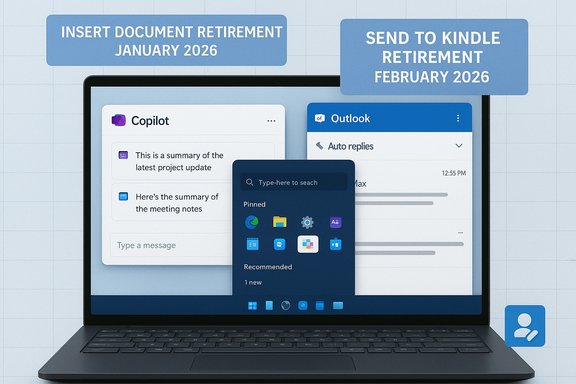
Microsoft Whiteboard: Insert Document feature retires January 2026
Microsoft will retire the Insert Document (Insert PPT/PDF from OneDrive/SharePoint) capability in Whiteboard starting January 2026; retirement should complete in early February 2026. Users will still be able to insert PDFs from a local PC using the Windows Whiteboard app, and documents already placed on boards will remain visible. Microsoft cites low usage and maintenance requirements as reasons for the change. Organizations that frequently add PDF or PowerPoint files into Whiteboard boards from cloud storage should adopt alternate workflows before the retirement date. Recommended alternatives- Export PPT slides or PDF pages as images and use the Insert Picture feature.
- Share a OneDrive/SharePoint link in Whiteboard sticky notes or Teams conversations.
- Use Teams meeting attachments or the Files tab for collaborative review instead of inserting the full document in a Whiteboard.
Microsoft Word: "Send to Kindle" retires February–March 2026
The integration that allowed users to send Word documents directly to Kindle will be retired beginning February 9, 2026, and removed by March 9, 2026. Microsoft’s support guidance confirms the feature deprecation and points users to Amazon’s Send to Kindle website as the recommended alternative. This is a straightforward feature removal — no documents already sent to Kindle will be affected — but users who relied on the in‑app convenience should be informed and given alternate instructions. Action checklist- Notify affected users and update any internal help articles referencing “Send to Kindle.”
- Provide step‑by‑step guidance for the Amazon Send to Kindle portal.
- If the workflow is mission‑critical, consider short‑term automation (Power Automate + email) to mimic the old flow.
Microsoft Publisher: end of support and removal October 2026
Microsoft announced that Publisher will no longer be supported or included in Microsoft 365 after October 2026. After that point, the Publisher desktop app will be removed from Microsoft 365 installations and users will no longer be able to open or edit Publisher (.pub) files within the retired Publisher app. Microsoft suggests migrating layouts to Word, PowerPoint, or Designer and saving critical Publisher content to PDF prior to retirement. This is the most consequential long‑lead change in the list and requires proactive planning if Publisher remains part of your print and marketing workflows. Migration guidance- Inventory: Identify all active Publisher files and workflows.
- Export: Save important files as PDF and, where possible, export content (images, text) for reassembly in PowerPoint/Word/Designer.
- Recreate templates: Prioritize frequently used templates (flyers, newsletters) for recreation in supported apps.
- Cross‑training: Offer staff a short transition course on PowerPoint/Designer for layout tasks.
Critical analysis: strengths, trade‑offs and risks
Strengths in this wave
- Consistency and discoverability for Copilot: Consolidating Copilot outputs in side panes and offering a dedicated Copilot app reduces friction and makes AI help more discoverable across Microsoft 365 surfaces. This aligns with Microsoft’s larger product strategy to make Copilot a platform, not a feature.
- Small UX wins that reduce friction: Collapsing automatic replies in Outlook mobile and clarifying Teams email senders are low‑risk changes that improve day‑to‑day productivity without large training costs.
- Admin controls are available: Microsoft continues to provide tenant‑level opt‑outs and admin toggles (e.g., Copilot app auto‑install opt‑out), which helps large organizations stage changes responsibly.
Trade‑offs and potential risks
- Automatic app installs widen the attack surface and the support burden. Background installs of companion/Copilot apps mean helpdesks must account for new update streams, allow‑listing rules, and potential reinstallation/removal actions across thousands of endpoints. Blocking installation after the fact is more complex than staging the initial rollout.
- Feature retirements create workflow fragility. The Whiteboard Insert Document removal and Word’s Send to Kindle deprecation will force some teams to change well‑established practices. Organizations that treat these features as “hidden” requirements might experience last‑minute scramble if they lack an inventory of dependencies.
- Licensing and misunderstanding risk. A visible Copilot app on a device can create user expectations that Copilot features are free. Paid, tenant‑grounded Copilot functionality still requires a license; the app presence does not change licensing enforcement. Miscommunication here can drive helpdesk tickets and billing disputes.
Privacy and compliance considerations
- Copilot grounding and enterprise data: Tenant‑aware Copilot features (which can reason over Exchange mail, SharePoint, and Teams content) require paid licensing and remain subject to tenant DLP and Purview controls. Admins should review DLP, conditional access, and Copilot settings before enabling tenant‑grounded features broadly.
- Email sender changes and archiving: Teams’ updated sender emails change message headers and could affect mail‑flow rules and archive classification; verify message trace behavior and update retention/archival rules as needed.
Practical guidance for IT, admins and team leads
For IT administrators: short list (first 30 days)
- Review the Microsoft 365 Apps admin center setting for the Microsoft 365 Copilot app automatic installation and decide whether to opt out tenant‑wide. If you want a staged rollout, disable automatic installs and push the app using your deployment tools.
- Communicate the Outlook mobile automatic reply collapse behavior to mobile users and support staff so users understand the expand control and helpdesk knows what to expect.
- Update spam/filter allow lists and internal guides to reflect the new Teams membership notification sender addresses to avoid legitimate emails being quarantined.
- Inventory Whiteboard, Publisher and Word workflows that rely on soon‑to‑be‑retired features. Prioritize remediation for any documents or processes that cannot tolerate disruption.
For end users and creators
- If you insert PDFs or PPTs from OneDrive/SharePoint into Whiteboard, start switching to an image export workflow or use local PDF insertion on Windows Whiteboard before January 2026.
- For those who used Send to Kindle from Word, practice uploading via the Amazon Send to Kindle portal now and update any personal guides.
- Try the OneNote Copilot flow in the chat pane to see how review‑then‑insert fits your note‑taking style. If your team relies on in‑line automatic insertion, test the new flow now.
Migration checklist for Publisher users (timeline: now → Oct 2026)
- Audit: find all active .pub files and classify by business importance.
- Export: convert critical files to PDF and save original assets (images, logos, text).
- Rebuild: prioritize templates for recreation in Word, PowerPoint, or Designer.
- Train: host brief sessions for staff on layout techniques in PowerPoint/Designer.
- Archive: keep read‑only copies of legacy Publisher files in a secure archive if legal/archive retention requires it.
Final assessment and recommended next steps
December’s Microsoft 365 updates are a mix of pragmatic UX tweaks and structural platform shifts. The Copilot push — a growing set of entry points, companion apps on Windows, and a dedicated Copilot app — delivers clearer discoverability and more consistent AI interactions, but it increases the visibility of licensing and governance decisions that organizations must make. Feature retirements (Whiteboard Insert Document, Word’s Send to Kindle, and Publisher) are not emergencies, but they require deliberate transition planning to avoid downstream disruptions in document workflows. Immediate recommended actions- Turn off automatic Copilot app installs if you need a controlled, staged rollout; otherwise, prepare helpdesk and update allow‑lists.
- Run a lightweight dependency audit for Whiteboard, Word and Publisher workflows and schedule migrations for anything business‑critical.
- Communicate the Outlook mobile and Teams notification changes to reduce user confusion and support volume.
Source: Seton Hall University What’s New in Microsoft 365 - December 2025
