

Microsoft 365 Copilot promises to change how professionals handle the daily deluge of email by turning Outlook from an information sink into a decision engine: instead of reading every message line by line, you ask Copilot to summarize, prioritize, and act — then review the results. This feature set can shave hours from routine inbox work, but it also demands fresh habits, governance, and a clear understanding of limits and risks. The guidance in this piece draws on hands‑on examples described in the Petri IT Knowledgebase writeup and official Microsoft documentation, and it flags recent security events that show why prudence matters when you let AI touch sensitive communications. com]
Email triage is no longer a nicety — it’s a survival skill. Professionals spend a large fraction of the workday deciding whether messages need action, can be ignored, delegated, or deferred. Traditional tactics — folders, rules, flags — help, but they also force users to read or triage each item manually. Microsoft 365 Copilot for Outlook surfaces an alternative: AI‑driven summaries, inbox‑wide reasoning, and direct actions (pin, flag, archive, mark read/unread) through natural language commands and a side‑pane assistant. That combination aims to move the work from “read everything” to “decide quickly and act.”
At the same time, the promise carries enterprise governance questions. In early 2026 Microsoft confirmed a logic error that briefly caused Copilot Chat to process and summarize emails labeled Confidential — a lapse that underscored the need for technical controls and administrative policies when deploying generative AI inside a corporate tenancy. We’ll explain that incident, how Microsoft responded, and what administrators and users should do to minimize exposure.
What the incident did not appear to show was an external breach — Microsoft said Copilot processed content in a way that it should not have due to a code defect, not because an attacker bypassed controls. Still, the consequence was the same: confidential material was handled by an AI pipeline that was expected to respect labels and DLP rules. The event prompted urgent enterprise reviews of AI governance, data flow mapping, and risk tolerance for automated assistants.
For end users, Copilot turns tedious triage into a few conversational prompts and actions — a net win when combined with disciplined review and common‑sense data hygiene. For IT and security, Copilot raises the bar for operational policies: granular license controls, Purview policy verification, and targeted monitoring are now part of every Copilot rollout playbook.
Microsoft 365 Copilot makes triaging emails in Outlook faster and more intelligent by surfacing summaries, extracting actionable items, and letting you act in plain language without leaving Outlook. Those benefits are real — and they’re already reshaping how knowledge workers start their day. But the recent policy‑bypassing incident shows that progress requires proportional governance: administrators must choose who gets the tool and how it’s monitored, and users must keep human judgment as the last mile of all AI‑driven decisions. Apply the workflows, controls, and behavioral rules above to get the productivity upside of Copilot while managing the operational and security risks that come with embedding AI inside mission‑critical communication systems.
Source: Petri IT Knowledgebase How to Triage Emails in Outlook Using Copilot
 Background
Email triage is no longer a nicety — it’s a survival skill. Professionals spend a large fraction of the workday deciding whether messages need action, can be ignored, delegated, or deferred. Traditional tactics — folders, rules, flags — help, but they also force users to read or triage each item manually. Microsoft 365 Copilot for Outlook surfaces an alternative: AI‑driven summaries, inbox‑wide reasoning, and direct actions (pin, flag, archive, mark read/unread) through natural language commands and a side‑pane assistant. That combination aims to move the work from “read everything” to “decide quickly and act.”At the same time, the promise carries enterprise governance questions. In early 2026 Microsoft confirmed a logic error that briefly caused Copilot Chat to process and summarize emails labeled Confidential — a lapse that underscored the need for technical controls and administrative policies when deploying generative AI inside a corporate tenancy. We’ll explain that incident, how Microsoft responded, and what administrators and users should do to minimize exposure.
What Copilot brings to Outlook: a quick feature map
Microsoft’s built‑in Copilot experiences in Outlook provide several distinct capabilities that matter for triage:- Inbox triage actions — Pin, flag (with start/end dates), mark read/unread, archive, and bulk operations executed by Copilot from chat or the side pane. These actions update Outlook directly without manual click‑throughs.
- Summarization — Per‑thread summaries, bulleted key points, and extracted action items so you can scan complex conversations at a glance. Summaries are surfaced in the reading pane and the Copilot panel.
- Drafting and tone coaching — Compose full replies, rewrite drafts, and change tone or length from suggested drafts. Copilot uses the conversation history to keep replies contextually accurate.
- Cross‑context reasoning — Copilot can reason across email, calendar, and meeting artifacts to recommend follow‑ups or prepopulate scheduling details. That makes triage decisions more likely to reflect real commitments.
- Natural‑language bulk commands — Tell Copilot to “archive unread emails from last week” or “pin emails from my manager” and it will act after optional confirmation for larger sets. Voice commands work on mobile for hands‑free triage.
Why this matters: from reading to deciding
Traditional inbox workflows encourage a linear, time‑consuming pattern: open message, read, decide, act. Copilot flips that model by giving you concentrated decision inputs — short summaries, action extraction, and one‑step operations — so you can triage based on intent rather than text length.- Speed: A single conversation summary replaces pages of thread scrolling. Use the Copilot summary to decide whether a thread is an FYI, requires a quick reply, or needs delegated action.
- Consistency: Copilot can identify requests and implied actions that humans miss, especially in CC’d threads or long reply chains.
- Lower friction: Draft generation removes the gap between choosing to respond and actually sending a message, reducing procrastination on small but frequent replies.
How to triage emails in Outlook using Copilot — a practical workflow
Below is a tested workflow you can adopt immediately. Each step maps to specific Copilot features and administrative realities.- Prepare your workspace
- Confirm you have a licensed Microsoft 365 Copilot experience and that your tenant’s admins have enabled Copilot in Outlook. If Copilot is disabled at the tenant level you won’t see the features. Check with your IT admin or the Microsoft 365 admin center.
- Choose a triage routine: twice‑daily sweeps (start and end of day) or a quick “catch‑up” at a single fixed time.
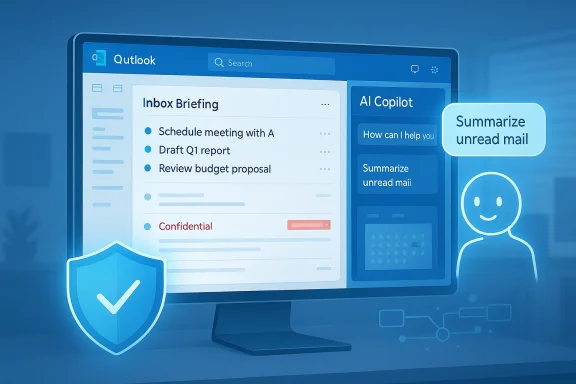
- Start with an Inbox Briefing
- Open Copilot Chat (Work mode) or Copilot side pane and run a high‑level prompt like: “Summarize unread mail since 4:00 PM yesterday. Split into: decisions I need to make, items waiting on me, FYIs.” Use the same prompt as a scheduled automation if you want the summary at a fixed time each day. Petri’s example shows this exact prompt is effective for jump‑starting the morning.
- Scan the summary and decide
- Read the bulleted summary. For each item decide: Ignore, Quick Reply, Delegate, Defer (add to task/project list), or Convert to Meeting.
- Ask Copilot follow‑ups in natural language: “Show me the messages that contributed to the decisions I need to make” or “Which unread emails mention Project Athena?” Copilot understands follow‑ups relative to the previous context.
- Act from the assistant
- Use Copilot’s action commands to perform triage at scale, for example:
- “Pin the most recent email from my manager.”
- “Archive all unread messages from [email protected] from the last 7 days.”
- “Flag the emails mentioning ‘Q3 budget’ and set follow‑up for next Thursday.”
- Bulk actions that affect more than five items will prompt for confirmation — a safety step for mass changes.
- Draft or refine responses
- For items you decide to reply to, use “Draft with Copilot” to create a reply draft. Then ask Copilot to change tone (concise, formal, friendly) and length.
- Always review AI‑generated drafts before sending. Copilot is fast at crafting responses, but only you know the nuance of relationship and policy.
- Turn messages into next steps
- Ask the assistant to extract action items into your task system, calendar, or a follow‑up email draft: “Create a reply proposing a 30‑minute meeting next week and suggest times based on my calendar.”
- Use the Schedule with Copilot option in Outlook when the email thread suggests a meeting — Copilot can prepopulate scheduling suggestions from thread context and your calendar.
- Iterate and customize
- If Copilot misprioritizes a topic, teach it via settings in Prioritize my inbox (customize topics). Over time, the assistant reflects your priorities more accurately.
Example prompts and templates you can use immediately
- Daily briefing: “Summarize unread email since 9:00 AM today and list decisions I need to make, items pending my action, and FYIs.”
- Focused search: “Show me unread emails mentioning ‘contract renewal’ in the last 14 days and summarize action items.”
- Bulk cleanup: “Archive all promotional emails older than 30 days and mark them as read.” (Expect confirmation for larger sets.)
- Draft and send: “Draft a brief reply accepting the proposal, confirm budget, and ask for next steps in bullet form.”
Limitations and hard boundaries you must know
Copilot is powerful but not omniscient. Key limits you must respect:- Scope of access: Copilot scenarios run only against a user’s primary mailbox on Exchange Online. It does not operate on archive mailboxes, shared mailboxes, or mailboxes not hosted in Exchange Online.
- Encrypted emails: Copilot cannot access S/MIME or Double Key Encryption (DKE) encrypted messages — these are intentionally excluded from processing. Use these encryption modes when you need airtight confidentiality.
- Language and determinism: Summaries currently default to English and can vary each time (regenerate may produce different phrasing). Always review AI outputs.
- Policy exceptions: As a service built on retrieval‑augmented generation, Copilot relies on multiple pipeline components. An unexpected logic error can cause the pipeline to process content it should respect as restricted — as happened in the January/February 2026 incident described later. That means technical protections must be layered with administrative policy and user training.
Security incident: what happened, and why it matters
In January 2026 Microsoft identified a logic error — tracked as service advisory CW1226324 — that allowed Microsoft 365 Copilot Chat to summarize emails labeled Confidential, processing messages from users’ Sent Items and Drafts in some cases despite Purview sensitivity labels and Data Loss Prevention controls. The company began a server‑side remediation in early February and notified affected customers while rolling out the fix. This episode is a concrete reminder that integrated AI systems interact with legacy controls in complex ways, and that bug‑level failures can create policy gaps.What the incident did not appear to show was an external breach — Microsoft said Copilot processed content in a way that it should not have due to a code defect, not because an attacker bypassed controls. Still, the consequence was the same: confidential material was handled by an AI pipeline that was expected to respect labels and DLP rules. The event prompted urgent enterprise reviews of AI governance, data flow mapping, and risk tolerance for automated assistants.
Practical mitigations for IT and security teams
If you control Copilot deployment or advise teams, take these pragmatic steps now:- Audit and limit Copilot scope: Use Microsoft’s admin controls to restrict Copilot app availability by group or license, unpin the Copilot Chat, or remove access tenant‑wide where necessary. Microsoft provides explicit controls for pinning and app availability in the Microsoft 365 admin center.
- Apply principle of least privilege: Only assign Copilot licenses to users who need them. Separate pilot groups from general users, and keep high‑sensitivity teams (legal, compliance, HR) on conservative configurations.
- Harden DLP and labeling practices: Ensure sensitivity labels and Purview policies are correctly applied and tested. Where extreme confidentiality is required, use encryption modes that Copilot cannot access (S/MIME or DKE).
- Monitor and audit: Verify auditing is enabled for Copilot interactions and for Purview policy matches. Microsoft documents auditing and admin options for Copilot in admin centers; ensure you retain logs and can answer “who asked what” if an incident occurs.
- User training and playbooks: Teach staff not to store secrets in drafts or to treat Copilot outputs as drafts that require human verification. Encourage a checklist: Verify sensitivity label → Ask Copilot for a summary only when safe → Review draft before send.
- Staged rollout: Start with narrow business units and broaden access only after observing logs, usage patterns, and the impact on DLP alerts.
Governance and the admin lens
Microsoft exposes a range of management knobs for tenants: pinning policies, app availability via Integrated Apps, group policy settings for Edge sidebar, and the ability to completely remove access to Copilot Chat for unlicensed users. Admins can also exclude administrative accounts from Copilot features and configure auditing behavior. These capabilities let organizations tailor Copilot’s footprint to their risk tolerance and regulatory constraints. If you manage an M365 estate, plan an approval and audit pathway before enabling Copilot broadly.The human factor: how to use Copilot safely and effectively
Copilot works best as a triage assistant — not an autopilot. Below are behavioral rules that improve outcomes:- Treat summaries as inputs, not decisions: Use Copilot’s summary to form an initial judgment, then validate with the original message if the topic is sensitive.
- Review every AI draft: Before pressing send, confirm content, recipient list, and tone. AI can hallucinate commitments or misstate dates.
- Be conservative with proprietary content: Avoid pasting sensitive documents into open prompts. When in doubt, use manual workflows or encrypted channels.
- Use Copilot to farm out repetitive tasks: Let AI draft routine replies, but keep judgment for escalations and policy decisions.
- Incorporate Copilot into team norms: Document how and when the assistant can be used for email triage to prevent shadow AI usage and inconsistent behavior between teams.
Where Copilot makes the most impact — and where it doesn’t
High‑impact scenarios:- Catch‑up after time away: Summaries let returning employees get up to speed quickly.
- Project‑specific triage: Ask Copilot to surface messages mentioning a project and extract action items.
- Routine vendor/customer replies: Use draft generation to speed small, high‑volume communications.
- Legal, regulatory, or classified correspondence: Avoid automated summarization or drafting unless governance explicitly allows it.
- Secrets and cryptographic keys: Never use Copilot to store or rephrase password/secret content.
- Multi‑tenant shared mailboxes and archives: Copilot doesn’t run on these; don’t assume it will help.
The balance: productivity vs. control
Microsoft 365 Copilot changes the economics of email triage. It offers real productivity gains by shrinking the cognitive load of deciding what matters. But the January/February 2026 processing error shows that even well‑designed pipelines can deviate from intended policy under code defects. The right posture for organizations is dual: adopt AI where it can safely accelerate work, and maintain strong governance, logging, and segmentation for sensitive domains.For end users, Copilot turns tedious triage into a few conversational prompts and actions — a net win when combined with disciplined review and common‑sense data hygiene. For IT and security, Copilot raises the bar for operational policies: granular license controls, Purview policy verification, and targeted monitoring are now part of every Copilot rollout playbook.
Final recommendations: a short checklist
- Enable Copilot iteratively: pilot → monitor → expand.
- Configure admin controls to restrict access by group and license.
- Harden labeling and DLP; use S/MIME or DKE for emails that must never be processed.
- Turn on auditing and collect Copilot interaction logs for incident response readiness.
- Teach users to treat Copilot outputs as suggestions: verify, edit, and confirm before sending.
Microsoft 365 Copilot makes triaging emails in Outlook faster and more intelligent by surfacing summaries, extracting actionable items, and letting you act in plain language without leaving Outlook. Those benefits are real — and they’re already reshaping how knowledge workers start their day. But the recent policy‑bypassing incident shows that progress requires proportional governance: administrators must choose who gets the tool and how it’s monitored, and users must keep human judgment as the last mile of all AI‑driven decisions. Apply the workflows, controls, and behavioral rules above to get the productivity upside of Copilot while managing the operational and security risks that come with embedding AI inside mission‑critical communication systems.
Source: Petri IT Knowledgebase How to Triage Emails in Outlook Using Copilot
