Microsoft’s mobile Microsoft 365 Copilot update that swaps the old document viewer for an AI‑first, chat‑centred workflow is now colliding with real world expectations — and, according to multiple user reports and one recent Windows Latest investigation, that collision can result in local files being routed into OneDrive and Copilot for analysis before you even see the document. This is not just a UX regression; it raises immediate privacy, security, and enterprise governance questions that every Windows and mobile user — and every IT admin — should understand right now.
Microsoft began repositioning the consolidated mobile Office experience as an AI‑first surface in 2025 when the classic “Microsoft 365”/“Office Hub” mobile viewer was rebranded and refocused under the Copilot name. The official Microsoft transition notice confirms the rebrand and the timing of the app’s renaming to “Microsoft 365 Copilot.”
By late 2025 Microsoft signalled a design intent: the mobile Copilot app would be a preview‑first, chat‑centred hub for searching, summarizing and prompting AI help about files, while robust editing and file management would be handed off to the standalone Word, Excel, PowerPoint, and OneDrive apps. Microsoft’s support documentation explains this change and the practical impact for mobile users: Copilot will surface previews and let users ask questions from the preview, but editing and full file browsing is routed to the dedicated apps.
That strategic pivot makes sense from Microsoft’s product point of view — they want Copilot to be the company’s reasoning layer across services. But when product changes touch basic flows like “open a document from WhatsApp” or “tap a .docx attachment,” the implementation details matter enormously. The central complaint being raised by end users and recently highlighted by Windows Latest is that, on mobile, the Copilot preview flow can automatically upload local attachments to the cloud (OneDrive) and process them with Copilot — without the clear, visible consent steps many users expect. Windows Latest’s hands‑on anecdote describes a .docx opened from WhatsApp that was routed into Copilot and uploaded to OneDrive rather than opening locally. That report is consistent with multiple community observations about the new preview‑first behaviour. However, Microsoft’s public documentation describes the new in‑app preview and edit‑handoff but stops short of describing the exact technical path for local files opened from other apps; Microsoft’s message centre items and support pages clarify the product intent but do not publish an explicit “we will auto‑upload local attachments to OneDrive” policy in simple affirmative language.
Because this behaviour touches data residency, retention and enterprise data loss prevention (DLP), it’s important to unpick exactly what Microsoft has published, what users are observing, and which claims are still only partially verified.
We have three verified facts that matter:
Microsoft’s Copilot strategy is compelling. The assistant can genuinely speed up work. But the success of any platform pivot depends not only on what the AI can do, but on the trust and control it leaves in users’ hands. Right now the balance is uneven on mobile: powerful features exist, but the guardrails, consent nudges and admin controls need to be clearer and more predictable. Until that clarity arrives, prudent users and IT teams should treat the mobile Copilot document flow as a feature that must be actively managed — not a default they should rely on.
Source: Windows Latest Microsoft 365 Copilot for Android or iOS auto-sends files to AI & OneDrive before you even realise it, instead of opening normally
 Background / Overview
Microsoft began repositioning the consolidated mobile Office experience as an AI‑first surface in 2025 when the classic “Microsoft 365”/“Office Hub” mobile viewer was rebranded and refocused under the Copilot name. The official Microsoft transition notice confirms the rebrand and the timing of the app’s renaming to “Microsoft 365 Copilot.”By late 2025 Microsoft signalled a design intent: the mobile Copilot app would be a preview‑first, chat‑centred hub for searching, summarizing and prompting AI help about files, while robust editing and file management would be handed off to the standalone Word, Excel, PowerPoint, and OneDrive apps. Microsoft’s support documentation explains this change and the practical impact for mobile users: Copilot will surface previews and let users ask questions from the preview, but editing and full file browsing is routed to the dedicated apps.
That strategic pivot makes sense from Microsoft’s product point of view — they want Copilot to be the company’s reasoning layer across services. But when product changes touch basic flows like “open a document from WhatsApp” or “tap a .docx attachment,” the implementation details matter enormously. The central complaint being raised by end users and recently highlighted by Windows Latest is that, on mobile, the Copilot preview flow can automatically upload local attachments to the cloud (OneDrive) and process them with Copilot — without the clear, visible consent steps many users expect. Windows Latest’s hands‑on anecdote describes a .docx opened from WhatsApp that was routed into Copilot and uploaded to OneDrive rather than opening locally. That report is consistent with multiple community observations about the new preview‑first behaviour. However, Microsoft’s public documentation describes the new in‑app preview and edit‑handoff but stops short of describing the exact technical path for local files opened from other apps; Microsoft’s message centre items and support pages clarify the product intent but do not publish an explicit “we will auto‑upload local attachments to OneDrive” policy in simple affirmative language.
Because this behaviour touches data residency, retention and enterprise data loss prevention (DLP), it’s important to unpick exactly what Microsoft has published, what users are observing, and which claims are still only partially verified.
Timeline: How we got here
The rebrand and the Copilot pivot
- The app formerly known as “Office Hub” was rebranded into the consolidated Microsoft 365 mobile app and later rebranded again as Microsoft 365 Copilot; the official transition and naming started to roll out in early 2025. Microsoft’s support site documents the app rename and how the Copilot capabilities are surfaced to subscribers.
Preview‑first UX and edit handoff (September–October 2025)
- During late summer and early autumn 2025 Microsoft pushed a preview‑first mobile experience: Copilot became the home screen for many users, and editing for Word/Excel/PowerPoint moved to the standalone apps. Community reporting and Microsoft Message Center posts describe this change as a deliberate move to make Copilot the primary interaction point for file preview and AI queries.
Early 2026: Copilot chat file handling changes and message center updates
- Microsoft’s Message Center entries around the start of 2026 show the company rolling out changes in how files are opened in Copilot chat (for the web-based Copilot Chat experience) and adding file preview/processing behaviours. A Message Center bulletin (MC1225199) described an update that opens Word/Excel/PowerPoint files inside Copilot Chat to streamline viewing, rolling out in early February 2026. That bulletin clarifies scope (web Copilot chat) but echoes the broader product direction: open files inside the Copilot surface.
What Microsoft has published (what’s verified)
- The Microsoft 365 Copilot app is intentionally being converted into a preview‑first, AI‑first hub on mobile. When users open certain Office file types inside the Copilot mobile app, Copilot displays an in‑context preview and enables chat queries about the document. Editing is redirected to the standalone Word/Excel/PowerPoint apps, and OneDrive is the recommended location for full file browsing. These behaviour changes are documented on Microsoft’s support pages.
- Microsoft documents the Copilot file upload and retention model for the Copilot service: files you explicitly upload to Copilot are stored for a limited retention window (support page references an 18‑month window in consumer Copilot docs) and Microsoft states uploaded files are not used to train their models. That policy and the supported file types (PDF, DOCX, XLSX, PPTX and others) are also published. These facts are important when evaluating the privacy surface of any flow that routes a local file into Copilot.
- Microsoft has provided Message Center notices to tenants and admins describing where the new file preview flows will appear and when they will roll out. Those notices are the authoritative source for timing and administrative impact.
What user reports (and Windows Latest) say — and what is still unverified
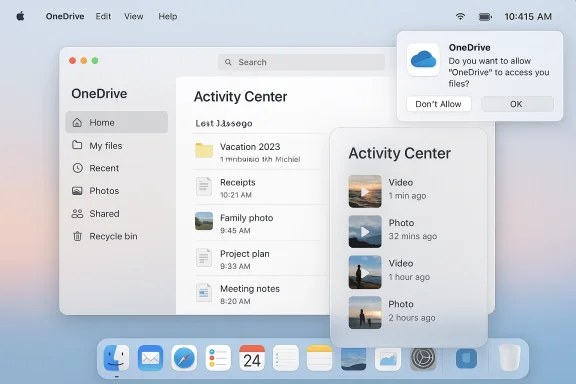
- Multiple users and the Windows Latest article report that when the Microsoft 365 Copilot mobile app is set as the default viewer (Android or iOS), opening a local attachment (for example, a .docx from WhatsApp) no longer launches a local viewer. Instead, the file is handed to Copilot: Copilot shows a chat with a summary prompt, and the file appears to be uploaded to OneDrive for Copilot processing. Windows Latest’s hands‑on experience claims the app auto‑uploads local files to OneDrive before the user can simply read them locally. That user reproduction is the core allegation.
- Microsoft’s public documentation confirms the new preview and chat behaviour, but it does not explicitly publish a short, unequivocal sentence such as “opening a local file from another app will automatically upload the file to your OneDrive.” Because of that omission, the claim that the mobile Copilot app universally auto‑uploads local files when used as the default viewer remains partially user‑reported rather than fully verified from Microsoft’s developer or policy texts. In practice, however, the observable behaviour described by Windows Latest matches the product’s strategic design (preview + Copilot processing + OneDrive as the cloud surface for file actions), which makes the claim plausible.
- There are community reports and Microsoft Q&A threads showing scan and sync issues with Copilot mobile and OneDrive, where scans generated in-app can remain stuck in a Copilot folder with “sync pending.” That thread demonstrates two things: first, the Copilot mobile app already has tight integration with OneDrive for scanned documents; second, the integration is not flawless and can fail to upload or sync. Those real‑world sync failures reinforce the UX and data governance risks if the app is automatically moving files into the cloud.
- Summary: Microsoft has documented the shift to a Copilot preview model and the Copilot service’s file handling policy, and Microsoft’s Message Center documents show file‑open flows changing in Copilot Chat. Community testing and reporting — including the Windows Latest piece — show that, on mobile, the path from “tap local .docx” to “see content” may now include an upload and Copilot processing step. The exact semantics and consent mechanics for that upload (when it occurs, whether it is optional, and what the UI consent looks like across all versions and device states) appear to be ambiguous in public Microsoft documentation and are therefore a practical compliance and privacy concern.
Why this matters: privacy, security and enterprise risk
When a local file is automatically routed into a cloud analysis pipeline — be it Microsoft’s Copilot or any other cloud LLM service — three broad risk categories are immediately implicated:- Visibility and consent: Users expect to know when a local file leaves their device. Automatic uploads that occur as a side effect of “opening” a file subvert that expectation and can expose sensitive information (personal data, PHI, IP) to cloud processing before explicit user approval.
- Data governance and DLP: Corporate and education tenants commonly enforce DLP policies that restrict cloud uploads or require specific storage locations. If a mobile viewer transparently uploads a file to OneDrive (or otherwise processes it in Copilot) without triggering or respecting a tenant’s DLP controls, organisations face policy violations and compliance exposure. Microsoft’s admin controls for Copilot exist but the interaction surface between client UX decisions and server‑side policy enforcement is complex and often brittle.
- Retention and secondary use concerns: Microsoft publishes retention limits for Copilot uploads and states that uploaded files are not used to train models. Even so, the mere act of uploading a document to a cloud account may be unacceptable in regulated industries or cross‑border data scenarios, and users need certainty about retention, access logs, and deletion semantics. Microsoft’s support documentation gives some of this detail for Copilot uploads, but administrators should validate retention windows and audit logs for their tenant.
- Failure modes and usability: The Windows Latest hands‑on example highlights a practical nuisance: when the upload fails or Copilot misidentifies the content, users can be left unable to read the file in the app’s preview or access it via the chat references — effectively losing a simple reading workflow behind an AI gate. That degradation of the basic “open and read” function is a significant regression in core usability.
Practical checks: how to reproduce and what to look for
If you want to test whether your mobile device will upload local attachments into Copilot/OneDrive when you open them, follow these steps in a controlled, non‑sensitive context:- Make sure the Microsoft 365 Copilot mobile app is installed and signed in with your account.
- Save a non‑sensitive test file (.docx, .pdf) locally on your phone (for example, a file received via messaging).
- Configure your system so Microsoft 365 Copilot is the default viewer for that file type, or open the attachment and choose Microsoft 365 Copilot when prompted.
- Watch the in‑app prompts carefully and look for any notices such as “Open with Copilot chat,” “Upload to OneDrive for Copilot,” or visible upload progress indicators.
- After the action, inspect your OneDrive account and the Copilot app’s Search/References tabs for new uploads. Also check the device notification area for sync activity.
How users can protect themselves (short‑term mitigations)
If you’re uncomfortable with an app automatically uploading attachments into OneDrive or Copilot, here are immediate actions you can take:- Don’t set Microsoft 365 Copilot as the default viewer. On Android and iOS you can select the standalone Office apps (Word, Excel, PowerPoint) or a local viewer app as the default. This preserves a local open‑file flow and avoids Copilot’s preview path.
- Use standalone Office apps or the OneDrive app. Open local attachments in Word/Excel/PowerPoint mobile apps or upload manually to OneDrive using the OneDrive app if you want cloud processing under your control.
- Remove or restrict the Copilot mobile app. If you don’t use Copilot on mobile, uninstall the Microsoft 365 Copilot app or sign out so it can’t act as a default handler. For iOS, review the “Open with” menu when tapping attachments; for Android, change default app associations.
- Be conservative with sensitive attachments. Until you confirm the app behaviour, avoid opening or allowing automatic opens of attachments containing PII, PHI, financial data, or other regulated material from messaging apps.
- Monitor OneDrive for unexpected uploads. If you suspect a file has been uploaded, check the OneDrive app’s recent uploads and the Copilot app Search/References section for new items. Community threads show that failed uploads may not appear reliably, so a manual check is essential.
How IT admins and security teams should respond
This is a governance problem as much as a UX one. IT teams should take a few deliberate steps:- Inventory and test: Encourage a small pilot group to test the Copilot mobile behaviour in a controlled tenant and document the results. Capture logs, OneDrive activity, and any app prompts shown to users.
- Review Copilot/DLP policies: Confirm whether your DLP rules, Conditional Access policies and Intune profiles block or flag uploads initiated by the Copilot app. If Copilot introduces uncontrolled file flows, you may need to restrict Copilot features for mobile endpoints. Microsoft provides admin controls for Copilot features in Copilot Studio and the admin centre; use them to enforce policy.
- Use MDM to manage apps and defaults: With Microsoft Intune or other MDM solutions you can prevent the Copilot app from being installed, block it from running, or control which apps can be set as default viewers on enrolled endpoints.
- Update training and support materials: Communicate to end users how the Copilot experience works, the difference between preview and edit modes, and the corporate policy on cloud uploads. Provide step‑by‑step guidance to open attachments in the standalone apps.
- Escalate compliance questions to Microsoft: If your tenant has specific compliance/regulatory obligations, raise a formal support case with Microsoft to clarify how Copilot mobile handles local files, where uploads are stored, retention windows, and audit logging. Microsoft’s Message Center entries and support docs are helpful, but enterprise legal and compliance teams may require more granular commitments.
UX and product analysis: strengths, weaknesses and developer tradeoffs
Strengths
- The pivot to an AI‑first Copilot hub is aligned with Microsoft’s broader strategy of making the assistant the company’s central reasoning surface across productivity apps. This can meaningfully reduce context switching: the same Copilot session can surface relevant files, summarise them, and produce starter drafts you can export into Word/PowerPoint. For many users, that is a powerful productivity boost. Early previews of Copilot connectors and export features show real utility.
- The architecture lets Copilot create downloadable artifacts (Word/Excel/PowerPoint/PDF) directly from chat outputs and surface consolidated summaries quickly — a modern productivity affordance that fits many short‑form workflows.
Weaknesses and risks
- The mobile UX decision to prioritise Copilot chat over the classic viewer makes a single, simple action — “open a file to read it” — dependent on cloud processing in some cases. That regressively complicates what used to be a basic local interaction.
- The lack of an unequivocal, widely visible consent screen that states “this file will be uploaded to OneDrive and processed by Copilot” is the policy and UX failure that fuels the present controversy. Microsoft documents the big picture, but the product’s micro‑interactions across OSes and app versions appear inconsistent enough that users perceive a surprising automatic upload behaviour.
- For organisations with strict data governance, this architectural choice increases the attack surface and compliance complexity. Automatic or opaque uploads can violate DLP, breach contractual obligations, and complicate incident response.
Recommendations (concise action list)
- For end users:
- Remove Microsoft 365 Copilot as the default file viewer.
- Open attachments in Word/Excel/PowerPoint or the OneDrive app when you need cloud processing under control.
- Uninstall or sign out of Copilot mobile if you do not need AI previews.
- For IT admins:
- Pilot the Copilot mobile experience under a test tenant and log OneDrive and Copilot activity for typical mobile flows.
- Use MDM/Intune to block or restrict Copilot mobile installs or to enforce default app policies on company‑managed devices.
- Update DLP and Conditional Access rules to account for Copilot’s file‑processing surfaces; escalate to Microsoft for tenant‑specific clarifications where required.
- Provide training and clear documentation to users about the new preview‑first flows and approved workflows for regulated data.
- For Microsoft (product teams and policy):
- Add explicit, in‑context consent screens when a local file will be uploaded to OneDrive/Copilot, and surface the intended retention and access scope.
- Provide a publicly documented, machine‑readable policy mapping (device UX → OneDrive upload → Copilot processing) for enterprise customers.
- Add clearer tenant controls that prevent Copilot from uploading files on mobile in environments with strict data residency or regulatory needs.
Verdict: pragmatic balance between innovation and control
Microsoft’s move to make Copilot the default hub for discovery and summarization on mobile is understandable: AI summarization reduces friction for many modern tasks. The danger comes when a convenience feature becomes a default that changes the security and privacy posture of everyday actions without clear, consistent consent and without a seamless admin control plane.We have three verified facts that matter:
- Microsoft has intentionally redesigned the Microsoft 365 mobile app into a Copilot‑centric, preview‑first experience and is redirecting editing flows into dedicated Office apps.
- Microsoft documents Copilot’s file upload and retention policies: files uploaded into Copilot are retained under stated limits and are not used for training. Administrators should validate these policies against their legal needs.
- Message Center bulletins confirm Copilot Chat file‑open changes are rolling out, and community tests show this new behaviour is already in the wild — including reports that local attachments may be routed into Copilot/OneDrive during the open flow. Microsoft’s public documentation does not, however, explicitly describe every local‑to‑cloud upload trigger, which leaves room for ambiguity and surprise.
Microsoft’s Copilot strategy is compelling. The assistant can genuinely speed up work. But the success of any platform pivot depends not only on what the AI can do, but on the trust and control it leaves in users’ hands. Right now the balance is uneven on mobile: powerful features exist, but the guardrails, consent nudges and admin controls need to be clearer and more predictable. Until that clarity arrives, prudent users and IT teams should treat the mobile Copilot document flow as a feature that must be actively managed — not a default they should rely on.
Source: Windows Latest Microsoft 365 Copilot for Android or iOS auto-sends files to AI & OneDrive before you even realise it, instead of opening normally