

Microsoft’s latest account-support guidance reinforces a point Windows users often learn the hard way: the generic “Microsoft account problem” prompt is not one error. It can mean a stale credential, a blocked sign-in, missing verification information, or a Phone Link pairing mismatch—and the remedy depends on which one it is.
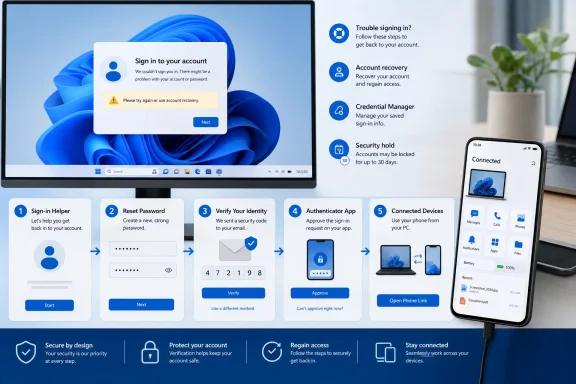
Per Microsoft Support, the fastest starting point for a personal Microsoft account that will not sign in is the Sign-in Helper. The tool checks the email address or phone number entered and routes users toward the appropriate password, verification, or recovery flow. It covers the consumer account used by Outlook.com, Windows, Microsoft 365 Personal and Family, and related services.
Before removing an account from a PC or resetting credentials, confirm the address in use. On Windows 10 and Windows 11, check Settings > Accounts > Email & accounts. In Office desktop apps, the signed-in owner appears under File > Account.
If the password is simply wrong or forgotten, use Microsoft’s normal password-reset flow. Windows’ sign-in screen also offers I forgot my password and, where configured, web sign-in options. A message saying an account does not exist is not necessarily a Windows fault; Microsoft directs users to the Sign-in Helper for that condition.
For an account locked after suspicious activity, Microsoft says users should sign in at the account dashboard and request an unlock code. The phone number used to receive that code does not have to be attached to the Microsoft account, but it must be able to receive SMS messages.
That transition makes it especially important not to replace every security method at once. Microsoft warns that removing and replacing all security information puts the account in a restricted state for 30 days. During that period, some account changes are unavailable. Users who still have access should add a new method first, test it, and only then remove the old one.
Microsoft also maintains a hard line on account recovery: support staff cannot send reset links, issue verification codes, or alter account details. The account recovery form is the fallback when standard verification is gone, and Microsoft says it normally responds within 24 hours. But if two-step verification is enabled and none of the alternate verification methods are accessible, the company says it cannot recover the account through that form.
For repeated Windows or Office prompts, stale entries in Credential Manager may also be responsible. Remove only the matching old Microsoft or app credential under Web Credentials or Windows Credentials, then sign in again.
Phone Link users should verify that Windows and Link to Windows on Android use the same Microsoft account. Microsoft’s troubleshooting guidance also points to Settings > System > Shared experiences on the PC; if it displays Fix now under Accounts, follow that repair path before unlinking and pairing devices again.
For most users, the practical order is simple: run Sign-in Helper, verify the account address, repair the available security method, and use recovery only after ordinary sign-in options are exhausted.
Per Microsoft Support, the fastest starting point for a personal Microsoft account that will not sign in is the Sign-in Helper. The tool checks the email address or phone number entered and routes users toward the appropriate password, verification, or recovery flow. It covers the consumer account used by Outlook.com, Windows, Microsoft 365 Personal and Family, and related services.
 Start With the Account, Not Windows
Before removing an account from a PC or resetting credentials, confirm the address in use. On Windows 10 and Windows 11, check Settings > Accounts > Email & accounts. In Office desktop apps, the signed-in owner appears under File > Account.If the password is simply wrong or forgotten, use Microsoft’s normal password-reset flow. Windows’ sign-in screen also offers I forgot my password and, where configured, web sign-in options. A message saying an account does not exist is not necessarily a Windows fault; Microsoft directs users to the Sign-in Helper for that condition.
For an account locked after suspicious activity, Microsoft says users should sign in at the account dashboard and request an unlock code. The phone number used to receive that code does not have to be attached to the Microsoft account, but it must be able to receive SMS messages.
Verification Changes Carry a 30-Day Catch
Microsoft is phasing out SMS as an authentication and recovery method for personal Microsoft accounts, according to its current verification-code documentation. New sign-in methods should instead include a working email address, Microsoft Authenticator, or a passkey.That transition makes it especially important not to replace every security method at once. Microsoft warns that removing and replacing all security information puts the account in a restricted state for 30 days. During that period, some account changes are unavailable. Users who still have access should add a new method first, test it, and only then remove the old one.
Microsoft also maintains a hard line on account recovery: support staff cannot send reset links, issue verification codes, or alter account details. The account recovery form is the fallback when standard verification is gone, and Microsoft says it normally responds within 24 hours. But if two-step verification is enabled and none of the alternate verification methods are accessible, the company says it cannot recover the account through that form.
App and Phone Link Prompts
An Error 400 sign-in message usually points to a failed password sign-in request rather than an account lock. Microsoft recommends selecting another configured sign-in method, updating or reinstalling the affected app, trying another device, or changing networks.For repeated Windows or Office prompts, stale entries in Credential Manager may also be responsible. Remove only the matching old Microsoft or app credential under Web Credentials or Windows Credentials, then sign in again.
Phone Link users should verify that Windows and Link to Windows on Android use the same Microsoft account. Microsoft’s troubleshooting guidance also points to Settings > System > Shared experiences on the PC; if it displays Fix now under Accounts, follow that repair path before unlinking and pairing devices again.
For most users, the practical order is simple: run Sign-in Helper, verify the account address, repair the available security method, and use recovery only after ordinary sign-in options are exhausted.
References
- Primary source: Technobezz
Published: 2026-07-18T16:27:07.552000+00:00
Microsoft Account Problem Message? 9 Fixes That Work in 2026 | Technobezz
Fix a Microsoft account problem message with current password, verification, Windows, and account recovery steps.www.technobezz.com - Official source: support.microsoft.com
Microsoft account has been locked | Microsoft Support
Learn how to unlock your Microsoft account and resolve 'account has been locked' error message.support.microsoft.com