

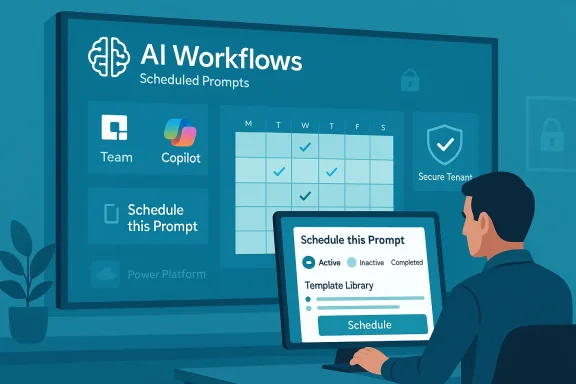
Microsoft has now completed the worldwide rollout of AI Workflows for Microsoft Teams, bringing scheduled, Copilot-driven automation to licensed Microsoft 365 users and shifting Copilot from a reactive assistant to a lightweight, tenant-aware automation engine that runs in the background. ](https://app.cloudscout.one/evergreen-item/mc1223822/?utm_source=openai))
Background: what changed and why it matters
Microsoft’s AI Workflows introduce scheduled Copilot prompts as a native automation surface in Microsoft Teams, surfaced through the Workflows app and the Copilot chat experiences in Teams, Microsoft 365 web chat and Outlook. The feature lets users convert any useful Copilot prompt into a recurring task — set the start time, recurrence, number of iterations, and optional email notifications — and have Copilot run it automatically and deliver the response into the user’s Copilot conversation history. This is a deliberate product move to make AI proactive, repeatable, and easier for non‑developers to adopt.This rollout was staged: a targeted release began in late September 2025, and Microsoft pushed general availability across tenants starting in late January 2026 with expected completion by mid‑February 2026. The phased approach reflects Microsoft’s preference for measured enterprise rollouts and gave IT teams time to evaluate governance and security settings before broad exposure.
Overview of the feature: scheduled Copilot prompts and Workflows
What users see and can do
- Users create a prompt in Copilot (in Teams/Outlook/web chat) and hover to select Schedule this prompt.
- The scheduler UI lets users choose start date and time, frequency, and a maximum number of runs (the UI supports up to 15 iterations per schedule in the Workflows templates context, while per‑user limits and template constraints are enforced by the product). Email notifications can be toggled to alert recipients when a scheduled prompt finishes.
- The Scheduled prompts management UI shows active, inactive, and completed scheduled items. From Settings > Scheduled prompts users can run a prompt immediately, edit or turn it off, or delete it. The product limits scheduled prompts to a manageable number (the user-facing limit is up to 10 scheduled prompts per user in the Copilot UI).
Where the feature appears
- Microsoft Teams (Copilot app and Workflows integration)
- Microsoft 365 web chat (microsoft365.com/chat)
- Outlook for web and desktop (Copilot surfaces)
The Workflows app in Teams provides ready-made templates — weekly project summaries, monitoring of specific data points, recurring digests — that wire scheduled prompts into more complex, guided automation experiences for teams.
Licensing and admin gates
- A Microsoft 365 Copilot license is required for any user to create or receive scheduled prompts.
- The Workflows app is off by default at the tenant level; tenant admins must enable the Workflows app and ensure Copilot access where intended. Administrators retain controls through Teams app management and Cloud Policy settings.
Under the hood: Power Platform, tenant environment, and DLP constraints
One of the most important operational facts for IT teams is that scheduled prompts do not simply run in a generic cloud worker — they run inside a tenant-specific Microsoft 365 environment that Power Platform automatically provisions the first time a Copilot‑licensed user creates a scheduled prompt. That environment appears in the Power Platform admin center (default name: “Microsoft 365”) and is governed differently from typical Power Platform environments.Key operational details:
- Power Platform creates a security role called M365 Copilot Actions Access and assigns it to the default team to enable scheduled prompt runtime permissions.
- The Microsoft 365 environment is recreated automatically if deleted and is provisioned in the Power Platform region nearest the tenant’s default region. It does not count against tenant capacity calculations.
- The Microsoft 365 environment enforces a fixed DLP policy: nearly all connectors are blocked except a short, Microsoft‑approved set required for scheduled prompts (for example, Microsoft 365 Copilot actions, Teams, Outlook). Tenant-level or environment-level custom DLP policies do not apply to this special environment. That design reduces exfiltration risk but restricts what external connectors scheduled prompts can use.
- Power Platform Administrators can inventory scheduled prompts using Microsoft‑provided PowerShell scripts. Microsoft documents a set of scripts (Get‑CopilotActions.ps1, Remove‑CopilotAction.ps1, Clear‑CopilotActions.ps1) to list, export, and remove scheduled prompts across the tenant. Prompts and responses are logged for enterprise audit/eDiscovery.
Administrative controls and practical governance
Administrators keep final say over whether scheduled prompts are available in a tenant. There are three practical control layers to understand:- Tenant-level Copilot licensing and app visibility
- Only Copilot‑licensed users can create scheduled prompts; admins manage who receives Copilot entitlements.
- Optional connected experiences cloud policy
- Optional connected experiences is a cloud policy setting that governs many Copilot behaviors. If admins set “Allow the use of additional optional connected experiences in Office” to Disabled, scheduled prompts will not be visible or creatable for users in the tenant. This policy is on by default; turning it off is the blunt instrument for blocking scheduled prompts.
- Power Platform environment and DLP
- The tenant Microsoft 365 environment is a managed runtime; admins should review where it’s provisioned and who has the Power Platform Administrator and environment roles, because those are the accounts that can run the inventory and deletion scripts. Administrators cannot apply custom DLP policies to this environment.
- Inventory Copilot license assignments and identify pilot users.
- Decide Optional connected experiences posture and document the impact of disabling it.
- Add a Power Platform Administrator (least‑privilege preferred) and run the inventory scripts to discover any scheduled prompts created during preview phases.
- Map eDiscovery and retention policies to the new Copilot outputs and ensure logging pipelines capture scheduled prompt activity for compliance teams.
- Communicate acceptable use to users: what types of prompts are permitted for automation and what require approvals.
Security analysis: strengths, residual risks, and mitigations
Microsoft has designed the feature with enterprise guardrails — the tenant environment, fixed DLP list, and inventory scripts are deliberate mitigations — yet scheduled prompts introduce new risk vectors that security teams must treat actively.Strengths
- Tenant-specific runtime reduces cross‑tenant contamination and makes locality and governance simpler to reason about.
- Fixed DLP policy in the runtime severely limits connectors that could exfiltrate data to unknown third‑party services.
- Auditability: logged prompts and inventory tooling give security and compliance teams the evidence they need for eDiscovery and investigations.
- Prompt injection and unintended data exposure: scheduled prompts that summarize or synthesize across mail, files and chat could reveal sensitive content if prompt design or access controls are lax. Scheduled execution means a misconfigured prompt can run repeatedly and flood outputs or recipients with sensitive information.
- Administrative blind spots: deleting the Microsoft 365 environment is reversible (the environment will be recreated when a user next creates a scheduled prompt), so simply removing it is not a durable governance action. Admins must pair deletions with policy/communicrn.microsoft.com](https://learn.microsoft.com/en-us/c...heduled-prompts-environment?utm_source=openai))
- Legacy flow confusion: earlier preview-era prompts might still run inside Power Automate; organizations can end up with legacy scheduled automations alongside the new scheduled prompts, causing duplication or conflicts. Inventorying legacy flows is necessary.
- Lock down Copilot license assignment until pilot groups validate prompt templates.
- Use the PowerShell inventory scripts to discover and remove orphaned or high‑risk scheduled prompts.
- Set least‑privilege roles for Power Platform Administration and assign role only when needed for inventory tasks.
- Publish template libraries vetted by security and compliance that teams can use, and require signoff for templates that access sensitive sources.
Real-world uses and measured benefits
AI Workflows and scheduled prompts are designed for low‑complexity, high‑value recurring tasks where a deterministic, repeatable output delivers immediate ROI. Practical examples include:- Weekly project summaries: an automated summary that pulls recent activity across SharePoint, Teams and Outlook to produce a consistent digest for stakeholders. (Template example surfaced in the Workflows app.)
- Inbox triage: a morning brief that summarizes unread messages requiring action.
- Operational monitoring: recurring checks of key data points (tickets over SLA, newly escalated issues) with automatic notification to an owner.
- Vendor and analyst summaries show agentic workflows can deliver significant time savings when redesigned into deterministic processes. Microsoft and partners report improvements in process speed and huge reductions in low‑value manual work when organizations combine templates, governance, and workflow redesign. While vendor claims vary, the common pattern is that proper implementation — not ad‑hoc prompts — yields measurable gains. Note that these benefits are context dependent and require organizational changes beyond simply enabling the feature.
The difference between workflows and agents: predictability vs. adaptability
Microsoft positions workflows and agents as distinct parts of the Copilot strategy:- Workflows prioritize reliability and determinism. Scheduled prompts and workflow templates are constrained, repeatable and auditable — suitable for repeatable business processes that must deliver consistent outputs.
- Agents emphasize adaptability and autonomy. Agent systems are designed to make decisions across steps and systems where outcomes are less deterministic.
Implementation playbook for IT: a phased rollout plan
- Plan and pilot
- Identify a small number of Teams or groups with Copilot licenses and a clear, measurable use case.
- Publish a security-vetted template set for pilot users only.
- Governance & controls
- Confirm Optional connected experiences policy and decide tenant posture.
- Assign a Power Platform Administrator and run inventory scripts to find any existing scheduled prompts.
- MonReview scheduled prompt outputs and audit logs weekly during the pilot phase.
- Revisit DLP mapping and eDiscovery coverage for Copilot outputs.
- Broad enablement
- After pilot success, expand to additional teams with role‑based template catalogs and training.
- Maintain the inventory cycle as a regular operational task and include scheduled prompts in change control processes.
What to watch next: features, platforms, and policy risks
- Mobile support: Microsoft has indicated broader platform coverage is likely; currently, the rollout focuses on Teams for Web and Mac with wider Teams surfaces and Outlook included. Mobile support would increase end‑user reach and change operational visibility needs.
- Connector list and DLP evolution: Microsoft may adjust which connectors are permitted in the Microsoft 365 environment; any change could materially affect what templates can do and how admins balance security vs. utility.
- Enhanced audit and Sentinel integration: expect deeper telemetry connectors to security monitoring stacks so SOCs can hunt for anomalous Copilot activity at scale. Microsoft already published guidance on telemetry and integrations for Copilot activity.
- Regulatory scrutiny: as tenants automate outputs that may contain personal, financial, or health data, privacy officers and legal teams should ensure scheduled prompts align with sectoral regulations and retention requirements.
Final verdict: practical, guarded, and worth planning for
AI Workflows and scheduled Copilot prompts represent an important, pragmatic extension to Microsoft 365 Copilot: they let organizations automate routine synthesis and reporting tasks without requiring Power Automate expertise, and they ship with enterprise-grade guardrails that reflect Microsoft’s prioritization of predictable, auditable automation. The staged rollout — culminating in global completion in mid‑February 2026 — was intentional and gave IT teams time to prepare policy, inventory, and governance.However, the capability is not a drop-in cure for process design. For organizations to realize measurable benefit while controlling risk, they must:
- Treat scheduled prompts as an organizational program, not a feature flag.
- Control licensing, pilot carefully, and build a vetted template library.
- Regularly inventory scheduled prompts and integrate Copilot logs into compliance and SIEM workflows.
- Maintain clear human‑in‑the‑loop review for any scheduled prompt that touches regulated or sensitive content.
Source: WinBuzzer Microsoft Completes Global AI Workflows Rollout for Teams
