Microsoft Copilot for Students: 12 Months of Microsoft 365 Personal with 1 TB OneDrive

  • Thread Author
Microsoft’s latest student push hands eligible college and university students a full year of Microsoft 365 Personal with Copilot — a one‑user Microsoft 365 Personal seat (desktop and web Office apps), Copilot AI integrated across supported apps, and 1 TB of OneDrive storage — but the details matter: eligibility, regional availability, verification, and conflicting reports about the signup deadline mean prompt, careful action is required.

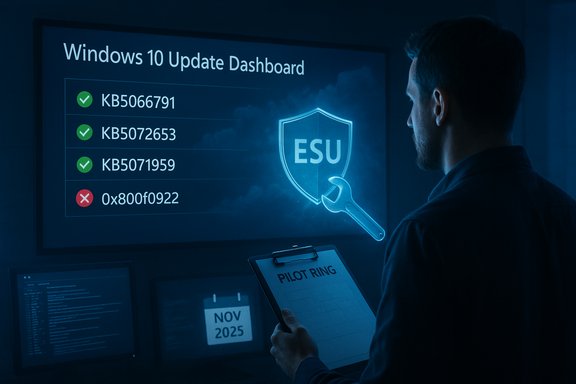
A student in a library works on a laptop displaying Copilot and Office apps.Background / Overview​

Microsoft announced expanded student access to Copilot and Microsoft 365 features as part of a broader education initiative. The official Copilot for Students landing page advertises the promotion as a way for students to “study smarter” by unlocking enhanced Copilot features such as Deep Research, Vision, and Study Live with a Microsoft 365 Personal subscription offered at no charge for a limited time. Independent reporting picked up the announcement and broadly confirmed the headline: eligible students can claim a 12‑month Microsoft 365 Personal subscription that includes Copilot and 1 TB of OneDrive storage. That coverage also flagged timing windows and short claim periods, and reported an earlier sign‑up cutoff tied to Microsoft’s public announcements. At the same time, a number of how‑to guides and syndicated articles have published differing claim deadlines and slightly different explanations of what’s included. These discrepancies make it essential to treat Microsoft’s live sign‑up flow as the definitive source for the deadline that applies to your market, and to redeem promptly if you are eligible.

Exactly what the student promotion includes​

Microsoft’s public descriptions and independent coverage converge on a consistent list of features students should expect after successful redemption:
  • Microsoft 365 Personal (12 months) — consumer‑grade subscription for one user that includes the desktop and web apps (Word, Excel, PowerPoint, OneNote, Outlook) and access to app updates and features.
  • Copilot integrated into supported apps — in‑app Copilot assistance for drafting, summarization, slide and design generation, exploratory data analysis and other assistance modes (availability varies by platform and region).
  • 1 TB OneDrive cloud storage — personal cloud storage attached to the Personal seat (1,000 GB).
  • Device/install allowances consistent with Personal plan — installs and sign‑ins on multiple devices (consumer guidance and reseller pages list Personal installs across PCs, Macs, tablets and phones with typical simultaneous‑device limits).
These elements mirror the standard consumer Personal plan, with Copilot surfaced as the AI layer inside the apps for the duration of the promotional year. Be aware that not every Copilot feature (for example, some advanced agent modes or regionally gated Vision features) will be available to every user on day one; Microsoft’s product pages and availability maps should be consulted if a specific capability is mission‑critical.

Who is eligible — the fine print​

Microsoft’s messaging and the sign‑up UI set a straightforward eligibility bar, but the verification flow enforces it in practice:
  • Eligibility is limited to current college or university students (undergraduate or postgraduate) enrolled at an accredited institution. Community college students have been included in past Microsoft education promotions when they can verify enrollment.
  • The promotion is regionally limited: Microsoft lists availability for the United States, the United Kingdom, and Canada on the Copilot for Students page. Feature availability can vary by device and market.
  • Microsoft’s verification flow accepts typical proof items: a valid school email address, student ID, class schedule, acceptance letter, or other dated documents; the live UI will list accepted items for your institution during sign‑up.
Important operational caveat: the student seat is a personal Microsoft Account subscription, not a campus‑managed tenant license. That means administrative controls and enterprise‑grade data governance available to institutional tenants are not applied to the promotional Personal seat unless your school provides a separate tenant subscription for students. Consult campus IT if your work involves sensitive or regulated data.

Conflicting deadline reports — what’s verified and what’s not​

One of the most consequential points for students is the claim period. Multiple reputable outlets that covered Microsoft’s public announcements reported an October 31, 2025 sign‑up cutoff for the U.S. window. Microsoft’s earlier blog and press coverage tied to public events and announcements referenced the earlier fall deadline. However, a variety of syndicated how‑to pages and some later reprints have reported differing cutoffs — for instance, one article circulated the date November 30, 2025 as the last day to redeem. That later date does not match Microsoft’s earlier public blog post and the contemporaneous coverage that cited October 31 as the signup window end. Because multiple secondary summaries disagree, treat any published deadline from non‑Microsoft outlets as provisional and check the live “Redeem free offer” flow on Microsoft’s Copilot for Students page for the authoritative deadline that applies to you. Caveat and practical instruction: If you are eligible, redeem now. Don’t wait for a secondary article to confirm the date; the Microsoft sign‑up UI is the canonical source and often displays the region‑specific claim window.

Step‑by‑step: How to redeem the free 12‑month Microsoft 365 Personal with Copilot​

The redemption flow is simple but precise. Follow these steps exactly and prepare verification materials beforehand:
  • Open a modern browser and go to Microsoft’s Copilot for Students / AI for Students landing page and locate the “Study smarter with Copilot and Microsoft 365” section. Click Redeem free offer.
  • Sign in with the Microsoft account you want to use for the Personal subscription (Outlook.com/Hotmail/Live). If you don’t have a personal Microsoft account, create one before starting.
  • Complete the academic verification flow. Use your school email for instant verification if supported, or upload required documentation (student ID, class schedule, acceptance letter). Have clear scans or screenshots ready.
  • Follow the activation and confirmation steps shown on the screen. Microsoft typically sends an activation confirmation email within 24 hours; in peak periods this can be delayed up to 48 hours. Check spam/junk if you don’t see it.
  • If prompted, add a payment method (promotional flows sometimes request one to enable auto‑renewal). If you don’t want to pay after the free year, immediately disable recurring billing under Microsoft Account → Services & subscriptions after activation.
Short troubleshooting checklist if something goes wrong: verify that your school email is active and entered correctly, retry the verification flow, check spam for emails, and contact Microsoft support if verification repeatedly fails. If your school provides tenant‑managed Copilot or Microsoft 365 for Education, consult campus IT for the recommended account to use for graded or sensitive work.

Technical verifications and clarified specs​

Several key technical claims circulating about the promotion are verifiable against Microsoft documentation and reputable third‑party sources:
  • One terabyte (1 TB) of cloud storage is the documented allocation for Microsoft 365 Personal. Microsoft’s product pages and consumer pricing documentation list 1 TB as the Personal plan’s storage allotment.
  • Device/install limits consistent with Personal plan — consumer guidance shows Personal is intended for a single user and supports use across multiple devices; vendor and reseller documentation indicate installations and simultaneous sign‑ins across PCs, Macs, tablets and phones with practical limits aligned to the Personal license model (typical consumer docs reference installation/sign‑in on up to five devices concurrently for a single user).
  • Copilot feature gating — several Copilot features require files to be stored in OneDrive (AutoSave enabled) or are phased across regions and platforms; for example, Excel Copilot requires files saved to OneDrive for certain in‑app assistance to work reliably. Verify platform‑specific requirements in Microsoft support notes.
If any article states larger storage quotas, unlimited Copilot usage, or enterprise tenant features included in the student Personal seat, treat those as incorrect until you confirm explicit language in Microsoft’s sign‑up flow or official product documentation. The student promotion is a consumer Personal seat — not an enterprise‑grade tenant license — and that distinction matters for administrative controls and data governance.

Privacy, model training, and academic integrity — what students must do right away​

Microsoft documents and public statements stress privacy controls, but students must take a few proactive steps:
  • Review Copilot privacy and training settings immediately after activation. Microsoft provides toggles and privacy controls that let users limit use of prompts and content for model training; check your Microsoft Account privacy settings if model‑training exposure concerns you.
  • Avoid uploading or prompting with regulated / highly sensitive data — consumer seats do not carry the same contractual protections as tenant‑grounded enterprise or education Copilot implementations. If you work with regulated research or confidential data, use institutional systems directed by your campus IT.
  • Follow your institution’s AI policy. Many universities now require disclosure of AI assistance in work or have explicit rules about acceptable AI use. Use Copilot as a drafting and revision aid, not as a shortcut to submit work you were required to produce independently. Academic misconduct rules apply.

Strengths: why this offer is meaningful for students​

  • Immediate productivity gains — Copilot in Word, Excel and PowerPoint can speed brainstorming, drafting, slide creation and data exploration. Those time savings are impactful during intense coursework and group projects.
  • Hands‑on AI experience — students gain practical exposure to modern AI assistants inside widely used productivity apps, building skills recruiters increasingly value.
  • 1 TB of cloud storage — a full terabyte consolidates large project files, datasets, media assignments and portfolio work in a single personal cloud, reducing friction with multiple consumer storage services.
  • No institutional dependency — because this is tied to a personal Microsoft Account, students keep the subscription and its artifacts after graduation (subject to Microsoft terms), unlike some campus licenses that expire when enrollment ends.

Risks and practical caveats​

  • Auto‑renewal and unexpected billing — promotional flows often request a payment method and subscriptions auto‑renew by default. Many users treat the year as an evaluation period and cancel before renewal; set a calendar reminder 10–14 days before your promo end to avoid unwanted charges.
  • Feature variability — some advanced Copilot features roll out regionally or by device; verify that the specific Copilot capability you need (for example, Copilot Vision or particular agent modes) is available on your device and in your region before an assignment depends on it.
  • Data governance and privacy — consumer Copilot interactions may be used for model training unless you opt out; for sensitive research or legal/regulatory work, a personal seat may not be appropriate. Consult campus IT if in doubt.
  • Academic integrity — misuse of AI assistance can result in sanctions. Faculty guidance is evolving; disclose AI use where required and use Copilot responsibly as a drafting aid.

Practical tips and best practices for claimants​

  • Use or create the Microsoft account you intend to keep and control; avoid using a shared or institution‑managed account for the personal seat.
  • Keep clean scans of student ID, class schedule, or acceptance letter before starting the verification flow. Instant verification via school email is fastest when supported.
  • After activation, immediately review your Microsoft Account → Services & subscriptions page to confirm the promo period and to cancel recurring billing if you do not want the subscription to renew.
  • If a Copilot feature does not appear in an app, check that the app is updated to the latest version and that the relevant file is saved to OneDrive with AutoSave enabled (Excel Copilot often requires this).

What to do about the conflicting “redeem by” dates you’ve seen online​

You may encounter a range of claim deadlines across press articles and syndicated how‑to posts. Two robust, authoritative references tied to Microsoft’s public messaging reported the earlier fall cutoff (October 31, 2025) for the initial sign‑up window, while some later how‑to pieces reported a November 30 date. Because Microsoft has run regionally specific windows and may extend or alter promotional timing, the live “Redeem free offer” button on Microsoft’s Copilot for Students page is the single authoritative source for the claim window that applies to your market. If you are eligible, redeem as soon as possible and keep the confirmation. Where secondary outlets disagree, flag their dates as provisional: treat Microsoft’s sign‑up UI and official blog posts as definitive. If you relied on an article that stated a later cutoff (for example, November 30), that claim should be treated with caution unless the Microsoft sign‑up flow explicitly shows that date for your region.

Final analysis — is it worth claiming?​

For eligible students, this promotion is a high‑value, low‑friction way to try modern AI‑augmented productivity tools in real coursework: a year of Microsoft 365 Personal with Copilot and 1 TB of OneDrive is genuinely useful for writing, data analysis, presentations and portfolio building. The main caveats are administrative: verify eligibility, claim promptly, manage renewal settings to avoid unwanted billing, and take immediate steps to protect privacy and comply with institutional AI policies. If your work involves sensitive or regulated data, consult campus IT before using Copilot on that material. If a specific Copilot feature is required for a class, test availability on your device in advance and document your AI usage per your instructor’s policy. Those simple, proactive steps turn a free year into a safer, more productive learning experience.

Quick checklist (copy / paste)​

  • Visit Microsoft’s Copilot for Students / AI for Students page and click Redeem free offer.
  • Sign in with (or create) the Microsoft account you want to use.
  • Prepare a school email or verification documents (student ID, schedule, acceptance letter).
  • Complete the verification flow and watch for activation email (24–48 hours).
  • Add payment method if required, then immediately confirm the promo end date and disable recurring billing if you don’t want to continue after the year.
  • Review Copilot privacy/training settings and opt out if you prefer not to have prompts used for model training.
  • Create a calendar reminder 10–14 days before the promo ends to decide whether to keep or cancel.

Microsoft’s student promotion is a practical, evidence‑based opportunity to experiment with AI in the tools students already use. Act early, verify the live sign‑up terms in your region, and manage renewal and privacy settings to get the maximum value while avoiding the common pitfalls that turn a free year into an unexpected expense or governance headache.
Source: Analytics Insight How to Get Microsoft 365 Personal With Copilot Free for One Year
 

Microsoft quietly shipped a targeted preparation package this week to unblock a subset of Windows 10 devices that failed to receive the platform’s first Extended Security Update (ESU) cumulative, turning what should have been a routine November Patch Tuesday into a tense operations sprint for administrators and help desks worldwide.

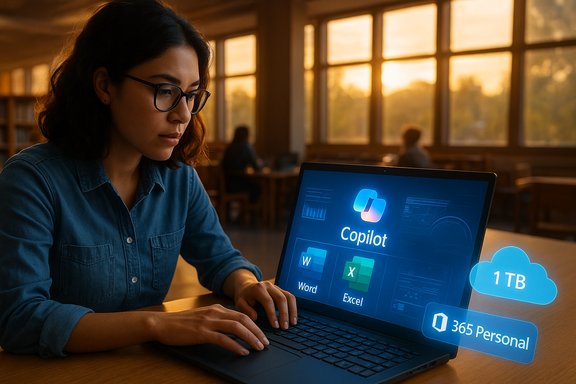
IT professional reviews Windows 10 Update Dashboard showing successful and failed updates.Background / Overview​

Microsoft’s Extended Security Updates (ESU) program for Windows 10 was designed as a time‑boxed safety net: after mainstream support ended, eligible machines could continue to receive security‑only fixes for a defined period. For consumers Microsoft offered a range of enrollment paths — a free route tied to Windows Backup/OneDrive, a Microsoft Rewards route (1,000 points), or a paid one‑time purchase — while commercial customers use subscription or volume licensing paths intended for managed fleets. Independent reporting and Microsoft community guidance summarized those options and the headline prices and allowances that accompanied them. The technical pivot point of the recent disruption was the November 11, 2025 ESU rollup (the security cumulative), plus a pair of emergency fixes and a small “licensing preparation” package that Microsoft published to patch holes in the ESU delivery pipeline. Microsoft’s official support article for the preparation package — KB5072653, “Extended Security Updates (ESU) Licensing Preparation Package for Windows 10” — spells out the intended sequencing: install the October 2025 cumulative (KB5066791) first, then apply KB5072653, and only then deploy the November ESU rollup. At the same time Microsoft released an out‑of‑band cumulative (KB5071959) aimed specifically at consumer devices that were unable to complete the in‑OS ESU enrollment wizard; that package restores the enrollment flow and includes prior fixes so blocked machines do not miss critical updates.

What went wrong: symptoms, scope and sequencing​

The visible symptoms​

Two distinct but related problems emerged during the November rollout:
  • Some consumer PCs could not complete the ESU enrollment wizard in Settings → Windows Update; users saw terse errors like “Something went wrong” or regional gating messages such as “Enrollment for Windows 10 Extended Security Updates is temporarily unavailable in your region.” That blocked the consumer enrollment path and prevented these devices from receiving the November security cumulative.
  • A separate class of managed, commercial devices — primarily those activated via Windows Subscription Activation through the Microsoft 365 admin center — exhibited a more damaging failure: the ESU cumulative (reported in community telemetry as KB5068781) would appear to install, then rollback after reboot with error 0x800f0922 (CBS_E_INSTALLERS_FAILED). Those devices did not complete the update and remained unpatched until remediation. Community diagnostics and Microsoft’s feedback narrowed the scope to the subscription activation activation/entitlement path.

The immediate Microsoft response​

Microsoft’s reaction combined three steps:
  • An out‑of‑band consumer fix — KB5071959 — to repair the enrollment wizard and allow consumer devices that were blocked to enroll and receive ESU rollups.
  • A licensing preparation package — KB5072653 — targeted at commercial / subscription‑activated estates. The vendor’s support page instructs that KB5072653 must be installed after the October 2025 cumulative (KB5066791) and before the ESU rollups are deployed.
  • Direct guidance for administrators on sequencing, log collection and pilot rings while Microsoft investigates and monitors telemetry from affected tenants. Community documentation and forum analysis amplified Microsoft’s recommended remediation sequence and troubleshooting steps.

Why the rollback happened — technical anatomy​

The public evidence and vendor guidance point to a collision of three modern servicing realities: servicing‑stack sequencing, entitlement‑aware installation gates, and variation between activation paths.

1. Servicing stack and prerequisite sequencing​

Windows cumulative updates rely on an up‑to‑date Servicing Stack Update (SSU) and an expected base cumulative. When installers detect a mismatch or missing prerequisite, they often abort and roll back rather than leaving the system in a partially updated state. Microsoft documents the required ordering for ESU-related packages explicitly, and the KB5072653 support article reiterates that ordering. Missing or mismatched SSUs remain one of the most common root causes of cumulative‑update rollbacks.

2. Entitlement and activation handshakes​

Subscription activation ties a device’s entitlement to cloud‑delivered tenant records in the Microsoft 365 admin center. When update installers incorporate entitlement checks — to ensure a device is legitimately licensed before applying paid ESU rollups — any inconsistency or mismatch between licensing metadata and what the servicing engine expects can trigger an abort. Community traces and Microsoft’s communications consistently point at subscription activation as the narrow trigger for the 0x800f0922 rollback observed on corporate devices. That is, the installer reached a licensing validation step that returned unexpected state and the servicing transaction failed safely by rolling back.

3. UI/diagnostic noise amplified operational risk​

A separate but consequential problem was an incorrect “Your version of Windows has reached the end of support” banner that began appearing in Settings after the October cumulative, even on devices that were legitimately enrolled in ESU or covered by LTSC/IoT lifecycles. That cosmetic message created panic among users and admins and flooded help desks with avoidable tickets — increasing operational load while real entitlement and installation failures were investigated. Microsoft applied a cloud‑delivered fix and folded a permanent correction into subsequent cumulative updates.

What KB5072653 actually is — and what Microsoft does (and does not) disclose​

Microsoft labels KB5072653 the “Extended Security Updates (ESU) Licensing Preparation Package for Windows 10.” The vendor’s KB entry lists prerequisites and the required installation order — October cumulative (KB5066791) first, then this preparation package, then the ESU rollups — and notes the package will automatically restart the device when installed. That official guidance is the authoritative deployment sequence for subscription‑activated devices. However, Microsoft’s public documentation does not provide a granular, human‑readable breakdown of the package internals or an explicit narrative of the exact entitlement metadata changes it performs. Community reverse‑engineering and admin reports indicate the package updates certain servicing/driver components and prepares licensing/servicing metadata so subscription‑activated devices will accept the ESU rollup. Where Microsoft has not published the internal mechanics, those points must remain categorized as operationally observed behavior rather than vendor‑confirmed engineering details. Administrators should treat claims around specific file replacements or exact entitlement tokens as unverified until Microsoft publishes an engineering note.

The practical impact: who was hit and why it mattered​

  • Affected consumers who couldn’t enroll in ESU faced immediate exposure: some of the November fixes addressed actively exploited kernel vulnerabilities, and a broken enrollment wizard left some eligible home devices unable to receive critical mitigations until Microsoft issued KB5071959. The out‑of‑band release was therefore time‑critical.
  • Managed enterprises relying on subscription activation experienced failed installs and rollbacks on a subset of devices. For large estates, even a small percentage of devices failing to patch can create compliance, risk, and support headaches — especially when the problem is tied to licensing and not a simple broken binary. Administrators reported that the rollback behavior exposed an important blind spot: entitlement gating is functionally part of the update pipeline and must be tested.
  • The population size and geographic distribution of impacted devices are not publicly enumerated by Microsoft. Any claim about the percentage of devices affected is therefore an estimate unless the vendor publishes telemetry numbers; the absence of hard figures increases uncertainty for decision‑makers.

Step‑by‑step remediation checklist for administrators​

Follow a conservative, test‑first approach. The sequence below reflects Microsoft guidance, community experience, and best practices for managed deployments.
  • Inventory and classify: identify devices on Windows 10, confirm edition and build (22H2 vs LTSC/IOT), and classify activation type (retail/OEM, KMS, volume license, subscription activation via Microsoft 365).
  • Confirm prerequisites: ensure devices have the October 2025 cumulative (KB5066791) or a later baseline installed before attempting preparation packages. If KB5066791 is absent, install it and reboot.
  • Apply the ESU Licensing Preparation Package (KB5072653) only after KB5066791 is present. Expect a restart and stage it inside maintenance windows. Microsoft’s support entry explicitly requires this ordering.
  • After KB5072653 completes, deploy the November ESU rollup (the ESU LCU). Monitor for rollback behavior and collect logs if failures occur. Capture %windir%\Logs\CBS\CBS.log and WindowsUpdate.log for troubleshooting.
  • For consumer devices that cannot enroll: check Windows Update for the out‑of‑band package (KB5071959) and apply it; if Windows Update does not offer it, download the MSU from the Microsoft Update Catalog and install manually.
  • Pilot ring: run the entire sequence on a representative pilot group (including subscription‑activated devices) before broad deployment. Validate activation state via slmgr.vbs /dlv and inventory tools.
  • If you hit 0x800f0922 rollbacks: pause broad retries, collect logs and evidence, and escalate to Microsoft support with the captured artifacts. Re‑installing the ESU LCU without applying KB5072653 and the required SSUs is likely to repeat failure.

Strengths of Microsoft’s response — and notable weaknesses​

Strengths​

  • Speed: Microsoft shipped a narrowly scoped out‑of‑band fix (KB5071959) on the same day the problem became urgent, restoring consumer enrollment flow for many blocked devices. That preserved the delivery path for security fixes that addressed actively exploited issues.
  • Clear sequencing guidance: the vendor published KB-level guidance and an explicit installation order for managed environments (KB5066791 → KB5072653 → ESU rollup), which provides a reproducible remediation recipe for administrators.
  • Targeted measures: Microsoft offered multiple remediation tracks — cloud configuration fixes, Known Issue Rollback (KIR) for locked environments, out‑of‑band consumer packages, and the preparation package for subscription activation — reflecting a layered approach that reduced the blast radius for many customers.

Weaknesses and risks​

  • Entitlement testing blindspots: the incident exposes a testing gap where entitlement and subscription‑activation paths did not receive equivalent real‑world staging coverage compared with retail consumer flows. When entitlement checks are part of the installation pipeline, they must be treated as first‑class test scenarios.
  • Vague error messaging: the consumer enrollment wizard and managed device logs often returned opaque messages (e.g., “Something went wrong”), which increased help‑desk load and slowed triage. Better client‑side diagnostics and actionable error codes would materially reduce time to remediation.
  • Lack of public impact telemetry: Microsoft has not published the number or proportion of devices affected. Enterprises buying ESU expect clearer telemetry and impact reports when entitlement gating leads to failed security installs — both for operational planning and contractual SLA considerations. This opacity raises governance concerns.
  • Operational cost and complexity: ESU is a migration bridge, not a long‑term plan. The mechanical complexity of entitlement checks, SSU sequencing, and per‑device enrollment options adds real operational overhead — and a paid ESU program amplifies expectations about reliability. Independent reporting highlights that cost sensitivity matters for customers.

Wider context: Windows 11 adoption, hardware limits and why ESU matters​

Windows 11 adoption climbed throughout 2024–2025 and, according to StatCounter‑based reports, finally overtook Windows 10 in mid‑2025. That shift removed much of the pressure for some upgrade scenarios but left a significant population of devices that cannot meet Windows 11’s hardware requirements or that are locked into vendor‑certified images for business reasons. The upshot: ESU remains mission‑critical for many organizations and consumers that cannot upgrade immediately. Microsoft’s consumer ESU mechanics — free via Windows Backup sync, via Microsoft Rewards, or through a small paid path — were intended to blunt the security harm of a hard cutoff. The company’s pricing and enrollment design acknowledges the mixed realities of the installed base, but it also introduced logistical complexity for managed estates that do not fit the consumer‑centric enrollment model.

Recommendations: practical policies for IT and security teams​

  • Treat ESU as a bridge only: use the ESU period to complete a disciplined migration (hardware refresh, application compatibility remediation, or sanctioned long‑term alternatives) rather than an indefinite extension. Plan to retire devices from ESU before the end of the vendor’s ESU window.
  • Automate entitlement checks: integrate activation/entitlement validation into patch orchestration scripts and device inventory. Flag subscription‑activated endpoints so the KB5072653 step can be applied selectively ahead of rollouts.
  • Baseline SSUs and pilot: maintain a central library of required SSUs and LCUs for each Windows 10 SKU in your estate. Pilot the entire SSU → KB5072653 → LCU sequence on representative hardware before wide deployment.
  • Enhance diagnostics: capture CBS.log and WindowsUpdate.log automatically for failed installs and centralize failure telemetry. Avoid mass retries that can exacerbate incidents; preserve failed images where feasible and escalate with complete logs to vendor support.
  • Negotiate SLAs and telemetry: organizations buying paid ESU should demand clearer operational telemetry and escalation commitments from suppliers; entitlement‑gated servicing is a contractual risk vector that merits explicit remedies.

Verdict — a pragmatic fix, but a cautionary tale​

Microsoft’s layered response — an out‑of‑band enrollment repair for consumer devices and a narrowly targeted licensing preparation package for subscription‑activated commercial fleets — fixed the immediate delivery problem and restored the ESU update pipeline for many customers. The vendor’s published prerequisites and the KB5072653 support article give administrators a clear remediation sequence to follow. Yet the episode is a textbook example of how modern update pipelines have become brittle when licensing, cloud entitlements and servicing‑stack mechanics all intersect. The failure mode was neither a simple binary bug nor purely a network glitch; it was an operational complexity problem that amplified user confusion and created measurable risk for organizations that rely on guaranteed security coverage. The necessary lessons are operational and contractual: test entitlement flows, require clearer client diagnostics, and treat ESU as temporary runway — not a long‑term operating model.
Administrators can regain control by following the documented sequence (apply KB5066791, then KB5072653, then the ESU rollup), piloting widely representative devices first, and insisting on better post‑mortem telemetry from vendors. For consumers and small businesses, the practical takeaway is simpler: if enrollment fails, apply the out‑of‑band package (KB5071959) and re‑run the ESU wizard; if a managed device still fails to install ESU updates, escalate to your vendor or Microsoft support with collected logs.
Microsoft’s remediation closed the immediate delivery gaps, but it also exposed a fragile intersection of licensing and patching that enterprises should now prioritize in their patch governance and vendor contracts. The platform remains secure when properly prepared — but getting every device to that prepared state will require disciplined sequencing, improved client diagnostics, and an operational willingness to treat entitlement plumbing as essential test coverage rather than a post‑release afterthought.

Source: theregister.com Microsoft issues patch after Windows 10 ESU rollout stumbles
 

Back
Top