Microsoft’s latest Insider flights are intentionally small but strategically significant: the Dev and Beta channels each received preview updates that primarily deliver a single new capability — native Sysmon — alongside a grab-bag of reliability and UI fixes. The delivery model and rollout behavior are textbook Microsoft: binaries are being staged through preview updates while feature exposure is controlled server‑side, which means what you see after installing the package can differ from what your colleagues see. For IT teams and security operators, the headline is clear: Sysmon — the Sysinternals tool many security operations centers rely on — is now an optional, supported Windows feature that administrators can enable through Settings and initialize with the familiar sysmon -i command, simplifying deployment and patching.
Microsoft has been evolving how it ships preview features for Windows 11: rather than relying only on separate binaries or manual installs, the company increasingly ships a common binary and then uses server-side flags and enablement packages to turn features on for subsets of Insiders. That staging method reduces binary churn and lets Microsoft validate telemetry and compatibility before broad exposure, but it also means that installed builds and visible features aren’t always one-to-one. The recent Dev and Beta updates follow that same pattern.
This week’s updates arrived as matched preview updates to the Dev and Beta channels: Dev testers received a preview that advances the 26300-series builds (reported as a KB in community discussion), and Beta testers received a 26220-series preview package. The two key preview packages have been reported in community coverage as KB5074178 (Dev / 26300.7733) and KB5074177 (Beta / 26220.7752). Independent reporting and Insider chatter picked out the same single new user-visible capability across both flights: native Sysmon. Note, however, that at time of writing Microsoft’s formal KB pages for KB5074178 and KB5074177 were not broadly discoverable in the official KB index, so the KB identifiers come from preview coverage and community reporting rather than a single official knowledge base article. Treat those KB numbers as community‑reported until they are reflected in Microsoft’s public update catalog.
At the same time, the way Microsoft delivers these changes — a common binary plus server-side feature gating — means administrators must remain deliberate. Installing the KB preview package does not equate to immediate, universal feature exposure; you must enable the component and validate your environment. The distributed nature of feature exposure (CFR) also places a premium on pilot testing and clear change-control workflows before wider rollout.
However, the change is not a drop-in cure-all. Organizations must manage the migration carefully: confirm compatibility, tune configurations to control event volume, and validate interactions with existing agent fleets. The Controlled Feature Rollout model adds another layer of planning: ensure pilots are representative, and don’t assume a uniform experience immediately after installing a preview package. Done right, the native Sysmon integration reduces operational risk and strengthens detection posture; done carelessly, it can create noise, ingest costs, or surprise compatibility problems.
For Windows Insiders the message is simple: install the preview if you want to help validate the feature, but treat it like any other preview — enable carefully, test broadly, and document rollback paths. For enterprise administrators, use a staged pilot, confirm SIEM ingestion and retention costs, and coordinate with endpoint and EDR vendors before enabling Sysmon across production fleets. The underlying tool is the same Sysmon defenders have used for years, but the new delivery and support model are what make this week’s small preview update materially important.
Conclusion
Microsoft’s matched Dev and Beta preview updates are small in scope but strategically important: the platform now includes native Sysmon as an optional, supported feature, shipped by the usual Windows servicing chain and enabled by administrators with the familiar sysmon -i command. That combination of parity with existing Sysinternals workflows plus the operational benefits of centralized servicing is a net positive for defenders — provided organizations plan their deployments, tune configurations, and validate compatibility before flipping Sysmon on fleet‑wide. The preview packages are a good moment to pilot the new experience, adapt your SOC playbooks, and prepare for a safer, more maintainable telemetry posture across Windows endpoints.
Source: Thurrott.com Microsoft Delivers Minor New Dev and Beta Builds to Insiders
 Background / Overview
Microsoft has been evolving how it ships preview features for Windows 11: rather than relying only on separate binaries or manual installs, the company increasingly ships a common binary and then uses server-side flags and enablement packages to turn features on for subsets of Insiders. That staging method reduces binary churn and lets Microsoft validate telemetry and compatibility before broad exposure, but it also means that installed builds and visible features aren’t always one-to-one. The recent Dev and Beta updates follow that same pattern. This week’s updates arrived as matched preview updates to the Dev and Beta channels: Dev testers received a preview that advances the 26300-series builds (reported as a KB in community discussion), and Beta testers received a 26220-series preview package. The two key preview packages have been reported in community coverage as KB5074178 (Dev / 26300.7733) and KB5074177 (Beta / 26220.7752). Independent reporting and Insider chatter picked out the same single new user-visible capability across both flights: native Sysmon. Note, however, that at time of writing Microsoft’s formal KB pages for KB5074178 and KB5074177 were not broadly discoverable in the official KB index, so the KB identifiers come from preview coverage and community reporting rather than a single official knowledge base article. Treat those KB numbers as community‑reported until they are reflected in Microsoft’s public update catalog.
What changed in these builds
The one feature that matters: Sysmon built into Windows
- What’s included: Windows now ships a native, optional Sysmon capability that can be enabled by an administrator rather than manually deployed from the Sysinternals download ZIP. The feature is disabled by default and must be turned on via the Settings UI or PowerShell and then installed using the same command-line invocation security teams already know: sysmon -i. This preserves existing workflows for applying XML configuration files and integrates updates into the Windows servicing pipeline.
- How to enable (summary):
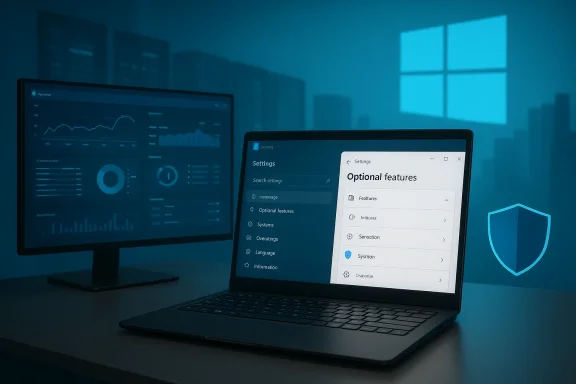
- Open Settings > System > Optional features > More Windows features and select Sysmon from the list, or use PowerShell to enable the optional feature.
- Complete the installation by running: sysmon -i (from an elevated Terminal / PowerShell). If you already use the standalone Sysmon, uninstall that version before enabling the built-in functionality to avoid conflicts. Community notes and preview release comments echo this procedure.
- Why this matters: Sysmon provides high-fidelity telemetry — process creation trees, command line arguments, raw network connection events, file create/hash events, driver loads and more — that security teams feed into SIEMs and EDRs to detect lateral movement, credential theft, and advanced persistence. Making Sysmon an optional Windows component reduces operational friction: updates flow through Windows Update, configuration remains compatible with existing XML schemas, and Microsoft can now support it as part of the OS lifecycle. That’s a practical win for enterprise defenders.
Quality and reliability fixes
Both preview packages also bundle a set of fixes across File Explorer, Voice Access, OneDrive, Outlook and other shell components. These are typical of preview servicing updates: they aggregate reliability patches and small UX fixes while the platform teams continue to gate the visibility of larger features. Expect improvements to Explorer behavior (accessibility and favorites icons), OneDrive file-handling edge cases, and a handful of Outlook sync fixes as part of this maintenance wave. Community reports and the Insider release notes align on those items.Why Microsoft is doing this: platform and servicing context
Microsoft’s current Insider-era pattern separates binary delivery from feature enablement. Teams ship a common binary in a servicing update and then selectively turn features on with Controlled Feature Rollout (CFR) or server-side enablement. This approach has multiple benefits:- Faster iteration cycles: binaries can be shipped more frequently while feature exposure is controlled independently.
- Reduced update friction: smaller payloads and enablement packages reduce download size and installation complexity.
- Better telemetry: staged rollouts let Microsoft gather telemetry in production across varied hardware and configurations before scaling up.
Technical verification and practical steps for IT teams
I verified the key technical points against Microsoft’s own documentation for the legacy Sysmon tool and official commentary from the Sysinternals team, and cross‑checked with independent reporting from security and Windows-focused sites.- Event log location and installation semantics are unchanged from the Sysinternals tool: Sysmon writes to Microsoft-Windows-Sysmon/Operational, and the command-line syntax (sysmon -i to install, -u to uninstall, -c to change configuration) remains the expected method for deploying and reconfiguring the service. That parity minimizes migration friction for existing detection pipelines.
- Mark Russinovich — the creator of the Sysinternals suite — announced the plan to integrate Sysmon into Windows via the Windows IT Pro blog and community posts. The announcement states the integration will be surfaced as an Optional Feature, updated by Windows Update, and remain configurable by existing XML files. Multiple reputable outlets covered and corroborated the announcement.
- To enable native Sysmon:
- Use Settings: System > Optional features > More Windows features > tick Sysmon, then run sysmon -i.
- Or use PowerShell to add the optional feature, then run the sysmon installer command to start the service.
- If a standalone Sysmon is already installed, uninstall it first to avoid duplicate drivers/services. Community notes and the preview changelog emphasize this removal step.
- In a small lab, enable the built-in Sysmon and verify event forwarding to your SIEM/Log Analytics workspace.
- Apply your production XML configuration and measure event volume (ingestion and storage costs matter).
- Verify that endpoint security agents and EDR integrations continue to behave — some agents inspect drivers and kernel-mode components and may require cert/compatibility checks.
- Test upgrades and reboots with the built-in Sysmon enabled to validate servicing behavior through your update ring.
Deep dive: operational impacts, benefits, and risks
Benefits
- Centralized servicing and support: Sysmon updates via Windows Update reduce the risk that large fleets run different Sysmon versions or miss critical fixes. Integration into the platform also brings it under Microsoft support channels.
- Preserves existing workflows: The native component respects the current Sysmon XML schema and command semantics, so teams can retain established configuration repositories (SwiftOnSecurity, community templates) and detection rules. That lowers friction for adoption.
- Faster time-to-detect: Because Sysmon captures telemetry that standard Windows logs don’t, broader, easier adoption can materially reduce dwell time — especially for organizations that previously struggled to maintain consistent Sysmon deployment across thousands of endpoints.
Risks and caveats
- Logging volume and SIEM cost: Sysmon can generate high event volumes. Organizations must carefully tune XML filters before enabling fleet-wide collection to avoid overwhelming ingestion pipelines and driving up costs. This is a practical concern rather than a technical limitation. The need to trim noise with carefully designed rules is as relevant now as ever.
- Compatibility with existing Sysmon installs and agents: The native feature requires removal of prior standalone installs. That migration must be planned — especially where scripts, configuration management systems, or third-party tools currently manage the standalone binary. Test the uninstall/enable sequence carefully.
- Performance and driver interactions: Sysmon installs a kernel-mode driver. While the driver is lightweight for typical configurations, misconfigured or overly verbose event captures may impact endpoint performance on low‑powered devices. Additionally, driver conflicts are a known vector for boot or reliability issues, so validate drivers and signatures in your environment.
- Privacy and telemetry considerations: Sysmon records detailed process command lines and file metadata. Privacy-conscious deployments require policy alignment and attention to data minimization and retention rules, particularly in regulated environments. Designing redaction and retention into your pipeline is essential before rolling out broad capture.
- Feature gating and inconsistent exposure: Because Microsoft uses controlled rollouts, you may find some devices have the Sysmon binary present but the feature inactive, or have different feature combinations enabled. This complicates troubleshooting and documentation for help desks and SOC triage teams. Use pilot groups and clear deployment documentation to avoid surprises.
Enterprise deployment patterns to consider
- Start with a staged pilot: enable Sysmon on a narrow set of endpoints (security team machines, jump boxes, and a small set of representative user devices). Use those pilots to finalize XML filters and validate storage/instrumentation costs.
- Integrate with existing configuration management: Convert any bespoke Sysmon deployment scripts into a managed flow that enables the Optional Feature and then runs sysmon -i with your organization’s XML. Keep the sequence idempotent and document rollback steps.
- Treat the native feature as a replaceable component: even though the binary arrives via Windows Update, you should maintain documented procedures for rollback, reconfiguration, and troubleshooting — including steps to uninstall the built-in Sysmon and fall back to a previous approach if necessary.
- Coordinate with endpoint and EDR vendors: involve vendor support to ensure their agents do not misinterpret the presence of the Sysmon kernel component or throttle it inadvertently.
- Monitor event volumes in the first 72 hours: sudden spikes are common after enabling Sysmon; track ingestion metrics closely and tune filters quickly. Consider sampling or short-term retention windows during the tuning phase.
The big-picture takeaway for Insiders and admins
This week’s Dev and Beta preview updates are deliberately light on flashy features but heavy in practical consequence: by making Sysmon an optional, supported Windows feature, Microsoft removes a long-standing operational friction point for defenders. Where previously Sysmon deployment demanded packaging, scripting, and bespoke management, enabling the capability through Settings and servicing it via Windows Update promises a more consistent, supportable experience for large fleets. That alone is a meaningful operational improvement for enterprises that rely on Sysmon telemetry to power detection, hunting, and incident response.At the same time, the way Microsoft delivers these changes — a common binary plus server-side feature gating — means administrators must remain deliberate. Installing the KB preview package does not equate to immediate, universal feature exposure; you must enable the component and validate your environment. The distributed nature of feature exposure (CFR) also places a premium on pilot testing and clear change-control workflows before wider rollout.
What to watch next
- Official KB pages and Microsoft Update Catalog entries for KB5074177 and KB5074178 (or their final identifiers) should appear in Microsoft’s update index as the flight matures; those pages will carry the authoritative notes and LCU identifiers. Until they are posted, rely on the Windows Insider blog and Microsoft’s Windows IT Pro posts for formal guidance. I could not find a single, authoritative Microsoft KB article publicly indexed for the two KB identifiers reported by community trackers at the time of writing — consider those KB numbers provisional until Microsoft publishes them in the update catalog.
- Documentation updates on Microsoft Learn that describe the native Sysmon capability, configuration schema, and migration practices will be essential. Microsoft’s existing Sysmon Learn page already documents command-line usage, event storage location, and configuration operations — the built-in feature will maintain the same operational model, and Learn will be the natural home for detailed guidance. Watch for a dedicated docset describing special considerations for the built-in variant.
- Follow the staged rollout: because features are gated, tracking Microsoft’s toggle-based exposure — and monitoring community reports from Insiders who flip the “Get the latest updates as they are available” toggle — remains the best way to gauge when Sysmon will become broadly visible for your tenant. Use pilot telemetry to make enablement decisions.
Final assessment
These preview updates represent an evolutionary but meaningful step for Windows platform security. The integration of Sysmon as a native, optional Windows feature removes a years‑long operational hurdle for defenders and brings a well‑understood, high‑value signal into the supported Windows servicing lifecycle. That change improves uniformity and makes life easier for SOCs tasked with deploying and patching telemetry at scale.However, the change is not a drop-in cure-all. Organizations must manage the migration carefully: confirm compatibility, tune configurations to control event volume, and validate interactions with existing agent fleets. The Controlled Feature Rollout model adds another layer of planning: ensure pilots are representative, and don’t assume a uniform experience immediately after installing a preview package. Done right, the native Sysmon integration reduces operational risk and strengthens detection posture; done carelessly, it can create noise, ingest costs, or surprise compatibility problems.
For Windows Insiders the message is simple: install the preview if you want to help validate the feature, but treat it like any other preview — enable carefully, test broadly, and document rollback paths. For enterprise administrators, use a staged pilot, confirm SIEM ingestion and retention costs, and coordinate with endpoint and EDR vendors before enabling Sysmon across production fleets. The underlying tool is the same Sysmon defenders have used for years, but the new delivery and support model are what make this week’s small preview update materially important.
Conclusion
Microsoft’s matched Dev and Beta preview updates are small in scope but strategically important: the platform now includes native Sysmon as an optional, supported feature, shipped by the usual Windows servicing chain and enabled by administrators with the familiar sysmon -i command. That combination of parity with existing Sysinternals workflows plus the operational benefits of centralized servicing is a net positive for defenders — provided organizations plan their deployments, tune configurations, and validate compatibility before flipping Sysmon on fleet‑wide. The preview packages are a good moment to pilot the new experience, adapt your SOC playbooks, and prepare for a safer, more maintainable telemetry posture across Windows endpoints.
Source: Thurrott.com Microsoft Delivers Minor New Dev and Beta Builds to Insiders