

Imagine an AI assistant that understands the tools you use every day, can intake entire documents, generate images, and run multi‑step, citation-backed research — then hands you editable, exportable results you can drop straight into Word, Excel, or PowerPoint; that is the practical promise Microsoft Copilot now offers, and it matters because Copilot has moved from a novelty chatbot into a platform-level productivity layer with developer and consumer touches that change how Windows and Office users work.
Microsoft Copilot began as a generative assistant tightly coupled to Microsoft 365 apps. Over successive updates it has become more than text chat: multimodal, file-aware, and connector-enabled. For everyday users this means: upload a PDF or Word file and ask for an executive summary; link your Gmail or Google Drive and ask Copilot to find a document; use a “Think Deeper” or “Deep Research” conversation mode to get an in‑depth report; or generate visuals with Microsoft Designer and download them in PNG format for a slide. These capabilities are now available across the Copilot app, Copilot integrated into Windows and Edge, and via Copilot.com and mobile clients. The functionality described in the Geeky Gadgets / Howfinity beginner’s primer — smart prompts, file uploads, editable outputs, image generation, and a deep research mode — maps closely to Microsoft’s product trajectory and recent feature rollouts. The primer’s practical tips on prompt structure (define role, state task, provide context, set tone/format) are a good, pragmatic start for new users; they mirror the “goal + context + output format” approach Microsoft and product guides recommend.
Tips to avoid common pitfalls:
Microsoft Copilot has matured into a practical, production‑ready assistant for many day‑to‑day tasks. Its real value is earned when it reduces repetitive work, connects real data sources securely, and outputs shareable, editable artifacts. However, governance, verification, and cautious deployment strategies are required to capture the value without inviting compliance or accuracy problems.
Source: Geeky Gadgets Microsoft Copilot for Beginners : Smart Prompts, File Uploads & Deep Research Tips
 Background / Overview
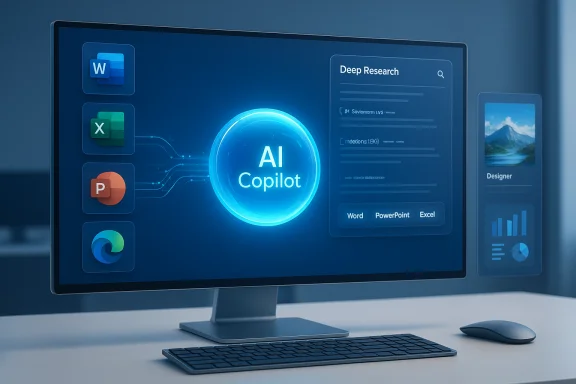
Microsoft Copilot began as a generative assistant tightly coupled to Microsoft 365 apps. Over successive updates it has become more than text chat: multimodal, file-aware, and connector-enabled. For everyday users this means: upload a PDF or Word file and ask for an executive summary; link your Gmail or Google Drive and ask Copilot to find a document; use a “Think Deeper” or “Deep Research” conversation mode to get an in‑depth report; or generate visuals with Microsoft Designer and download them in PNG format for a slide. These capabilities are now available across the Copilot app, Copilot integrated into Windows and Edge, and via Copilot.com and mobile clients. The functionality described in the Geeky Gadgets / Howfinity beginner’s primer — smart prompts, file uploads, editable outputs, image generation, and a deep research mode — maps closely to Microsoft’s product trajectory and recent feature rollouts. The primer’s practical tips on prompt structure (define role, state task, provide context, set tone/format) are a good, pragmatic start for new users; they mirror the “goal + context + output format” approach Microsoft and product guides recommend.What Copilot now is — a concise technical snapshot
- Multimodal assistant embedded across apps: Copilot supports text, voice, and vision interactions, and is embedded into Windows, Microsoft 365 apps (Word/Excel/PowerPoint/Outlook/Teams), Edge, and a stand‑alone Copilot app on macOS and mobile. Vision lets the assistant inspect a selected region of your screen to extract tables, highlight UI elements, or read on‑screen text.
- File ingestion and document-aware reasoning: You can upload files (PDF, .docx in many flows, spreadsheets, images) for summarization, extraction, and analysis. Copilot will surface key insights, extract action items, or turn document content into slides and spreadsheets. Microsoft is rolling document creation/export features that convert long responses into Word/PDF/Excel/PowerPoint.
- Conversation modes for graded reasoning: Built-in modes — Quick response, Think Deeper, Deep Research, and Smart (model routing) — let users trade latency for depth. Think Deeper aims for more thoughtful stepwise answers while Deep Research runs multi‑source collection and synthesis in the background. Microsoft documents these modes and their intended uses.
- Connectors and cross‑platform access: Copilot supports opt‑in connectors to personal services including OneDrive and Outlook, and — importantly for cross‑platform workflows — Google Drive, Gmail, Google Calendar, and Google Contacts. Once you grant permissions, Copilot can search and act on data across those connected accounts. Microsoft explicitly documents connector behavior and the opt‑in model.
- Image generation and design: Microsoft Designer and Bing Image Creator remain the front line for AI image generation (DALL·E 3 and related models), with per‑product credit models and exportable PNG outputs for use in slides and documents. Microsoft and community documentation explain usage limits and rights details.
- Memory & personalization controls: Copilot can remember user preferences (style, recurring constraints, frequently used phrases) to personalize outputs; memory is on by default where available, but users can view, edit, or disable stored memories and can opt out of model training. Microsoft documents the controls and retention behavior (conversations and uploaded files are stored for a period unless deleted).
Why this matters for Windows users and knowledge workers
Microsoft’s advantage is not just AI quality; it’s the deep, tenant‑aware integration with the Microsoft Graph (your emails, files, calendar, Teams chat) plus an increasing set of consumer connectors (Google services). That enables Copilot to return outputs that are not just generative text but work artifacts—editable documents, spreadsheet formulas, or slide decks that reflect your real data and permissions. Practically this reduces context switching, accelerates draft-to-finish workflows, and, when configured correctly, keeps sensitive content governed inside enterprise controls.- For teams: meeting recaps, action items, and prioritized follow‑ups can be auto‑generated from Teams transcripts and calendar context, saving hours of post‑meeting admin.
- For analysts: Copilot in Excel can suggest formulas, create pivot tables, and build visual dashboards from natural language prompts — an on‑ramp for users who can’t write complex Excel logic.
- For content creators and marketers: Designer + Copilot create visuals and text variants quickly; exportable, editable outputs reduce iteration cycles.
Getting started — the prompt and upload pattern that works
Effective use is less about magic and more about structure. The beginner’s primer from Howfinity and Geeky Gadgets lays out a reliable pattern:- Define the role (e.g., “Act as a financial analyst familiar with SaaS metrics”).
- State the task precisely (e.g., “Produce a 250‑word executive summary of this PDF, highlight three KPIs, and extract recommended next steps.”).
- Provide context and constraints (attach the file, define thresholds, regional rules).
- Specify tone and format (bullet list, formal memo, slide outline).
Tips to avoid common pitfalls:
- Be explicit about which data in the document matters (e.g., “Highlight revenue lines only”).
- Ask Copilot to show its chain of thought when using Think Deeper — the UI may show intermediate reasoning so you can spot mis‑interpretations.
- Keep sensitive data out of exploratory chats; use enterprise Copilot seats and tenant governance for regulated work.
Feature deep dives
File uploads and document analysis
Copilot now accepts common document formats for direct ingestion and analysis. In practice, this enables:- Quick summaries of long PDFs or Word documents.
- Extraction of tables and export to Excel.
- Automated slide decks from report sections.
Microsoft’s Windows Insider rollouts and support pages document both upload flows and the new “export to Word/PowerPoint/Excel” features in the Copilot UI. Users should be aware that some features roll out incrementally via Insider channels before broad availability.
- Upload or connect the source file.
- Ask a narrow question (e.g., “Summarize this document in 5 bullets and list action items”).
- Use the export button to create a Word/PDF/PowerPoint if you need a shareable artifact.
Deep Research and multi‑source synthesis
Deep Research launches an agentic background process that collects, vets, and synthesizes sources into a single report. The mode is built for long‑form work: market research, literature reviews, or due diligence briefs. Microsoft describes exportable outputs and plans that preserve links and citations for verification. This is a feature class that overlaps with competing research tools (Google’s NotebookLM, for example) but stands out when Copilot can pull from your own mailbox and drive connectors as well as the open web. Caveat and best practice: always verify facts and citations produced by Deep Research. The agent can misattribute or prioritize lower‑quality sources without human oversight.Image generation and Designer
Microsoft’s Designer and Image Creator services are the Copilot‑adjacent tools that create visuals from prompts. They use DALL·E 3 (and related models) and produce downloadable PNG outputs. Usage is governed by product quotas (monthly credits/boosts) and Microsoft’s Designer terms — which historically have evolved around allowed uses and commercial rights. If you intend to use AI‑generated images for commercial branding, validate the product’s licensing terms at the time of creation.Connectors: bringing Google and Microsoft data together
Copilot’s connector model is opt‑in and intentionally narrow in scope: once you connect Gmail, Google Drive, or Google Calendar, Copilot can search and summarize the content your account can access. This is a deliberate design — the assistant doesn’t create a separate copy of your files and Microsoft states connected data is not used to train Copilot’s models for other users. This model makes Copilot a single‑point search and action layer across ecosystems while preserving permission boundaries. Important nuance: the Google‑connector capability has been rolled out progressively and initially surfaced in Insider builds and Copilot web/mobile. Availability varies by platform and region; check the app’s Connectors settings before planning cross‑account workflows.Pricing, plans, and who should pay
Microsoft’s Copilot product family has evolved rapidly:- Microsoft 365 Copilot (enterprise): official enterprise licensing has long been positioned at approximately $30 per user/month (annual billing), adding tenant-aware, IT‑governed Copilot features to business subscriptions.
- Consumer bundles & transitions: Microsoft introduced Microsoft 365 Premium (consumer) at about $19.99/month which bundles Copilot features for Personal/Family plans; simultaneously Microsoft signaled migration paths for existing Copilot Pro subscribers. Reuters and Microsoft announcements documented this consumer packaging and pricing change.
- Copilot Pro & historical $20 price point: Microsoft previously offered a Copilot Pro consumer add‑on at $20/month; product naming and bundling have since been consolidated into broader Microsoft 365 offerings, with availability changes depending on region and migration plans. Older guides referencing Copilot Pro and $20/month remain useful as historical context but should be validated for your account today.
Governance, privacy, and risk considerations
AI assistants change workflows but introduce real governance questions. Microsoft publishes privacy FAQs and product docs that make several commitments and provide controls:- You can disable personalization/memory and opt out of model training.
- Copilot will not train generative models on tenant content for enterprise Entra IDs, and admin controls exist to limit connectors and agent deployment.
- Conversations and uploaded files have retention windows and can be deleted; uploaded files used in Copilot are not used to train models.
- Hallucinations: Copilot can confidently assert incorrect facts. Mitigation: require source citations from Deep Research, use Think Deeper’s intermediate chain‑of‑thought display, and manually verify mission‑critical numbers.
- Data leakage: Grant connectors on a least‑privilege basis; use enterprise tenant seats for regulated data and disable connectors where not needed.
- Overreliance: Treat Copilot as an accelerant, not a final authority; have human review workflows for legal, financial, or regulatory outputs.
Practical examples and step‑by‑step workflows
1) Turn a long report into a one‑page executive brief
- Upload the PDF into Copilot or connect the Drive folder.
- Prompt: “Summarize this report in 5 bullet points, extract 3 recommended actions, and produce a 150‑word executive paragraph suitable for the CEO.”
- Use Think Deeper for nuance, then ask Copilot to export the output to Word.
2) Clean a messy Excel table and make a dashboard
- Save the workbook to OneDrive and enable Copilot access.
- Ask: “Clean this table: remove duplicates, standardize date to YYYY‑MM‑DD, flag missing Price cells, and make a one‑page dashboard with monthly sales line chart and top 5 products.”
- Inspect suggested Power Query steps before accepting; have Copilot explain each formula to learn while it automates.
3) Rapid research brief with citations
- Use Deep Research mode with the prompt: “Create a 2‑page market brief on X market, include five reputable sources, and produce a short bibliography formatted for import into NotebookLM.”
- Add or remove sources during the agent run; export final report and source list. Remember to verify each cited claim.
Strengths, weaknesses, and an editorial verdict
Strengths- Native app and OS integration gives Copilot a structural advantage: it’s not a separate window — it’s an action layer inside the apps you already use. This materially reduces friction for knowledge work.
- Connector model allows cross‑ecosystem retrieval (Google + Microsoft) without centralizing data, which is powerful for users split across ecosystems.
- Conversation modes let you choose speed versus depth, which is a pragmatic design for both quick tasks and research.
- Feature availability varies: many capabilities (connectors, document creation/export) started as Insider or limited‑region rollouts; your mileage may vary by account, platform, and region. Check the Copilot app’s Connectors and Settings for current availability.
- Human verification remains essential: deep analysis features can still surface unreliable or low‑quality sources; organizations must enforce human review for critical decisions.
- Licensing complexity: Microsoft has restructured consumer/enterprise Copilot bundles in 2025; cost and entitlements differ by plan — verify before planning large deployments.
Microsoft Copilot has matured into a practical, production‑ready assistant for many day‑to‑day tasks. Its real value is earned when it reduces repetitive work, connects real data sources securely, and outputs shareable, editable artifacts. However, governance, verification, and cautious deployment strategies are required to capture the value without inviting compliance or accuracy problems.
Quick reference: do this first, safely
- Enable Copilot on a test account and explore the Think Deeper mode to see how it surfaces reasoning.
- Audit and selectively enable connectors — only grant Gmail/Drive access when you need cross‑account search.
- Use enterprise seats for regulated data; disable personalization/memory if you want no stored memories.
- Validate pricing with your Microsoft account because consumer bundles have changed in late 2025.
Final thoughts: where Copilot fits in your toolbox
Copilot is not a magic pill — it’s a productivity multiplier when configured responsibly. For Windows and Office users who manage documents, emails, and meetings, Copilot can shave hours from repetitive work and accelerate idea‑to‑artifact workflows. For organizations, it requires governance, clear policies, and human oversight to ensure outputs are accurate and compliant. The beginner’s guide from Geeky Gadgets and Howfinity accurately captures the practical basics — prompt discipline, file uploads, and the importance of deeper modes for research — and Microsoft’s official docs and product updates validate the broader platform capabilities and evolving pricing model. Learn the prompt patterns, use Think Deeper and Deep Research judiciously, lock down connectors where necessary, and keep verification as part of your process — that combination will let Copilot deliver real productivity gains without unnecessary risk.Source: Geeky Gadgets Microsoft Copilot for Beginners : Smart Prompts, File Uploads & Deep Research Tips
