

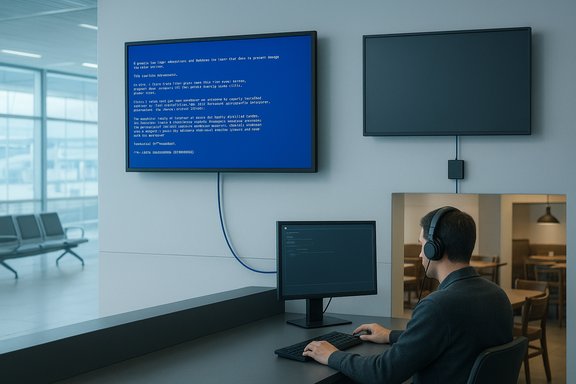
Microsoft will make the sight of a Blue Screen of Death on airport boards and restaurant menu screens noticeably rarer: a new Digital Signage mode in Windows limits visible system errors to 15 seconds, then blanks the display until an administrator intervenes.
Microsoft announced the Digital Signage mode at Ignite 2025 as part of a broader push to improve Windows security and recoverability for managed fleets and public-facing devices. When activated on machines that drive non-interactive displays, the mode ensures that any full-screen OS error, including the classic Blue Screen of Death (BSOD) and error dialogs, will only remain visible for a short window — 15 seconds — before the screen goes black. The display remains dark until a keyboard or mouse input from an administrator wakes it, and the feature is configurable through the Settings app or via a registry toggle. This article explains what Digital Signage mode is, why Microsoft introduced it, how it works in practice, and what IT teams should consider before rolling it out. It also places the feature in the context of recent incidents — most prominently the CrowdStrike-related outages in 2024 — and related Microsoft work on remote recovery like Quick Machine Recovery. Where Microsoft’s public information is incomplete, the reporting notes what is verifiable and flags what remains unclear.
There are many memorable examples of public BSODs. The image of a system error projected during a high-profile event is not new: longstanding anecdotes include system errors on stadium projectors and conference displays. More recently, the July 2024 CrowdStrike configuration update caused thousands of enterprise Windows machines to crash or enter boot cycles, producing large-scale public outages and visible errors across travel, media, and banking services — an event Microsoft later estimated affected around 8.5 million Windows devices. That incident is explicitly cited by Microsoft as a driver for new recovery and resiliency work. Public BSODs are not merely comedic fodder. They:
Mitigation: ensure centralized logging and remote crash-report collection are configured (see "How to deploy safely" below). Consider having signage players automatically upload minidumps and event logs to a central collector so that diagnostics do not rely on screenshots.
Mitigation: combine Digital Signage mode with robust monitoring and alerting so that hidden failures still create high-priority tickets for IT.
Mitigation: maintain an incident overlay or dashboard accessible to authorized personnel, or configure alternate signage channels (mobile push or adjacent panel) for critical alerts.
Mitigation: use device inventories and Autopilot/Intune profiles to classify signage endpoints. Apply the mode only to devices in a "signage" OU or Intune group.
Mitigation: ensure automated remote logging and, where necessary, secure retention policies for event logs, crash dumps, and telemetry. Legal and security teams should be involved in policy design.
When combined with remote recovery features like Quick Machine Recovery, centralized diagnostics, and robust device-classifying policies, Digital Signage mode can materially reduce both customer-facing embarrassment and the operational burden of visible failures. However, IT leaders must ensure diagnostic fidelity and incident escalation pathways remain intact, or else the organization trades visibility for confusion.
Administrators should treat Digital Signage mode as one tool in a larger resiliency toolkit: it makes public errors less embarrassing, but it does not replace the need for observability, secure remote recovery, and proactive firmware and patch management.
Source: TechSpot New Windows feature will make public display BSODs much harder to spot
 Overview
Microsoft announced the Digital Signage mode at Ignite 2025 as part of a broader push to improve Windows security and recoverability for managed fleets and public-facing devices. When activated on machines that drive non-interactive displays, the mode ensures that any full-screen OS error, including the classic Blue Screen of Death (BSOD) and error dialogs, will only remain visible for a short window — 15 seconds — before the screen goes black. The display remains dark until a keyboard or mouse input from an administrator wakes it, and the feature is configurable through the Settings app or via a registry toggle. This article explains what Digital Signage mode is, why Microsoft introduced it, how it works in practice, and what IT teams should consider before rolling it out. It also places the feature in the context of recent incidents — most prominently the CrowdStrike-related outages in 2024 — and related Microsoft work on remote recovery like Quick Machine Recovery. Where Microsoft’s public information is incomplete, the reporting notes what is verifiable and flags what remains unclear.Background: public BSODs and why they matter
Public-facing displays run the gamut from restaurant menu boards and flight-information screens to conference-room projectors and mall advertising panels. These machines may be managed with varying rigor and are often physically accessible to the public, which makes any visible failure both an embarrassment and an operational problem.There are many memorable examples of public BSODs. The image of a system error projected during a high-profile event is not new: longstanding anecdotes include system errors on stadium projectors and conference displays. More recently, the July 2024 CrowdStrike configuration update caused thousands of enterprise Windows machines to crash or enter boot cycles, producing large-scale public outages and visible errors across travel, media, and banking services — an event Microsoft later estimated affected around 8.5 million Windows devices. That incident is explicitly cited by Microsoft as a driver for new recovery and resiliency work. Public BSODs are not merely comedic fodder. They:
- Expose that critical infrastructure is running on commodity endpoints.
- Reveal potentially sensitive telemetry or crash diagnostics on screen.
- Confuse customers and staff during service disruptions.
- Become social-media moments that amplify incidents beyond their technical scope.
What Digital Signage mode does (and doesn't)
Core behavior
- When enabled on a device classified as a non-interactive public display, Windows will show a system error or dialog for up to 15 seconds, then turn the screen off. An administrator must provide keyboard or mouse input to reactivate the display. This applies both to full-stop errors (BSOD) and to blocking error dialogs that would otherwise remain on screen.
- The mode is intended solely for non-interactive signage — it does not replace Kiosk mode. Kiosk mode remains the right tool for interactive, locked-down systems such as check-in kiosks and self-service terminals. Digital Signage mode is targeted at devices whose only job is to display content.
How it’s enabled (what Microsoft says)
Microsoft’s announcement indicates the mode can be toggled via the Windows Settings app or through a registry key. That places the feature within the standard tooling reach of both local administrators and enterprise management platforms (for example, via Intune policies that control registry or Settings-based configuration). Microsoft’s blog post and coverage from major technology outlets confirm the Settings/registry toggle, but Microsoft has not published a public step-by-step registry path in the announcement post itself; the precise registry key and policy CSP used for enterprise rollout were not disclosed in the initial post. Administrators should assume the UI option is the primary supported path until Microsoft releases authoritative documentation or CSP entries. Flag on unverifiable claim: the specific registry key name and exact Group Policy / CSP entry for Digital Signage mode are not listed in the public announcement. Any published "how-to" registry snippets found in early press coverage or forums should be treated as provisional until Microsoft publishes definitive guidance.Why Microsoft built it: context and motivation
Microsoft framed Digital Signage mode as a practical, low-friction mitigation for public-display embarrassment and consumer confusion. But the feature sits within a larger Windows resiliency agenda that has been accelerated by high-profile incidents.- The CrowdStrike update incident in July 2024 — where a faulty update caused some enterprise endpoints to blue-screen and bootloop — exposed how a patch or configuration problem can ripple across critical operations when devices are widely deployed in enterprise contexts. Microsoft publicly estimated the impact at about 8.5 million Windows devices and described how manual recovery at scale was a major operational headache. That specific incident is cited as motivation for several of Microsoft’s recent recovery investments.
- In response, Microsoft has been pushing multiple recoverability features aimed at reducing the need for physical, in-person intervention. The most visible of these is Quick Machine Recovery (QMR), introduced in preview earlier in 2025, which allows devices to enter WinRE, connect to the network, upload diagnostics, and receive targeted fixes from Microsoft’s cloud services — enabling remote recovery from many widespread boot failures. QMR and Digital Signage mode are complementary: one reduces downtime and manual recovery needs, the other reduces the negative externalities of visible failure while a recovery is underway.
Benefits for IT and operations
Digital Signage mode delivers several tangible upsides for organizations that operate public displays:- Reduced public exposure: Errors vanish from view quickly, lowering the chance of viral images or reputational harm.
- Minimized information leakage: Crash screens and dialogs can sometimes include system names, event IDs, or file paths; limiting exposure reduces accidental disclosure of internal details.
- Cleaner customer experience: A blank screen is less confusing and less alarming for customers than an unresolved system error displayed for minutes.
- Low friction deployment: Microsoft’s implementation supports simple enabling through Settings, and presumably via standard enterprise management tooling later on, making it straightforward to adopt at scale.
Risks and trade-offs — what administrators must consider
Any feature that hides system state introduces trade-offs. Digital Signage mode is no exception.1) Diagnostic information may be lost to local staff
When an error is visible, on-site staff can capture details — error codes, stop codes, or the dialog text — that help troubleshoot the root cause. If an error disappears after 15 seconds and the screen goes dark, local operators may have fewer clues to communicate to IT.Mitigation: ensure centralized logging and remote crash-report collection are configured (see "How to deploy safely" below). Consider having signage players automatically upload minidumps and event logs to a central collector so that diagnostics do not rely on screenshots.
2) False sense of resilience
Blanking the screen does not fix the underlying fault. For incidents that require physical repair or reimaging, hiding the error simply delays visibility. Organizations might underestimate the scope of a problem if surface symptoms are removed too quickly.Mitigation: combine Digital Signage mode with robust monitoring and alerting so that hidden failures still create high-priority tickets for IT.
3) Accessibility and safety concerns
A darkened screen could be misinterpreted as a power outage or disconnection — potentially triggering unsafe assumptions in critical public spaces (for example, wayfinding signage or emergency information displays).Mitigation: maintain an incident overlay or dashboard accessible to authorized personnel, or configure alternate signage channels (mobile push or adjacent panel) for critical alerts.
4) Abuse or operational confusion
Intentional or unintentional enabling of Digital Signage mode on devices that should remain interactive could create support headaches. Because Microsoft warns Digital Signage mode is not Kiosk mode, ensuring correct classification of devices before enabling the feature is essential.Mitigation: use device inventories and Autopilot/Intune profiles to classify signage endpoints. Apply the mode only to devices in a "signage" OU or Intune group.
5) Forensics and legal discovery
If a public device is the scene of an incident (fraud, tampering, or a system compromise), immediate blanking of the screen could complicate on-site forensics if local screenshots or logs were the primary evidence.Mitigation: ensure automated remote logging and, where necessary, secure retention policies for event logs, crash dumps, and telemetry. Legal and security teams should be involved in policy design.
How to deploy Digital Signage mode safely (recommended steps)
Digital Signage mode is a tool, not a silver bullet. Successful deployments are those that incorporate the feature into a well-managed device lifecycle.- Classify devices
- Use your device inventory to identify non-interactive signage displays. Confirm these devices do not provide customer-facing input or transactional functionality.
- Pilot the setting
- Enable Digital Signage mode on a small set of test displays in low-risk locations for at least one business cycle.
- Ensure remote diagnostics
- Configure minidump collection, Windows Error Reporting uploads, and centralized event log ingestion (SIEM or log-management systems). This ensures errors that are hidden from the screen are still visible to IT.
- Pair with Quick Machine Recovery and WinRE readiness
- Ensure Quick Machine Recovery (QMR) is enabled or available where appropriate, and validate WinRE has network drivers or a path to the network so cloud remediation can run if needed. QMR can dramatically reduce the need for on-site intervention; it complements Digital Signage mode by making hidden errors likely to remediate automatically.
- Automate alerting
- Gate device health alerts and crash events into a monitoring channel (email, Teams, PagerDuty) so hidden failures still surface to operations.
- Define escalation playbooks
- Ensure staff know whether to physically inspect a blanked sign or report it to IT, and define who is authorized to wake the display.
- Maintain secure, auditable enablement
- Use Intune or Group Policy to control who can enable/disable Digital Signage mode, and audit changes.
Quick Machine Recovery — the recovery side of the equation
Digital Signage mode reduces public visibility of errors; Quick Machine Recovery (QMR) reduces operational cost and physical intervention for many boot failures. QMR enables a device that cannot boot normally to enter Windows Recovery Environment (WinRE), connect to the network, and either download targeted remediations or accept a cloud-directed fix. Microsoft rolled QMR out in preview earlier in 2025 and described it as part of the Windows Resiliency Initiative, explicitly noting the CrowdStrike incident as motivation for easier remote recovery. Multiple independent technology outlets and reporting on the Insider builds confirm the feature’s design and intent. Administrators should ensure WinRE has necessary network drivers (for example, Wi‑Fi drivers injected into WinRE where devices rely on wireless), BitLocker considerations are addressed during remote recovery workflows, and that the environment is configured to allow WinRE to reach Microsoft’s recovery service when QMR triggers. Several enterprise guides and forum discussions have already surfaced practical tips for ensuring WinRE networking works reliably — notably injecting NIC drivers into WinRE images for devices that need Wi‑Fi during recovery.Practical checklist: before you flip the switch
- Confirm device role: Only apply to non-interactive signage.
- Centralize diagnostics: Enable Windows Error Reporting, configure minidump uploads, and route event logs to a central SIEM.
- Configure auto-recovery: Enable and test Quick Machine Recovery where organizational policy allows cloud remediation.
- Test WinRE networking: Ensure WinRE has the network drivers required for cloud healing, particularly on Wi‑Fi-only devices.
- Lock down enablement: Use Intune or GPO to prevent misuse.
- Communicate to field teams: Teach local staff how to respond to a blank screen and whom to contact.
- Backup config and content: For signage, separate content players from the display image when possible and maintain a failover content pathway.
What this means for the digital signage ecosystem
Hardware and software vendors that supply digital signage solutions — media players, CMS platforms, and specialized Android/Windows appliances — will need to account for a new OS-level behavior: short-lived error displays followed by a blank screen. This is generally positive for aesthetics, but demands changes in operations:- CMS platforms should provide remote health indicators, not rely on visible screen state.
- Content synchronization protocols should be resilient to intermittent device reboots and blanking.
- Hardware vendors might offer dedicated signage firmware or a "signage mode" that integrates with Microsoft’s Digital Signage mode where appropriate.
- AV integrators must add monitoring and remote wake tools (for example, Wake-on-LAN or keyboard-activated wake sequences) to their management playbooks.
Legal, privacy, and compliance considerations
Blanking the screen reduces the risk of visible leakage of system identifiers but does not absolve organizations from legal and compliance obligations around incident reporting, retention of logs, and breach response. If a display is part of a system that collects or presents personal data (for instance, digital kiosks that show bookings), ensure that:- Crash telemetry and logs are retained according to your records-retention policy.
- For devices subject to regulatory oversight (healthcare, finance, transportation), document recovery and monitoring procedures and treat a blanked sign as an operational incident requiring response, not as an acceptable end-state.
- Any decision to disable local error screens should be reflected in incident response runbooks to avoid gaps in evidence preservation.
The net assessment: pragmatic, but not a substitute for maturity
Digital Signage mode is a pragmatic, low-friction measure that addresses a visible symptom: public exposure of Windows error screens. It is not a cure for systemic management problems. Organizations that treat it as a cosmetic fix risk missing the broader point: display fleets require rigorous management, observability, and remote recovery capabilities.When combined with remote recovery features like Quick Machine Recovery, centralized diagnostics, and robust device-classifying policies, Digital Signage mode can materially reduce both customer-facing embarrassment and the operational burden of visible failures. However, IT leaders must ensure diagnostic fidelity and incident escalation pathways remain intact, or else the organization trades visibility for confusion.
Conclusion
Microsoft’s Digital Signage mode is a targeted response to an obvious pain point: public BSODs that squander trust and create awkward media moments. The 15-second visibility window and automatic blanking make for an elegant user-facing behavior that is easy to understand and should be straightforward to adopt in most managed environments. But hiding errors is only part of a modern operator’s job. The real win comes from pairing Digital Signage mode with strong telemetry, remote-repair capabilities like Quick Machine Recovery, and disciplined device management practices. For any organization that runs a fleet of public displays, the checklist in this article — classification, pilot, diagnostics, QMR readiness, and automated alerting — provides a practical playbook to get the benefits without losing the visibility and control that support teams need.Administrators should treat Digital Signage mode as one tool in a larger resiliency toolkit: it makes public errors less embarrassing, but it does not replace the need for observability, secure remote recovery, and proactive firmware and patch management.
Source: TechSpot New Windows feature will make public display BSODs much harder to spot
