

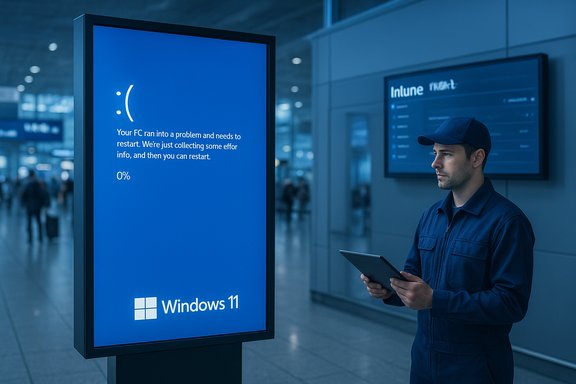
Microsoft is introducing a targeted "Digital Signage" mode for Windows 11 that keeps crash and error screens from becoming long-running spectacles on public displays by briefly showing diagnostic information and then blanking the screen until local input reactivates it.
Background
Public-facing displays — from airport flight boards to retail menu panels and transit timetables — have always been a high-visibility risk when a PC that drives them fails. The spectacle of a crash screen or an unattended error dialog on a giant LED wall is harmless comedy for passersby but can be embarrassing, confusing for customers, and disruptive for operations. At the same time, bluntly hiding failures creates operational risk: administrators still need reliable signals that a device has failed so they can restore service quickly.To strike that balance, Windows 11 now includes a purpose-built mode for non-interactive screens that shortens the time a diagnostic UI is visible, requires local physical interaction to restore the display, and integrates with new recovery and management tools intended for enterprise-scale management of edge and signage devices.
This feature sits alongside a wider set of Windows platform changes focused on resilience, recovery, and device-level protections — including point-in-time recovery, cloud-based rebuilds driven through management consoles, and hardware-assisted encryption enhancements. The overall push is explicit: reduce the public-facing impact of failures while giving IT teams faster ways to triage and restore devices at scale.
What Digital Signage mode does — the mechanics
Digital Signage mode is intentionally narrow in scope. It is designed for non-interactive systems that act as content endpoints (digital posters, video walls, single-app displays showing media), not for transactional kiosks or point-of-sale terminals that must remain interactive.Key behaviors implemented by the mode:
- Short diagnostic window: When Windows would normally present a full-screen error (for example, the system crash screen), the OS displays the diagnostic content only briefly. After that interval, the visual output is blanked to preserve the public-facing appearance.
- Blanking until physical interaction: Once the error screen times out, the display remains dark until an operator provides local input — typically a keyboard or mouse — to reawaken the screen and allow diagnostics or recovery steps to proceed.
- Suppression of intrusive dialogs: The mode is reported to suppress persistent pop-up dialogs and other on-screen UI elements that would otherwise be visible long-term on unattended displays.
- Enablement options: Administrators can enable the mode via the standard Settings UI or programmatically through registry settings, giving flexibility for automated provisioning in device images.
Why this matters for signage operators
For organizations that deploy hundreds or thousands of unattended screens, reputation and continuity matter. A single prolonged error on a billboard or a transit display can:- Damage customer perceptions and trust.
- Cause disruption or confusion in wayfinding or scheduling.
- Create a poor brand impression for advertisers and venue operators.
Wider resiliency changes paired with signage controls
Digital Signage mode is not a standalone cosmetic fix. Microsoft is introducing or previewing a package of recovery and device-management capabilities intended to accelerate detection and restoration, particularly for managed fleets:- Intune-driven remote recovery: Management consoles can now detect when a device has fallen into the Windows Recovery Environment (WinRE), trigger custom recovery scripts, and push recovery actions from the management plane. This gives IT a way to remediate boot failures without needing physical access.
- Point-in-time restore (PITR): Devices can be rolled back to a previous good state in the event of a configuration or update failure. The model is analogous to snapshot-based recovery — letting admins select an earlier system state to restore a machine to.
- Cloud Rebuild: Where a device is irreparably misbehaving, administrators can trigger a cloud-based rebuild from the management console. The process downloads installation media, applies provisioning (Autopilot or similar), re-enrolls the device, and restores user data and settings from cloud backup targets — reducing the need for physical reimaging.
- WinRE networking and management hooks: WinRE is gaining better networking and management integrations so recovery scenarios that once required on-site setup can be executed remotely.
Technical and operational details administrators should know
Digital Signage mode and the associated recovery features introduce new operational trade-offs. Administrators and architects should plan the following points carefully.Visibility vs. obscuration
- Trade-off: Blanking the screen reduces public embarrassment but removes the long-running visual signal that a device needs attention. Operators must ensure that suppression is paired with strong telemetry and alerting so IT knows a device has failed even when the display is blank.
- Action: Configure management tooling (Intune, monitoring agents) to alert on WinRE entries, hardware errors, or unexpected reboots. Treat blanking as a UI policy, not a substitute for health telemetry.
Local-input reactivation requirement
- Behavior: The screen remains blank until local keyboard or mouse input is received. Remote keyboard emulation or headless reconnections will not necessarily re-enable the visual output.
- Implication: For many remote-managed sites this is intended — it prevents noisy automatic reboots or spurious UI exposure — but it also means a technician must be dispatched to physically reactivate the display in some cases. Use remote rebuild and cloud recoveries to reduce travel.
Kiosk mode remains distinct
- Important: Digital Signage mode is not a replacement for Kiosk mode. Interactive terminals, customer-facing transactional kiosks, and systems that require uninterrupted user interaction should continue to use Kiosk or other lockdown modes.
Enabling and provisioning
- Options: The mode can be enabled through Settings or by applying a registry key as part of imaging and provisioning workflows. For large fleets, automation through deployment tooling or device-management policies is the practical approach.
Logging and diagnostics capture
- Window of opportunity: Diagnostic information is visible briefly (the product design intentionally limits the on-screen duration). Administrators should ensure error logs, telemetry capture, and remote crash dumps are configured so that critical diagnostic artifacts are captured without relying on a human photographing a screen.
- Best practice: Enable kernel and user crash dump capture, forward Windows Event logs to central logging, and use management tools to collect the pre-boot and crash artifacts automatically.
Recovery architecture: snapshots, point-in-time restore, and cloud rebuild
Microsoft’s shift to faster, cloud-integrated recovery reflects modern device realities: SSDs, persistent cloud identity, and enterprise MDM make remote rebuilds and snapshot restores practical.- Point-in-time restore: This feature enables an admin to restore a device to an earlier system state to correct configuration or update-induced failures. The model relies on snapshots taken while the device is healthy and offers a quick reversal to a known-good state.
- Snapshot policy considerations:
- Frequency: Organizations should balance snapshot frequency against storage and telemetry costs. Higher-frequency snapshots reduce potential data loss and shorten recovery windows but consume more storage and may create more restore choices to manage.
- Retention: Retention policy must align with the organization’s recovery time objectives (RTO) and recovery point objectives (RPO). Short retention intervals reduce storage but limit historical points available for recovery.
- Cloud Rebuild:
- Use case: When a device can’t be fixed via scripts or PITR, Cloud Rebuild spins up a clean install and applies provisioning to return the device to service with minimal hands-on work.
- Data restore: Settings, user files, and application state are restored from cloud backups where available (OneDrive, Windows Backup for organizations), so ensure those backups are configured for signage-critical assets if necessary.
Hardware and cryptography enhancements — why they matter
Beyond display behavior and recovery, Microsoft announced platform-level security improvements that affect how organizations protect data and accelerate device onboarding:- Hardware-accelerated BitLocker: New devices will be able to offload disk encryption operations to dedicated silicon on boot-capable hardware. The result is faster full-disk encryption with keys wrapped in protected hardware domains, reducing CPU overhead and strengthening key protection.
- Post-quantum cryptography (PQC) APIs: Windows is exposing APIs to enable applications and enterprise systems to adopt PQC algorithms. This is a strategic, forward-looking step to prepare for potential future threats posed by quantum-capable adversaries.
- Operational effect:
- If signage devices are handling sensitive data (customer profiles, payment tokens), hardware-wrapped encryption reduces exposure and improves performance during onboarding.
- PQC APIs let security teams begin migration and testing; widespread replacement of legacy cryptographic primitives will be a multi-year program for most organizations.
Security considerations and potential risks
Digital Signage mode reduces public information leakage but introduces operational security considerations that organizations must acknowledge.- Hidden failure signals: When errors are suppressed from the public-facing screen, adversaries with remote access might intentionally trigger failures to obscure operations. Strong device telemetry, secure logging, and tamper detection mitigate that risk.
- Forensic impact: Brief on-screen visibility may limit the ability of on-site staff to gather stop-codes; ensure automated crash dumps and remote log collection are configured to capture forensic evidence.
- Access control of reactivation:
- The requirement for local input to reactivate the screen is a double-edged sword: it prevents noisy automatic restoration, but it also lets a simple physical action (pressing a key) restore a display potentially before a thorough diagnostic has been completed.
- Organizations must ensure physical security for unattended displays, restrict who can access controller consoles, and consider locking enclosures or disabling easy reactivation if that suits the operational model.
- Malware and root cause masking: Turning off visible error messages does not negate the presence of malware or a compromised driver; it merely hides the public artifact. Monitoring and endpoint detection controls remain essential.
- Compliance and accessibility: Some environments require visible fault indicators for safety or compliance (for example, transit signage used for evacuation messaging). Review regulatory requirements before suppressing visible errors in such use-cases.
Deployment checklist — practical steps for IT teams
- Inventory your fleet
- Map which devices are truly non-interactive signage endpoints and which are interactive kiosks.
- Label devices by role, location, and physical accessibility for remedial teams.
- Decide policy
- Choose whether Digital Signage mode is appropriate per device class.
- Determine a pairing strategy with Intune policies, WinRE networking, and point-in-time restore settings.
- Enable and configure
- Use automation (image scripts, MDM provisioning) to enable the mode for applicable devices. A registry key option makes fleet automation straightforward.
- Configure local and central log collection and enable crash dump capture on all signage devices.
- Integrate monitoring
- Ensure the management console alerts on WinRE boot events, unexpected reboots, or failures to heartbeat.
- Configure a ticketing or escalation path so an on-site technician is dispatched when needed.
- Test recovery workflows
- Run through point-in-time restores and Cloud Rebuilds in a lab to validate the full lifecycle from detection to restored service.
- Validate that backup and OneDrive/Windows Backup restore flows return the necessary files and settings in your environment.
- Align encryption and hardware
- For new procurements, request devices that support hardware crypto acceleration and key wrapping if full-disk encryption is required.
- Ensure BitLocker policies are tested on targeted hardware before mass deployment.
- Operational documentation and training
- Update runbooks to account for the 15-second diagnostic window and local input reactivation requirements.
- Train venue staff or contractors on how and when to intervene, and when to escalate to IT.
Strengths and immediate benefits
- Reduced public disruption: The most visible benefit is reputational — error screens no longer dominate public displays for long periods.
- Operational consistency: When paired with remote recovery tools, teams can remediate without immediate physical intervention in many cases.
- Better end-user experience: Customers and visitors see fewer awkward error messages and interruptions.
- Strategic security improvements: Hardware-accelerated encryption and PQC APIs improve long-term device security and performance on qualifying hardware.
Limitations and what to watch
- Not a silver bullet: Digital Signage mode is a UX policy for unattended displays, not a substitute for proper resiliency, monitoring, or device lifecycle management.
- Local reactivation requirement can increase service trips: If remote remediation is not possible, expect some physical dispatches to restore devices.
- Platform dependencies: Some of the recovery features and hardware protections require management tooling and qualifying hardware. Expect staggered rollouts and differing availability by device vendor and model.
- Operational complexity: Adding modes, snapshots, remote rebuilds, and new encryption flows increases the number of moving parts; robust automation and testing are required to avoid surprises.
Final analysis — pragmatic evolution for public deployments
Digital Signage mode is a practical, measured response to a real operational problem: the need to keep public displays professional and unobtrusive while still allowing technicians to capture diagnostic information. When coupled with management-plane recovery features — point-in-time restores, WinRE telemetry, and cloud rebuilds — the feature set moves organizations toward a model where physical device downtime is shorter, less visible to the public, and more automated for IT.That said, the mode must be treated as one tool in a broader resilience strategy. Hiding an error from the public is not the same as solving the underlying fault; teams must ensure telemetry, secure logging, encryption policies, and recovery runs are in place. For those procuring or deploying signage at scale, the recommendation is to pilot Digital Signage mode with a subset of devices, validate the end-to-end recovery workflows, and then roll it out with clear monitoring and escalation rules.
In short: the public face of a brand will look smoother, but behind that polished display the operational discipline needs to be stronger than ever.
Source: TechRadar Microsoft prevents crash screens from staying visible on signage
