

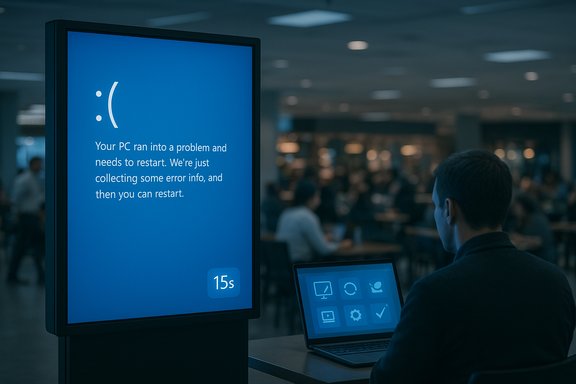
Public blue screens of death will be gone faster than you can snap a photo: Microsoft’s new Digital Signage Mode in Windows 11 will display any OS error or blue screen for a maximum of 15 seconds on non-interactive public displays, then automatically darken the screen until human input resumes the device.
At Microsoft Ignite 2025 the company doubled down on a multi-pronged resiliency push for Windows 11 that spans recovery tooling, WinRE improvements, remote management, and targeted device modes for specific deployment scenarios. Among the announcements was Digital Signage Mode, aimed squarely at machines that drive non-interactive public displays — restaurant menus, airport arrival boards, retail digital posters and other “set‑and‑forget” signage endpoints.
Digital Signage Mode is presented as a lightweight, recovery‑aware setting in Windows 11’s System > Recovery surface (and can be toggled with a registry tweak). When activated, the OS will still perform the normal diagnostic actions for a crash, but any visible Windows error dialogs or a blue screen of death (BSOD) will be shown only briefly — for 15 seconds — and then Windows will turn off the display and wait for keyboard or mouse input to reactivate the screen. Microsoft positions this as a safety net to prevent public-facing devices from staying stuck on diagnostic screens for long periods, reducing embarrassment, brand damage and customer confusion while still allowing IT to complete necessary diagnosis off-device.
This announcement arrived alongside other resiliency items that matter to IT teams: enhancements to Quick Machine Recovery (QMR), preview of a Point‑in‑time Restore feature for Windows clients, expanded WinRE networking, and improved Intune-driven recovery workflows. Together these changes aim to reduce downtime and make remote recovery more predictable for fleets — and Digital Signage Mode is one of the small but practical pieces intended to protect public appearances while those systems recover.
For organizations with mature remote management and centralized diagnostics, the mode is a sensible, low-risk measure to protect brand and user experience. For teams without those capabilities, the feature could obscure useful on‑site diagnostic signals and should be adopted only after logging and remote recovery practices are hardened.
Put plainly: Digital Signage Mode is an effective polish on an improving recovery platform — but it’s only as safe as the recovery framework that supports it. When deployed as part of a comprehensive strategy that includes crash dump collection, remote telemetry and Intune‑backed recovery, it will make public displays more professional and less embarrassing. When deployed without those safeguards, it risks trading temporary visual neatness for longer, more painful troubleshooting cycles.
Ultimately, this is a small change with outsized practical value for a narrow set of devices — and a reminder that user experience and enterprise manageability now sit together at the heart of Windows resiliency design.
Source: Tom's Hardware https://www.tomshardware.com/softwa...l-wither-away-within-15-seconds-of-the-crash/
 Background / Overview
At Microsoft Ignite 2025 the company doubled down on a multi-pronged resiliency push for Windows 11 that spans recovery tooling, WinRE improvements, remote management, and targeted device modes for specific deployment scenarios. Among the announcements was Digital Signage Mode, aimed squarely at machines that drive non-interactive public displays — restaurant menus, airport arrival boards, retail digital posters and other “set‑and‑forget” signage endpoints.Digital Signage Mode is presented as a lightweight, recovery‑aware setting in Windows 11’s System > Recovery surface (and can be toggled with a registry tweak). When activated, the OS will still perform the normal diagnostic actions for a crash, but any visible Windows error dialogs or a blue screen of death (BSOD) will be shown only briefly — for 15 seconds — and then Windows will turn off the display and wait for keyboard or mouse input to reactivate the screen. Microsoft positions this as a safety net to prevent public-facing devices from staying stuck on diagnostic screens for long periods, reducing embarrassment, brand damage and customer confusion while still allowing IT to complete necessary diagnosis off-device.
This announcement arrived alongside other resiliency items that matter to IT teams: enhancements to Quick Machine Recovery (QMR), preview of a Point‑in‑time Restore feature for Windows clients, expanded WinRE networking, and improved Intune-driven recovery workflows. Together these changes aim to reduce downtime and make remote recovery more predictable for fleets — and Digital Signage Mode is one of the small but practical pieces intended to protect public appearances while those systems recover.
What is Digital Signage Mode?
The core idea
Digital Signage Mode is a Windows 11 configuration for systems that drive non-interactive displays. Its core behavior:- When enabled, any Windows error dialog or BSOD will be displayed for 15 seconds.
- After 15 seconds, the OS will turn off the screen and await keyboard or mouse input to reactivate it.
- The mode is not intended for interactive kiosks — Kiosk mode remains the recommended lockdown for transactional or interactive terminals.
- It can be enabled through the Windows Settings app or by setting a registry key for scripted deployments.
Where it applies
Digital Signage Mode targets devices configured as non-interactive signage: billboards, menu boards, flight information displays, queue-facing advertising panels, and similar devices where the public sees the display but never interacts with it directly. It explicitly excludes POS terminals, ticket kiosks, self-order counters, and other interactive systems where immediate visibility of an error might be operationally critical.How Digital Signage Mode works (technical nitty-gritty)
Visible behavior and recovery flow
When a crash or error occurs on a device running Digital Signage Mode:- The OS will present the diagnostic screen (e.g., BSOD or an error dialog) as usual for a short period.
- After 15 seconds, the display will be intentionally turned off — not by rebooting immediately, but by blanking the screen while the OS waits for input.
- The machine can still perform crash handling: generate memory dumps, log telemetry, enter recovery states (like WinRE) and apply automated remediations if configured.
- IT and management tooling (Intune, Autopatch, WinRE remote features) remain the primary path for deeper diagnostics and remote recovery.
Interaction with dump collection and diagnostics
Turning off the screen does not prevent Windows from doing what it normally does after a fault: writing kernel dumps, adding events to logs, and surfacing telemetry to management endpoints if configured. That means a responsible deployment using Digital Signage Mode should also ensure:- Kernel memory dumps and crash dumps are enabled and reachable to IT teams.
- Remote telemetry and centralized logging (Event Log, Endpoint detection, or MDM‑backed telemetry) are configured so that visible diagnostics aren’t the only way to troubleshoot.
- If a device is expected to be diagnosed locally, staff or contractors must know how to wake the display (keyboard or mouse interaction) and access diagnostic information.
Enabling and managing the mode
Microsoft documents that Digital Signage Mode can be turned on through Settings or by setting a registry key, making it straightforward to script during imaging or to apply via management tooling. Enterprises should consider deploying it via:- Intune or other MDM (where policies and registry key pushes are supported).
- Image customization and provisioning scripts for signage-specific images.
- Group Policy or Configuration Manager workflows for on‑premises-managed estates.
Where Digital Signage Mode fits relative to Kiosk mode and other Windows features
Kiosk mode vs Digital Signage Mode
- Kiosk mode is about interaction and lockdown. It pins a device to a single app or experience and prevents users from accessing the underlying OS. Kiosk mode is the right choice for interactive terminals (ticketing, food ordering, check-in counters).
- Digital Signage Mode is about visibility control for non-interactive screens: it doesn’t lock down the system but prevents error messages from lingering in public view.
How it complements modern recovery tooling
Microsoft’s resilience roadmap includes several features that make Digital Signage Mode safer to deploy:- Quick Machine Recovery (QMR): Automated cloud-driven remediations that act when devices fall into WinRE.
- Point‑in‑time Restore: Local short-term restore points intended to roll back a device quickly to a prior, working state (preview availability began for Insiders at Ignite).
- WinRE networking and Intune remote recovery: These reduce the need for on-site intervention by enabling networked recovery actions and remote execution of recovery scripts.
Benefits: why IT and businesses will like this
- Protects brand and user experience. Public displays frozen on an OS error are jarring and can harm customer confidence. Blanking a screen after 15 seconds avoids prolonged public exposure.
- Reduces unnecessary service calls. If the device is non-critical and the issue can be resolved remotely via QMR, Intune or point-in-time restore, there’s no immediate need for a technician to be dispatched.
- Easy to deploy and low-friction. A Settings toggle or registry key is trivial to apply at scale; it won’t require complex re-imaging of devices.
- Preserves diagnostics while lowering visibility. Since the error still appears briefly and system logs/dumps are preserved, IT gets what it needs without the signage staying in diagnostic mode for long.
- Fits with modern remote recovery. As QMR, WinRE networking and Intune remote recovery evolve, signage endpoints become far more manageable without physical presence.
Risks, edge cases and practical caveats
Digital Signage Mode is useful, but it is not without trade-offs. IT leaders and deployers should evaluate the following before flipping the switch broadly.1. Short visibility window may hamper on-site triage
A 15‑second display of the error may not be enough for someone on site to capture stop codes, QR diagnostics or to photograph useful debug details. If on-site quick triage is expected, ensure staff know how to reactivate the screen quickly and capture logs, or provide a physical means to pause the auto‑blanking for diagnostic scenarios.2. Forensics and compliance concerns
Some regulated environments require visible error codes or on-screen audit trails during failures. In such contexts, blanking the screen after 15 seconds could contradict compliance processes. Check industry or local regulations (especially in transportation and critical infrastructure deployments) before enabling this mode.3. Could mask persistent faults from casual observation
Operators who rely on visual inspection of signage for health (e.g., a quick walk-by to check that multiple panels are showing content) might not notice a display that has blanked itself after an error. Combine Digital Signage Mode with remote health checks and alerts so that IT or operations teams receive immediate notices when a device blanks unexpectedly.4. Accessibility and safety
Some public displays are used for emergency alerts or wayfinding. A blanked screen can be a safety hazard if it prevents the display of critical information in emergency scenarios. Establish rules: do not enable Digital Signage Mode on displays that carry emergency messaging or critical passenger information.5. Reliance on telemetry and remote recovery maturity
Digital Signage Mode is most effective where telemetry and remote recovery are robust. If your installation lacks centralized logging, crash dump collection, or reliable remote tooling, you may be removing an important on-site diagnostic clue in exchange for a visually tidy display. Don’t deploy it without the appropriate backend infrastructure.Real‑world deployment recommendations
For IT teams running digital signage fleets, the following checklist helps avoid the common traps:- Inventory and classification: Tag displays as interactive vs non-interactive, and exclude interactive kiosks from Digital Signage Mode.
- Enable centralized logging: Ensure crash dumps and event logs are collected to a management platform or retained locally where technicians can retrieve them.
- Integrate with Intune/MDM: Push Digital Signage Mode and related registry keys via MDM, and configure Intune to surface WinRE and device health signals.
- Tune alerts and monitoring: Add monitoring that triggers alerts when displays blank unexpectedly or when devices enter WinRE.
- Prepare on‑site SOPs: Train local staff to wake displays and capture diagnostics during the 15‑second window, or provide a simple control that pauses blanking when technicians are troubleshooting.
- Validate dumps retention: Confirm that memory dump collection settings are adequate and that IT has a reliable path to retrieve those artifacts for analysis.
- Avoid on emergency-critical displays: Do not enable Digital Signage Mode on displays intended for emergency notifications or essential passenger information.
How Digital Signage Mode fits into the wider Windows resiliency story
Digital Signage Mode is small but emblematic: it addresses the observable, user‑facing aspect of device reliability while Microsoft’s other Ignite announcements target deeper recovery and fleet resilience.- Quick Machine Recovery (QMR) continues to provide cloud-backed, WinRE-based remediations for boot-blocking problems. QMR helps devices recover without a technician visit and integrates with Autopatch for enterprise control.
- Point‑in‑time Restore creates short-term, frequent snapshots (configurable cadence and retention — default preview cadence is 24 hours with up to 72 hours retention and a maximum disk usage cap) to enable fast rollbacks from WinRE.
- WinRE networking and Intune remote recovery make WinRE an actively networked recovery plane instead of an offline environment — meaning remote remediation and recovery actions can be executed without physical access.
Critical perspective: strengths and potential weak points
Strengths
- Practicality: It addresses a genuine operational annoyance with a minimal technical footprint and a short learning curve for deployment.
- Design alignment: The feature fits neatly into a broader recovery and remote management stack Microsoft is actively improving.
- Low friction: Simple enablement (Settings or registry) and compatibility with existing management workflows make adoption easy.
- User experience first: In public contexts where the display is about brand or information, the mode prevents long, confusing error screens from being visible — that matters for customer experience and brand perception.
Potential weak points
- Diagnostic trade-offs: Even brief hiding of an error removes a golden-triangle window for on-site personnel to capture error details unless other diagnostic pathways are in place.
- Misconfiguration risk: Deploying this mode on the wrong class of display (interactive kiosks, emergency signage) can have operational consequences.
- Overreliance on remote tooling: The feature presumes an ecosystem of remote monitoring and recovery. Without that, you may worsen MTTR (mean time to repair) by obscuring visible error cues.
- Visibility vs transparency: For some environments, maintaining visible error details is a requirement for auditability or transparency; blanking might conflict with those obligations.
What IT teams should do next
- Audit signage inventory and classify endpoints.
- Ensure crash dump and telemetry pipelines are correctly configured and verified.
- Pilot Digital Signage Mode on a small set of non-critical devices and measure the impact on incident response time and user experience.
- Integrate the mode with existing Intune or MDM policies so that rollouts are controlled and reversible.
- Update incident response playbooks to account for the 15‑second display window and to ensure that remote logs and dumps are sufficient for post‑mortem diagnostics.
Final analysis and takeaway
Digital Signage Mode is a focused, pragmatic addition to Windows 11 that will quietly reduce the number of public BSODs — an annoyance that has long been more about optics than operational risk. Paired with Microsoft’s investments in QMR, Point‑in‑time Restore, WinRE networking and Intune-driven recovery, the functionality reflects a deliberate shift: reduce the public display of failure while strengthening the behind‑the‑scenes ability to remediate it.For organizations with mature remote management and centralized diagnostics, the mode is a sensible, low-risk measure to protect brand and user experience. For teams without those capabilities, the feature could obscure useful on‑site diagnostic signals and should be adopted only after logging and remote recovery practices are hardened.
Put plainly: Digital Signage Mode is an effective polish on an improving recovery platform — but it’s only as safe as the recovery framework that supports it. When deployed as part of a comprehensive strategy that includes crash dump collection, remote telemetry and Intune‑backed recovery, it will make public displays more professional and less embarrassing. When deployed without those safeguards, it risks trading temporary visual neatness for longer, more painful troubleshooting cycles.
Ultimately, this is a small change with outsized practical value for a narrow set of devices — and a reminder that user experience and enterprise manageability now sit together at the heart of Windows resiliency design.
Source: Tom's Hardware https://www.tomshardware.com/softwa...l-wither-away-within-15-seconds-of-the-crash/
