

Microsoft Edge usually should not be given a broad inbound Windows firewall exception for normal browsing. The safe fix is to keep Microsoft Defender Firewall on, then allow
That distinction matters because inbound and outbound rules solve different problems. Inbound rules govern incoming connections to the computer. Outbound rules govern traffic leaving the computer. Normal browsing depends on Edge reaching websites, so inbound firewall rules are generally not needed for routine web access. Inbound discussion belongs in special workflows, such as local development, device administration, internal web apps, or other cases where a remote system must initiate a connection to something on the PC.
Microsoft’s firewall materials distinguish between allowing an app and opening a port, and the safer everyday troubleshooting path is to use an app-specific allowance rather than a broad port opening. A rule tied to
The common failure pattern is familiar to anyone who supports Windows desktops. A user sees Edge blocked, searches for a fix, and lands on instructions that treat the firewall as the obstacle rather than as a control. The result is often a disabled firewall, a stale custom rule, or a public-network allowance that was never needed. Edge starts working, but the machine is now less predictable than it was before.
That last screen is the practical center of the story. Select Change settings, approve the administrator prompt, find Microsoft Edge, and check the box beside it. Then choose Private, Public, or both, depending on where Edge actually needs access. The administrator prompt matters because changing allowed-app settings is a privileged firewall change, and Windows treats it accordingly.
Control Panel still reaches the same destination. The classic path is Control Panel > System and Security > Windows Defender Firewall > Allow an app or feature through Windows Defender Firewall. That matters because Windows firewall management remains split between modern Settings, Windows Security, and older Control Panel surfaces. Users and administrators may encounter either path depending on habit, support scripts, documentation, or the Windows version in front of them.
There is also the fast route: press Windows key + R, type
If Microsoft Edge is not listed, that is not automatically suspicious. Add it manually with Allow another app, browse to the Edge program file, and select Add. The common executable path is
The Domain profile works differently. It applies automatically when a domain-joined device detects an Active Directory domain controller, and it cannot be set manually by a user in the same way Private and Public can be selected. Some Microsoft Entra joined devices can be configured for domain detection by policy, but many work or school devices still operate under Private or Public profiles depending on their network state and management design.
This is where consumer troubleshooting and enterprise operations diverge. A home user can often solve the problem by checking Private and leaving Public alone. An enterprise admin has to think in terms of network location awareness, rule merging, Intune policy, Group Policy, and whether a local change will simply be overwritten at the next refresh.
The simplest defensible rule is also the least dramatic: start with Private, add Public only when the business case is real, and let Domain be handled by the device’s domain or management state. Edge should not become a universal exception because one captive portal, local device page, or security suite behaved badly.
The path begins again in Windows Security: Firewall & network protection > Advanced settings. Administrators can also open Start, type
Once there, check Inbound Rules and Outbound Rules for entries whose program points to
The right first move is Disable Rule, not Delete. Disabling a rule lets you test the hypothesis without destroying evidence. Deleting belongs later, after you are sure the rule is obsolete and not part of a compliance baseline, test configuration, parental-control setup, third-party endpoint product, or old troubleshooting attempt.
This is also where third-party security software complicates the story. A suite that installs its own firewall component may create or enforce rules outside the Windows allowed-apps screen. The symptom still looks like “Windows blocked Edge,” but the authority may be somewhere else. Custom firewall rules, third-party security apps, and work or school policy are common places to look when Edge appears blocked even though the simple Windows interface looks correct.
Every step is a security decision. Program confines the rule to an executable. Custom gives more options and more chances to overscope the fix. Allow the connection does exactly what it says, and the profile selection determines where the decision applies.
For most personal Windows PCs, a custom outbound Edge rule should be unnecessary unless outbound firewall behavior has been changed from the Windows default or an outbound block exists for Edge. That caveat is important. The internet is full of advice that treats outbound allow rules as a universal cure, but on a default Windows client they may solve a problem that is not present.
Inbound rules deserve even more skepticism. Edge may need local-network or inbound behavior for specific development, device-management, testing, or web-app workflows, but ordinary browsing does not require inbound Edge access. If a workflow really needs inbound connectivity, the rule should be justified by that workflow, scoped to the needed profiles, and reviewed later. A firewall exception should have an owner and a reason.
The command line expresses the same model more bluntly. In PowerShell, an administrator can create an outbound allow rule with:
In Command Prompt, the equivalent modern form is:
The legacy
The command examples also show a common mistake: copying a path without checking the local installation. The Edge executable is commonly under
This is the key distinction: a browser permission fix controls whether a specific website may access local network resources, while a Windows firewall fix controls whether a program such as
For local-network access cases, the relevant Edge path is Settings and more > Settings > Privacy, search, and services > Site permissions > All permissions > Local network access. The setting asks before allowing access, and the user can allow a site when prompted. Some troubleshooting may also involve Edge’s internal flags page for local network access checks, followed by a browser restart, but that belongs to browser behavior rather than Windows firewall exposure.
That separation is increasingly important because the browser is no longer just a window onto the public web. It is also a control surface for local devices, development tools, enterprise portals, and web apps that bridge cloud and LAN. As browsers tighten local network access, support teams will see more cases where a firewall-looking symptom has a browser-permission cause.
The safe diagnostic sequence is layered. Confirm whether public websites load. Confirm whether the failure is limited to a local address or local device. Check Edge’s local network access permission before creating broad inbound Windows firewall exceptions. The narrower the symptom, the narrower the fix should be.
That means reset is not a harmless “try this next” step. It can break remote-access tools, local services, development environments, games, device utilities, VPN helpers, printer workflows, and line-of-business applications that previously registered their own rules. On a personal PC, that may be annoying. On a managed endpoint, it may create a support incident with a long tail.
Reset makes sense after targeted Edge rules do not solve the problem and after you have reason to believe the firewall configuration is broadly corrupted or unknowable. After the reset, return to Allow an app through firewall and add Microsoft Edge again if Edge still needs an allowance. The reset is not the fix by itself; it is a way to return to baseline before applying a smaller fix.
The bigger warning is simpler: do not turn off Microsoft Defender Firewall to make Edge work. Do not stop or disable the Windows Defender Firewall service. Those moves replace a specific connectivity problem with a general security problem. If the only way to make Edge work is to disable the firewall entirely, the diagnosis is incomplete.
Managed firewall rules can come from Intune or Group Policy. Local changes may be blocked, reverted, or merged depending on policy. A user may see the same Windows Security screens as a home user while lacking the authority to make a lasting change. Even when a local admin can click through the interface, the device may later receive a policy refresh that restores the organization’s intended firewall posture.
This is especially relevant for Domain behavior. Domain applies automatically when a domain-joined device detects an Active Directory domain controller, and it cannot be set manually like a normal user choice. Microsoft Entra joined devices can sometimes be configured for domain detection by policy, but that is still a management decision, not a checkbox a user should improvise.
The enterprise problem is not simply “how do I let Edge work?” but “which control plane owns this rule?” If Intune owns endpoint firewall policy, create or modify the rule there. If Group Policy owns it, change the GPO. If a third-party endpoint suite owns it, use that console. Local repair is useful for diagnosis; policy repair is what prevents recurrence.
The practical anchor is simple: if you need to allow Edge, keep the allowance tied to Edge. A rule that points to the actual
The allowed-apps interface is built for that safer default, but it can also obscure what is really happening. A checked box does not tell you whether an outbound block exists elsewhere. It does not tell you whether a third-party product is enforcing a separate policy. It does not tell you whether Edge is prompting for local network access inside the browser. It is a starting point, not a verdict.
Advanced Security, by contrast, exposes the machinery. It shows Inbound Rules and Outbound Rules. It shows Block versus Allow. It lets you create Program or Custom rules. It gives administrators enough precision to fix the problem and enough responsibility to avoid creating a broader one.
That is why the best Edge firewall fix is intentionally plain. Keep Defender Firewall running. Add Edge through the allowed-apps list if it is missing. Check Private first on personal PCs. Investigate explicit
The larger Windows lesson is that connectivity fixes age badly when they are broader than the problem. Edge should be allowed where it needs to be allowed, for the executable that actually runs, on the profiles where that access is justified, and under the management authority that owns the device. Microsoft Defender Firewall is a boundary to be edited carefully, because the next troubleshooting session will inherit every shortcut taken today.
msedge.exe through Microsoft Defender Firewall only where a local rule, security app, or managed policy has actually blocked it. The path is Settings > Privacy & security > Windows Security on Windows 11, or Settings > Update & Security > Windows Security on Windows 10, then Firewall & network protection > Allow an app through firewall. The exceptions are special workflows: managed work or school devices, explicit outbound block rules, local-network browser permissions, developer or device-management scenarios, and cases where a third-party security suite owns the firewall decision.
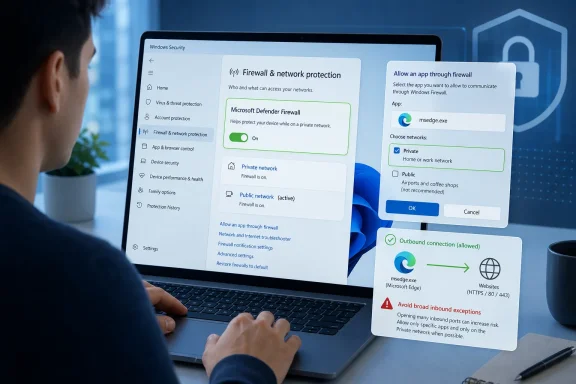 Quick safe-fix checklist
- Open Settings.
- On Windows 11: go to Privacy & security > Windows Security.
- On Windows 10: go to Update & Security > Windows Security.
- Select Firewall & network protection.
- Select Allow an app through firewall.
- Select Change settings.
- Approve the administrator prompt.
- Find Microsoft Edge.
- Check the box next to Microsoft Edge.
- Select Private for trusted networks such as home networks.
- Select Public only if Edge must be allowed on less trusted networks such as shared Wi-Fi.
- If Edge is missing, use Allow another app and browse to the actual
msedge.exefile on the PC.
The Browser Is Usually Not the Problem
The most important fact is also the one most likely to be skipped: Microsoft Edge does not need an inbound firewall exception for ordinary web browsing. A browser making normal web requests is an outbound client, not a service waiting for other machines on the network to connect to it. If Edge cannot load pages, the default assumption should not be that Windows Defender Firewall suddenly needs to expose Edge inbound.That distinction matters because inbound and outbound rules solve different problems. Inbound rules govern incoming connections to the computer. Outbound rules govern traffic leaving the computer. Normal browsing depends on Edge reaching websites, so inbound firewall rules are generally not needed for routine web access. Inbound discussion belongs in special workflows, such as local development, device administration, internal web apps, or other cases where a remote system must initiate a connection to something on the PC.
Microsoft’s firewall materials distinguish between allowing an app and opening a port, and the safer everyday troubleshooting path is to use an app-specific allowance rather than a broad port opening. A rule tied to
msedge.exe is easier to understand and review later than a generic port rule that may apply more widely than intended. That does not make every app rule automatically correct, but it keeps the repair attached to the program that actually needs access.The common failure pattern is familiar to anyone who supports Windows desktops. A user sees Edge blocked, searches for a fix, and lands on instructions that treat the firewall as the obstacle rather than as a control. The result is often a disabled firewall, a stale custom rule, or a public-network allowance that was never needed. Edge starts working, but the machine is now less predictable than it was before.
Windows Hides the Safe Fix Behind Two Generations of UI
The first repair path starts in Settings, but it forks depending on whether the PC is on Windows 11 or Windows 10. On Windows 11, the path is Settings > Privacy & security > Windows Security. On Windows 10, it is Settings > Update & Security > Windows Security. From there, the shared route is Firewall & network protection > Allow an app through firewall.That last screen is the practical center of the story. Select Change settings, approve the administrator prompt, find Microsoft Edge, and check the box beside it. Then choose Private, Public, or both, depending on where Edge actually needs access. The administrator prompt matters because changing allowed-app settings is a privileged firewall change, and Windows treats it accordingly.
Control Panel still reaches the same destination. The classic path is Control Panel > System and Security > Windows Defender Firewall > Allow an app or feature through Windows Defender Firewall. That matters because Windows firewall management remains split between modern Settings, Windows Security, and older Control Panel surfaces. Users and administrators may encounter either path depending on habit, support scripts, documentation, or the Windows version in front of them.
There is also the fast route: press Windows key + R, type
firewall.cpl, and select OK. From there, select Allow an app or feature through Windows Defender Firewall. It is often the shortest path when helping someone remotely or moving through a familiar Windows support workflow.If Microsoft Edge is not listed, that is not automatically suspicious. Add it manually with Allow another app, browse to the Edge program file, and select Add. The common executable path is
C:\Program Files (x86)\Microsoft\Edge\Application\msedge.exe, but the important phrase is “the actual msedge.exe file on your PC.” Windows firewall rules care about the program path they are bound to, and a rule pointed at the wrong executable will not reliably fix the problem.The Profile Choice Is Where Most Bad Advice Goes Wrong
The Private and Public checkboxes look harmless, but they decide where the exception applies. Private covers trusted networks such as your home network. Public covers less trusted networks such as shared Wi-Fi outside your home. If you check both because it feels thorough, you may be granting more scope than the original problem requires.The Domain profile works differently. It applies automatically when a domain-joined device detects an Active Directory domain controller, and it cannot be set manually by a user in the same way Private and Public can be selected. Some Microsoft Entra joined devices can be configured for domain detection by policy, but many work or school devices still operate under Private or Public profiles depending on their network state and management design.
| Firewall profile | What it means | How it is selected | Edge allowance guidance |
|---|---|---|---|
| Private | Trusted networks such as a home network | Chosen for trusted local networks | Use this first on most personal PCs |
| Public | Less trusted networks such as shared Wi-Fi outside the home | Chosen for shared or untrusted networks | Add only when Edge needs the allowance there |
| Domain | Domain network detected through Active Directory domain controller behavior | Applies automatically on domain-joined devices | Do not try to set manually; follow policy |
The simplest defensible rule is also the least dramatic: start with Private, add Public only when the business case is real, and let Domain be handled by the device’s domain or management state. Edge should not become a universal exception because one captive portal, local device page, or security suite behaved badly.
A Block Rule Beats a Checked Box Every Time
If Edge appears in the allowed-apps list and still fails, the next suspect is an explicit block. Windows Firewall with Advanced Security can contain rules that targetmsedge.exe directly. A block rule whose program points to Edge and whose action is Block can defeat the intuitive expectation that “checked in the allowed list” means “allowed everywhere.”The path begins again in Windows Security: Firewall & network protection > Advanced settings. Administrators can also open Start, type
wf.msc, and press Enter. That opens the Windows Firewall with Advanced Security console, the more precise interface for inbound and outbound rule inspection.Once there, check Inbound Rules and Outbound Rules for entries whose program points to
msedge.exe and whose action is Block. The direction matters. Inbound Rules govern incoming connections, while Outbound Rules govern outgoing connections. Ordinary browsing depends on outbound behavior, so an outbound block is usually more relevant than an inbound setting when Edge cannot reach the web.The right first move is Disable Rule, not Delete. Disabling a rule lets you test the hypothesis without destroying evidence. Deleting belongs later, after you are sure the rule is obsolete and not part of a compliance baseline, test configuration, parental-control setup, third-party endpoint product, or old troubleshooting attempt.
This is also where third-party security software complicates the story. A suite that installs its own firewall component may create or enforce rules outside the Windows allowed-apps screen. The symptom still looks like “Windows blocked Edge,” but the authority may be somewhere else. Custom firewall rules, third-party security apps, and work or school policy are common places to look when Edge appears blocked even though the simple Windows interface looks correct.
Dedicated Rules Are for Real Policy, Not Guesswork
When the simple allowed-apps interface is not enough, create a dedicated Edge rule only if the situation calls for one. The workflow is intentionally more explicit: Windows Security > Firewall & network protection > Advanced settings, then choose Inbound Rules for incoming connections or Outbound Rules for outgoing connections. Select New Rule, choose Program or Custom, point the rule tomsedge.exe, select Allow the connection, choose Domain, Private, and Public as needed, name the rule, and finish.Every step is a security decision. Program confines the rule to an executable. Custom gives more options and more chances to overscope the fix. Allow the connection does exactly what it says, and the profile selection determines where the decision applies.
For most personal Windows PCs, a custom outbound Edge rule should be unnecessary unless outbound firewall behavior has been changed from the Windows default or an outbound block exists for Edge. That caveat is important. The internet is full of advice that treats outbound allow rules as a universal cure, but on a default Windows client they may solve a problem that is not present.
Inbound rules deserve even more skepticism. Edge may need local-network or inbound behavior for specific development, device-management, testing, or web-app workflows, but ordinary browsing does not require inbound Edge access. If a workflow really needs inbound connectivity, the rule should be justified by that workflow, scoped to the needed profiles, and reviewed later. A firewall exception should have an owner and a reason.
The command line expresses the same model more bluntly. In PowerShell, an administrator can create an outbound allow rule with:
New-NetFirewallRule -DisplayName "Allow Microsoft Edge" -Direction Outbound -Program "C:\Program Files (x86)\Microsoft\Edge\Application\msedge.exe" -Action Allow -Profile Domain,Private,PublicIn Command Prompt, the equivalent modern form is:
netsh advfirewall firewall add rule name="Allow Microsoft Edge" dir=out action=allow program="C:\Program Files (x86)\Microsoft\Edge\Application\msedge.exe" enable=yes profile=domain,private,publicThe legacy
netsh firewall add allowedprogram command should not be used for current Windows firewall administration. Current command-line firewall rules use netsh advfirewall firewall add rule. Old syntax tends to survive in copied forum answers long after Windows administration has moved on.The command examples also show a common mistake: copying a path without checking the local installation. The Edge executable is commonly under
C:\Program Files (x86)\Microsoft\Edge\Application\msedge.exe, but the rule should point to the actual msedge.exe on the target PC. Automation that assumes one path across every image, architecture, and deployment history can create false confidence.Edge’s Local Network Prompt Can Masquerade as a Firewall Failure
Not every “Edge cannot reach something” problem is a Windows firewall problem. Edge also has browser-level controls for websites that try to access resources on the local network. A page that cannot reach a router interface, printer service, NAS dashboard, development server, or local appliance can look blocked at the operating-system layer even when the issue is actually inside the browser.This is the key distinction: a browser permission fix controls whether a specific website may access local network resources, while a Windows firewall fix controls whether a program such as
msedge.exe is allowed through the operating-system firewall. Those are different trust decisions, and fixing one does not automatically fix the other.For local-network access cases, the relevant Edge path is Settings and more > Settings > Privacy, search, and services > Site permissions > All permissions > Local network access. The setting asks before allowing access, and the user can allow a site when prompted. Some troubleshooting may also involve Edge’s internal flags page for local network access checks, followed by a browser restart, but that belongs to browser behavior rather than Windows firewall exposure.
That separation is increasingly important because the browser is no longer just a window onto the public web. It is also a control surface for local devices, development tools, enterprise portals, and web apps that bridge cloud and LAN. As browsers tighten local network access, support teams will see more cases where a firewall-looking symptom has a browser-permission cause.
The safe diagnostic sequence is layered. Confirm whether public websites load. Confirm whether the failure is limited to a local address or local device. Check Edge’s local network access permission before creating broad inbound Windows firewall exceptions. The narrower the symptom, the narrower the fix should be.
Resetting the Firewall Is a Last Resort Because It Erases History
Windows includes a reset path for Microsoft Defender Firewall: Windows Security > Firewall & network protection > Restore firewalls to default > Restore defaults. It is tempting because it feels clean. It is also disruptive because a firewall reset clears custom rules, including rules added by you or by apps.That means reset is not a harmless “try this next” step. It can break remote-access tools, local services, development environments, games, device utilities, VPN helpers, printer workflows, and line-of-business applications that previously registered their own rules. On a personal PC, that may be annoying. On a managed endpoint, it may create a support incident with a long tail.
Reset makes sense after targeted Edge rules do not solve the problem and after you have reason to believe the firewall configuration is broadly corrupted or unknowable. After the reset, return to Allow an app through firewall and add Microsoft Edge again if Edge still needs an allowance. The reset is not the fix by itself; it is a way to return to baseline before applying a smaller fix.
The bigger warning is simpler: do not turn off Microsoft Defender Firewall to make Edge work. Do not stop or disable the Windows Defender Firewall service. Those moves replace a specific connectivity problem with a general security problem. If the only way to make Edge work is to disable the firewall entirely, the diagnosis is incomplete.
Work and School PCs Are Not Yours in the Way That Matters
On a work or school PC, the correct answer may be to stop. Ask IT to allowmsedge.exe for the needed network profile. That is not just process caution; it is how managed Windows security is designed to operate.Managed firewall rules can come from Intune or Group Policy. Local changes may be blocked, reverted, or merged depending on policy. A user may see the same Windows Security screens as a home user while lacking the authority to make a lasting change. Even when a local admin can click through the interface, the device may later receive a policy refresh that restores the organization’s intended firewall posture.
This is especially relevant for Domain behavior. Domain applies automatically when a domain-joined device detects an Active Directory domain controller, and it cannot be set manually like a normal user choice. Microsoft Entra joined devices can sometimes be configured for domain detection by policy, but that is still a management decision, not a checkbox a user should improvise.
The enterprise problem is not simply “how do I let Edge work?” but “which control plane owns this rule?” If Intune owns endpoint firewall policy, create or modify the rule there. If Group Policy owns it, change the GPO. If a third-party endpoint suite owns it, use that console. Local repair is useful for diagnosis; policy repair is what prevents recurrence.
Action checklist for admins
- Confirm whether the symptom is ordinary web browsing, local network access, or a specific internal workflow.
- For ordinary browsing, prioritize outbound behavior and explicit block rules before considering inbound exceptions.
- Check for Inbound Rules or Outbound Rules targeting
msedge.exewith the action set to Block. - If a rule is needed, prefer an app-specific rule for
msedge.exeover a port rule. - Scope the allowance to Domain, Private, and Public only as required.
- Use Intune or Group Policy for managed devices instead of relying on local exceptions.
- Avoid disabling Microsoft Defender Firewall or the Windows Defender Firewall service as a workaround.
- Document who requested the rule, what workflow it supports, and when it should be reviewed.
The Security Lesson Is Older Than Edge
Firewall troubleshooting has always suffered from a mismatch between user language and network reality. Users say “the firewall is blocking the app.” Administrators need to know whether the block is inbound or outbound, program-based or port-based, profile-specific or global, local or managed, operating-system-level or browser-level. Edge is just the modern case study.The practical anchor is simple: if you need to allow Edge, keep the allowance tied to Edge. A rule that points to the actual
msedge.exe path is easier to understand than a broad rule that opens access for anything using a port. That does not make the app rule automatically safe, but it gives the next troubleshooter a clear object to inspect.The allowed-apps interface is built for that safer default, but it can also obscure what is really happening. A checked box does not tell you whether an outbound block exists elsewhere. It does not tell you whether a third-party product is enforcing a separate policy. It does not tell you whether Edge is prompting for local network access inside the browser. It is a starting point, not a verdict.
Advanced Security, by contrast, exposes the machinery. It shows Inbound Rules and Outbound Rules. It shows Block versus Allow. It lets you create Program or Custom rules. It gives administrators enough precision to fix the problem and enough responsibility to avoid creating a broader one.
That is why the best Edge firewall fix is intentionally plain. Keep Defender Firewall running. Add Edge through the allowed-apps list if it is missing. Check Private first on personal PCs. Investigate explicit
msedge.exe block rules when the simple list does not explain the symptom. Use local-network access settings in Edge when the failure involves LAN resources. Reset only when the configuration itself has become the problem.The Safe Fix Is Narrow
The practical answer is not a single magic checkbox. It is a sequence of increasingly precise checks that keep the firewall’s protective value intact while restoring Edge where it is actually blocked.- Ordinary Edge browsing does not need an inbound firewall exception.
- The preferred repair is Allow an app through firewall, not disabling Microsoft Defender Firewall.
- Private is the right first profile for most personal PCs; Public should be added only when needed.
- A hidden Block rule for
msedge.execan override what the allowed-apps list appears to permit. - Local network access failures may belong inside Edge’s site-permission model, not Windows Firewall.
- Work and school PCs should be fixed through IT policy, especially when Intune or Group Policy is involved.
The larger Windows lesson is that connectivity fixes age badly when they are broader than the problem. Edge should be allowed where it needs to be allowed, for the executable that actually runs, on the profiles where that access is justified, and under the management authority that owns the device. Microsoft Defender Firewall is a boundary to be edited carefully, because the next troubleshooting session will inherit every shortcut taken today.
References
- Primary source: Technobezz
Published: 2026-07-08T17:10:18.513556
How to Allow Microsoft Edge Through Firewall on Windows | Technobezz
How to allow Microsoft Edge through firewall on Windows 11 and Windows 10 using current Microsoft Defender Firewall settings.www.technobezz.com - Official source: support.microsoft.com
Risks of Allowing Apps Through Windows Firewall | Microsoft Support
Learn about the risks of allowing apps through Windows Firewall, and how to add or remove apps from the list of allowed apps.support.microsoft.com - Official source: learn.microsoft.com
Microsoft Edge Browser Policy Documentation LocalNetworkAccessPermissionsPolicyDefaultEnabled | Microsoft Learn
Windows and Mac documentation for supported Microsoft Edge Browser policy: Allow Local Network Access (LNA) requests in subframes without explicit delegationlearn.microsoft.com - Official source: microsoft.com
Your request has been blocked. This could be due to several reasons.
www.microsoft.com
- Related coverage: windowscentral.com
How to get started managing the firewall on Windows 11 | Windows Central
On Windows 11, the Windows Security app houses the Microsoft Defender Firewall settings to enable or disable the firewall, allow or block apps, change network profiles, and more, and in this guide, I will help you get started.www.windowscentral.com - Official source: download.microsoft.com
Connectivity and firewall port requirements for Microsoft Dynamics CRM 2013
PDF documentdownload.microsoft.com
- Official source: info.microsoft.com
