

Microsoft Edge’s built-in Read Aloud feature turns webpages and PDFs into spoken audio without requiring an extension, separate app, or complicated accessibility setup. It is one of the browser’s most useful but underappreciated tools, serving everyone from users who want to rest their eyes to students reviewing research, professionals working through lengthy reports, and anyone who simply absorbs information better by listening.
Unlike a conventional screen reader, Edge Read Aloud is designed around the content currently open in the browser. It can read an entire compatible webpage, a specific block of selected text, or a text-based PDF. It also offers playback controls, voice selection, and speed adjustments, making it a practical everyday feature rather than a niche accessibility add-on.
The feature has changed presentation over time. In current versions of Microsoft Edge, Read Aloud, Reading mode, and the older Immersive Reader terminology can appear alongside one another depending on the page, platform, browser version, and account configuration. The core function remains the same: Edge can speak accessible text aloud and highlight it as it progresses.
Microsoft Edge Read Aloud converts visible, supported text into speech. It works directly inside the browser and uses a playback toolbar that lets users pause, resume, skip between passages, change reading speed, and select different voices.
The feature can be especially useful when reading:
That distinction matters. Read Aloud is generally easier to start for casual listening, while Narrator remains the stronger option when a user needs broad keyboard-based access to Windows, apps, controls, and page structure.
The toolbar provides the essential controls:
Some pages also behave differently because of their design. Embedded web apps, protected content, complex interactive dashboards, and pages that render most content as images may not offer the same Read Aloud options as a straightforward article.
On Windows and Linux, press:
On macOS, press:
This shortcut starts or stops Read Aloud. It is particularly convenient when the browser is maximized, when the user is working without a mouse, or when the three-dot menu is cluttered with other commands.
The current shortcut is important because older tutorials may still list a different key combination. Ctrl + Shift + G is outdated guidance and should not be relied on for modern Edge installations. Users who memorize the current shortcut can quickly start narration on a page without hunting through menus.
Depending on the current Edge interface and the specific page, the right-click menu can be more direct than the main menu. It is often the best method for users who prefer mouse navigation and do not want to remember keyboard commands.
This is ideal for situations such as:
This feature is especially effective for proofreading. Reading text silently can make it easy to overlook awkward sentences, duplicated words, missing punctuation, or unnatural phrasing. Hearing the same words spoken aloud often exposes problems that are less noticeable on screen.
The selection itself also matters. If the highlight includes navigation labels, advertising copy, captions, or unrelated sidebar content, Edge may include those elements in the speech. A careful, precise selection produces better results.
To start reading a PDF:
This is not unique to Edge. It is a long-standing limitation of PDFs themselves, particularly files created from print-oriented layouts rather than designed for digital accessibility.
For the best results, use a properly tagged PDF with selectable text and a clear reading order. When the document is important, compare the spoken output with the visible page rather than assuming that every heading, table value, or footnote will be read perfectly.
After Read Aloud starts:
When an internet connection is available, Edge can offer more natural-sounding voice options and a broader choice of accents or languages. Offline use is still possible, but fewer voices may be available.
This is an important trade-off for privacy-conscious users and travelers. Offline narration can be sufficient for basic listening, but users seeking the widest range of natural voices may need internet access.
On Windows, additional installed speech voices can be managed through the operating system’s speech settings:
A practical approach is to begin at a normal or slightly increased speed, then slow down when the material becomes dense. For everyday articles, a faster pace can save time. For documentation that requires careful retention, clarity is more important than raw speed.
This is particularly useful on sites filled with:
The general process is straightforward:
Mobile Read Aloud is practical for commutes, walks, household tasks, or situations where holding and reading from a small screen is inconvenient. It can also reduce the temptation to scroll quickly through long articles without actually absorbing them.
As on desktop, the quality of the experience depends on the page. A clean article with normal text will generally sound better than an image-heavy, script-driven, or poorly structured site.
After updating, restart the browser and test Read Aloud on a straightforward article page and a normal text-based PDF. This helps distinguish a browser-level issue from a problem caused by one particular site or document.
A browser message indicating that Edge is managed by an organization is a strong clue. In that case, reinstalling extensions or changing individual browser settings may not solve the problem. The device administrator or IT support team must review the management policy.
Two approaches to avoid are:
For a simple article or PDF, Edge Read Aloud is often the least complicated option. For comprehensive operating system accessibility, Narrator and Magnifier provide broader functionality.
Its main advantages include:
Voice quality also varies. Modern online voices can sound impressively natural, but speech engines may still mispronounce names, acronyms, specialist terms, code, URLs, and context-dependent words. The browser may also struggle with table layouts, citations, multi-column documents, and unusual formatting.
Privacy is another consideration. Online voices may require content to be processed through connected speech services, while offline options limit the available voice selection. Users handling sensitive material should understand the organization’s policies and choose an appropriate configuration.
Microsoft Edge Read Aloud is at its best when treated as a built-in listening layer for the web: quick to activate, easy to control, and capable of turning routine reading into a more accessible experience.
Unlike a conventional screen reader, Edge Read Aloud is designed around the content currently open in the browser. It can read an entire compatible webpage, a specific block of selected text, or a text-based PDF. It also offers playback controls, voice selection, and speed adjustments, making it a practical everyday feature rather than a niche accessibility add-on.
The feature has changed presentation over time. In current versions of Microsoft Edge, Read Aloud, Reading mode, and the older Immersive Reader terminology can appear alongside one another depending on the page, platform, browser version, and account configuration. The core function remains the same: Edge can speak accessible text aloud and highlight it as it progresses.
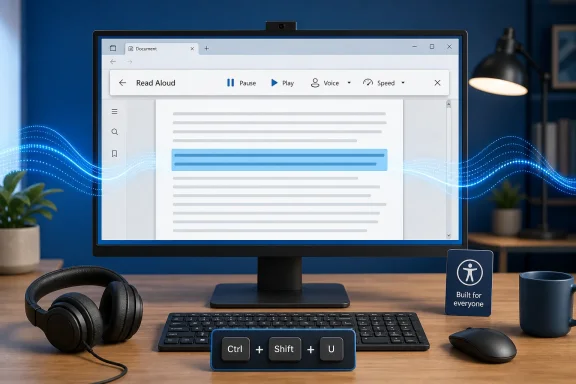 Overview: What Microsoft Edge Read Aloud Does
Microsoft Edge Read Aloud converts visible, supported text into speech. It works directly inside the browser and uses a playback toolbar that lets users pause, resume, skip between passages, change reading speed, and select different voices.The feature can be especially useful when reading:
- Long news articles and technical documentation
- Research papers and web-based reports
- Recipes, instructions, and troubleshooting guides
- Digital textbooks and study materials
- Text-based PDF documents
- Selected paragraphs or individual sections of a page
That distinction matters. Read Aloud is generally easier to start for casual listening, while Narrator remains the stronger option when a user needs broad keyboard-based access to Windows, apps, controls, and page structure.
Start Read Aloud From the Edge Menu
The most dependable way to start Read Aloud on a compatible webpage is through Edge’s main menu.- Open the webpage in Microsoft Edge.
- Select the Settings and more button, represented by three dots in the upper-right corner.
- Look for Read aloud.
- If it does not appear directly in the menu, select More tools and then choose Read aloud.
The toolbar provides the essential controls:
- Play or Pause narration
- Move backward or forward through the content
- Close the Read Aloud session
- Open Voice options
- Adjust the narration speed
- Choose among installed or online voices
Why Read Aloud May Not Be Visible Immediately
A missing Read Aloud command does not always mean that the feature has been removed. The page may not expose readable text in a format Edge can process, the browser could be out of date, or a managed-device policy may have disabled the feature.Some pages also behave differently because of their design. Embedded web apps, protected content, complex interactive dashboards, and pages that render most content as images may not offer the same Read Aloud options as a straightforward article.
Use the Fastest Read Aloud Shortcuts
For frequent users, keyboard shortcuts are the quickest route to Microsoft Edge text-to-speech.On Windows and Linux, press:
Ctrl + Shift + UOn macOS, press:
Command + Shift + UThis shortcut starts or stops Read Aloud. It is particularly convenient when the browser is maximized, when the user is working without a mouse, or when the three-dot menu is cluttered with other commands.
The current shortcut is important because older tutorials may still list a different key combination. Ctrl + Shift + G is outdated guidance and should not be relied on for modern Edge installations. Users who memorize the current shortcut can quickly start narration on a page without hunting through menus.
Start Read Aloud From the Right-Click Menu
The context menu is another fast option:- Open the page you want Edge to read.
- Right-click an empty area of the page or a normal block of text.
- Select Read aloud.
Depending on the current Edge interface and the specific page, the right-click menu can be more direct than the main menu. It is often the best method for users who prefer mouse navigation and do not want to remember keyboard commands.
Read Only the Text You Select
One of the most useful aspects of Edge Read Aloud is that it does not have to read an entire page. The browser can speak only the material the user highlights.This is ideal for situations such as:
- Listening to one complicated paragraph in an article
- Checking the wording of an email draft in a browser-based service
- Hearing a recipe instruction while cooking
- Reviewing a small part of a lengthy support document
- Listening to a quote, definition, or code explanation
- Reducing distractions on an overcrowded page
- Highlight the text you want to hear.
- Right-click the selected text.
- Choose Read aloud selection.
This feature is especially effective for proofreading. Reading text silently can make it easy to overlook awkward sentences, duplicated words, missing punctuation, or unnatural phrasing. Hearing the same words spoken aloud often exposes problems that are less noticeable on screen.
Limits of Selection Reading
Selection reading depends on the webpage providing real selectable text. If an article is embedded in an image, scanned without optical character recognition, rendered as a canvas element, or protected by an unusual viewer, Edge may not be able to read it accurately.The selection itself also matters. If the highlight includes navigation labels, advertising copy, captions, or unrelated sidebar content, Edge may include those elements in the speech. A careful, precise selection produces better results.
Use Read Aloud With PDFs in Microsoft Edge
Microsoft Edge includes a capable PDF viewer, and PDF Read Aloud is now built into that experience. Users do not need to enable an experimental browser flag or install a separate PDF extension merely to hear compatible documents read aloud.To start reading a PDF:
- Open the PDF in Microsoft Edge.
- Locate the PDF toolbar near the top of the document window.
- Select Read aloud.
- Use the playback toolbar to pause, skip, select a voice, or change speed.
Select Text Within a PDF
When the PDF contains selectable text, Edge can often read only the portion that has been highlighted.- Drag to select text in the PDF.
- Open the available contextual menu.
- Choose the appropriate Read aloud option.
Why PDF Read Aloud Can Sound Wrong
Even a text-based PDF can produce imperfect narration. PDF files do not always preserve the logical order of paragraphs, columns, footnotes, sidebars, or tables. A document with complex layout may cause the browser to read content out of order.This is not unique to Edge. It is a long-standing limitation of PDFs themselves, particularly files created from print-oriented layouts rather than designed for digital accessibility.
For the best results, use a properly tagged PDF with selectable text and a clear reading order. When the document is important, compare the spoken output with the visible page rather than assuming that every heading, table value, or footnote will be read perfectly.
Change the Voice and Playback Speed
Read Aloud becomes much more useful once the voice and speed are adjusted to match the material and the listener’s preference.After Read Aloud starts:
- Select Voice options on the Read Aloud toolbar.
- Choose an available voice.
- Adjust the speech speed using the control in the same panel.
Online Voices and Offline Voices
Microsoft Edge can work in both online and offline scenarios, but the available voices may differ.When an internet connection is available, Edge can offer more natural-sounding voice options and a broader choice of accents or languages. Offline use is still possible, but fewer voices may be available.
This is an important trade-off for privacy-conscious users and travelers. Offline narration can be sufficient for basic listening, but users seeking the widest range of natural voices may need internet access.
On Windows, additional installed speech voices can be managed through the operating system’s speech settings:
- Open Settings.
- Go to Time & language.
- Select Speech.
- Review available voice packages and language settings.
Choose a Speed That Preserves Understanding
The highest possible speed is not automatically the most productive. When the material contains technical acronyms, unfamiliar product names, programming terms, financial data, or medical vocabulary, a modest pace often improves comprehension.A practical approach is to begin at a normal or slightly increased speed, then slow down when the material becomes dense. For everyday articles, a faster pace can save time. For documentation that requires careful retention, clarity is more important than raw speed.
Use Reading Mode for a Cleaner Listening Experience
Microsoft Edge’s Reading mode—previously and still widely known as Immersive Reader—can simplify compatible webpages before narration begins. It removes much of the surrounding clutter and places the article’s main text into a cleaner reading surface.This is particularly useful on sites filled with:
- Sidebars
- Promotional panels
- Animated elements
- Dense navigation menus
- Multiple columns
- Pop-ups and visual distractions
- Repeated recommendation modules
- Open the page in Microsoft Edge.
- Select the Reading mode or Enter Immersive Reader icon in the address bar when it appears.
- Alternatively, press F9.
- Select Read aloud from the Reading mode toolbar.
Open Only a Selected Passage in Reading Mode
For a focused experience, select a section of text before entering Reading mode.- Highlight the paragraph or passage.
- Right-click the selection.
- Select Open selection in Reading mode.
- Use Read aloud from the Reading mode toolbar.
More Than a Read Aloud Container
Reading mode offers useful visual controls beyond narration. Depending on the Edge build and the page, it can provide options for changing:- Font style
- Font size
- Page theme
- Column width
- Text spacing
- Reading preferences
Use Read Aloud on iPhone and Android
Microsoft Edge Read Aloud is also available in the Edge mobile app for iPhone, iPad, and Android devices. The exact menu placement can vary because mobile Edge receives interface changes independently from the desktop browser.The general process is straightforward:
- Open the Microsoft Edge app.
- Navigate to the webpage.
- Open the More menu.
- Select Read aloud when the option is available.
Mobile Read Aloud is practical for commutes, walks, household tasks, or situations where holding and reading from a small screen is inconvenient. It can also reduce the temptation to scroll quickly through long articles without actually absorbing them.
Mobile Considerations
Phone speakers are adequate for quick listening, but headphones or Bluetooth audio can provide a more comfortable experience for long sessions. Cellular data use may also matter when online voices are active, particularly for users with limited data plans.As on desktop, the quality of the experience depends on the page. A clean article with normal text will generally sound better than an image-heavy, script-driven, or poorly structured site.
Troubleshoot Read Aloud When It Is Missing or Not Working
When Read Aloud disappears, fails to start, or is missing from PDFs and webpages, begin with the simplest checks.Update Microsoft Edge
An outdated browser can cause feature inconsistencies, missing menu commands, or compatibility problems with current websites. Update Edge through its built-in browser update mechanism or the official Microsoft Edge download channel for your platform.After updating, restart the browser and test Read Aloud on a straightforward article page and a normal text-based PDF. This helps distinguish a browser-level issue from a problem caused by one particular site or document.
Check Whether the Content Is Actually Readable
Read Aloud needs accessible text. It may not function correctly when content is:- A scanned image rather than a text document
- A video with burned-in captions
- A graphic-heavy PDF without OCR
- A protected or embedded document viewer
- A complex interactive webpage
- A page where the article content has not fully loaded
Check for Organization Policies
On work, school, and family-managed devices, administrators can control whether Read Aloud is available. If an Edge policy disables the feature, users may lose access from the main menu, context menu, address bar, PDF viewer, and Reading mode.A browser message indicating that Edge is managed by an organization is a strong clue. In that case, reinstalling extensions or changing individual browser settings may not solve the problem. The device administrator or IT support team must review the management policy.
Do Not Rely on Obsolete Fixes
Many older guides still recommend experimental flags or outdated shortcuts. Those instructions can create unnecessary confusion.Two approaches to avoid are:
- Using Ctrl + Shift + G as the Read Aloud shortcut
- Searching for a PDF Read Aloud experimental flag
Read Aloud, Copilot Vision, Narrator, and Magnifier Are Different Tools
Microsoft’s accessibility and AI features can overlap in everyday use, but they are not interchangeable.Read Aloud
Read Aloud speaks webpage and PDF text. Its primary job is narration, with controls for voice and speed.Reading Mode
Reading mode simplifies compatible webpages and provides a focused surface that can include Read Aloud, visual reading settings, translation tools, and other features.Copilot Vision
Copilot Vision is intended for interacting with Copilot about supported visual or web content. It is not simply a renamed version of Read Aloud. A user who wants the browser to narrate an article should use Read Aloud; a user who wants conversational assistance about what is on screen may encounter Copilot features instead.Windows Narrator
Narrator is Windows’ full screen reader. It can announce controls, applications, buttons, menus, and system content, not just article text in Edge. On Windows, Narrator can be started with:Windows logo key + Ctrl + EnterMagnifier Reading
Windows Magnifier also includes reading capabilities for users who benefit from visual enlargement combined with spoken content. Its reading feature can be started from Magnifier using:Ctrl + Alt + EnterFor a simple article or PDF, Edge Read Aloud is often the least complicated option. For comprehensive operating system accessibility, Narrator and Magnifier provide broader functionality.
Strengths and Limitations of Microsoft Edge Read Aloud
The biggest strength of Microsoft Edge Read Aloud is that it is already part of the browser. There is no need to evaluate third-party extensions, accept unfamiliar permissions, or move content into another application.Its main advantages include:
- Built-in availability across Edge’s desktop and mobile ecosystem
- Quick activation through menus, right-click commands, and shortcuts
- Selectable voices and reading speeds
- PDF support without relying on legacy experimental settings
- Selected-text narration for focused listening
- Reading mode integration for cleaner article layouts
- Useful offline functionality, albeit with fewer voice options
- No separate subscription required for the core feature
Voice quality also varies. Modern online voices can sound impressively natural, but speech engines may still mispronounce names, acronyms, specialist terms, code, URLs, and context-dependent words. The browser may also struggle with table layouts, citations, multi-column documents, and unusual formatting.
Privacy is another consideration. Online voices may require content to be processed through connected speech services, while offline options limit the available voice selection. Users handling sensitive material should understand the organization’s policies and choose an appropriate configuration.
A Practical Windows Workflow for Everyday Listening
For most Windows users, the most effective routine is simple:- Open an article, help page, or PDF in Microsoft Edge.
- Press Ctrl + Shift + U to begin narration.
- Open Voice options and choose a comfortable pace.
- Use F9 to enter Reading mode when a webpage is visually distracting.
- Highlight text and use Read aloud selection when only one section matters.
- If narration is missing, test another page and check for Edge updates or management policies.
Microsoft Edge Read Aloud is at its best when treated as a built-in listening layer for the web: quick to activate, easy to control, and capable of turning routine reading into a more accessible experience.
References
- Primary source: Technobezz
Published: 2026-07-22T19:52:17.792000+00:00
How to Use Read Aloud in Microsoft Edge | Technobezz
How to use Microsoft Edge Read Aloud on webpages, selected text, PDFs, mobile, and Immersive Reader.www.technobezz.com - Official source: support.microsoft.com
Use Reading mode in Microsoft Edge | Microsoft Support
Learn how to enter Reading mode in Microsoft Edge and use Read aloud to hear webpages and PDFs read out loud.support.microsoft.com - Official source: learn.microsoft.com
how to get a this options like edit and read louder option/tool haves in a pdf - Microsoft Q&A
how to get a this options like edit and read louder option/tool haves in a pdflearn.microsoft.com - Official source: microsoft.com

Read aloud
www.microsoft.com
- Official source: cdn-dynmedia-1.microsoft.com
</rdf:Alt> </dc:title> <dc:creator> <rdf:Seq> <rdf:li>Ryan Fowles
PDF documentcdn-dynmedia-1.microsoft.com