

Microsoft’s latest Insider experiments make one thing clear: the company is no longer treating generative AI as a separate app or a marketing banner — it’s designing AI to live where people actually do their work, starting with the taskbar and File Explorer.
Microsoft introduced Copilot as a cross-product assistant that spans Office, Edge, and Windows, and the feature set has steadily migrated from web‑first prototypes into native Windows touchpoints. Recent preview builds and public demonstrations show an incremental but decisive shift: instead of a single “Copilot app” that users must open, Microsoft is weaving small, task‑focused AI experiences into surfaces people use every day — most visible right now in the taskbar’s new “Ask Copilot” composer and a Copilot button and contextual actions inside File Explorer.
Those changes arrive as part of staged Insider previews (several Dev/Beta builds), and Microsoft says the Ask Copilot experience will begin rolling out to Windows 11 users in the coming weeks. The company frames these moves as opt‑in, with a focus on preserving user control and reducing disruption to existing workflows.
Note: while Microsoft has demonstrated the agent concept and shown the taskbar status indicators in preview, some details about agent internals — such as which models power specific agents or the exact data sources used in each scenario — remain high‑level in official messaging. Treat any vendor or third‑party claims about precise model names or architectures as provisional unless Microsoft confirms them in product docs.
This design posture also answers a political and market reality: consumers and administrators pushed back in 2024–2025 against “AI everywhere” that felt intrusive or default‑on. Embedding AI into workflows while keeping it opt‑in and transparent creates a less dramatic but more persistent presence that is easier to productize in enterprise settings.
The @ syntax is another UX gambit that leverages existing mental models (tagging, chat mentions) to lower the discovery cost for starting specialized agents. The result is a set of tiny, composable UI moves that make AI feel like another, well‑behaved tool rather than an attention‑hungry product placement.
However, the business case for broad adoption will hinge on governance, cost, performance, and transparency. Enterprises will accept contextual AI in their daily tools only if Microsoft provides clear controls, robust DLP integrations, and predictable behavior across the wide array of Windows hardware. Preview builds and demos make a compelling product story; the long work — turning an experimental capability into a reliable, auditable platform for regulated businesses — is what remains.
For end users, the benefits are straightforward: faster summaries, fewer context switches, and small automations that add up. For IT and security teams, the imperative is equally clear: pilot carefully, insist on policy‑driven controls, and demand clarity on where and how data is processed. If Microsoft can deliver on those governance promises while maintaining the elegant, low‑friction UX shown in previews, these incremental AI integrations could be the quiet feature that changes how people work on Windows.
Source: TechSpot Microsoft tests new Windows AI in the taskbar and File Explorer
 Background
Microsoft introduced Copilot as a cross-product assistant that spans Office, Edge, and Windows, and the feature set has steadily migrated from web‑first prototypes into native Windows touchpoints. Recent preview builds and public demonstrations show an incremental but decisive shift: instead of a single “Copilot app” that users must open, Microsoft is weaving small, task‑focused AI experiences into surfaces people use every day — most visible right now in the taskbar’s new “Ask Copilot” composer and a Copilot button and contextual actions inside File Explorer.Those changes arrive as part of staged Insider previews (several Dev/Beta builds), and Microsoft says the Ask Copilot experience will begin rolling out to Windows 11 users in the coming weeks. The company frames these moves as opt‑in, with a focus on preserving user control and reducing disruption to existing workflows.
What’s new: Ask Copilot in the taskbar
A search bar that behaves like a chat launcher
The familiar Windows search composer is being replaced, on an opt‑in basis, by Ask Copilot — an AI composer in the taskbar that acts as a gateway to Microsoft 365 Copilot services. Rather than opening the Copilot app or a separate sidebar, Ask Copilot surfaces immediately where users already reach for quick lookup and commands. The feature is optional and off by default, but when enabled it becomes the primary entry point for short queries, voice interactions, and starting more complex AI “agents.”@agents: tag, start, and monitor
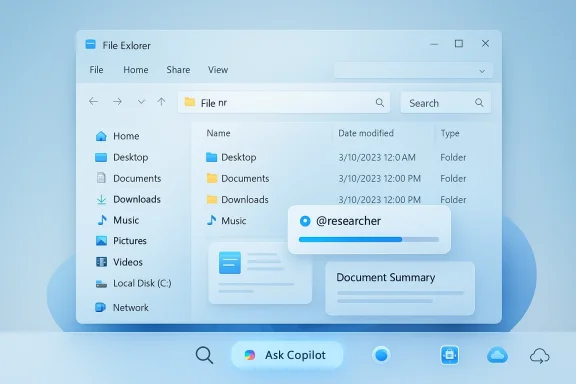
A striking design move is the introduction of an @ syntax inside Ask Copilot that feels like tagging someone in a chat. Typing “@researcher” or selecting an agent from a tools menu can spin up a specialized AI agent — for example, a researcher that combs files and web content for a topic, or an assistant that summarizes long technical documents. These agents aren’t just one‑shot queries; some are designed to run for extended periods (Microsoft demoed agents that run for 10 minutes or longer), and the system surfaces real‑time progress directly in the taskbar using familiar download‑style progress indicators. That keeps long‑running work visible and checkable without burying it in a browser tab.Note: while Microsoft has demonstrated the agent concept and shown the taskbar status indicators in preview, some details about agent internals — such as which models power specific agents or the exact data sources used in each scenario — remain high‑level in official messaging. Treat any vendor or third‑party claims about precise model names or architectures as provisional unless Microsoft confirms them in product docs.
What’s new: Copilot in File Explorer
Contextual summaries and inline insights
File Explorer is gaining its own Copilot affordances. A new Copilot or “Ask Microsoft 365 Copilot” button inside File Explorer Home and hover/selection actions let users request summaries, context, or next steps for selected files without leaving the file view. These real‑time annotations pull from Microsoft 365 connectors and provide a quick overview of what a document contains, who last edited it, or suggested actions for shared projects. The goal is clear: reduce context‑switching by surfacing quick, actionable intelligence where files live.AI Actions and contextual editing
Beyond summaries, preview builds show right‑click “AI Actions” in File Explorer for common tasks: extracting tables from PDFs, running quick visual edits on images (blur background, object removal), and invoking Bing Visual Search on selected images. These actions are presented as single‑click workflows and are intended to save time for repetitive, predictable tasks. Microsoft has emphasized that many of these features will be permissioned and gated behind Microsoft 365 subscriptions or opt‑in controls.Why this matters: intelligence as infrastructure
Microsoft’s approach reframes AI from a headline product to a background productivity layer. Instead of launching a “Copilot 2.0” app and shouting about it, the company is making small, repeated investments in moments of friction that compound over a workday: search, file triage, short edits, and meeting prep. The theory is simple — small, contextually relevant gains yield meaningful time savings for knowledge workers over months and years, especially in enterprise environments that juggle email, Teams, cloud storage, and local files.This design posture also answers a political and market reality: consumers and administrators pushed back in 2024–2025 against “AI everywhere” that felt intrusive or default‑on. Embedding AI into workflows while keeping it opt‑in and transparent creates a less dramatic but more persistent presence that is easier to productize in enterprise settings.
The rollout and technical prerequisites
- Microsoft is testing these features in Windows 11 Insider channels (Dev/Beta) and packaging them in cumulative updates such as KB5072043 for certain preview builds. These previews are staged, so different Insiders will see different elements at different times.
- Some AI features are accelerated by on‑device NPUs and hardware optimizations on Copilot+ PCs; other features rely on cloud services and Microsoft 365 connectors. Support for offline/locally accelerated experiences depends on vendor hardware and the specific feature (semantic local search vs. heavy generative workloads).
- Microsoft describes Ask Copilot as opt‑in by default; privacy and permission controls are central to the messaging. Administrative control for enterprises will likely be exposed via standard Group Policy or Microsoft 365 admin controls, but the exact management surfaces and policy names are still being finalized in public documentation.
Benefits: what users stand to gain
- Faster triage: Summaries in File Explorer reduce the need to open multiple documents to understand shared content.
- Reduced context switching: Ask Copilot’s taskbar presence makes short queries and actions immediate without disrupting flow.
- Ambient automation: Long‑running agents can perform background research or multi‑step file operations while users work on other tasks.
- Single click productivity: AI Actions in File Explorer and right‑click menus transform repetitive edits into one‑click operations.
- Integration with Microsoft 365: When users opt in, Copilot can access mail, calendars, OneDrive, and Teams context for richer, personalized assistance.
Risks, trade‑offs, and unanswered questions
Privacy and data governance
Embedding AI into the taskbar and file manager introduces data governance complexity. When Copilot reads a document, scans a mailbox, or queries a synced folder, organizations will want clear guarantees about:- Scope: exactly which folders, services, and account connectors Copilot can access.
- Transit and storage: whether content is processed on device, sent to Microsoft servers, or cached in third‑party clouds.
- Auditability: logs and revocation controls for AI actions performed on behalf of users.
Surface area for phishing and social engineering
AI features integrated into core UI surfaces expand the attack surface. For example, a malicious document that prompts Copilot to extract or summarize content could be used to trigger network calls, or to surface sensitive metadata that might otherwise remain less visible. Security teams will need to extend threat modeling to include AI workflows, agent launchers, and any network callbacks they perform.Performance and reliability
Taskbar‑resident agents and background AI imply persistent processes and potential resource contention. On lower‑end devices, background indexing or long‑running inference could degrade responsiveness or battery life. Microsoft’s hardware gating for on‑device features (Copilot+ PCs, dedicated NPUs) helps, but the heterogeneity of Windows hardware means administrators need to pilot these features carefully. Performance monitoring and conservative deployment to constrained devices are prudent.Licensing and availability
Many of the richer Copilot capabilities inside File Explorer and across Windows are tightly coupled to Microsoft 365 licensing. Organizations will need to map which features are included in which subscriptions and whether additional Copilot licenses or seats are required for broad deployment. The friction of licensing will shape adoption, especially in cost‑conscious environments.Transparency and user control
Because the AI is embedded into surfaces users rely on, it must be both transparent and easily controllable. Microsoft’s UI choices — visible taskbar progress, opt‑in connectors, and permission prompts — point in the right direction, but the company’s long‑running reputation for burying telemetry options means vigilance from privacy advocates and enterprise admins will be necessary. Explicit, discoverable toggles for “Ask Copilot,” per‑file permissioning, and easy audit trails are minimal expectations for any enterprise deployment.How IT should prepare today
- Inventory sensitive data and map it to potential Copilot surfaces (local file shares, OneDrive, Exchange mailboxes).
- Pilot Ask Copilot and File Explorer Copilot features with a small group of users to measure performance, accuracy, and unintended behavior.
- Validate DLP and conditional access policies against Copilot connectors; require approval flows for any connector that reads email or shared drives.
- Test device profiles for Copilot+ features and identify which hardware will be eligible for on‑device acceleration versus cloud processing.
- Educate end users about opt‑in controls, how agent progress appears on the taskbar, and how to revoke Copilot permissions if necessary.
UX and design: subtlety over spectacle
One of the more interesting design choices is Microsoft’s decision to keep AI interactions compact and familiar rather than splashy. The taskbar progress indicator, for example, borrows a well‑understood visual from download or update workflows and applies it to agent progress. That reduces cognitive overload: users already know what a progress bar means.The @ syntax is another UX gambit that leverages existing mental models (tagging, chat mentions) to lower the discovery cost for starting specialized agents. The result is a set of tiny, composable UI moves that make AI feel like another, well‑behaved tool rather than an attention‑hungry product placement.
What to watch next
- Documentation and admin controls: Microsoft must publish clear guidance for enterprise deployments and DLP integration before broad adoption. Expect documentation updates in tandem with any general‑channel rollout.
- Licensing clarity: precise mappings between Microsoft 365 plans and Copilot features inside File Explorer and taskbar will determine how quickly enterprises embrace the new UX.
- Model provenance and audit logs: enterprises will ask for model names, inference logs, and evidence trails for Copilot actions in regulated environments. Microsoft’s answers here will be decisive.
- On‑device vs. cloud processing: which features run locally on NPUs, and which rely on cloud services? That balance will affect latency, privacy, and cost.
- Real world accuracy: beyond demos, how well do agents handle domain‑specific summarization, extract‑transform workloads, and multi‑document synthesis? Expect early, messy results that will be refined in future builds.
Final analysis: quiet ubiquity, but governance is the gatekeeper
Microsoft’s taskbar experiment with Ask Copilot and the File Explorer integrations represent an important strategic refinement: AI will be useful not when it shouts, but when it is quietly present in the places people already use. This approach reduces friction and promises genuine productivity gains for knowledge workers who spend their days searching, triaging, and summarizing content.However, the business case for broad adoption will hinge on governance, cost, performance, and transparency. Enterprises will accept contextual AI in their daily tools only if Microsoft provides clear controls, robust DLP integrations, and predictable behavior across the wide array of Windows hardware. Preview builds and demos make a compelling product story; the long work — turning an experimental capability into a reliable, auditable platform for regulated businesses — is what remains.
For end users, the benefits are straightforward: faster summaries, fewer context switches, and small automations that add up. For IT and security teams, the imperative is equally clear: pilot carefully, insist on policy‑driven controls, and demand clarity on where and how data is processed. If Microsoft can deliver on those governance promises while maintaining the elegant, low‑friction UX shown in previews, these incremental AI integrations could be the quiet feature that changes how people work on Windows.
Source: TechSpot Microsoft tests new Windows AI in the taskbar and File Explorer
