

Microsoft has quietly pushed a server‑side correction that ends a short but alarming era of “ghost” end‑of‑support alerts in Windows — the false warning that told some users their PCs had reached end‑of‑life even when they remained eligible for updates.
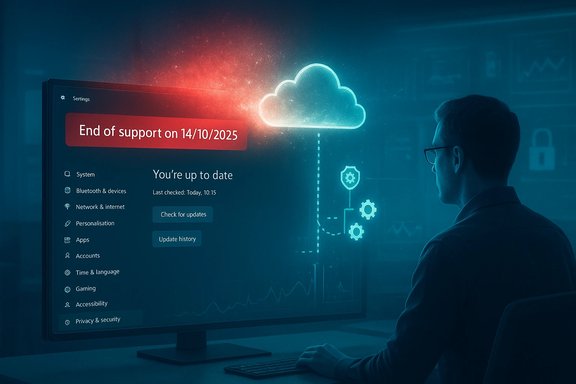
In mid‑October 2025 Microsoft shipped a routine cumulative update that, unintentionally, triggered an erroneous message in Settings → Windows Update on a subset of Windows installations: “Your version of Windows has reached the end of support.” That banner was visible to some Enterprise, Pro, Education, and LTSC users — including devices enrolled in Extended Security Updates (ESU) — and caused confusion across home users, IT departments, and managed fleets. Microsoft identified the root trigger as telemetry and display/diagnostic flags introduced or altered by the October rollout (tracked as KB5066791) and responded with a cloud configuration correction and follow‑up servicing.
This article unpacks what happened, why it mattered, how Microsoft fixed it, and what lessons Windows users and administrators should take from the episode. The analysis cross‑checks Microsoft’s advisory and independent reporting, examines the technical and operational implications, and offers practical mitigation steps for affected users.
The fix is in place and the banner has been removed for most connected devices. For organizations that require absolute certainty, the final word should come from management consoles and official KB entries rather than the presence or absence of a UI banner. Microsoft’s KB updates and independent reporting confirm the diagnosis and remediation path; however, precise telemetry on how many machines displayed the message remains unpublished, so claims about scale should be treated with caution.
The false banner is gone for most users today, but the episode should be a catalytic case study in modern update governance: always prioritize conservative user messaging, authoritative verification hooks, and clear remediation pathways for environments that cannot immediately accept cloud fixes.
Source: Gizchina.com https://www.gizchina.com/microsoft/microsoft-finally-squashes-the-windows-ghost-alert-bug]
 Background
In mid‑October 2025 Microsoft shipped a routine cumulative update that, unintentionally, triggered an erroneous message in Settings → Windows Update on a subset of Windows installations: “Your version of Windows has reached the end of support.” That banner was visible to some Enterprise, Pro, Education, and LTSC users — including devices enrolled in Extended Security Updates (ESU) — and caused confusion across home users, IT departments, and managed fleets. Microsoft identified the root trigger as telemetry and display/diagnostic flags introduced or altered by the October rollout (tracked as KB5066791) and responded with a cloud configuration correction and follow‑up servicing. This article unpacks what happened, why it mattered, how Microsoft fixed it, and what lessons Windows users and administrators should take from the episode. The analysis cross‑checks Microsoft’s advisory and independent reporting, examines the technical and operational implications, and offers practical mitigation steps for affected users.
Timeline: from October update to the server‑side fix
Key milestones
- October 14, 2025 — Microsoft released the October cumulative update family (reported and tracked widely under KB5066791). Within days, community reports surfaced of a red “end‑of‑support” banner appearing in Settings for a subset of Windows 10 installations and some LTSC/IOT SKUs.
- Early November 2025 — Microsoft acknowledged the issue as a display/diagnostic error and deployed a server‑side configuration change (cloud fix) to clear the incorrect message for devices connected to Microsoft’s configuration service. Several outlets reported the correction and noted that a Known Issue Rollback (KIR) package was published for locked‑down environments.
- November 11, 2025 — Microsoft updated its KB documentation and release notes to explicitly list the incorrect banner as a known issue generated by the October update and documented the server‑side mitigation and guidance for enterprises that needed offline remediation.
What “server‑side fix” means in practice
A server‑side fix here refers to a configuration change delivered dynamically from Microsoft’s configuration endpoints (OneSettings / cloud configuration), not a full client patch download. For most connected devices this means no manual KB installation was required: the offending flag was cleared and the Settings display corrected automatically after a refresh and, in some cases, a reboot. For disconnected or tightly managed environments, Microsoft provided an enterprise KIR package to force the same correction locally.The technical anatomy: how a simple banner went wrong
Where the OS gets lifecycle messages
The Settings → Windows Update page derives lifecycle banners from several signals:- Local update metadata, including installed KBs and servicing stack state.
- Cloud‑delivered configuration flags and diagnostics via OneSettings and Configuration Service Providers (CSPs).
- Entitlement telemetry (ESU activation state, management server signals).
- Management policies (Intune, WSUS, Group Policy) that can block or override cloud flags.
Why the bug was more than cosmetic
At first glance, the problem looked cosmetic: a misleading banner. In operational terms, however, it had outsized consequences:- Monitoring and compliance tools that rely on the OS lifecycle indicators produced false positives, generating alerts and helpdesk tickets.
- Administrators and automation scripts that read Settings state or rely on the “Check for updates” control could be misled; in some reports the manual “Check for updates” option was disabled temporarily.
- Users and IT staff worried that their security posture had been revoked — prompting unnecessary churn and escalation.
Who was affected — and who wasn’t
- Affected groups included:
- Windows 10, version 22H2 Pro, Education, and Enterprise devices that were enrolled in ESU and configured with ESU product keys.
- Windows 10 Enterprise LTSC 2021.
- Windows 10 IoT Enterprise LTSC 2021.
- Not affected:
- Devices that had not received the October rollup or that were fully managed and running updated servicing metadata after Microsoft applied the cloud correction.
- Windows 11 mainstream retail devices were not part of this specific misflagging event.
Microsoft’s response: speed, transparency, and tooling
What Microsoft did
- Public acknowledgement through the Windows Release Health and KB pages.
- Immediate server‑side configuration correction for connected devices.
- Publication of a Known Issue Rollback (KIR) artifact for managed environments or disconnected systems that required an offline remedy.
- KB documentation updates explaining the affected OS SKUs and confirming that the issue was a display glitch rather than a service revocation.
How effective was the response?
The response was technically appropriate: because the root cause was a misapplied diagnostic flag, a cloud change was the fastest and least disruptive fix for the broadest set of users. For networks that restrict cloud configuration, the KIR provided a surgical, controllable rollback path. Independent reporting confirmed the server‑side change removed the banner for most connected devices within hours or days, and Microsoft’s KB updates documented the issue for administrators. That said, the episode also revealed friction points in telemetry‑driven UIs: a single misapplied flag can produce wide operational noise and user distrust. A lesson for platform designers is that diagnostic banners that imply revocation of service should prefer conservative wording and provide an immediate “how to verify” path — for example, linking to enrollment state or providing a direct validation control — rather than static, alarming banners.Practical guidance: what users and admins should do now
For individual users
- Check Settings → Windows Update. If you see the banner, confirm whether your device is enrolled in ESU or covered by LTSC entitlements.
- Connect the PC to the internet and reboot. The server‑side fix requires the device to accept cloud configuration; a restart can accelerate the refresh.
- If uncertainty remains, verify update history and OS build in Settings → About, and confirm you are still receiving security patches (look for recent cumulative installs).
For administrators and managed fleets
- Verify ESU activation and licensing in your management console rather than relying on the Settings banner. Use inventory tooling to read local licensing and update histories.
- If you manage disconnected or air‑gapped systems, download and apply the Known Issue Rollback (KIR) artifact Microsoft published to clear the incorrect banner. The KB documentation and Release Health page list the KIR guidance.
- Update compliance checks that parse Settings banners to use authoritative telemetry from management systems (Intune, WSUS, SCCM) instead of the in‑OS UI alone.
- Communicate clearly with end users: confirm that receiving the banner does not necessarily mean a loss of security updates, and instruct employees to follow the mitigation steps above.
Cross‑checking the facts: what authoritative sources say
Microsoft’s own KB and release health pages document the misflagging and the remediation timeline; those vendor notes are the authoritative record for affected KB numbers and the remediation method. Independent reporting and hands‑on reproductions from Windows‑focused outlets corroborated Microsoft’s characterization and confirmed that the server‑side fix removed the banner for most affected devices. Multiple outlets additionally described follow‑on support artifacts (KIR) for controlled environments and highlighted the operational confusion that followed the message’s appearance. These third‑party confirmations align with Microsoft’s public advisories. Where numbers and scope remain uncertain — for example, the exact count of devices that displayed the banner or the portion of at‑risk endpoints that lacked internet access — available sources do not provide firm telemetry. That absence is expected: Microsoft typically does not publish granular telemetry counts for such display errors. Treat any numeric claims about affected device counts as speculative unless Microsoft publishes official telemetry. This caveat is important: the operational impact was real, but the exact scale remains unquantified in public disclosures.Why this mattered beyond the UI
Trust and the “last mile” of update communication
Operating system lifecycle banners carry weight. They are not just cosmetic: security posture, procurement decisions, and compliance workflows can all be influenced by the in‑OS message that claims “end of support.” A false banner can:- Trigger unnecessary spending (upgrades, purchases).
- Produce cascading helpdesk tickets and compliance escalations.
- Undermine confidence in the platform’s telemetry and update messaging.
The supply chain of updates is complex
Modern servicing is a distributed orchestration across cloud flags, local servicing metadata, device telemetry, and management policies. When those components do not align, the visible result may be a confusing or incorrect UI state even though the underlying security mechanisms continue to operate. That complexity makes robust testing and conservative UI protocols essential for vendor trust.Strengths in Microsoft’s handling — and the areas that need improvement
Positive points
- Rapid acknowledgement and remediation: Microsoft identified the issue publicly, classified it correctly as a display error, and pushed a server‑side correction that minimized required user action.
- Provision of enterprise tooling: The publication of a Known Issue Rollback artifact enabled managed environments to remediate without opening security channels or importing the cloud configuration change.
- Clear KB updates: Microsoft updated its KB pages with explicit language about the issue and the affected SKUs, aiding administrators in triage.
Concerns and risks
- UI messaging risk: Lifecycle banners that imply revocation of support are high‑impact; a conservative, verifiable messaging pattern would have reduced alarm.
- Telemetry opacity: Microsoft did not publish granular counts of affected devices, leaving users and IT shops to infer the scale from anecdotal reports. That lack of transparency fuels speculation and mistrust.
- Dependency on cloud configuration: While server‑side fixes are fast, they rely on devices being online and accepting cloud policy; air‑gapped systems require additional, manual remediation steps that increase operational overhead.
Broader implications for update strategy and user behavior
- For users who remain on older OS versions, this incident is a reminder to rely on management tooling and update history for authoritative state rather than a single banner.
- For enterprises, it reinforces the need for resilience: cross‑referencing multiple signals (management console, update history, and vendor advisories) is essential before triggering remediation or communications.
- For vendors, the episode demonstrates both the power and danger of cloud‑driven, dynamic UI flags. They are powerful levers for rapid change but must be guarded with conservative fallbacks and clear verification pathways.
Practical checklist: verify and remediate in under 10 minutes
- Open Settings → Update & Security → Windows Update and note any “end of support” banner.
- Confirm internet connectivity and sign in with an admin account.
- Reboot the machine to allow cloud configuration to refresh.
- Check Update History for recent cumulative installs to confirm update flow.
- If the machine is offline or in a restricted environment, download Microsoft’s Known Issue Rollback package from your management channel and apply it following your change control process.
- Communica was a diagnostic UI bug; confirm ESU enrollment or LTSC entitlement via management tools before taking further action.
Closing analysis: what to learn from the “ghost” alert
The false “end of support” banner was, in technical terms, a relatively small misapplication of a cloud flag. In practical terms, it produced a disproportionate reaction because lifecycle messages speak directly to user confidence and organizational compliance. Microsoft’s quick, server‑side correction and enterprise rollbacks were the right tactical responses. The strategic lesson is that diagnostic messages about lifecycle or entitlement should be inherently conservative, always surface a “verify your entitlement” control, and avoid wording that implies immediate service revocation until multiple signals confirm that state.The fix is in place and the banner has been removed for most connected devices. For organizations that require absolute certainty, the final word should come from management consoles and official KB entries rather than the presence or absence of a UI banner. Microsoft’s KB updates and independent reporting confirm the diagnosis and remediation path; however, precise telemetry on how many machines displayed the message remains unpublished, so claims about scale should be treated with caution.
What this means for the Windows ecosystem
This incident demonstrates the tension between rapid, cloud‑driven responsiveness and the fragility of distributed state in a global OS ecosystem. As Microsoft moves more functionality toward cloud‑mediated configuration, the company and administrators alike must build better guardrails — in wording, in verification tooling, and in telemetry transparency — so that a single misapplied flag never again becomes a “ghost” that shakes trust more than it solves a problem.The false banner is gone for most users today, but the episode should be a catalytic case study in modern update governance: always prioritize conservative user messaging, authoritative verification hooks, and clear remediation pathways for environments that cannot immediately accept cloud fixes.
Source: Gizchina.com https://www.gizchina.com/microsoft/microsoft-finally-squashes-the-windows-ghost-alert-bug]
