

Microsoft’s PC Manager promises to do in one click what used to require half a dozen windows, a PowerShell cheat-sheet and a wary eye — and for many everyday users it delivers exactly that: a single, free, first‑party app that consolidates cleanup, process control, startup management and quick utilities into a single pane of glass.
Microsoft PC Manager first surfaced publicly in 2022 as a Microsoft-developed, Store-distributed utility that bundles traditional Windows maintenance tasks — disk cleanup, startup/process control, health checks and a “Boost” action — into a modern Store app shell. Early coverage framed it as Microsoft’s answer to long-standing third‑party cleaners such as CCleaner, packaging familiar capabilities in a friendlier, discoverable UI for non‑technical users. The product has been rolled out in stages and originally had stronger ties to Microsoft’s China organization; that staggered rollout produced persistent regional availability quirks (some users could not see a “Get/Install” button in their Store), which has been documented across Microsoft’s support forums and community threads. The app supports Windows 10 (build 19042 and later) and Windows 11, and Microsoft continues to update it through the Store and offline installer channels.
However, it is not a silver bullet. Performance improvements are typically modest and situational; the app is conservative by design but can nudge users toward Microsoft defaults in ways that merit scrutiny; and staged rollout and telemetry questions mean IT teams should validate it against their policies before mass deployment. Use PC Manager as your everyday maintenance dashboard — but keep the traditional command‑line repair tools and advanced utilities in your toolbox for cases where precision and deep diagnostics are required.
In short: for most Windows users, PC Manager is the only optimization app they need for routine upkeep and convenience — provided they use it with an awareness of its limits, read prompts carefully, and treat it as a friendly front‑end rather than a replacement for advanced repair or compliance tooling.
Source: TechPP Why Microsoft PC Manager Is the Only Optimization App You Need - TechPP
 Background / Overview
Microsoft PC Manager first surfaced publicly in 2022 as a Microsoft-developed, Store-distributed utility that bundles traditional Windows maintenance tasks — disk cleanup, startup/process control, health checks and a “Boost” action — into a modern Store app shell. Early coverage framed it as Microsoft’s answer to long-standing third‑party cleaners such as CCleaner, packaging familiar capabilities in a friendlier, discoverable UI for non‑technical users. The product has been rolled out in stages and originally had stronger ties to Microsoft’s China organization; that staggered rollout produced persistent regional availability quirks (some users could not see a “Get/Install” button in their Store), which has been documented across Microsoft’s support forums and community threads. The app supports Windows 10 (build 19042 and later) and Windows 11, and Microsoft continues to update it through the Store and offline installer channels. What PC Manager actually does — feature by feature
Microsoft PC Manager is deliberately pragmatic: it rarely invents new low‑level maintenance primitives. Instead, it orchestrates existing Windows capabilities behind a clearer interface and a handful of automated workflows.Home and the one‑click Boost
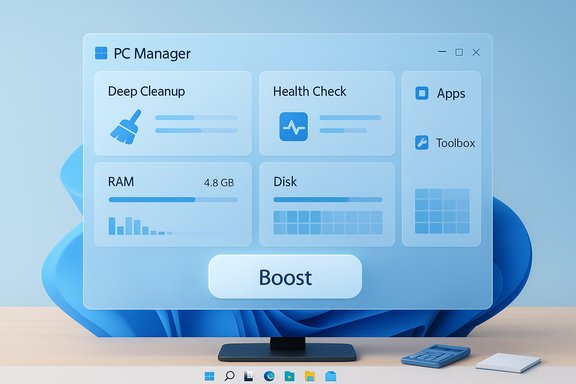
- A prominent Boost button is the headline feature. Pressing it runs a cleanup sweep (temporary files, caches) and terminates selected idle/background processes to free RAM and reduce I/O. The immediate change is mostly visual — Task Manager will show reduced RAM/disk activity after a boost — and the effect can be useful when a PC is near memory limits.
Smart Boost (automation)
- A Smart Boost option can be enabled to apply automated cleanups when thresholds are reached (for example, when temporary files exceed 1 GB or RAM usage becomes high). This “set‑and‑forget” approach benefits users who prefer not to run manual scans.
Storage (Deep Cleanup, disk analysis, large file tools)
- Deep Cleanup aggregates many sources of wasted space — Windows update remnants, browser caches, thumbnail caches and other temp data — and offers a visual disk analysis so users can find large files and rarely used apps quickly. PC Manager’s deep cleanup tends to be faster and more user‑friendly than older Cleanmgr flows, but users are warned to inspect deletion lists before confirming.
Protection / Health Check
- The Protection area bundles quick access to Windows Update, Windows Security scans, network checks and a set of “repair tips” that triage common configuration issues. Those Health Check suggestions can include restoring default app associations or repairing Taskbar settings — useful for troubleshooting, but sometimes controversial, as discussed below.
Apps: Process and Startup management, deep uninstall
- The Apps pane simplifies what used to require Task Manager and msconfig: it lists processes to end, allows toggling startup apps and offers “Deep Uninstall” to remove apps and leftover traces. For most users this is a more approachable UX for common tasks.
Toolbox and quick utilities
- PC Manager’s Toolbox is a dockable set of quick access utilities (Snipping Tool, recorder, Notepad, calculator, captions, currency converter, weather, image search and a small desktop toolbar). These are convenience shortcuts — not replacements for full apps — but they reduce context switches for daily tasks.
How PC Manager compares to classic third‑party tools
Microsoft’s pitch is not “better algorithms” so much as “less friction.” Where CCleaner, Revo Uninstaller or Ashampoo WinOptimizer historically bundled multiple utilities — some of them invasive or ad‑driven — PC Manager offers:- First‑party provenance (no third‑party provenance risks),
- Store distribution and automatic updates,
- A lightweight footprint and conservative default behavior with confirmation prompts.
Real‑world benefits — what you’ll actually notice
- Faster startup times after disabling high‑impact startup items.
- Temporary space recovered quickly via Deep Cleanup (usually hundreds of MB; larger gains only if updates or caches haven’t been cleared in a long time).
- Satisfying visual feedback from Boost (reduced RAM / disk activity in Task Manager).
- Faster access to routine tools via the Toolbox and Widgets integration on Windows 11.
Strengths — why install PC Manager
- Consolidation and discoverability: It puts scattered Settings, Disk Cleanup and Task Manager actions into one clear UI, lowering the barrier to regular maintenance.
- Conservative safety guardrails: Deep Cleanup shows what it will remove, reducing accidental data loss compared with some “one‑click” third‑party cleaners.
- Free and Store‑managed: No paid upgrade walls and straightforward Store updates make maintenance of the app itself painless.
- Lightweight: Idle memory footprint is modest and the app doesn’t appear to add noticeable startup overhead.
Risks, limitations and important caveats
1) Modest, often transient performance gains
The “Boost” visual boost is real but often temporary. Windows aggressively manages caches and RAM: clearing them can improve responsiveness briefly but caches rebuild and long‑term gains usually require hardware changes (NVMe SSD, more RAM) or driver fixes. Treat PC Manager as a convenience for immediate relief, not a substitute for hardware upgrades or targeted troubleshooting.2) Nudges toward Microsoft defaults and promotional prompts
Multiple outlets and community reports documented that PC Manager’s Repair Tips may recommend resetting defaults back to Microsoft services (Edge/Bing) and can present “recommended” fixes that amount to product nudging rather than objective repairs. Some users found suggestions that switching back to Bing or Edge was framed as a “repair,” which rightly raised concerns about product promotion inside a maintenance tool. This behavior has been documented in coverage and reproduced in screenshots by users. Users should read Repair/Restore prompts carefully and decline resets that reassign defaults without consent.3) Regional rollout and availability
PC Manager began as a China‑targeted project and then expanded via staged rollouts. That staged availability led to confusion: some users report the Store “Install” button missing or “Coming Soon” pages. Workarounds (region switch, offline installer) circulated, but IT managers should confirm availability for intended user populations before recommending wide deployment.4) Not a replacement for advanced repair tools
PC Manager does not replace SFC, DISM, kernel‑level diagnostics, driver rollbacks, Group Policy or enterprise patch management. When a device shows filesystem corruption, driver conflicts, or complex group policy needs, administrators should use established command‑line and enterprise tools. PC Manager is best used as a routine front‑end for everyday upkeep.5) Potential for over‑aggressive cleanup
If users run Deep Cleanup in “everything” mode without review, browser profiles, saved sessions, or app caches can be partially cleaned in ways that disrupt workflows (example: browser add‑on settings or session data may be removed if selected). The app prompts before destructive actions, but users must treat Deep Cleanup like any powerful tool: inspect what it will remove. Community reports include isolated incidents of deleted add‑on settings when running broad cleanups.Privacy and telemetry — what to watch for
PC Manager is a first‑party app and Microsoft has updated its privacy statements for the product, but any tool that runs deep system scans and reports statuses invites questions about telemetry, where diagnostic data is sent and how it is used. Community posts and privacy-focused reporting urged administrators to validate telemetry behavior for regulatory compliance (GDPR, enterprise policies) before wide deployment. For regulated environments, insist on explicit telemetry documentation from Microsoft and test the app behind network monitoring to confirm expected behavior.Verification of core technical claims (quick fact‑check)
- Supported OS: Windows 10 (19042.0 and above) and Windows 11. Confirmed on Microsoft Q&A and the product landing pages.
- Origin and rollout: App originated from Microsoft’s China engineering organization and was publicly visible in October 2022; global availability has been staged and is still regionally variable in practice.
- Behavior nudging defaults: Multiple independent outlets reported Repair Tips recommending resetting defaults to Edge/Bing, a behavior that has been reproduced in screenshots and criticized as a product nudge.
- Current development cadence: PC Manager has seen regular feature updates (Dark theme, desktop toolbar, Deep Uninstall, internet speed monitoring and widget integration), with versions advancing into the 3.x line; community trackers and the Store show iterative releases. Exact version numbers change frequently — check the Store release notes for the latest version.
Practical recommendations: safe, useful ways to use PC Manager
- Before the first Deep Cleanup, create a restore point or have a recent image backup — especially on production machines.
- Use Smart Boost conservatively on machines that run critical long‑running services; don’t enable automated termination on servers.
- Inspect “Repair Tips” and decline any prompts that would reset user‑chosen defaults (browsers, search engines) unless that is explicitly desired.
- For administrators, test the app in a small pilot group and monitor network/telemetry traffic to validate compliance posture.
- Keep advanced tools handy (SFC, DISM, Sysinternals) — PC Manager is a first line of maintenance, not a replacement for deep troubleshooting.
Who should (and shouldn’t) install PC Manager?
- Install if you are:
- A mainstream home user or family tech volunteer who wants a safe, single app for routine maintenance.
- A small office user without dedicated IT who prefers a guided front end to Windows cleanup and startup management.
- Hold off if you are:
- A power user or sysadmin who needs precise, auditable command‑line control and enterprise‑grade telemetry assurances.
- Operating in a high‑compliance environment until telemetry and data flows are explicitly documented and acceptable by your policies.
Final verdict — practical, but read the fine print
Microsoft PC Manager is a well‑executed convenience layer: for mainstream consumers it solves a real problem — scattered maintenance utilities and manual commands — by making routine upkeep approachable and low‑risk. Its consolidation of Boost, deep cleanup, startup/process control and a handy toolbox is a clear usability win, and the app’s first‑party provenance reduces some provenance concerns that third‑party cleaners historically carried.However, it is not a silver bullet. Performance improvements are typically modest and situational; the app is conservative by design but can nudge users toward Microsoft defaults in ways that merit scrutiny; and staged rollout and telemetry questions mean IT teams should validate it against their policies before mass deployment. Use PC Manager as your everyday maintenance dashboard — but keep the traditional command‑line repair tools and advanced utilities in your toolbox for cases where precision and deep diagnostics are required.
In short: for most Windows users, PC Manager is the only optimization app they need for routine upkeep and convenience — provided they use it with an awareness of its limits, read prompts carefully, and treat it as a friendly front‑end rather than a replacement for advanced repair or compliance tooling.
Source: TechPP Why Microsoft PC Manager Is the Only Optimization App You Need - TechPP
