

Microsoft Teams is finally bringing one of the most basic but consequential meeting safeguards directly to the moment users need it: a pre-join microphone and speaker test. Instead of entering a call and discovering that Windows selected the wrong headset, Bluetooth audio is routed elsewhere, or a microphone is muted or unavailable, Teams users can validate their audio setup before joining.
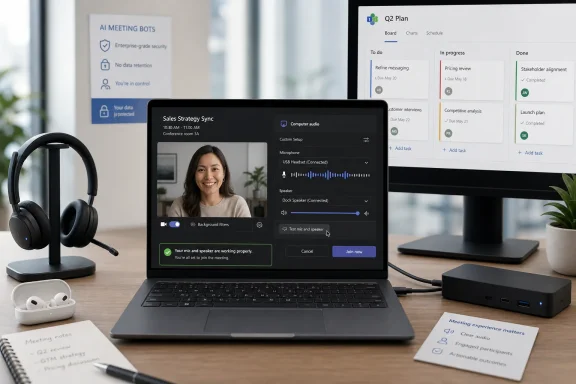
The feature, labelled Test mic and speaker, appears in the Teams meeting pre-join experience under computer audio settings. It can play a tone through the selected speaker or headset, record a short microphone sample, and play that recording back. The result is a much more practical confidence check than merely seeing device names listed in a dropdown.
For Windows users who move between laptop microphones, USB headsets, dock-connected monitors, Bluetooth earbuds, conference speakers, and virtual audio devices, that small addition could remove a surprising amount of meeting friction. It also addresses a longstanding weakness in the Teams experience: the app previously offered device selection and a separate test-call route, but not a quick, guided confirmation from the actual meeting join screen.
That distinction matters. A test buried in Settings > Devices is useful for troubleshooting. A test presented seconds before a meeting is useful for preventing the troubleshooting session from becoming the meeting itself.
The familiar “Can you hear me?” routine is not simply an annoyance. It wastes time, disrupts introductions, creates pressure for the person experiencing the issue, and can derail meetings before the conversation has even started. In remote and hybrid work, audio reliability is often the difference between a smooth collaboration session and a chaotic support exercise involving mute buttons, Windows settings, device reconnections, and chat messages.
Microsoft Teams has long included several ways to configure audio:
This is not a reinvention of Teams meetings. It is a usability correction that brings Microsoft closer to the expectations set by competing platforms. Zoom and Google Meet have trained many users to expect a device preview and audio confirmation before they enter a call. Teams has had a pre-join page for years, complete with camera preview and device selection, yet it lacked an equally direct workflow for confirming microphone capture and speaker playback.
The addition also reflects a broader truth about modern Windows PCs: audio has become more complicated, not less. A single laptop may expose multiple output choices, including built-in speakers, a monitor connected via HDMI or USB-C, a docking station, wired headphones, a Bluetooth headset, and software-created audio endpoints from streaming, recording, or remote-access tools. Choosing the correct item in a list does not guarantee that it is operational.
That is particularly valuable for users with several output devices. It is common for Windows to retain an inactive HDMI display, disconnected Bluetooth headphones, or a dock audio endpoint as an available choice. The device may appear correctly named in Teams, but it may not be the hardware the user is actually wearing or listening through.
A successful tone does not guarantee perfect call quality, but it provides immediate confirmation that the selected speaker, headset, or headphones are producing audio.
The key benefit is not that Teams can test audio—Teams already had separate mechanisms for doing that—but that it can test audio in context. The exact settings selected for the imminent meeting are the settings being verified.
A user might start the day with a USB headset connected to a docking station, switch to Bluetooth earbuds for a quick call, connect a conference speaker for an office meeting, and then move to a laptop-only setup. Teams and Windows must negotiate device availability, permissions, default settings, firmware behavior, Bluetooth profiles, and driver changes across those transitions.
Examples include:
A pre-join test will not solve every permission problem automatically, but it turns a vague “my mic is not working” report into a clear failure before the meeting starts. That gives the user time to check Windows privacy settings, reconnect a device, or choose an alternate audio method.
Teams cannot eliminate underlying Bluetooth limitations, but the ability to test before joining should make those transitions less surprising. If the test produces no sound, poor playback, or an unexpectedly bad microphone recording, the user can switch to a wired headset, laptop audio, or phone audio before the meeting begins.
That capability remains valuable, especially when setting up a new workstation, deploying a headset, troubleshooting recurring issues, or validating a meeting room device. Teams also lets users choose microphone and speaker devices before entering a meeting and change them during the call.
However, the older approach had practical limitations.
The new pre-join option eliminates much of that context switching. It also encourages a behavioral change: testing becomes something users can do before important calls without treating it as a technical support task.
A pre-flight check does not need to be exhaustive. It needs to be fast, obvious, and trustworthy. Microsoft’s new implementation appears to understand that distinction.
The feature may appear first in the current Teams desktop app on Windows and other supported desktop environments, while web, mobile, virtual desktop infrastructure, and specialized meeting devices may follow on different schedules. Feature visibility can also vary by account type, tenant policy, update channel, region, and government cloud environment.
Organizations using GCC, GCC High, or Department of Defense environments should be particularly cautious about broad deployment assumptions. Microsoft 365 features frequently reach commercial tenants before regulated government clouds, and functionality can arrive on a delayed timeline because of separate validation and compliance requirements.
For IT teams, the sensible message is straightforward: do not promise universal availability until the feature has appeared consistently in the organization’s actual Teams environment.
That is especially useful because one-way audio is among the most disruptive meeting failures. A user may be able to hear the meeting but not be heard, or may be speaking successfully while unable to hear anyone else. The guided test can reveal either condition before the meeting begins.
The new test should reduce incidents such as:
The pre-join test lowers the technical knowledge required to verify audio. It turns a traditionally admin-like workflow into an accessible meeting preparation step.
Teams has often been criticized for feature density and an interface that can make simple tasks feel buried. This update is a positive counterexample. It takes a real-world problem and solves it with a direct, visible action.
A meeting can still suffer from:
It also cannot fully replicate how Teams processes audio under live meeting conditions, including noise suppression, voice isolation, echo cancellation, bandwidth adaptation, and simultaneous video or screen sharing.
Microsoft’s summary view is a good start, but accessibility should remain part of the feature’s ongoing design. A reliable test must be useful to more than the typical headset-and-laptop scenario.
Clear messaging matters, especially in enterprise environments where a user may blame the test if a network or policy issue later disrupts a call.
These are not Microsoft’s built-in meeting features. They are often third-party tools that join meetings for transcription, note-taking, recording, summaries, or other AI-assisted workflows. Such services can be useful, but they can also create serious privacy, compliance, and data-governance concerns if a bot joins without the organizer fully understanding what it does or where captured data is stored.
Microsoft’s newer controls are intended to help organizations detect potential external bots, represent them clearly in the meeting lobby, and require separate approval before they enter. Administrators can use policy controls to manage whether external bots are allowed, while organizers gain more visibility into unusual participants.
The security benefits are clear:
Human review, policy discipline, user education, and well-managed app approvals remain necessary.
Microsoft plans to expand Planner support so that users can create plans in private channels and shared channels in Teams. This addresses a frustrating limitation for teams that intentionally separate sensitive projects, partner collaboration, executive discussions, or specialized workstreams from standard channels.
Native Planner support can make these channels more operationally useful by keeping tasks alongside conversations, files, and meetings.
The initial scope is significant but limited. Microsoft has indicated that basic plans will be available in private and shared channels, while premium capabilities are expected later.
That means organizations should not assume every advanced Planner or project-management feature will be available on day one. Teams that depend on premium scheduling, richer project controls, dependencies, resource management, or advanced reporting should verify the exact capability set before restructuring workflows around the new channel support.
IT teams should review:
A clean local mic test paired with poor network conditions will still produce a poor meeting. The best support strategy combines endpoint validation with call-quality analytics and clear escalation procedures.
By placing a guided speaker tone and microphone recording test directly on the pre-join screen, Microsoft is reducing the gap between selecting an audio device and knowing that it actually works. For Windows users navigating docks, Bluetooth accessories, multiple displays, USB headsets, webcams, and changing work locations, that confidence check could prevent countless awkward starts.
The feature will not fix broken drivers, unreliable Bluetooth, Windows permission blocks, overloaded networks, or service outages. It will not guarantee studio-quality sound. But it can catch the simple, frequent, costly mistakes before participants are waiting in a meeting room.
That is the right kind of Teams improvement: visible, practical, low-friction, and focused on the everyday reality of hybrid work. Combined with stronger controls for external AI bots and expanded Planner support in private and shared channels, it shows Microsoft refining both the human experience and the administrative controls around modern collaboration.
The next Teams meeting may still begin with a greeting, an agenda, or a late attendee. It should begin far less often with someone asking whether anybody can hear them.
The feature, labelled Test mic and speaker, appears in the Teams meeting pre-join experience under computer audio settings. It can play a tone through the selected speaker or headset, record a short microphone sample, and play that recording back. The result is a much more practical confidence check than merely seeing device names listed in a dropdown.
For Windows users who move between laptop microphones, USB headsets, dock-connected monitors, Bluetooth earbuds, conference speakers, and virtual audio devices, that small addition could remove a surprising amount of meeting friction. It also addresses a longstanding weakness in the Teams experience: the app previously offered device selection and a separate test-call route, but not a quick, guided confirmation from the actual meeting join screen.
That distinction matters. A test buried in Settings > Devices is useful for troubleshooting. A test presented seconds before a meeting is useful for preventing the troubleshooting session from becoming the meeting itself.
 Overview: A Small Teams Change With an Outsized Effect
The familiar “Can you hear me?” routine is not simply an annoyance. It wastes time, disrupts introductions, creates pressure for the person experiencing the issue, and can derail meetings before the conversation has even started. In remote and hybrid work, audio reliability is often the difference between a smooth collaboration session and a chaotic support exercise involving mute buttons, Windows settings, device reconnections, and chat messages.Microsoft Teams has long included several ways to configure audio:
- Choosing a microphone and speaker device in Teams settings.
- Switching audio devices while joining or during a meeting.
- Making a separate test call through Teams device settings.
- Choosing alternatives such as phone audio, room audio, or joining without computer audio.
- Enabling features such as automatic microphone sensitivity, noise suppression, voice isolation, and spatial audio where available.
This is not a reinvention of Teams meetings. It is a usability correction that brings Microsoft closer to the expectations set by competing platforms. Zoom and Google Meet have trained many users to expect a device preview and audio confirmation before they enter a call. Teams has had a pre-join page for years, complete with camera preview and device selection, yet it lacked an equally direct workflow for confirming microphone capture and speaker playback.
The addition also reflects a broader truth about modern Windows PCs: audio has become more complicated, not less. A single laptop may expose multiple output choices, including built-in speakers, a monitor connected via HDMI or USB-C, a docking station, wired headphones, a Bluetooth headset, and software-created audio endpoints from streaming, recording, or remote-access tools. Choosing the correct item in a list does not guarantee that it is operational.
How the New Test Mic and Speaker Experience Works
The feature is designed to be quick enough for routine use rather than a full diagnostic suite. From the Teams pre-join screen, users selecting Computer audio can access the Test mic and speaker option and follow the guided test flow.Speaker testing
The speaker portion of the experience plays an audio tone using the currently selected output device. If the user hears it, Teams has confirmed a basic but important condition: sound is reaching the device Teams intends to use for the meeting.That is particularly valuable for users with several output devices. It is common for Windows to retain an inactive HDMI display, disconnected Bluetooth headphones, or a dock audio endpoint as an available choice. The device may appear correctly named in Teams, but it may not be the hardware the user is actually wearing or listening through.
A successful tone does not guarantee perfect call quality, but it provides immediate confirmation that the selected speaker, headset, or headphones are producing audio.
Microphone testing
The microphone test records a brief voice sample and plays it back through the selected audio output. This creates a practical end-to-end check:- Teams receives sound from the intended microphone.
- The selected speaker or headphones can play it back.
- The user can judge whether their voice is audible and recognizable.
- Problems with an incorrect input selection become apparent before the meeting begins.
Summary and confirmation
The guided flow provides a summary indicating whether the microphone and speaker tests succeeded. That confirmation screen should make the process approachable for less technical users and reduce the guesswork that comes with Windows audio device names.The key benefit is not that Teams can test audio—Teams already had separate mechanisms for doing that—but that it can test audio in context. The exact settings selected for the imminent meeting are the settings being verified.
Why Pre-Join Audio Testing Matters on Windows
Windows remains the most flexible mainstream desktop platform for peripherals. That flexibility is a strength, but it also produces edge cases that meeting software must handle gracefully.A user might start the day with a USB headset connected to a docking station, switch to Bluetooth earbuds for a quick call, connect a conference speaker for an office meeting, and then move to a laptop-only setup. Teams and Windows must negotiate device availability, permissions, default settings, firmware behavior, Bluetooth profiles, and driver changes across those transitions.
The wrong-device problem
The most common Teams audio failures are often not failures of the microphone or speakers themselves. They are selection failures.Examples include:
- Teams using a laptop microphone instead of a USB headset microphone.
- Audio playing through a monitor’s tiny built-in speakers rather than headphones.
- Bluetooth headphones connecting in a lower-quality hands-free profile.
- A docking station being recognized as the active output after the headset has been removed.
- An external webcam microphone being selected because Windows detected it first.
- A virtual audio device from recording or broadcast software becoming the default input.
The Windows permissions problem
Windows microphone privacy controls can also interfere with Teams audio. If desktop app microphone access is disabled, Teams may show a microphone but be unable to capture usable speech. Browser-based Teams meetings introduce another permission layer, because the browser must have access to the microphone and audio output behavior can vary by browser and device.A pre-join test will not solve every permission problem automatically, but it turns a vague “my mic is not working” report into a clear failure before the meeting starts. That gives the user time to check Windows privacy settings, reconnect a device, or choose an alternate audio method.
Bluetooth remains a special case
Bluetooth audio continues to be a source of confusion in conferencing environments. Many Bluetooth headsets use distinct profiles for high-quality media playback and two-way voice communication. When the microphone becomes active, the device may change modes, affecting audio fidelity or device availability.Teams cannot eliminate underlying Bluetooth limitations, but the ability to test before joining should make those transitions less surprising. If the test produces no sound, poor playback, or an unexpectedly bad microphone recording, the user can switch to a wired headset, laptop audio, or phone audio before the meeting begins.
What Teams Could Do Before This Update
It would be inaccurate to say that Microsoft Teams offered no way to test audio before meetings. The desktop app already included a Make a test call option in device settings, allowing users to verify microphone and speaker functionality separately from a live meeting.That capability remains valuable, especially when setting up a new workstation, deploying a headset, troubleshooting recurring issues, or validating a meeting room device. Teams also lets users choose microphone and speaker devices before entering a meeting and change them during the call.
However, the older approach had practical limitations.
The old workflow was too far from the meeting
A user had to leave the meeting flow, navigate to settings, locate the device page, run the test call, then return to the meeting. That is manageable for experienced users, but it is not an intuitive sequence when a meeting is starting in two minutes.The new pre-join option eliminates much of that context switching. It also encourages a behavioral change: testing becomes something users can do before important calls without treating it as a technical support task.
A test call is not the same as a pre-flight check
The test-call method remains useful, but the new flow is more focused. It confirms the selected devices for the meeting at hand. That matters when users change devices frequently or when Teams and Windows have remembered different preferences from earlier sessions.A pre-flight check does not need to be exhaustive. It needs to be fast, obvious, and trustworthy. Microsoft’s new implementation appears to understand that distinction.
Availability: Desktop First, With Important Caveats
Microsoft has described Test mic and speaker as a rollout across Teams desktop experiences, with additional platform support to follow. That wording is important because it means users should not assume identical availability on every Teams client immediately.The feature may appear first in the current Teams desktop app on Windows and other supported desktop environments, while web, mobile, virtual desktop infrastructure, and specialized meeting devices may follow on different schedules. Feature visibility can also vary by account type, tenant policy, update channel, region, and government cloud environment.
Organizations using GCC, GCC High, or Department of Defense environments should be particularly cautious about broad deployment assumptions. Microsoft 365 features frequently reach commercial tenants before regulated government clouds, and functionality can arrive on a delayed timeline because of separate validation and compliance requirements.
For IT teams, the sensible message is straightforward: do not promise universal availability until the feature has appeared consistently in the organization’s actual Teams environment.
How to find the option
When it is available, the process should be straightforward:- Open a scheduled meeting in the Teams calendar.
- Select Join to open the pre-join screen.
- Confirm that Computer audio is selected.
- Locate Test mic and speaker in the computer audio area.
- Run the speaker tone test.
- Record and listen to the microphone sample.
- Confirm the correct devices are selected before choosing Join now.
- Open Settings and more in Teams.
- Select Settings.
- Open Devices.
- Choose the intended speaker and microphone.
- Use Make a test call.
- Return to the meeting and verify the selected audio source.
The Strengths of Microsoft’s Approach
Microsoft deserves credit for making this feature simple. Teams does not need more hidden settings; it needs more meaningful controls at the correct moment.It tests both directions of the audio path
A microphone-only test is incomplete. A speaker-only test is incomplete. The combination of a playback tone and microphone recording checks the core audio experience from both directions.That is especially useful because one-way audio is among the most disruptive meeting failures. A user may be able to hear the meeting but not be heard, or may be speaking successfully while unable to hear anyone else. The guided test can reveal either condition before the meeting begins.
It reduces avoidable meeting interruptions
Most users do not need advanced troubleshooting instructions for every meeting. They need a fast warning when something is obviously wrong.The new test should reduce incidents such as:
- Joining while accidentally muted by hardware or software.
- Speaking through the wrong microphone.
- Discovering a headset has not connected.
- Hearing meeting audio through a monitor across the room.
- Selecting a disconnected or inactive device.
- Joining from a laptop with insufficient speaker volume.
It improves the experience for occasional users
Frequent Teams users often know how to open device settings, change a headset, or make a test call. Occasional users, external guests, new employees, and people attending high-stakes interviews or customer meetings may not.The pre-join test lowers the technical knowledge required to verify audio. It turns a traditionally admin-like workflow into an accessible meeting preparation step.
It aligns Teams with user expectations
Meeting software is now mature enough that users reasonably expect pre-join readiness tools. Camera preview is standard. Device selection is standard. Audio confirmation should be standard too.Teams has often been criticized for feature density and an interface that can make simple tasks feel buried. This update is a positive counterexample. It takes a real-world problem and solves it with a direct, visible action.
The Limits: What This Feature Cannot Fix
The improvement is meaningful, but it should not be oversold. A successful microphone and speaker test does not guarantee a flawless Teams meeting.It cannot validate network quality
The test confirms local audio capture and playback. It cannot fully predict whether a user’s internet connection will sustain a stable Teams call.A meeting can still suffer from:
- High packet loss.
- Jitter.
- Insufficient upstream bandwidth.
- Wi-Fi interference.
- VPN congestion.
- Corporate firewall or proxy issues.
- Service-side incidents.
- CPU pressure caused by demanding applications.
It may not expose every microphone-quality issue
A short recording can reveal an absent microphone, incorrect device, very low volume, or obvious distortion. It may be less effective at revealing intermittent crackling, aggressive noise suppression, Bluetooth instability, fan noise, or problems that occur only after a device has been active for several minutes.It also cannot fully replicate how Teams processes audio under live meeting conditions, including noise suppression, voice isolation, echo cancellation, bandwidth adaptation, and simultaneous video or screen sharing.
Accessibility needs careful attention
The feature’s speaker test should not rely solely on audible confirmation. Deaf or hard-of-hearing users need a clear visual indication that Teams has sent audio to the selected output device, even if they cannot hear the tone. Likewise, users with speech or microphone-related accessibility needs should have understandable alternatives when a recorded voice sample is not appropriate.Microsoft’s summary view is a good start, but accessibility should remain part of the feature’s ongoing design. A reliable test must be useful to more than the typical headset-and-laptop scenario.
It may create false confidence
A green confirmation is reassuring, but users may interpret it as a guarantee that every aspect of their meeting will work. Microsoft should frame the feature accurately: it validates local microphone and speaker operation, not the entire end-to-end meeting experience.Clear messaging matters, especially in enterprise environments where a user may blame the test if a network or policy issue later disrupts a call.
Teams Is Also Tightening Control Over External AI Bots
The audio preview improvement arrives alongside a more security-focused Teams development: stronger identification and management of external meeting assistant bots.These are not Microsoft’s built-in meeting features. They are often third-party tools that join meetings for transcription, note-taking, recording, summaries, or other AI-assisted workflows. Such services can be useful, but they can also create serious privacy, compliance, and data-governance concerns if a bot joins without the organizer fully understanding what it does or where captured data is stored.
Microsoft’s newer controls are intended to help organizations detect potential external bots, represent them clearly in the meeting lobby, and require separate approval before they enter. Administrators can use policy controls to manage whether external bots are allowed, while organizers gain more visibility into unusual participants.
Why bot visibility is necessary
AI meeting assistants are increasingly easy to activate. A user may connect a service once and then discover that its bot attempts to join future calendar meetings automatically. In a casual internal meeting, that may be an inconvenience. In a legal, financial, healthcare, product-development, personnel, or customer discussion, it can become a major governance problem.The security benefits are clear:
- Meeting organizers can identify suspicious or unexpected automated attendees.
- Organizations gain more control over third-party data capture.
- Bots can be held in the lobby rather than admitted by accident.
- Administrators can establish policies that match compliance requirements.
- Audit and review processes have a clearer basis for investigating unexpected participation.
Human review, policy discipline, user education, and well-managed app approvals remain necessary.
Planner in Private and Shared Channels Is Another Practical Upgrade
A further Teams change on the horizon concerns Microsoft Planner, which has become the central task-management experience inside Microsoft 365 after absorbing much of the functionality previously associated with Tasks by Planner and To Do, Project for the web, and related work-management tools.Microsoft plans to expand Planner support so that users can create plans in private channels and shared channels in Teams. This addresses a frustrating limitation for teams that intentionally separate sensitive projects, partner collaboration, executive discussions, or specialized workstreams from standard channels.
Why channel-level Planner support matters
Private channels are frequently used for discussions that should not be visible to the full team. Shared channels are used to collaborate with people who may not be members of the broader Team. Without the ability to create and manage plans directly in those spaces, users have often had to rely on workarounds, separate Teams, external Planner links, spreadsheets, or fragmented task tracking.Native Planner support can make these channels more operationally useful by keeping tasks alongside conversations, files, and meetings.
The initial scope is significant but limited. Microsoft has indicated that basic plans will be available in private and shared channels, while premium capabilities are expected later.
That means organizations should not assume every advanced Planner or project-management feature will be available on day one. Teams that depend on premium scheduling, richer project controls, dependencies, resource management, or advanced reporting should verify the exact capability set before restructuring workflows around the new channel support.
What IT Administrators Should Do Now
The arrival of pre-join audio testing is a good opportunity for organizations to improve meeting readiness without adding complexity.Update user guidance
Most employees do not need a long training course. A brief internal tip can be enough:- Use Test mic and speaker before important meetings.
- Confirm the headset or speaker name before joining.
- If the test fails, reconnect the device or select another audio source.
- Use phone audio as a fallback for urgent meetings.
- Keep Teams and Windows updated.
Review endpoint consistency
Organizations with standardized headsets and certified Teams peripherals are likely to benefit most from the feature because users will see predictable device names and behavior. Environments with a mix of consumer Bluetooth devices, legacy audio drivers, and unmanaged peripherals may still face more support incidents.IT teams should review:
- Headset firmware update processes.
- Audio driver currency on Windows PCs.
- USB docking station compatibility.
- Bluetooth policy and support guidance.
- Teams device naming conventions.
- Microphone privacy settings managed through Windows policy.
- Virtual desktop infrastructure support where applicable.
Do not neglect the network
Audio testing is not a substitute for network readiness. Enterprises should continue monitoring Teams call quality, Wi-Fi performance, VPN design, and network paths to Microsoft services.A clean local mic test paired with poor network conditions will still produce a poor meeting. The best support strategy combines endpoint validation with call-quality analytics and clear escalation procedures.
A Long-Overdue Improvement That Makes Teams Feel More Complete
Microsoft Teams’ new pre-join microphone and speaker test is not flashy, AI-driven, or transformative in the marketing sense. It is better than that: it solves a mundane problem that affects nearly every organization using online meetings.By placing a guided speaker tone and microphone recording test directly on the pre-join screen, Microsoft is reducing the gap between selecting an audio device and knowing that it actually works. For Windows users navigating docks, Bluetooth accessories, multiple displays, USB headsets, webcams, and changing work locations, that confidence check could prevent countless awkward starts.
The feature will not fix broken drivers, unreliable Bluetooth, Windows permission blocks, overloaded networks, or service outages. It will not guarantee studio-quality sound. But it can catch the simple, frequent, costly mistakes before participants are waiting in a meeting room.
That is the right kind of Teams improvement: visible, practical, low-friction, and focused on the everyday reality of hybrid work. Combined with stronger controls for external AI bots and expanded Planner support in private and shared channels, it shows Microsoft refining both the human experience and the administrative controls around modern collaboration.
The next Teams meeting may still begin with a greeting, an agenda, or a late attendee. It should begin far less often with someone asking whether anybody can hear them.
References
- Primary source: Windows Latest
Published: 2026-07-22T15:00:12+00:00
Loading…
www.windowslatest.com - Official source: support.microsoft.com
What's new in Microsoft Teams | Microsoft Support
Get the latest info on new features for Microsoft Teams with these regularly updated release notes.support.microsoft.com - Official source: learn.microsoft.com
Loading…
learn.microsoft.com - Official source: techcommunity.microsoft.com
Loading…
techcommunity.microsoft.com - Related coverage: thewincentral.com
Microsoft Teams Now Lets You Test Audio Before Joining a Meeting - WinCentral
Teams now lets users test audio before joining meetings, reducing microphone and speaker issues. - Read in Latest News on WinCentral thewincentral.com
- Related coverage: geekchamp.com
Loading…
geekchamp.com