Microsoft Teams Auto Enables Weaponizable File Types and URL Warnings by Default in 2026

  • Thread Author
Microsoft is switching on a trio of Microsoft Teams messaging protections by default for tenants that still use the out‑of‑the‑box configuration, a move that will automatically enable weaponizable file type protection, malicious URL detection, and an end‑user false‑positive reporting mechanism beginning January 12, 2026 — a change that Teams administrators need to plan for now to avoid disruption and to take advantage of improved messaging security.

Blue-tinted computer screen showing a shield with file icons (.exe/.dll/.msi/.iso) and a “Report false positive” badge.Background​

Microsoft’s message to administrators makes this change straightforward: if your tenant has never modified the Messaging Safety defaults in the Teams admin center, those protections will flip to On automatically. Tenants that previously customized and saved messaging safety settings will keep their saved configuration and will not be overridden.
These features have been introduced in stages (preview → GA) over the past year as Microsoft layers threat intelligence and defender integrations directly into Teams messaging. The default turn‑on is part of a broader secure‑by‑default push for collaboration services, designed to raise baseline protection across millions of Teams users without requiring every admin to opt in manually.

What’s being enabled by default​

Weaponizable file type protection (blocked file types)​

  • What it does: Scans outgoing Teams messages that contain attachments and blocks messages that include file extensions Microsoft classifies as weaponizable or commonly abused to deliver or execute malware.
  • What users see: When a blocked file type is detected, the message is prevented from being delivered. Senders receive a clear notification and can edit the message to remove the offending attachment; recipients see that the message was blocked for security reasons.
  • Technical detail: The protection examines file extensions and blocks a long list of executable and archive formats — typical examples include .exe, .dll, .msi, .bat, .cmd, .scr, .iso, .jar, .apk, and a range of legacy or platform‑specific binary formats. The blocked list is maintained centrally by Microsoft and is not currently configurable by tenant admins.
  • Cross‑tenant behavior: Where external collaboration is involved, enforcement may apply if any participating organization has the protection enabled.

Malicious URL protection (link reputation warnings)​

  • What it does: Automatically scans URLs shared in chats, channels, and meeting messages against Microsoft’s threat intelligence and URL reputation systems and applies a warning label to messages with links deemed malicious or phishing.
  • What users see: Senders see a warning when they attempt to send a flagged link and can edit or delete the message; recipients see a visible warning banner before interacting with the link. Links can also be re‑evaluated after delivery (retroactive warnings can be applied).
  • How it fits with Defender/Safe Links: This message‑level URL protection is distinct from Safe Links’ click‑time blocking and zero‑hour auto purge (ZAP). It’s intended as base‑level warning (no extra license required), while Safe Links and ZAP (click‑block or removal) remain part of Defender for Office 365 and its licensed capabilities.

Report incorrect security detections (end‑user reporting)​

  • What it does: Adds a simple feedback mechanism so end users can mark a Teams message as “not a security concern” when it was incorrectly flagged. Reports can be routed to a tenant reporting mailbox, to Microsoft, or both — helping threat intelligence and reducing future false positives.
  • Why this matters: Administrators get a mechanism to capture and act on false positives, while Microsoft gains telemetry to refine detection models. This reduces wasted helpdesk time and user frustration when legitimate content is misclassified.

Why this matters now for Teams admins​

Microsoft Teams is a ubiquitous enterprise collaboration platform used at scale — a large attacker surface by design. Even when messaging platforms are not the primary target, attackers increasingly use collaboration channels to deliver phishing, business email compromise (BEC), or malware. Turned‑on by default, these three features give every tenant a stronger first line of defense against classic and modern link‑ and attachment‑based threats.
At the same time, default changes at scale can cause friction. Blocked file types can break legitimate workflows that depend on packaging or distributing specialized binary formats. URL warnings may alarm users used to clicking links freely. Admins must consider business continuity, partner interactions, and training to avoid helpdesk spikes.

Step‑by‑step: What administrators should do before January 12, 2026​

  • Review current settings now:
  • Sign in to the Teams admin center and navigate to Messaging > Messaging settings > Messaging safety.
  • Decide whether you want the new defaults:
  • If you want to keep your existing saved configuration, do nothing — saved custom settings will not be overridden.
  • If you prefer the new defaults, no action is needed for tenants using default settings; they will flip automatically.
  • If you want to change defaults before they flip:
  • Edit the Messaging safety toggles and click Save prior to January 12, 2026.
  • Communicate changes:
  • Update internal security playbooks and user guidance.
  • Alert helpdesk and service desks about possible blocked messages and URL warnings so they can triage tickets quickly.
  • Test with pilot groups:
  • Enable or disable settings in a test tenant or pilot group first to observe operational impact and false positives.
  • Monitor and refine:
  • Use reporting mailboxes and user feedback to iterate. Track reported false positives and adjust processes.
PowerShell example for scripted changes:
  • To enable file type checking at tenant scope:
  • Set-CsTeamsMessagingConfiguration -FileTypeCheck Enabled -Identity Global
  • To enable URL reputation checks:
  • Set-CsTeamsMessagingConfiguration -UrlReputationCheck Enabled -Identity Global
(Use appropriate change management windows and test prior to tenant‑wide changes.

Practical admin concerns and operational impacts​

Blocked file types vs legitimate business needs​

The blocked file list intentionally targets formats that are traditionally weaponized. However, organizations that distribute specialized installers, device firmware, SDKs, or platform‑specific binaries may encounter legitimate blocked transfers. Because the block list is centrally maintained and not tenant‑configurable, admins will need workarounds:
  • Use managed file shares (SharePoint/OneDrive) with link sharing instead of sending raw executables in chat.
  • Encourage packaging deliverables into allowed archive or container formats (for example, use signed installers distributed through controlled channels).
  • Route special cases through IT‑approved transfer mechanisms and document the process.

External collaboration and cross‑tenant effects​

Where external participants are involved, warning and block behaviors may vary depending on whether the feature is enabled by one or all participants, depending on rollout stage. Admins that routinely collaborate with external organizations should:
  • Advise frequent partners of the change so shared workflows remain smooth.
  • Pilot cross‑tenant conversations to confirm the exact experience for guest users.

False positives and user productivity​

Any automated protection will produce false positives. The newly enabled report incorrect security detections feature helps capture these quickly, but admins should:
  • Create a central mailbox or ticket queue for reported items.
  • Assign triage responsibilities (a security analyst or SOC playbook) to evaluate and remediate false positives.
  • Track trends to identify recurring issues that require user training or process changes.

Helpdesk readiness​

Expect an initial uptick in support requests after the change — especially where users previously circulated executable payloads or scripts via chat. To prepare:
  • Pre‑write helpdesk KB articles explaining why messages are blocked and how to re‑share content safely.
  • Provide sample explanations for end users and for managers who may field escalations.
  • Offer a short FAQ for common scenarios (e.g., how to handle a blocked installer).

Security benefits: How these protections reduce risk​

  • Reduced malware delivery surface: Blocking common executable and script formats in chat prevents many opportunistic malware deliveries via trusted collaboration channels.
  • Earlier phishing detection: URL reputation warnings mark suspicious links in messages before a click — an earlier decision point than click‑time protection.
  • Better telemetry and tuning: End‑user feedback enables iterative improvement to detection models, lowering future false positive rates.
  • Defender ecosystem alignment: These message‑level protections integrate with Defender capabilities (Safe Links and ZAP provide additional click‑time or removal actions where licensed), creating layered protection.
These protections are especially valuable because they operate at the messaging layer — the place where social engineering often succeeds. By injecting warnings and blocks directly into the user experience, the platform raises the bar for attackers who rely on rapid, trust‑based delivery.

Risks, caveats, and unresolved questions​

1. Non‑configurable blocked file list​

The current implementation uses a centrally controlled list of prohibited extensions. For organizations that legitimately need to share some of those types, this presents a policy and operational challenge. The lack of tenant‑level granularity is a significant risk for specialized workflows.

2. False positive trade‑offs​

Aggressive detection can produce operational friction. If teams rely on quick file or link exchange for time‑sensitive processes (incident response, engineering builds, or vendor coordination), warnings or blocks could slow work. Admins must weigh security gains against the cost of reduced agility.

3. Complex cross‑tenant behavior​

The enforcement behavior in cross‑tenant chats can vary with rollout stage and across previews vs GA. That complexity may create surprise behavior in external collaborations. Testing and partner coordination mitigate this, but edge cases remain.

4. End‑user bypasses and shadow channels​

When collaboration protections are perceived as a hindrance, users may fall back to unsanctioned tools (personal email, consumer messaging apps, or third‑party file‑sharing). That increases attack surface and makes enforcement more difficult. Clear policies and user education are essential to prevent shadow IT.

5. Telemetry and privacy considerations​

Although the reporting feature helps tune detection models, organizations should define what user‑reported data is routed to Microsoft and ensure that internal compliance or data‑handling requirements are met when reports are forwarded externally.

Practical recommendations (concise checklist)​

  • Audit current messaging safety configuration today in the Teams admin center.
  • If your tenant has never changed defaults, decide before January 12, 2026 whether to accept the new defaults or explicitly save a custom setting now.
  • Create a pilot: enable protections in a test group and measure false positives and blocked workflows.
  • Update helpdesk documentation and prepare templated responses for common user issues post‑rollout.
  • Educate users: explain what warning banners and blocked messages mean and how to respond.
  • For workflows that require sharing blocked file types, define and communicate secure alternative channels (managed file share, signed binaries, or endpoint management distribution tools).
  • Configure reporting mailboxes and assign triage owners for user‑reported messages.
  • Monitor telemetry and adjust SOPs based on the type and frequency of false positives.

The bigger security picture: Why Teams needs these defaults​

Collaboration platforms are now central to enterprise operations, and attackers increasingly weaponize messaging channels for lateral movement, credential theft, fraud, and targeted BEC campaigns. Researchers uncovered a set of flaws that allowed manipulation of Teams messages, notification spoofing, and forged caller identities — weaknesses that showed how trust in message presentation can be abused for high‑impact attacks. Those findings reinforced the need for stronger message‑centric protections, better telemetry, and faster response mechanisms.
By enabling message‑level URL warnings and file‑type blocking by default, the platform reduces the likelihood that a simple chat message becomes a successful attack vector. That is particularly important given the scale of Teams usage across enterprises worldwide.

Real‑world scenarios: What this change will prevent (and what it won’t)​

  • Prevented: Casual distribution of unsigned executables and scripts via chat, lowering the chance of commodity malware execution on endpoints that might trust files received from colleagues.
  • Prevented: Many mass phishing campaigns that rely on hyperlink clicks inside collaboration messages when links are flagged and users are warned before clicking.
  • Not prevented (by itself): Sophisticated targeted attacks where attackers use social engineering and innocuous file formats (e.g., weaponized Office documents with macros or cloud links to impersonated file shares). These require endpoint protections, identity hardening, and Defender layers.
  • Not replaced: The protections are a complement, not a substitute, for hardened identity, endpoint detection and response (EDR), email protections, and user training.

Conclusion​

Microsoft’s decision to enable weaponizable file type protection, malicious URL detection, and false‑positive reporting by default in Teams marks a meaningful shift toward stronger baseline protections across collaboration platforms. For many organizations this will be a welcomed reinforcement that reduces common avenues for malware and phishing.
However, the operational and policy implications are real: blocked file formats, cross‑tenant enforcement behavior, and the handling of false positives demand planning. Teams administrators should act now — audit settings, pilot changes, update internal procedures, and prepare helpdesk teams — to avoid disruption on January 12, 2026 and to extract the greatest security benefits from the change.
The new defaults won’t replace a layered security strategy, but they raise the baseline and make it harder for attackers to weaponize everyday chat and channel interactions. With the proper preparation and governance in place, organizations can turn this change into an immediate reduction of risk without a long-term hit to productivity.

Source: IT Pro These Microsoft Teams security features will be turned on by default this month – here's what admins need to know

 

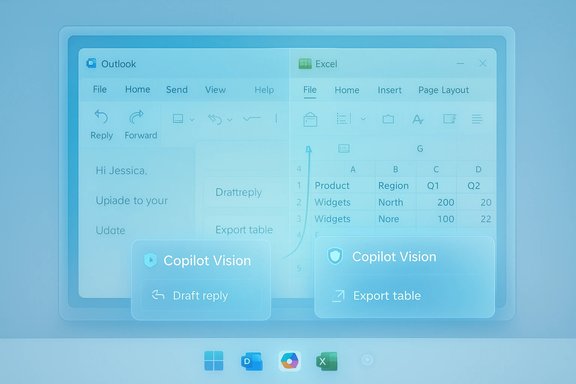
Microsoft’s Copilot Vision is taking another step toward becoming a literal desktop assistant: a new “Share with Copilot” control that appears when you hover over an app on the Windows 11 taskbar lets Copilot see and analyze the contents of that app, offering context‑aware suggestions such as drafting an email reply in Outlook, extracting tables for Excel, or pointing out where to click — all while remaining session‑bound and opt‑in.

Blue-tinted screen showing Outlook and Excel side by side with Copilot Vision prompts.Overview​

Microsoft has been steadily moving Copilot from a sidebar helper to an operating‑system‑level assistant that can listen, see, and (under controlled conditions) act. The latest integration surfaces a small but powerful workflow: hover an app on the taskbar, click “Share with Copilot,” and Copilot Vision will analyze that app window and return suggestions or step‑by‑step help. This taskbar entry is positioned as a low‑friction, opt‑in way to bring Copilot’s visual understanding into everyday tasks without forcing users to leave their current application. The practical effect is immediate: instead of copying text into a chat or taking screenshots, users can hand Copilot the exact visible context and ask for tone edits, summarized action items, or UI guidance. Microsoft’s own documentation stresses that Vision is session‑bound, requires explicit user consent for each share, and will not interact with apps on the user’s behalf (it won’t click, type, or scroll). That restriction is central to how the feature is framed from a privacy and safety standpoint.

Background: how Copilot Vision reached the taskbar​

From experiments to system UX​

Copilot Vision originally appeared as a vision capability inside Copilot on the web and in Edge, and over successive updates Microsoft expanded it into the Copilot app on Windows with desktop share, highlights, and two‑app sharing. The taskbar integration is the next logical step: putting a one‑click control where users already glance to switch or manage apps. Microsoft’s Insider posts and product messaging over 2025 document the staged rollouts and incremental capabilities that led here.

The hardware story: Copilot+ versus baseline Windows 11 PCs​

Microsoft divides experiences along a hardware gradient. A Copilot+ hardware tier (machines with on‑device NPUs meeting Microsoft’s performance guidance) can perform more inference locally and therefore deliver lower latency and a narrower privacy surface for some features. But the taskbar “Share with Copilot” control itself is rolling out broadly to Windows 11 PCs — it’s not limited to Copilot+ machines. That means users on typical Intel or AMD laptops will see and be able to use the feature, though latency and some capabilities will depend on whether processing is done locally or in the cloud.

What “Share with Copilot” does — feature breakdown​

Core capabilities exposed from the taskbar​

  • Session‑bound screen sharing: Pick a single app window (or up to two apps in some Vision flows) and give Copilot permission to analyze what’s visible.
  • Contextual suggestions: Copilot can draft replies, summarize content, extract structured data (like tables), and propose next steps based on the shared view.
  • Highlights and guided clicks: In supported scenarios Copilot can highlight UI elements and visually indicate where to click as part of coaching or troubleshooting.
  • Text and voice inputs: Vision supports both voice and typed follow‑ups so you can continue the conversation in the modality that suits you.

What Copilot will not do​

  • No silent background monitoring: Vision is not always on; it requires explicit activation and ends when you stop sharing.
  • No autonomous UI interactions: Copilot Vision will not click buttons, scroll, or enter text on your behalf — it makes suggestions and points where to act. This is a deliberate limits design to reduce automation risk.

Example scenarios​

  • Email drafting: Hover Outlook on the taskbar, choose Share with Copilot, and ask Copilot to draft a reply using the visible message context. Copilot will return suggested copy you can paste or refine yourself.
  • Troubleshooting: Share the Settings app or an application dialog and ask “Show me how to enable X”; Copilot can highlight the menu item you need.
  • Data extraction: Share a PDF viewer or spreadsheet screenshot and ask Copilot to extract a table into CSV/Excel‑compatible text.

Rollout, availability and how to control it​

Staged rollout; Insider previews came first​

Microsoft has been rolling Copilot Vision features through Insider channels before broader distribution. Windows Insider blog posts document progressive additions — highlights, two‑app support, and desktop share — which then appear in public builds on a staggered schedule. That staged approach means feature availability may vary by Windows build, region, and update timing.

Is it available to every Windows 11 PC right now?​

Reports indicate the taskbar Share control is appearing widely and does not require a Copilot+ PC to be visible, but the practical experience (latency, responsiveness) will differ between devices with high‑performance NPUs and those relying on cloud processing. Stated another way: the UI affordance may appear on most modern Windows 11 machines, but the speed and some on‑device functionality are better on Copilot+ hardware. Given Microsoft’s staged rollout model, users should expect variation in when the control becomes available on any particular PC. Treat claims of “immediate availability everywhere” as optimistic until your device receives the update.

Turning it off (or on)​

If you prefer not to expose a quick Share control in the taskbar, Windows 11 provides a user control to disable it. Navigate to Settings > Personalization > Taskbar and toggle the Copilot vision/taskbar share controls. That same path is referenced in multiple hands‑on and how‑to writeups describing how to enable or disable the Ask Copilot UI and the Share with Copilot affordance.

Privacy, security and governance — what to watch​

Session scope and data handling​

Microsoft emphasizes that Vision sessions are explicit and temporary. The Copilot support documentation states users must acknowledge a privacy notice the first time they use Vision, and it documents that Vision will not click or act on apps and that Microsoft deletes certain short‑lived data after a session ends. However, the exact telemetry and retention policies differ by subscription tier and organizational account type; commercial Entra ID users may not have access to Vision in the same way consumer accounts do. It’s essential for power users and admins to read the privacy prompts and administrative guidance before enabling Vision for sensitive workflows.

Cloud vs on‑device processing​

Most Windows 11 PCs will route heavier inference to Microsoft’s cloud services; only Copilot+ devices with NPUs will run some inference locally. That hybrid model gives Microsoft and OEMs flexibility but raises predictable tradeoffs: cloud processing introduces network and server‑side risk considerations, while local processing concentrates privacy control on the endpoint hardware. Both models have defensive implications for enterprise rollout and compliance.

The human factor: accidental oversharing and training data concerns​

A UI button is only a single click away; users can inadvertently expose sensitive content — legal documents, credentials, or regulated data — if they click too quickly. Administrators and security teams should treat the taskbar share affordance like any other potential exfiltration vector and consider using group policy, endpoint controls, and user education to mitigate accidental sharing. Early Microsoft guidance and third‑party reporting recommend conservative pilot programs and clear opt‑out policies for corporate endpoints.

Strengths and practical benefits​

Real productivity gains​

  • Reduced friction for context‑heavy tasks: Copy/paste and screenshots are slower and more error prone than granting Copilot a direct view of the app. Analysts and knowledge workers stand to save time on summarization and iterative drafting.
  • Better learning and onboarding: Highlights and guided UI pointers can flatten learning curves for complex software, making support and troubleshooting faster.
  • Multimodal convenience: The ability to continue a Vision session with typed input as well as voice is a practical touch that suits noisy or private settings.

Accessibility improvements​

Voice plus a visual pointer can be a real boon for users with motor or vision impairments, offering step‑by‑step spoken guidance paired with clear visual cues. Microsoft frames Vision as an accessibility tool in many of its examples.

Risks, gaps and open questions​

1) Rollout clarity and availability​

Microsoft’s staged rollout model complicates broad statements about who “has” the feature. Reports that the taskbar Share control is appearing “for everyone” are useful signposts but should be interpreted cautiously: the UI may be enabled widely while backend capabilities, locale support, or subscription gating remain uneven. Enterprises should validate availability on their specific images and update cadence before making policy decisions.

2) Ambiguities in telemetry and retention​

Microsoft’s public docs describe session handling, but enterprise auditors and privacy officers will want stronger, auditable guarantees about what is logged, where it is stored, and how long derived artifacts (like Copilot responses) are retained. Those details can vary between consumer and commercial bindings and across subscription tiers. Flag any claims about “no data retained” as conditional until you see the account‑type and subscription definitions in your tenant.

3) Automation boundaries and future capabilities​

Today, Copilot Vision returns suggestions and highlights but will not take UI actions on your behalf from the taskbar share flow. Microsoft is experimenting with Copilot Actions — agentic automations that can perform multi‑step tasks with explicit permission — which introduces another risk axis: agents that can act automatically must be designed with robust auditing, least privilege, and operator controls to avoid unwanted changes. Organizations must treat Actions as a governance project, not simply a convenience toggle.

4) Misplaced trust in visual analysis​

AI vision models misinterpret content with some frequency, especially in non‑standard UIs, heavily styled HTML, or screenshots with low contrast. Relying on Copilot’s analysis without human verification could lead to errors — for example, missing an important clause in a contract or misunderstanding a UI context before suggesting an action. Use Copilot’s outputs as accelerators, not as unquestioned truth.

Practical guidance: how to use or govern Share with Copilot​

For everyday users — a quick workflow​

  • Hover the app icon on the Windows 11 taskbar and choose “Share with Copilot.”
  • Confirm the app window (or desktop region) you want to share in the Copilot composer.
  • Ask your question (voice or typed). Use “Show me how” to receive guided highlights.
  • Copy, paste, or manually enact Copilot’s suggestions. End the session when finished.

For power users and IT admins — rollout checklist​

  • Inventory: Test the feature on representative hardware images, including non‑Copilot+ and Copilot+ devices, to measure latency and behavior.
  • Policy: Decide whether to enable taskbar sharing by default or require user opt‑in through group policy or MDM controls.
  • Training: Run short training modules showing how to share safely and how to stop a Vision session.
  • Auditing: Validate logging and retention policies for Copilot responses and Vision sessions against organizational compliance needs.
  • Pilot: Start with a small technical or helpdesk pilot to evaluate the feature on typical help scenarios before broad deployment.

How early coverage views the change​

Hands‑on reports and independent testing present a nuanced picture. Early reviews praised the convenience of immediate visual context but also flagged performance variability across devices and an early tendency for Copilot to misread complex UI elements. Testers also note that the Copilot Vision experience improved as Microsoft iterated on highlights and multi‑app support, while stressing that the assistant remains an aid rather than an automated operator. These assessments align with Microsoft’s design posture: featureful and useful, but permissioned and carefully limited.

Looking ahead: what the taskbar share implies for Windows UX​

Placing Vision access directly on the taskbar is a subtle but important signal: Microsoft intends for AI assistance to be a persistent, discoverable part of the desktop. The taskbar is prime real estate for habitual behaviors, and giving users a one‑click path to Copilot Vision lowers the friction for asking for help. If Microsoft follows through on agent governance and administrative controls, this could reshape how people learn software, triage issues, and extract value from documents — provided organizations adopt strong guardrails around privacy and automation.

Final assessment: when to opt in and when to hold off​

The taskbar “Share with Copilot” integration is a pragmatic, useful extension of Copilot Vision that reduces friction for context‑aware assistance. Users who regularly need quick summarization, drafting help, or UI coaching will find clear productivity benefits. However, the feature’s reliance on staged rollouts, hybrid processing models, and session consent means that cautious adoption — especially in enterprise environments handling sensitive data — is warranted.
In short:
  • Opt in if you value convenience and are mindful of what you share on screen.
  • Pilot broadly if you manage devices for an organization; treat this as a governance and training exercise.
  • Hold off or disable the taskbar control on machines that handle high‑risk or regulated data until you’ve validated telemetry, retention and enterprise configuration options.

Microsoft’s taskbar Share control doesn’t rewrite the rules of desktop productivity overnight, but it narrows the gap between “what I see” and “what I can ask my assistant to do.” That compression of context and command is the point: make help immediate and situationally aware, while keeping the user in control. The tangible gains are already visible; the longer game is building governance, clarity and enterprise‑grade controls so the technology scales without introducing new operational risk.
Source: PCWorld Copilot Vision gains ability to analyze apps in the Windows 11 taskbar
 

Microsoft’s Surface event and its surrounding Copilot announcements mark a deliberate push to make AI a persistent, cross‑platform presence in Windows, Microsoft 365, Edge and beyond — a strategy that promises productivity boosts but raises immediate questions about privacy, control and real‑world reliability.

Blue-tinted laptop displays Bing Chat UI with a glowing AI chatbot icon above.Background / Overview​

Microsoft unveiled Copilot as a single, cross‑surface AI companion designed to live in Windows 11, Microsoft 365 apps, and the Edge browser, and to act as a hub for tasks ranging from editing images to summarizing documents. The company positioned Copilot as both an app and a context‑aware assistant that can appear from the taskbar, be summoned with a keyboard shortcut, or surface within apps when relevant. Microsoft’s announcement confirmed Copilot would begin rolling out as part of a Windows 11 update starting September 26. At the same time Microsoft promised deeper integrations across its product family: Edge with Bing Chat features and shopping helpers, Microsoft Designer powered by DALL·E 3 for image creation and editing, and the enterprise product Microsoft 365 Copilot embedded into Word, Excel, PowerPoint, Outlook and Teams to accelerate common work tasks. These items were presented not as isolated experiments but as a coherent plan to make AI a utility-level capability in the everyday Windows experience.

What Microsoft announced — the essentials​

Copilot: the new default AI companion​

  • Always‑available assistant: Copilot appears from the taskbar and can be invoked with the Win+C shortcut or a right‑click context where supported. Microsoft described this as an everyday AI companion that blends web context, work data and on‑screen activity to help complete tasks.
  • Cross‑surface presence: Copilot is intended to be the same branded assistant across Windows, Edge/Bing and Microsoft 365, enabling shared workflows and consistent UX. The company presented Copilot as the gateway to its growing set of AI features.

Copilot in Windows 11​

  • Taskbar and wake words: Copilot lives in the taskbar and supports both keyboard and voice invocation (the opt‑in “Hey Copilot” wake phrase in some previews), plus a visual Copilot Home with recent files, apps and suggestions. The feature debuted in the Windows update that started rolling on September 26.
  • On‑screen vision and actions: Copilot Vision can analyze user‑selected regions of the screen when explicitly granted permission. Windows‑level actions and File Explorer AI helpers let Copilot summarize files, suggest next steps and offer in‑context automation. These flows are presented as permissioned and session‑scoped.

Edge + Bing Chat: an AI browser​

  • Bing Chat integration: Edge was shown with deep Bing Chat integration so the browser can offer proactive, contextual assistance — from summarizing research to helping with shopping by asking clarifying questions and making personalized recommendations based on your preferences and travel plans. Microsoft framed Edge as moving toward an “AI browser” that reasons across open tabs (Journeys) and can take permissioned multi‑step Actions like filling forms.
  • Personalized shopping and proactive prompts: Microsoft highlighted shopping experiences where the assistant asks about needs and surfaces matched products; it also described examples where the assistant warns you about events related to your travel plans. Independent reporting and Microsoft communications show these behaviors are being rolled out in stages.

Designer and DALL·E 3​

  • DALL·E 3 inside Designer and Bing: Microsoft confirmed support for OpenAI’s DALL·E 3 inside Microsoft Designer and Bing Image Creator, enabling more realistic, controllable image generation directly inside Microsoft’s creative tools. That enables tasks such as expanding photos, replacing objects, or generating more specific visuals for presentations and documents.

Microsoft 365 Copilot​

  • Copilot embedded in productivity apps: Microsoft positioned Microsoft 365 Copilot as the work‑focused companion, integrated into Word, Excel, PowerPoint, Outlook and Teams to summarize threads, generate drafts, extract data from spreadsheets and turn documents into slides or reports. The enterprise product had been previously announced and began wider availability in phased rollouts. Microsoft framed Copilot for work as tenant‑aware and compliant with enterprise security controls.

Deep dive: how these pieces fit together​

One brand, many endpoints​

Microsoft’s strategy is to build a single identity — Copilot — that envelopes multiple surfaces. That means Copilot in Windows, Copilot in Edge, and Copilot for Microsoft 365 share a common design language and, in many cases, cross‑service integration points (connectors to OneDrive, Outlook, Gmail and Google Drive). The benefit is consistency: once users learn Copilot’s conversational model, they can apply it across contexts. The risk is brand overload — everything becomes “Copilot” and users may struggle to distinguish privacy, storage and governance boundaries between consumer and enterprise Copilot experiences. Independent reporting has noted that this branding approach has already created confusion among users and admins.

Multimodal reasoning and model strategy​

Microsoft described a hybrid model approach: a mix of in‑house MAI (Microsoft AI) models optimized for voice and vision and partner models such as OpenAI’s GPT‑series and DALL·E 3 where appropriate. This lets Microsoft route short answers to smaller models for speed while escalating complex reasoning to larger models — a pragmatic design that balances latency, cost and capability. The company also emphasized explicit consent and UI controls for features that access personal content.

Agentic features: Actions, Journeys and Groups​

  • Actions: Permissioned automations that can perform multi‑step tasks on the web or in apps (e.g., book a hotel, fill forms). Microsoft emphasizes visible logs and explicit permissions.
  • Journeys: Resumable browsing sessions that compress prior research into an artifact you can return to.
  • Groups: Shared Copilot sessions that allow a single Copilot instance to collaborate with up to 32 participants, summarizing decisions and splitting tasks.
These features move Copilot from reactive Q&A toward being an agent that can take initiative — useful for productivity but introducing new security and governance vectors.

Strengths and practical benefits​

  • Productivity acceleration: Tasks that used to require multiple steps (summarizing long email threads, extracting spreadsheet insights, producing slides from documents) are now achievable with short natural‑language prompts. Copilot’s integration into Office apps promises measurable time savings for routine workflows.
  • Unified UX: A consistent Copilot interface across Windows, Edge and Microsoft 365 reduces the learning curve and makes AI assistance accessible to non‑technical users.
  • Multimodal creativity: Designer + DALL·E 3 removes friction from creating visual assets, letting users adapt imagery inside Word, PowerPoint and the Designer app without third‑party tools.
  • Enterprise governance: Microsoft positions Microsoft 365 Copilot as tenant‑aware, processing corporate data inside the tenant boundary and integrating with Microsoft compliance workflows. That’s significant for organizations worried about leakage.
  • Hardware acceleration option: Copilot+ PCs and NPUs were described as enabling lower‑latency, on‑device tasks for voice and vision, improving privacy and responsiveness for certain workloads for devices that meet the Copilot+ baseline. Community reporting indicates Microsoft has targeted NPUs in the ~40 TOPS range for practical local inference.

Risks, unknowns and areas to watch​

1) Privacy and data governance complexity​

Copilot’s promise depends on connecting to user data — emails, files, calendar, and third‑party accounts. That creates immediate questions:
  • Which Copilot instance (Windows vs Microsoft 365 vs Edge) has access to which datasets?
  • How are memories, uploaded files and conversation logs stored, for how long, and under which retention policies?
Microsoft emphasizes opt‑in connectors and view/edit controls for memory, but administrators and privacy officers will need to verify retention windows, training opt‑outs and data residency in practice. Treat claims of “tenant‑only processing” or “session‑scoped vision” as policy statements that still require verification in your org’s environment.

2) Hallucinations and factual reliability​

Generative models still hallucinate. When Copilot creates slides, composes legal‑sounding text or summarizes research, it may fabricate specifics or over‑assert certainty. Microsoft offers grounding strategies and model‑routing for deeper research modes, but reliance on Copilot’s outputs without human review can introduce downstream risk in legal, clinical or high‑stakes business contexts. Users should treat Copilot outputs as assistive drafts, not authoritative final answers.

3) New attack surfaces and automation risk​

Agentic Actions that can fill forms or book services create automation vectors attackers may try to exploit. Even with permissions and visible logs, automation can be abused if credentials, OAuth scopes or connector permissions are misconfigured. IT teams must plan for least‑privilege connectors, audit trails, and the ability to quickly revoke agent access.

4) Branding and user confusion​

Bringing everything under the Copilot name creates user confusion over which product is in play and which policies apply. Recent reporting has highlighted that Microsoft’s aggressive Copilot branding has created misunderstanding about what “Microsoft 365 Copilot” versus the “Microsoft 365 Copilot app” actually means. That matters for support, training and communication with end users.

5) Cost, subscription model and limits​

Microsoft has used tiered approaches (Copilot for Microsoft 365, Microsoft 365 Copilot commercial SKU, and consumer Copilot Pro or Copilot included in Personal/Family tiers). Organizations and heavy users need clear guidance about licensing, AI credit models, and caps for API‑backed features (image generation, deep research runs). Expect to evaluate cost tradeoffs alongside productivity gains.

Guidance for IT administrators and power users​

Immediate actions (0–30 days)​

  • Inventory: Identify which user groups will receive Copilot features and which devices meet Copilot+ hardware requirements.
  • Review policies: Confirm tenant‑level settings for Copilot and Bing Chat Enterprise; decide default connector opt‑in behaviors for company accounts.
  • Pilot: Run a controlled pilot with early adopters to document real‑world outputs, hallucination frequency, and integration pain points.
  • Training: Prepare short training materials that emphasize Copilot outputs as drafts, explain how to verify facts, and show how to view/edit Copilot memory.

Medium term (1–3 months)​

  • Governance: Define retention policies and data residency settings for Copilot conversations and uploaded files; set admin controls to revoke connectors and audit usage.
  • Security: Harden OAuth scopes for third‑party connectors, enable conditional access for Copilot apps, and validate agent logs are available to security teams.
  • Cost management: Map expected Copilot usage to subscription tiers and AI credit consumption; assess upgrade paths for heavy users.

Long term (3–12 months)​

  • Integrations: Build approved templates for Copilot‑assisted workflows that reduce user variability and limit risky automation.
  • Compliance: Work with legal and records teams to ensure Copilot outputs used for decision-making meet regulatory standards; define when human sign‑off is required.
  • Device strategy: For latency- or privacy‑sensitive teams, evaluate Copilot+ NPU‑equipped devices to offload sensitive inference locally where possible.

Practical user tips​

  • Use explicit prompts that state desired output format (e.g., “Summarize this email thread into three action items labeled 1–3”).
  • Verify numbers, dates and citations that Copilot produces before using them in presentations or decisions.
  • Regularly review and prune Copilot memory entries accessible in your account settings.
  • If you’re concerned about sensitive workflows, disable connectors for personal accounts or refrain from uploading proprietary documents to conversation threads.

The bigger picture: business and regulatory implications​

Microsoft’s rollout accelerates the mainstreaming of generative AI in productivity stacks. For businesses, this can mean measurable gains: faster content creation, automated insights and fewer repetitive tasks. It also invites regulatory scrutiny: privacy regulators and sectoral rules (healthcare, finance, legal) will demand clear evidence that AI outputs are auditable, traceable and that user data is protected.
Platforms will need to demonstrate:
  • Transparent retention and deletion policies.
  • Audit logs that show when an agent executed actions and with what permission.
  • Clear boundaries between consumer Copilot features and enterprise Copilot that adheres to tenant controls.
The onus will be on platform vendors and customers alike to show responsible use — not just marketing claims. Recent industry coverage has already highlighted the tension between aggressive branding and the need for clarity in governance.

What remains unverifiable or conditional​

  • Exact on‑device NPU performance and specific TOPS numbers for all Copilot+ devices vary by vendor and SKU; Microsoft’s materials reference a Copilot+ baseline, but independent benchmarking is required to validate local inference claims in specific models. Treat silicon performance numbers as vendor‑specified targets until validated in lab tests.
  • Availability windows for feature rollouts are often phased and geographic; certain features (health, Find Care, Journeys) were flagged as U.S.‑first in Microsoft’s announcements and may not be immediately available elsewhere. Confirm feature availability by tenant and region in the Microsoft admin center.

Final assessment​

Microsoft’s Surface event and the associated Copilot announcements are a pivotal moment: AI is no longer an optional add‑on — it is being embedded into the core experience of Windows, Edge and Microsoft 365. The approach has clear upside: unified UX, time savings and integrated creative tools that can significantly speed common tasks. Microsoft’s hybrid model routing, on‑device acceleration options and enterprise‑focused Copilot variant reflect a pragmatic engineering strategy aimed at balancing capability, latency and governance.
However, the rollout also crystallizes problems that organizations and users must confront now: tangled branding and UX expectations, new privacy and governance demands, the perennial risk of hallucinations, and fresh security exposures from agentic automation. The net outcome for any user or organization will depend on how carefully they test Copilot in their own workflows, how rigorously they apply controls and audits, and how clearly vendors and admins communicate the limits of AI‑generated outputs.
For Windows users and IT teams, the immediate imperative is not to block progress but to prepare: pilot deliberately, require human review in high‑stakes uses, configure connectors and memory settings with care, and treat Copilot as a powerful assistant that still needs human supervision. The era of Copilot is here — it promises efficiency and creativity at scale — and its success will be judged not by marketing claims but by how safely and reliably it helps people get real work done.
Source: Mashable Microsoft Surface event: Every AI announcement
 

Back
Top