

If you’ve been installing and deleting paid task managers in the hope that the next app will finally make you productive, the answer may already be on your PC: Microsoft To Do, the lightweight but surprisingly capable task hub quietly bundled with Windows and tied into the Microsoft 365 ecosystem.
Microsoft To Do traces its lineage back to Wunderlist and was reworked and integrated into Microsoft 365 as a focused task manager that emphasizes daily execution rather than heavyweight project planning. It’s available natively on Windows 11 (and as a quick install on Windows 10), on mobile platforms, and as a web client—so your lists and reminders follow you across devices when you sign in with a Microsoft account. This cross‑device parity and the tight Outlook/Planner integration are core to why it’s a credible “built‑in” productivity option for so many users.
On the surface To Do looks minimal, but that simplicity is deliberate. The app removes barriers — no paywall, no distracting ads — and places emphasis on the daily work you commit to finishing. For Windows users embedded in Microsoft 365, that frictionless integration often trumps third‑party alternatives because it reduces the need to copy context from email or Planner into a separate system.
Where claims are anecdotal or situational — for example, occasional iPhone sync delays or tenant‑specific integration differences in enterprise contexts — those should be treated as variable and environment‑dependent. If you rely on immediate mobile parity for mission‑critical workflows, test To Do on your specific device and network before committing it as your primary system.
The primary risks are also pragmatic: it’s not a substitute for advanced project management, it relies on cloud sync and tenant policy, and attachment size limits mean you’ll still need OneDrive or SharePoint for heavier files. A few platform quirks (like occasional mobile sync delays) are real but typically solvable with updates or account troubleshooting. These trade‑offs mean To Do is best understood as a daily planner and personal task hub — not a one‑stop solution for every work scenario.
Microsoft To Do is not the sexiest app you’ll ever try, but that’s precisely why it works: low noise, enough structure, and fast capture make it a productivity tool you’ll actually keep using. If you’ve been bouncing between paid task managers, give To Do more than a cursory glance — set up My Day, flag an email in Outlook, and test the sync on your phone. For most users embedded in the Microsoft ecosystem, it handles the daily grind better than you’d expect.
Conclusion: if productivity is about reducing friction and doing the important small things consistently, Microsoft To Do is worth the few minutes it takes to set up — and it’s already sitting on your Start menu.
Source: MakeUseOf You’re ignoring the best productivity tool built right into Windows
 Background
Microsoft To Do traces its lineage back to Wunderlist and was reworked and integrated into Microsoft 365 as a focused task manager that emphasizes daily execution rather than heavyweight project planning. It’s available natively on Windows 11 (and as a quick install on Windows 10), on mobile platforms, and as a web client—so your lists and reminders follow you across devices when you sign in with a Microsoft account. This cross‑device parity and the tight Outlook/Planner integration are core to why it’s a credible “built‑in” productivity option for so many users.On the surface To Do looks minimal, but that simplicity is deliberate. The app removes barriers — no paywall, no distracting ads — and places emphasis on the daily work you commit to finishing. For Windows users embedded in Microsoft 365, that frictionless integration often trumps third‑party alternatives because it reduces the need to copy context from email or Planner into a separate system.
What Microsoft To Do actually offers
My Day: a daily commitment device
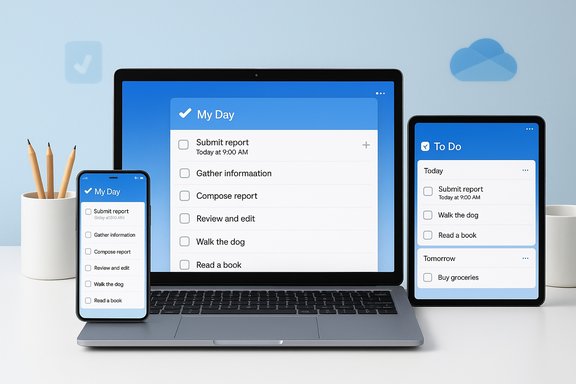
- My Day opens to a blank canvas every morning and encourages you to pick the tasks you intend to finish that day. Suggestions surface items that are overdue, due soon, or previously deferred, nudging you toward manageable daily work instead of letting tasks pile up into never‑ending lists. This is designed to reduce decision paralysis and create daily momentum.
Tasks, Steps (subtasks), and Notes
- Each task can include Steps (subtasks), detailed notes, due dates with specific times, reminders, and recurrence rules. The steps feature lets you surface progress (e.g., “3 of 5 steps completed”) so larger tasks feel more actionable. This structure supports everything from a single grocery list item to multi‑stage personal projects.
Natural‑language entry
- To Do recognizes plain English phrases (for example, “call Alex tomorrow at 11am” or “pay rent monthly”), parsing dates and recurrence so you can add tasks quickly without fiddling through date pickers. This speeds capture and reduces friction when logging tasks on the fly.
Planned, Important, Flagged email, and Assigned‑to‑me
- Tasks with due dates and reminders automatically populate a Planned view, showing an organized timeline for today, tomorrow, and the weeks ahead. Items you mark as important show up in the Important list.
- If you flag an email in Outlook, it can be converted automatically into a To Do task (complete with a preview and a link back to the original message). Tasks assigned to you in Microsoft Planner surface in the Assigned‑to‑me view, giving you a single place to see ownership across Microsoft 365. These integrations are a core productivity multiplier for users who live in Outlook and Planner.
File attachments and limits
- You can attach files (images or documents) to tasks; the client store listing notes a per‑file limit (commonly documented at around 25 MB), which is fine for receipts, screenshots, and short reference documents but makes To Do unsuitable as a replacement for heavy file sharing. For larger files, linking to OneDrive or SharePoint is the recommended approach.
Sharing and collaboration
- Shared lists let family members or small teams collaborate: invite people to a list, assign tasks, and watch updates sync. For light collaboration — event planning, shopping lists, or quick team checklists — To Do’s simplicity reduces friction compared with heavier project management tools.
Cross‑platform presence
- Native clients on Windows, macOS, Android, iOS, and the web provide reliable syncing when you use a Microsoft account. There are occasional platform‑specific quirks (some users report iPhone sync delays), but the core experience is consistent for most workflows.
Strengths: why it’s so effective for most users
- Zero friction to adoption. If you run Windows 11, To Do is already on your machine (or one quick Store install away). Low setup overhead matters: the less time you spend onboarding a tool, the more likely it is to stick.
- Tight Microsoft 365 integration. Flagged emails, Planner assignments, Outlook calendar context — these integrations let tasks flow from communication and collaboration systems into a single actionable inbox. That single place for action reduces context switching and repetition.
- Simplicity scaled by useful features. The app remains approachable while offering powerful primitives: recurrence rules, reminders, subtasks, and suggestions. That sweet spot — simple UI with practical depth — is why it handles “80–90% of daily task work” for many users without extra apps.
- Free and enterprise‑friendly. There’s no freemium gate blocking core functionality. For organizations on Microsoft 365, tasks are hosted on Microsoft infrastructure and can comply with enterprise policies, which is an advantage for business users who care about compliance and centralized management.
Limitations and risks you should know
No tool is perfect. Being honest about where To Do falls short helps you decide how and when to rely on it.- Not a project management suite. If your workflows demand dependencies, timelines, resource allocation, Gantt charts, or advanced reporting, To Do is intentionally lightweight and will feel limited. Use it as a personal inbox or daily planner feeding into heavier systems (like Microsoft Planner, Asana, or ClickUp) for complex projects.
- Cloud dependency and admin controls. To Do’s sync depends on cloud services. If you prefer a fully local, offline‑first system or are under restricted corporate policies, you’ll lose cross‑device parity without sign‑in and connectivity. Additionally, tenant policies or licensing can change which integrations are available in enterprise contexts.
- Attachment size limitations. The ~25 MB per file limit makes To Do unsuitable for storing large media; linking to OneDrive or SharePoint is a needed workaround when attachments exceed limits.
- Feature parity and platform quirks. While To Do is cross‑platform, small differences exist between clients. Mobile sync with iPhone has been reported to lag occasionally; these are usually transient but worth noting for power users who rely on instant parity. Treat anecdotal platform issues cautiously: they vary by account, network, device, and app version.
- AI expectations vs. reality. “Smart” suggestions in To Do are assistive and conservative — they don’t autonomously schedule meetings or renegotiate deadlines. Interpret any marketing language suggesting fully autonomous task management with skepticism: the app helps you prioritize and capture work, rather than acting as an agent on your behalf.
Practical workflows: make To Do work for you
Below are actionable, real‑world ways to use To Do across personal and professional contexts.1. Use To Do as your “task inbox”
- Capture anything actionable immediately (email, quick idea, phone reminder).
- If it’s an email in Outlook, flag it to convert into a task automatically.
- Move items into My Day only when you commit to doing them that day.
2. Break big projects into Steps
- Create a single task for a larger milestone and add 3–8 Steps. Treat steps as the real unit of progress.
- Check off steps daily to create small wins and visible momentum.
3. Combine To Do with OneDrive for heavy attachments
- For receipts or documents larger than the per‑file limit, upload to OneDrive and paste the link into the task’s notes.
- Attach small images/screenshots directly when needed; use links for larger files or versioned documents.
4. Shared lists for lightweight collaboration
- Use shared lists for family tasks, event planning, or basic team checklists where full PM overhead is unnecessary.
- Assign tasks to collaborators and use comments/notes to track quick context or links.
5. Your mobile + desktop parity checklist
- Install the Microsoft To Do mobile app and sign in with the same Microsoft account used on the desktop.
- Periodically check sync status if you work across devices and toggle push notifications on the phone for high‑priority reminders. Be aware that some users report intermittent iPhone delays; keep the app updated and test with a few sample tasks to confirm behavior on your devices.
Power‑user tips and “hidden” tricks
- My Day as a commitment device: pick three nontrivial items daily. Turning your daily plan into a short contract is more effective than long, unfocused lists.
- Flag email sparingly: use the Flagged Email list as a triage queue. Convert flagged messages into detailed tasks with steps to avoid clutter.
- Use color and emojis: assign list colors and emoji prefixes to visually separate contexts (work, personal, errands). Small visual cues speed scanning and mental switching.
- Leverage Planner integration for team projects: treat To Do as the personal front‑end and Planner as the team project system. Planner tasks assigned to you surface in Assigned‑to‑me, letting you manage your personal queue without losing the project’s richer workflow.
- Automate repetitive flows: if you automate workflows with Power Automate, consider Flows that create To Do tasks from forms, emails, or other triggers. That extends To Do’s reach into recurring business processes without disrupting its simplicity.
Comparison: When to keep To Do — and when to switch
- Keep To Do if:
- You want a no‑cost, low‑friction daily planner tied to Outlook/Planner.
- You need reliable cross‑device task capture and reminders with simple collaboration.
- You’re embedded in Microsoft 365 and prefer an enterprise‑compliant option.
- Consider other tools if:
- You require advanced project management (dependencies, Gantt charts, resource management).
- You need heavy attachment support or integrated time tracking and reporting.
- Your workflows demand extensive third‑party automations or a large ecosystem of integrations behind a single API (some third‑party apps may offer richer ecosystems at the expense of fees).
Verifying key claims and caveats
Several of the practical assertions above are grounded in product behavior that’s well documented and widely reported: My Day’s nightly reset and suggestion logic, Outlook/Planner integration, cross‑platform clients, and the app’s positioning as a lightweight task hub are core To Do characteristics. Forum analysis and app summaries repeatedly highlight these behaviors and their pragmatic benefits.Where claims are anecdotal or situational — for example, occasional iPhone sync delays or tenant‑specific integration differences in enterprise contexts — those should be treated as variable and environment‑dependent. If you rely on immediate mobile parity for mission‑critical workflows, test To Do on your specific device and network before committing it as your primary system.
Quick start: 8 steps to adopt Microsoft To Do today
- Open the Start menu and launch Microsoft To Do (or install from the Microsoft Store if missing).
- Sign in with your Microsoft account (use the same account on all devices for sync).
- Create three lists: Inbox, My Day, and one context list (Work or Home).
- Capture everything actionable into Inbox; flag important emails in Outlook to add them automatically.
- Each morning, open My Day and add 3–5 items from Inbox or other lists (use suggestions if helpful).
- Break big items into Steps and set reminders/recurrence as needed.
- For large files, upload to OneDrive and add the link in task notes; attach small files directly when necessary.
- Invite collaborators to shared lists or use Assigned‑to‑me for Planner tasks.
Final analysis: pragmatic strengths vs. real limitations
Microsoft To Do’s biggest strength is pragmatic: it removes the friction between capture, context, and execution. For the majority of personal workflows and light team collaboration, its built‑in presence, Outlook/Planner ties, simple sharing, and daily emphasis make it the fastest route from inbox to done. The app’s design encourages commitment, captures context from email, and stays out of the way — exactly the qualities that let a tool actually change behavior.The primary risks are also pragmatic: it’s not a substitute for advanced project management, it relies on cloud sync and tenant policy, and attachment size limits mean you’ll still need OneDrive or SharePoint for heavier files. A few platform quirks (like occasional mobile sync delays) are real but typically solvable with updates or account troubleshooting. These trade‑offs mean To Do is best understood as a daily planner and personal task hub — not a one‑stop solution for every work scenario.
Microsoft To Do is not the sexiest app you’ll ever try, but that’s precisely why it works: low noise, enough structure, and fast capture make it a productivity tool you’ll actually keep using. If you’ve been bouncing between paid task managers, give To Do more than a cursory glance — set up My Day, flag an email in Outlook, and test the sync on your phone. For most users embedded in the Microsoft ecosystem, it handles the daily grind better than you’d expect.
Conclusion: if productivity is about reducing friction and doing the important small things consistently, Microsoft To Do is worth the few minutes it takes to set up — and it’s already sitting on your Start menu.
Source: MakeUseOf You’re ignoring the best productivity tool built right into Windows
