Microsoft’s Foundry catalog has added Mistral Large 3 to Azure’s model roster, bringing a high‑profile, Apache 2.0‑licensed open‑weight frontier model into the managed enterprise stack and shifting the conversation from “can we run open models?” to “how do we run them responsibly at scale.”
The engineering and business logic behind deploying large language models in enterprises has moved beyond single‑vendor lock‑in: cloud platforms now compete on catalog breadth, governance, and the operational primitives that let companies move from prototype to production. Microsoft Foundry—also referred to in Microsoft materials as Azure AI Foundry—serves as a multi‑model runtime and catalog that centralizes routing, observability, and Responsible AI controls so organizations can evaluate and run different model families behind a single control plane. Placing Mistral Large 3 into that catalog is a deliberate strategic move to offer enterprises a fully open model with production integrations.
Cloud commentary and industry coverage picked up the announcement immediately, highlighting the practical implications: easier enterprise access to an open frontier model, the ability to route workloads inside Foundry, and the option to export weights (subject to licensing and distribution terms) for hybrid or sovereign deployments. The Cloud Wars Minute summarized this as a win for developers seeking open, enterprise‑ready models and emphasized that Foundry’s model catalog already lists thousands of models—Mistral Large 3 is a substantial addition to that choice set.
However, the headlines are the beginning of a rigorous evaluation process, not the end. Parameter counts, context windows, and stability claims should be validated in your specific workloads. Token economics for long‑context and multimodal pipelines must be measured realistically, and legal and procurement teams must vet licensing and export implications before moving weights across environments. Use Foundry’s router, shadow testing, and observability to build confidence before routing production traffic.
This addition is both strategic and practical: it gives enterprises a highly capable open model option inside a managed stack, but success will come down to disciplined evaluation, cost engineering, and governance.
Source: Cloud Wars Microsoft Foundry Adds Mistral Large 3 to Azure AI Arsenal - Cloud Wars
 Background
The engineering and business logic behind deploying large language models in enterprises has moved beyond single‑vendor lock‑in: cloud platforms now compete on catalog breadth, governance, and the operational primitives that let companies move from prototype to production. Microsoft Foundry—also referred to in Microsoft materials as Azure AI Foundry—serves as a multi‑model runtime and catalog that centralizes routing, observability, and Responsible AI controls so organizations can evaluate and run different model families behind a single control plane. Placing Mistral Large 3 into that catalog is a deliberate strategic move to offer enterprises a fully open model with production integrations.Cloud commentary and industry coverage picked up the announcement immediately, highlighting the practical implications: easier enterprise access to an open frontier model, the ability to route workloads inside Foundry, and the option to export weights (subject to licensing and distribution terms) for hybrid or sovereign deployments. The Cloud Wars Minute summarized this as a win for developers seeking open, enterprise‑ready models and emphasized that Foundry’s model catalog already lists thousands of models—Mistral Large 3 is a substantial addition to that choice set.
What Microsoft announced (short summary)
- Mistral Large 3 is now listed in Microsoft Foundry and available via Azure model catalog and Foundry tooling.
- Microsoft positions the model as open, multimodal, long‑context, and instruction‑reliable, intended for production assistants, retrieval‑augmented workflows, and agentic systems.
- Microsoft published public preview availability and per‑million‑token list pricing for Foundry usage at public preview. The announcement lists public preview starting Dec 2, 2025 and preview prices that can be used for initial TCO planning.
What Mistral Large 3 claims to be — features and marketed strengths
Microsoft and Mistral both frame Mistral Large 3 as an enterprise‑oriented open model with a specific set of strengths. Across vendor statements you will see repeated emphasis on these capabilities:- Instruction following — designed to return structured, predictable outputs that make automation, agent toolcalls, and integration with business logic easier.
- Long‑context comprehension — marketed to process and retain very long documents, enabling more effective retrieval‑augmented generation (RAG), long‑form synthesis, and multi‑turn conversations without frequent context stitching.
- Multimodal reasoning — capable of text + image inputs for tasks like visual Q&A, diagram interpretation, and multimodal grounding.
- Stability and deterministic behavior — touted as having predictable multi‑turn behavior and lower rates of format drift or “breakdowns” in sustained dialogues.
Technical claims and the verification gap
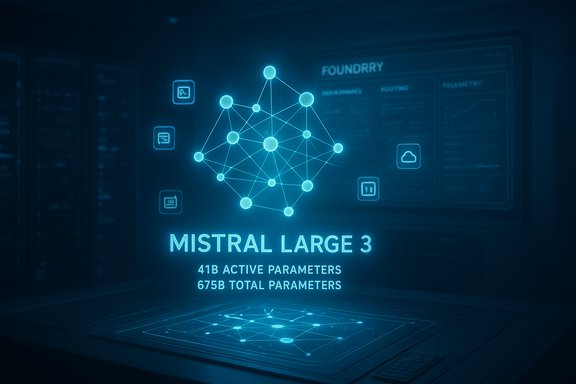
Technical claims for modern LLMs often include parameter counts, active vs total parameter metrics (for MoE/sparse designs), context window sizes, and specific architecture innovations. These numbers are important—because they influence memory footprint, inference topology, latency, and cost—but they are also often inconsistent across vendor publications and third‑party writeups.- Mistral’s own announcement describes Mistral Large 3 as a sparse Mixture‑of‑Experts model with 41B active parameters and ~675B total parameters, released under Apache 2.0.
- Microsoft’s Azure model catalog lists Mistral Large 3 with 39B active parameters and 673B total parameters in its model metadata.
- Additional launch partners and cloud vendors (for example, IBM’s watsonx announcement) quote figures consistent with Mistral’s own release (41B/675B) while also calling out very large long‑context windows (vendor messaging has cited context windows up to 256k tokens in early partner content).
Licensing and portability — Apache 2.0 matters
One of the most consequential elements of the Mistral + Azure story is licensing. Mistral Large 3 is released under the Apache 2.0 license according to both Mistral and Microsoft statements, which means:- Organizations can download, modify, redistribute and commercially use the model weights subject to Apache 2.0 terms.
- That permissive license materially improves portability and sovereignty options: enterprises can self‑host in a private cloud, run the model on specialized on‑prem hardware, or export weights for sovereign environments where managed endpoints are not acceptable.
Pricing, availability, and practical economics
Microsoft published preview pricing for Foundry usage of Mistral Large 3. These preview numbers are helpful for early cost modeling but should not be taken as final GA pricing:- Public preview availability: Dec 2, 2025 (public preview).
- Preview list prices in Foundry (per Microsoft’s announcement): Input: $0.50 per 1M tokens; Output: $1.50 per 1M tokens for the Foundry “Global Standard” deployment in West US 3 (public preview).
- Long‑context and multimodal workloads can dramatically increase token consumption. Model economics must include token inflation from long documents, intermediate summaries, and agent tool‑calls.
- Preview pricing changes. Don’t freeze long‑term architecture decisions on preview rates; simulate production workloads under realistic concurrency to estimate GA TCO and reserved capacity tradeoffs.
Enterprise implications — what this unlocks
For Windows and Azure customers, adding Mistral Large 3 to Foundry unlocks several material benefits:- Faster path from prototype to production because the model is available under Azure’s governance, identity, and billing surfaces. Foundry’s router and observability enable staged rollouts and shadow routing to compare models in situ.
- Hybrid deployment patterns: use Foundry managed endpoints for day‑zero experimentation and export or self‑host weights for sovereignty or performance optimization under Apache 2.0.
- Better tooling for agents and copilots: Microsoft highlights function calling and agent support so models can take action in a controlled way, making Mistral Large 3 suitable for integrated automation and enterprise copilots.
- Knowledge assistants that synthesize long histories across SharePoint/OneLake/Fabric.
- Document intelligence pipelines requiring multimodal ingestion and structured output (contracts, regulatory filings, diagrams).
- Developer and ops agents that need reliable instruction adherence for code generation, refactoring, and CI automation.
Operational and governance considerations
Putting an open frontier model into a managed cloud catalog solves some problems—but it also introduces new operational complexity. Key considerations:- Model routing and evaluation: Multi‑model stacks require disciplined CI for prompts and continuous monitoring across latency, throughput, and quality. Use Foundry’s router to run shadow and A/B tests before routing production traffic.
- Telemetry and observability: Export model telemetry to SIEMs; track hallucination rates, failed serializations, and unexpected tool‑calls. Audit trails and OpenTelemetry traces should be part of compliance posture.
- Security posture: Confirm private networking, VNet endpoints, and data handling terms for model calls; prefer in‑VNet endpoints or self‑hosted deployments for high‑sensitivity data.
- Prompt/output contracts: Lock expected output schema, failure modes, and fallback logic; version prompts in CI and gate changes. This improves repeatability across models and mitigates drift.
Risks, trade‑offs and red flags
Mistral Large 3’s arrival in Foundry is important, but it’s not a turnkey solution. Consider these risks carefully:- Vendor claims that require verification. Performance assertions about hallucination rates, long‑context coherence, and multi‑turn stability are currently vendor‑reported. Cross‑validate with independent benchmarks and run domain‑specific tests.
- Cost dynamics for long‑context RAG. Token inflation and multimodal inputs can make costs scale non‑linearly. Run realistic simulations and shadow routing tests to understand per‑session token consumption.
- Operational complexity of multi‑model fleets. Each model has distinct failure modes, latencies, and monitoring needs. A disciplined orchestration and CI approach is mandatory.
- Legal/export nuance. Apache 2.0 makes weights permissive, but export controls, procurement terms, and data residency obligations remain binding. Have legal and procurement teams review licensing and export implications before moving weights between clouds or countries.
Practical checklist for IT decision‑makers (actionable)
- Run a scoped POC with representative prompts, documents, and RAG pipelines. Measure latency, per‑session token consumption, hallucination rates, and cost per session.
- Shadow route a percentage of production traffic to Mistral Large 3 via Foundry router and compare outputs against your incumbent model for structure and factuality. Automate scoring where possible.
- Validate governance controls: confirm Azure AD integration, telemetry export to SIEM, private VNet options, and content‑safety hooks.
- Version prompts and retrieval artifacts in CI; gate changes that affect model routing or output schema.
- Run a legal review on licensing, distribution and export implications for any plan to self‑host or redistribute weights (Apache 2.0 is permissive but not blanket).
Cross‑checks and independent corroboration
The strongest, load‑bearing claims in this story—availability in Azure Foundry, Apache 2.0 licensing, and Mistral’s positioning as an open frontier model—are supported by multiple independent sources:- Microsoft Azure’s official post announcing Mistral Large 3 in Foundry.
- Mistral AI’s product release describing Mistral 3 family and Apache 2.0 licensing.
- Third‑party vendor partner announcements and coverage (for example, IBM watsonx and independent media reporting) that confirm the model’s distribution and commercial partnerships.
Strategic outlook — why this matters in the cloud wars
Mistral Large 3’s integration into Foundry is emblematic of two larger dynamics in enterprise AI:- Model choice as strategic differentiation: Hyperscalers now compete on the breadth of models and the quality of their developer + governance surfaces. Enterprises gain leverage as multi‑model strategies reduce single‑vendor risk.
- Open models enter production paths: Open‑weight models are no longer purely research artifacts; they can be packaged with enterprise SLAs, routing, and observability. That increases options for sovereignty, hybridization, and cost control.
Conclusion
The addition of Mistral Large 3 to Microsoft Foundry is a consequential step in the multi‑model era of enterprise AI. It pairs a permissively licensed, frontier‑capable open model with Azure’s operational surfaces—routing, observability, agent tooling and enterprise governance—lowering the friction from PoC to production for many real‑world use cases. That combination is exactly what development teams and IT buyers have been asking for: choice with control.However, the headlines are the beginning of a rigorous evaluation process, not the end. Parameter counts, context windows, and stability claims should be validated in your specific workloads. Token economics for long‑context and multimodal pipelines must be measured realistically, and legal and procurement teams must vet licensing and export implications before moving weights across environments. Use Foundry’s router, shadow testing, and observability to build confidence before routing production traffic.
This addition is both strategic and practical: it gives enterprises a highly capable open model option inside a managed stack, but success will come down to disciplined evaluation, cost engineering, and governance.
Source: Cloud Wars Microsoft Foundry Adds Mistral Large 3 to Azure AI Arsenal - Cloud Wars