

Windows maintenance has become less about ceremony and more about choosing the right, automated tools — and after years of habit I stopped doing five chores that used to feel essential but now either offer no benefit or carry real risk.
Windows has evolved from a world where users needed to micromanage every corner of their machine into one where the OS and major hardware vendors solve most routine maintenance problems automatically. That doesn’t mean you should be complacent; it means you should be selective about which tasks you perform manually and which you let the platform handle. Many of the old maintenance rituals—running registry cleaners, manually defragmenting an SSD, or buying a third‑party “driver updater”—are relics of a different era. The built‑in tools in modern Windows are designed to perform safe, scheduled maintenance without user intervention, and major vendors provide targeted update channels for critical components like GPUs. Microsoft documents how Windows handles drive optimization and storage cleanup automatically, while also explicitly warning against unsupported registry‑cleaning utilities. This feature examines the five maintenance tasks I stopped doing, explains why they’re outdated or risky, verifies the technical facts against primary documentation and independent reporting, and lays out safer alternatives and guardrails you can apply today.
Source: XDA 5 Windows maintenance tasks I finally stopped doing
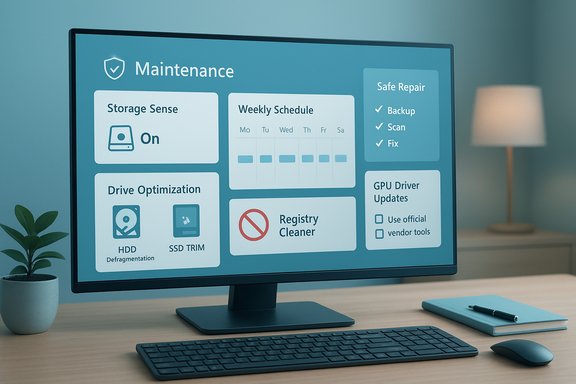 Background
Windows has evolved from a world where users needed to micromanage every corner of their machine into one where the OS and major hardware vendors solve most routine maintenance problems automatically. That doesn’t mean you should be complacent; it means you should be selective about which tasks you perform manually and which you let the platform handle. Many of the old maintenance rituals—running registry cleaners, manually defragmenting an SSD, or buying a third‑party “driver updater”—are relics of a different era. The built‑in tools in modern Windows are designed to perform safe, scheduled maintenance without user intervention, and major vendors provide targeted update channels for critical components like GPUs. Microsoft documents how Windows handles drive optimization and storage cleanup automatically, while also explicitly warning against unsupported registry‑cleaning utilities. This feature examines the five maintenance tasks I stopped doing, explains why they’re outdated or risky, verifies the technical facts against primary documentation and independent reporting, and lays out safer alternatives and guardrails you can apply today.1) Using registry cleaners — why I stopped
What I used to do
Years ago, a “clean registry” was marketed as the shortcut to faster boots and fewer errors. Registry cleaners promised to remove orphaned keys, fix errors, and streamline startup. They were bundled into PC‑cleaning suites, and running them became routine for many users.Why that stopped
Microsoft’s official stance is explicit: the company does not support the use of registry‑cleaning utilities and warns they can cause more harm than good. The registry contains configuration entries for Windows and installed applications; indiscriminate deletion can break apps or even make the system unbootable. Even reputable cleanup tools often report thousands of “issues” that are harmless, and many scanner results are designed to look scary so users will pay for a fix. Microsoft recommends only making registry changes you understand and backing up the registry before any manual edits. Independent consumer and tech security reporting reaches the same conclusion: registry cleaners rarely deliver measurable performance benefits, and some are outright dangerous or bundled with unwanted software. Trusted advice across multiple outlets is that registry cleaning is unnecessary for routine maintenance and should be reserved for precisely diagnosed troubleshooting scenarios where a specific corrupt key is known to cause a problem.What to do instead
- Use built‑in troubleshooting tools first: System Restore, SFC (sfc /scannow), and DISM address system file and component store corruption safely.
- If an application is misbehaving after an uninstall, reinstall the app or use a vetted uninstaller to remove leftovers (see “Uninstalling programs” below).
- Back up the registry and create a system restore point before making manual edits — and only follow instructions from trusted documentation when editing keys.
2) Running Disk Cleanup manually — let Storage Sense do the work
Background
Disk Cleanup (cleanmgr.exe) is a long‑standing Windows utility that removes temporary files, update leftovers, and (optionally) old Windows installations. It’s still useful for one‑off, deep cleanups, but for regular maintenance it’s become redundant.What changed
Windows 10 introduced Storage Sense — a built‑in, automated space‑management feature that runs when the system is low on space (or on a schedule you select). Storage Sense can delete temporary files, empty the Recycle Bin based on age, and even remove locally cached OneDrive files that haven’t been used recently. You can configure it to run weekly, daily, or only when disk space is low, which eliminates the need to run Disk Cleanup as a manual chore. Microsoft documents Storage Sense behavior and settings in the OS documentation. Community guidance and hands‑on how‑tos still reference Disk Cleanup for major reclamation (for example, removing Windows.old after an upgrade), but for routine maintenance Storage Sense is safer and simpler. Community notes also emphasize combining Storage Sense with OneDrive’s Files On‑Demand for ongoing space savings.How I use it now
- Turn on Storage Sense and set it to run weekly (or “during low free disk space” if you prefer conservative automation).
- Configure the Recycle Bin and Downloads rules to match your tolerance for automatic deletions.
- Reserve Disk Cleanup for large, manual reclamation events (removing Windows.old after a major upgrade or clearing huge leftover update files).
3) Defragmenting (or “optimizing”) drives — HDDs vs SSDs
The old case for defragging
On spinning hard drives, fragmentation could materially slow down file access because the drive head needed to seek across multiple physical locations to read a single file. Defragmentation used to be a meaningful, sometimes dramatic tuning operation.Why defragging is mostly unnecessary today
Most modern systems use SSDs, and the physical ordering of data on flash storage does not affect read performance the same way it does for spinning media. Windows recognizes SSDs and uses TRIM and other SSD‑friendly maintenance operations rather than performing a traditional defragmentation that would just add unnecessary write wear. In fact, Windows’ Optimize Drives tool distinguishes between HDDs (defragment) and SSDs (trim/optimize) and runs scheduled maintenance automatically by default (weekly). Microsoft’s documentation explains this behavior and the default weekly schedule.Exceptions and practical guidance
- If you still have an HDD (older desktop or external drive), scheduled defragmentation is still helpful. Let Windows run the scheduled optimize task; manual runs are rarely necessary.
- If you have an SSD, do not manually run legacy defragmentation tools that treat the drive as a platter device. Let Windows manage TRIM and optimization automatically.
- If you dual‑boot or run unusual storage configurations, occasional manual checks using the Optimize Drives UI are reasonable to confirm scheduled maintenance is running.
4) Installing third‑party driver updaters — high risk, low value
The lure
“Driver updater” utilities promise to scan your PC and update every driver automatically. For non‑technical users this is an alluring proposition: keep everything current without research.The reality
Multiple security and tech‑advice outlets have documented that generic third‑party driver updaters frequently do more harm than good. Common problems include false positives (flagging perfectly functional drivers as “ancient”), bundling unwanted software, charging for functionality you can get free, and in the worst cases installing incompatible drivers that break hardware or cause blue screens. How‑to guides and security analyses advise against generic driver updaters and recommend relying on Windows Update or the hardware vendor for drivers.A more nuanced view
Not all driver updates are equal. Graphics drivers (NVIDIA, AMD, Intel) are a legitimate, frequent exception: gamers, creators, and anyone who needs GPU fixes will benefit from vendor‑supplied updates because they often include performance optimizations, bug fixes, and game‑specific improvements. Fortunately, GPU vendors provide their own update tools — GeForce Experience (NVIDIA), AMD Adrenalin, and Intel Driver & Support Assistant — which are the correct vendor channels for GPU drivers. For most other components, either Windows Update or the OEM/motherboard/vendor support pages are the safest routes.Recommended practice
- Use Windows Update for most driver servicing.
- For GPU drivers, use the vendor’s official updater (NVIDIA, AMD, Intel).
- For OEM laptops/desktops, check the manufacturer’s support page for device‑specific drivers and firmware.
- Avoid general-purpose driver updater utilities; if you must use a third party, research it thoroughly, verify community reputation, and ensure it offers reliable backup/rollback features before applying any changes.
5) Uninstalling programs one-by-one — bulk removal tools (and caveats)
The friction point
Removing a handful of apps through Settings → Apps → Installed apps is tolerable; removing dozens is a chore. Each uninstaller can have its own prompts, restarts, and quirks that make the process tedious.The practical alternative
Tools like Bulk Crap Uninstaller (BCUninstaller / BCU) were built for this exact workflow: discover every installed program (including store apps and hidden entries), queue chosen apps, and perform batch or silent uninstalls where supported. BCU is open source and actively maintained; it can remove leftover traces and is especially useful on machines that have accumulated many installs over years. The project’s repository and documentation describe features such as quiet uninstall and orphaned program detection.Risks and safeguards
- Bulk uninstallers are powerful and can remove things you didn’t intend to remove. Always verify selected entries before committing.
- Create a backup or a system restore point before large removal operations.
- For business or managed endpoints, follow IT policy — bulk removal on a corporate workstation can violate compliance or break managed tooling.
- If an uninstaller fails or an app leaves leftover services, use targeted cleanup steps (remove services, scheduled tasks, or registry entries) only when you understand the change or follow well‑documented guidance.
Critical analysis: strengths, tradeoffs, and where manual action still matters
Strengths of the “let the platform do it” approach
- Reduced risk from untrusted utilities (registry cleaners, driver updaters).
- Automation saves time and avoids human error: Storage Sense, scheduled drive optimization, and Windows Update reduce the number of manual chores.
- Vendor expertise: GPU vendors and OEM support pages provide targeted updates that are tested for specific hardware scenarios.
Tradeoffs and risks you should watch
- Edge cases still require manual intervention. Serious driver bugs, legacy hardware, or specialized enterprise setups may need bespoke attention that automation can’t provide.
- Over‑automation without oversight can delete things you wanted to keep. Storage Sense’s Downloads‑folder cleanup is a helpful option, but enabling it without understanding the settings can surprise users who keep a lot of installers or archived files in Downloads.
- Third‑party tools with a good reputation still carry risk. Open‑source projects like BCUninstaller have strong community oversight, but any powerful tool can harm a system if misused. Always confirm before bulk operations and keep backups.
Practical guardrails I now follow
- Keep automatic updates enabled for Windows and critical apps; treat optional or beta updates cautiously.
- Use Storage Sense for routine cleanup and Disk Cleanup for exceptional reclaiming tasks.
- Let Windows manage drive optimization and only intervene for unusual hardware (HDDs, RAID arrays with vendor utilities).
- Use vendor tools for GPU updates and the OEM for device‑specific drivers.
- Use BCUninstaller or similar bulk tools for large cleanups but create a restore point first.
Quick, practical checklist (what to configure now)
- Settings → System → Storage → Turn on Storage Sense and set to Weekly (adjust Recycle Bin and Downloads rules).
- Search “Defragment and Optimize Drives” → confirm schedule is set to Weekly; let Windows optimize SSDs and defrag HDDs automatically.
- Avoid installing generic registry cleaners. Use SFC and DISM for system repairs; make system restores before editing the registry.
- For GPU updates, use NVIDIA GeForce Experience, AMD Adrenalin, or Intel Driver & Support Assistant. For other drivers, prefer Windows Update or the vendor’s support page.
- If you need to remove many apps, try Bulk Crap Uninstaller after creating a restore point and reviewing selected items.
Final verdict
The maintenance checklist for modern Windows systems is shorter and safer than it used to be. Many previously essential rituals are obsolete: registry cleaners provide little benefit and pose real risk, Disk Cleanup can mostly be replaced by Storage Sense, defragmentation belongs to spinning disks, generic third‑party driver updaters are often more trouble than they’re worth, and batch uninstallers let you remove cruft quickly if used responsibly. These conclusions align with Microsoft’s official guidance and decades of community and security reporting. That said, automation is not an excuse to ignore the system entirely. The smart path is to configure the safe, built‑in automation Microsoft provides, rely on vendor tools for specialized components, and preserve conservative backups and restore points before making sweeping changes. With those guardrails in place, you can spend less time on repetitive maintenance and more on using the PC itself.Source: XDA 5 Windows maintenance tasks I finally stopped doing
