

Modern Windows maintenance is far less ritual than it used to be — and five long‑standing chores many users still perform are, in 2025, either redundant or actively risky.
Windows has evolved from an era when users regularly tweaked IRQs, swapped memory managers, and ran weekly cleanup rituals, into a platform that performs most routine maintenance automatically. Built‑in features such as Storage Sense, Optimize Drives, and the Windows Security stack now cover the bulk of day‑to‑day housekeeping for most home users, while vendor tools handle hardware‑specific needs like GPU drivers and firmware. The practical upshot is simple: you can stop doing a handful of old tasks that promise outsized gains but deliver very little — and in some cases may do real harm.
This feature walks through those five tasks in depth, explains why they’re obsolete or dangerous, verifies technical specifics where possible, and provides safe, modern alternatives — plus a compact maintenance checklist you can adopt immediately. The goal is clear, actionable guidance for Windows 11 users who want reliable performance and security without falling for optimization marketing.
That combination — habit plus aggressive advertising — keeps redundant tools alive. But the most important fact: modern Windows and modern storage architecture change the calculus. Built‑in automation and vendor‑provided support reduce both the need for manual interference and the value offered by most third‑party optimizers.
Practical, conservative maintenance will keep your PC fast and secure:
Source: Pocket-lint 5 pointless Windows maintenance tasks you should stop immediately
 Background / Overview
Windows has evolved from an era when users regularly tweaked IRQs, swapped memory managers, and ran weekly cleanup rituals, into a platform that performs most routine maintenance automatically. Built‑in features such as Storage Sense, Optimize Drives, and the Windows Security stack now cover the bulk of day‑to‑day housekeeping for most home users, while vendor tools handle hardware‑specific needs like GPU drivers and firmware. The practical upshot is simple: you can stop doing a handful of old tasks that promise outsized gains but deliver very little — and in some cases may do real harm.This feature walks through those five tasks in depth, explains why they’re obsolete or dangerous, verifies technical specifics where possible, and provides safe, modern alternatives — plus a compact maintenance checklist you can adopt immediately. The goal is clear, actionable guidance for Windows 11 users who want reliable performance and security without falling for optimization marketing.
Why these "maintenance" rituals persist
Human nature, nostalgia, and marketing sustain rituals. Many PC owners learned early that a weekly defrag, an antivirus scan from a third‑party suite, and a registry sweep could “fix” performance problems. Those practices became habits and were monetized by a huge ecosystem of maintenance utilities. Even when the underlying hardware and OS changed, the habits persisted.That combination — habit plus aggressive advertising — keeps redundant tools alive. But the most important fact: modern Windows and modern storage architecture change the calculus. Built‑in automation and vendor‑provided support reduce both the need for manual interference and the value offered by most third‑party optimizers.
1) Cleaning up temporary files: stop installing disk‑cleanup suites
What changed
Historically, disk‑cleanup utilities were a practical way to reclaim space, remove cached installers, and tidy temporary files. Today, Storage Sense and Disk Cleanup (cleanmgr) exist within Windows — with Storage Sense designed for ongoing, automated housekeeping and Disk Cleanup retained for one‑off deep cleans. Storage Sense can be configured to remove temporary files, empty the Recycle Bin after a configurable age, and free local copies of cloud files that haven’t been opened recently. For routine maintenance, Storage Sense renders most third‑party “disk cleaners” unnecessary.Windows defaults and options you should know
- Storage Sense runs automatically under configurable conditions (daily, weekly, monthly, or when disk space is low). You can also set it to empty the Recycle Bin after 30 days, 60 days, or never, and to clear the Downloads folder automatically if you choose.
- Disk Cleanup remains useful for major reclamation tasks (for example, removing Windows.old after a major upgrade or clearing large update caches), but it’s not required for routine use.
Why third‑party cleaners are often pointless or harmful
- They duplicate what Windows already does or offer aggressive, unnecessary deletions.
- Some push paid upgrades, install bundled PUPs, or have a poor privacy posture.
- Overzealous automation can remove cached application data or offline files users expected to keep.
Practical recommendations
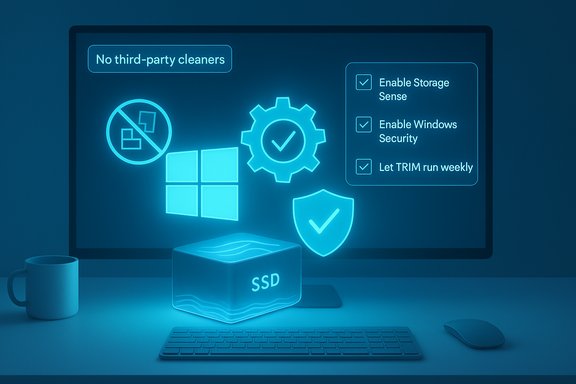
- Enable Storage Sense and set it to weekly or "when low on disk space."
- Reserve Disk Cleanup for major reclamation events and review what it will delete before confirming.
- Manually sort Downloads and Documents periodically — automated deletion of Downloads is convenient but risky if you rely on it for short‑term storage.
2) Running third‑party malware/antivirus suites when Windows Security is active
The modern threat model
Third‑party antivirus suites were once essential. In a world of physical media, shared floppies, and promiscuous installers, independent scanners provided a crucial line of defence. Modern Windows ships with a far more capable default security stack — Windows Security (Microsoft Defender) — which now includes real‑time protection, firewall controls, exploitation mitigations, and threat‑definition updates delivered automatically via Windows Update. For typical home users, Windows Security is sufficient and well integrated into the platform.Where Windows Security is very good — and where it isn’t
- Strengths: real‑time scanning, frequent definition updates, integrated firewall, and modern protections such as Attack Surface Reduction and Smart App Control. These cover the risk profile of most everyday users.
- Caveats: corporate environments, high‑risk professions, and users who need specialized telemetry or extended detection and response (EDR) capabilities may still require third‑party or enterprise products.
Practical recommendations
- Keep Windows Security enabled and verify real‑time protection and cloud‑delivered protection are active.
- Use a secure browser and maintain safe browsing practices — no antivirus can fix a user‑initiated social‑engineering breach.
- If additional features are necessary (e.g., enterprise EDR, deep sandboxing, or advanced malware remediation), choose a reputable vendor and avoid running multiple real‑time scanners simultaneously.
3) Defragmenting SSDs (and third‑party TRIM utilities)
Why defrag rituals are obsolete for SSDs
Defragmentation is essential for mechanical HDDs because it reduces head travel and improves throughput. SSDs, however, use flash memory and have negligible latency for random vs contiguous reads. Rewriting data through repeated defragmentation does not make an SSD faster and instead consumes write cycles, which are limited. In short: do not defragment an SSD.TRIM: what it is and how Windows handles it
SSDs require periodic TRIM operations so the controller can mark deleted blocks as available for garbage collection. Windows 11 performs TRIM automatically and includes an Optimize Drives utility that adapts behavior based on media type (HDD vs SSD). Windows typically schedules drive optimization tasks weekly by default, which covers TRIM and related maintenance for SSDs. This is built into the OS and requires no third‑party intervention.Practical recommendations
- Let Windows manage SSD optimization and TRIM; don’t install third‑party defraggers that don’t detect SSD media.
- If you want to manually trigger optimization, search for “Optimize Drives” in Settings and run the tool — but there’s rarely benefit to doing this more often than the default weekly schedule.
- Preserve some free space on SSDs (10–20% recommended) to avoid performance cliffs related to wear leveling and write amplification.
4) Registry cleaners: marginal benefit, real risk
Why the Registry is not a playground
The Windows Registry is a central database of configuration settings for Windows and many apps. While it can accumulate orphaned or stale entries over years, modern Windows processes the Registry so quickly that the prospective performance gains from removing “a few thousand entries” are practically nil on a modern PC. Worse, blind deletion risks removing valid keys and breaking applications or the OS itself. Microsoft explicitly warns against unsupported registry‑cleaning utilities for routine maintenance.When registry changes are legitimate
- Targeted, expert‑guided changes (for example, following vendor troubleshooting steps) are valid.
- Official recovery tools, SFC (sfc /scannow), and DISM should be your first line for system integrity problems.
- Before any manual Registry edits, create a full backup (System Restore point and an exported registry file).
Practical recommendations
- Avoid registry cleaners entirely for routine maintenance.
- Use sfc and DISM for system file and component store repair: sfc /scannow followed by DISM /Online /Cleanup-Image /RestoreHealth if needed. These are supported, safe first steps.
- If a vendor’s diagnostic or recovery tool instructs a Registry edit, back up first and follow the vendor’s exact steps.
5) Blindly using “driver updater” apps — and the one exception: GPU drivers
The risk of generic driver updaters
Driver updater utilities that indiscriminately install drivers are a common cause of instability. Windows Update and vendor sites (Intel, AMD, NVIDIA, OEMs) are the correct sources for drivers. Windows Update reliably delivers chipset, storage, and peripheral drivers, and the Settings → Windows Update interface will show optional drivers when available. Random driver updaters often install mismatched or unsigned drivers and can break hardware compatibility.The one reasonable exception: graphics drivers
GPU drivers are a different class — they change frequently and can have a major impact on game performance and compatibility. If you’re a gamer or need the latest GPU fixes, vendor tools like NVIDIA GeForce Experience or AMD Adrenalin deliver new GPU drivers promptly and include game‑ready optimizations. For most other hardware, rely on Windows Update or the specific vendor’s support page to download drivers matched to your model.Practical recommendations
- Use Windows Update for general drivers and OEM download pages for model‑specific firmware/chipset drivers.
- For GPUs, use the vendor’s official updater if you need bleeding‑edge fixes or game performance optimizations.
- Avoid one‑click third‑party driver updaters. If you must use them, test on non‑critical systems first and always keep recovery media handy.
Practical, modern maintenance routine (the checklist)
This compact plan covers what home users actually need and avoids the needless rituals:- Enable Windows Update and check it weekly for optional driver updates.
- Turn on Storage Sense (weekly or when low on disk space) and reserve Disk Cleanup for infrequent, large cleanups.
- Keep Windows Security enabled and verify core protections (real‑time, cloud‑delivered protection, firewall) are active.
- Allow Windows to run drive optimization (weekly) and do not defragment SSDs; let Windows issue TRIM.
- Audit startup apps periodically via Task Manager → Startup and disable anything unnecessary.
- Use SFC and DISM for repair before considering more invasive action.
- For GPU updates, use NVIDIA/AMD official tools when you need the latest driver improvements; for other drivers prefer Windows Update or the device manufacturer.
Deeper analysis — strengths, caveats, and edge cases
Strengths of the "let Windows handle it" approach
- Simplicity and integration: built‑in tools are designed to work with Windows updates and app behaviors, reducing the risk of incompatible changes.
- Lower cost and attack surface: fewer third‑party binaries mean fewer update vectors and less telemetry. Notable incidents in the past (supply‑chain compromises of trusted cleaners) underscore the risk of extra maintenance binaries.
- Safer defaults: automated weekly maintenance protects users who do not want to micromanage settings while offering advanced users the tools to intervene safely.
Caveats and edge cases where manual intervention still matters
- Enterprise and high‑security environments: organizations may need third‑party EDRs, SIEM integration, or endpoint hardening beyond Windows Security. The platform’s defaults are not a one‑size‑fits‑all for corporate security.
- Specialized hardware or old controllers: unusual RAID controllers, legacy storage arrays, or certain OEM firmware may require vendor tools or manual maintenance.
- Data recovery and forensic needs: registry edits and file deletions can hinder recovery — if you manage critical data, maintain full backups and image‑level snapshots before running any cleanup.
- Performance tuning for power users: advanced users who overclock, tweak firmware, or deploy custom kernels may legitimately use specialized utilities — but those changes should be applied by informed operators on test rigs first.
Where the original Pocket‑lint claims needed nuance
- The core advice — stop routine registry cleaners, don’t defrag SSDs, rely on Storage Sense and Windows Security, and avoid blind driver updaters — is sound and practical. However, the blanket statement “third‑party antivirus suites are unnecessary” needs nuance: enterprise scenarios, niche threats, and advanced threat hunting still justify paid protection layers. Similarly, some well‑maintained open‑source or vendor tools remain useful when chosen carefully. These nuances are reflected in Windows community and vendor guidance.
Technical verifications and unverifiable claims
- Verified: Windows 11 includes Storage Sense and an Optimize Drives utility; Storage Sense can run on user‑selected schedules; Optimize Drives adapts behavior for SSDs (TRIM) and for HDDs (defrag). Windows typically runs drive optimization weekly by default.
- Verified: Windows Security provides real‑time protection and advanced mitigations suitable for most home users, with vendor updates delivered through Windows Update.
- Unverified/flagged claims: specific performance percentage improvements or regional statistics quoted in some consumer writeups could not be traced to primary reports during internal verification and should be treated as unverified unless substantiated by the original research. Any specific numeric claims (for example, “X% faster” after a tweak) should be checked against controlled benchmarks on your system because results vary widely by hardware and workload.
How to vet a maintenance utility if you insist on third‑party help
If a situation really requires a third‑party tool (for instance, vendor diagnostics or specialized forensic software), evaluate it carefully:- Check provenance: official vendor site, GitHub page for open‑source projects, or a well‑known distribution channel.
- Read recent reviews and changelogs. Look for a history of timely patches and clear privacy policies.
- Avoid unsigned low‑level drivers, installers that bundle PUPs, and tools that demand admin access without clear justification.
- Prefer tools that create automatic rollback points or system images before making sweeping changes.
- Test on a non‑critical system if possible and keep a verified backup before applying changes to production machines.
Quick troubleshooting playbook (3‑step recovery plan)
- If something breaks after running a maintenance tool, stop and don’t keep running other cleaners. Attempt a System Restore or boot into Safe Mode to roll back changes.
- Run SFC and DISM to repair system files: sfc /scannow, then DISM /Online /Cleanup-Image /RestoreHealth. These are supported, low‑risk recovery steps.
- If a driver update caused the issue, roll back via Device Manager or reinstall a manufacturer‑supplied driver from the vendor website. For GPU problems, use vendor uninstall tools (DDU for GPUs when needed) and reinstall a known‑good version.
Conclusion
The old maintenance rituals — weekly defrags, routine registry cleans, and one‑click optimizer panics — were forged in a different era. Modern Windows and modern storage architecture handle the heavy lifting for most users, and the best practice today is to keep the system updated, use built‑in tools, choose vendor software for hardware‑specific needs, and avoid blanket automation that deletes or rewrites without context.Practical, conservative maintenance will keep your PC fast and secure:
- Rely on Storage Sense and Disk Cleanup for storage housekeeping.
- Trust Windows Security for baseline protection and add enterprise tools only when your threat model demands it.
- Let Windows manage SSD TRIM and only defrag mechanical HDDs.
- Avoid registry cleaners and indiscriminate driver updaters; use official vendor tools for GPU drivers when needed.
Source: Pocket-lint 5 pointless Windows maintenance tasks you should stop immediately
