

Microsoft has quietly expanded the Xbox Full Screen Experience (FSE) to include MSI’s Claw family, and owners who don’t mind Insider Preview software can now boot their Claw into a console‑style, controller‑first launcher by updating to the right Windows 11 preview build and enabling the feature in Settings.
Microsoft’s Full Screen Experience (FSE) is a Windows 11 mode designed specifically for handheld gaming PCs. Rather than replace Windows, FSE layers a console‑like shell on top of the OS: the Xbox PC app becomes the device’s home app, background desktop subsystems and many startup items are deferred, and a controller‑centric Game Bar/Task View workflow makes navigation feel like a handheld console. The aim is to reduce background overhead, free memory for games, and provide a thumb‑friendly UI on small screens. The feature first appeared publicly as part of the Xbox Ally introductions and later in Windows 11 Insider preview flights; Microsoft has now widened the preview to additional OEMs including MSI’s Claw family in the 25H2/Insider preview wave. This staged rollout is gated by channel builds and OEM entitlements, so visibility varies between devices and regions.
Microsoft’s Xbox Full Screen Experience is a pragmatic, console‑like layer that finally gives Windows handhelds a true gamepad‑first front end. For MSI Claw owners, it promises better battery/runtime behaviour and a more focused launcher — but only if you accept the preview‑era tradeoffs and follow careful prep and recovery steps. For everyone else, patience will likely be rewarded by a more polished, supported experience once OEMs push tuned images to retail devices.
Source: Phandroid Own an MSI Claw? Here's How to Enable Microsoft's Xbox Full Screen Experience on your Device - Phandroid
 Background / Overview
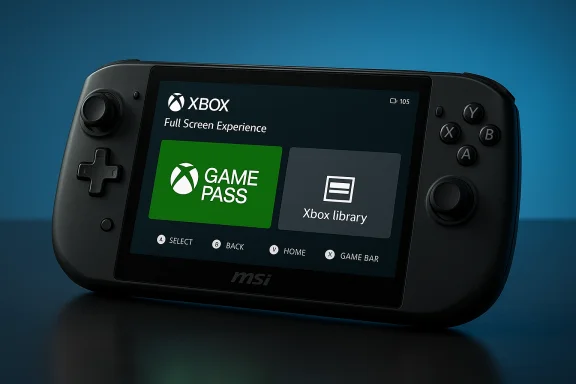
Microsoft’s Full Screen Experience (FSE) is a Windows 11 mode designed specifically for handheld gaming PCs. Rather than replace Windows, FSE layers a console‑like shell on top of the OS: the Xbox PC app becomes the device’s home app, background desktop subsystems and many startup items are deferred, and a controller‑centric Game Bar/Task View workflow makes navigation feel like a handheld console. The aim is to reduce background overhead, free memory for games, and provide a thumb‑friendly UI on small screens. The feature first appeared publicly as part of the Xbox Ally introductions and later in Windows 11 Insider preview flights; Microsoft has now widened the preview to additional OEMs including MSI’s Claw family in the 25H2/Insider preview wave. This staged rollout is gated by channel builds and OEM entitlements, so visibility varies between devices and regions. What the Full Screen Experience actually does
The mechanics — what changes under the hood
FSE is not a kernel rewrite; it’s a session posture that changes which userland elements Windows loads at startup and how the shell behaves:- The chosen home app (commonly the Xbox app) runs as a full‑screen launcher.
- Certain Explorer cosmetics (desktop wallpaper, some shell ornamentation) and non‑essential startup apps are deferred or suppressed while in FSE, reclaiming memory and reducing idle CPU wakeups.
- Game Bar and Task View are refactored for controller navigation; an Xbox/Guide button maps to Game Bar and Task View flows.
What to expect visually and functionally
- A large‑tile, controller‑friendly launcher that aggregates Game Pass, Xbox library, and many installed games.
- On‑screen controller keyboard and controller‑first text input flows.
- Quick entry/exit via Game Bar (Win + G), Task View (Win + Tab), or a direct toggle (Win + F11).
- Option to boot directly into FSE with reduced background services for improved battery and responsiveness.
Why MSI Claw owners should care
The Claw family targets high‑end Windows handheld buyers: 7–8‑inch panels, high refresh rates, and mid‑to‑high‑end APUs make these devices ideal candidates to benefit from FSE’s resource trimming. For MSI, enabling FSE is a way to give the Claw a more predictable, console‑like experience that appeals to gamers who expect fast, gamepad‑first navigation. However, because FSE modifies session composition rather than hardware, the quality of results depends heavily on up‑to‑date OEM firmware and drivers—MSI Center, OSD utilities, and BIOS updates matter.Official, supported path — step‑by‑step (recommended)
If you own an MSI Claw and want to enable Microsoft’s Xbox Full Screen Experience using Microsoft’s supported preview flow, follow these steps. These instructions reflect the official Settings path in Windows 11 and Microsoft’s published guidance for Insiders.- Create a full system backup and a recovery USB. This is mandatory if you value your current configuration.
- Update MSI Center, firmware, and drivers first. If MSI Center suggests a BIOS or firmware update, install it following MSI’s official instructions.
- Join the Windows Insider Program on the Claw: Settings > Windows Update > Windows Insider Program, and pick the Insider channel that contains the FSE preview bits (25H2 preview family / Release Preview or Beta while Microsoft is matching channel flights).
- Update Windows to the build that includes FSE (the 25H2/26220 family and matching KBs where Microsoft has enabled the feature for your device).
- Enroll in Xbox PC app previews: install Xbox Insider Hub from the Microsoft Store, join the PC Gaming Preview, then update the Xbox PC app to the preview version.
- Open Settings > Gaming > Full screen experience. Under “Set your home app,” choose Xbox (or any other installed gaming home app you prefer).
- Toggle “Enter full screen experience on startup” if you want the device to boot directly into FSE.
- Restart and verify: the device should boot to the Xbox app in a full‑screen launcher. Use Game Bar, Task View, or F11 to enter/exit on demand.
Advanced / community methods (ViVeTool + registry) — proceed with extreme caution
If the Settings toggle does not appear (common in phased rollouts), the enthusiast community has documented a manual method to force the option. This is unsupported by Microsoft and can break things—only attempt on non‑critical hardware with full backups and a recovery plan. Multiple community threads report both success and instability after these steps. Typical community sequence (conceptual summary):- Download ViVeTool community build and extract it.
- Run an elevated command prompt and enable the reported feature IDs:
- ViVeTool.exe /enable /id:52580392
- ViVeTool.exe /enable /id:50902630
- Open Registry Editor and navigate to:
- Computer\HKEY_LOCAL_MACHINE\SOFTWARE\Microsoft\Windows NT\CurrentVersion\OEM
- Create or edit a DWORD named DeviceForm and set it to 0x2E (hex) or 46 (decimal).
- Reboot. Open Settings > Gaming and look for Full screen experience. If present, select Xbox and enable the startup toggle, then reboot again.
Troubleshooting: common failure modes and remedies
- FSE option missing or disappears after reboot: confirm Insider build and Xbox PC app preview version; sign out and back into Xbox app; reinstall Xbox app; ensure MSI Center and firmware are updated. If the option still disappears, a clean install into the target Insider channel often resolves persistent mismatches.
- Boots to desktop or Xbox app shows as a window instead of full screen: verify that “Enter full screen experience on startup” is enabled and that the Xbox app is the chosen home app. Some users reported this symptom until OEM overlays or OSD utilities were updated—update MSI OSD and drivers.
- Controller input unresponsive inside the Xbox launcher: check mapping in MSI Controller firmware and confirm the Xbox app has controller focus; temporarily disable conflicting utilities (third‑party overlays or OEM input tools) and retest.
- Sleep/resume or long resume delays: early insider flights reported wake/resume quirks when FSE is engaged. If you rely on predictable suspend/resume behavior, delay enabling FSE until the stable release or ensure you have a recovery path.
- Game failures or anti‑cheat problems: test competitive titles before committing to full‑time FSE. Some anti‑cheat systems and third‑party launchers still expect a regular desktop session and might not behave correctly in a pared‑down posture.
Performance expectations — realistic gains and limits
Community testing and early reviews show directional benefits: reclaimed memory, fewer background CPU wakeups, smoother sustained frame times in some titles, and modest battery improvements. Synthetic benchmarks sometimes show double‑digit percentage gains; real game frame‑rate improvements are usually smaller—single‑digit to low‑double‑digit percent in many cases. Testers commonly cite memory reclamation in the ballpark of up to roughly 2 GB on tuned devices, but that number is highly dependent on installed software, drivers, and the baseline system state. Treat such figures as optimistic upper bounds rather than guarantees. Why gains vary:- If your Claw already runs a very lean Windows image with few startup apps, FSE’s trimming has less to reclaim.
- Hardware ceilings remain decisive: thermal limits and raw GPU/CPU throughput still define peak performance; FSE simply reduces ancillary contention.
- Driver maturity and vendor utilities can erase or magnify benefits—OEM tuning matters.
Support, warranty, privacy, and enterprise considerations
- Running Insider Preview builds can affect Microsoft’s and OEMs’ willingness to troubleshoot software issues; warranty generally covers hardware but not problems caused by preview software or registry hacking. Keep that in mind before joining Insiders on primary hardware.
- The Copilot/taskbar integrations and other preview telemetry remain opt‑in in many flights, but any new interaction surface (vision/voice flows) expands telemetry and permission surfaces; privacy‑conscious users should audit settings and opt‑outs.
- Corporate or managed devices should not be enrolled in Insider channels without IT approval—group policies, security software, and DLP agents can interact poorly with preview builds.
Best practices before you enable FSE on an MSI Claw
- Back up everything. Create a full system image and a separate recovery USB before you enroll in any Insider channel.
- Prefer Release Preview or Beta channels if Microsoft has matched Dev and Beta for the relevant builds—these tend to be more stable than Dev while still exposing the necessary bits.
- Update MSI Center, BIOS, GPU drivers and any OSD utilities before switching to FSE. Many community issues resolved after firmware and OSD updates.
- Enroll in the Xbox PC app preview (via Xbox Insider Hub) rather than relying on registry hacks; official previews reduce risk and make it easier to report and track regressions.
- Test your critical games (especially those with anti‑cheat) and peripherals (controllers, headsets) after enabling FSE; confirm save states, performance, and multiplayer functionality meet your needs.
When to wait
If your Claw is a daily driver for competitive gaming, streaming, or work, waiting for a stable consumer rollout is the prudent choice. Early adopters report mixed outcomes: some enjoy a dramatically improved handheld UX, others hit boot quirks, overlay conflicts, or unexpected incompatibilities that required a clean OS reinstall to fix. Microsoft’s phased rollout strategy means the smoothest experience often arrives when OEMs ship FSE‑enabled images that match tuned drivers and firmware.Quick recovery checklist (if you run into trouble)
- Disable FSE: Settings > Gaming > Full screen experience > Set home app to None or toggle off the startup option.
- Reinstall/rollback Xbox app to the public build via Microsoft Store.
- Unenroll from Xbox PC app preview in Xbox Insider Hub.
- Use System > Recovery > Go back (if available) to revert an Insider build or boot from your recovery USB to restore your image.
- If FSE was enabled via ViVeTool/registry, reverse the ViVeTool toggles and delete the DeviceForm registry key before rebooting (only if you documented your exact pre‑change state).
Verdict — should you enable FSE on an MSI Claw?
- If you are comfortable running Windows Insider Preview builds, can update MSI firmware, and have a full backup: enabling FSE is a strong way to get a true console‑style launcher, aggregated libraries, and practical runtime improvements on handheld hardware. Expect a cleaner UX and modest performance/battery benefits in many titles, particularly if your current Windows install has a lot of background apps.
- If you need absolute stability, rely on specific anti‑cheat titles, or cannot spare time for troubleshooting and possible clean reinstalls: wait for the stable consumer rollout and OEM images that include FSE by default. The stable rollout will almost certainly include the driver and firmware fixes that smooth out early edge cases.
Microsoft’s Xbox Full Screen Experience is a pragmatic, console‑like layer that finally gives Windows handhelds a true gamepad‑first front end. For MSI Claw owners, it promises better battery/runtime behaviour and a more focused launcher — but only if you accept the preview‑era tradeoffs and follow careful prep and recovery steps. For everyone else, patience will likely be rewarded by a more polished, supported experience once OEMs push tuned images to retail devices.
Source: Phandroid Own an MSI Claw? Here's How to Enable Microsoft's Xbox Full Screen Experience on your Device - Phandroid
