

Aaron Stebner’s long‑running .NET verification and cleanup utilities have been refreshed to recognize the newer runtimes and Windows 10 environments, and Microsoft’s Store is testing a more granular app‑install workflow that lets Windows 10 users pick a drive for large Store apps — two modest but practical changes that restore control to power users while also introducing new operational considerations for administrators and casual users alike.
Windows tooling and the Microsoft Store have moved decisively toward automation in recent years: runtimes and platform services try to hide complexity from end users, and the Store replaced manual installers for many apps. That convenience helped adoption, but it also removed certain diagnostic levers and per‑install choices that advanced users rely on. The two developments covered here represent incremental pushes back toward more explicit user control and improved troubleshooting options.
Use the .NET verification utility for diagnosis, rely on Microsoft’s repair tool and standard DISM/SFC flows for safe remediation, and reserve the Cleanup Tool only for last‑resort scenarios. For Store installs, embrace the new per‑install choice when available, but plan for inconsistent rollout and integrate save‑location policies into imaging and backup plans if you manage fleets. These changes improve control and reduce friction — provided users and admins understand the operational tradeoffs and treat destructive actions with appropriate caution.
 Background
Windows tooling and the Microsoft Store have moved decisively toward automation in recent years: runtimes and platform services try to hide complexity from end users, and the Store replaced manual installers for many apps. That convenience helped adoption, but it also removed certain diagnostic levers and per‑install choices that advanced users rely on. The two developments covered here represent incremental pushes back toward more explicit user control and improved troubleshooting options.- Aaron Stebner’s .NET Framework Setup Verification Utility and .NET Framework Cleanup Tool — two veteran utilities used to verify and, if necessary, forcefully remove .NET Framework installations — were updated to recognize .NET Framework 4.6 and to operate correctly on Windows 10. These tools have been a go‑to for technicians troubleshooting damaged .NET installs for many years.
- The Windows Store (the Store client) in Windows 10 is being updated to prompt for install location when a package is large, letting the user choose a drive on a per‑download basis rather than always using the default system/site location. This behavior was observed in Insider builds and early rollouts tied to the Anniversary Update timeframe. Early reporting indicates the choice appears only for packages Microsoft designates as “large.”
.NET verification and cleanup: what changed, and why it matters
What the tools do
The two utilities are distinct but complementary:- .NET Framework Setup Verification Utility (netfx_setupverifier): verifies the presence and integrity of files, registry keys, and small test operations for a chosen .NET edition. It’s a fast diagnostic that reports “succeeded” or “failed” and optionally emits a detailed log for troubleshooting.
- .NET Framework Cleanup Tool: a sledgehammer that removes the selected .NET Framework version from the system — files, registry entries and setup footprints — when normal uninstall/repair paths fail. It’s explicitly recommended only as a last resort because it can break applications that depend on other, shared .NET components.
The update: Windows 10 and .NET 4.6 support
The recent update to these utilities added recognition and verification for .NET Framework 4.6 (and validation against Windows 10), which was important at the time because new runtime builds introduce new files, registry layouts and behavior patterns that the verifier needs to check. Download portals and software repositories that mirror developer releases show continued availability of these utilities for modern Windows versions.Practical workflow and recommended usage
For technicians and power users the typical workflow is:- Run the Setup Verification Utility and select the runtime to test. Use Verify Now to get a quick integrity verdict.
- If verification fails, inspect the generated log for missing files/registry entries.
- Attempt normal repair paths first: Windows Update, the official .NET Framework Repair Tool, or in‑place repair of the OS image with DISM + SFC. The Microsoft repair utility often fixes common component issues without destructive cleanup.
- Only if all safe repair attempts fail, and after a reliable backup, consider the Cleanup Tool to remove the problematic runtime, then reinstall or repair other dependent .NET versions.
Strengths
- Speed and clarity: the verifier gives a quick pass/fail and a readable log, which reduces time‑to‑diagnosis.
- Compatibility coverage: historically these utilities have supported a wide range of .NET releases (from early 1.0 to the newer 4.x runtimes) making them useful in mixed‑age environments.
- A final‑resort cleanup: when reinstall and repair fail, the Cleanup Tool can remove remnants that prevent a clean reinstallation.
Risks and caveats
- Cleanup is destructive: removing a runtime with the Cleanup Tool can break other applications that share files or registry keys. It should be used only after careful inventory, backups and when other repair mechanisms fail.
- Version awareness: some managed enterprise images may expect particular runtime versions installed in certain ways; forceful removal can create operational havoc if not coordinated with app owners.
- Prefer the Microsoft Repair Tool first: Microsoft’s own .NET Framework Repair Tool (official release stream) is a safer first line of defense and supports a range of 4.x runtimes; update notes show continued maintenance of that tool across multiple .NET releases.
How to verify tool claims and where to download
Verification of claims
- The statement that Aaron Stebner’s utilities were updated to add .NET 4.6 and Windows 10 support is consistent across multiple independent news archives and download portals that tracked the change at release time. These include mainstream Windows news coverage and software mirrors that preserve release metadata.
- Microsoft’s own repair utility is maintained separately and lists the exact supported .NET versions in its release notes. That provides a safer, vendor‑endorsed fallback than a forceful cleanup when possible.
Where to get the tools
- Community download sites and archives still host the Setup Verification Utility and Cleanup Tool; verify any download’s checksum and prefer official or high‑reputation mirrors.
- For many repair scenarios, download and run the Microsoft .NET Framework Repair Tool first — it’s distributed by Microsoft and lists current supported runtime versions in its documentation.
Windows Store: choose install locations for large apps
What changed
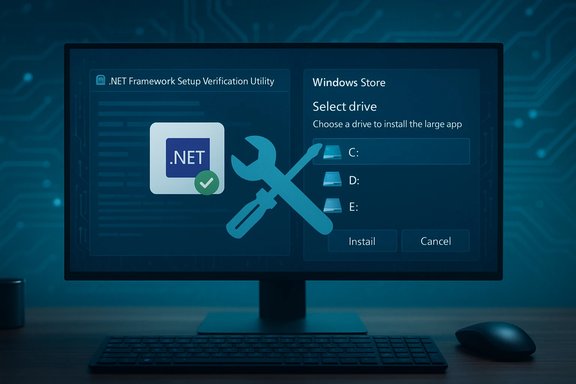
Historically, the Microsoft Store installed apps either to the system drive or to a preconfigured alternate drive en masse — users had limited per‑app control. Recent Store client updates (seen in Insider builds and early rollouts) introduce a user prompt for large packages, allowing drive selection at install time. The prompt appears only for packages Microsoft classifies as large; the underlying logic appears to be at least partly server‑driven and surfaced in Store client builds seen by Windows Insiders.Why this matters
- Storage flexibility for gamers and power users: modern games and some productivity packages can be tens of gigabytes. A per‑install drive choice prevents the Store from failing an install because the system SSD is low on space, and it keeps large game data off smaller NVMe drives when desired.
- Better user experience than “move after install”: moving large app packages after installation can be slow and brittle; choosing the target drive upfront is more efficient and predictable.
How it works in practice
- When a package meets Microsoft’s “large” threshold, the Store displays a dialog like “Select a drive with at least X GB” and offers available drives to store the package.
- If a package is not considered large, installation continues using normal defaults (the default app save location or the system drive).
- Microsoft’s rollout pattern suggests the feature can be toggled or expanded server‑side, meaning it can appear for some users before others depending on Store backend flags.
How to change default app/save locations (existing controls)
If you want to set a default save location for new Store apps (not per‑download prompts), use these steps:- Open Settings → System → Storage.
- Select Change where new content is saved.
- Under New apps will save to, choose the desired drive.
Strengths
- Granular control restores a small but meaningful choice to users: installing large games to a secondary HDD rather than filling a system SSD.
- Less friction and fewer failed installs when system storage is constrained.
- Server‑side enablement allows Microsoft to roll out carefully and limit exposure while testing behavior across Store catalog differences.
Risks and operational considerations
- Inconsistent experience: because the prompt depends on Microsoft’s “large” classification and server flags, not every large app may trigger it; users may see different behavior across PCs or times. This inconsistency can confuse less technical users.
- Update & patching complexity: installing an app across multiple drives can fragment updates or require more complex publisher support; although the Store should handle that, edge cases with partially moved packages or blocked updates remain possible.
- Enterprise management: organizations that prefer deterministic app locations for imaging, backups, or compliance need to account for per‑device and per‑install variability. MDM and Group Policy can still control default save location and restrict app sources; admins should pilot changes before deploying widely.
Cross‑verification and sources of truth
At least two independent outlets reported each item at their time of discovery:- The .NET utilities update was covered in multiple Windows‑focused outlets and software mirrors that track Aaron Stebner’s releases and mirrors; Microsoft’s own repair utility documentation provides an officially maintained alternative for many repair scenarios. These repeated signals confirm the tools’ availability and general behavior.
- The Store prompt for choosing install drives was observed and reported by independent outlets and Insider testers; screenshots and hands‑on reporting appeared in Windows press and community forums. Those reports emphasize that the feature was present in Insider builds and that the dialog is likely surfaced via the Store backend rather than being purely a client‑side setting. That server‑side element explains staggered availability and the “large app” gating.
Practical guidance: what Windows users and admins should do now
For desktop users who encounter .NET problems
- Run the Setup Verification Utility first to get a targeted diagnosis. If it reports issues, attempt Microsoft’s .NET Framework Repair Tool and the Windows Update/repair sequence (DISM /RestoreHealth + sfc /scannow) before considering the Cleanup Tool.
- Back up data and create a restore point before using the Cleanup Tool. If possible, test the cleanup and reinstallation on a non‑critical machine first.
- Prefer vendor repair paths (Microsoft tool, Windows Update) in enterprise or managed devices.
For gamers and users with multiple drives
- Expect the Store to prompt for drive choice only for certain large packages; don’t assume per‑app prompts will always appear.
- If a per‑install prompt doesn’t appear, configure a sensible default via Settings → System → Storage → Change where new content is saved to avoid surprises.
- When preparing imaging or backup strategies, account for apps stored on alternate drives — ensure backup solutions include those locations.
For IT administrators
- Pilot the Store’s behavior in a representative test ring to observe which packages get the per‑install prompt and whether update workflows remain reliable.
- Use Group Policy and MDM controls to set consistent default save locations where determinism matters.
- Treat the .NET Cleanup Tool as a last‑resort remedial action; create a rollback plan and notify application owners before executing destructive cleanups.
Critical analysis: strengths, limits and future direction
Both stories are examples of iterative product improvement — low visibility but high utility changes that address real user pain points.- The .NET utilities preserve an important niche: offline, technician‑oriented tooling for diagnosing incompatible or corrupt runtimes. Their continued relevance depends on careful communication that the Cleanup Tool is destructive, and on enterprises preferring vendor‑supported repair paths where possible. The existence of a maintained Microsoft repair tool reduces the need for risky cleanups in many cases, but the cleanup utility remains necessary for edge cases where all other remediation fails.
- The Store install‑drive prompt restores control for users with mixed storage topologies and is an overdue quality‑of‑life improvement for large applications. However, its server‑side, conditional activation creates inconsistent user experiences and complicates enterprise predictability. For the feature to be widely useful it should become a full client option — an opt‑in/opt‑out toggle under Settings — rather than a server‑gated behavior applied only to Microsoft‑designated “large” packages.
- A formal Microsoft statement or documentation page making the per‑install drive choice an explicit, supported feature (and describing the criteria for “large” packages) would reduce confusion.
- For .NET, ongoing modernization of repair tools, including non‑destructive remediation and better telemetry to identify broken components, would be a safer path for broad audiences; the community tools remain useful for field technicians, but corporate guidance should prefer vendor‑endorsed tools where available.
Conclusion
Small changes can yield outsized benefits: adding Windows 10 and newer runtime awareness to veteran .NET verification/cleanup utilities preserves a vital troubleshooting path for technicians, while giving the Microsoft Store the ability to prompt users for an install drive addresses a frequent pain point for gamers and multi‑drive setups. Both improvements are pragmatic, forward‑looking patches to Microsoft’s tooling ecosystem.Use the .NET verification utility for diagnosis, rely on Microsoft’s repair tool and standard DISM/SFC flows for safe remediation, and reserve the Cleanup Tool only for last‑resort scenarios. For Store installs, embrace the new per‑install choice when available, but plan for inconsistent rollout and integrate save‑location policies into imaging and backup plans if you manage fleets. These changes improve control and reduce friction — provided users and admins understand the operational tradeoffs and treat destructive actions with appropriate caution.
