Windows 10 New member - problem with Calendar

Sassycat41

New Member
Joined
Nov 18, 2025
Messages
2
Hello - I'm new to this forum... still using Windows 10. For many months I was using the Calendar program in Windows, entered all my appointments and left it open on my space bar. Then about a week ago I tried to open it and Microsoft 365 opened with Outlook which I don't use. My calendar data disappeared... the calendar was blank!!! I don't use Microsoft 365 or Outlook so have no idea why it popped up. I signed up for Windows 10 extended updates but don't recall seeing it load anything. Any idea what happened?? :numbness:
 

Solution
Thanks — that extra info helps a lot, @Sassycat41. Short answer first: Microsoft has been rolling the built‑in Mail & Calendar functionality into the “new” Outlook, and that rollout can make the old Calendar appear to vanish (or cause shortcuts to open Outlook instead). That’s likely why clicking your calendar icon launches Outlook.
Important: before you reset/reinstall anything, we should try to find and back up your calendar’s local data. If your appointments were stored only locally (you said you never signed in), a Reset or reinstall of the built‑in app can remove that local cache — so we’ll back it up first. Below are safe, step‑by‑step actions and what to expect.
1) Quick check (do this now)
  • Press Windows key, type...
Welcome — and welcome to the forum, @Sassycat41. Sorry this happened; losing calendar items is scary. Let’s troubleshoot methodically. I’ll give quick checks to find the missing events, then safe recovery steps if needed. Before we dive: which Calendar are you referring to — the built‑in Windows 10 Mail & Calendar app (the one with the tile and a simple Calendar view), or the desktop Microsoft Outlook program that came up? Also: were your appointments tied to a Microsoft/Outlook.com account, Google, iCloud, or were they “local” (no online account)?
Quick checklist (start here)
  1. Open the Calendar app from Start (type Calendar and open the one that appears). Look at the left pane — do you see account names (e.g., Outlook, Hotmail, Gmail, iCloud) and any calendars listed? Are any calendars unchecked (hidden)? If items exist but the checkboxes are off, checking them will show events again.
  2. If Outlook (Microsoft 365) opened instead of the Calendar app when you tried to open Calendar, search Start for “Calendar” and open it directly. If there’s no Calendar app shortcut, the app may have been uninstalled or replaced — keep going below.
Step-by-step troubleshooting and recovery
1) Check accounts and visibility inside the Calendar app
  • Open Calendar app → click the gear (Settings) bottom-left → Manage accounts.
  • Do you see your account(s) listed? If the account is missing, add it again (Add account → choose Microsoft, Google, iCloud, etc., and sign in). After adding, give it a few minutes to sync.
  • If the account is listed, click it and check for any sync error messages. If there’s a sync error, note the exact message and tell me.
Why: The Calendar app stores events per account. If an account was removed or needs re-authentication, the calendar will appear blank.
2) If the app shows accounts but no events, check calendar visibility and filters
  • In Calendar app left pane, expand each account and ensure the specific calendars are checked.
  • Make sure the view isn’t filtered (e.g., showing only a single day with no appointments). Switch views (Day/Week/Month) to confirm.
3) Check Outlook (Microsoft 365) — maybe your calendar moved there
  • Open Outlook desktop app and click Calendar. Do your appointments appear there? If yes, they may have been migrated or the Calendar app is showing a different account.
  • If Outlook does show your events and you prefer the Windows Calendar app, we can connect the same account to the Calendar app so both show the same items.
4) If the Calendar app is missing or behaving oddly → Reset the Mail and Calendar app (safe, re-syncs from server)
  • Settings → Apps → Apps & features → find “Mail and Calendar” (or “Mail and Calendar” under Microsoft store apps) → Advanced options → Reset.
  • Warning: Reset will clear the app’s local cache/settings; it will NOT delete events stored in the cloud (Outlook.com, Google, iCloud). You’ll need to re‑sign in to your account after.
  • After reset, open the app and add/sign-in to the same account(s).
5) Reinstall the Calendar app (if Reset doesn’t help)
  • If Reset fails or the app is gone: reinstall “Mail and Calendar” from the Microsoft Store.
  • Alternatively, run PowerShell to re-register the app (I can give the command if you want it).
6) If you previously used a local calendar (no online account) or suspect data was local and is now missing
  • Check for backups: any File History, OneDrive backups, or a System Restore point from before the problem occurred (System Restore can revert system/app state; it won’t recover cloud‑stored calendar items because those live online).
  • Search your drive for .pst files (Outlook data files) — in File Explorer search .pst and .ost. If you find a PST from before the problem, Outlook can import it (File → Open & Export → Import/Export → Import from another program…).
7) If Microsoft 365 installed or popped up unexpectedly
  • Go to Settings → Apps → Installed apps and look for Microsoft 365/Office. If Office installed and took over a file association, it could open when you click a .ics link. That doesn’t delete the Calendar app’s data; it just uses Outlook for certain actions. We can change default apps later if you want.
8) Final recovery step (if nothing above works)
  • If there are no cloud copies and the events were only local, a System Restore to a point before the problem may restore the app’s local data. Tell me the approximate date/time when the Calendar last showed your appointments — I’ll give exact System Restore steps and caveats (it can remove recently installed apps/drivers).
What I need from you to continue
  • Answer: Which Calendar app did you use (Windows Mail & Calendar or Outlook desktop)?
  • Were your appointments tied to any online account (Microsoft/Outlook.com, Gmail, iCloud)? If unsure, do you remember signing in to the Calendar app with an email address?
  • When you open the Calendar app now, can you screenshot (or describe) what you see in the left pane under “My calendars” or account list? (No file attached showed up — if you try to attach a screenshot, note: I didn’t receive any attachments yet.
  • Does Outlook (the Microsoft 365 program that popped up) show your events in its Calendar view?
If you want, tell me what you see after trying step 1 and 2 and I’ll give the exact next commands or the precise reset/import steps. I’ll walk you through safely — we’ll try non-destructive options first.

 

Welcome — and welcome to the forum, @Sassycat41. Sorry this happened; losing calendar items is scary. Let’s troubleshoot methodically. I’ll give quick checks to find the missing events, then safe recovery steps if needed. Before we dive: which Calendar are you referring to — the built‑in Windows 10 Mail & Calendar app (the one with the tile and a simple Calendar view), or the desktop Microsoft Outlook program that came up? Also: were your appointments tied to a Microsoft/Outlook.com account, Google, iCloud, or were they “local” (no online account)?
Quick checklist (start here)
  1. Open the Calendar app from Start (type Calendar and open the one that appears). Look at the left pane — do you see account names (e.g., Outlook, Hotmail, Gmail, iCloud) and any calendars listed? Are any calendars unchecked (hidden)? If items exist but the checkboxes are off, checking them will show events again.
  2. If Outlook (Microsoft 365) opened instead of the Calendar app when you tried to open Calendar, search Start for “Calendar” and open it directly. If there’s no Calendar app shortcut, the app may have been uninstalled or replaced — keep going below.
Step-by-step troubleshooting and recovery
1) Check accounts and visibility inside the Calendar app
  • Open Calendar app → click the gear (Settings) bottom-left → Manage accounts.
  • Do you see your account(s) listed? If the account is missing, add it again (Add account → choose Microsoft, Google, iCloud, etc., and sign in). After adding, give it a few minutes to sync.
  • If the account is listed, click it and check for any sync error messages. If there’s a sync error, note the exact message and tell me.
Why: The Calendar app stores events per account. If an account was removed or needs re-authentication, the calendar will appear blank.
2) If the app shows accounts but no events, check calendar visibility and filters
  • In Calendar app left pane, expand each account and ensure the specific calendars are checked.
  • Make sure the view isn’t filtered (e.g., showing only a single day with no appointments). Switch views (Day/Week/Month) to confirm.
3) Check Outlook (Microsoft 365) — maybe your calendar moved there
  • Open Outlook desktop app and click Calendar. Do your appointments appear there? If yes, they may have been migrated or the Calendar app is showing a different account.
  • If Outlook does show your events and you prefer the Windows Calendar app, we can connect the same account to the Calendar app so both show the same items.
4) If the Calendar app is missing or behaving oddly → Reset the Mail and Calendar app (safe, re-syncs from server)
  • Settings → Apps → Apps & features → find “Mail and Calendar” (or “Mail and Calendar” under Microsoft store apps) → Advanced options → Reset.
  • Warning: Reset will clear the app’s local cache/settings; it will NOT delete events stored in the cloud (Outlook.com, Google, iCloud). You’ll need to re‑sign in to your account after.
  • After reset, open the app and add/sign-in to the same account(s).
5) Reinstall the Calendar app (if Reset doesn’t help)
  • If Reset fails or the app is gone: reinstall “Mail and Calendar” from the Microsoft Store.
  • Alternatively, run PowerShell to re-register the app (I can give the command if you want it).
6) If you previously used a local calendar (no online account) or suspect data was local and is now missing
  • Check for backups: any File History, OneDrive backups, or a System Restore point from before the problem occurred (System Restore can revert system/app state; it won’t recover cloud‑stored calendar items because those live online).
  • Search your drive for .pst files (Outlook data files) — in File Explorer search .pst and .ost. If you find a PST from before the problem, Outlook can import it (File → Open & Export → Import/Export → Import from another program…).
7) If Microsoft 365 installed or popped up unexpectedly
  • Go to Settings → Apps → Installed apps and look for Microsoft 365/Office. If Office installed and took over a file association, it could open when you click a .ics link. That doesn’t delete the Calendar app’s data; it just uses Outlook for certain actions. We can change default apps later if you want.
8) Final recovery step (if nothing above works)
  • If there are no cloud copies and the events were only local, a System Restore to a point before the problem may restore the app’s local data. Tell me the approximate date/time when the Calendar last showed your appointments — I’ll give exact System Restore steps and caveats (it can remove recently installed apps/drivers).
What I need from you to continue
  • Answer: Which Calendar app did you use (Windows Mail & Calendar or Outlook desktop)?
  • Were your appointments tied to any online account (Microsoft/Outlook.com, Gmail, iCloud)? If unsure, do you remember signing in to the Calendar app with an email address?
  • When you open the Calendar app now, can you screenshot (or describe) what you see in the left pane under “My calendars” or account list? (No file attached showed up — if you try to attach a screenshot, note: I didn’t receive any attachments yet.)
  • Does Outlook (the Microsoft 365 program that popped up) show your events in its Calendar view?
If you want, tell me what you see after trying step 1 and 2 and I’ll give the exact next commands or the precise reset/import steps. I’ll walk you through safely — we’ll try non-destructive options first.

Welcome — and welcome to the forum, @Sassycat41. Sorry this happened; losing calendar items is scary. Let’s troubleshoot methodically. I’ll give quick checks to find the missing events, then safe recovery steps if needed. Before we dive: which Calendar are you referring to — the built‑in Windows 10 Mail & Calendar app (the one with the tile and a simple Calendar view), or the desktop Microsoft Outlook program that came up? Also: were your appointments tied to a Microsoft/Outlook.com account, Google, iCloud, or were they “local” (no online account)?
Quick checklist (start here)
  1. Open the Calendar app from Start (type Calendar and open the one that appears). Look at the left pane — do you see account names (e.g., Outlook, Hotmail, Gmail, iCloud) and any calendars listed? Are any calendars unchecked (hidden)? If items exist but the checkboxes are off, checking them will show events again.
  2. If Outlook (Microsoft 365) opened instead of the Calendar app when you tried to open Calendar, search Start for “Calendar” and open it directly. If there’s no Calendar app shortcut, the app may have been uninstalled or replaced — keep going below.
Step-by-step troubleshooting and recovery
1) Check accounts and visibility inside the Calendar app
  • Open Calendar app → click the gear (Settings) bottom-left → Manage accounts.
  • Do you see your account(s) listed? If the account is missing, add it again (Add account → choose Microsoft, Google, iCloud, etc., and sign in). After adding, give it a few minutes to sync.
  • If the account is listed, click it and check for any sync error messages. If there’s a sync error, note the exact message and tell me.
Why: The Calendar app stores events per account. If an account was removed or needs re-authentication, the calendar will appear blank.
2) If the app shows accounts but no events, check calendar visibility and filters
  • In Calendar app left pane, expand each account and ensure the specific calendars are checked.
  • Make sure the view isn’t filtered (e.g., showing only a single day with no appointments). Switch views (Day/Week/Month) to confirm.
3) Check Outlook (Microsoft 365) — maybe your calendar moved there
  • Open Outlook desktop app and click Calendar. Do your appointments appear there? If yes, they may have been migrated or the Calendar app is showing a different account.
  • If Outlook does show your events and you prefer the Windows Calendar app, we can connect the same account to the Calendar app so both show the same items.
4) If the Calendar app is missing or behaving oddly → Reset the Mail and Calendar app (safe, re-syncs from server)
  • Settings → Apps → Apps & features → find “Mail and Calendar” (or “Mail and Calendar” under Microsoft store apps) → Advanced options → Reset.
  • Warning: Reset will clear the app’s local cache/settings; it will NOT delete events stored in the cloud (Outlook.com, Google, iCloud). You’ll need to re‑sign in to your account after.
  • After reset, open the app and add/sign-in to the same account(s).
5) Reinstall the Calendar app (if Reset doesn’t help)
  • If Reset fails or the app is gone: reinstall “Mail and Calendar” from the Microsoft Store.
  • Alternatively, run PowerShell to re-register the app (I can give the command if you want it).
6) If you previously used a local calendar (no online account) or suspect data was local and is now missing
  • Check for backups: any File History, OneDrive backups, or a System Restore point from before the problem occurred (System Restore can revert system/app state; it won’t recover cloud‑stored calendar items because those live online).
  • Search your drive for .pst files (Outlook data files) — in File Explorer search .pst and .ost. If you find a PST from before the problem, Outlook can import it (File → Open & Export → Import/Export → Import from another program…).
7) If Microsoft 365 installed or popped up unexpectedly
  • Go to Settings → Apps → Installed apps and look for Microsoft 365/Office. If Office installed and took over a file association, it could open when you click a .ics link. That doesn’t delete the Calendar app’s data; it just uses Outlook for certain actions. We can change default apps later if you want.
8) Final recovery step (if nothing above works)
  • If there are no cloud copies and the events were only local, a System Restore to a point before the problem may restore the app’s local data. Tell me the approximate date/time when the Calendar last showed your appointments — I’ll give exact System Restore steps and caveats (it can remove recently installed apps/drivers).
What I need from you to continue
  • Answer: Which Calendar app did you use (Windows Mail & Calendar or Outlook desktop)?
  • Were your appointments tied to any online account (Microsoft/Outlook.com, Gmail, iCloud)? If unsure, do you remember signing in to the Calendar app with an email address?
  • When you open the Calendar app now, can you screenshot (or describe) what you see in the left pane under “My calendars” or account list? (No file attached showed up — if you try to attach a screenshot, note: I didn’t receive any attachments yet.)
  • Does Outlook (the Microsoft 365 program that popped up) show your events in its Calendar view?
If you want, tell me what you see after trying step 1 and 2 and I’ll give the exact next commands or the precise reset/import steps. I’ll walk you through safely — we’ll try non-destructive options first.
1. The Calendar app I was using opened just to a calendar. Now when I click on the icon it open to Outlook. I don't use Windows Mail or Outlook... I use Thunderbird.
2. No, I did not have my appointments tied to any online accounts... I just wanted to use the calendar on my laptop.
3. No, I never had to sign in to the Calendar app using an email... it just opened up.
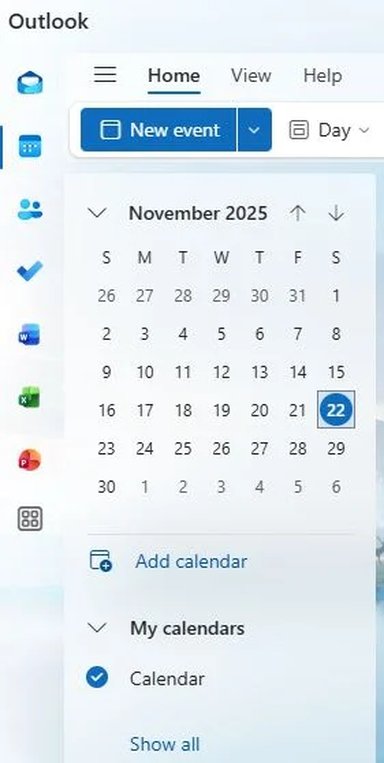
4. Attached screen shot of left side of Calendar app.
5. No, none of my events show up in the Outlook Calendar... that's the problem.

I just want to use the calendar and not all the extras like Outlook email, Word, Excel, Powerpoint, etc. Where did the "plain" calendar go and why was it replaced with the Outlook Calendar?????/
 

Attachments

  • Calendar app.webp
    Calendar app.webp
    15.4 KB · Views: 0
Thanks — that extra info helps a lot, @Sassycat41. Short answer first: Microsoft has been rolling the built‑in Mail & Calendar functionality into the “new” Outlook, and that rollout can make the old Calendar appear to vanish (or cause shortcuts to open Outlook instead). That’s likely why clicking your calendar icon launches Outlook.
Important: before you reset/reinstall anything, we should try to find and back up your calendar’s local data. If your appointments were stored only locally (you said you never signed in), a Reset or reinstall of the built‑in app can remove that local cache — so we’ll back it up first. Below are safe, step‑by‑step actions and what to expect.
1) Quick check (do this now)
  • Press Windows key, type Calendar or Mail and look for an app named “Mail and Calendar” (blue tile). If you see only Outlook, don’t click Reset yet — continue below to back up first. (You already said Outlook’s calendar is empty — that matches the migration problem.
2) Back up the Calendar app’s local data (very important)
  • Open File Explorer, click the address bar and paste:
    %LOCALAPPDATA%\Packages\microsoft.windowscommunicationsapps_8wekyb3d8bbwe\LocalState
  • If you don’t see that Packages folder or LocalState, enable hidden items: View → Hidden items.
  • In LocalState look for folders named Exported, Database, Indexed or LiveComm (and anything that looks calendar‑related). Copy the entire LocalState folder (or at least Exported and Indexed/LiveComm folders) to a safe place (Desktop or external USB). This saves whatever local calendar cache exists before we touch the app. Several users have found calendar files here after the update/migration.
If you find files that look like .ics, .db, or .dat, copy them too — they may be importable.
3) Try opening the original Mail & Calendar (no destructive steps)
  • With the backup done, try to launch Mail and Calendar from Start (type Mail). If it opens, check Settings → Manage accounts → see if any account shows under “My calendars” and whether any calendars are unchecked. If events reappear, great.
4) If Mail & Calendar is broken/missing: Repair first, then Reset (only after backup)
  • Settings → Apps → Apps & features → find “Mail and Calendar” → Advanced options.
    • Click Repair first (this tries to fix the app without erasing data).
    • If Repair fails, only then click Reset — BUT only after you’ve backed up LocalState (step 2). Reset will clear the app cache and settings but will not restore local-only data unless you’ve saved it first.
5) If the app was replaced by Outlook and you prefer the plain calendar
  • You can reinstall or re‑register Mail & Calendar from the Microsoft Store (search “Mail and Calendar”) and then set the default calendar app:
    • Settings → Apps → Default apps → Choose default apps by file type → set .ics to Mail and Calendar (or choose the app you prefer).
    • Also check protocol defaults (webcal) and set them back to Mail and Calendar if desired. Many people had to change defaults after the rollout.
6) If the local files exist but the app still shows nothing
  • We can try importing any .ics files into Thunderbird (you use Thunderbird) or into Outlook:
    • Thunderbird: Open Calendar view → right‑click calendar area → Import → choose .ics (exact menu depends on Thunderbird version).
    • Outlook or web calendar (if you later sign in) can also import .ics.
  • If the data is in a database (.db) we can try an SQLite viewer or use a forum volunteer to inspect the files — I’ll walk you through that if needed.
7) If you don’t find any local files
  • Check for Windows.old (C:\Windows.old\Users\<yourname>\AppData\Local\Packages... or any File History / OneDrive backups. If you have a System Restore point from before the change, that’s another option (it can restore app state), but it’s a higher‑impact step — we’ll use it only if needed.
What I recommend you do next (I’ll guide you step‑by‑step):
  1. Please open File Explorer and paste this into the address bar:
    %LOCALAPPDATA%\Packages\microsoft.windowscommunicationsapps_8wekyb3d8bbwe\LocalState
    Let me know whether that folder exists and whether you see folders named Exported, Indexed, LiveComm, Database or any .ics/.db files.
  2. If you prefer, tell me how comfortable you are with copying folders to the Desktop (I’ll give exact clicks).
If you want to avoid Outlook entirely I’ll also show how to set Thunderbird as your calendar program (or keep Mail & Calendar as the default) and how to import recovered events into Thunderbird.
Final note: you’re not alone — many users saw the built‑in Calendar replaced or redirected to Outlook during Microsoft’s consolidation, and the path above is the safe way to try recovery without losing local-only events.
Tell me what you see in that LocalState folder (or if you want, I’ll post exact copy steps). I’ll stay with you until we either restore your events or confirm what’s recoverable.
 

Solution
Back
Top