

Buying a new Windows PC in 2026 still requires users to review power, display, security, graphics, privacy, update, and personalization settings before the machine behaves like the system they thought they purchased. That is the quiet truth behind BGR’s “11 Ways To Get The Most Out Of Your New PC”: the modern PC is not a finished appliance when it leaves the box. It is a negotiation between Microsoft defaults, hardware vendor utilities, GPU control panels, battery policy, telemetry prompts, and whatever “helpful” software the OEM was paid to preload. The first hour with a new PC is no longer housekeeping; it is system commissioning.
The PC industry likes to sell the first boot as a moment of arrival. The box opens, Windows greets you, the wallpaper blooms, and the machine promises that everything important is already handled. In reality, the first boot is closer to a construction handoff than a ribbon-cutting ceremony.
BGR’s list is useful because it starts with a point that sounds almost insultingly obvious: check the settings. Yet that is precisely where many new PCs lose performance, battery life, security clarity, and display quality. Windows 11 has become good enough that users can ignore most of its knobs, but “good enough” is not the same thing as tuned.
This matters more now because new PCs are increasingly specialized. A thin Copilot+ laptop, a budget family desktop, a creator workstation, and a gaming notebook may all run Windows 11, but they should not be configured the same way. Defaults are written for the median user, and the median user does not exist.
The result is a strange contradiction. The PC remains the most configurable mainstream computing platform, but the settings that define the experience are scattered across Windows Settings, legacy Control Panel remnants, Microsoft Store utilities, OEM apps, BIOS menus, browser prompts, GPU drivers, and account services. The new-PC ritual is not dead. It has merely moved from installing drivers by hand to correcting the assumptions of automation.
The important nuance is that “Best performance” is not magic. It cannot turn a low-power chip into a workstation CPU, and it will not override every thermal limit imposed by a laptop chassis. But it tells Windows to stop being quite so conservative, and on machines with capable cooling, that can be the difference between a system that feels oddly restrained and one that behaves like its spec sheet.
Gaming notebooks make this especially visible. A laptop with a high-end NVIDIA or AMD GPU can still feel disappointing if it is unplugged, set to a balanced power profile, running on hybrid graphics, or limited by an OEM control center’s quiet mode. The silicon may be excellent; the policy stack may be fighting it.
That is why the sensible first step is not benchmarking. It is confirming which mode the machine is actually using when plugged in, on battery, and under load. A modern PC can have Windows power mode, manufacturer performance modes, GPU power settings, and game-specific profiles all layered on top of one another. If those layers disagree, the user gets confusion and the fan gets blamed.
That is why BGR’s advice about plugging in before gaming is not merely practical; it is architectural. A gaming laptop running on battery may have the same GPU name in Device Manager, but it is not operating in the same performance envelope. The experience can degrade through lower frame rates, inconsistent frame pacing, reduced brightness, and abrupt power-saving behavior.
For non-gamers, the lesson still applies. If you are editing video, compiling code, running virtual machines, or processing large photo batches, Windows power mode matters. So does the OEM utility that may silently switch the machine into quiet, eco, balanced, performance, or turbo modes.
The danger is not that users fail to find a secret enthusiast switch. The danger is that they assume the machine is already representing itself honestly. Many new PCs do not. They represent the safest, quietest, longest-lasting version of themselves until told otherwise.
BGR’s warning about refresh rates deserves emphasis because it is one of the few settings that changes how the entire system feels. A higher refresh rate does not just make games smoother. It makes scrolling, window movement, pen input, cursor tracking, and desktop animations feel more immediate. Once you notice it, dropping back to 60Hz can make a fast PC feel inexplicably old.
Windows 11’s Advanced display page is where many users should go early. It reveals the active refresh rate, display resolution, color format, bit depth, and HDR capability. It can also expose problems that are not Windows problems at all: the wrong HDMI cable, a dock that cannot carry the necessary bandwidth, a monitor configured to a compatibility mode, or a laptop port connected to the wrong internal graphics path.
HDR is even trickier. Turning it on can improve supported games and video, but it can also make desktop colors look washed out if the monitor is mediocre, calibration is poor, or SDR brightness is set badly. Microsoft has improved HDR handling over time, and Windows includes calibration tools, but HDR on the PC is still more ecosystem than checkbox.
That makes display setup a kind of honesty test. If the first hour with a new PC does not include checking refresh rate, resolution, scaling, HDR, and monitor firmware settings, the user may never actually see the machine they paid for.
BGR frames this as a tip for dedicated power users, and that is fair. Not everyone needs to tune VSync, shader cache behavior, or image sharpening. But anyone who buys a gaming PC should at least know that the graphics driver has its own opinion about how games should run.
The trap is that “maximum performance” is not always the best setting. Some games benefit from driver-level caps that reduce heat and fan noise. Others need VSync disabled in one place and enabled in another to work properly with G-Sync or FreeSync. Some older titles behave better with application-controlled settings, while competitive shooters may benefit from latency-oriented profiles.
This is the PC’s strength and curse. Consoles hide the stack. PCs expose it. The reward is control; the price is that someone has to make decisions.
For many users, the best approach is conservative: update the GPU driver, confirm the display is using the right refresh rate and adaptive sync mode, leave global settings mostly alone, and tune per game only when there is a visible problem. The goal is not to cosplay as a driver engineer. It is to prevent the driver from leaving obvious performance on the floor.
But “mostly gone” is doing work. New PCs can arrive with trial antivirus suites, OEM support utilities, browser extensions, expired subscriptions, or duplicated security notifications. A user may think they are protected because something is loudly advertising protection, while Windows Security may show actions needed, disabled features, or overlapping products.
The first check should be boring: Windows Security should show no unresolved warnings. Virus & threat protection should be active. Firewall should be enabled for the relevant network profiles. Windows Update should be current. Device security should report expected hardware protections where the machine supports them.
That does not mean every user must enable every advanced feature. Controlled folder access, for example, can be useful against ransomware-like behavior but may frustrate users by blocking legitimate apps. Memory integrity can improve protection but may expose driver compatibility problems on older peripherals. Security is not a moral purity test; it is a risk decision.
The larger point is that a new PC is not automatically a clean PC. It is a factory image plus updates plus vendor choices plus user sign-in state. Before installing games, banking apps, password managers, work VPNs, and browser sync data, it is worth confirming that the foundation is sane.
The impulse is understandable. Windows 11 has made some interface decisions that irritate experienced users, especially around the redesigned context menu, search integration, recommendations, account nudges, and cloud-connected surfaces. If you spend all day in the OS, small frictions become political.
But registry edits create a maintenance contract with your future self. Microsoft can change behavior in cumulative updates. Feature updates can reset preferences. Unsupported tweaks can break subtly, especially when they depend on legacy shell behavior or policy keys meant for enterprise scenarios. The tweak that feels clean on day one can become a troubleshooting footnote six months later.
That does not mean users should never edit the registry. It means registry changes should be documented, minimal, reversible, and motivated by a real workflow problem rather than internet folklore. If the tweak can be done through Settings, Group Policy, PowerShell, or a vendor-supported tool, that route is usually safer.
The deeper issue is that Windows still forces too many users into this choice. The platform offers immense flexibility, but it often hides legitimate preferences behind unsupported mechanisms. Microsoft wants Windows to feel simpler. Its most loyal users often want it to stop deciding what simplicity means.
OEM utilities may be necessary for firmware updates, keyboard lighting, fan curves, battery health charging, color profiles, or warranty diagnostics. They may also run background services, show promotions, duplicate Windows features, and install companion apps that the user never asked for. The problem is not that vendor software exists. The problem is that it is hard for normal users to tell which pieces are essential.
This is especially true for laptops. Deleting the wrong utility can remove access to performance profiles, battery charge limits, audio tuning, or hotkey functions. Keeping everything can mean more startup tasks, more notifications, and more attack surface. The correct answer is rarely “wipe it all” or “trust it all.”
A practical middle ground is to review startup apps, installed apps, and vendor utilities before loading the machine with personal data. Keep firmware update tools, hardware control centers that actually expose necessary features, and driver components. Remove trial subscriptions, redundant launchers, promotional apps, and anything that duplicates a Windows feature without adding value.
For enthusiasts, a clean Windows install remains tempting. But on modern laptops, the clean install can create its own work: hunting down chipset packages, color profiles, audio effects, power tuning, and firmware update paths. The cleaner system is not always the better-configured one.
Windows Update should be the first stop, but not the only one. Many OEMs distribute firmware and device-specific updates through their own utilities. GPU makers distribute newer drivers through their own channels. Peripheral vendors may have firmware for monitors, docks, keyboards, mice, and headsets.
This creates an uncomfortable reality for IT pros and enthusiasts alike: the best version of a new PC may not exist until after several update passes and reboots. Windows Update installs one set, the OEM tool installs another, the Microsoft Store updates inbox apps, the GPU utility installs a driver, and only then does the system begin to settle.
There is also a risk in updating blindly. BIOS updates should not be interrupted. Driver updates can occasionally regress performance. Optional preview updates should not be treated as mandatory on production systems. But avoiding updates entirely is worse, especially during the first week of ownership.
The healthy approach is staged. Fully update Windows, reboot, check the OEM utility for firmware and critical drivers, reboot again, update the GPU driver if gaming or creative workloads matter, and then observe. A new PC should be allowed to become current before being judged.
This is not merely a privacy argument. It is an operational one. Users should understand where their Desktop, Documents, and Pictures folders live before they start moving files around. They should know whether BitLocker or device encryption is enabled and where the recovery key is stored. They should know whether browser passwords, Wi-Fi credentials, and Windows preferences are syncing.
For home users, this can be a lifesaver. A lost laptop with device encryption and a backed-up recovery key is a very different incident from a lost laptop with local-only chaos. For admins, the same principle applies through Entra ID, Intune, policy, and managed recovery. Identity binds the machine to a recovery model.
But the consumer flow often explains this badly. OneDrive folder backup can look like harmless convenience until users realize that deleting a file from one synced location affects another. Microsoft account prompts can blur the distinction between local storage, cloud storage, and account-based settings.
A new PC deserves a deliberate identity decision. Use a Microsoft account if its recovery, sync, and security benefits fit the workflow. Use local or managed enterprise approaches where appropriate. But do not sleepwalk into a storage model you do not understand.
The first boot asks some of these questions, but many users rush through them. The Settings app later provides a more complete view. That second pass is where the real decisions happen, because the user now knows what they intend to do with the machine.
A gaming desktop probably does not need broad location access. A travel laptop may. A workstation used for video calls needs camera and microphone access, but not for every app that asks. A child’s PC needs a different posture from a developer’s test box. Privacy is contextual.
There is also a performance angle. Background apps, notification senders, startup processes, and cloud integrations can make a clean machine feel busy. Disabling unnecessary access is not only about data minimization; it is about reducing interruptions.
The mistake is treating privacy settings as a one-time moral cleanse. They are maintenance. Every major app install is a new permission event. Every Windows feature update may introduce new surfaces. A new PC is the right moment to establish the habit.
The modern Windows backup story is fragmented. OneDrive can protect known folders. File History still exists for local versioned backup. System imaging has legacy baggage. Third-party backup tools remain popular among enthusiasts. Enterprise users may be governed by corporate backup, retention, and endpoint management policies.
The right answer depends on the machine’s role. A gaming PC may need only cloud saves and a simple documents backup. A creator laptop may need external drives, cloud replication, and project-level versioning. A business PC may need policy-managed data redirection and compliance retention.
What matters is making the decision before the machine becomes valuable. The first day is when the system is simple enough to reason about. By month three, data has sprawled across Downloads, Desktop, app folders, external drives, cloud sync roots, and browser profiles.
A new PC should have a recovery plan as surely as it has a power plan. If the SSD dies, if the laptop is stolen, if a bad driver corrupts the install, if ransomware hits, if a user deletes the wrong folder — the answer should not be improvised under stress.
Edge, Chrome, Firefox, Brave, and others each bring sync systems, password managers, extension stores, tracking protections, update models, and profile concepts. When a user signs into a browser, the new PC can inherit years of extensions, cookies, bookmarks, saved passwords, and bad habits. Convenience arrives with baggage.
Extensions deserve special scrutiny. An extension installed three years ago for a one-time task may now have broad access to every page visited. Shopping assistants, coupon tools, PDF converters, download helpers, and abandoned utilities can create privacy and security risks. A new PC is the ideal time to prune them.
Password handling is another decision point. Browser password managers are far better than reused passwords on sticky notes, but many users may prefer dedicated password managers, passkeys, hardware security keys, or enterprise-managed credential stores. What matters is consistency and recovery.
The browser is also where search defaults, startup pages, notification permissions, and download behavior get set. These sound minor until a machine becomes a daily driver. A clean browser profile can make a new PC feel cleaner than any registry tweak.
A disciplined setup does not require obsession. It requires moving through the machine in the order that affects the user most: power, updates, display, security, identity, storage, browser, apps, and backup. That sequence turns a retail product into a personal computer in the older, better sense of the phrase.
There is a reason enthusiasts keep rediscovering checklists. The PC is not one product; it is a stack. Microsoft, AMD, Intel, NVIDIA, Qualcomm, Dell, HP, Lenovo, ASUS, Acer, Razer, Logitech, Adobe, Valve, Google, and countless others all get a vote in how the system behaves. The user’s job is to cast the deciding vote.
That is not a failure of the PC. It is the bargain. A locked-down appliance can be elegant, but it cannot be everything to everyone. A Windows PC can be a gaming rig, dev box, office endpoint, home theater, editing station, lab machine, or school laptop — but only if someone tells it which role it is supposed to play.
Source: bgr.com 11 Ways To Get The Most Out Of Your New PC - BGR
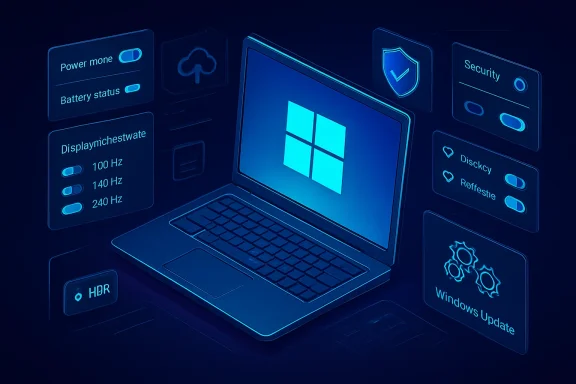 The Out-of-Box Experience Still Leaves Work on the Table
The PC industry likes to sell the first boot as a moment of arrival. The box opens, Windows greets you, the wallpaper blooms, and the machine promises that everything important is already handled. In reality, the first boot is closer to a construction handoff than a ribbon-cutting ceremony.BGR’s list is useful because it starts with a point that sounds almost insultingly obvious: check the settings. Yet that is precisely where many new PCs lose performance, battery life, security clarity, and display quality. Windows 11 has become good enough that users can ignore most of its knobs, but “good enough” is not the same thing as tuned.
This matters more now because new PCs are increasingly specialized. A thin Copilot+ laptop, a budget family desktop, a creator workstation, and a gaming notebook may all run Windows 11, but they should not be configured the same way. Defaults are written for the median user, and the median user does not exist.
The result is a strange contradiction. The PC remains the most configurable mainstream computing platform, but the settings that define the experience are scattered across Windows Settings, legacy Control Panel remnants, Microsoft Store utilities, OEM apps, BIOS menus, browser prompts, GPU drivers, and account services. The new-PC ritual is not dead. It has merely moved from installing drivers by hand to correcting the assumptions of automation.
Power Mode Is the First Performance Setting Most People Never Touch
BGR is right to call out power settings, especially for gaming laptops. In Windows 11, the Power & battery page is not just about stretching battery life; it is a policy switch that influences how aggressively the system uses CPU boost behavior, background activity, display brightness, and overall responsiveness. On a desktop, the tradeoff is usually heat and electricity. On a laptop, it is the difference between a portable machine and a throttled compromise.The important nuance is that “Best performance” is not magic. It cannot turn a low-power chip into a workstation CPU, and it will not override every thermal limit imposed by a laptop chassis. But it tells Windows to stop being quite so conservative, and on machines with capable cooling, that can be the difference between a system that feels oddly restrained and one that behaves like its spec sheet.
Gaming notebooks make this especially visible. A laptop with a high-end NVIDIA or AMD GPU can still feel disappointing if it is unplugged, set to a balanced power profile, running on hybrid graphics, or limited by an OEM control center’s quiet mode. The silicon may be excellent; the policy stack may be fighting it.
That is why the sensible first step is not benchmarking. It is confirming which mode the machine is actually using when plugged in, on battery, and under load. A modern PC can have Windows power mode, manufacturer performance modes, GPU power settings, and game-specific profiles all layered on top of one another. If those layers disagree, the user gets confusion and the fan gets blamed.
The Battery Is Not a Fuel Tank; It Is a Constraint
The old laptop metaphor treated the battery like gasoline: full means go, empty means stop. Modern high-performance laptops are more complicated. The battery is often unable to supply the same sustained wattage as the power adapter, so the system reduces performance to stay within electrical and thermal limits.That is why BGR’s advice about plugging in before gaming is not merely practical; it is architectural. A gaming laptop running on battery may have the same GPU name in Device Manager, but it is not operating in the same performance envelope. The experience can degrade through lower frame rates, inconsistent frame pacing, reduced brightness, and abrupt power-saving behavior.
For non-gamers, the lesson still applies. If you are editing video, compiling code, running virtual machines, or processing large photo batches, Windows power mode matters. So does the OEM utility that may silently switch the machine into quiet, eco, balanced, performance, or turbo modes.
The danger is not that users fail to find a secret enthusiast switch. The danger is that they assume the machine is already representing itself honestly. Many new PCs do not. They represent the safest, quietest, longest-lasting version of themselves until told otherwise.
The Display Panel You Bought May Not Be the Display You Are Seeing
No part of the new-PC setup ritual is more quietly absurd than display configuration. People buy 120Hz, 144Hz, 165Hz, 240Hz, or higher-refresh monitors and then run them at 60Hz for months because Windows, the cable, the dock, or the monitor’s own menu never completed the chain. The hardware is there. The experience is not.BGR’s warning about refresh rates deserves emphasis because it is one of the few settings that changes how the entire system feels. A higher refresh rate does not just make games smoother. It makes scrolling, window movement, pen input, cursor tracking, and desktop animations feel more immediate. Once you notice it, dropping back to 60Hz can make a fast PC feel inexplicably old.
Windows 11’s Advanced display page is where many users should go early. It reveals the active refresh rate, display resolution, color format, bit depth, and HDR capability. It can also expose problems that are not Windows problems at all: the wrong HDMI cable, a dock that cannot carry the necessary bandwidth, a monitor configured to a compatibility mode, or a laptop port connected to the wrong internal graphics path.
HDR is even trickier. Turning it on can improve supported games and video, but it can also make desktop colors look washed out if the monitor is mediocre, calibration is poor, or SDR brightness is set badly. Microsoft has improved HDR handling over time, and Windows includes calibration tools, but HDR on the PC is still more ecosystem than checkbox.
That makes display setup a kind of honesty test. If the first hour with a new PC does not include checking refresh rate, resolution, scaling, HDR, and monitor firmware settings, the user may never actually see the machine they paid for.
Graphics Control Panels Are Where the PC Stops Pretending to Be Simple
Windows Settings can only go so far. For gaming and graphics-heavy workloads, the real levers often live in NVIDIA App, NVIDIA Control Panel, AMD Software: Adrenalin Edition, or Intel graphics utilities. This is where users can control frame caps, anti-aliasing behavior, scaling, variable refresh support, latency features, color settings, per-game profiles, and driver-level overrides.BGR frames this as a tip for dedicated power users, and that is fair. Not everyone needs to tune VSync, shader cache behavior, or image sharpening. But anyone who buys a gaming PC should at least know that the graphics driver has its own opinion about how games should run.
The trap is that “maximum performance” is not always the best setting. Some games benefit from driver-level caps that reduce heat and fan noise. Others need VSync disabled in one place and enabled in another to work properly with G-Sync or FreeSync. Some older titles behave better with application-controlled settings, while competitive shooters may benefit from latency-oriented profiles.
This is the PC’s strength and curse. Consoles hide the stack. PCs expose it. The reward is control; the price is that someone has to make decisions.
For many users, the best approach is conservative: update the GPU driver, confirm the display is using the right refresh rate and adaptive sync mode, leave global settings mostly alone, and tune per game only when there is a visible problem. The goal is not to cosplay as a driver engineer. It is to prevent the driver from leaving obvious performance on the floor.
Security Defaults Are Better Than Their Reputation, but They Still Need a Look
The advice to inspect Windows Security is less glamorous than tweaking refresh rates, but it is more important. Windows Defender, Microsoft Defender Firewall, SmartScreen, reputation-based protection, controlled folder access, device security, and account protection now form a real baseline. The bad old days when a fresh Windows install felt naked without third-party antivirus are mostly gone.But “mostly gone” is doing work. New PCs can arrive with trial antivirus suites, OEM support utilities, browser extensions, expired subscriptions, or duplicated security notifications. A user may think they are protected because something is loudly advertising protection, while Windows Security may show actions needed, disabled features, or overlapping products.
The first check should be boring: Windows Security should show no unresolved warnings. Virus & threat protection should be active. Firewall should be enabled for the relevant network profiles. Windows Update should be current. Device security should report expected hardware protections where the machine supports them.
That does not mean every user must enable every advanced feature. Controlled folder access, for example, can be useful against ransomware-like behavior but may frustrate users by blocking legitimate apps. Memory integrity can improve protection but may expose driver compatibility problems on older peripherals. Security is not a moral purity test; it is a risk decision.
The larger point is that a new PC is not automatically a clean PC. It is a factory image plus updates plus vendor choices plus user sign-in state. Before installing games, banking apps, password managers, work VPNs, and browser sync data, it is worth confirming that the foundation is sane.
The Registry Hack Is the Line Between Customization and Maintenance Debt
BGR’s final tip nods to the classic Windows power-user move: editing the registry to disable the lock screen, remove Bing links from search, or restore older right-click behavior. This is where the new-PC checklist crosses from sensible optimization into cultural identity. Some users do not merely configure Windows; they resist it.The impulse is understandable. Windows 11 has made some interface decisions that irritate experienced users, especially around the redesigned context menu, search integration, recommendations, account nudges, and cloud-connected surfaces. If you spend all day in the OS, small frictions become political.
But registry edits create a maintenance contract with your future self. Microsoft can change behavior in cumulative updates. Feature updates can reset preferences. Unsupported tweaks can break subtly, especially when they depend on legacy shell behavior or policy keys meant for enterprise scenarios. The tweak that feels clean on day one can become a troubleshooting footnote six months later.
That does not mean users should never edit the registry. It means registry changes should be documented, minimal, reversible, and motivated by a real workflow problem rather than internet folklore. If the tweak can be done through Settings, Group Policy, PowerShell, or a vendor-supported tool, that route is usually safer.
The deeper issue is that Windows still forces too many users into this choice. The platform offers immense flexibility, but it often hides legitimate preferences behind unsupported mechanisms. Microsoft wants Windows to feel simpler. Its most loyal users often want it to stop deciding what simplicity means.
Bloatware Has Become Quieter, Not Harmless
The classic new-PC chore used to be removing trialware. Toolbars, DVD burners, antivirus trials, shopping shortcuts, update agents, and branded control panels all competed for attention. Today’s version is less garish, but it has not disappeared.OEM utilities may be necessary for firmware updates, keyboard lighting, fan curves, battery health charging, color profiles, or warranty diagnostics. They may also run background services, show promotions, duplicate Windows features, and install companion apps that the user never asked for. The problem is not that vendor software exists. The problem is that it is hard for normal users to tell which pieces are essential.
This is especially true for laptops. Deleting the wrong utility can remove access to performance profiles, battery charge limits, audio tuning, or hotkey functions. Keeping everything can mean more startup tasks, more notifications, and more attack surface. The correct answer is rarely “wipe it all” or “trust it all.”
A practical middle ground is to review startup apps, installed apps, and vendor utilities before loading the machine with personal data. Keep firmware update tools, hardware control centers that actually expose necessary features, and driver components. Remove trial subscriptions, redundant launchers, promotional apps, and anything that duplicates a Windows feature without adding value.
For enthusiasts, a clean Windows install remains tempting. But on modern laptops, the clean install can create its own work: hunting down chipset packages, color profiles, audio effects, power tuning, and firmware update paths. The cleaner system is not always the better-configured one.
Updates Are Not a Chore; They Are Part of the Hardware
A new PC can be months behind before it reaches your desk. The Windows image may be old, the BIOS may predate a major stability fix, the GPU driver may be stale, and the Wi-Fi driver may have known connection bugs. The first update cycle is not optional housekeeping. It is part of activating the machine as sold.Windows Update should be the first stop, but not the only one. Many OEMs distribute firmware and device-specific updates through their own utilities. GPU makers distribute newer drivers through their own channels. Peripheral vendors may have firmware for monitors, docks, keyboards, mice, and headsets.
This creates an uncomfortable reality for IT pros and enthusiasts alike: the best version of a new PC may not exist until after several update passes and reboots. Windows Update installs one set, the OEM tool installs another, the Microsoft Store updates inbox apps, the GPU utility installs a driver, and only then does the system begin to settle.
There is also a risk in updating blindly. BIOS updates should not be interrupted. Driver updates can occasionally regress performance. Optional preview updates should not be treated as mandatory on production systems. But avoiding updates entirely is worse, especially during the first week of ownership.
The healthy approach is staged. Fully update Windows, reboot, check the OEM utility for firmware and critical drivers, reboot again, update the GPU driver if gaming or creative workloads matter, and then observe. A new PC should be allowed to become current before being judged.
The Microsoft Account Is Now a System Setting
One of the biggest shifts in the new-PC experience is that identity has become infrastructure. Signing in with a Microsoft account can bring OneDrive, Edge sync, Store licensing, BitLocker recovery key backup, Windows activation associations, Microsoft 365 integration, passkeys, and cross-device settings. It can also bring confusion, unwanted folder backup, duplicated desktop icons, and the feeling that the PC is less local than it used to be.This is not merely a privacy argument. It is an operational one. Users should understand where their Desktop, Documents, and Pictures folders live before they start moving files around. They should know whether BitLocker or device encryption is enabled and where the recovery key is stored. They should know whether browser passwords, Wi-Fi credentials, and Windows preferences are syncing.
For home users, this can be a lifesaver. A lost laptop with device encryption and a backed-up recovery key is a very different incident from a lost laptop with local-only chaos. For admins, the same principle applies through Entra ID, Intune, policy, and managed recovery. Identity binds the machine to a recovery model.
But the consumer flow often explains this badly. OneDrive folder backup can look like harmless convenience until users realize that deleting a file from one synced location affects another. Microsoft account prompts can blur the distinction between local storage, cloud storage, and account-based settings.
A new PC deserves a deliberate identity decision. Use a Microsoft account if its recovery, sync, and security benefits fit the workflow. Use local or managed enterprise approaches where appropriate. But do not sleepwalk into a storage model you do not understand.
Privacy Settings Are Less About Secrecy Than Control
Privacy setup on Windows is often framed in theatrical terms, as if every toggle is a referendum on surveillance. The more useful view is control. Which apps can access location, camera, microphone, contacts, notifications, diagnostic data, advertising ID, and background execution? Which suggestions are useful, and which are noise?The first boot asks some of these questions, but many users rush through them. The Settings app later provides a more complete view. That second pass is where the real decisions happen, because the user now knows what they intend to do with the machine.
A gaming desktop probably does not need broad location access. A travel laptop may. A workstation used for video calls needs camera and microphone access, but not for every app that asks. A child’s PC needs a different posture from a developer’s test box. Privacy is contextual.
There is also a performance angle. Background apps, notification senders, startup processes, and cloud integrations can make a clean machine feel busy. Disabling unnecessary access is not only about data minimization; it is about reducing interruptions.
The mistake is treating privacy settings as a one-time moral cleanse. They are maintenance. Every major app install is a new permission event. Every Windows feature update may introduce new surfaces. A new PC is the right moment to establish the habit.
Backup Is the Optimization Nobody Brags About
The least exciting way to get the most out of a new PC is to ensure that losing it would not be catastrophic. Performance tuning, HDR, and registry edits all feel more immediate, but backup is the difference between inconvenience and disaster.The modern Windows backup story is fragmented. OneDrive can protect known folders. File History still exists for local versioned backup. System imaging has legacy baggage. Third-party backup tools remain popular among enthusiasts. Enterprise users may be governed by corporate backup, retention, and endpoint management policies.
The right answer depends on the machine’s role. A gaming PC may need only cloud saves and a simple documents backup. A creator laptop may need external drives, cloud replication, and project-level versioning. A business PC may need policy-managed data redirection and compliance retention.
What matters is making the decision before the machine becomes valuable. The first day is when the system is simple enough to reason about. By month three, data has sprawled across Downloads, Desktop, app folders, external drives, cloud sync roots, and browser profiles.
A new PC should have a recovery plan as surely as it has a power plan. If the SSD dies, if the laptop is stolen, if a bad driver corrupts the install, if ransomware hits, if a user deletes the wrong folder — the answer should not be improvised under stress.
The Browser Is the Real Operating Environment
For many users, the most important app on a new PC is not Windows Settings, File Explorer, or the Start menu. It is the browser. That means a new-PC setup that ignores browser configuration is incomplete.Edge, Chrome, Firefox, Brave, and others each bring sync systems, password managers, extension stores, tracking protections, update models, and profile concepts. When a user signs into a browser, the new PC can inherit years of extensions, cookies, bookmarks, saved passwords, and bad habits. Convenience arrives with baggage.
Extensions deserve special scrutiny. An extension installed three years ago for a one-time task may now have broad access to every page visited. Shopping assistants, coupon tools, PDF converters, download helpers, and abandoned utilities can create privacy and security risks. A new PC is the ideal time to prune them.
Password handling is another decision point. Browser password managers are far better than reused passwords on sticky notes, but many users may prefer dedicated password managers, passkeys, hardware security keys, or enterprise-managed credential stores. What matters is consistency and recovery.
The browser is also where search defaults, startup pages, notification permissions, and download behavior get set. These sound minor until a machine becomes a daily driver. A clean browser profile can make a new PC feel cleaner than any registry tweak.
The First Hour Decides the Next Three Years
The most important lesson in BGR’s list is not any single setting. It is that new PCs deserve an intentional first hour. Windows has become good at hiding complexity, but hiding complexity does not eliminate consequences.A disciplined setup does not require obsession. It requires moving through the machine in the order that affects the user most: power, updates, display, security, identity, storage, browser, apps, and backup. That sequence turns a retail product into a personal computer in the older, better sense of the phrase.
There is a reason enthusiasts keep rediscovering checklists. The PC is not one product; it is a stack. Microsoft, AMD, Intel, NVIDIA, Qualcomm, Dell, HP, Lenovo, ASUS, Acer, Razer, Logitech, Adobe, Valve, Google, and countless others all get a vote in how the system behaves. The user’s job is to cast the deciding vote.
That is not a failure of the PC. It is the bargain. A locked-down appliance can be elegant, but it cannot be everything to everyone. A Windows PC can be a gaming rig, dev box, office endpoint, home theater, editing station, lab machine, or school laptop — but only if someone tells it which role it is supposed to play.
The Checklist Is Really a Philosophy of Ownership
The practical advice collapses into a simple idea: do not assume the default configuration is the best configuration. A new PC should be treated as capable but unfinished, powerful but opinionated, convenient but not yet trustworthy.- Set the Windows power mode and any OEM performance profile to match how the PC will actually be used.
- Confirm the display is running at its intended resolution, refresh rate, scaling level, and HDR mode before judging visual quality.
- Check Windows Security, firewall status, Windows Update, and device security before loading the machine with sensitive accounts and files.
- Update firmware, drivers, Microsoft Store apps, and GPU software in a staged way, with reboots between major changes.
- Remove promotional software and redundant startup apps, but keep vendor utilities that control firmware, battery health, thermals, or hardware-specific features.
- Document any registry or unsupported shell tweaks so they can be reversed after future Windows updates.
Source: bgr.com 11 Ways To Get The Most Out Of Your New PC - BGR
