

Windows 11's right-click menu has been polished and pared down by Microsoft, but for many power users the result is an extra click and a lot of friction — Nilesoft Shell fixes that problem by intercepting the context menu and replacing it with a lightweight, text-configurable manager that surfaces the commands you actually use, harmonizes iconography, and lets you script menus with plain-text rules.
Windows 11 introduced a compact, icon-first context menu that tucks legacy items behind a "Show more options" step. That design reduces visual clutter for casual users but increases friction for those who rely on Explorer and the desktop as daily command surfaces. Nilesoft Shell is an open-source context-menu extender that aims to restore efficiency without forcing a full UI rollback: it loads a configuration file, renders a custom context menu, and provides commands for adding, removing, and theming items. The project is hosted on GitHub and documented on its official site; the codebase is permissively licensed (MIT). Why this matters: the right-click menu is a frequent interaction point. Restoring useful actions to the first menu, or making a personal command palette out of it, can save dozens of clicks every day for heavy users. Nilesoft Shell's design — portable, fast, and driven by a plain-text configuration — makes it attractive for both single-machine customization and reproducible dotfile-style deployment.
For advanced Windows users, power users, and admins who need reproducible, scriptable context-menu control, Nilesoft Shell offers a best-of-both-worlds approach: modern visual integration with the surgical precision of text-based rules. Test it via the portable mode, back up configs, and proceed iteratively — that combination of caution and the tool’s low overhead will yield a cleaner, faster right-click experience without risking broader system stability.
Conclusion
The right-click menu is a tiny surface with outsized impact on daily workflows. Nilesoft Shell gives you a lightweight, auditable, and highly configurable way to make those clicks matter again: hide the noise, surface the actions you need, and style the menu so it feels intentional. With straightforward installation choices, a small set of documented commands for register/unregister and reload, and a thriving set of community recipes, it's a practical option for anyone who spends meaningful time in File Explorer — provided you follow the usual precautions: backup, test, and apply changes incrementally.
Source: How-To Geek Thanks to this app, I finally got the perfect Windows 11 context menu
 Background / Overview
Windows 11 introduced a compact, icon-first context menu that tucks legacy items behind a "Show more options" step. That design reduces visual clutter for casual users but increases friction for those who rely on Explorer and the desktop as daily command surfaces. Nilesoft Shell is an open-source context-menu extender that aims to restore efficiency without forcing a full UI rollback: it loads a configuration file, renders a custom context menu, and provides commands for adding, removing, and theming items. The project is hosted on GitHub and documented on its official site; the codebase is permissively licensed (MIT). Why this matters: the right-click menu is a frequent interaction point. Restoring useful actions to the first menu, or making a personal command palette out of it, can save dozens of clicks every day for heavy users. Nilesoft Shell's design — portable, fast, and driven by a plain-text configuration — makes it attractive for both single-machine customization and reproducible dotfile-style deployment. What Nilesoft Shell is — and what it isn't
- What it is
- A context-menu manager and extender for Windows Explorer and the desktop that intercepts the right-click event and renders a customizable menu.
- A text-driven system: menus and rules live in
shell.nssand related.nssimport files, editable in any text editor. - Open source and lightweight, with support for icons, glyphs, nested menus, conditional items, scripting expressions, and multiple install modes (installer, portable).
- What it is not
- It is not a full shell replacement or a theming engine for arbitrary windows.
- It does not change how third-party apps behave at a binary level; rather, it displays and organizes available actions and can hide or replace entries through its rules.
- It is not a "one-click" fix for every possible compatibility issue — conflicts with other low-level shell mods can occur.
Installation options and first steps
Nilesoft Shell supports multiple installation modes so you can test safely before committing to a system-wide change.- Official installer (recommended for most users).
- Portable mode (ideal for testing or using on transient systems).
- Package managers: Winget, Scoop, Chocolatey. Example command:
winget install Nilesoft.Shell.
- To register Shell from the command line (portable or automated installs):
shell -register -restart. This requires administrative privileges. - For a portable install you can extract the files and run the same
shell -register -restartcommand from an elevated prompt to hook into Explorer. - The program typically installs to
C:\Program Files\Nilesoft Shellwhen using the installer, and to the Scoop apps folder when using Scoop.
- Create a System Restore point (best practice before changing shell-level behavior).
- Install the portable version first on a non-critical machine if you can.
- Register Shell (either via GUI Manager or
shell -register), then restart Explorer to apply the changes.
The registration & UI entry points (how you interact with Shell)
Nilesoft Shell integrates into the right-click menu and provides its own submenu at the top. Common UI entry points documented by the project and observed in reviews:- Press and hold Shift, then right-click the Taskbar to reveal the Shell menu. From there you can open the Shell Manager, Directory (config folder), and Manager actions. This is the documented quick route to open configuration files and management options.
- After edits, reload the configuration without a full Explorer restart by using keyboard+mouse combos:
Ctrl+ right-click on desktop or taskbar (orCtrl+Right-Click) forces Shell to reload.nssfiles. The docs also list-restartoptions for the command line.
.nss file, then reload with the shortcut to see changes instantly.How configuration works (shell.nss and imports)
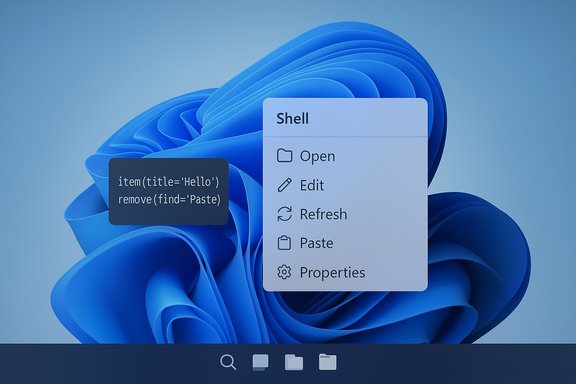
Nilesoft Shell uses plain-text configuration files with a compact expression syntax. The main file isshell.nss, and you can organize reusable pieces in an imports folder, for example Theme.nss and Modify.nss.- Add a simple menu item (example from Quickstart):
item(title='Hello, World!' cmd=msg('Hello @user.name'). Save and reload to see it appear. - Remove an existing menu item: use
remove(find="<text>"). Example:remove(find="Paste")will remove a matching "Paste" entry. This pattern is the canonical way to hide built-in or third-party items without editing the Registry. - Add an application entry: use
item(...withtitle,cmd, andimagefields. Example shown in multiple writeups: - item(title='Google Chrome', cmd='C:\Program Files\Google\Chrome\Application\chrome.exe', image='C:\Program Files\Google\Chrome\Application\chrome.exe') — the
cmdandimageentries take executable or icon paths. After saving and reloading, Chrome appears in the menu.
- Plain-text configuration is version-controllable and portable.
- Small, declarative edits let you remove noisy items or add consistent, tested commands across machines.
Theming, icons, and visual controls
Nilesoft Shell provides dedicated theming controls that let the menu look cohesive even when legacy shell extensions would otherwise introduce mismatched icons.- Theme editing: open
imports/Theme.nssand change entries likename,dark,color,opacity, andeffectto adjust appearance. Example from a user's theme: - theme { name="dark" dark=true font.name="Ink Free" view=view.compact background { color=#453937 opacity=70 effect=1 } image.align=2 }
- Visual effects:
effect=1— transparenteffect=2— blureffect=3— acrylicopacity— 0–100 scale for transparency.- Icon support: glyph fonts, embedded SVG, and image files (.ico/.png) are supported, allowing you to replace colorful legacy icons with monochrome glyphs for consistency. This reduces visual noise and produces a modern, tidy menu.
Practical examples and common recipes
- Create a Terminal submenu that launches PowerShell, CMD, or Windows Terminal in the current folder (a common productivity win).
- Add a Go To submenu with quick links for AppData, Downloads, Program Files, etc., so important folders are one click away.
- Replace "Edit with ..." entries with a single "Image Tools" submenu that triggers scripts or PowerToys utilities.
- Hide rarely used legacy entries (e.g., some installer-provided entries) with
remove(find="...")lines rather than editing the Registry.
Troubleshooting and common pitfalls
- Administrative privileges are required for registration; run the Manager or
shell.exeas Administrator when registering the extension. - Conflicts with other shell-level mods: tools that patch Explorer or reintroduce legacy UI (StartAllBack, ExplorerPatcher, etc. may conflict. If Shell behaves oddly, uninstall or temporarily disable other shell mods, unregister and re-register Shell, and test again. Community reports highlight this as the most common source of problems.
- Installer/package manager snags: while Winget and Scoop installs are supported, some users report failures or errors during package-manager installations — these are environment-specific and not universal. The official docs include the exact package commands and portable options for safer testing. If winget reports an exit code (for example, an
1603), try the portable install or the official installer and runshell -register -restartmanually. Mark such errors as user-reported rather than universal. - Backup first: always back up
shell.nssand anyimportsfiles before sweeping edits. Create a System Restore point if you're changing system-level behavior. - When changes don't appear: use
Ctrl+ right-click on the desktop or Taskbar to force a reload, or restart Explorer. These reload keys are documented and save a reboot.
Security and trust considerations
- Download only from the official Nilesoft site or the project's GitHub releases. Unofficial downloads can be bundled with unwanted software; the maintainers and reviewers emphasize using the project’s official channels.
- Open-source advantage: the source code is public (MIT license), which improves transparency and auditability. However, open source does not guarantee safety — always verify checksums or use GitHub releases to reduce risk.
- Administrative actions: registering a shell extension changes Explorer-level behavior and requires admin rights. Treat it like any system-level change and validate in a test environment if possible.
How Nilesoft Shell compares to alternatives
- Registry classic-menu trick: adding the CLSID per-user to restore the classic context menu is a blunt but effective approach. It reverts behavior globally for the user; Nilesoft Shell offers fine-grained control to choose which items appear and how they look without registry tinkering. The registry trick is simple but lacks scripting, theming, and per-location control.
- ExplorerPatcher / StartAllBack / Winaero Tweaker: these restore many legacy UI features and sometimes include context-menu behavior. They operate at a different layer and can conflict with Shell. For users who only want to clean and script context menus, Shell is a lighter, more focused tool.
- ShellExView / Easy Context Menu / registry editors: lower-level tools that let you disable shell extensions or add simple entries. They give granular control but lack Shell's integrated presentation, conditional rules, and theming. Use them when you need to disable a specific shell handler rather than curate an experience.
Advanced tips for power users and admins
- Version-control your
shell.nssandimportsfiles. Because configuration is plain text, you can store it in a Git repo and push consistent menus across multiple machines. - Use portable mode for testing in VMs or staging machines. Portable installs are reversible without registry artifacts beyond explicit registration commands.
- Leverage conditional expressions to show commands only when relevant (file type, number of selected items, etc.. This keeps menus minimal but powerful. The documentation and community snippets provide templates for common patterns.
- If you deploy to multiple corporate workstations, emulate changes in a test pool and document rollback steps. Consider distributing the registered state via configuration management that can also remove the extension cleanly.
Strengths — why enthusiasts and sysadmins like it
- Powerful control with low overhead: plain-text configs, no heavy background services, and a small runtime cost.
- Open and auditable: MIT license and GitHub presence make it possible to inspect the code and track changes.
- Visual polish: glyphs, icon control, and theming make mixed third-party menus look coherent.
- Practical default improvements: out-of-the-box menus for taskbar and Explorer background already surface useful items for many users. Reviewers report immediate productivity gains.
Risks, limitations, and where to be cautious
- Compatibility with other shell mods: conflicts are the most common practical problem. Test interactions and uninstall competing mods if needed.
- Learning curve: the text-based syntax is powerful but raises the bar for nontechnical users; there's no official drag-and-drop editor (though community tools and snippets ease adoption).
- Windows updates: because it hooks into Explorer’s context menu, a major Windows update could change APIs and require fixes from maintainers. The open-source project and active releases mitigate but do not eliminate this risk.
- Installer / package manager irregularities: a few users have reported package-manager errors during install; these are environment-specific and often resolved by using the official installer or the portable method. Flag such errors as anecdotal and troubleshoot with the documented command-line registration as needed.
Recommended workflow to adopt Nilesoft Shell safely
- Create a System Restore point and back up your current context-menu state.
- Install the portable version and test in a VM or noncritical machine.
- Register Shell as Administrator: run
shell -register -restartor use the Manager UI. - Open the
importsfolder via Shift + right-click Taskbar → Shell → Directory → Imports. - Back up
shell.nssandimports/*.nssbefore edits. - Make a conservative change (e.g., remove one noisy item or add a single custom launcher).
- Reload with
Ctrl+ right-click and validate behavior. - Gradually expand the configuration and version-control your files so you can reproduce or rollback.
Final assessment
Nilesoft Shell is a pragmatic, well-documented, and actively used solution for a specific, common complaint: Windows 11 hides too many useful context-menu actions behind extra clicks. Its design — open-source, plain-text-driven, and visually configurable — gives both immediate wins (surface useful items on the main right-click) and long-term benefits (portable, scriptable configurations). The main downsides are predictable: interactions with other shell-level mods, a learning curve for nontechnical users, and the small but real risk that future Explorer changes could require updates.For advanced Windows users, power users, and admins who need reproducible, scriptable context-menu control, Nilesoft Shell offers a best-of-both-worlds approach: modern visual integration with the surgical precision of text-based rules. Test it via the portable mode, back up configs, and proceed iteratively — that combination of caution and the tool’s low overhead will yield a cleaner, faster right-click experience without risking broader system stability.
Conclusion
The right-click menu is a tiny surface with outsized impact on daily workflows. Nilesoft Shell gives you a lightweight, auditable, and highly configurable way to make those clicks matter again: hide the noise, surface the actions you need, and style the menu so it feels intentional. With straightforward installation choices, a small set of documented commands for register/unregister and reload, and a thriving set of community recipes, it's a practical option for anyone who spends meaningful time in File Explorer — provided you follow the usual precautions: backup, test, and apply changes incrementally.
Source: How-To Geek Thanks to this app, I finally got the perfect Windows 11 context menu
