

Most Windows users never think about the network tools that quietly help them keep devices honest, troubleshoot odd behavior, and lock down privacy; yet three open‑source applications—Nmap, Wireshark, and Safing Portmaster—together form a practical, powerful toolkit for anyone who wants to understand what their PC is doing on the network and take control of it. The recommendation to pair these tools came from a recent roundup that highlights how they complement each other: Nmap for discovery, Wireshark for deep inspection, and Portmaster for per‑app control and privacy enforcement. rking on Windows is deceptively opaque. Modern apps, background services, and bundled telemetry all generate network activity that most users never see. Built‑in Windows tools (Task Manager, Resource Monitor, Windows Defender Firewall) provide some visibility, but they lack the combination of discovery, packet‑level inspection, and fine‑grained local policy control that power users and homelab operators need.
Understanding your PC’s network activity is no longer optional if you value privacy and reliability. Nmap, Wireshark, and Portmaster give you a pragmatic, well‑rounded toolkit to discover, investigate, and control traffic on Windows. Start small, document your steps, and scale gradually: these tools reward careful use and will save you time and uncertainty the next time a device misbehaves or a service goes quiet.
Source: How-To Geek 3 open-source Windows networking apps I can't live without
- Discovery answers the question “What’s on my network?” — which devices, which ports, and which services are exposed.
- Deep inspection answers “What is that traffic actually doing?” — DNS timing, TLS handshakes, HTTP request/response timing, and misbehaving protocols.
- Per‑app control and blocking answers “Which apps should be allowed out?” and “How do I block trackers and dangerous hosts system‑wide?”
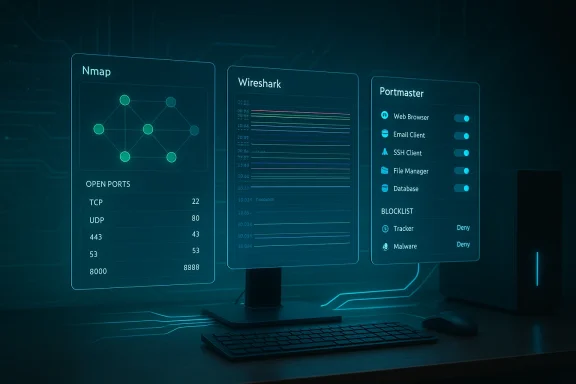 Overview of the three tools
Nmap — the network discovery swiss army knife
Nmap (Network Mapper) is a mature, command‑line oriented scanner that identifies hosts, open ports, running services (with version detection), and often the operating system. It’s the go‑to tool for network inventory, quick troubleshooting, and as a reconnaissance step for security testing. Nmap’s scripting engine (NSE) adds automation and advanced checks that convert simple scans into rich, contextual probes.Wireshark — packet‑level forensic analysis
Wireshark is a packet capture and analysis tool that shows everything happening on the wire (or virtual interface) in precise detail. Where Nmap gives a high‑level map, Wireshark lets you inspect the TCP handshake timing, DNS latency, retransmissions, malformed packets, and protocol fields. It’s the tool you use when “the website is slow but I can’t tell why” — you capture a session, filter to the relevant traffic, and follow the conversation.Portmaster — modern, privacy‑forward per‑app network control
Safing’s Portmaster is an open‑source application firewall and privacy hub for Windows that simplifies per‑application network policies, automatic tracker/malware blocking using curated lists, and optional integration with the Safing Privacy Network (SPN) for routing or privacy features. It fills a usability gap left by the stock Windows firewall by exposing connection history, per‑app allow/block toggles, and a single pane to inspect an app’s remote endpoints. Portmaster also offers paid tiers (Plus and Pro) for bandwidth history and SPN features.Why these three together are more than the sum of their parts
Each tool brings distinct visibility and control:- Nmap quickly answers what exists and what is exposed.
- Wireshark lets you validate why something behaves a certain way.
- Portmaster enforces policy so that discoveries and forensic findings can be acted on immediately.
- Use Nmap to scan the local subnet and find unexpected devices or open services.
- If you see suspicious or slow services, capture traffic with Wireshark to inspect DNS, TLS negotiation, or application protocol exchanges.
- Use Portmaster to restrict or block offending applications or to block outbound connections to known tracker/malware domains.
Deep dive: Nmap — what it does, how to use it on Windows, and best practices
What Nmap reliably gives you
- Host discovery (who is alive on a network)
- Port scanning (open, closed, filtered ports)
- Service and version detection (-sV)
- OS fingerprinting (-O)
- Scripting via NSE for custom checks and vulnerability probing
These capabilities make Nmap ideal for network inventory, verifying firewall rules, and quickly identifying misconfigured services. The official Nmap documentation and manpages describe these features and their common use cases in detail.
Quick Windows getting‑started (practical steps)
- Download and install the official Nmap package for Windows (installer includes Ncat and Zenmap on many builds). Use the official distribution for safety and signed binaries.
- From an elevated command prompt, run a simple discovery scan of your subnet:
- nmap -sn 192.168.1.0/24
- Probe a host for common open ports and service versions:
- nmap -sV -p 22,80,443 192.168.1.10
- Use NSE scripts for extra checks:
- nmap --script vuln 192.168.1.10
These steps give a rapid inventory and actionable starting points for investigation. Many community guides and cheat sheets demonstrate the most useful flags and scan patterns.
Legal and ethical considerations — the non‑technical but critical caveat
Port scanning and probing can be treated differently depending on jurisdiction and context. Scanning systems you don’t own or don’t have permission to probe may trigger abuse complaints or legal concerns; the Nmap project itself provides guidance on legal issues and the broader security community emphasizes consent and documentation. Keep scans restricted to your own networks or systems where you have explicit permission, and when in doubt, obtain written authorization.Strengths and limits
- Strengths: Fast, scriptable, highly informative, cross‑platform.
- Limits: Can be noisy (IDS/IPS will notice), and OS/service detection is probabilistic (can be inaccurate if the target is heavily filtered or uses evasive network stacks).
Deep dive: Wireshark — capture, filter, and interpret
Why Wireshark matters
Nmap tells you what endpoints and services exist; Wireshark shows you the live conversation, down to sequence numbers and TCP retransmissions. For latency mysteries, TLS handshake failures, or identifying which DNS server is slow, Wireshark is often the only tool that reveals the true timeline and packet payload metadata. The official Wireshark User’s Guide is the definitive resource for capture options, filters, and protocol decodings.Practical capture workflow on Windows
- Install Wireshark and its recommended packet driver (Npcap) from the official package; ensure you use signed installers and keep them updated.
- Choose the correct network interface (wired vs wireless) — capturing on Wi‑Fi may require the adapter and driver to support monitor mode.
- Start a capture, reproduce the problem (load the website, start the slow transfer), then stop the capture.
- Use display filters to focus on relevant traffic:
- dns for DNS packets
- http or http2 for web traffic
- tcp.stream == 3 to follow a specific TCP conversation
- Use “Follow TCP stream” to see the request/response sequence and timing.
Short, focused captures are easier to analyze and reduce privacy exposure since you’re not logging unrelated traffic.
Tips to avoid common pitfalls
- Capture only what you need; long captures are harder to parse and may include sensitive data.
- Use time‑relative filters and the packet list’s latency columns to spot where time is spent (DNS, SYN/ACK delays, retransmits).
- If HTTPS traffic is encrypted, combine Wireshark timing with local browser devtools to correlate TLS negotiation and HTTP timing.
Deep dive: Portmaster — per‑app policies, tracker blocking, and paid tiers
What Portmaster brings to Windows
Portmaster fills a usability gap: it exposes which app made a connection, where it contacted, and for how long — then lets you block or allow on a per‑app or per‑destination basis. It ships with curated blocklists (EasyList/EasyPrivacy/malware lists) to automatically block many trackers and known bad domains system‑wide. The application is open source and maintained on GitHub, and its official pricing and feature breakdown shows free, Plus, and Pro tiers with SPN (Safing Privacy Network) integration.Practical uses and setup
- Install Portmaster and review the Connections view to see active sockets and remote endpoints.
- When you install a new app you don’t trust: block network access initially, then selectively allow it once you’ve observed legitimate behavior.
- Enable the built‑in filter lists to get immediate ad/tracker/malware blocking across the device without configuring DNS or running a Pi‑Hole.
- Consider Portmaster Plus (bandwidth history and per‑app usage reporting) if you need historical telemetry; Portmaster Pro adds SPN routing features for privacy‑networking. Pricing and exact feature sets can change, so verify on Safing’s official pricing page before purchasing.
Strengths and caveats
- Strengths: Clear UI for per‑app rules, system‑wide blocklists, quick enforcement after discovery.
- Caveats: As with any local firewall VPN/proxy integrations, Portmaster touches network stack components — that increases the attack surface and potential for conflicts with other VPNs or security software. Paid features are convenient but not necessary for basic privacy gains. Always backup your rules and note interaction effects with corporate VPNs or split‑tunnel setups.
Advanced workflows and real‑world examples
Example 1 — Find the forgotten device
- Run nmap -sn 192.168.1.0/24 to enumerate hosts.
- Note an unexpected IP and run nmap -sV -O <host> to learn what it is.
- If the service is surprising, capture traffic to that IP while you connect to it in a controlled way and inspect with Wireshark.
- Use Portmaster to block the service or isolate it to a guest VLAN.
Example 2 — Troubleshooting a slow website load
- Reproduce slow site load while capturing traffic in Wireshark.
- Filter to DNS to check resolution timing (dns). If DNS lookups take seconds, test alternate resolvers.
- If DNS looks fine, filter to tcp.port == 443 and follow the TLS handshake. Are there retransmissions or long SYN/SYN‑ACK timings?
- Use Portmaster to temporarily block third‑party trackers discovered in the capture and observe whether page load improves.
Beyond the three: when to reach for ntopng and other monitoring tools
If you need continuous, web‑based traffic monitoring with historical flow data, device classification, and NetFlow/IPFIX integration, ntopng is a compelling next step. It’s a web UI for traffic visibility suited to routers, pfSense appliances, or small‑scale monitoring servers. Use ntopng when you want persistent visibility across time, not just ad‑hoc scans or captures. Consider ntopng when you need long‑term trends, per‑device bandwidth usage, or integration with network flow exporters.Security, privacy, and operational risks
No powerful tool is risk‑free. Here are the principal risks and how to mitigate them:- Unauthorized scanning: Scanning networks you don’t control can trigger complaints, blocks, or legal issues. Keep scans confined to your IP ranges or get explicit permission.
- Packet capture privacy: Wireshark captures may contain passwords or personal data. Store captures securely and redact or delete them when finished.
- Conflicting network hooks: Portmaster and other local firewalls insert hooks into Windows networking; they can conflict with corporate VPN clients, EDR, or other security software. Test changes on non‑critical systems first.
- False positives and fingerprinting limits: Nmap’s OS/service detection and Wireshark’s protocol heuristics are probabilistic. Confirm findings with multiple methods (service banners, device admin pages) before decisive action.
- Paid‑feature lock‑in: Portmaster Plus/Pro add convenience but are subscription services; evaluate whether you need bandwidth history or SPN routing before buying. Pricing and feature sets can change—always verify current terms.
Practical recommendations for safe, repeatable use
- Install from official sources and verify signatures where available.
- Start in read‑only mode: run Nmap discovery and Wireshark captures before you change any policies.
- Document your scans and rule changes: IP ranges, dates, and purposes. This is crucial if your ISP or network owner questions your activity.
- Use short captures and filters to limit sensitive data collection.
- When troubleshooting, use layered evidence: discovery (Nmap) → capture (Wireshark) → enforce (Portmaster).
- If you operate a homelab or small business, consider a dedicated monitoring host for persistent tools (ntopng) and keep forensic data off production workstations.
Critical analysis — strengths, blind spots, and alternatives
Notable strengths
- The trio covers discovery, deep forensic inspection, and immediate remediation — a full lifecycle for network awareness.
- All three projects are open source, enabling transparency, community audits, and local control.
- The tools scale well: a casual user can run simple scans, while advanced users can chain NSE scripts, complex Wireshark filters, or ntopng flow analysis.
Potential weaknesses and risks
- Usability for newcomers: Nmap and Wireshark have steep learning curves; misuse can create false conclusions or accidental scanning of unauthorized networks. Official documentation, tutorials, and small test ranges reduce this risk.
- Portmaster’s system hooks: any tool that inserts itself deeply into networking needs careful vetting on managed or corporate devices. Conflicts with enterprise software are possible; test in controlled environments first.
- Legal exposure: active scanning can be misinterpreted; the community guidance and legal discussions around port scanning are clear: act with permission and care.
Alternatives worth knowing
- For discovery: Masscan (very fast port sweeps) or RustScan (fast, nmap‑integrated workflows).
- For packet capture: TShark (CLI Wireshark) or cloud‑based capture appliances for remote troubleshooting.
- For per‑app control: Traditional firewalls (Windows Defender Firewall with Advanced Security) or commercial endpoint firewalls for enterprise policy management.
- For long‑term monitoring: ntopng, Netdata, or commercial SIEMs for larger environments.
Final verdict and practical next steps
If you want visibility and control over your Windows networking footprint, start with these three:- Install Nmap, learn basic discovery and port scanning commands, and restrict scans to your own networks. Use Nmap for inventory and quick checks.
- Use Wireshark for targeted captures when you need to prove what a connection is doing or when timing/latency questions arise. Keep captures short and focused.
- Add Portmaster for real‑time per‑app control and automatic tracker/malware blocking; consider Plus/Pro only if you need historical bandwidth data or SPN routing. Verify current pricing and features before purchasing.
Quick reference: commands and filters to bookmark
- Nmap: nmap -sn 192.168.1.0/24 (host discovery)
- Nmap: nmap -sV -p 22,80,443 192.168.1.10 (service/version probe)
- Nmap: nmap --script vuln 192.168.1.10 (vulnerability scripts)
- Wireshark display filters: dns, http, tcp.stream == 3, ip.addr == 192.168.1.10
- Portmaster: use the Connections view to inspect per‑app endpoints and the Filters module to enable EasyList/EasyPrivacy/Malware lists
Understanding your PC’s network activity is no longer optional if you value privacy and reliability. Nmap, Wireshark, and Portmaster give you a pragmatic, well‑rounded toolkit to discover, investigate, and control traffic on Windows. Start small, document your steps, and scale gradually: these tools reward careful use and will save you time and uncertainty the next time a device misbehaves or a service goes quiet.
Source: How-To Geek 3 open-source Windows networking apps I can't live without
