

Windows reporting “No audio output device is installed” is rarely a permanent hardware death sentence — more often it’s a driver, service, or initialization problem you can fix with methodical troubleshooting.
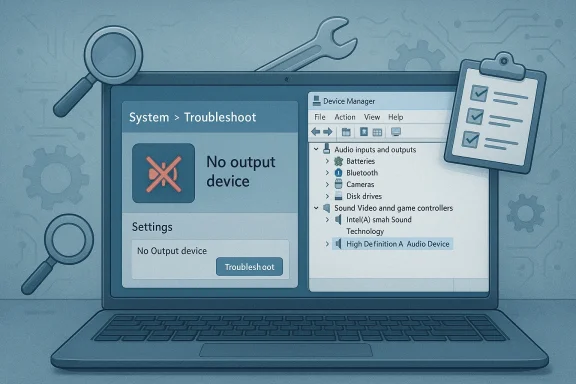
Windows can fail to detect an audio output device for a handful of predictable reasons: a missing or corrupt driver, devices disabled in Device Manager, audio services that aren't running or are misconfigured, a Windows update that changed driver behavior, or firmware-level issues (BIOS/UEFI) that disable onboard audio. Symptoms include the red X on the speaker icon, sound settings that are grayed out or missing an Output section, or Device Manager showing no entry under Sound, video and game controllers. These are the scenarios Microsoft’s support guidance addresses first.
Community reports show this problem commonly arrives afte driver change and reappears in many hardware configurations — from laptops with Intel Smart Sound Technology stacks to desktops using Realtek codecs — reinforcing that the root cause is usually software or firmware interaction rather than the speaker hardware itself.
That official guidance maps to the real-world advice you’ll see in specialist troubleshooting write-ups: confirm the device is visible, force Windows to rescan hardware, try Microsoft’s generic audio driver if vendor drivers fail, and only then escalate to more invasive repairs. Independent how‑to guides echo the same order because it preserves data and avoids unnecessary reinstallations.
For everyday users: follow the consolidated recipe above in the exact order — quick checks, clean driver uninstall, OEM reinstall, generic driver fallback, service restart, SFC/DISM — and document each change. For IT professionals: expand the checklist to include driver-store cleanup, offline driver import, and a staged test on a clean Windows image to rule out environmental factors.
If you need step‑by‑step help for a particular laptop or motherboard model, collect the exact model name, current Windows build, and a short timeline of when the failure began (for example: after a Windows feature update on a specific date). That context pinpoints whether you should look for an OEM compatibility notice or a known Intel/Realtek regression before attempting fixes.
Audio that disappears is frustrating but, in most cases, recoverable. Methodical troubleshooting and vendor-aware driver management restore sound in the majority of instances — and leave you better prepared if the problem recurs.
Source: Microsoft Support Fix missing or undetected audio output device in Windows - Microsoft Support
 Background
Windows can fail to detect an audio output device for a handful of predictable reasons: a missing or corrupt driver, devices disabled in Device Manager, audio services that aren't running or are misconfigured, a Windows update that changed driver behavior, or firmware-level issues (BIOS/UEFI) that disable onboard audio. Symptoms include the red X on the speaker icon, sound settings that are grayed out or missing an Output section, or Device Manager showing no entry under Sound, video and game controllers. These are the scenarios Microsoft’s support guidance addresses first.Community reports show this problem commonly arrives afte driver change and reappears in many hardware configurations — from laptops with Intel Smart Sound Technology stacks to desktops using Realtek codecs — reinforcing that the root cause is usually software or firmware interaction rather than the speaker hardware itself.
Overview of the official troubleshooting path
Microsoft’s short triage for “missing audio device” is straightforward and deliberately sequential: check Device Manager (visibility and enabled state), install or update the audio driver from the PC/sound-card manufacturer, and run the automated Audio troubleshooter (Windows 11 Get Help or built-in Playing Audio troubleshooter on other Windows versions). Those three actions cover roughly 80–90% of typical cases, because they target the most common failure modes: device disabled, incorrect or missing driver, or service/configuration glitch.That official guidance maps to the real-world advice you’ll see in specialist troubleshooting write-ups: confirm the device is visible, force Windows to rescan hardware, try Microsoft’s generic audio driver if vendor drivers fail, and only then escalate to more invasive repairs. Independent how‑to guides echo the same order because it preserves data and avoids unnecessary reinstallations.
Quick first checks (what to do in five minutes)
Start here before you download anything.- Look at the taskbar speaker icon. If it shows a red cross and the hover text reads No audio output device is installed, that confirms Windows isn’t exposing an output device.
- Open Settings > Sck whether an Output device is listed. If Output is missing or gray, continue below.
- Open Device Manager (right‑click Start). Expand Sound, video and game controllers. If your audio device is listed, right‑click and choose Enable device if available; if it’s not listed, use View > Show hidden devices and Action > Scan for hardware changes.
Deep-dive: Drivers — reinstallation, rollbacks and vendor vs. generic drivers
When Device Manager doesn’t help, the driver is the likely culprit.Why drivers fail
Drivers may be corrupted, mismatched with a new Windows build, blocked by driver-signature enforcement, or replaced by incompatible generic drivers after a Windows Update. Certain audio stacks — notably Intel Smart Sound Technology (SST) and vendor-specific Realtek packages — are multi-component ecosystems; installing the wrong parts or an out‑of‑sequence package can leave Windows with no functional output device. Recent vendor/OS compatibility incidents (Intel SST and Windows feature updates) illustrate how an update can break driver chains until an OEM or Intel update fixes the mismatch.Safe driver reinstallation (recommended order)
- Download the correct driver package for your exact PC model from the PC maker (HP, Dell, Lenovo, ASUS, etc.) first — not a random third‑party site. OEM packages often include chipset and ancillary components the audio stack needs.
- In Device Manager, right‑click the audio device (if present) and choose Uninstall device. If offered, check “Delete the driver software for this device.” 3. Reboot. Windows will try to detect hardware and may install a basic driver; allow that to finish. 4. Run the OEM installer you downloaded. Reboot again. 5. If the OEM package fails, install the vendor’s alternate components (audio codec vs. controller driver), following the OEM guidance. If still failing, try the Microsoft generic driver using Device Manager by selecting Update driver > Browse my computer > Let me pick > High Definition Audio Device (the generic driver) and reboot.
Rollback and driver signature issues
If audio broke immediately after a driver or Windows update, perform a Roll Back Driver in Device Manager (if the button is available). If the driver won’t install because Windows blocks unsigned drivers, avoid disabling signature enforcement long‑term — instead, obtain a signed driver from the OEM. Disabling driver signature enforcement can be used as a temporary diagnostic step only, and it increases risk.Windows Audio services and process-level fixes
Even with correct drivers, Windows audio relies on a small set of services. If these are stopped, disabled, or misconfigured, Windows may report no audio output device.- Confirm the following services are running and set to Automatic: Windows Audio and Windows Audio Endpoint Builder. If either is stopped, restart it; if it repeatedly fails to start, note the error code — it often points to missing dependencies or registry/service-account misconfigurations.
- The Playing Audio troubleshooter will attempt to restart the services and their dependencies automatically; use it as a next step after driver checks. If the troubleshooter can’t start the services, manual investigation in Services.msc and Event Viewer is necessary.
Advanced steps: system-level repairs, BIOS/UEFI, and hardware checks
If basic driver and service steps fail, escalate carefully.1) System integrity checks
Run these from an elevated Command Prompt:- sfc /scannow — checks and repairs protected system files.
- DISM /Online /Cleanup-Image /RestoreHealth — repairs the component store that SFC relies on.
2) Safe Mode and clean boot
Boot into Safe Mode to see whether third‑party audio software or services are interfering. If audio appears in Safe Mode (rare), a clean boot to disable all non‑Microsoft startup items can help isolate the conflicting component. Systematically re-enable disabled items to find the culprit.3) BIOS/UEFI checks
Enter BIOS/UEFI and verify onboard audio is enabled. A BIOS reset or firmware update may be necessary if a recent BIOS change broke onboard audio enumeration. Some thread reports specifically link BIOS updates to audio disappearance via incompatibility with Intel SST or similar controllers; if you’ve recently updated firmware, consider rolling back to the previous BIOS version if the vendor documents a regression. Always follow the vendor’s exact instructions when updating firmware.4) Physical hardware verification
- If using HDMI audio, confirm the display/TV is the selected output in Sound settings — Windows will default to the selected device.
- Try headphones or an external USB sound device. If an external USB audio device works, the issue is almost certainly the internal codec or its driver stack.
- If the internal sound card is a discrete PCIe card, reseat it or test in another machine if possible. Persistent absence of the device after all software steps may indicate hardware failure.
When to suspect vendor-specific driver stacks (Intel SST, Realtek) and what to do
Some audio architectures are more fragile because they use layered components: a controller driver (Intel SST or other) plus codec and OEM utilities. Installing only the codec without controller drivers, or vice versa, can leave Windows without a usable endpoint even though Device Manager reports entries or generic devices.- If you have an Intel SST entry or see a device called “Intel Smart Sound Technology” in System Devices, follow your OEM support page carefully — the OEM often packages the correct combination of Intel SST + codec + control app. Dell and other vendors have documented compatibility holds where Windows updates required updated Intel SST drivers to proceed safely.
- For Realtek-based systems, prefer the motherboard OEM’s Realtek package rather than a universal Realtek download when possible. Several community cases report the OEM driver resolves missing devices where the generic Realtek package failed. If the Realtek installer repeatedly fails, try uninstalling all audio entries in Device Manager (including under System devices), rebooting, allowing Windows to install a basic driver, then running the OEM installer.
Practical, step-by-step recovery recipe (consolidated)
- Confirm symptom: Taskbar speaker red X + "No audio output device is installed" or missing Output in Settings.
- Quick Device Manager pass: Device Manager > View > Show hidden devices > expand Sound, video and game controllers > Enable device if present. Action > Scan for hardware changes.
- If not present, download OEM audio package for your PC model (laptop/desktop vendor). Don’t install yet.
- Uninstall audio devices in Device Manager (right‑click > Uninstall; check Delete driver software if offered) and uninstall any vendor audio utility via Apps & Features. Reboot.
- After reboot, let Windows attempt to install a driver. If no device appears, run the OEM installer you downloaded and reboot again.
- If still failing, install the Microsoft generic driver: Device Manager > Update driver > Browse my computer > Let me pick > High Definition Audio Device > Next > Reboot. Test audio.
- If audio services show errors, open Services.msc and restart Windows Audio Endpoint Builder first, then Windows Audio. If they fail to start, check Event Viewer for error codes and dependencies.
- Run sfc /scannow and DISM /Online /Cleanup-Image /RestoreHealth, reboot, and re‑test.
- If a recent BIOS or Windows feature update aligns with the break, check OEM support notes for known incompatibilities and recommended driver versions before attempting more changes.
Risks, caveats and what can go wrong
- Installing the wrong driver version can make the problem worse: the driver may install but never initialize, or Windows may revert to a generic driver and hide OEM features. Always prefer the OEM support page for your exact model.
- Disabling driver signature enforcement or using unsigned drivers should be a last resort. It bypasses Windows security protections and can leave the system unstable. Use this only temporarily and with full backups.
- Firmware (BIOS/UEFI) updates carry risk. If you suspect a firmware change caused the issue, consult your OEM’s support notes and avoid a blind BIOS upgrade; some vendors document audio regressions and offer guidance on compatibility. If a BIOS upgrade is necessary, follow vendor instructions precisely.
- Aggressive registry or service-account edits can render services unstartable. If troubleshooting requires changes to service logon accounts, record original values and have a full system backup or restore point before proceeding. Microsoft’s Diagnostic tools will create a restore point in many automated fix flows, but manual changes are your responsibility.
Real-world signals: what the community shows us
Forum archives and user threads consistently report the same lifecycle: audio works, a Windows update or driver experiment occurs, Windows reports “No audio output device is installed,” and users iterate through Device Manager, driver reinstalls, and BIOS checks. Many users successfully recover by reinstalling the OEM driver stack; others require manual service restarts or SFC/DISM repairs. These community patterns back the official Microsoft flow and show where edge cases cluster (Intel SST and Realtek are recurring themes).When to escalate: hardware, warranty and professional repair
If you’ve exhausted the software and firmware checklist and the audio device is still invisible in Device Manager after a full driver purge and reinstall, treat the problem as a potential hardware failure:- For laptops: the integrated audio codec could have failed (rare), or the audio jack/power path is faulty. Contact the PC vendor for warranty support.
- For desktops with discrete sound cards: test the card in another machine or try a known-good card in your machine. If the discrete card isn’t detected on another machine, it’s likely failed.
- As a practical workaround, a USB audio adapter provides immediate output (and is inexpensive) while you pursue warranty/repair.
Final analysis and recommendation
Microsoft’s guidance — check Device Manager, install OEM drivers, and run the troubleshooter — is sound because it addresses the majority of cases with minimal risk. The real challenges come with layered vendor stacks (Intel SST + codec + OEM apps) and with post‑update regressions that temporarily break driver compatibility; in these cases, the OEM and Intel/AMD notes are essential to follow.For everyday users: follow the consolidated recipe above in the exact order — quick checks, clean driver uninstall, OEM reinstall, generic driver fallback, service restart, SFC/DISM — and document each change. For IT professionals: expand the checklist to include driver-store cleanup, offline driver import, and a staged test on a clean Windows image to rule out environmental factors.
If you need step‑by‑step help for a particular laptop or motherboard model, collect the exact model name, current Windows build, and a short timeline of when the failure began (for example: after a Windows feature update on a specific date). That context pinpoints whether you should look for an OEM compatibility notice or a known Intel/Realtek regression before attempting fixes.
Audio that disappears is frustrating but, in most cases, recoverable. Methodical troubleshooting and vendor-aware driver management restore sound in the majority of instances — and leave you better prepared if the problem recurs.
Source: Microsoft Support Fix missing or undetected audio output device in Windows - Microsoft Support
