Notepad Tables and AI Streaming in Windows 11, Explorer Flash Fix, Redstone History

  • Thread Author
Microsoft has quietly rolled a trio of Windows stories that together illustrate how the operating system’s evolution now balances small, practical feature work with fast-moving AI integration and an uncomfortably visible reminder that even cosmetic updates can bite back when rendering paths change.

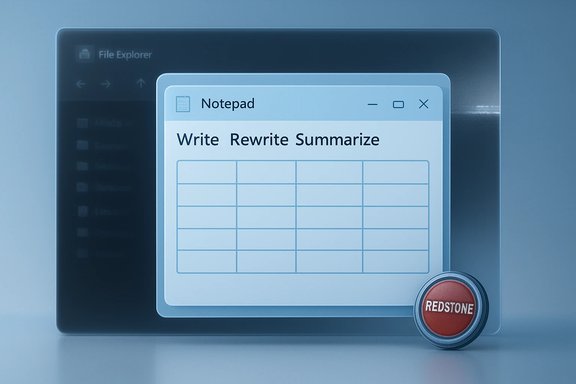
Blue-tinted screen shows a Notepad window with 'Write Rewrite Summarize' and a red REDSTONE button.Background​

Notepad — the tiny, decades‑old text editor that many of us open dozens of times a day — has been steadily modernized into a Markdown‑aware, AI‑friendly authoring surface. The latest Insider preview for Notepad (version 11.2510.6.0) adds native table support and streaming AI output for the Write, Rewrite and Summarize actions, delivering both a visual convenience and a perceptual performance boost for users who rely on Notepad for short structured notes or iterative text editing. At the same time Microsoft shipped a Windows 11 update that attempted to extend dark‑mode polish into File Explorer dialogs and progress UIs — but introduced a jarring white flash in certain dark‑mode scenarios. That regression was widely reported, acknowledged by Microsoft, and then addressed in the December cumulative update (KB5072033) for many users, although rollout has been staged which left some systems still waiting for the remedy. Finally, a legacy headline thread resurfaced: the codename Redstone, once used by Microsoft for major Windows 10 feature updates in 2016 and later, remains a useful historical touchpoint for how Microsoft planned update cadences and codenames during the Windows-as-a-service era. Contemporary references to “Redstone” in news archives trace back to early leaks and reporting circa 2015 that described Redstone as the first major post‑launch Windows 10 update.

Notepad in 2025: Tables and streaming AI​

What changed — the facts​

  • Notepad 11.2510.6.0 introduces a Table control in the formatting toolbar when Notepad’s lightweight formatting (Markdown rendering) is active. Users can insert tables via a visual grid picker or by typing classic Markdown table syntax; Notepad renders the pipe‑delimited rows as an editable grid while preserving the underlying Markdown when formatting is toggled off. This keeps files portable and suitable for plain‑text workflows.
  • The app’s AI actions — Write, Rewrite, and Summarize — now produce streamed output: partial text appears token‑by‑token as the model generates, rather than waiting for a complete block to finish before showing anything. That reduces perceived latency and enables earlier human intervention in iterative editing loops.
  • A practical nuance: streaming for the Rewrite action in the initial preview is hardware‑gated — local streaming is available on Copilot+ certified machines that can run on‑device models; cloud‑processed flows behave differently depending on server and network behavior. All AI features require signing in with a Microsoft account.

Why Microsoft built it this way​

The design choices are deliberate and conservative: Notepad’s table feature is explicitly a Markdown‑first, WYSIWYG convenience rather than an attempt to graft spreadsheet functionality into the editor. That preserves Notepad’s core promise — human‑readable, non‑proprietary plain text — while offering quick structure for checklists, README snippets, small configuration mappings, or side‑by‑side comparisons. The streaming change, meanwhile, is about perceived responsiveness; incremental output gives users an early draft to evaluate and edit rather than forcing a full wait for completion.

Practical capabilities and limits​

  • Good for:
  • Short two‑column comparisons, quick inventories, meeting notes, and README tables.
  • Faster AI‑driven rewrites and summaries where getting a draft early helps iteration.
  • Not for:
  • Numerical analysis, formulas, sorting, pivoting, or any spreadsheet‑grade operations. Notepad tables have no cell types, functions, or aggregation features.

How to try it (Insider path)​

  • Join the Windows Insider Program and enroll a device in Canary or Dev.
  • Update Windows and then update Notepad via the Microsoft Store to the version that includes 11.2510.6.0.
  • Enable Notepad’s lightweight formatting for the document, use the Table toolbar control or enter Markdown table syntax, and sign in with a Microsoft account to test Write/Rewrite/Summarize streaming.

Security, privacy and admin considerations​

  • Data residency and privacy: cloud‑processed Write/Summarize flows send text over Microsoft services; organisations should treat those as potentially exfiltrating sensitive content and restrict use where policy or regulation prohibits it. On‑device Rewrite streaming on Copilot+ hardware keeps data local, offering a better privacy posture for eligible devices — but administrators must validate that those machines truly isolate model execution as claimed.
  • Authentication & licensing: the AI features require a Microsoft account sign‑in and may rely on subscription/credits or device‑level provisioning for on‑device models. IT teams must plan for account provisioning, telemetry, and any licensing entitlements.
  • Governance & logging: for enterprise deployments, enabling or blocking Notepad’s AI features can be handled via MDM/GPO and Copilot management controls; organizations should define acceptable use, logging requirements, and a review cadence for any AI‑assisted content generation. Where possible, treat model outputs as untrusted until they are validated, and avoid automatic acceptance of AI rewrites in regulated documents.

File Explorer’s “flash‑bang” regression and remediation​

What happened​

A preview update intended to expand dark‑mode coverage in File Explorer (delivered in the KB5070311 preview released December 1, 2025) introduced a visual regression: when File Explorer repainted — opening folders, creating tabs, switching between Home and Gallery, toggling the Details pane, or showing certain dialogs — some systems momentarily displayed a full‑window white screen. The symptom was widely described as a “flash‑bang,” particularly problematic in dim settings or on OLED panels. Microsoft documented the issue as a Known Issue and indicated it was working on a fix.

How Microsoft fixed it​

Microsoft rolled the corrective changes into the December 9, 2025 cumulative Patch Tuesday package KB5072033. The December cumulative explicitly lists improvements to File Explorer dark‑mode rendering and calls out the white‑flash regression as addressed; independent coverage and community testing show the fix eliminated the flash for many users, though rollout has been staged so some machines saw the remediation earlier than others.

Short‑term mitigations (practical steps)​

  • Switch to Light mode as an immediate workaround if you are experiencing flashes:
  • Settings → Personalization → Colors → Choose your mode → Light.
  • Uninstall the preview package (KB5070311) if needed, or apply the December cumulative update (KB5072033) and reboot to get the official fix once available for your device.
  • Avoid third‑party “injection” workarounds on managed systems — they may interfere with stability and security.

Why this matters beyond annoyance​

  • Visual regressions can be a usability and accessibility hazard. Unexpected bright flashes can trigger photosensitive reactions in susceptible users; even when not hazardous, the jarring UI state undermines trust in shipped updates.
  • The incident underscores the risk of rolling wider UI changes in preview builds where rendering paths and driver interactions may expose subtle platform dependencies. For IT managers, the lesson is to validate non‑functional UI changes in user environments that use low‑light workflows (e.g., command centers, studios) before broad deployment.

A quick history note: Redstone and what codename cycles mean​

The Redstone codename refers to a historical series of Windows 10 feature updates that began with the Anniversary Update (Version 1607) and continued through subsequent releases. Early press coverage (2015–2016) reported that Microsoft’s next major update after the initial Windows 10 release would be codenamed Redstone and arrive in 2016; that reporting predicted the yearly cadence Microsoft pursued under the Windows as a service model. These historical stories are useful context but are not indications of new product plans in today’s cadence. Why note the history? Because snippets and archival headlines about “Redstone” sometimes resurface in feeds and can be misconstrued as present‑day roadmaps. In short: Redstone was a major phase in Windows 10’s update history — an artifact of update‑cadence decisions made a decade ago — not a currently pending Windows‑level rebrand or separate OS release.

Cross‑checking claims and verification​

  • Notepad’s table and streaming features are visible in Notepad version 11.2510.6.0 and were rolled into Canary/Dev Insider channels. Independent hands‑on coverage and guidance (Windows Central) corroborate the functional details and the Markdown‑first design; the uploaded coverage and community threads echo that description and note the Copilot+ hardware nuance for on‑device streaming.
  • The File Explorer white flash was acknowledged by Microsoft in the support notes for KB5070311 and widely reported by major outlets (The Verge, TechRadar, Windows Central). Multiple reports and the December cumulative update (KB5072033) list the fix; community testing shows the regression was resolved for many users though staged rollouts and device eligibility mean some systems took longer to receive the remedy. Cross‑checks include coverage explaining the symptom, Microsoft’s known‑issues note, and post‑patch reporting.
  • The “Redstone” references trace to older reporting (2015) and the historical Windows 10 versioning timeline that followed; for accuracy it’s important to treat those references as historical rather than current roadmaps.
Flagged unverifiable claim: any statements that imply feature distribution to all Windows 11 or Windows 10 devices on a specific calendar date should be treated cautiously — Microsoft often gates UI and feature rollouts by device type, hardware capabilities, and region, and publishes staged rollout schedules that can differ from the earliest Insider previews. Where a specific KB or build is named, readers should confirm on their own machines via Windows Update and the Release Health dashboard.

Risks, tradeoffs, and community reaction​

Notepad: benefits and possible downsides​

  • Strengths:
  • Lower context switching: small tables and fast AI can keep simple tasks inside Notepad.
  • Markdown persistence: the WYSIWYG/Markdown mapping keeps notes portable for dev workflows and version control.
  • Risks:
  • Feature creep vs. simplicity tension: longtime Notepad users prize the app’s minimalism; adding AI and visual table controls risks alienating lightweight users and complicating mental models.
  • Privacy concerns: streaming AI and cloud‑based Write/Summarize flows can surface sensitive material; administrators must treat these features as potential data egress paths.
  • Support & manageability: requiring Microsoft accounts and hardware‑gated features adds administrative overhead for larger fleets.

File Explorer bug: operational implications​

  • Strengths of Microsoft’s approach:
  • Acknowledgement and a canonical fix in the cumulative update demonstrates a responsible cadence: preview → acknowledgement → cumulative fix.
  • Risks:
  • User impact and perception: a cosmetic regression with high visibility undermines confidence and can impose support overhead for help desks.
  • Staged rollout friction: partial fixes in staged rollouts can create unequal user experience across an organization — complicating troubleshooting and helpdesk triage.

Practical checklist for readers and administrators​

  • For home users who want to try Notepad’s new features:
  • Enroll a test device in Windows Insider Canary/Dev.
  • Update Notepad via Microsoft Store to 11.2510.6.0.
  • Sign in with a Microsoft account and test Table insertion and Write/Rewrite streaming.
  • If privacy is a concern, avoid pasting regulated content into AI features or prefer Copilot+ on‑device flows when available.
  • For IT administrators concerned about the File Explorer flash or Notepad AI:
  • Hold non‑essential feature preview updates on production devices until the next cumulative patch is validated.
  • If users encounter the white flash, either uninstall the KB5070311 preview (if visible in Update History) or apply KB5072033 once available for your device group; alternately advise a temporary switch to Light theme as an immediate mitigation.
  • Audit policies that enable Microsoft account sign‑in and Copilot features; create an acceptable‑use policy and enable logging of AI usage where compliance demands it.
  • Use staged pilot rings: test UI and AI feature changes with a small representative fleet before broad deployment.

Conclusion​

These three snapshots — Notepad’s new table insertion and streaming AI, File Explorer’s high‑visibility dark‑mode regression and remediation, and the archival Redstone discussion — together show how Windows is being shaped by two simultaneous forces: practical, incremental UX improvements aimed at reducing context switching, and rapid AI integration that changes how users interact with even the smallest system apps. They also show a maturing operational model: preview channels to catch regressions, staged cumulative fixes to repair them, and layered deployment strategies that try to protect the wider user base from regressions while letting enthusiasts test the latest features.
For users, the immediate takeaway is straightforward: Notepad now does more useful lightweight formatting and AI feels faster; if you care about privacy or manage many machines, treat AI features and preview updates as policy decisions rather than opt‑in surprises. For IT pros, the flash incident is a reminder to validate UI‑level changes in representative environments and to keep robust rollback and mitigation procedures ready when preview builds surface unexpected regressions.
The evolution of Windows remains pragmatic and incremental. The good news is that practical features — like quick tables and faster AI drafts in a tiny text box — can save dozens of micro‑interruptions per day. The cautionary news is that even cosmetic changes can have outsized user impact unless rendering, drivers and staged rollouts are exercised carefully.

Source: Windows Latest https://www.windowslatest.com/2026/...ows-10-redstone-reportedly-coming-next-year/]
 

Windows 11’s Notepad has quietly become noticeably more useful: a new Create a table tool and an AI text streaming capability are rolling out as part of the Notepad update, delivering lightweight Markdown-style tables and token-by-token AI output that together reshape how the classic editor handles short structured content and generative assistance.

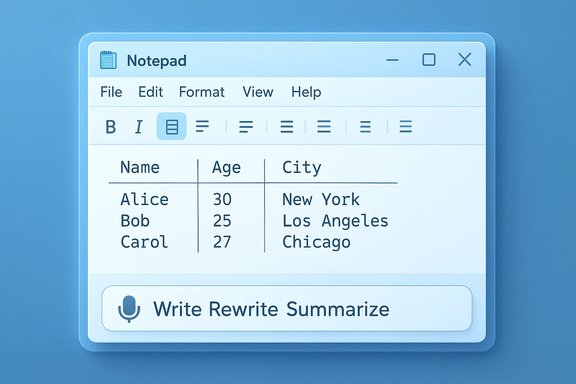
A Notepad-style window displaying a table of names, ages, and cities with a Write/Rewrite/Summarize bar.Background / Overview​

Notepad’s identity has shifted steadily from a bare-bones text scratchpad into a lightweight, Markdown-aware editor with formatting controls and built-in generative tools. The latest release — distributed under Notepad version 11.2510.6.0 to Windows Insiders in the Canary and Dev channels — bundles two headline features: native table insertion and editing, and streaming AI results for the Write/Rewrite/Summarize actions. These changes are positioned as convenience additions (quick tables, faster-feeling AI), while Microsoft monitors feedback before any broad consumer rollout.

What’s new: Create a table (Markdown-first)​

Design philosophy​

Microsoft implemented tables as a formatting-layer feature that maps directly to Markdown table syntax rather than embedding a binary or proprietary object. That approach preserves Notepad’s foundational promise: the underlying content remains plain text and portable while offering a visual editor when lightweight formatting is enabled. In short, Notepad adds convenience without converting .txt files into opaque, app-specific formats.

Core behaviors and capabilities​

  • A Table button appears on the formatting toolbar when lightweight formatting is active.
  • Insertion supports a grid picker (drag to choose rows/columns) or manual entry of exact counts for rows and columns.
  • Tables are stored as pipe-delimited Markdown in the .txt document; toggling formatting off shows the raw Markdown.
  • After insertion you can click into cells to type normally and apply formatting like bold, italic, and underline; hyperlinks are supported inside cells.
  • Right-click context menu and toolbar commands let you insert/delete rows, insert/delete columns, select row/column/table, and remove the table entirely.
  • A Fit columns to window width command helps tidy messy layouts without manual ruler alignment.

Where it fits (and where it doesn’t)​

Notepad’s tables are intentionally lightweight:
  • Good for: quick checklists, README-style tables, short side-by-side comparisons, configuration snippets, and small inventories.
  • Not for: formulas, sorting, filtering, pivot tables, merged cells, typed numeric columns, or heavy data processing. Notepad is not a spreadsheet replacement.

How to use the new table feature (quick walkthrough)​

  • Enable Lightweight formatting in Notepad for the document.
  • Click the Table icon on the formatting toolbar.
  • Use the grid picker to drag-select the number of rows and columns, or type the counts directly.
  • Click into cells and type. Use formatting buttons (B / I / U) or right-click menu commands to edit rows/columns.
  • Toggle formatting off to view or save the underlying Markdown text.
This sequence keeps the workflow simple and preserves portability: the saved .txt remains readable to other Markdown-aware editors.

What’s new: AI text streaming (Copilot+ first, then wider)​

What changed​

Notepad’s AI features — Write, Rewrite, and Summarize — previously processed requests and only inserted the finished text once generation completed. The update changes that to streaming output, displaying partial text incrementally as the model generates it (token- or word-by-word), which reduces perceived latency and makes the AI interaction feel more conversational and interactive.

Rollout nuance: Copilot+ PCs get priority​

Streaming behavior is rolling out in phases. At launch, Copilot+ certified PCs (devices with on-device AI model capability) receive the streaming experience first for some flows — notably local Rewrite generation — because streaming from an on-device model is lower-latency and avoids cloud round trips. Microsoft has signaled that AI streaming will reach non‑Copilot (standard) PCs in the coming weeks or months, but precise scheduling remains unspecified. Treat that timeline as a general expectation rather than a guaranteed date.

Practical effect for users​

  • Faster perceived responses: partial text appears almost immediately.
  • Early preview: users can read and intervene before the model finishes.
  • Better interactivity: streaming supports iterative edit cycles (generate → tweak → regenerate).

Performance and footprint​

A central claim from Microsoft’s design notes is that the table feature remains a Notepad-style implementation: the editor still saves plain text and the formatting layer renders Markdown without embedding heavy objects. As a result, the table capability does not materially change the file format (still .txt), and the feature is lightweight with negligible CPU/RAM overhead for typical small tables. The streaming AI behavior’s local performance will vary by hardware: Copilot+ on-device generation uses the device’s NPU/accelerator; cloud-based streaming depends on network latency.

Privacy, telemetry and security considerations​

Streaming reveals intermediate outputs​

Streaming exposes partial generations in real time, which can show hallucinations, mistakes, or biased wording before any server-side moderation or final filtering completes. That increases the surface area for potential information leakage and may create confusing intermediate states if you capture or share content while it’s still streaming. For sensitive text, on-device generation (Copilot+) reduces cloud exposure but is not an absolute privacy guarantee; provisioning, updates, or telemetry may still involve network activity. Users and administrators should be mindful of these trade-offs.

Account and service dependencies​

  • AI features require signing in with a Microsoft account, and some features may be tied to Copilot subscriptions, Microsoft 365 Copilot policies, or local model provisioning depending on the device and organization settings.
  • You can disable Copilot or Markdown formatting from Notepad Settings to remove AI and table features; this preserves a strictly plain-text experience for privacy-focused workflows.

Enterprise and manageability implications​

For IT administrators, the Notepad changes are small in surface but broader in signal: Microsoft continues to integrate Copilot-centric features across inbox apps. Considerations include:
  • Group Policy and Settings control: Ensure update policies and feature toggles are evaluated if your environment restricts AI or external service integration.
  • Audit and compliance: Streaming increases the chance of partial data leaving a device during model calls; review data protection contracts and telemetry guidance if you process sensitive information.
  • Rollout testing: The Insider preview programme is the first stop; organizations should test behavior across Copilot+ and non‑Copilot hardware before approving wider deployment.

Accessibility and discoverability​

Making tables accessible inside Notepad is useful for many users, but discoverability is key: the Table button lives in the formatting toolbar, and Markdown fallback keeps file contents readable by assistive technologies that recognize plain-text. However, the visual table view’s keyboard navigation and screen-reader labels will determine whether the feature truly improves accessibility; feedback from Insiders will likely shape refinements. Early coverage indicates Microsoft expects iterative improvements based on user feedback.

UX critique: strengths and friction points​

Strengths​

  • Convenience: Inserting small tables without opening Word or Excel reduces context switching for common tasks.
  • Portability: Backing visual tables with Markdown keeps files human-readable and repository-friendly.
  • Perceived speed: Streaming AI makes generative results feel faster and more interactive, improving the writing-editing loop.

Potential risks and friction​

  • Feature bloat vs. simplicity: Notepad’s long-standing value is its minimalism. Adding formatting and AI shifts expectations and may alienate purists who rely on a no-friction, strictly offline editor.
  • Privacy and governance: Streaming output and cloud dependencies require administrators to revisit policies and risk assessments.
  • User confusion: Markdown reveal when formatting is toggled off can surprise users who expected a purely WYSIWYG table with no visible markup.
  • Interoperability: Copy/paste behavior into Excel or other editors must be tested; pipe-delimited Markdown is portable but not equivalent to native spreadsheet copy/paste semantics.

Comparison: Notepad tables vs. Word / Excel / Markdown editors​

  • Notepad tables: lightweight, Markdown-backed, editable inline, portable as plain text; intended for small structured notes.
  • Microsoft Word: rich WYSIWYG table editor with layout, styling, advanced features and hidden binary or Open XML storage; better for formal documents.
  • Microsoft Excel: optimized for numbers, formulas, sorting, filtering, and data analysis; not suitable as a plain-text scratchpad.
  • Dedicated Markdown editors (e.g., VS Code, Obsidian): provide robust Markdown table editing and plugin ecosystems; Notepad’s advantage is being built-in and lightweight.
The correct tool depends on the task: Notepad is a better fit for quick, human-readable tables inside a plaintext workflow; Word/Excel remain the right choices for formatting-rich documents and data-heavy tasks.

Troubleshooting and tips​

  • If tables look misaligned after editing, use Fit columns to window width to normalize spacing.
  • To preserve plain-text portability, toggle formatting off before saving or committing .txt files to version control.
  • If you want a zero-AI, zero-formatting experience, disable Lightweight formatting and turn off Copilot features in Notepad Settings.
  • Test copy/paste of a Notepad-created table into Excel to check whether your workflow requires additional conversion steps.

Verification and caveats​

Key claims that are verified across Microsoft’s Insider notes and independent reporting:
  • The Notepad update is packaged as Notepad 11.2510.6.0 and initially rolling to Canary and Dev channels.
  • Tables are implemented as a Markdown-first formatting-layer feature (pipe-delimited text), with visual insertion and editing options.
  • AI actions (Write/Rewrite/Summarize) now produce streaming outputs; streaming for some flows is initially limited to Copilot+ on-device generations.
Unverified or ambiguous items to watch:
  • Public, definitive timelines for when AI streaming will reach all non‑Copilot PCs are not yet published; phrases like “coming weeks or months” are used in reporting and should be treated as provisional. Administrators and users should monitor Microsoft’s official release notes for concrete dates.
  • Specific resource-use measurements (exact CPU, RAM impact) for large or pathological tables are not documented; the implementation is designed to be lightweight but real-world performance may vary by device and table size.

Practical recommendation for Windows users​

  • Try it: If you use Notepad frequently for quick notes and README-style content, the table feature will likely reduce friction for small structured data.
  • Be cautious with AI: For sensitive or regulated data, disable AI streaming or avoid generating content in Notepad until you understand your organization’s data governance policy.
  • Watch Insider feedback: If you manage devices, pilot the feature in a controlled group (Insider Dev/Canary) and test interoperability with downstream systems like Excel, source control, and enterprise DLP tools.

Conclusion​

Notepad’s new Create a table tool and AI text streaming represent incremental but meaningful steps in the app’s ongoing evolution. By implementing visual tables over a Markdown-first, plain-text foundation, Microsoft preserves Notepad’s portability while offering a genuine productivity boost for everyday, small-scale tasks. Streaming AI makes generative responses feel faster and more interactive — a clear usability win — but it raises privacy and governance questions that administrators and cautious users should weigh carefully. The update is deliberately staged (Insider Canary/Dev first), and the broader rollout and precise timelines remain subject to Microsoft’s validation and user feedback cycle. For the many people who reach for Notepad dozens of times a day, these changes will be immediately useful; for purists and regulated environments, the ability to turn formatting and Copilot features off keeps the classic, lightweight Notepad within reach.

Source: Windows Latest Windows 11’s Notepad “Create a table” feature is now available, along with AI streaming results
 

Microsoft’s long‑running, famously austere Notepad has quietly crossed another milestone: lightweight, Markdown‑backed table creation and live AI streaming have moved beyond Insider previews and are being reported as available to the broad Windows 11 user base, completing a months‑long staged rollout that began in the Windows Insider program.

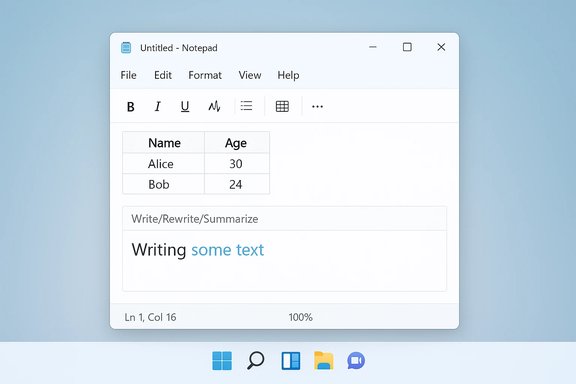
Light Notepad window on a blue background, featuring a Name/Age table and 'Writing some text'.Background​

Notepad’s transformation from a sub‑100KB plain‑text utility into a modern, Markdown‑aware authoring surface has been deliberate and incremental. Over the last year Microsoft added a formatting toolbar (bold, italic, headings, lists), tabbed documents, spell check, and early AI actions such as Write, Rewrite (now Copilot), and Summarize. The table editor and streaming AI changes were introduced in the Insiders flight labeled Notepad 11.2510.6.0, which Microsoft started testing in the Canary and Dev channels before the broader distribution. Those Insiders previews were explicit about design goals: make Notepad more useful for quick, structured notes without turning it into a spreadsheet or full‑blown word processor. The tables feature is implemented as a Markdown‑first, WYSIWYG convenience — a rendered grid backed by pipe‑delimited Markdown so the content remains portable when formatting is disabled. Streaming AI is primarily a user‑experience tweak: partial model output appears token‑by‑token, reducing perceived latency and letting users preview or interrupt results while they are generated.

What Microsoft shipped (and when)​

The timeline, verified​

  • Microsoft began rolling the Notepad update (Notepad 11.2510.6.0) to Windows Insiders on November 21, 2025, announcing tables and streaming AI results for Write / Rewrite / Summarize in the Canary and Dev channels.
  • Following weeks of Insider testing and incremental fixes, multiple independent outlets reported that the “Create a table” feature and AI streaming are now present in the public channel for Windows 11 users—meaning the feature is live or rolling out broadly to non‑Insider systems as of January 16, 2026.
Both timelines are consistent across Microsoft’s Insider announcement and independent coverage, but it’s important to note that Microsoft’s distribution remains staged. Even when a feature is declared “available for everyone,” rollout servers and update rings often phase delivery over days or weeks, so some users will see the update sooner than others. This nuance is visible in the Insider blog and in the independent reporting that tracks when public builds become broadly available.

What’s in the feature set​

Tables: Markdown‑backed, in‑place editing​

  • A new Table option appears in Notepad’s formatting toolbar (when lightweight formatting is enabled).
  • Users can insert a table visually via a small grid picker or by entering standard Markdown table syntax (pipe | delimited rows with a header separator). Notepad will render Markdown into an editable grid while formatting is enabled.
Key behaviors:
  • The visual table editor supports adding and removing rows and columns from the Table menu or the right‑click context menu.
  • The underlying content remains plain Markdown when formatting is toggled off — preserving portability for version control, diffing, and other Markdown‑aware tools.
  • This is explicitly not a spreadsheet engine: there are no formulas, sorting, pivot tables, or advanced cell types. The design intent is fast, small grids for meeting notes, README content, configuration snippets, and quick comparisons.

Streaming AI: faster, more interactive responses​

  • The Notepad AI actions Write, Rewrite (Copilot flows), and Summarize now display streaming output: partial text appears token‑ or word‑by‑word while the model continues to generate.
  • The streaming behavior reduces perceived waiting time and allows early editing, cancellation, or steering of the generated text.
Important operational caveats:
  • Streaming for the Rewrite action is currently tied to on‑device generation on Copilot+ certified PCs that have the hardware and provisioning to run models locally. Cloud‑generated flows may not stream identically or at all in some configurations until server‑side streaming support is in place. All AI tools require signing in with a Microsoft account.

Why this matters: practical use cases and UX implications​

Notepad’s new abilities are small in absolute scope but meaningful in everyday workflows. The changes matter because they reduce friction for the many micro‑tasks people perform dozens of times a day.
  • Quick capture: Create a two‑column pros/cons list, a short inventory, or settings table without switching to Word or Excel.
  • Documentation: Add Markdown tables to README files, changelogs, or repository notes while keeping the underlying file plain text and diff‑friendly.
  • Iterative drafting: Use streaming Write or Summarize to get partial drafts faster and edit as the model produces output, shortening the edit→AI→edit loop.
From a UX perspective, Microsoft has tried to keep the classic promises of Notepad — speed, portability, and human‑readable text — while adding convenience features layered on top of a Markdown representation. The approach is pragmatic: offer visual affordances for frequent micro‑tasks without embedding heavyweight tooling.

Step‑by‑step: how to create a table in Notepad (quick guide)​

  • Open Notepad and ensure lightweight formatting (Markdown rendering) is enabled.
  • Click the Table icon in the formatting toolbar.
  • Hover or click to select the number of columns and rows you want via the grid picker, or choose the Insert dialog to type specific dimensions.
  • Click Insert — the grid appears. Click into cells and type as normal.
  • To add/remove rows or columns, use the Table menu or the right‑click context menu.
  • Toggle formatting off to view the underlying Markdown (pipe‑delimited rows).
This workflow mirrors the way Notepad already handles other formatting features and keeps the content human‑readable when you switch off formatting.

Security, privacy, and enterprise considerations​

Adding cloud‑connected AI and richer formatting to an inbox app that many people use for quick, throwaway snippets raises legitimate questions for IT admins and privacy‑conscious users.
  • Microsoft requires a Microsoft account to use Notepad’s AI features. That means text edited via Write/Rewrite/Summarize may transit cloud services unless the action runs locally on Copilot+ hardware. Administrators should inventory use cases where sensitive data might be pasted into Notepad and consider policy controls or user training accordingly.
  • On‑device generation on Copilot+ systems mitigates cloud exposure; however, the availability of local streaming depends on hardware provisioning and regional rollouts. Enterprises evaluating local versus cloud processing should validate Copilot+ hardware certification, manage update rings, and document acceptable usage.
  • The Notepad update preserves plain‑text portability — an engineering choice that reduces lock‑in risk. Because tables map to Markdown, content remains readable and editable in other editors and in source repositories, avoiding proprietary binary formats. That’s a plus from a data governance standpoint.
Risk summary:
  • Data exfiltration risk exists if users run AI flows on cloud services and paste sensitive material into Notepad. Treat Notepad’s AI features under the same governance as other Copilot services.
  • Staged rollouts and feature flags mean some endpoints may still receive preview behavior that changes; test and pilot before wide enterprise deployment.

Strengths of Microsoft’s approach​

  • Markdown‑first design preserves portability. Notepad’s rendered tables map to pipe‑delimited Markdown, a format that’s readable, version‑control friendly, and interoperable with many tools.
  • Low friction: inserting a small table via a toolbar or a short Markdown snippet is faster than opening a larger app and avoids context switching for many micro‑tasks.
  • Responsive AI UX: streaming reduces perceived latency and can make AI flows feel more conversational and interactive, which helps iterative writing tasks.
  • Gradual rollout: Microsoft used the Windows Insider pipeline to refine behavior and observe real‑world discoverability, allowing tweaks before a broader rollout.

Limitations and potential downsides​

  • Not a spreadsheet: Users who try to treat Notepad tables as Excel will be disappointed. Expect no calculations, sorting, advanced formatting, or complex table features.
  • Perception and identity: Notepad has a long heritage as the smallest, fastest editor. Adding features — even modest ones — can alienate users who preferred the bare‑bones tool. The debate isn’t only technical; it’s about expectations and perceived product identity.
  • Dependency on Microsoft account and cloud services: AI features require sign‑in and may rely on cloud processing unless your device is Copilot+ certified. That adds account management and privacy considerations not previously associated with Notepad.
  • Staged rollout ambiguity: Reports that a feature is “available for everyone” can be misleading in practice; updates are often phased and region/build gated. Users should expect a variable experience over the following days or weeks even after public announcements.

How to verify if you have the feature (checklist)​

  • Confirm your Windows 11 version and that Notepad app is updated to the latest public build.
  • Open Notepad → make sure lightweight formatting is enabled (Settings → Formatting).
  • Look for the Table icon in the formatting toolbar or try typing a simple Markdown table:
  • Example Markdown
  • | Header 1 | Header 2 |
  • | --- | --- |
  • | cell | cell |
  • Use the right‑click menu or Table menu to add/remove rows or columns.
  • If you don’t see it, be patient: the rollout can be phased and may still be coming to your machine. Enrolling a test device in the Windows Insider Dev or Canary channel will get you preview builds faster, but that isn’t recommended for production desktops without testing.

Technical verification and cross‑checks​

To ensure accuracy on major technical claims:
  • Microsoft’s Windows Insider Blog documented Notepad 11.2510.6.0 and explicitly named tables and streaming AI as the headline additions for Canary and Dev on November 21, 2025.
  • Independent outlets—Windows Latest and Windows Report—published reports the same day the public rollout was reported, confirming the table insertion UI, Markdown backing, and AI streaming behavior. These outlets reinforced the timeline from Insider preview to public availability while also noting the staged rollout approach.
  • Guides and hands‑on pieces (Windows Central) documented how to create and edit Markdown tables in Notepad and reiterated the product limits (no formulas, sorting, etc., matching Microsoft’s stated design intentions.
Where coverage differed, it was primarily in phrasing around “available for everyone” versus “rolling out to everyone.” The safer interpretation: Microsoft has signaled public availability and enabled server‑side rollout, but distribution is staged and may not be instantaneous across all devices and regions.

What power users and administrators should do next​

  • Pilot the new Notepad features on a small set of machines to observe behavior and any interactions with security tooling (DLP, NSM).
  • Update documentation and internal guidance about allowed use of AI features in Notepad — treat it like any other Copilot‑enabled surface.
  • If your environment prohibits cloud‑processed AI for certain data classes, ensure Copilot settings, M365 Copilot policies, or endpoint controls block Notepad AI actions for those users.
  • For users who prefer the old Notepad, document how to disable lightweight formatting or install the classic notepad.exe alternative where appropriate.
These steps let organizations benefit from productivity gains while managing compliance and security risk.

Final analysis: a modest feature, a meaningful signal​

Notepad’s new table insertion and streaming AI are modest in technical scope but significant as a product signal. Microsoft is turning inbox utilities into richer, Markdown‑first surfaces that nudge users toward Copilot‑powered workflows while preserving plain‑text portability by design. That balancing act is the story here: convenience without lock‑in, and AI that’s more responsive but not yet universally local.
Practically, this change will save seconds for millions of everyday tasks: quick comparison grids, README edits, and one‑off tables now live inside the app you already open dozens of times a day. Strategically, it continues Microsoft’s move to infuse inbox apps with optional intelligence — and it forces a recurring conversation about where simplicity ends and modern usefulness begins.
Users who value plain text portability and quick structure will appreciate this update. Privacy‑sensitive users and administrators should treat Notepad’s AI features with the same caution applied to other Copilot surfaces: verify processing locality (on‑device vs cloud), manage account sign‑ins, and pilot changes before wide rollout.
Notepad’s table editor is not an Excel substitute, and streaming AI does not magically eliminate the need for editorial judgment. What it does do is make one of Windows’ most opened apps incrementally smarter and more useful — a small, pragmatic nudge toward a future where quick structure and responsive AI are built into everyday tools, while plain text remains first class.
Source: Windows Report https://windowsreport.com/windows-11-notepad-tables-are-finally-available-for-everyone/
 

Notepad’s quiet reinvention keeps getting louder: the decades‑old, near‑instant text editor now supports native tables and token‑by‑token AI streaming, and that small, steady creep from “tiny scratchpad” toward “lightweight writing surface” has a lot of users asking the same thing — has Microsoft done enough, or should it stop while Notepad still feels like Notepad?

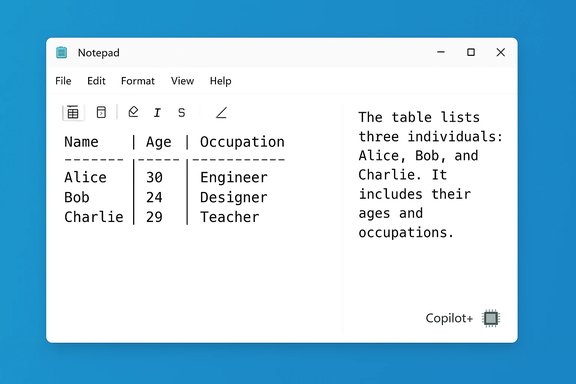
Notepad window showing a table of three people: Alice, Bob, and Charlie, with their ages and occupations.Background / Overview​

Notepad has never been glamorous, but it has been fundamental. For many Windows users it is the fastest way to capture text, scribble a quick calculation, or paste a crash dump. Over the last few years Microsoft has layered in features that used to be exclusive to richer editors: a formatting toolbar, Markdown‑style rendering, tabs, spell check, and AI‑driven actions such as Write, Rewrite, and Summarize. The most recent update — shipped through the Insider channels as Notepad version 11.2510.6.0 — adds two headline capabilities: visual Markdown tables and streaming AI text for Notepad’s generative features. These changes are modest in isolation — a table button in a toolbar and AI output that appears incrementally — yet together they represent a continued repositioning of Notepad from a pure plain‑text editor toward a Markdown‑first, AI‑aware composition surface. That repositioning is intentional, but not without trade‑offs for users who prize Notepad’s historical simplicity. Multiple outlets and the official Insider blog confirm the feature set and the initial release plan.

What’s new: Tables in Notepad​

How the table feature works​

The new Table control appears in Notepad’s formatting toolbar when the app’s lightweight formatting mode is active. You can either:
  • Insert a visual table using the Table (grid) picker in the toolbar, selecting rows and columns; or
  • Type standard Markdown table syntax (pipe‑delimited rows with a header separator), which Notepad will render as an editable grid when formatting is enabled.
Edits are made through the same toolbar or via a right‑click context menu: add or delete rows and columns, select cells, and copy/paste ranges. Crucially, the underlying file remains plain Markdown text when formatting is toggled off, preserving portability and compatibility with other tools and version control systems. This design is explicitly intended to give users convenience without making Notepad proprietary.

What tables are — and what they are not​

Notepad’s tables are a pragmatic, lightweight addition. Important constraints:
  • There are no formulas, sorting, pivoting, merged cells, or advanced data types. Notepad is not a spreadsheet engine.
  • Tables are intended for quick, human‑readable grids: checklists, README‑style content, small configuration mappings, or short comparison matrices.
  • The table is backed by Markdown. Toggle formatting off and you’ll see pipe‑delimited markup; toggle it back on and Notepad renders it again.
Those limits are a deliberate design choice: keep the editor fast, maintain plain‑text portability, and avoid the complexity of embedding a full spreadsheet inside a tiny app. Multiple technical writeups and Microsoft’s Insider announcement make this explicit.

Everyday use cases where tables actually matter​

Notepad’s new tables are most useful in scenarios where launching Word or Excel is overkill:
  • Quick inventory lists or hardware logs.
  • Side‑by‑side comparisons when drafting notes or troubleshooting.
  • Small README sections or documentation snippets that will live in a repository.
  • Fast key/value configuration mappings captured while debugging.
For these tasks, a two‑click visual insertion beats the copy/paste gymnastics most people perform today. The feature reduces context switching and keeps results in a readable, editable, and version‑friendly form.

What’s new: AI text streaming (Write / Rewrite / Summarize)​

Streaming changes the feeling of AI output​

Previously, Notepad’s AI actions (Write, Rewrite, Summarize) waited for the entire response before inserting text. The update introduces streaming, where partial results appear token‑by‑token or word‑by‑word as the model generates. The benefit is lower perceived latency: you start seeing a draft fast, can interrupt or edit early, and don’t have to stare at a spinner waiting for a finished block. Microsoft documented this and made it part of the Insider release notes.

Local vs cloud: Copilot+ hardware nuance​

A key technical caveat is where the model runs. Not all machines provide the same streaming experience:
  • On‑device streaming for Rewrite: Streaming of Rewrite results is currently supported when the rewrite is generated locally on Copilot+ devices — machines certified to run on‑device models thanks to a powerful NPU. Microsoft classifies Copilot+ PCs as devices with NPUs capable of at least 40 TOPS (trillion operations per second). On such hardware, local inference enables low‑latency streaming that keeps data on device.
  • Cloud paths vary: Write and Summarize may stream depending on the cloud endpoint and network conditions. Cloud‑based generation still introduces variability in latency and potential data residency concerns.
Because of this hybrid model, the streaming behaviour you experience will depend on your hardware, network, and region. If your device doesn’t qualify as Copilot+ the AI flows may still work but with different streaming characteristics.

Strengths: Why these additions are defensible​

  • Real pragmatic wins. Tables are a genuinely useful, low‑friction convenience for many common micro‑workflows. They save time and reduce task switching for trivial structured data.
  • Markdown‑first approach preserves portability. Because formatted tables map to plain Markdown under the hood, files remain readable in other editors and friendly to version control.
  • Streaming improves iteration. Faster, incremental AI responses turn a blocking wait into an editable draft — a small but meaningful UX improvement for writing workflows.
  • Opt‑out and control exist. Notepad’s formatting and Copilot features can be disabled in settings, and enterprises have administrative controls to curb AI or formatting rollouts across fleets.
These are design choices that respect Notepad’s roots in several ways: features are optional, non‑proprietary, and scoped to preserve speed.

Risks and downsides: Where the creep becomes a problem​

1. Identity dilution and feature creep​

Notepad’s value proposition has always been its speed, predictability, and lack of external dependencies. Each feature—tabs, spellcheck, formatting, Copilot—pulls it toward a different identity: from scratchpad to content editor to cloud‑connected AI surface. That drift is emotional for many users but has practical consequences too: more features mean larger binaries, more background services, and a greater chance of regressions or telemetry hooks.

2. Privacy, data residency and consent concerns​

AI features require a Microsoft account sign‑in and may use cloud services depending on the operation. Even when models run locally on Copilot+ hardware, telemetry and provisioning can involve network activity. Streaming exposes early tokens before final moderation, which may reveal inaccurate or biased content in flight. Users dealing with sensitive text should treat streaming as a different interaction model — one that requires careful auditing and, in some contexts, outright disabling.

3. Fragmented experience across hardware​

The Copilot+ distinction creates a two‑tier UX: Copilot+ owners get on‑device streaming and lower latency; other users rely on the cloud with variable performance. That inconsistent experience can breed confusion (“why does Notepad stream on my laptop but not at work?”) and complicates support and documentation for IT administrators. The 40 TOPS NPU baseline is a hard technical requirement that many older or cheaper PCs won’t meet.

4. Risk of monetization and account gating normalization​

Inbox app features that tie to accounts, subscriptions, or hardware classes can create expectations — or resentments — that core OS utilities should be free of gates. Even if Microsoft doesn’t charge specifically for Notepad’s core formatting, embedding account‑required AI flows in a default app normalizes the idea that certain conveniences require sign‑in, hardware, or subscription tiers. That’s a broader platform strategy concern that goes beyond Notepad alone.

Practical verification and rollout reality​

Microsoft introduced the table and streaming features to Windows Insiders (Canary and Dev) as Notepad 11.2510.6.0 on November 21, 2025. The official Insider blog lays out the features and the initial preview plan. Independent outlets — including mainstream tech press — have reported on the same builds, the Markdown‑first table design, and the Copilot+ local inference caveat. Multiple reports later indicated that the features have been appearing in the public channel for many Windows 11 users; however, rollout patterns for Microsoft‑delivered features are staged and regionally phased. That means some users will see tables and AI streaming immediately while others will not, even if press coverage suggests “everyone” can access them. Treat claims of universal availability with caution unless Microsoft publishes an explicit general availability (GA) announcement.

How to try it — and how to opt out​

  • If you want to test early: join the Windows Insider Program and enroll a device in the Canary or Dev channel, update Notepad via the Microsoft Store, and enable Notepad’s lightweight formatting.
  • To insert a table: toggle formatting on and click the Table icon in the toolbar; choose the size or type Markdown table syntax and switch to formatted view.
  • To use AI features: sign in with your Microsoft account. Be aware that streaming behavior may be gated to Copilot+ hardware for some flows.
  • To revert to a simpler Notepad: disable formatting in the app settings. You can also disable Copilot features from Notepad settings if you prefer to keep the editor offline‑like. Enterprises can use group policy or Intune to standardize behavior across fleets.

Security, compliance, and admin guidance​

  • Enterprise admins should treat Notepad’s AI features like any other cloud‑backed capability: perform a privacy impact assessment, determine acceptable use cases, and use device configuration policies to disable features for sensitive environments.
  • Data classification: users working with regulated or sensitive data should avoid AI flows that send text to cloud endpoints. Prefer local on‑device processing when available — but verify vendor documentation for exactly what stays local and what must be provisioned from the cloud.
  • Logging and telemetry: confirm whether text fragments or prompts are retained in telemetry pipelines. Microsoft’s documentation and product pages provide general guidance, but admins should request specific details for compliance audits.

A reasoned plea: leave Notepad alone (or at least stop for a while)​

There’s a strong case that Microsoft’s additions so far are sensible: Markdown tables are non‑intrusive, and streaming AI makes generative editing feel more usable. But there’s a tipping point between helpful evolution and identity erosion.
Notepad’s value is its predictability and speed. When the app grows features that:
  • rely on accounts and cloud services,
  • behave differently depending on premium hardware,
  • and change the UI affordances users have relied on for decades,
you lose the simple guarantee that “Notepad will open instantly and show the file.” That guarantee matters for quick workflows, debugging, and accessibility.
If Microsoft wants Notepad to be a general authoring surface with AI baked in, then ship a new app that’s designed for that role — not incremental features piled onto an app that millions of people rely on for consistency. For users who want more, there are alternatives such as Notepad++, dedicated Markdown editors, or full word processors.

Recommendations for Microsoft and for users​

  • For Microsoft:
  • Pause the feature treadmill for Notepad and stabilize the current set. Let the team focus on polish, UX consistency, and accessibility rather than adding more capabilities.
  • Publish a clear compatibility and privacy FAQ that explains what stays local on Copilot+ devices and what goes to the cloud.
  • Provide one‑click switches to return to a classic, minimal Notepad profile without losing the modern app entirely.
  • For users who love classic Notepad:
  • Turn off formatting in Notepad settings to preserve plain text behavior.
  • For organizationwide control, apply Group Policy or Intune settings to limit feature exposure.
  • If purity matters, keep an archived copy of the standalone classic notepad.exe from a trusted source or use minimalist third‑party editors that explicitly promise no cloud hooks.

Final analysis: useful additions, but keep the brakes handy​

The table feature is a welcome, low‑risk convenience — a practical quality‑of‑life addition that fits a Markdown‑aware Notepad nicely. Streaming AI is a sensible UX refinement for generative workflows, especially where on‑device inference is available. But the bigger story is not about the utility of a single feature; it’s about the cumulative trajectory.
Notepad’s slow pivot toward a tool that is more capable but also more complex and more tied to Microsoft’s Copilot strategy raises legitimate questions about the app’s identity, the fairness of gated hardware experiences, and the normalisation of account‑gated features inside core OS utilities. Those are not hypothetical concerns: Microsoft’s own documentation and reporting make the Copilot+ 40+ TOPS hardware requirement explicit, and the staged rollout pattern means experiences will remain uneven for many users. For now, the sensible approach is pragmatic: enjoy the Tables and streaming where they help, disable what you don’t want, and push Microsoft to freeze the feature set long enough to make the current additions rock‑solid and respectful of Notepad’s core promise: speed, simplicity, and reliability. If that pause never comes, the little app that once launched in a blink may become something else — useful, sure, but no longer the same Notepad millions depended on for four decades.
(Verification note: the features discussed are documented in Microsoft’s Notepad Insider announcement and corroborated by multiple independent outlets; hardware requirements for Copilot+ devices — notably the NPU 40 TOPS threshold — are specified on Microsoft’s Copilot+ and developer pages. The rollout has been staged via Insider channels and reporting indicates broader distribution, but absolute global availability can be phased and regional; treat “available to everyone” claims with caution until Microsoft announces a formal GA statement.
Source: PC Gamer Windows Notepad now has tables but could you stop adding more stuff now Microsoft?
 

Back
Top