

NVIDIA’s GeForce Game Ready Driver 376.33 for Windows 10 64‑bit returned to the conversation this week as users hunt archived packages and “clearance” downloads, but what looks like a convenient solution for legacy systems or specific software compatibility is a mixed bag: the driver is a genuine WHQL release from December 14, 2016, and it delivered important game‑ready optimizations at the time, yet it also predates years of security fixes and Windows platform changes — making careful vetting and a cautious installl procedure essential for anyone who insists on using it today.
NVIDIA GeForce Driver version 376.33 was published as a Game Ready release on December 14, 2016. It was distributed as a WHQL‑signed Windows package targeted at Windows 10 64‑bit systems (with companion packages for earlier Windows releases). At the time, it added optimizations for then‑current game releases, included components such as GeForce Experience and CUDA 8.0, and addressed a set of stability and security issues identified by NVIDIA. The official package was roughly 375 MB in size and was listed on NVIDIA’s download archive as a WHQL release for both desktop and notebook GPUs in the GeForce 400 through 1000 series families.
That historical context is important: 376.33 is not a “current” driver. It is a preserved snapshot of NVIDIA’s Release 375 family from late 2016. For users with older hardware, specific legacy workflows, or software that requires old driver stacks, it remains useful — but it should be treated as legacy software rather than a routine update.
Source: Born2Invest https://born2invest.com/?b=style-238485112/
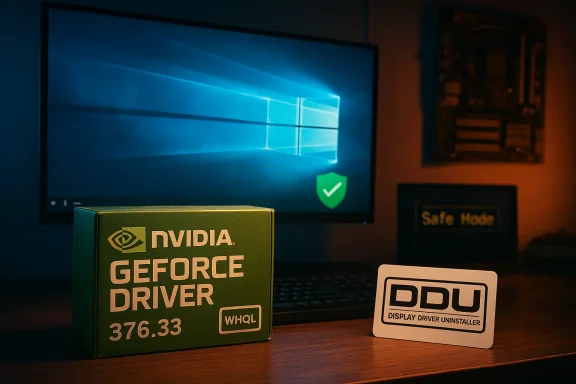 Background and overview
NVIDIA GeForce Driver version 376.33 was published as a Game Ready release on December 14, 2016. It was distributed as a WHQL‑signed Windows package targeted at Windows 10 64‑bit systems (with companion packages for earlier Windows releases). At the time, it added optimizations for then‑current game releases, included components such as GeForce Experience and CUDA 8.0, and addressed a set of stability and security issues identified by NVIDIA. The official package was roughly 375 MB in size and was listed on NVIDIA’s download archive as a WHQL release for both desktop and notebook GPUs in the GeForce 400 through 1000 series families.That historical context is important: 376.33 is not a “current” driver. It is a preserved snapshot of NVIDIA’s Release 375 family from late 2016. For users with older hardware, specific legacy workflows, or software that requires old driver stacks, it remains useful — but it should be treated as legacy software rather than a routine update.
Why people still look for old drivers
There are legitimate reasons to seek out older NVIDIA drivers like 376.33:- Legacy GPU support — some older graphics cards behave best with the driver versions they were validated with, especially in notebooks where OEM driver customizations exist.
- Software or hardware compatibility — certain professional or hobbyist applications, older games, emulators, or GPU compute setups (CUDA toolchain matching) may require a specific driver version.
- Troubleshooting and rollback — when a newer driver introduces regressions, reverting to a known‑good older driver is a common troubleshooting step.
- Minimalist setups — users building an old PC for retro gaming or specialized offline tasks may prefer the driver that was current when that GPU was mainstream.
Safety and security: the core tradeoffs
Using a decade‑old driver package has clear downsides that go beyond “it’s old”:- Missing security patches. Drivers are privileged kernel components. Vulnerabilities discovered after December 2016 are not fixed in 376.33. That means a system running this driver could be exposed to privilege escalation, denial‑of‑service, or other exploits patched in later driver branches.
- Compatibility with modern Windows updates. Windows 10 has evolved substantially since 2016. Feature updates, security mitigations, and WDDM (Windows Display Driver Model) revisions can produce unexpected behavior when an ancient driver meets a modern OS build.
- Third‑party repackaging risks. Driver torrents, “clearance” shopping pages, and aggregated driver sites sometimes bundle installers with adware, telemetry boosters, or worse. Downloading the executable from untrusted sites risks malware exposure.
- Signed but stale. Even though 376.33 was WHQL‑signed at release, a valid digital signature only proves authenticity of the original package. It does not guarantee the package is free from vulnerabilities or that repackaged copies haven’t been tampered with.
How to verify the authenticity of an old NVIDIA driver package
Before running any driver installer that isn’t the latest from your GPU vendor, verify the package integrity and signature. A reliable verification workflow includes the following checks:- Check the package name and size against official records. The original 376.33 desktop installer is approximately 375 MB. Significant size differences are a red flag.
- Verify the digital signature:
- In Windows File Explorer, right‑click the .exe → Properties → Digital Signatures tab. Confirm a valid signature and that the signer is the expected publisher (NVIDIA Corporation).
- For robust verification, use Microsoft’s SignTool utility to inspect the installer from an elevated Command Prompt or Developer Command Prompt:
- Install Windows SDK or use a system that includes SignTool.
- Run: signtool verify /pa /v "path\to\376.33-desktop-win10-64bit-international-whql.exe"
The command returns details about the signing certificate and whether verification succeeded. - Verify the hash (checksum) of the downloaded file:
- Use Windows’ built‑in certutil or PowerShell Get‑FileHash to compute a SHA‑256 fingerprint:
- certutil -hashfile "C:\path\to\file.exe" SHA256
- or PowerShell: Get-FileHash -Path "C:\path\to\file.exe" -Algorithm SHA256
- Compare the computed hash with an authoritative hash published by NVIDIA or a trusted archive. If no authoritative hash exists for that exact build, treat the download cautiously.
- Scan the file with an up‑to‑date antivirus engine and, if needed, submit it to multiple online scanners for additional checks before executing.
Where to get 376.33 safely
Priority order for downloads:- NVIDIA’s official driver archive — the vendor maintains downloadable release pages and release notes for legacy drivers. This is the single safest source for historic packages.
- Your OEM (laptop manufacturer) — for notebook GPUs, OEM‑specific drivers are often customized and should be preferred over generic desktop packages for stability.
- Reputable driver archives with integrity checks — established tech sites sometimes host driver files; use them only when they provide matching digital signatures and checksums and you cannot get the file from NVIDIA or OEM.
Safe install workflow for NVIDIA GeForce Driver 376.33 on Windows 10 64‑bit
If you’ve decided — after risk analysis — that you must install 376.33, follow a conservative, reversible workflow. This sequence minimizes the chance of a bad outcome.- Backup: create a full system restore point or a disk image before changing drivers.
- Download the official 376.33 installer from NVIDIA or the OEM and save it to a dedicated folder.
- Verify the package digital signature and compute SHA‑256 (or MD5) checksum. Refuse any file that fails signature checks.
- Download the latest Display Driver Uninstaller (DDU) and read the instructions. DDU is an advanced tool for thoroughly removing GPU drivers when standard uninstallers don’t suffice.
- Reboot into Safe Mode to run DDU (recommended):
- Use Safe Mode during the DDU run to ensure files and services can be removed cleanly.
- In DDU, select NVIDIA and choose “Clean and restart”.
- After restart, disable internet temporarily (unplug Ethernet / turn off Wi‑Fi) to prevent Windows Update from automatically installing a different driver midway.
- Run the official 376.33 installer:
- Choose “Custom (Advanced)” in the NVIDIA installer.
- Use the “Perform a clean installation” option to reset driver settings and replace remnant components.
- Reboot when installation completes.
- Reconnect the network and observe behavior. Test displays, gaming or application workloads, and monitor Event Viewer for driver errors.
- If problems occur, use Device Manager to roll back to Microsoft Basic Display Adapter or restore your system image/restore point. Reinstall a newer, patched NVIDIA driver if recovery is needed.
- DDU is a community tool (not a Microsoft or NVIDIA product) designed for deep cleanups. It is widely used and effective but intended for troubleshooting, not routine updates.
- Do not leave Windows Update blocked longer than necessary; it may contain important compatibility or security updates.
Technical specifics you should know about 376.33
- The package is part of NVIDIA’s Release 375 family and includes software modules such as:
- GeForce Experience (older 3.x branch at the time),
- HD Audio driver component,
- PhysX system software and CUDA 8.0 support.
- It targeted a wide span of NVIDIA desktop and notebook GPUs: from GeForce 1000 (Pascal) series down through certain 400/500/600 generation parts for desktop and the corresponding notebook range.
- The 376.33 release notes explicitly reference game‑specific optimizations (for titles current in late 2016) and a set of security improvements relative to earlier Release 375 builds — but that does not mean it contains later fixes introduced in driver branches after 2016.
- The driver is WHQL‑signed for Windows 10, which reflects Microsoft compatibility testing at publication time; WHQL does not equate to ongoing patching.
Real world risks and mitigations — a deeper look
- Kernel‑level code is attractive to attackers. GPU drivers run in privileged space; vulnerabilities in drivers have been used historically for privilege escalation or code execution. Using a driver that pre‑dates many public disclosures increases exposure to later CVEs that target NVIDIA driver code.
- Mitigation: confine the machine’s network access, minimize attack surface, and keep other system security protections (antivirus, exploit mitigations) active.
- Windows feature updates can change kernel expectations or introduce tightened driver validation paths. An ancient driver may lead to system instability after a big Windows update.
- Mitigation: avoid installing the driver on a mission‑critical machine or on systems scheduled to receive major Windows upgrades. Prefer staging on a test machine.
- Notebook systems often require OEM factory drivers. Using a generic NVIDIA package on a laptop may disable power management, cause battery inefficiency, or break Optimus switching.
- Mitigation: prefer OEM downloads for laptops and consult OEM support documentation for legacy driver recommendations.
- Repackaged installers and shady download sources: some aggregated driver pages rebrand installers and add installers for other software.
- Mitigation: prefer vendor sources, validate signatures, and scan the package before execution.
- If a download page does not publish a cryptographic checksum or originates from an unknown vendor, the true integrity of the file cannot be independently verified. Treat such downloads as untrusted.
Alternatives to installing 376.33
Before committing to an old driver, consider alternatives:- Use the latest compatible NVIDIA driver release. Modern drivers include years of fixes and security patches and often maintain backward compatibility with older GPUs.
- For legacy software requiring specific CUDA versions, consider installing a recent driver plus a compatible CUDA toolkit version that supports the required API while benefiting from driver security patches.
- Use virtualization: for isolated legacy workflows, run the older driver inside a controlled VM (if the software supports GPU passthrough) to isolate risk.
- Replace the GPU with a newer, supported model if ongoing security and compatibility are priorities.
Practical checklist: is 376.33 right for you?
- You should consider using 376.33 only if:
- You have an explicit compatibility requirement that newer drivers break (old software, toolchain or game).
- You can install it on a non‑critical or well‑backed‑up machine.
- You can obtain the installer from NVIDIA or your OEM and verify signature and checksum.
- You are prepared to use DDU and know how to recover if the install fails.
- Avoid 376.33 if:
- You’re motivated by curiosity or convenience rather than necessity.
- You cannot verify the installer’s authenticity.
- The machine is used for sensitive, production, or internet‑facing tasks.
Step‑by‑step quick reference (short version)
- Backup system image and create a restore point.
- Download official 376.33 installer from NVIDIA or OEM.
- Verify digital signature via File Properties or SignTool.
- Compute SHA‑256 and compare to authoritative value if available.
- Download DDU and read official guidance.
- Boot to Safe Mode, run DDU → Clean and restart.
- Disconnect from network, run 376.33 installer → Custom → Perform clean install.
- Reboot and test. Reconnect network after initial verification.
- If issues, roll back or restore; reapply a current NVIDIA driver if needed.
Conclusion
NVIDIA’s GeForce Driver 376.33 is a legitimate, WHQL‑signed historic release that solved problems and optimized games for its day. Today it belongs to the library of legacy software: useful in specific cases but risky if used casually. For anyone tempted by “clearance” offers or third‑party listings, the single most important rule is to verify — by signature and checksum — and to limit exposure by applying the driver only where a clear compatibility need exists. When possible, prefer up‑to‑date drivers or vetted OEM versions, and employ a safe, reversible installation path (including DDU, Safe Mode, and full backups) to protect systems and data.Source: Born2Invest https://born2invest.com/?b=style-238485112/
