October 2025 Windows Updates Trigger BitLocker Recovery Prompts on Intel PCs

  • Thread Author
Microsoft has confirmed that a recent wave of Windows updates can — and in some cases does — force affected PCs into the BitLocker recovery screen at boot, prompting users to enter 48‑digit recovery keys and, for some machines, blocking access to the Windows Recovery Environment (WinRE) until fixes are applied or recovery keys are supplied.

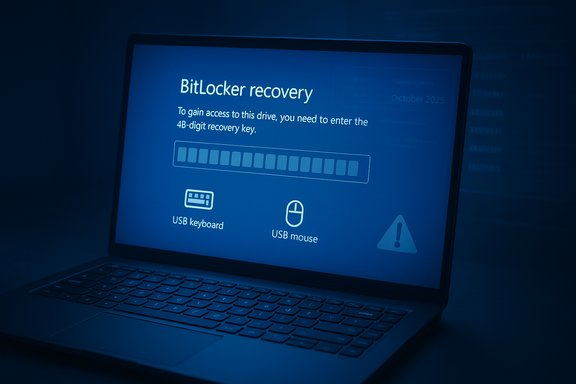
Laptop displays BitLocker Recovery asking for a 48-digit recovery key.Background​

The problem is not new: Windows cumulative updates that touch pre‑boot components have previously caused BitLocker recovery prompts for some users, most notably during mid‑2024 when July’s Patch Tuesday updates triggered recovery prompts on devices with Device Encryption enabled; Microsoft subsequently issued fixes in August 2024. In October 2025 a similar—but technically distinct—incident reappeared after Microsoft’s October 14, 2025 cumulative updates. Microsoft’s advisory and follow‑up out‑of‑band updates describe cases where the update path changed or refreshed Safe OS / WinRE components and, on a subset of hardware (notably Intel systems that implement Modern Standby/Connected Standby), caused the device to boot to the BitLocker recovery screen or made WinRE input (USB keyboard/mouse) unusable. Microsoft has published guidance for enterprise administrators (Known Issue Rollback, or KIR) and released emergency out‑of‑band fixes to mitigate the problem.

Overview: what happened, in plain terms​

  • Microsoft shipped regular cumulative updates that, among many fixes and security improvements, refreshed pre‑boot or recovery images used by the Windows Recovery Environment (WinRE).
  • On some devices the updated WinRE image lacked compatible low‑level drivers (most commonly USB host controller / xHCI/HID variants) or the update path did not correctly preserve BitLocker’s expected pre‑boot state for a single restart.
  • As a result, BitLocker interpreted the difference in boot state or the absence of functional input devices in WinRE as a security event and dropped the machine into the BitLocker recovery flow, requiring the 48‑digit recovery key to continue. In some cases, WinRE itself did not accept USB input, preventing users from entering recovery keys or navigating its options without alternate input methods.
This is important because BitLocker’s recovery path is deliberately strict: if it detects changes that could indicate tampering (firmware updates, altered boot chains, unexpected pre‑boot environment), it requires the recovery key to ensure the data remains protected — which is the right security posture, but a painful operational outcome when the trigger is an innocuous update.

Which updates and which systems were affected​

A short timeline of confirmed incidents​

  • July 9, 2024 — Patch Tuesday updates (examples: KB5040442 / KB5040427) were tied to reports of systems booting to the BitLocker recovery screen for devices with Device Encryption enabled; Microsoft later stated the problem had been resolved with updates released on August 13, 2024.
  • October 14, 2025 — Microsoft released cumulative updates (KB5066835 for Windows 11 24H2/25H2 and KB5066791 for Windows 10 22H2 paths) that were later associated with BitLocker recovery and WinRE input regressions on a subset of devices. Microsoft issued advisories and emergency fixes in the following days.

Affected OS versions (as described by Microsoft)​

  • Windows 11, version 25H2 — KB5066835 (October 14, 2025 servicing wave).
  • Windows 11, version 24H2 — KB5066835 (same servicing chain).
  • Windows 10, version 22H2 — KB5066791 in applicable servicing chains.
Microsoft’s advisory notes that the issue was most frequently observed on Intel‑based devices that use Modern Standby (also called Connected Standby), and it characterized the problem as “mostly Intel PCs” in its messaging; precise telemetry percentages were not published.

The technical anatomy: why pre‑boot updates are risky​

The Windows Recovery Environment is a deliberately minimal “Safe OS” image (winre.wim) that loads a tiny runtime and a very small set of drivers so it can reliably operate when the full desktop cannot. That small surface area is WinRE’s strength — and its Achilles’ heel.
  • WinRE contains a reduced driver set to minimize failure points. If a servicing operation replaces or refreshes the WinRE image with a build that omits a specific USB host controller or HID driver variant used by a machine, the keyboard and mouse appear to be absent inside WinRE even though they work fine in the full Windows desktop.
  • Combined packaging of Servicing Stack Updates (SSUs) and Latest Cumulative Updates (LCUs) accelerates delivery but complicates uninstall/rollback. If an SSU+LCU package is installed and the WinRE image is updated in the process, simple “uninstall KB” rollback semantics are not available to restore a previous WinRE image on many systems.
  • Modern Standby devices have different low‑power and resume sequences; on those platforms the update and restart path may not always cleanly suspend BitLocker for the single reboot required during servicing, which can leave BitLocker in a state that prompts recovery at the next boot. Microsoft’s advisory linked the regression to this platform behavior but did not publish a detailed engineering post‑mortem enumerating the exact file‑level changes that triggered the regressions. That gap limits precise forensic conclusions from outside Microsoft.
The practical implication: updates that work in the running OS can still leave users without a usable recovery environment if pre‑boot tooling or driver sets are altered in ways that break essential input or boot logic.

How Microsoft responded​

Microsoft used a multi‑track remediation strategy:
  • Known Issue Rollback (KIR): For managed environments Microsoft published Group Policy / MSI guidance that allows IT admins to apply a KIR to neutralize the problematic change without removing the entire security update package. This is commonly the quickest path for large organizations to restore expected behavior across a fleet.
  • Out‑of‑band (OOB) fixes: Microsoft released emergency patches to repair WinRE input behavior and to adjust Safe OS images for affected branches (examples include emergency packages distributed in mid‑to‑late October 2025). These were distributed through Windows Update or manual download/enterprise channels.
  • Public advisories and operational guidance: Microsoft’s Release Health and support pages described the problem, outlined mitigation steps for administrators, and advised on retrieval of recovery keys.
This trio—KIR for managed estates, OOB fixes for immediate relief, and guidance for individual users—represents the pragmatic toolkit vendors use for high‑impact regressions that risk data loss or widespread outage.

What users and IT teams must do right now​

Whether you’re an individual user or an IT administrator, the goal is to prevent being locked out and to ensure rapid recovery if you are affected. The following checklist is prioritized and actionable.

Immediate checklist (home users and small businesses)​

  • Locate and secure your BitLocker recovery key now:
  • If you use a Microsoft account, check your recovery keys at your account’s recovery key page. Microsoft documents how to find keys attached to a personal Microsoft account or a work/school account; keys are 48‑digit numerical strings.
  • If your device is prompting for a recovery key at boot, enter the recovery key shown on the BitLocker screen. That will allow the device to boot to the desktop and install subsequent fixes.
  • Create, test, and keep a bootable Windows recovery USB (Windows installation media or WinPE) on hand. Validate that it boots the device and can access the encrypted volume when a recovery key is available.
  • If you manage firmware or vendor updates, suspend BitLocker temporarily before applying firmware updates or risky maintenance. Use PowerShell or manage‑bde:
  • PowerShell: Suspend-BitLocker -MountPoint "C:" -RebootCount 2 (adjust RebootCount as needed).
  • Or use the manage-bde -protectors -disable C: -rebootcount <n> command to suspend for a specified number of reboots.

Recommended actions for IT administrators (enterprise)​

  • Inventory your estate for devices that installed the October 14, 2025 cumulative updates (KB5066835 / KB5066791) and prioritize Intel Modern Standby devices and USB‑only input topologies (no PS/2 fallback).
  • Deploy Microsoft’s Known Issue Rollback Group Policy / MSI for affected branches to quickly neutralize the regression where applicable. Follow Microsoft’s published KIR guidance closely.
  • Escrow and verify BitLocker recovery keys: confirm Azure AD / Entra ID, AD, or Intune key escrow is working and that recovery keys are accessible to helpdesk staff. Test retrieval workflows.
  • Create and pre‑stage external recovery media and test WinRE behavior on representative devices before broad rollouts. Preserve a validated winre.wim baseline for emergency replacement if required.
  • If possible, delay non‑urgent cumulative deployments in recovery‑critical environments until the OOB fixes or KIR have been applied and validated in a pilot ring.

Step‑by‑step: recovering a device stuck at BitLocker recovery​

  • On boot, note the recovery key ID (first 8 digits) shown on screen. That helps you identify the correct key if multiple keys exist.
  • If you have access to another device, log in to your Microsoft account to retrieve the matching 48‑digit recovery key (or contact your organization’s helpdesk to retrieve keys from Azure AD/AD/Intune).
  • Enter the 48‑digit recovery key to proceed to the desktop. Once booted, check Windows Update for any out‑of‑band fixes and install them.
  • If WinRE does not accept USB input and you cannot enter a key at boot, try:
  • A device’s touchscreen (if available), PS/2 keyboard (older ports), or a USB‑to‑PS/2 adapter.
  • Boot from a known‑good Windows recovery USB that contains a working winre.wim or updated recovery app; if the recovery app on USB works, it may let you reinitialize or repair pre‑boot components.
  • After recovery, ensure BitLocker protection is resumed (if you suspended it) and verify WinRE input behavior on reboot. Apply Microsoft’s KIR or OOB patches as applicable.

Critical analysis: strengths, weaknesses, and operational risk​

Microsoft’s strengths in the response​

  • Rapid multi‑track remediation: Microsoft moved quickly to publish KIR guidance and to release OOB fixes for affected WinRE flows. This combination recognizes the realities of enterprise lifecycles and the need for both centralized mitigations and public patches.
  • Clear operational guidance: Microsoft’s support pages and Release Health advisories outlined mitigation steps (suspend BitLocker for firmware updates, KIR for managed estates) and recovery guidance for users who are already in recovery mode.

Remaining weaknesses and risks​

  • Fragility of pre‑boot tooling: WinRE’s minimal driver footprint is both necessary and risky. The incident underlines that changing Safe OS images is high risk and requires exhaustive cross‑validation across hardware variants and firmware states.
  • Rollback complexity: Combined SSU+LCU packaging reduces simple uninstall/rollback options for administrators. When a pre‑boot component is updated as part of a combined package, there is no trivial “remove the KB” path to restore the exact prior WinRE image on many devices. That complicates incident response and lengthens mean time to repair in some environments.
  • Limited public engineering detail: Microsoft’s advisories and fixes were operationally effective, but the vendor did not publish a full engineering post‑mortem that enumerates the exact file‑level mismatch or driver variants that caused the USB input failure in WinRE. That lack of public technical detail reduces the ability for third parties and OEMs to fully validate root cause and recurrence mitigations.

Operational risk beyond the immediate bug​

This incident is more than an occasional annoyance. For businesses that rely on rapid on‑device recovery (retail kiosks, point‑of‑sale, frontline devices, or remotely deployed endpoints), a broken WinRE can materially increase downtime and support costs. It also places a premium on rigorous update validation and on storing recovery keys in an escrowed, auditable way.

Longer‑term fixes and recommendations for Microsoft and OEMs​

  • Expand pre‑boot test coverage: Add targeted validation of WinRE input across a broader cross‑section of OEM driver variants and Modern Standby firmware states before shipping Safe OS or Safe OS‑affecting updates.
  • Provide clearer rollback primitives for pre‑boot images: Enabling administrators to restore a golden winre.wim from a secure update channel would reduce operational friction if regressions occur.
  • Publish a fuller technical post‑mortem for each high‑impact regression affecting the boot path, including precise file hashes and driver mismatch details to aid independent analysis and OEM coordination.
  • Strengthen OEM coordination: Because firmware and OEM driver variants are a central factor, deeper pre‑release testing with OEMs (and risk‑based gating) can reduce the chance that a Safe OS refresh breaks input on specific hardware lines.

What didn’t change and what to treat with caution​

  • The core security posture of BitLocker did not change: the recovery prompts are BitLocker doing its job — enforcing a recovery path when it detects a change in platform state — even if the detection was accidentally triggered by a benign update. That protection remains essential to prevent tampering or data theft.
  • Microsoft’s telemetry and public advisories did not publish precise percentages or counts of affected devices. Any claim about “X% of devices” being impacted should be treated as speculative unless accompanied by Microsoft telemetry data. Microsoft described the problem as “mostly Intel PCs” for the October 2025 incident but did not quantify the incidence rate. Treat such vendor statements as directional, not definitive.

Practical takeaways — a short checklist​

  • Immediately verify and centralize BitLocker recovery keys (personal Microsoft account, Azure AD, on‑prem AD, Intune).
  • Create and test a Windows recovery USB now; store it separately from the device.
  • If you manage firmware or non‑Microsoft updates, suspend BitLocker before applying them and resume after maintenance. Use Suspend-BitLocker or manage-bde -protectors -disable as documented.
  • For enterprises, apply Microsoft’s Known Issue Rollback (KIR) or OOB fixes as recommended and validate WinRE behavior in a pilot ring before broad deployment.

Conclusion​

This incident is a reminder that security and recoverability are tightly coupled: strong pre‑boot protections like BitLocker protect data, but they also demand robust operational hygiene and careful validation of updates that touch the boot chain or recovery environment. Microsoft’s multi‑track response (KIR, emergency fixes, and published guidance) mitigated widespread outage risk, but the recurrence of similar issues across update waves highlights a structural testing gap around pre‑boot tooling and OEM driver variants. For users and administrators, the practical imperative is simple and immediate: verify recovery key escrow, prepare external recovery media, and treat updates that alter firmware or pre‑boot components with special caution until the ecosystem narrows the recurrence risk.

Source: Neowin Microsoft confirms PCs boot into BitLocker recovery after the latest Windows updates

 

A wave of October cumulative updates triggered a BitLocker recovery prompt on a subset of Windows PCs, and for some users the follow‑up behavior made recovery impossible without a stored recovery key — a scenario that risks permanent data loss if the key is not available.

Laptop screen shows a BitLocker recovery prompt requesting a 48-digit recovery key.Background​

Microsoft shipped its October servicing wave on October 14, 2025. Within days, administrators and home users reported two distinct but related failures: affected machines could boot directly into the BitLocker recovery screen and — on many Intel systems that support Connected Standby (also called Modern Standby) — the Windows Recovery Environment (WinRE) refused to accept USB keyboard and mouse input. The combined effect in some cases left users unable to enter the 48‑digit BitLocker recovery key, effectively locking them out of their device. Microsoft listed the behavior as a confirmed known issue affecting Windows 11 versions 25H2 and 24H2 and certain Windows 10 servicing paths (notably 22H2), tying the regressions to the October cumulative updates (originating KBs such as KB5066835 for Windows 11 and KB5066791 for Windows 10). The vendor later shipped an out‑of‑band remediation (KB5070773) to restore WinRE USB input and pushed Known Issue Rollback and hotfix options for managed environments.

What exactly happened?​

Two intertwined symptoms​

  • Symptom A: Devices booting into the BitLocker recovery screen, asking for the recovery key after installing October updates. Entering the correct key typically allowed the PC to boot normally thereafter, but without the key the drive remains encrypted and inaccessible.
  • Symptom B: On many affected systems, WinRE — the compact “Safe OS” that supplies recovery tools — did not respond to USB keyboard or mouse input, preventing users from navigating recovery options or entering a recovery key on USB‑only systems. This made the recovery flow unusable on many laptops that lack legacy PS/2 ports or touchscreen alternatives.
The two symptoms often occurred together: a machine dropped into BitLocker recovery and the recovery UI could not accept USB input, creating a worst‑case lockout. Community reproduction reports, OEM help desks, and telemetry from enterprises showed a consistent pattern across manufacturers and device classes, although incidence varied by hardware and configuration.

Timeline (verified)​

  • October 14, 2025 — Microsoft publishes October cumulative updates (originating KBs such as KB5066835).
  • Mid‑October 2025 — Field reports and forums record BitLocker recovery prompts and WinRE USB failures.
  • October 17–18, 2025 — Microsoft adds the incident to the Windows Release Health / Known Issues dashboard and acknowledges a confirmed problem.
  • October 20, 2025 — Microsoft issues an out‑of‑band cumulative update KB5070773 to restore WinRE USB input and include the security fixes. Enterprise mitigations (Known Issue Rollback / KIR) and catalog downloads became available for admins.

Why BitLocker tripped​

How BitLocker determines recovery​

BitLocker is designed to protect encrypted volumes by demanding a recovery key when it detects changes in the pre‑boot environment, TPM state, Secure Boot measurements, or other platform measurements that might indicate tampering. That strict posture prevents malicious offline access but also means benign servicing that touches pre‑boot components can trigger a recovery requirement.

Role of WinRE and Safe OS updates​

WinRE runs a deliberately minimal "Safe OS" image (winre.wim) with a reduced driver set. When servicing updates replace or refresh Safe OS components, the driver matrix available to WinRE can change. If WinRE’s drivers no longer enumerate the system’s USB host controllers or HID stack, keyboards and mice appear non‑functional inside the recovery environment even though they work in the full desktop. When combined with an update path that changes pre‑boot expectations, BitLocker can interpret the change and require the recovery key. Community analysis and repeated field tests — including restoring known‑good winre.wim images — point to Safe OS driver mismatches or packaging regressions as a proximate cause.

Connected Standby / Modern Standby factor​

Reports and Microsoft's advisory emphasized that Intel‑based devices supporting Connected Standby showed a higher incidence rate. Modern Standby platforms manage power and resume sequences differently from classic S3 suspend, and subtle differences in how the platform reports boot/resume states can interact with servicing and BitLocker measurement logic. Microsoft has not published low‑level engineering traces publicly; therefore the exact chain remains partially unverified, but multiple independent analyses converge on an interaction between Modern Standby semantics, Safe OS refreshing, and BitLocker measurement checks. Treat manufacturer‑level root‑cause links as plausible but not fully disclosed by Microsoft.

Who was affected?​

Affected Windows versions (confirmed)​

  • Windows 11, version 25H2 — originating update KB5066835.
  • Windows 11, version 24H2 — originating update KB5066835.
  • Windows 10, version 22H2 — related servicing paths under KB5066791 in some channels.

Hardware and configuration signals​

  • Intel‑based laptops and systems with Modern/Connected Standby were prominently reported.
  • Systems with only USB input (no PS/2 or touchscreen) and no external recovery media were at most risk when WinRE USB input failed.

Who was not targeted​

  • Microsoft’s advisories narrowed the issue to client SKUs and servicing chains; server editions were not broadly implicated in the same way. Reported cases and vendor messaging emphasized client platforms first.

Immediate risk: could this “brick” your PC?​

Yes — but with caveats. BitLocker’s whole point is to prevent unauthorized access, so if a machine enters BitLocker recovery and the rightful owner does not have the recovery key, the data on the encrypted volume remains inaccessible. That immutability is desirable for security but disastrous if the recovery key is lost. Compounding this, when WinRE does not accept USB input, the user cannot reach the prompt or other repair tools unless they have alternative input (touchscreen, PS/2, or prepared USB recovery media). In that scenario, a device can become effectively unbootable to its owner until one of the following happens: the recovery key is found, Microsoft/enterprise‑managed KIR is applied, or remedial fixes are installed that restore input and allow key entry. Important practical note: Microsoft and support teams cannot recover or regenerate a lost BitLocker recovery key. If you do not have a backup of the key, the encrypted data is effectively lost. Microsoft repeatedly reminds customers that support cannot provide a lost key.

How to check and prepare (home users)​

Short checklist to reduce risk before installing unknown updates or after encountering the issue:
  • Verify whether you have BitLocker enabled:
  • Settings → Update & Security → Device encryption / BitLocker Drive Encryption.
  • Back up your BitLocker recovery key immediately if you see it available:
  • Save to your Microsoft account, print a copy, or export to safe media.
  • Create external recovery media (Windows installation USB or a WinPE/WinRE USB image made on a healthy machine) and keep it available. That media often includes broader driver support and can allow you to work around WinRE driver omissions.
  • Before installing patch waves on laptops that use Modern Standby, validate in a test environment or ensure recovery keys are secured and accessible.

What to do if you’re already stuck at the BitLocker screen​

  • Retrieve your BitLocker recovery key from a backup location (Microsoft account, AD/Intune escrow, printed copy, USB) and enter it at the prompt to unlock the drive. If the key exists, one successful entry usually permits normal boot thereafter.
  • If WinRE won’t accept USB input and you cannot enter the key, try alternate input methods: touchscreen, PS/2 keyboard, or booting from external Windows installation media created on another PC. Those environments often enumerate input devices differently and let you proceed.
  • If the PC is managed by an organization, coordinate with IT — admins can deploy a Known Issue Rollback (KIR) or targeted hotfix via standard enterprise tooling to remediate affected fleets.
  • As a last resort for unreachable devices with no recovery key, acknowledge the real risk: the data is effectively irrecoverable. Microsoft cannot regenerate a lost BitLocker key.

What Microsoft did (and when)​

Microsoft acknowledged the issue on the Windows Release Health pages, confirmed affected builds, and rolled out an out‑of‑band cumulative update KB5070773 to restore USB functionality in WinRE and include the October security fixes. The vendor also offered KIR‑style mitigations and recommended enterprise deployment patterns: pilot, validate WinRE input, and then stage rollouts. Microsoft’s remediation timeline included rapid OOB publishing within days of confirmation — an appropriate response for a high‑impact recovery regression.

Technical analysis: strengths and risks in the update process​

Strengths​

  • Microsoft moved quickly to classify the issue as a known problem and issued an out‑of‑band cumulative update within a short window. Rapid OOB releases are the right operational response for a failure that can prevent recovery.
  • The company offered enterprise-centric mitigations (KIR and catalog downloads) so large organizations could deploy fixes in a controlled manner rather than forcing an immediate broad rollback.

Risks and systemic weaknesses​

  • The incident underscores the brittle relationship between pre‑boot recovery tooling (WinRE / Safe OS), device firmware/state (TPM, Secure Boot, Modern Standby), and cumulative servicing. Small mismatches can trigger BitLocker’s protective behavior or render WinRE unusable. The very minimalism that makes WinRE robust in many failure modes also leaves it fragile when driver surfaces change.
  • The update packaging model (combined servicing stack update + LCU + Safe OS updates) accelerates deployment but reduces rollback options. In many cases you cannot simply "uninstall the KB" to restore a prior safe OS image; that complicates incident containment.
  • Communication friction: some detailed root‑cause elements (driver‑level traces, exact manifest changes) have been withheld from public view, which is understandable for engineering confidentiality but makes independent verification harder. Community sleuthing fills gaps, but transparency on exact file/driver swaps would help enterprise patch engineers faster. Treat deeper causality claims as provisional until Microsoft publishes post‑mortem details.

Recommendations — for IT administrators​

  • Pause automatic deployment of the October servicing wave to pilot rings until WinRE functionality is validated across representative hardware, especially Intel Modern Standby devices.
  • Maintain an inventory of devices that use Modern Standby and prioritize their remediation. Document recovery procedures that include manual entry of BitLocker keys and fallback input options.
  • Escrow all BitLocker recovery keys centrally (Active Directory, Azure AD / Intune, or a secure key management tool) and verify key availability before broad update windows. Test recovery flows periodically.
  • Keep known‑good copies of winre.wim and validated external recovery media in an accessible repository to enable rapid restoration of a functional recovery image if Safe OS updates appear to cause problems.
  • For remote/fielded devices, ensure technicians have a tested plan for USB‑only input failure (prebuilt USB WinPE images, PS/2 adapters, or rescue devices).

Recommendations — for home users​

  • Back up your BitLocker recovery key now if you have not done so. Save it to your Microsoft account, export it to a secure USB, or print it and store it in a safe place. Microsoft cannot retrieve lost keys for you.
  • Create Windows installation or recovery media on a second machine and keep it handy. That media is often the fastest way to regain control if WinRE behaves unexpectedly.
  • If you manage multiple PCs, delay non‑urgent update installation until your devices have been validated against the published fixes and advisories.

What to watch next — transparency and engineering follow‑up​

The incident highlights a recurring theme: updates that touch pre‑boot components carry outsized operational risk. Microsoft’s quick OOB fix reduced immediate hazard, but longer‑term confidence requires improved pre‑release validation for Safe OS permutations, more explicit guidance for Modern Standby platforms, and clearer post‑mortems that explain exactly what changed in the Safe OS image and why USB host controller enumeration failed in WinRE on affected devices. Until Microsoft publishes deeper engineering details, some technical assertions from community analyses remain plausible but not fully verified.

Final assessment​

This episode is an uncomfortable reminder that the very mechanisms that protect our data — TPM‑backed BitLocker and a minimalistic recovery environment — can convert from defenders into operational blockers when update servicing and platform interactions go awry. Microsoft’s handling demonstrated appropriate urgency: classification on Release Health, KIR options for enterprises, and an out‑of‑band cumulative update to restore WinRE functionality. Those are the right tactical responses.
However, the event also exposed systemic tensions in the servicing model: quick, broad‑surface updates are valuable for security, yet when they touch pre‑boot or Safe OS layers they demand higher‑fidelity compatibility testing across diverse hardware power states (including Modern Standby). Organizations and users should treat BitLocker recovery keys as mission‑critical assets, maintain tested recovery media, and apply a conservative rollout posture for updates that alter pre‑boot images.

Quick reference — essential actions (consolidated)​

  • Immediately confirm and back up your BitLocker recovery key(s).
  • If you haven’t installed the October cumulative yet and your device is a Modern Standby Intel system, delay install until your device is validated or the vendor signals a safe deployment window.
  • If affected, try alternative input methods or external Windows installation media to enter your recovery key.
  • Enterprises: deploy KIR or the OOB fix in a staged pilot before broad rollout; keep winre.wim backups and recovery media in your runbook.

This incident should encourage both vendors and admins to treat pre‑boot recovery tooling with greater respect during testing and to make recovery‑key custody and recovery media a routine part of update readiness planning. The protective design of BitLocker works; the failure mode here is operational, not cryptographic — but operational failures have real consequences for users who lack prepared recovery keys.

Source: PCWorld BitLocker recovery bug in recent Windows updates could brick your PC
 

Back
Top