

OneDrive in 2026 is no longer just a cloud folder — it’s a full-featured file platform that blends traditional syncing, robust security, and AI-driven productivity into a single experience that lives in File Explorer, the web, and your pocket. This guide walks through practical setup tips for desktop, mobile, and web; shows how to use Files on Demand to save local space; explains sharing and permissions best practices (including expiration and password protection); details how to protect sensitive files with Personal Vault; and outlines file recovery and versioning — all updated and verified against Microsoft’s current guidance and independent reporting so you can configure OneDrive with confidence.
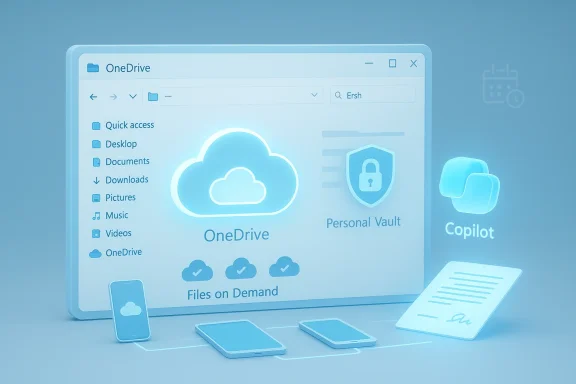
OneDrive started as Microsoft’s consumer cloud storage and has steadily evolved into a platform tightly integrated with Windows, Microsoft 365, and — increasingly — AI. It aims to be the single place for your documents, photos, and cross-device workflows, with desktop sync, mobile backups, web access, and integrations such as Microsoft Copilot to surface summaries and quick actions directly in the file management flow. Microsoft documents and product blogs describe OneDrive as a hybrid file system: files can be stored in the cloud and surfaced locally without occupying disk space until you open them, and secure containers such as Personal Vault provide an extra authentication layer for sensitive material.
Practical advice:
Key sharing modes:
Security checklist for sharing:
Best practices:
Practical use cases:
Conclusion: OneDrive remains one of the most practical and integrated cloud storage options for Windows users. Invest a little time in setup — enable Files on Demand, secure your Personal Vault, tighten sharing controls, and pilot Copilot thoughtfully — and OneDrive will reward you with smoother, safer, and smarter file management across devices.
Source: Geeky Gadgets OneDrive Guide 2026 : Setup, Syncing, Sharing Permissions, and File Recovery
 Background / Overview
OneDrive started as Microsoft’s consumer cloud storage and has steadily evolved into a platform tightly integrated with Windows, Microsoft 365, and — increasingly — AI. It aims to be the single place for your documents, photos, and cross-device workflows, with desktop sync, mobile backups, web access, and integrations such as Microsoft Copilot to surface summaries and quick actions directly in the file management flow. Microsoft documents and product blogs describe OneDrive as a hybrid file system: files can be stored in the cloud and surfaced locally without occupying disk space until you open them, and secure containers such as Personal Vault provide an extra authentication layer for sensitive material.Getting started: setup on desktop, mobile and web
Setting up OneDrive is intentionally simple, but a few configuration choices at install-time determine how OneDrive behaves going forward.Desktop (Windows and macOS)
- Sign in with your Microsoft Account (personal) or Microsoft 365 work/school account from the OneDrive app.
- During the first run you’ll be offered to enable Known Folder Move (back up Desktop/Documents/Pictures) — accept only if you want those folders moved into cloud-backed storage.
- Configure Files on Demand in OneDrive Settings → Settings: this lets Windows show cloud-only placeholder files so they look and behave like local files without using disk space; download only when you open or mark “Always keep on this device.”
- Keep “Start OneDrive automatically when I sign in to Windows” enabled for continuous protection.
- Use “Choose folders” on the Account tab to avoid syncing very large folders to devices with limited storage.
Mobile (iOS and Android)
- Install the OneDrive app, sign in, and enable automatic camera uploads to back up photos. The app also provides on-device PDF/document scanning and the ability to mark files for offline use.
Web
- The OneDrive web UI offers the full sharing controls, Personal Vault access, version history, and Copilot-driven file actions in supported tenants. If you prefer browser-first workflows, the web interface is where settings like expiration and password-protected links are configured.
Files on Demand: save local storage without sacrificing access
Files on Demand remains one of OneDrive’s most impactful features for users with limited local storage. It creates “online-only” placeholders in File Explorer; files appear as normal but only consume space when downloaded for use. This behavior is supported on Windows (and to a lesser extent on macOS with the OneDrive client), and Microsoft’s documentation explains how Files on Demand works and what to do if the client loses the connection to Windows.Practical advice:
- Use the File Explorer status icons (cloud, green check, solid green) to know if a file is online-only, locally available, or always available.
- Mark frequently used folders as “Always keep on this device” to prevent repeated downloads.
- If you rely on network drives or serve synced files to other machines via local network shares, be careful: OneDrive-created files may not inherit NTFS share permissions in predictable ways, which has caused access problems in multi-machine deployment scenarios. Community troubleshooting threads show this is a recurring admin concern.
Sharing and permissions: control who sees what, and for how long
Sharing in OneDrive is flexible, but complexity matters: you must choose the right link type and permissions to reduce risk.Key sharing modes:
- Specific people — invites only work for named recipients who must sign in; most secure for sensitive data.
- People in your organization — restricts to tenant accounts.
- Anyone (link) — creates an anonymous link that anyone with the URL can use; convenient but risky. Administrators increasingly limit or auto-expire Anyone links for security.
- Set expiration dates and passwords for shared links: Microsoft supports expiry and password protection for OneDrive shares, but some link-level controls require a Microsoft 365 subscription or admin configuration. If you have a subscription, use Link settings from the share dialog to set expiration and password.
- Block download for view-only links to reduce data exfiltration, while noting it’s not foolproof (screen capture and manual retyping remain possible).
Security checklist for sharing:
- Prefer Specific People links for sensitive files.
- Use password-protected links when recipients cannot sign in.
- Set short expiration windows and monitor “Shared by you” reports for stale links.
- Advise recipients to store the password separately; do not include the password in the same message as the link.
Personal Vault: a hardened container for your most sensitive files
Personal Vault provides an extra authentication barrier inside OneDrive (biometric, PIN, or a one-time code via email/SMS or Authenticator app). It is available for personal OneDrive accounts (Basic, Personal, Family) and is recommended for passports, tax forms, and legal documents. Files in Personal Vault are automatically locked after inactivity and remain accessible across devices where you’ve set it up. Microsoft explicitly requires a second step of verification to open the Vault, and the company’s guidance documents walk through setup and recommended unlock methods.Best practices:
- Use Microsoft Authenticator (or another secure 2FA method) rather than SMS when possible for stronger protection.
- Don’t store high-volume media backups exclusively in Personal Vault; it’s meant for selective, high-sensitivity items rather than bulk photo libraries.
- Personal Vault behavior can vary by platform; historically some users saw differences in prompts between devices and had to re-link PCs to get consistent unlock behavior. If you encounter inconsistent prompts, try signing out and re-linking the device as a troubleshooting step. Community discussions have documented such cases.
AI-powered productivity: Copilot in OneDrive and File Explorer
Microsoft’s Copilot is no longer theoretical — it has been integrated into OneDrive and File Explorer to provide quick actions like summarizing a document, answering questions about its contents, and comparing multiple files. The official OneDrive blog announced Copilot in OneDrive, and coverage from mainstream outlets confirms file-level actions and File Explorer context-menu integration for eligible Microsoft 365 subscribers (Copilot licensing applies in enterprise/education scenarios). Copilot’s capabilities include summarization, Q&A, FAQ generation, and multi-file comparison (up to five files at a time as reported by product journalism).Practical use cases:
- Quickly summarize long reports to extract executive-level takeaways.
- Run a “compare” action on a set of contract drafts to highlight key differences without manual side-by-side checks.
- Ask Copilot to extract specific facts (e.g., “What are the action items in this meeting minutes?”) and get a concise list.
- Copilot connectors may access OneDrive content and, in some configurations, external services (Gmail, Google Drive) if you enable connectors in Copilot on Windows — administrators should treat Copilot as a service that can access sensitive data and apply governance controls accordingly. External reporting highlights privacy trade-offs and the need for oversight when enabling cross-service connectors.
- Validate licensing: Copilot file actions can require specific Microsoft 365/Copilot licenses. Confirm eligibility before planning workflows that rely on Copilot.
- Pilot with safe, non-sensitive files to learn what outputs Copilot produces.
- Keep human-in-the-loop review for legal, financial, or compliance documents — AI can assist but not replace expert verification.
Version history and file recovery: what you can expect
OneDrive provides robust version history and recovery tools, but details differ by account type:- For personal Microsoft accounts, Microsoft’s documentation notes that you can retrieve the last 25 versions of a file. For work or school accounts (OneDrive for Business / SharePoint), versioning policy is configurable by administrators and may retain many more versions or be trimmed by policy. Administrators and organizational documentation sometimes report retention of hundreds of versions depending on settings. Because of these differences, review your subscription and tenant-level policies if version retention is important to your workflows.
- OneDrive also offers “Restore your OneDrive” (full-tenant restore to a point in time) in Microsoft 365 subscriptions, which can be useful after ransomware or mass accidental deletion events. The standard recycle bin behavior differs between personal and work accounts (e.g., 30 days for personal; 93 days default for some business tenants unless admin changes it).
- For single-file rollbacks: right-click file → Version history → Restore.
- For bulk recovery: use the “Restore your OneDrive” UI to pick a timeline and revert a set of file changes as needed.
- If you’re an admin: configure sensible version trimming policies (automatic trimming algorithms are available) to balance storage costs with forensic needs. Institutional examples and guidance show some admins enabling policies that automatically delete very old versions to control storage.
Advanced settings: tuning OneDrive for performance and predictability
- Use selective sync (Choose folders) to limit what syncs to laptops with small SSDs.
- Turn on Files on Demand and mark only priority folders as “Always keep on this device.”
- For IT admins managing many endpoints, Group Policy and Intune provide settings for Known Folder Move, auto-sign-in, and disabling file types from syncing. These tools avoid surprises like uncontrolled folder migration during device provisioning. Community guides and admin docs highlight Known Folder Move as convenient but occasionally disruptive if users didn’t intend for Documents/Desktop to move to the cloud.
- If you share synced folders inside a LAN (for local collaboration), be aware that OneDrive’s sync behavior and NTFS permission inheritance can create access problems for mapped shares — a recurring theme in community troubleshooting threads. When possible, share directly through OneDrive/SharePoint or use a dedicated file server for local-only shares to avoid permission drift.
Practical workflows: templates and step-by-step actions
1. Quick safe-sharing workflow (recommended for sensitive documents)
- Upload file to OneDrive web.
- Move sensitive docs to Personal Vault.
- When sharing, choose “Specific people” and require sign-in. If recipients can’t sign in, use an Anyone link but set a password and short expiration.
2. Disk-limited laptop setup using Files on Demand
- Enable Files on Demand on Windows OneDrive settings.
- Choose folders to sync locally; mark home-office work folders as “Always keep on this device.”
- Keep infrequently used media in cloud-only state and access via web or mark for temporary offline use when traveling.
3. Recovering accidentally deleted files
- Visit OneDrive web → Recycle bin; restore single items (personal accounts typically have 30 days retention; business accounts vary).
- For mass incidents, use “Restore your OneDrive” to pick a date/time snapshot and revert changes.
Strengths, limitations, and risk analysis
Strengths
- Integration: OneDrive’s tight integration with Windows, Office, and now Copilot reduces friction for everyday tasks — save once, access everywhere. This creates real productivity gains for individuals and teams.
- Storage efficiency: Files on Demand provides a practical way to keep large cloud stores without local disk bloat.
- Security features: Personal Vault and built-in link controls (passwords and expiry) raise the baseline security for consumers.
Limitations and risks
- Permissions complexity: Syncing files to a local server and exposing them via SMB or mapped drives can lead to NTFS/share permission mismatches — a common cause of “Access Denied” in mixed environments. Use SharePoint or OneDrive web sharing for cross-site collaboration where possible. Community threads and admin reports show this is a recurrent pain point.
- Governance vs convenience: Copilot access and connectors bring convenience but expand the surface area for data access. Admins must treat Copilot connectors and link-sharing settings as part of their governance and compliance planning. External reporting highlights the privacy trade-offs.
- Versioning policy fragmentation: Different behaviors between personal and business accounts (e.g., 25-version retrieval for personal accounts versus tenant-configurable options for business) can surprise users who shift between account types. Always check your account type and tenant admin policies.
- Document sharing policies and educate users on the appropriate link types and expiry practices.
- Use admin controls to force link expirations for Anyone links and monitor shared-by-you reports.
- Keep sensitive data in Personal Vault when appropriate and enable strong 2FA for Microsoft accounts.
Troubleshooting common issues
- OneDrive stuck on “Processing changes”: try restarting the OneDrive app, sign out/in, or use the built‑in repair options. Microsoft and community guides provide step‑by‑step troubleshooting.
- Files that don’t appear across machines: confirm you’re signed into the same Microsoft account, check the OneDrive web UI to confirm upload status, and verify “Choose folders” includes the missing folder. Community support threads frequently walk through these checks.
- Personal Vault unlock inconsistencies: if the Vault asks for password plus 2FA on some devices but not others, unlinking and re-linking the PC has resolved cases reported in community threads.
What’s coming next (and how to prepare)
Microsoft’s roadmap increasingly centers on AI-enriched file workflows: Copilot actions in File Explorer, Copilot connectors to external services, and tighter integration between OneDrive and the native Windows experience all point toward a file system where AI assists with context-aware tasks. Administrators and power users should prepare by updating governance plans, reviewing sharing policies, and piloting Copilot workflows with non-sensitive data before broad rollouts. Independent reporting and Microsoft’s own communications show these features rolling out across 2024–2025 and continuing to evolve in 2026.Final notes: a practical checklist to secure and optimize OneDrive today
- Enable Files on Demand and selectively keep essential folders offline.
- Use Personal Vault for true sensitive documents and secure the account with Authenticator-based 2FA.
- Prefer “Specific people” shares; when using Anyone links, set passwords and short expirations. Verify whether your tenant auto-expires Anyone links and act accordingly.
- Confirm version history limits for your account type and, if you manage a tenant, set versioning/retention policies that meet compliance needs.
- If you plan to use Copilot actions, validate licensing, pilot with non-sensitive content, and update governance documentation for connector access.
Conclusion: OneDrive remains one of the most practical and integrated cloud storage options for Windows users. Invest a little time in setup — enable Files on Demand, secure your Personal Vault, tighten sharing controls, and pilot Copilot thoughtfully — and OneDrive will reward you with smoother, safer, and smarter file management across devices.
Source: Geeky Gadgets OneDrive Guide 2026 : Setup, Syncing, Sharing Permissions, and File Recovery
