

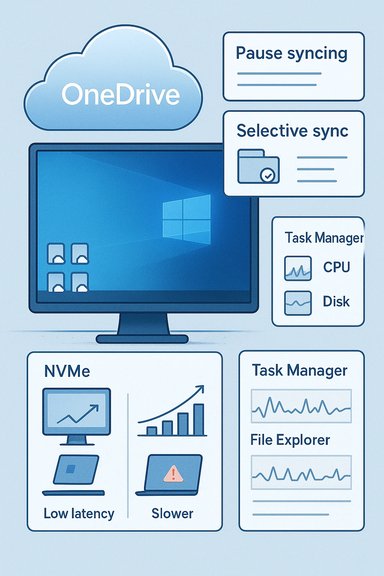
Microsoft’s own troubleshooting guidance now lists OneDrive’s background sync as a potential throttle on Windows performance — a frank admission that the convenience of always-on cloud backup can come at the cost of responsiveness on some machines. This weekend’s coverage calling out the company’s guidance has renewed complaints from frustrated users who see File Explorer stutter, high CPU spikes, or longer boot times when OneDrive is actively mirroring large folders. The company’s support pages give clear, actionable steps — including Pause syncing and selective sync — while community reports and independent tech outlets stress that system configuration, file counts, and hardware all shape the real-world impact of OneDrive on Windows 11 (and Windows 10) performance.
Background
Windows has shipped with deeper OneDrive integration for years, and in Windows 11 the cloud-first defaults (folder backup, Files On‑Demand and tighter Microsoft Account integration) make OneDrive a central piece of many users’ workflows. That same integration means the OneDrive sync engine runs constantly to keep local files and cloud copies aligned — a design intended to reduce data loss and make files available across devices. For many users the tradeoff is invisible; for others — especially on older hardware or machines synchronizing hundreds of thousands of items — the sync engine can become a noticeable consumer of CPU, disk I/O, and network bandwidth.Why this matters now
Recent reporting highlighted Microsoft’s support guidance that explicitly notes syncing activity can slow down a PC, and recommends pausing OneDrive when diagnosing sluggish performance. That admission comes as users report more aggressive OneDrive defaults and larger, more complex cloud libraries that demand heavier background processing. The practical upshot is simple: OneDrive helps protect and distribute files, but it’s also another background service that competes for finite system resources — and Microsoft now points that out directly in its performance troubleshooting documentation.What Microsoft actually said (and where to find the controls)
Microsoft’s main performance guidance page for Windows lists a range of steps to improve responsiveness — everything from Windows Update to visual effects — and includes OneDrive sync among the items users should check when troubleshooting slow PCs. The OneDrive support pages separately document Pause syncing (2 / 8 / 24 hours), how to choose which folders to sync, and how to unlink or uninstall OneDrive if necessary. Those are the primary, supported knobs Microsoft recommends users try when they suspect sync activity is the culprit. Key, user-facing controls:- Pause syncing: quick diagnostic pause for 2, 8 or 24 hours.
- Choose folders (selective sync): stop syncing large or infrequently used folders locally.
- Files On‑Demand: keep file placeholders locally and download content only on access.
- Bandwidth limits: configure upload/download caps inside the OneDrive settings (Network).
- Unlink or uninstall: stop OneDrive running entirely if needed.
The evidence: Microsoft guidance vs. real‑world reports
Multiple reputable outlets summarized Microsoft’s guidance and tested the effects of pausing OneDrive; they reported measurable and anecdotal improvements in UI responsiveness after pausing sync on resource‑constrained machines. Independent community threads show a wide spread of experiences: some users observe dramatic relief after pausing or uninstalling OneDrive, while others see little change because the bottleneck sits elsewhere (full disks, driver problems, malware, or excessive startup apps). The consistent pattern is that OneDrive can be a meaningful contributor to slowdowns, but it is rarely the only cause. Two important cross-checks:- Microsoft’s support pages recommend pausing syncing as a diagnostic step, which is an explicit acknowledgement that sync activity may degrade performance under certain conditions.
- Independent tech coverage and tests corroborate that disabling or pausing OneDrive can improve perceived responsiveness in many cases, although outcomes vary widely with system specs and sync load.
Technical reasons OneDrive can slow a PC
OneDrive’s behavior can stress a PC in several measurable ways. Understanding these mechanisms helps craft targeted remediation.- Disk I/O contention: continuous syncing reads and writes metadata and file contents; on HDDs or overloaded NVMe drives this raises disk queue lengths and increases latency for other apps. Excessive small-file operations are particularly costly.
- CPU cycles: the sync engine computes file hashes, fingerprints, and transfer deltas; when many files change or the local library is large, CPU usage can rise. This is more noticeable on low‑core or older CPUs.
- Memory pressure and cache churn: large directory trees and metadata caches use RAM; when memory is constrained, paging increases and responsiveness drops.
- Explorer integration: OneDrive overlays and status icons require Explorer hooks — if Explorer becomes busy or overloaded, UI operations (right-clicks, previews, file opening) can stutter.
- Network saturation: while network itself doesn't slow the CPU, sustained uploads and downloads can trigger queuing in the OS network stack, elevate interrupt rates on certain NICs, and push defensive software (antivirus) to scan more data, compounding the load.
Diagnosing whether OneDrive is the problem
When a machine feels slow, follow a simple, low-risk diagnostic sequence that isolates OneDrive from other causes. The steps below are practical and repeatable.- Baseline: open Task Manager and note CPU, Disk, Memory, and Network usage. Identify processes with sustained high usage.
- Pause OneDrive: click the OneDrive cloud icon → Help & Settings → Pause syncing (choose 2 hours). Re-run the same workload and note changes. If CPU or disk activity drops significantly, OneDrive is a likely contributor.
- Selective tests: disable other background services (one at a time) such as other cloud sync clients, heavy browser tabs, or backup software to further isolate the cause.
- Files On‑Demand toggle: if you’re syncing a lot of content, enable Files On‑Demand and change large folders to “online-only” then measure performance again.
- Hardware checks: confirm disk health and free space, run Windows Update, and check drivers — these often explain persistent problems even after pausing OneDrive.
Practical fixes: step-by-step and policy options
Below are practical actions for home users, power users, and IT administrators to reduce OneDrive’s resource footprint without losing cloud protection.For consumers and power users
- Pause syncing temporarily: use the 2/8/24 hour pause to test impact quickly.
- Choose folders to sync: unsync seldom-used or large folders (video libraries, archives).
- Use Files On‑Demand: keep only what you actively need on fast local storage.
- Set bandwidth limits: in OneDrive Settings → Network, cap uploads/downloads during heavy work sessions.
- Unlink and relink: if OneDrive shows repeated “processing changes”, a reset (or unlink/account reconfigure) can reduce runaway CPU usage.
- Reset the OneDrive client: run onedrive.exe /reset from Run to clear corrupted sync state and rebuild efficiently.
For IT admins and enterprises
- Group Policy / MDM: enforce selective sync policies or default Files On‑Demand on managed devices to avoid default heavy syncing on low-spec machines.
- Provisioning: during imaging or provisioning, avoid enabling broad folder backup for new, low-spec devices.
- Monitoring: collect telemetry on OneDrive processes (onedrive.exe, sync-related services) and correlate with user complaints to decide whether policy changes are needed.
- Scheduled maintenance windows: consider deferring bulk sync or initial seed operations to off-hours for machines used in performance-sensitive tasks (video editing, CAD, high-frequency trading desks).
Strengths of OneDrive’s design — why it’s still worthwhile
Before rushing to disable OneDrive, it’s important to weigh the benefits. OneDrive is tightly integrated and offers several real advantages:- Seamless cross-device access and automatic folder protection (Desktop, Documents, Pictures) reduce accidental data loss.
- Files On‑Demand minimizes local storage use while keeping the entire filesystem visible in Explorer.
- Integration with Microsoft 365 enables real‑time co‑authoring and consistent version history.
- Enterprise management controls allow organizations to protect data with policies, DLP, and compliance features.
Risks and trade-offs — what to watch for
There are important caveats and risks when changing OneDrive behavior:- Data availability vs. performance: making files online-only reduces local I/O but requires a working network to open files. Users who frequently work offline must weigh that tradeoff.
- Accidental deletion confusion: because OneDrive moves and protects folders, unsynced or relocated files can appear missing to users who don’t understand the linkage; improper unlinking can cause confusion.
- Backup complacency: disabling OneDrive without an alternative backup plan increases risk of data loss from device failure or theft.
- Policy churn in enterprise: aggressive default policies that force OneDrive on low-spec devices can create a support burden; conversely, disabling OneDrive across the board can reduce compliance and recovery guarantees.
- Unverified performance claims: many online posts describe dramatic slowdowns, but single anecdotes are not proof of universal failure; hardware, other software, and corrupted sync states are frequent confounders. Flag such anecdotes as anecdotal rather than conclusive unless corroborated by diagnostics.
Recommendations — a pragmatic checklist
For general Windows 11 users who suspect OneDrive may be slowing their PC, follow this prioritized checklist.- Pause OneDrive for 2 hours and retest your typical workflow; if performance improves, proceed with the next steps.
- Use Task Manager and Resource Monitor to confirm sustained OneDrive CPU/disk activity is correlated with the slowdown.
- Enable Files On‑Demand and selectively set large or archival folders to online-only.
- Set OneDrive bandwidth limits for uploads during work hours and allow full sync overnight.
- If the device is older or used for latency‑sensitive workloads (gaming, audio production), consider unlinking or uninstalling OneDrive and implementing a different backup cadence (local backup + scheduled cloud sync).
- For organizations: apply selective sync and Files On‑Demand via Group Policy/MDM for low‑spec endpoints, and provide documentation so end users understand the availability tradeoffs.
Final analysis: Microsoft’s transparency is helpful — but responsibility is shared
Microsoft’s inclusion of OneDrive sync in its official performance troubleshooting guidance is a welcome and useful clarification for users. It removes ambiguity: yes, continuous sync can be a factor that contributes to slowdowns under certain workloads. That said, the responsibility for good performance is shared. Application design, generous defaults, and cloud-first features are balanced against aging hardware, large file libraries, and third-party software interactions (antivirus, other sync clients, legacy drivers).The most pragmatic outcome for users is to treat OneDrive settings as tunable system parameters. Pause to test, measure with Task Manager, and then use selective sync, Files On‑Demand, and bandwidth caps to keep the convenience without the cost. For IT teams, the lesson is to align default provisioning with device capability: cloud protection is valuable, but it should not be applied with a “one-size-fits-all” policy on devices that cannot sustain the background load.
Conclusion
OneDrive remains a powerful tool for backup, cross-device access, and productivity — but its always-on sync behavior is not free. Microsoft’s explicit guidance acknowledging that “syncing can slow down your PC” is accurate and actionable. Users can treat the issue as a solvable tradeoff: use OneDrive where it helps most, tune the client where it hurts, and reserve full local sync for devices with the horsepower to carry it. Pausing OneDrive, enabling Files On‑Demand, and applying selective sync are effective, low-risk first steps that often restore responsiveness without giving up the cloud protection that OneDrive provides.Source: MSN https://www.msn.com/en-us/news/tech...vertelemetry=1&renderwebcomponents=1&wcseo=1]
