

Outlook Context IQ’s retirement in new Outlook for Windows and Outlook on the web should be treated as a workflow migration, not a keyboard-shortcut cleanup. Keep ordinary file sharing on Outlook’s native paths—paste, drag and drop, or Insert > Attach file—but separately identify teams that used “/” suggestions to discover files or connector-backed content, then decide whether Microsoft 365 Copilot is an appropriate, licensed, and governed replacement.
Start with these actions:
For many users, Context IQ looked like an Outlook convenience: type “/” in a message, receive suggestions, and insert relevant material. Microsoft has advised organizations to redirect those users toward paste, drag-and-drop, and the Insert > Attach file command. For ordinary file attachment behavior, that is the practical answer—and it should be communicated plainly.
But Context IQ was not only an attachment shortcut. Microsoft Graph documentation says it could surface third-party content from Copilot connectors in Outlook on the web, using the message context and, in part, the user’s activity around content. A user who had learned to find a project record, external knowledge-base entry, or connector-indexed item through Outlook suggestions may not even describe that habit as “using Context IQ.”
That distinction defines the migration risk. A person who attached a OneDrive document can adapt quickly. A person who used Outlook composition as an informal discovery surface for external or connector-backed information may find that the underlying work pattern has disappeared without a visible error message.
The retirement does not affect classic Outlook for Windows. It applies to new Outlook for Windows and Outlook on the web. That split matters in mixed estates: a workflow may appear intact during testing on classic Outlook, while users on the newer client or browser experience see a different result.
A workable post-retirement audit starts with the people and systems most likely to have used contextual content discovery:
This is also where service owners should separate attachment from discovery. If the user already knows the file, Outlook’s native attachment methods are enough. If the user relied on suggestions to remember, locate, or surface relevant information, the replacement needs search or Copilot validation—not merely an attachment tutorial.
In practical terms, moving a discovery workflow to Copilot can expose weak information architecture that Context IQ had quietly papered over. If a SharePoint library is overshared, a connector has broad access, or a sensitivity-label policy is inconsistent, Copilot does not eliminate that governance problem. It makes the quality of the existing access model more consequential.
Before recommending Copilot to a team that previously used Context IQ, validate four things:
For organizations already following Microsoft’s broader Copilot shift, the relevant question is not whether Outlook lost a small productivity feature. It is whether email drafting had become an unofficial front end to external knowledge. WindowsForum readers tracking Microsoft’s expanding Copilot-in-Outlook direction should view this retirement as an early test of whether the organization’s content governance can support that transition.
Classic Outlook for Windows should not become a workaround strategy simply because Context IQ retirement does not apply there. Maintaining different discovery expectations across clients adds support complexity and delays the real decision: whether the team needs a governed Copilot experience, a different search route, or a redesigned process.
Choose several representative users for each connector and provide a short set of real email-drafting scenarios. Have them locate the information they would previously have surfaced through Outlook, then record the replacement path. If Copilot is the designated route, test whether the user can retrieve the needed material under normal permissions and whether the result is appropriate to share in the email.
Do not judge success solely on whether Copilot returns an answer. A workable replacement must preserve the team’s ability to identify the correct source, apply the right handling rules, and communicate the result without creating a new access or compliance problem.
Where no Copilot license or governed connector path exists, the correct decision may be a documented manual process. That is less elegant, but it is better than implying that a retired Outlook suggestion mechanism still has an invisible equivalent.
The immediate administrative task is to remove obsolete training and preserve normal attachment behavior. The harder work is finding the teams whose Outlook composition window had quietly become a search interface—and making an explicit, governed decision about what replaces it.
Start with these actions:
- Update user guidance for new Outlook for Windows and Outlook on the web to remove references to Context IQ and “/” suggestions.
- Train users to add normal files by pasting, dragging and dropping, or choosing Insert > Attach file in a new message.
- Interview high-volume email teams, knowledge workers, and users of third-party Copilot connectors; do not assume their use was limited to attaching ordinary documents.
- Validate Microsoft 365 Copilot access, licensing, permissions, sensitivity labels, and connector governance before presenting Copilot as the replacement.
- Run focused tests with connector-dependent teams and record which discovery workflows still work, which need redesign, and which should remain manual.
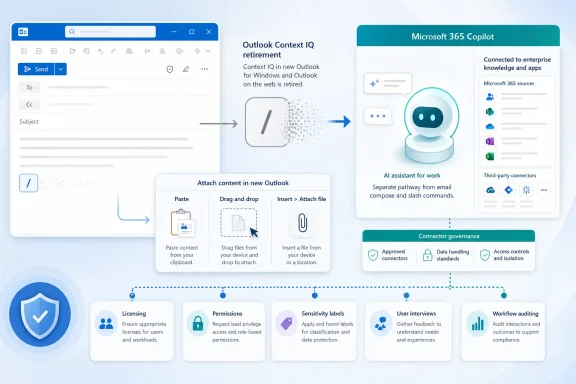 The missing slash shortcut is not the real exposure
For many users, Context IQ looked like an Outlook convenience: type “/” in a message, receive suggestions, and insert relevant material. Microsoft has advised organizations to redirect those users toward paste, drag-and-drop, and the Insert > Attach file command. For ordinary file attachment behavior, that is the practical answer—and it should be communicated plainly.But Context IQ was not only an attachment shortcut. Microsoft Graph documentation says it could surface third-party content from Copilot connectors in Outlook on the web, using the message context and, in part, the user’s activity around content. A user who had learned to find a project record, external knowledge-base entry, or connector-indexed item through Outlook suggestions may not even describe that habit as “using Context IQ.”
That distinction defines the migration risk. A person who attached a OneDrive document can adapt quickly. A person who used Outlook composition as an informal discovery surface for external or connector-backed information may find that the underlying work pattern has disappeared without a visible error message.
The retirement does not affect classic Outlook for Windows. It applies to new Outlook for Windows and Outlook on the web. That split matters in mixed estates: a workflow may appear intact during testing on classic Outlook, while users on the newer client or browser experience see a different result.
Build the audit around teams and connectors, not telemetry
Because Microsoft does not provide dedicated Context IQ usage reporting, administrators should resist the urge to declare the feature low-impact simply because no report reveals demand. The absence of reporting is a data limitation, not proof that users did not depend on the feature.A workable post-retirement audit starts with the people and systems most likely to have used contextual content discovery:
- Identify business units that compose high volumes of customer, project, legal, technical, or sales email and ask how they locate supporting material while drafting messages.
- Inventory Copilot connectors and name a business owner for each one, especially where the connected system holds knowledge that is not naturally stored in Microsoft 365.
- Ask connector owners whether Outlook on the web was part of their adoption guidance, training, demonstrations, or support runbooks.
- Review internal training, onboarding documents, help-desk scripts, screenshots, and macros for references to Context IQ or typing “/” in a message.
- Test with representative users rather than tenant administrators alone, because Context IQ suggestions were partly shaped by content and user activity.
This is also where service owners should separate attachment from discovery. If the user already knows the file, Outlook’s native attachment methods are enough. If the user relied on suggestions to remember, locate, or surface relevant information, the replacement needs search or Copilot validation—not merely an attachment tutorial.
Copilot is a potential destination, not an automatic substitute
Microsoft’s direction points users toward Copilot, but organizations should not frame that as a feature-for-feature swap. Microsoft 365 Copilot can use Microsoft Graph content that a user already has permission to access. That makes it powerful for knowledge retrieval, but it also puts permissions, sensitivity labels, connector configuration, and licensing at the center of the decision.In practical terms, moving a discovery workflow to Copilot can expose weak information architecture that Context IQ had quietly papered over. If a SharePoint library is overshared, a connector has broad access, or a sensitivity-label policy is inconsistent, Copilot does not eliminate that governance problem. It makes the quality of the existing access model more consequential.
Before recommending Copilot to a team that previously used Context IQ, validate four things:
- Licensing: Confirm that the affected users have the Microsoft 365 Copilot entitlement required for the proposed workflow. Do not train around an experience they cannot access.
- Permissions: Test with normal user accounts. Copilot operates within the user’s existing permissions; it is not a privileged search path.
- Protection controls: Review sensitivity labels and their protection settings for the content likely to be discovered or referenced.
- Connector governance: Confirm that the relevant third-party content is available through the connector experience being proposed and that the connector’s owner accepts the new usage model.
For organizations already following Microsoft’s broader Copilot shift, the relevant question is not whether Outlook lost a small productivity feature. It is whether email drafting had become an unofficial front end to external knowledge. WindowsForum readers tracking Microsoft’s expanding Copilot-in-Outlook direction should view this retirement as an early test of whether the organization’s content governance can support that transition.
Preserve the native Outlook path without overselling it
The training message for most users should be short and unambiguous: when attaching a known file in new Outlook for Windows or Outlook on the web, open a message and use one of the supported native actions:- Paste the file into the message when that behavior suits the file and workflow.
- Drag the file into the message window.
- Select Insert > Attach file, then choose the file to add.
Classic Outlook for Windows should not become a workaround strategy simply because Context IQ retirement does not apply there. Maintaining different discovery expectations across clients adds support complexity and delays the real decision: whether the team needs a governed Copilot experience, a different search route, or a redesigned process.
Test connector-dependent groups as a separate migration wave
Connector-backed content deserves its own pilot group because its prior Context IQ experience was more specialized. Microsoft Graph documentation describes how the feature could surface relevant third-party content in Outlook on the web; organizations with those connectors should assume the retirement may affect business processes that are poorly documented.Choose several representative users for each connector and provide a short set of real email-drafting scenarios. Have them locate the information they would previously have surfaced through Outlook, then record the replacement path. If Copilot is the designated route, test whether the user can retrieve the needed material under normal permissions and whether the result is appropriate to share in the email.
Do not judge success solely on whether Copilot returns an answer. A workable replacement must preserve the team’s ability to identify the correct source, apply the right handling rules, and communicate the result without creating a new access or compliance problem.
Where no Copilot license or governed connector path exists, the correct decision may be a documented manual process. That is less elegant, but it is better than implying that a retired Outlook suggestion mechanism still has an invisible equivalent.
Frequently Asked Questions
Does Context IQ retirement affect classic Outlook for Windows?
No. Microsoft’s retirement guidance applies to new Outlook for Windows and Outlook on the web, not classic Outlook for Windows.Can admins pull a report showing everyone who used Context IQ?
No dedicated Context IQ usage reporting is available, according to Microsoft’s MC1230455 guidance. Administrators need to identify affected groups through connector inventories, training materials, support knowledge, and targeted user testing.Is Microsoft 365 Copilot a direct replacement for Context IQ?
Not necessarily. Copilot may support knowledge retrieval for users with the correct licensing and permissions, but it requires validation of access controls, sensitivity labels, and connector governance.What should ordinary users do when they need to attach a file?
Use paste, drag and drop, or Insert > Attach file in the Outlook message composer. Those are the native alternatives Microsoft has advised organizations to teach.The immediate administrative task is to remove obsolete training and preserve normal attachment behavior. The harder work is finding the teams whose Outlook composition window had quietly become a search interface—and making an explicit, governed decision about what replaces it.
References
- Primary source: learn.microsoft.com
Remove Copilot button in top right-hand corner of Classic Outlook - Microsoft Q&A
This morning (7th July 2025) a small Copilot button appeared in the top right-hand corner of Classic Outlook on my laptop. How do I remove this please? I have completely disabled Copilot on my laptop and on my MS365 account. I do not want to use Copilot…learn.microsoft.com - Independent coverage: support.microsoft.com
The Microsoft 365 app transition to the Microsoft 365 Copilot app | Microsoft Support
The Microsoft 365 (Office) app is now called the Microsoft 365 Copilot app. Get the details about the change and what it means to you.support.microsoft.com - Independent coverage: mc.merill.net
MC1311978 - Classic Outlook for Windows: User-initiated insights with Copilot | Microsoft 365 Message Center Archive
Classic Outlook for Windows will add User Initiated Insights with Copilot, letting users highlight email text to get contextual AI-generated insights. Rolling out May-June 2026,…mc.merill.net - Independent coverage: techcrunch.com
Microsoft says Office bug exposed customers' confidential emails to Copilot AI | TechCrunch
Microsoft said the bug meant that its Copilot AI chatbot was reading and summarizing paying customers' confidential emails, bypassing data-protection policies.techcrunch.com - Independent coverage: techcommunity.microsoft.com
- Primary source: WindowsForum
Microsoft Office Retires: Introducing Copilot - The AI-Driven Future of Productivity | Windows Forum
If you’ve lived and breathed Microsoft Office—used Word for those last-minute essays, PowerPoint for dazzling presentations, or Excel for crunching those...windowsforum.com