

A growing wave of Windows users reported that Microsoft Outlook simply refuses to open on their PCs this week, but a simple, community-sourced workaround — removing two local application folders — has restored access for thousands of affected machines and offers a practical route back to the inbox while engineers investigate the root cause.
Since the start of December 2025, reports began appearing across community forums and support channels that the Outlook desktop client would not launch on both Windows 10 and Windows 11 systems. Affected users describe the same symptom: clicking the Outlook icon produces no window, no error dialog, and no obvious activity — sometimes accompanied by an immediate crash entry in the Windows Event Viewer. In many cases Event Viewer records include an exception code of 0xc0000409 referencing either OUTLOOK.EXE or olk.exe, indicating a fast failure in the process. The problem surfaced broadly on December 5–8, 2025 and was confirmed by multiple independent help threads and Microsoft community Q&A responses.
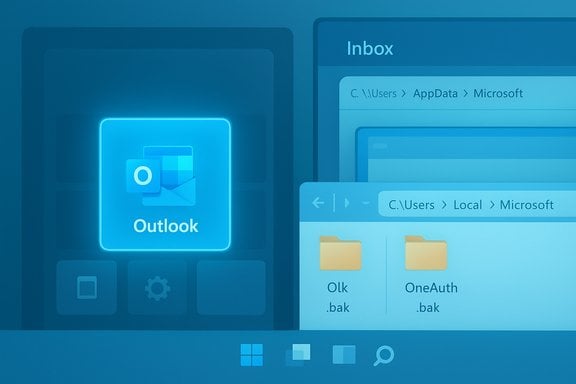
Multiple community posts and a Microsoft community reply converged on the same practical fix: delete or rename the Olk and OneAuth subfolders under %localappdata%\Microsoft and then restart Outlook. That action removes local temporary state and cached authentication material; the Outlook client recreates fresh copies at next launch. Users confirm emails are preserved and mail delivery resumes once the app signs back in, although some reported temporary visual or configuration differences until accounts were re-synced.
Microsoft has not posted a formal public bulletin explicitly tying this outage to a specific Microsoft update or backend service change as of December 9, 2025; however, official Microsoft community advisors have suggested the same folder-reset workaround as a remediation for clients that will not open.
Important safety notes before you change anything:
PowerShell alternative for IT admins (rename approach)
Caveat on definitive cause: while the folder-reset workaround consistently mitigates symptoms for many users, the true upstream trigger — whether a server-side change, a backend authentication platform outage, or a packaged client update that introduced a timing or serialization bug — has not been formally confirmed by Microsoft in a public advisory as of December 9, 2025. The pattern of simultaneous failures across regions and tenants makes a server-side change or a defective client update plausible, but that remains an informed hypothesis until an official root-cause statement is released.
However, important caveats remain:
Outlook users affected by this issue can regain functionality quickly by resetting local runtime state, but IT teams should treat the matter as an ongoing incident: collect logs, rely on cautious rollback-safe actions (rename instead of delete), and prepare for a potential Microsoft update that will close the loop on this recurring startup failure. The community workaround is an effective stopgap — but full confidence will come only when engineering confirms the root cause and publishes a permanent fix.
Source: PiunikaWeb Microsoft Outlook app not opening on your Windows machine? Try this
 Background / Overview
Since the start of December 2025, reports began appearing across community forums and support channels that the Outlook desktop client would not launch on both Windows 10 and Windows 11 systems. Affected users describe the same symptom: clicking the Outlook icon produces no window, no error dialog, and no obvious activity — sometimes accompanied by an immediate crash entry in the Windows Event Viewer. In many cases Event Viewer records include an exception code of 0xc0000409 referencing either OUTLOOK.EXE or olk.exe, indicating a fast failure in the process. The problem surfaced broadly on December 5–8, 2025 and was confirmed by multiple independent help threads and Microsoft community Q&A responses.Multiple community posts and a Microsoft community reply converged on the same practical fix: delete or rename the Olk and OneAuth subfolders under %localappdata%\Microsoft and then restart Outlook. That action removes local temporary state and cached authentication material; the Outlook client recreates fresh copies at next launch. Users confirm emails are preserved and mail delivery resumes once the app signs back in, although some reported temporary visual or configuration differences until accounts were re-synced.
Microsoft has not posted a formal public bulletin explicitly tying this outage to a specific Microsoft update or backend service change as of December 9, 2025; however, official Microsoft community advisors have suggested the same folder-reset workaround as a remediation for clients that will not open.
What’s failing and where the evidence points
Symptoms observed by users
- Outlook desktop icon starts but no application window appears.
- Immediate crash entries for OUTLOOK.EXE or olk.exe in Event Viewer with exception code 0xc0000409.
- Safe mode, app resets, and full uninstall/reinstall frequently do not resolve the problem.
- Web/Outlook on the web (OWA) continues to work for most users — the failure is often limited to the installed desktop client.
- The issue occurs across consumer and business tenants and on multiple Windows versions and hardware platforms.
Where investigators looked first
Community troubleshooting points to two local folders in the per-user Local App Data area:- %localappdata%\Microsoft\Olk — used by the new Outlook client for cache, logs, webview files and related state.
- %localappdata%\Microsoft\OneAuth — used to store per-user authentication tokens and local sign-in state.
Step-by-step: the safe way to apply the fix
The following instructions are written for end users and IT staff. They outline a safe approach that preserves the ability to roll back if the results are not as expected.Important safety notes before you change anything:
- Always close Outlook completely (and any other Office apps) before touching the folders below.
- Prefer rename over deletion on first attempt — renaming preserves a backup copy you can restore quickly.
- If you rely on locally-stored PST files or other non-cloud storage, verify where those files live; the steps below do not target PST/OST files inside your Documents by default, but caution is still advised.
- Close Outlook and any Office apps.
- Press Windows Key + R to open the Run dialog.
- Type %localappdata%\Microsoft and press Enter.
- Locate the folders named Olk and OneAuth.
- Right-click each folder and choose Rename. Add “.bak” to the end (for example, Olk.bak and OneAuth.bak). Alternatively, copy the folders to a backup location before deleting.
- Start Outlook normally.
PowerShell alternative for IT admins (rename approach)
- Open PowerShell as the affected user or push via Intune/ConfigMgr:
- $path = "$env:LOCALAPPDATA\Microsoft"
- Rename-Item "$path\Olk" "$path\Olk.bak" -ErrorAction SilentlyContinue
- Rename-Item "$path\OneAuth" "$path\OneAuth.bak" -ErrorAction SilentlyContinue
- Restart Outlook.
Why this likely works — technical analysis
The new Outlook client and the “Outlook (new)” rollout have introduced a more web-centric architecture and heavier use of embedded web components (WebView2) and token-based authentication. Two plausible technical contributors make the local-state reset effective:- Corrupted local auth tokens or identity cache: The OneAuth folder appears to store short-lived authentication artifacts. If token files or credential cache entries are corrupted or in an inconsistent state, the client may crash during the initial auth handshake, preventing the UI from launching. Deleting OneAuth forces re‑authentication and fresh tokens.
- Stale or corrupt local app state in Olk: The Olk folder contains cache, logs, EBWebView resources and other runtime state. A bad write, partial update, or a version mismatch can make the new Outlook attempt to use invalid data at startup, triggering an immediate failure with an exception code like 0xc0000409.
Caveat on definitive cause: while the folder-reset workaround consistently mitigates symptoms for many users, the true upstream trigger — whether a server-side change, a backend authentication platform outage, or a packaged client update that introduced a timing or serialization bug — has not been formally confirmed by Microsoft in a public advisory as of December 9, 2025. The pattern of simultaneous failures across regions and tenants makes a server-side change or a defective client update plausible, but that remains an informed hypothesis until an official root-cause statement is released.
What the error code means (0xc0000409) — brief explanation
The Windows exception code 0xc0000409 is commonly observed when a process experiences a stack buffer overrun or structured exception handling failure; in practice for apps like Outlook, it signals an unhandled runtime error leading to a fast crash. Seeing that error repeatedly in Event Viewer in proximity to OUTLOOK.EXE or olk.exe entries suggests the process is failing early during initialization — consistent with corrupted runtime state or bad initialization of embedded components. However, the numeric code alone does not identify which specific file or token caused the failure.Risks, side effects and what to watch for
- Auth re-prompt: Deleting OneAuth will typically require users to sign back into their Microsoft account or work/school account. Expect sign-in prompts and possibly multi-factor authentication (MFA) flows.
- Interface changes or reconfiguration: Several users reported the Outlook UI looked different immediately after the reset; functionality returned after removing and re-adding accounts or after Outlook completed a full account sync. This is a transient side effect of the fresh state.
- Potential temporary loss of locally cached items: Local caches such as WebView caches or small local config files will be regenerated. Mail stored server-side is not deleted. If any important local-only data is stored under Olk (rare), renaming rather than deleting preserves a fallback.
- Not a guaranteed permanent fix: Some reports indicate the fix is temporary for a subset of users; if the underlying cause is backend or a client regression, the fault can reoccur until Microsoft issues a patch or server-side mitigation.
- Enterprise scale considerations: Running a mass delete on %localappdata% via a machine-wide script without properly scoping to user profiles risks data loss or support complexity. Use per-user scripts delivered via Intune user context or sign-in scripts executed in user session.
Recommended workflow for IT teams
- Triage and Evidence Collection
- Capture Event Viewer Application logs (time-stamped crash entries).
- Record Outlook client build/version and Windows build.
- Confirm whether issue is isolated to new Outlook or affects classic Outlook as well.
- Sandbox Validation
- Test the rename approach on a single affected workstation to confirm the outcome before broad deployment.
- Prefer renaming Olk/OneAuth before deleting.
- Deploy Fix Carefully
- Use user-context automation (Intune Win32 or Proactive Remediations) to rename the folders rather than delete.
- Communicate to users: they will be asked to sign in again and may notice UI changes temporarily.
- Monitor Post-Fix
- Track for recurrence over 24–72 hours. If failure recurs widely, collect logs and engage Microsoft support with appended evidence.
- If rollback is required
- Restore the *.bak folders to their original names and test whether the status reverts.
Alternatives and additional troubleshooting steps
If the Olk/OneAuth reset does not work, try the following in order:- Launch Outlook in Safe Mode (outlook.exe /safe) to rule out add‑ins.
- Run Microsoft Support and Recovery Assistant (SaRA) to detect known configuration problems automatically.
- Repair the Office installation from Control Panel > Programs > Microsoft 365 > Modify > Online Repair.
- Create a new Windows profile and test Outlook there — if a new profile works, the issue is confined to the user profile state.
- Run system utility checks: sfc /scannow and DISM health checks for corrupt OS components.
- Inspect WebView2 runtime version and update it if it is severely out of date, because the new Outlook relies on WebView2 in many scenarios.
- Collect and escalate Event Viewer logs and UWP/packaged app logs to Microsoft support if no local remediation helps.
Why Microsoft re‑installs or standard app resets sometimes fail
The root of the confusion for many users is that standard uninstall/reinstall or the Windows Settings “reset” action frequently leaves per-user LocalAppData behind. Packaged apps and UWP-style installs separate machine-level application binaries from per-user runtime caches. If the per-user cache contains corrupted entries, reinstalling the package will not remove those entries by default — which explains why the manual Olk/OneAuth cleanup succeeds where other approaches do not.Long-term considerations and what to expect next
- If Microsoft identifies and releases a fix, expect it to arrive as either:
- A server-side mitigation for authentication/state handling that avoids clients encountering corrupted tokens; or
- A client update that hardens startup logic against bad per-user state and regenerates caches safely.
- Organizations should prepare for the possibility of an update push: if many users require the manual fix, admins should have a tested, user-safe remediation package ready (prefer rename + telemetry collection).
- End users who depend on locally-stored PST archives should back them up separately; the folder reset targets runtime caches and tokens, but it is good hygiene to keep backups of any local-only mail stores.
Practical checklist for users (quick reference)
- Close Outlook.
- Rename (don’t delete) these folders: %localappdata%\Microsoft\Olk and %localappdata%\Microsoft\OneAuth.
- Restart Outlook and follow sign-in prompts.
- If Outlook opens and mail is accessible, leave Outlook running for several minutes to ensure sync completes.
- If the problem persists, capture Event Viewer logs and escalate to IT or Microsoft support.
Final assessment — strengths of the fix and remaining risks
The community-sourced Olk/OneAuth folder cleanup is a low-complexity, high-success mitigation for a widespread launch-time crash affecting the Outlook desktop client. It is effective because it targets per-user transient state that standard package repairs can miss. The remedy is quick, reversible, and documented in Microsoft community channels and confirmed by numerous independent user reports.However, important caveats remain:
- The fix is a symptom mitigation, not a forensic root-cause resolution. It clears corrupted state rather than addressing whatever created the corruption.
- Because Microsoft has not posted a formal, centralized advisory specific to the December 2025 incidents as of December 9, 2025, organizations should treat the situation as in flux and expect updates or a formal patch.
- For enterprises the fix requires careful rollout planning to avoid unintended consequences when applied at scale.
Outlook users affected by this issue can regain functionality quickly by resetting local runtime state, but IT teams should treat the matter as an ongoing incident: collect logs, rely on cautious rollback-safe actions (rename instead of delete), and prepare for a potential Microsoft update that will close the loop on this recurring startup failure. The community workaround is an effective stopgap — but full confidence will come only when engineering confirms the root cause and publishes a permanent fix.
Source: PiunikaWeb Microsoft Outlook app not opening on your Windows machine? Try this
