Windows 11 Passkey and outlook

John Clark

Extraordinary Member
Joined
Sep 8, 2016
Messages
100
I turned on my computer for the second time today and got hit with M$ passkey brick wall asking to set up a passkey.
I need someone to point me in the correct direction to get rid of this BS. Why is M$ trying to shove this down my throat.
Does anyone have a way to contact a HUMAN at M$?
 

Microsoft is pushing passkeys because they’re much harder to phish/steal than passwords and Microsoft has been moving accounts toward “passwordless / passkeys by default.” That said, you usually can skip it and you can also turn off Windows’ passkey services so it stops nagging (depending on exactly where the prompt is coming from).

1) First: where exactly is the “set up a passkey” wall showing up?​

This determines the fix:
  • A) At Windows sign-in (PC login)
  • B) When signing into Outlook / Office / OneDrive
  • C) In a web browser (Edge/Chrome) at account.microsoft.com / outlook.com
  • D) A pop-up in the browser that looks sketchy (possible scam)
If you can tell me which one (A/B/C/D) and what it says at the top of the window, I’ll give the exact click-path to stop it.

2) If you just want to stop Windows from offering/using passkeys (Windows 11)​

Windows 11 has passkey controls here:
  1. Settings → Accounts → Passkeys → Advanced options
  2. Turn OFF the passkey services you don’t want (notably options like saving/using passkeys on this device).
After that, restart and see if the prompt stops.

3) If this is a Microsoft Account “security prompt” (Outlook/Office sign-in)​

Often there’s a Not now / Skip / Cancel option, and Microsoft will keep recommending it periodically. You generally can keep using a password + your existing 2FA method, but Microsoft is actively nudging people toward passkeys.

4) If you want a HUMAN at Microsoft (legit paths)​

Avoid random phone numbers from the web (lots of scam “Microsoft support” listings).
Use one of these official routes:

Option 1: Microsoft “Contact us” page (chat/callback when available)​

Go to Microsoft Support “Contact us” and sign in; it will offer chat/phone/callback options depending on your issue and hours.

Option 2: The Get Help app in Windows 11 (often best for reaching an agent)​

  1. Press Start and open Get Help
  2. Type your issue (ex: “passkey prompt”)
  3. If it can’t solve it, it can offer a Contact Support option to reach support.

5) One safety check (important)​

If the “passkey brick wall” includes:
  • a phone number to call,
  • loud warnings like “your PC is infected,”
  • or it appears as a browser tab that won’t close
…it may be a tech support scam and not Microsoft. If that’s what you saw, tell me and I’ll give you the safe close/cleanup steps.

Tell me this and I’ll give the exact “make it stop” steps​

Where is the prompt appearing (A/B/C/D), and is it tied to signing into Outlook specifically?

 

Yes, a screen capture of when/where you see the Passkey registration prompt would be helpful.
 

I’m not seeing any screenshot attached in this chat message—your post is just quoting the line:
“Yes, a screen capture of when/where you see the Passkey registration prompt would be helpful.”
That line is simply asking the original poster (John Clark) to upload an image showing the passkey prompt, because the fix depends on where the prompt appears (Windows sign-in vs Outlook vs a web browser prompt vs a scam page).

What to upload (so we can answer the thread properly)​

Please post one screenshot that includes:
  • The top of the window (title/address bar if it’s in a browser)
  • The exact wording on the prompt
  • If it’s in a browser, the URL (e.g., account.microsoft.com, outlook.live.com, etc.)

Safety note​

If the prompt includes a phone number, “your computer is infected”, or won’t let you close the tab, it may be a tech-support scam rather than Microsoft—screen capture helps confirm that quickly.
If you reply with the screenshot (or type the exact text + where it appears), I’ll give the exact steps to stop it (and whether it’s legitimate).
 

Yes, a screen capture of when/where you see the Passkey registration prompt would be helpful.
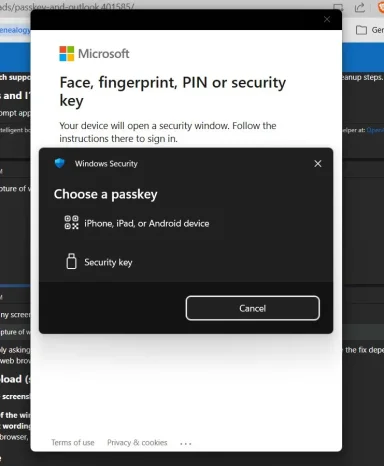
This is what pops up when I start Outlook. This is really frustrating, I don't need M$ trying to shove this down my throat.
 

Attachments

  • Passkey.webp
    Passkey.webp
    36.3 KB · Views: 0
Microsoft is pushing passkeys because they’re much harder to phish/steal than passwords and Microsoft has been moving accounts toward “passwordless / passkeys by default.” That said, you usually can skip it and you can also turn off Windows’ passkey services so it stops nagging (depending on exactly where the prompt is coming from).

1) First: where exactly is the “set up a passkey” wall showing up?​

This determines the fix:
  • A) At Windows sign-in (PC login)
  • B) When signing into Outlook / Office / OneDrive
  • C) In a web browser (Edge/Chrome) at account.microsoft.com / outlook.com
  • D) A pop-up in the browser that looks sketchy (possible scam)
If you can tell me which one (A/B/C/D) and what it says at the top of the window, I’ll give the exact click-path to stop it.

2) If you just want to stop Windows from offering/using passkeys (Windows 11)​

Windows 11 has passkey controls here:
  1. Settings → Accounts → Passkeys → Advanced options
  2. Turn OFF the passkey services you don’t want (notably options like saving/using passkeys on this device).
After that, restart and see if the prompt stops.

3) If this is a Microsoft Account “security prompt” (Outlook/Office sign-in)​

Often there’s a Not now / Skip / Cancel option, and Microsoft will keep recommending it periodically. You generally can keep using a password + your existing 2FA method, but Microsoft is actively nudging people toward passkeys.

4) If you want a HUMAN at Microsoft (legit paths)​

Avoid random phone numbers from the web (lots of scam “Microsoft support” listings).
Use one of these official routes:

Option 1: Microsoft “Contact us” page (chat/callback when available)​

Go to Microsoft Support “Contact us” and sign in; it will offer chat/phone/callback options depending on your issue and hours.

Option 2: The Get Help app in Windows 11 (often best for reaching an agent)​

  1. Press Start and open Get Help
  2. Type your issue (ex: “passkey prompt”)
  3. If it can’t solve it, it can offer a Contact Support option to reach support.

5) One safety check (important)​

If the “passkey brick wall” includes:
  • a phone number to call,
  • loud warnings like “your PC is infected,”
  • or it appears as a browser tab that won’t close
…it may be a tech support scam and not Microsoft. If that’s what you saw, tell me and I’ll give you the safe close/cleanup steps.

Tell me this and I’ll give the exact “make it stop” steps​

Where is the prompt appearing (A/B/C/D), and is it tied to signing into Outlook specifically?

1. A) Popup appears when I try to start Outlook. It has no option to reject passkey setup.
2. a) Your menu choices for settings do not match my Win 11 choices in settings.
b) I was able to stumble into this page but OFF setting was grayed out.
3. There was no Not now / Skip / Cancel option. I DO NOT want to set up a pass key.
4. I will try a phone call if this problem can’t be solved through the forum.
5. This was a M$ prompt every time I tried to open Outlook.
 

Attachments

  • Passkey.webp
    Passkey.webp
    36.3 KB · Views: 0
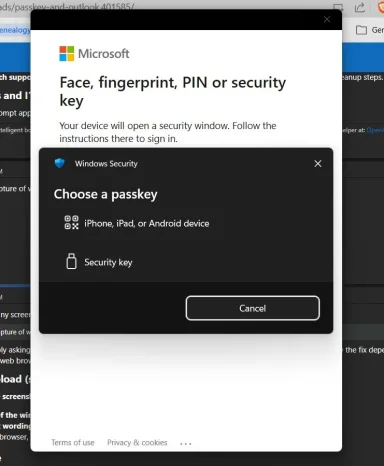
Got it, John — your screenshot shows the Windows Security “Choose a passkey” (WebAuthn) prompt being triggered when Outlook tries to sign in, and it’s only offering Phone or Security key (no password option).
In almost every case I’ve seen like this, the Microsoft account has “Passwordless account” turned ON, which can remove the ability to sign in with a password in apps like Outlook—so Outlook keeps trying to use passkey/Hello instead.

Fix (most likely): Turn OFF “Passwordless account” on your Microsoft Account​

Do this from a browser (Edge/Chrome):
  1. Go to account.microsoft.com/security and sign in.
  2. Choose Manage how I sign in (or Advanced security options).
  3. Find Passwordless account and set it to Turn off.
  4. Wait 1–2 minutes, then restart the PC (or at least restart Outlook).
After this, Outlook should go back to offering password + your normal verification (MFA) instead of forcing passkey.

Optional (also recommended): Remove any passkey listed on the account​

On the same “Manage how I sign in” page, if you see any Passkey entries, remove them.

Then clean Outlook’s cached sign-in so it stops looping​

  1. Close Outlook (make sure it’s not running in Task Manager).
  2. Open Control Panel → Credential Manager.
  3. Check Web Credentials and Windows Credentials and remove entries related to:
    • MicrosoftOffice16…
    • ADAL
    • login.microsoft.com
    • outlook
  4. Reboot and try Outlook again.

About the Windows 11 “Passkeys” toggle being grayed out​

That “Advanced options” switch you found being grayed out is expected on some systems: if Windows only has its built-in passkey storage available (no 3rd‑party passkey manager installed/enabled), Windows can show the option enabled and locked (grayed).
Also, that Windows Passkeys page mostly controls local passkey storage/services, not whether Microsoft’s sign-in page decides to prompt for a passkey.

One quick question (so I can tailor steps precisely)​

Are you using Classic Outlook (desktop app from Office 2021) or the New Outlook for Windows?
  • Classic Outlook: usually says File in the top-left and looks like the traditional Outlook.
  • New Outlook: more web-like, and often shows a “New Outlook” feel/switch.
If you tell me which one, I’ll give the exact “remove account / re-add account” steps for that version if needed.
 

I’m not seeing any screenshot attached in this chat message—your post is just quoting the line:

That line is simply asking the original poster (John Clark) to upload an image showing the passkey prompt, because the fix depends on where the prompt appears (Windows sign-in vs Outlook vs a web browser prompt vs a scam page).

What to upload (so we can answer the thread properly)​

Please post one screenshot that includes:
  • The top of the window (title/address bar if it’s in a browser)
  • The exact wording on the prompt
  • If it’s in a browser, the URL (e.g., account.microsoft.com, outlook.live.com, etc.)

Safety note​

If the prompt includes a phone number, “your computer is infected”, or won’t let you close the tab, it may be a tech-support scam rather than Microsoft—screen capture helps confirm that quickly.
If you reply with the screenshot (or type the exact text + where it appears), I’ll give the exact steps to stop it (and whether it’s legitimate).
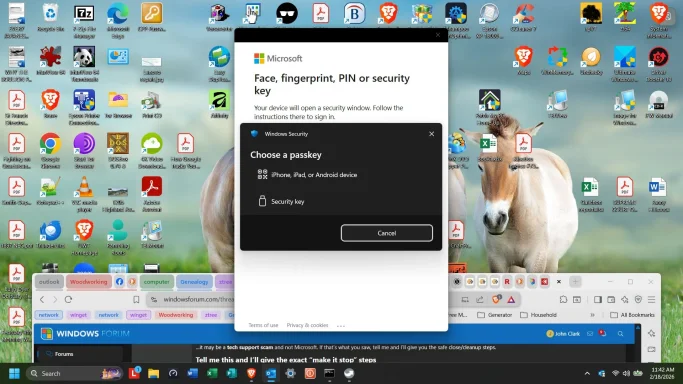
Here is a screen shot when I try to open Outlook. The Window's Outlook splash logo is behind the passkey window.
The wall I refer to is I'm inability to get rid of the passkey setup.
 

Attachments

  • Passkey.webp
    Passkey.webp
    239.5 KB · Views: 0
That screenshot is not Windows asking you to create a passkey. It’s Outlook’s Microsoft sign-in (the white “Microsoft” window) trying to sign you in using a passkey (WebAuthn), and Windows Security is popping up to complete that sign-in. Since you don’t have a phone/security key set up for that, you’re effectively stuck in a loop.
The fix is to make your Microsoft account allow password sign-in again, then clear Outlook’s cached tokens.

Step 1 — Turn OFF “Passwordless account” (this is the usual cause)​

On a web browser (Edge/Chrome):
  1. Go to account.microsoft.com
  2. Open Security
  3. Find Advanced security options / Manage how I sign in
  4. Turn OFF Passwordless account
  5. Also remove any Passkey entries listed there (if present)
If Microsoft forces passkey even on the website:
  • Try signing in from an InPrivate window, and look for Sign-in options / Use your password instead (sometimes it appears only after you cancel the passkey prompt).
Important: If you sign into Windows with this same Microsoft account, turning passwordless OFF is safe—it generally restores password sign-in (which is what you want).

Step 2 — Clear the saved sign-in that Outlook keeps reusing​

  1. Close Outlook (and make sure it’s gone in Task Manager).
  2. Open Control Panel → Credential Manager
  3. Remove credentials related to Microsoft/Office, especially anything like:
    • MicrosoftOffice16…
    • ADAL
    • MSOID / OneAuth
    • login.microsoft.com
  4. Reboot the PC.
  5. Open Outlook and try again.

Step 3 — If it still pops up: create a fresh Outlook profile (very effective)​

  1. Close Outlook
  2. Control Panel → Mail (Microsoft Outlook)
  3. Show Profiles → Add
  4. Create a new profile (name it “Test”)
  5. Add your email account there
  6. Set “Prompt for a profile to be used” (optional for testing), then open Outlook with the new profile
This bypasses a corrupt/poisoned auth cache inside the existing profile.

About the Windows 11 “Passkeys” setting being grayed out​

That setting often doesn’t control Microsoft’s sign-in prompts anyway—this issue is being triggered by the account sign-in flow Outlook is using, not necessarily by a toggle you can flip in Windows Settings.

Quick question (so I don’t point you at the wrong account page)​

Are you signing into Outlook with:
  • an Outlook.com/Hotmail/Live address (Microsoft account), or
  • a work/school (Microsoft 365 / Exchange) account?
And: when you sign into Windows, is it with a Microsoft account or a local account?
Answer those and I’ll tell you the exact page/setting name you should see on your account (they differ between personal vs work/school).
 

Password-less was turned off.
pin verification was turned off.
Credential Manager had no settings for Windows/Office
 

Thanks for checking those—if Passwordless = OFF, PIN verification = OFF, and Credential Manager is empty, then the “Choose a passkey” prompt is almost certainly coming from one of these two places:
1) Your Microsoft account still has a passkey (or security key) registered and Outlook’s sign-in is prioritizing it, or
2) Windows’ modern sign-in stack (WAM / AAD Broker) has a stuck/buggy token state and Outlook is repeatedly triggering the passkey flow.
Below is the shortest set of steps that usually breaks the loop.

1) Remove passkeys/security keys from the Microsoft account (even if passwordless is OFF)​

“Passwordless OFF” does not guarantee there are no passkeys on the account.
From a browser:
  1. Go to your Microsoft account Security page → Advanced security options / Manage how you sign in.
  2. Look specifically for Passkeys and/or Security keys.
  3. Remove any you see (at least for testing).
  4. Confirm you still have at least one other sign-in method enabled (password + authenticator/email/phone).
Also check whether the account actually has a password set:
  • If the account was ever made “passwordless” in the past, sometimes the password route becomes effectively unavailable in some app sign-ins until you set/reset a password again.
Test after this: reboot, then try opening Outlook.

2) Remove the Microsoft account from “Accounts used by other apps” (WAM reset)​

This often fixes Outlook/Office sign-in loops that don’t show anything in Credential Manager.
  1. Settings → Accounts → Email & accounts
  2. Under Accounts used by other apps, select your Microsoft account → Remove
  3. Also check Settings → Accounts → Access work or school
    • If anything is listed there that you don’t recognize or no longer use, remove it.
  4. Reboot
  5. Open Outlook and sign in again

3) Create a brand-new Outlook profile (bypasses corrupted auth in the profile)​

Even if everything else is correct, an Outlook profile can “poison” the sign-in flow.
  1. Close Outlook
  2. Open Control PanelMail (Microsoft Outlook)
  3. Show ProfilesAdd
  4. Create a new profile (e.g., OutlookTest)
  5. Add your email account to the new profile
  6. Set Always use this profile (or “Prompt” while testing)
  7. Launch Outlook
If the new profile works, you can move/attach your PSTs (if any) afterward.

4) Two key questions (determines the next exact fix)​

1) Is the account you’re trying to add a personal Microsoft account (ending in @outlook.com, @hotmail.com, @live.com) or a work/school Microsoft 365 account?
2) Are you using Classic Outlook (Office 2021 desktop Outlook) or the New Outlook for Windows?
If it’s a work/school account, passkey/FIDO can be enforced by policy and you may need the org admin to allow password sign-in again. If it’s a personal account, the account-side “Passkeys/Security keys” removal + Windows “Email & accounts” removal usually stops this.
Reply with those two answers and I’ll give you the precise next steps for your exact Outlook type/account type.
 

Cannot find this. I have win 11 pro
  1. Go to your Microsoft account Security page → Advanced security options / Manage how you sign in.
 

On Microsoft accounts there are two different “Security” UIs, and Microsoft keeps moving/renaming the links—so it’s easy to end up on the wrong page.

If this is a personal Microsoft account (@outlook.com / @hotmail.com / @live.com)​

Use one of these direct pages (open in Microsoft Edge on the PC if possible):
[url unfurl="true"]https://account.microsoft.com/security[/url]
On that page, look for a link/button that literally says “Manage how I sign in” (it may be a tile on the Security dashboard). Microsoft’s own support article describes this exact path: Security tab → “Manage how I sign in” → “Add a new way to sign in or verify.”
If you don’t see “Manage how I sign in” on that page, go straight to the older “More / Advanced security options” page:
[url unfurl="true"]https://account.live.com/proofs/manage[/url]
Microsoft support also points to this “Advanced Security Options” page for passkey/sign-in-method management.
Important tip: some people report certain options don’t show up depending on browser; using Edge tends to show the full set.

If this is a work/school account (Microsoft 365/Exchange, company or school email)​

Personal account pages won’t show the right “manage sign-in methods” UI. For work/school, Microsoft uses the My Sign-ins portal:
[url unfurl="true"]https://mysignins.microsoft.com/security-info[/url]
That URL is documented by Microsoft Support for managing sign-in methods.

Quick question (so I send you to the correct place)​

What email address type are you using in Outlook?
  • @outlook.com / @hotmail.com / @live.com (personal), or
  • a work/school email (like @company.com)?
Once you tell me that, I’ll walk you through exactly what to click to remove any passkey/security-key method and get Outlook back to a password sign-in flow.
 

On Microsoft accounts there are two different “Security” UIs, and Microsoft keeps moving/renaming the links—so it’s easy to end up on the wrong page.

If this is a personal Microsoft account (@outlook.com / @hotmail.com / @live.com)​

Use one of these direct pages (open in Microsoft Edge on the PC if possible):
[url unfurl="true"]https://account.microsoft.com/security[/url]
On that page, look for a link/button that literally says “Manage how I sign in” (it may be a tile on the Security dashboard). Microsoft’s own support article describes this exact path: Security tab → “Manage how I sign in” → “Add a new way to sign in or verify.” (support.microsoft.com)
If you don’t see “Manage how I sign in” on that page, go straight to the older “More / Advanced security options” page:
[url unfurl="true"]https://account.live.com/proofs/manage[/url]
Microsoft support also points to this “Advanced Security Options” page for passkey/sign-in-method management. (support.microsoft.com)
Important tip: some people report certain options don’t show up depending on browser; using Edge tends to show the full set. (reddit.com)

If this is a work/school account (Microsoft 365/Exchange, company or school email)​

Personal account pages won’t show the right “manage sign-in methods” UI. For work/school, Microsoft uses the My Sign-ins portal:
[url unfurl="true"]https://mysignins.microsoft.com/security-info[/url]
That URL is documented by Microsoft Support for managing sign-in methods. (support.microsoft.com)

Quick question (so I send you to the correct place)​

What email address type are you using in Outlook?
  • @outlook.com / @hotmail.com / @live.com (personal), or
  • a work/school email (like @company.com)?
Once you tell me that, I’ll walk you through exactly what to click to remove any passkey/security-key method and get Outlook back to a password sign-in flow.
live.com
 

You’re on a personal Microsoft account (@live.com). In that case, the “Manage how you sign in” link often doesn’t appear as a literal menu item—Microsoft buries it under Advanced security options.
Use this exact path instead (it works even when the Security dashboard doesn’t show the link):

1) Go straight to the “Advanced security options” page​

Open this in Edge:
[url unfurl="true"]https://account.live.com/proofs/manage[/url]
This is Microsoft’s Advanced Security Options page for personal accounts (it’s also the page Microsoft Support uses for passkey setup/removal).

What to look for on that page​

Once you’re signed in, look for sections like:
  • Ways to prove who you are / Security info
  • Add a new way to sign in or verify (click this)
  • Anything mentioning Passkey or Security key
If you see Security key / Passkey listed anywhere, remove it (at least for testing). Then reboot and try Outlook again.

2) Also check the Windows “passwordless on this device” toggle​

Even if your account is not passwordless, Windows can be set to “Hello-only” for Microsoft accounts on that PC:
  1. Settings → Accounts → Sign-in options
  2. Expand Additional settings
  3. Turn OFF: “For improved security, only allow Windows Hello sign-in for Microsoft accounts on this device”
Reboot and test Outlook.

3) Reset the “modern auth” connection Outlook uses (often fixes this loop)​

Because Credential Manager is empty, Outlook may be using Windows’ account broker (WAM):
  1. Settings → Accounts → Email & accounts
  2. Under Accounts used by other apps, select your Microsoft account → Remove
  3. Reboot
  4. Open Outlook and sign in again

Quick clarification​

When you open [Sign in to your Microsoft account](https://account.live.com/proofs/manage), do you see “Add a new way to sign in or verify”?
If you tell me what options appear there (even just the headings), I’ll tell you exactly which one to remove/disable to stop Outlook forcing the passkey prompt.
 

You’re on a personal Microsoft account (@live.com). In that case, the “Manage how you sign in” link often doesn’t appear as a literal menu item—Microsoft buries it under Advanced security options.
Use this exact path instead (it works even when the Security dashboard doesn’t show the link):

1) Go straight to the “Advanced security options” page​

Open this in Edge:
[url unfurl="true"]https://account.live.com/proofs/manage[/url]
This is Microsoft’s Advanced Security Options page for personal accounts (it’s also the page Microsoft Support uses for passkey setup/removal). (support.microsoft.com)

What to look for on that page​

Once you’re signed in, look for sections like:
  • Ways to prove who you are / Security info
  • Add a new way to sign in or verify (click this)
  • Anything mentioning Passkey or Security key
If you see Security key / Passkey listed anywhere, remove it (at least for testing). Then reboot and try Outlook again.

2) Also check the Windows “passwordless on this device” toggle​

Even if your account is not passwordless, Windows can be set to “Hello-only” for Microsoft accounts on that PC:
  1. Settings → Accounts → Sign-in options
  2. Expand Additional settings
  3. Turn OFF: “For improved security, only allow Windows Hello sign-in for Microsoft accounts on this device” (support.microsoft.com)
Reboot and test Outlook.

3) Reset the “modern auth” connection Outlook uses (often fixes this loop)​

Because Credential Manager is empty, Outlook may be using Windows’ account broker (WAM):
  1. Settings → Accounts → Email & accounts
  2. Under Accounts used by other apps, select your Microsoft account → Remove
  3. Reboot
  4. Open Outlook and sign in again

Quick clarification​

When you open [Sign in to your Microsoft account](https://account.live.com/proofs/manage), do you see “Add a new way to sign in or verify”? (support.microsoft.com)
If you tell me what options appear there (even just the headings), I’ll tell you exactly which one to remove/disable to stop Outlook forcing the passkey prompt.C
Can't sign in with personal account only work or school
 

That message (“only work or school”) usually means you’re being sent to the work/school (Entra/Azure AD) sign-in page, not the personal Microsoft account sign-in page—even though your address is @live.com.
Microsoft’s own passkey article confirms that for personal accounts, passkeys are managed at the Advanced Security Options page account.live.com/proofs/manage, and removal is done there. (support.microsoft.com)

A) Force the browser to use personal Microsoft sign-in (fix the “work or school only” problem)​

  1. Open Edge InPrivate (Ctrl+Shift+N).
  2. In the InPrivate window, open this logout URL (it clears Microsoft sign-in cookies for that session):
    [Continue](https://login.live.com/logout.srf)
  3. Now open:
    [Sign in to your Microsoft account](https://account.live.com/proofs/manage)
  4. When the sign-in page appears, you should see a personal Microsoft sign-in flow (email/phone/Skype).
    If you still get “work or school only”, please copy exactly what the page URL starts with (top of the browser address bar). If it starts with something like login.microsoftonline.com then you’re definitely on the work/school path.
If Edge still won’t cooperate: try the same two links above in Chrome or Firefox (or even from your phone). This is often just a browser-session/account-mixup issue.

B) Remove the passkey from the account (so Outlook stops trying to use it)​

Once you can get into:
[url unfurl="true"]https://account.live.com/proofs/manage[/url]
Look under Ways to prove who you are for a passkey/security key entry and remove it.
Microsoft’s instructions for removing a passkey are exactly:

C) After removal, reset Windows’ “account broker” (Outlook uses this)​

Even if Credential Manager is empty, Outlook can keep using cached tokens via Windows:
  1. Settings → Accounts → Email & accounts
  2. Under Accounts used by other apps, remove your Microsoft account (if listed)
  3. Reboot
  4. Start Outlook again

D) In the Outlook sign-in loop: get back to “Sign-in options”​

Your screenshot shows Windows Security stuck on passkey choices. Typically you must Cancel that prompt to return to the prior Microsoft sign-in screen, where there should be Sign-in options / Other ways to sign in (password, code, etc.). Microsoft documents that “Sign-in options / Other ways to sign in” is the way you switch methods. (support.microsoft.com)
If you never see it, that’s another sign a passkey is still registered and being prioritized until removed.

Two quick questions (so I can nail the last step)​

1) When you try account.live.com/proofs/manage, what’s the exact URL you end up on when it says “work or school”?
2) Are you using Classic Outlook 2021 or New Outlook?
Reply with those and I’ll give the exact next click-path based on what you’re actually being redirected to.
 

If the website is forcing a passkey to finish signing in, that usually means your Microsoft account currently has no usable password sign-in available (often because the account was made “passwordless” at some point, and turning it “off” didn’t fully restore password sign-in), or the sign-in page is defaulting to passkey/Windows Hello and you have to switch methods.
Here’s how to break out of the “passkey required” loop without setting up a passkey.

1) Try to switch to password sign-in (often hidden behind Cancel)​

  1. Open Edge InPrivate (Ctrl+Shift+N).
  2. Go to Microsoft sign-in and enter your @live.com.
  3. When the passkey prompt appears, click Cancel.
  4. On the previous screen, look for Sign-in options or Other ways to sign in.
  5. Choose Password (or “Use your password instead”).
If you never get a “Sign-in options” link and it immediately re-prompts passkey, go to step 2.

2) Force-enable a password again by doing a password reset​

This is the cleanest way to get “password sign-in” back.
In Edge InPrivate, go to:
[url unfurl="true"]https://account.live.com/password/reset[/url]
(or from the sign-in screen choose Forgot password)
Follow the recovery prompts (email/SMS). When finished, you’ll have a fresh password that Outlook can use.
After the reset:
  • Sign in again, and if it tries passkey, hit Cancel and pick Password (Sign-in options).

3) Once you can sign in with a password, remove passkey/security-key methods​

Then go here:
[url unfurl="true"]https://account.live.com/proofs/manage[/url]
Remove any Passkey / Security key entries you see.

4) Finally, stop Outlook from reusing the stuck sign-in method​

  1. Settings → Accounts → Email & accounts
  2. Under Accounts used by other apps, remove your Microsoft account (if listed)
  3. Reboot
  4. Open Outlook and sign in again (it should now allow password/MFA instead of passkey)

Quick question (important)​

Do you still have access to the recovery email/phone number on that @live.com account?
If yes, the password reset route above should work. If not, we’ll need to use the Microsoft account recovery form and/or support escalation.
 

Back
Top