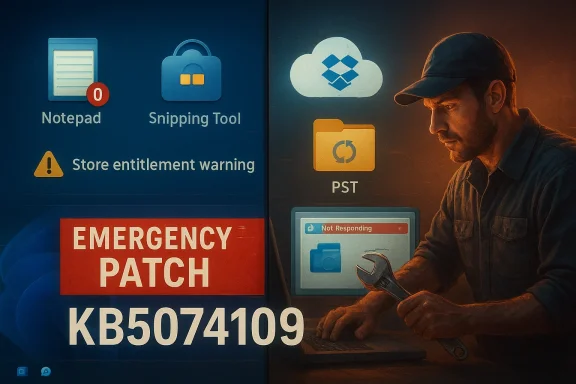
Windows 11 users are again facing a fresh wave of patch-related breakage: a January 13, 2026 cumulative update (KB5074109) introduced a regression that can make apps unresponsive or fail when opening or saving files on cloud‑backed storage such as OneDrive and Dropbox — and the fallout has already reached everyday productivity apps like Outlook, forcing Microsoft into emergency fixes and sparking renewed questions about update quality and the role of AI in modern software development.
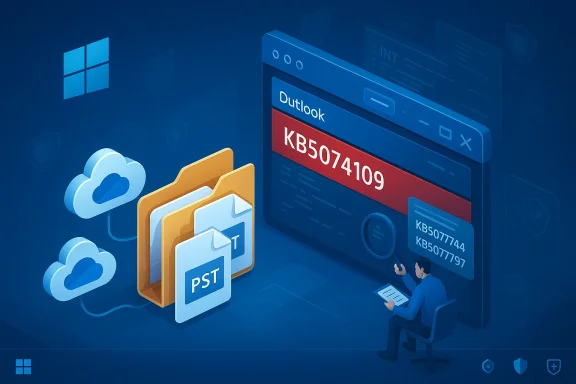
Microsoft shipped the January 13, 2026 security rollup (identified as KB5074109 for many Windows 11 channels) to address a range of security and quality issues. Within hours and days of that rollout, administrators and end users began reporting several regressions: Remote Desktop credential prompt failures and sign‑in problems for Azure Virtual Desktop and Windows 365, failure to shut down or hibernate on certain 23H2 systems with Secure Launch enabled, and application hangs or unexpected errors when interacting with cloud‑backed file stores. Microsoft acknowledged multiple of those problems and pushed targeted out‑of‑band (OOB) updates to mitigate the most disruptive gaps. One of the most visible consumer-facing problems isolated to day‑to‑day productivity was Outlook Classic (profiles using PST files). Users with PST files stored on OneDrive reported Outlook becoming Not Responding, being unable to reopen the application without killing the process, sent messages not appearing in Sent Items, and previously downloaded mail redownloading repeatedly. Microsoft’s Outlook advisory identified the link between PSTs on cloud‑backed folders and the January update, and the company recommended workarounds while it investigated. At the same time Microsoft issued emergency OOB remediation updates — for example KB5077744 and KB5077797 — to address Remote Desktop credential prompts and shutdown/hibernation regressions that emerged from the same January rollup. Those fixes reduced immediate operational pain for many enterprise customers, but they did not immediately resolve the cloud‑file application hang in all scenarios.
Concrete steps for the industry and Microsoft specifically include:
The specific Outlook/PST issue tied to OneDrive and cloud‑backed storage is immediately solvable for most users via recommended workarounds (move PSTs out of OneDrive, use webmail or apply Microsoft’s remediation guidance). The larger questions — about update quality, pipeline rigor, and how to safely scale AI‑assisted development without degrading production reliability — will require sustained engineering investment and transparent, measurable improvements in testing and rollout practices. Until those systemic changes arrive, administrators and users should treat January’s events as both a call to cautious patching and a reminder to maintain solid telemetry, staged deployments, and contingency plans for critical apps.
Source: Windows Central Broken patches and AI Code: Is Windows 11 beyond saving?
 Background
Microsoft shipped the January 13, 2026 security rollup (identified as KB5074109 for many Windows 11 channels) to address a range of security and quality issues. Within hours and days of that rollout, administrators and end users began reporting several regressions: Remote Desktop credential prompt failures and sign‑in problems for Azure Virtual Desktop and Windows 365, failure to shut down or hibernate on certain 23H2 systems with Secure Launch enabled, and application hangs or unexpected errors when interacting with cloud‑backed file stores. Microsoft acknowledged multiple of those problems and pushed targeted out‑of‑band (OOB) updates to mitigate the most disruptive gaps. One of the most visible consumer-facing problems isolated to day‑to‑day productivity was Outlook Classic (profiles using PST files). Users with PST files stored on OneDrive reported Outlook becoming Not Responding, being unable to reopen the application without killing the process, sent messages not appearing in Sent Items, and previously downloaded mail redownloading repeatedly. Microsoft’s Outlook advisory identified the link between PSTs on cloud‑backed folders and the January update, and the company recommended workarounds while it investigated. At the same time Microsoft issued emergency OOB remediation updates — for example KB5077744 and KB5077797 — to address Remote Desktop credential prompts and shutdown/hibernation regressions that emerged from the same January rollup. Those fixes reduced immediate operational pain for many enterprise customers, but they did not immediately resolve the cloud‑file application hang in all scenarios. What happened: the technical picture
The patch and the regression
The January security package (KB5074109) bundled a number of fixes and policy changes across Windows 11 builds. In Microsoft’s release notes it’s explicit that some of the changes touch components that interact with storage, authentication flows, and virtualization subsystems — exactly the areas where subsequent customer‑observed regressions appeared. Microsoft documented credential prompt failures and also flagged the Outlook/PST behavior as an active investigation. What’s notable is the pattern: the regression manifests during the I/O path when applications open or save files stored on cloud‑backed file containers (OneDrive/Dropbox). That means apps that assume traditional local file semantics — Outlook Classic with PSTs on disk is a prime example — can encounter unexpected locking, latency, or API behavior differences when the same files are stored through a sync client or cloud filesystem. The OS update appears to have altered timing or handling in some common underlying filesystem or synchronization APIs, exposing those fragile assumptions in applications. Microsoft’s guidance has focused on moving PSTs off OneDrive while a fix is developed.The remediation timeline
- Jan 13, 2026 — KB5074109 released (multiple Windows 11 builds).
- Jan 14–15, 2026 — reports surface linking cloud‑backed PSTs and application hangs; Microsoft posts interim Outlook guidance and opens investigations.
- Jan 17, 2026 — Microsoft issues targeted out‑of‑band updates (for example KB5077744 for the Remote Desktop credential/sign‑in regression and KB5077797 for the 23H2 shutdown/hibernation regression). These OOB updates were aimed at restoring critical functionality without removing security coverage provided by the January LCU.
How this affects users and IT
Immediate user impact
- Classic Outlook users with PSTs on OneDrive may see Outlook hang, require process termination or a restart to regain functionality, and experience mail‑folder inconsistencies. Microsoft explicitly documents these symptoms and lists moving PSTs out of OneDrive as the recommended interim step.
- Remote Desktop and Cloud PC users experienced credential prompt failures and sign‑in problems on Azure Virtual Desktop and Windows 365 until OOB fixes were released. For organizations reliant on Cloud PC infrastructure, this produced immediate help‑desk load and productivity loss.
Workarounds and mitigations
Microsoft’s documented mitigations included:- Move PST files out of OneDrive or stop syncing the folder containing PSTs. This restores local file semantics for Outlook Classic and avoids the cloud‑backed I/O behavior that triggers the hang.
- Use webmail (Outlook on the web) while the client‑side problem is investigated.
- For Remote Desktop sign‑in failures, apply the OOB fixes (for example KB5077744) rather than uninstalling the entire January update, preserving security coverage while restoring authentication flows.
- If necessary, uninstall the January 13 LCU (as a last resort) and revert to a previous build, then reapply mitigations once Microsoft provides a permanent fix.
Context: is this a one‑off or part of a pattern?
2025 and the start of 2026 exposed a string of high‑visibility regressions and emergency fixes for Windows 11. Issues ranged from Task Manager processes failing to terminate and File Explorer flashing a white screen in dark mode, to an incorrectly functioning Windows Recovery Environment and multiple out‑of‑band fixes for Patch Tuesday regressions. These incidents have been widely reported and tracked in Microsoft’s own release‑health pages and independent outlets. That history frames the January 2026 incident not as an isolated oddity but as part of a troubling cadence of regression and remediation cycles.- The December 2025 optional preview update (KB5070311) introduced a File Explorer white‑flash in dark mode; Microsoft acknowledged the issue and rolled the fix into the subsequent Patch Tuesday release.
- Optional and preview updates in 2025 also left Task Manager processes lingering in memory; later cumulative updates included a fix for that behavior.
- October 2025 delivered a particularly disruptive Patch Tuesday that required an emergency hotfix to restore WinRE USB input, highlighting how some regressions affected recovery tooling and not just user‑facing apps.
AI and “vibe coding”: could AI be part of the problem?
In April 2025 Microsoft CEO Satya Nadella disclosed that roughly 20–30% of code in some Microsoft repositories was generated by AI or written with heavy AI assistance — a publicly stated metric that signaled how deeply generative tools have already been incorporated into big‑tech development workflows. Multiple major tech companies have publicly reported similar figures and ambitions for AI‑assisted coding. This disclosure sparked two predictable reactions: optimism about productivity gains, and concern that shifting code‑generation responsibility to AI could dilute engineering rigour or hide systemic regressions until too late. There are plausible pathways by which increased AI assistance could change bug surface area:- Faster code generation increases churn. More lines of code being produced per engineer hour raises the volume of changes needing verification. If test coverage and automation don’t scale proportionally, regressions can slip through.
- Different kinds of errors. AI models can generate syntactically valid code that satisfies unit tests but makes assumptions inconsistent with platform semantics (for example, assuming local file semantics when the code will run against cloud‑backed stores). Those semantic errors are often invisible to narrow automated checks.
- Shift in reviewer emphasis. Human reviewers might focus on high‑level design and accept more AI output via “vibe coding” workflows — rapid prototyping and iterative acceptance — and that can reduce the manual scrutiny paid to edge‑case integrations, boundary conditions, or long‑running regressions.
Strengths and weaknesses in Microsoft’s response
Strengths
- Rapid detection and targeted OOB fixes. Microsoft’s release‑health approach and Known Issue Rollback (KIR) capabilities allowed relatively quick OOB updates (for example KB5077744 and KB5077797) to restore mission‑critical functionality without removing security coverage wholesale. That targeted response reduced downtime for many enterprise customers.
- Transparent public advisories. Microsoft published clear documentation on affected builds, symptoms, and workarounds (notably for Outlook PSTs and Remote Desktop credential prompts), helping admins triage risk and apply mitigations.
Weaknesses and risks
- Regression frequency. The volume of high‑visibility regressions across late 2025 and into January 2026 suggests systemic issues in release validation for widely distributed binaries and previews. Critical pieces of user experience and recovery tooling (WinRE, Task Manager, File Explorer, and now Outlook) have been touched by regressions within a short timeframe.
- Residual incomplete fixes. The fact that OOB patches were required for some issues while others remained unresolved (or required file‑specific workarounds like moving PSTs) creates friction: administrators must choose between security and usability. This balancing act increases operational complexity and raises the risk of inconsistent patch posture across fleets.
- Trust erosion. Repeated regressions and emergency rollouts erode public confidence in the update pipeline. Users and IT teams may delay updates, which in turn increases exposure to unpatched vulnerabilities. That distrust creates a negative feedback loop for secure software lifecycle management.
Practical advice for readers (concise, actionable)
- Inventory: Identify machines with PSTs, OneDrive/Dropbox sync roots, and whether Secure Launch is enabled. Prioritize machines where PSTs are stored in cloud folders.
- Apply OOB fixes promptly: If you experienced Remote Desktop or Cloud PC authentication problems, confirm that KB5077744 (and any equivalent KB for your build) is installed. These OOB updates target those regressions while keeping the security LCU in place.
- Use recommended workarounds: Move PST files out of OneDrive, adopt Outlook on the web temporarily, or uninstall the LCU only if the operational impact justifies the security tradeoff.
- Staged deployment: For enterprises, continue using deployment rings and A/B testing. Expand canaries only after health signals are validated. Treat optional/preview updates differently from mandatory security LCUs.
- Monitor release‑health: Subscribe to Microsoft’s release‑health pages and your vendor ecosystem (OneDrive, Dropbox, email clients) to catch immediate known issues and recommended mitigations.
Broader implications: quality, AI, and the future of patching
The January 2026 events are a practical example of how modern OSs are complex, composable systems where a single LCU can surface edge cases across authentication, virtualization, file systems and sync clients. The industry is accelerating the use of AI to write and review code — and at scale that introduces both opportunity and new failure modes. The right response is not to ban AI from engineering but to evolve validation, observability and risk management to meet the changed velocity.Concrete steps for the industry and Microsoft specifically include:
- Invest in broader integration testing with third‑party sync clients and enterprise default configurations, not just vanilla machines. Many regressions appear when the OS interacts with widely deployed user agents.
- Expand semantic testing and chaos experiments that exercise file‑I/O semantics under cloud sync scenarios. Unit tests and static analysis alone will not catch timing and locking races across cloud/sync boundaries.
- Adapt release cadence and rollout mechanics with more granular telemetry gating so that regressions that affect a minority configuration are caught earlier in staged distribution. Microsoft’s Known Issue Rollback (KIR) is valuable — but avoiding the regressions in the first place is superior.
- Create AI‑aware QA controls. If AI is writing substantial amounts of code, QA pipelines must validate not only for functional correctness but also for assumption validity (e.g., does the generated code assume local file semantics where cloud files will be used?. This requires new test categories and tooling that analyze intent and runtime assumptions. This is an ongoing research and engineering challenge.
Conclusion
The January 13, 2026 Windows cumulative update (KB5074109) and its aftermath illustrate the dual realities of modern OS engineering: patching remains essential to security, but the complexity of interactions between OS kernels, sync clients, virtualized services and user apps raises the probability of regressions. Microsoft’s quick issuance of targeted out‑of‑band updates and public advisories shows responsiveness, but the cadence of high‑impact bugs through late 2025 and early 2026 highlights a deeper need to harden release validation, especially as AI tools become more prominent in coding workflows.The specific Outlook/PST issue tied to OneDrive and cloud‑backed storage is immediately solvable for most users via recommended workarounds (move PSTs out of OneDrive, use webmail or apply Microsoft’s remediation guidance). The larger questions — about update quality, pipeline rigor, and how to safely scale AI‑assisted development without degrading production reliability — will require sustained engineering investment and transparent, measurable improvements in testing and rollout practices. Until those systemic changes arrive, administrators and users should treat January’s events as both a call to cautious patching and a reminder to maintain solid telemetry, staged deployments, and contingency plans for critical apps.
Source: Windows Central Broken patches and AI Code: Is Windows 11 beyond saving?