That URL you pasted is the smoking gun:
login.microsoftonline.com/... redirect_uri=[My Account](https://myaccount.microsoft.com/)
That is
Microsoft’s work/school (Entra ID) sign-in system, and
myaccount.microsoft.com is the “My Account” portal for work or school accounts—so it will reject a personal
@live.com account. (
support.microsoft.com)
What we need is to get you back onto the
personal Microsoft account security pages (the ones that live at
account.live.com) so you can remove the passkey/security key.
1) Remove any Work/School account hooks from Windows (this often causes the redirect)
On your PC:
- Settings → Accounts → Access work or school
- If you see anything connected (work/school account, “Connected to…”, “Enroll only in device management”), Disconnect it.
- Settings → Accounts → Email & accounts
- Under Accounts used by other apps, remove any work/school account entries.
Reboot after doing this.
Why: Windows/Office can “helpfully” steer sign-ins into the work/school broker (microsoftonline.com), which then blocks personal accounts.
2) Use the correct personal-account passkey removal page (and don’t use myaccount.microsoft.com)
After reboot, open
Edge InPrivate and go directly to:
[url unfurl="true"]https://account.live.com/proofs/manage[/url]
Microsoft’s own instructions for
removing a passkey for a
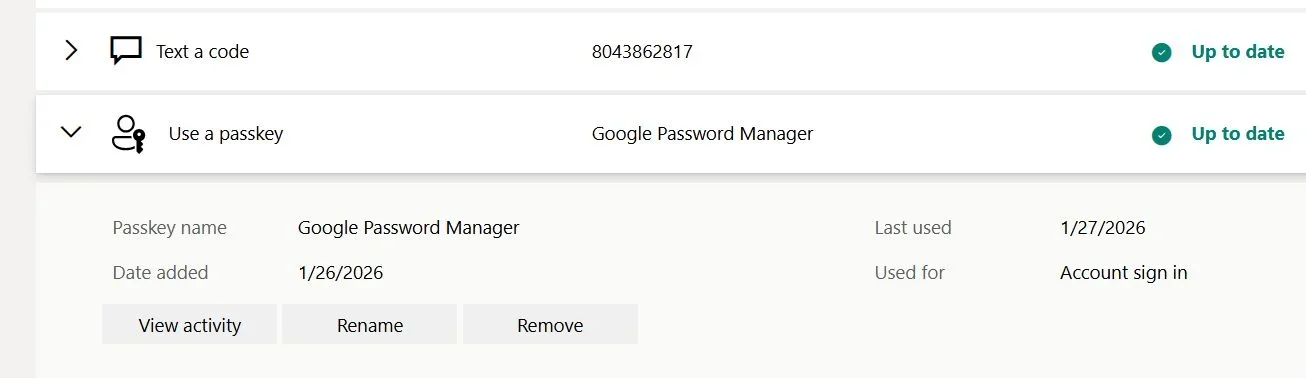
personal Microsoft account are exactly on that page: sign in there → under “Ways to prove who you are” select the passkey →
Remove. (
support.microsoft.com)
If it still tries to force a passkey while signing in
On the sign-in prompt, look for
“Sign-in options” / “Other ways to sign in” and choose
Password or
Email/SMS code instead of passkey. Microsoft documents that “Sign-in options / Other ways to sign in” is how you switch methods. (
support.microsoft.com)
If you
never get any option except passkey, the fastest way to restore password sign-in is to do a
password reset, then try again.
3) After passkey is removed, fix Outlook so it stops looping
- Close Outlook.
- Control Panel → Mail (Microsoft Outlook) → Show Profiles → Add
- Create a new profile and add the
@live.com account again.
(Once the account itself is no longer advertising/forcing passkey, Outlook usually returns to password + verification code.)
4) About “chat/callback”: why you’re not seeing it
For
Microsoft personal account sign-in/security issues, Microsoft often routes you to the
sign-in helper first, and “Contact Support” options may only appear in some cases. Microsoft states this directly on their passkey support page (it points to the sign-in helper tool and then “Contact Support” if available). (
support.microsoft.com)
One question (so I can give the exact next move)
After you disconnect anything under
Access work or school and reboot, when you open:
[Sign in to your Microsoft account](https://account.live.com/proofs/manage)
does the address bar
stay on account.live.com, or does it still jump to
login.microsoftonline.com?
If it still jumps, tell me what (if anything) is listed under
Settings → Accounts → Access work or school right now (just the headings—no personal info).