• Thread Author
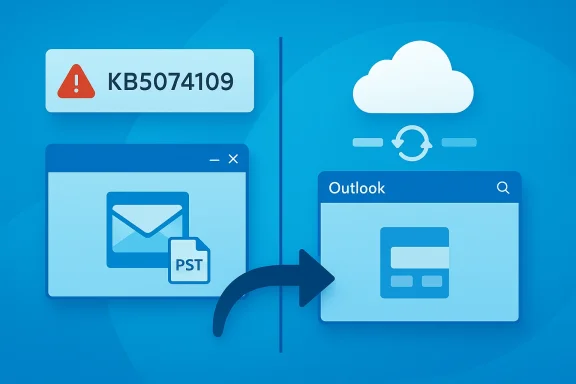
A routine Patch Tuesday release on January 13, 2026 has left a significant portion of classic Outlook users scrambling: the Windows 11 cumulative update KB5074109 and a separate Outlook Current Channel build have each introduced regressions that render parts of the traditional Outlook experience unreliable or unusable for many people, with symptoms ranging from persistent freezes and processes that won't quit to encrypted messages that open only as unreadable attachments.

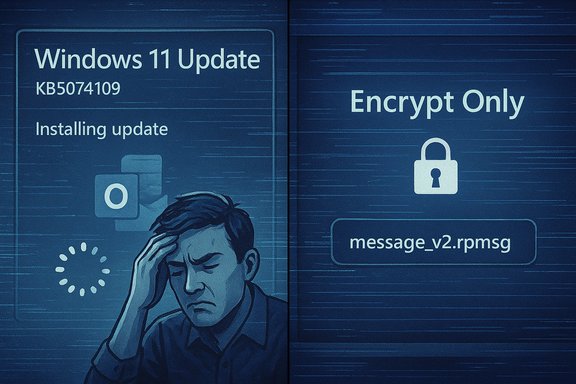
Stressed man as Windows 11 updates install, beside an Encrypt Only screen with a ransom-style filename.Background​

Microsoft shipped the January 13, 2026 Patch Tuesday cumulative update for Windows 11 as KB5074109 (OS Builds 26200.7623 and 26100.7623). The update was billed as a routine security and quality rollup addressing more than one hundred vulnerabilities and several platform issues — including fixes for battery drain related to Neural Processing Units (NPU) and Secure Boot certificate behavior — but it also introduced a set of unexpected side effects on some systems. At the same time, Microsoft’s Classic Outlook (Win32) client received a Current Channel update (Version 2511, Build 19426.20218) that produced a separate, client-side regression affecting Encrypt Only emails: recipients could no longer open messages encrypted using the File > Encrypt path, and the message content showed up only as a message_v2.rpmsg attachment. Microsoft has labeled both problems investigating and has published interim guidance and workarounds while engineering teams pursue permanent fixes.

What broke and who’s affected​

Classic Outlook — POP account hang and freeze after KB5074109​

  • Symptom: After installing KB5074109, users with POP account profiles reported Outlook processes that won’t exit properly (Outlook stays running in the background), Outlook that refuses to restart, and intermittent hangs or freezes while using the client. These behaviors mean Outlook cannot be restarted normally and can block email delivery, synchronization and user workflows.
  • Scope: Microsoft’s advisory explicitly calls this an emerging issue and identifies classic Outlook (Outlook for Microsoft 365) with POP account profiles as the principal surface. The support post lists the January 13, 2026 update (KB5074109) as the triggering OS update. Microsoft is investigating and has not yet published a universal fix.

Classic Outlook — Encrypt Only messages fail to open after an Outlook client update​

  • Symptom: After Current Channel Version 2511 (Build 19426.20218) shipped to Outlook clients, recipients of messages encrypted with Encrypt Only encountered a Reading Pane prompt: “This message with restricted permission cannot be viewed in the reading pane until you verify your credentials.” Opening the message then exposed an attachment named message_v2.rpmsg, and the actual body remained unreadable inside the client.
  • Scope: Microsoft’s guidance indicated the regression started with build 19426.20218 and affected recipients opening messages in the classic Outlook client. The Outlook team offered temporary workarounds and a rollback path to a prior working build for senders or administrators.

Why the failures matter​

The two regressions have different technical triggers but converge on the same operational pain points for end users and IT teams.
  • Legacy protocols like POP are still widely used in small businesses, home offices, and some vertical markets. When Outlook processes cannot quit cleanly — leaving POP sessions or PST indexes locked — users find the client unusable or unstable. The result: lost productivity, ballooning helpdesk tickets, and the risk of file-level corruption if a stuck Outlook process is terminated forcibly.
  • Encrypted email workflows are critical for regulated industries and corporate confidentiality. The Encrypt Only regression effectively blocks access to protected communications when using a specific UI path to apply encryption. That undermines secure mailflows and forces senders to alter practices or recipients to rely on alternate clients or web-based viewers. Until the bug is fixed, sensitive messages can be unreadable inside the desktop client.
Both problems highlight a broader risk: the complexity of modern update pipelines. A single cumulative OS update touches low-level components (drivers, kernel interfaces, update/SSU packaging) while application updates for Office and Outlook proceed on separate channels. Interactions between OS-level changes and legacy application code paths create the potential for regressions that only reveal themselves in edge-case scenarios — but those edge cases can still affect thousands of users.

Evidence: what Microsoft and independent outlets are saying​

Microsoft has published support advisory pages marking both troubles as investigating and listing symptoms, affected builds, and temporary workarounds.
  • The Windows 11 KB5074109 knowledge base entry describes fixes and includes a Known Issue Rollback (KIR) mechanism and guidance for administrators; an Outlook-specific support topic links KB5074109 with POP account hangs and notes that teams are investigating.
  • For the Encrypt Only issue, Microsoft’s Outlook support article acknowledges the regression after Current Channel Version 2511 (Build 19426.20218) and recommends temporary steps such as using the Options > Encrypt ribbon or reverting to the previous Outlook build.
Independent tech coverage and community reporting corroborate the problem: WindowsLatest and Windows Central reported platform-level issues after KB5074109 including black screens and Outlook hangs, while security and IT press outlets (TechRadar, BleepingComputer) and popular community forums reproduced and discussed the Encrypt Only failure and the message_v2.rpmsg symptom. These independent write-ups align with Microsoft’s public advisory and community troubleshooting threads.

Practical impact: who should be worried​

  • Consumers using POP accounts in classic Outlook: expect instability and potential inability to restart Outlook after closing it; consider avoiding the KB5074109 update until a fix is available or plan a rollback if affected.
  • Small businesses and MSPs with legacy mail setups: be prepared for increased tickets and possible PST repair work if users force-kill Outlook processes or experience corrupted data files after repeated hangs. Third-party vendors and PST repair utilities have already published advisories offering remediation options where data corruption is suspected.
  • Regulated organizations and anyone using Encrypt Only messages as part of governance or compliance: verify how encryption is being applied. If encryption is applied via the File > Encrypt dialog, recipients using classic Outlook builds affected by the regression may not be able to open messages. Temporarily switching to a different encryption UI path or using Outlook Web App (Outlook on the web) will preserve access.
  • Enterprises that stage updates via WSUS or other management tools: use the Known Issue Rollback (KIR) guidance published with KB5074109 and consider blocking or delaying the update until a patched cumulative update is released. Microsoft’s KB page includes instructions for deploying a temporary Group Policy-based rollback for affected organizations.

Workarounds and mitigation — step‑by‑step​

Below are practical steps for affected users and administrators. Apply changes with care and understand the security trade-offs before uninstalling security updates.

1) Confirm the symptoms and collect diagnostics​

  • Check your Outlook account type: if you’re using POP, you are in the primary affected class for the KB5074109 hang issue. If you’re using IMAP or Exchange/Office 365, the Microsoft advisory indicates these setups are not showing the same hang behavior.
  • Take screenshots of error messages, note build numbers (Windows build and Outlook version). These details are essential when opening a Microsoft support case or escalating with an MSP.

2) Use supported temporary workarounds for encrypted emails​

  • If you must send encrypted email, avoid the File > Encrypt path on affected Outlook builds. Instead:
  • Use the Options > Encrypt ribbon command when composing the message; this alternative path has been reported to avoid the regression.
  • Or use Outlook on the web or the New Outlook experience, which are not impacted by the Desktop client regression for Encrypt Only messages.
  • If you are an administrator and must send mass or automated encrypted messages, consider rolling sender clients back to a prior working build (the Microsoft article names 16.0.19426.20186 as the version before the regression). Microsoft provided a Click-to-Run rollback command in its advisory.

3) Uninstall KB5074109 or apply Known Issue Rollback for POP hangs​

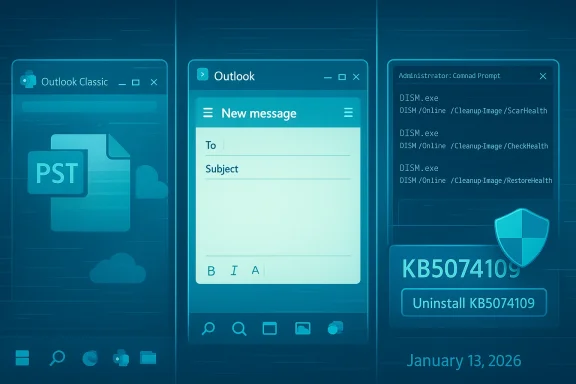
  • Uninstall via Settings: Windows 11 allows Settings > Windows Update > Update history > Uninstall updates. Select KB5074109 (if present) and uninstall. Microsoft cautions that some combined packages include servicing stack updates (SSUs) that cannot be removed by the Windows Update Standalone Installer. Follow Microsoft’s guidance when using removal commands.
  • Use DISM/Remove-Package: Microsoft’s KB explains that removing the LCU from a combined package requires DISM /Remove-Package using the package name discovered via DISM /online /get-packages. This is an advanced step and typically requires admin rights and a reboot.
  • For enterprise-managed devices, deploy the Known Issue Rollback (KIR) Group Policy referenced in the KB5074109 article. The KIR temporarily disables the change causing the issue until Microsoft ships a corrective update. Admins should follow Microsoft’s documented Group Policy deployment steps and test in their environment before broad roll-out.

4) Short-term user-level mitigations​

  • Start Outlook in Safe Mode to check if add-ins compound the issue: run Outlook.exe /safe. If Outlook behaves correctly in Safe Mode, disable add-ins selectively. Microsoft guidance on troubleshooting Outlook lists Safe Mode and add-in isolation steps.
  • Create a new Outlook profile if your profile appears corrupt or Outlook fails to start normally. This can isolate profile corruption from client or OS behavior.
  • If you are unable to access the machine or Windows will not boot normally after an uninstall attempt, use Windows Recovery Environment (WinRE) > Troubleshoot > Advanced options > Uninstall Updates. Microsoft documents the recovery uninstall process.

What IT departments and MSPs should do now​

  • Inventory endpoints for POP accounts and identify critical users who cannot be downgraded to a safer configuration without business disruption.
  • Pause deployment of KB5074109 in managed channels until the risk is fully assessed or set up KIR in your test ring to disable the problematic change.
  • Communicate clearly with users about safe behaviors: avoid the File > Encrypt path for protected messages, use Outlook Web App for critical encrypted mail, and refrain from force-killing Outlook processes unless instructed.
  • Prepare standard operating procedures for rollback via DISM or Windows update removal for technicians, and ensure backups of PST files and user mail stores exist before performing manipulations that could risk data integrity.

Analysis: strengths, weaknesses, and risks​

Notable strengths of Microsoft’s approach​

  • Transparent triage: Microsoft published targeted support articles and labeled the regressions as investigating, giving customers direct guidance and clear symptom descriptions. That rapid acknowledgement is helpful in reducing confusion and guiding troubleshooting.
  • KIR and staged rollouts: The availability of Known Issue Rollback mechanisms and the staged Secure Boot certificate behavior shows Microsoft is balancing security with operational stability, enabling temporary reversions for enterprises while preparing a permanent fix.

Key weaknesses and operational risks​

  • Regression surface area: The fact that a security/quality rollup could interact with legacy Outlook usage patterns (POP) or a relatively narrow UI workflow (File > Encrypt) underscores the fragility of backward compatibility in complex, layered update systems. Organizations that rely on legacy protocols or specific client workflows are especially vulnerable.
  • Communication gaps for average users: While Microsoft’s support articles are thorough, they assume a level of technical fluency to interpret build numbers and rollback commands. Less technical users will see their mail client become unusable and may not be comfortable uninstalling updates or switching to web clients. That increases helpdesk pressure and the chance of risky user behaviour (e.g., killing processes, installing unknown tools).
  • Data integrity and PST risk: Repeated hangs, forced terminations, and improper recovery steps increase the risk of PST file corruption. If PSTs become damaged, recovery can be time-consuming and may require paid tools or professional intervention. This is a real downstream cost not covered by the initial security update.

Unverifiable or uncertain points​

  • Scope and exact number of affected users: Microsoft’s advisories and community reports show the issue affects many users, particularly those with POP accounts, but there is no public, verifiable metric (percentage of installs or number of tickets) published. Any claim that “millions” or a specific user count are affected would be speculative without internal telemetry or Microsoft release metrics. This lack of quantification should make organizations treat the risk seriously while acknowledging they may or may not be affected depending on their profile composition. Caution advised.

Long-term implications and takeaways​

  • IT modernization imperative: The incident reinforces the long-term risk of relying on legacy protocols like POP. Organizations still using POP should plan migration strategies to modern protocols (IMAP, Exchange/Microsoft 365) to reduce single-point fragility tied to old code paths.
  • Hardening update pipelines: Enterprises should review update ring strategies and accelerate adoption of test/validation rings that include real-world email workflows — especially encrypted messaging and legacy account types — before a broad rollout. KIR is useful, but preventing regressions through more extensive pre-release testing would reduce operational fallout.
  • Better user guidance and automation: Microsoft and vendors can reduce helpdesk load by improving auto-diagnostic tools and in-client guidance when a breaking change is detected. Administrators should also automate rollback and remediation scripts for well-understood scenarios to speed recovery.

Bottom line​

Two separate update paths converged this month to create a real and immediate problem for classic Outlook users: a Windows 11 cumulative update (KB5074109) that introduced POP-account hangs and freezes, and an Outlook Current Channel update that blocked “Encrypt Only” emails in the Reading Pane. Microsoft has acknowledged both regressions and published support guidance and temporary workarounds, including a Known Issue Rollback for enterprise environments and rollback instructions for Office clients. Administrators should evaluate exposure, pause or block problematic updates in managed environments where necessary, deploy KIR or uninstall the update per Microsoft guidance if you are impacted, and prefer web-based or alternate encryption paths for sensitive mail until permanent fixes are released.

Quick checklist — What to do right now​

  • Identify if you use POP accounts in classic Outlook; if yes, treat the update as high priority.
  • For encrypted messages, avoid File > Encrypt on affected Outlook builds; use Options > Encrypt or Outlook on the web.
  • If you are impacted and cannot wait for a patch, follow Microsoft’s uninstall or DISM removal guidance, or apply KIR in enterprise environments. Back up PSTs before proceeding.
  • Monitor Microsoft’s support pages and change logs for updates marked Fixed; once Microsoft ships the corrective update, apply it via your validated deployment path.
The situation remains fluid. Microsoft is actively investigating both problems; organizations and users should balance the security importance of applying updates against the immediate operational risk the regressions represent, and choose a mitigation path that preserves business continuity while minimizing exposure.
Source: Windows Report https://windowsreport.com/latest-windows-11-update-leaves-classic-outlook-unusable-for-many/
 

Microsoft’s January 2026 Windows 11 cumulative update (KB5074109) and the rapid sequence of emergency, out‑of‑band fixes that followed exposed a worrying mix of quality regressions and competent incident response — users saw black screens, Outlook Classic POP profiles freeze, Remote Desktop/Azure Virtual Desktop authentication fail, and a narrow but disruptive shutdown/hibernate regression that forced Microsoft to push corrective patches within days.

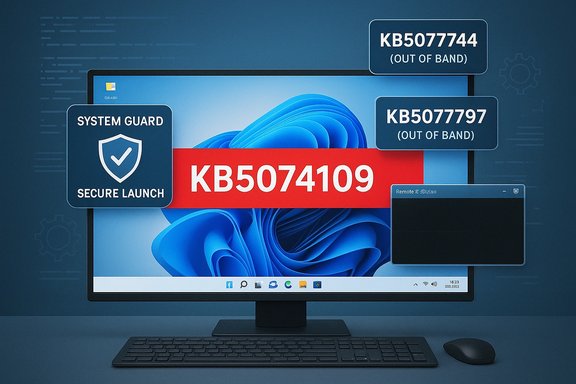
A computer monitor displays a red KB5074109 banner with out-of-band updates and a System Guard badge.Background​

Microsoft released the January 2026 Patch Tuesday cumulative update — KB5074109 for Windows 11 (builds 26200.7623 and 26100.7623) — on 13 January 2026. The update bundled security fixes and non‑security improvements but quickly produced a series of severe regressions on a small subset of configurations. Within four days Microsoft issued targeted out‑of‑band (OOB) updates — KB5077744 for 24H2/25H2 and KB5077797 for 23H2 — on 17 January 2026 to remediate at least the most critical failures. Microsoft’s support pages list the update metadata, affected OS builds, and the specific fixes included in those OOB packages; those pages are the authoritative changelogs for administrators deploying these updates.

What went wrong — the reported regressions​

Shortly after the January roll‑out multiple, distinct problems were reported by users, community forums, and security/tech outlets. The headline issues included:
  • Shutdown/hibernate regression on some Windows 11 version 23H2 devices with System Guard Secure Launch enabled, where selecting “Shut down” or “Hibernate” would cause the device to reboot instead of powering off. This behavior primarily affected Enterprise and IoT SKUs configured with Secure Launch.
  • Remote Desktop and Azure Virtual Desktop (AVD) authentication failures, producing credential prompts that blocked connections and causing Cloud PC/Windows 365 sign‑in flows to fail for many users. Microsoft documented authentication problems and included fixes in the OOB packages.
  • Outlook Classic (POP) profiles hang or freeze, where Outlook would not exit cleanly, would hang on restart, or would become unresponsive for POP‑configured “classic” profiles. Microsoft’s Outlook support team posted an advisory marking the problem as under investigation.
  • Transient black screens and desktop/Explorer anomalies, including instances where the desktop would go black for a second or two at login, or the user’s wallpaper would reset to black/Spotlight. Separately, File Explorer was reported to ignore LocalizedResourceName entries in desktop.ini, causing localized folder names to disappear. These behaviors were reproduced in community testing and reported widely.
Each of these problems affected different subsystems (power management / Secure Launch, authentication flow for RDP/AVD, Outlook user‑mode behavior, and File Explorer / shell components), which complicated diagnosis and required multiple corrective measures.

Timeline — key dates and actions​

  • 13 January 2026 — Microsoft releases January Patch Tuesday cumulative updates, including KB5074109 for Windows 11. The update advances OS builds to 26200.7623 / 26100.7623.
  • 14–16 January 2026 — Community reports and telemetry flag multiple regressions (RDP auth failures, shutdown regression on Secure Launch configurations, Outlook POP hangs, desktop.ini regression, and isolated black‑screen reports).
  • 17 January 2026 — Microsoft publishes and begins rolling out out‑of‑band fixes: KB5077744 (24H2/25H2) and KB5077797 (23H2). The OOB packages explicitly address Remote Desktop sign‑in failures and the shutdown/hibernate regression for Secure Launch devices.
  • 15–18 January 2026 — Microsoft and the Outlook team mark the Outlook POP problem as “investigating” and publish guidance; some problems (desktop.ini/LocalizedResourceName and transient black screens) remained primarily community‑reported and under further verification.

Technical analysis — likely causes and contributing factors​

The bug surface covers multiple code areas — kernel/power management, authentication components, the Windows shell, and application‑level behaviors. The evidence points to update changes in core OS components that interact with preexisting configuration or application assumptions.
  • Power regression and Secure Launch: the shutdown/hybrid power‑state regression occurred on devices with System Guard Secure Launch. Secure Launch is an early‑boot virtualization feature that intersects with the OS power state transitions. The combination of a configuration‑dependent code path and a change introduced in the update likely created an unexpected state that caused a restart instead of a power‑off. Microsoft’s 23H2 OOB explicitly names Secure Launch‑enabled devices as affected, which narrows the root cause to virtualization‑adjacent boot/power logic.
  • Remote Desktop/AVD authentication failure: authentication flows for Remote Desktop and the Windows App rely on multiple components — credential providers, web authentication brokers, and app‑side token handling. A change in the January cumulative or its supporting components apparently interfered with the authentication handshake in multiple Remote Desktop clients, most visibly impacting AVD and Windows 365. The OOB for 24H2/25H2 lists a fix for Remote Desktop sign‑in failures.
  • Outlook POP freeze: the Outlook hang affects classic POP profiles rather than modern M365/Exchange profiles. Because POP creates a local copy of mail items and Outlook uses PST/OST file handling via the MAPI stack and Outlook process lifecycle, a regression that changes file‑I/O timing, shutdown hooks, or a COM interface could result in OUTLOOK.EXE failing to exit. Microsoft’s Outlook support post documents the symptoms and confirms the issue is under investigation. The scoped nature (POP/classic profiles) suggests the regression existed at the intersection of Windows update changes and Outlook’s legacy account code paths.
  • desktop.ini and LocalizedResourceName: multiple community reproductions and Microsoft Q&A posts show that Explorer no longer reads LocalizedResourceName entries after installing KB5074109. The shell and Windows.Storage components handle desktop.ini parsing; the files touched by KB5074109 include shell and storage DLLs, so a regression here is plausible. Community reproductions indicate uninstalling the update restores expected behavior.
Taken together, the evidence suggests that while the January security fixes were necessary, changes to shared, low‑level components produced collateral damage across unrelated features — a reminder that cumulative updates touching core DLLs must be regression‑tested widely across different configuration profiles.

Who is affected — scope and severity​

  • Enterprise and managed images with Secure Launch enabled are at risk for the shutdown/hibernate regression. These configurations are common in hardened enterprise and IoT deployments, which raises the operational stakes.
  • Cloud PC / Azure Virtual Desktop / Windows 365 customers experienced sign‑in and authentication failures, which translate to immediate productivity loss for remote workers and service disruption for cloud‑delivered desktops.
  • Classic Outlook (POP) users — small businesses, ISPs, and individuals who still use POP profiles — may encounter Outlook freezes and inability to restart the client cleanly; that leads to stuck processes, failed mail delivery, and potential PST corruption if forced closures occur repeatedly.
  • A minority of desktop systems reported transient black screens or wallpaper resets. While these are less severe functionally, they erode user trust and indicate shell‑level regressions. desktop.ini behavior failing to honor LocalizedResourceName affects users who rely on customized folder names and localized shells.
Severity varies: Remote Desktop failures and shutdown regressions are high impact operationally; Outlook hangs and potential PST risk are high for affected mail users; black screen and desktop.ini regressions are irritating but mostly recoverable. Microsoft’s rapid OOB responses addressed the high‑impact items quickly, but some secondary regressions required further investigation and community corroboration.

Emergency patches and official mitigations​

Microsoft’s response included two main OOB releases on 17 January 2026:
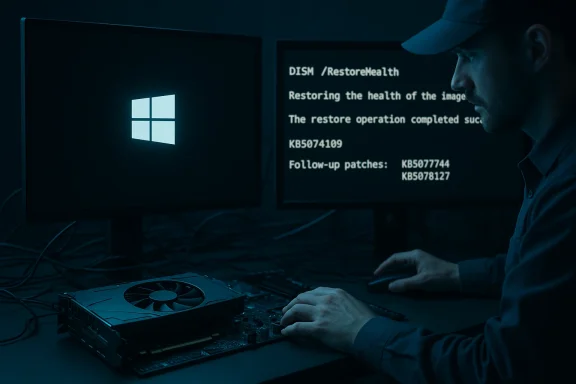
  • KB5077744 — Out‑of‑band cumulative update for Windows 11 25H2/24H2. It addressed Remote Desktop sign‑in failures and included additional servicing stack updates. The KB notes the out‑of‑band update includes fixes from the January 13 release plus targeted remediation for the RDP authentication issue.
  • KB5077797 — Out‑of‑band cumulative update for Windows 11 23H2. This package included a fix for Remote Desktop authentication failures and the Secure Launch shutdown/hibernate regression on affected 23H2 devices.
Microsoft also published temporary workarounds and guidance in its support notes and community channels:
  • Use the Remote Desktop client for Windows rather than the Windows App if sign‑in is failing (workaround for AVD/Windows 365 until OOB patches applied).
  • Administrators can apply Known Issue Rollback (KIR) or specific Group Policy settings where indicated to mitigate certain lock‑screen UI icon visibility behaviors introduced by prior updates. The OOB KB pages reference KIR and Group Policy downloads where needed.
  • For Outlook POP freezes the immediate official guidance was investigating; community workarounds included using Outlook Web/alternative clients, uninstalling the cumulative update if necessary, or waiting for an Outlook‑side patch. Microsoft warned about forcing restarts of Outlook processes due to PST corruption risk and advised caution.
  • Uninstalling KB5074109 (wusa /uninstall /kb:5074109) restored correct behavior for several regressions in community reports; however, Microsoft recommends applying OOB fixes where available rather than wholesale rollback because the security fixes in the cumulative are important.

Practical checklist for IT administrators (immediate actions)​

  • Inventory and detection
  • Identify devices with Secure Launch enabled (check firmware and Group Policy / Intune profiles).
  • Query update history for KB5074109 and confirm build numbers (26200.7623 / 26100.7623).
  • Prioritize remediation
  • If devices are affected by Remote Desktop/AVD authentication issues or shutdown regressions, prioritize applying KB5077744 or KB5077797 as appropriate. These are out‑of‑band and address high‑impact regressions.
  • Temporary mitigations
  • Use the full Remote Desktop client instead of the Windows App for remote connections until OOB fixes are deployed.
  • For immediate forced shutdowns, the command shutdown /s /t 0 works around the hibernate/shutdown regression for administrators needing reliable power‑off. Note this is a temporary mitigation.
  • Outlook management
  • For POP users experiencing Outlook freezes, consider temporarily switching affected users to Outlook Web or an alternate mail client; avoid force‑killing OUTLOOK.EXE repeatedly to reduce PST corruption risk. Monitor Microsoft’s Outlook advisory for a formal fix.
  • Rollback and testing
  • If rollback is necessary, use wusa /uninstall /kb:5074109 in controlled groups and validate the result. Test security posture after rollback because uninstalling a security LCU may reintroduce vulnerabilities.
  • Communication
  • Notify stakeholders of potential disruptive behaviors (remote access issues, possible Outlook downtime) and provide expected remediation timelines when OOB patches are deployed. Use phased deployment and telemetry to validate fixes before broad rollout.

Practical advice for end users (non‑admin)​

  • Check your Windows Update history: Settings > Windows Update > Update history to see whether KB5074109 is installed.
  • If you’re experiencing Remote Desktop sign‑in failures, switch to the Remote Desktop client for Windows or the Remote Desktop web client as a temporary workaround.
  • If desktop wallpaper resets or you see a black background, re‑apply your background in Settings > Personalization after ensuring you have applied available OOB updates. Some users reported this fixes the temporary wallpaper reset.
  • If Outlook (classic POP) hangs, use Outlook Web Access or another mail client until the Outlook/Windows teams publish a fix. Avoid repeatedly force‑killing Outlook processes to reduce the risk to PST files.
  • If you must uninstall KB5074109 to restore functionality, follow documented uninstall steps and pause updates afterward until your environment has been validated with the OOB patches. Remember that uninstalling a security update exposes your system to previously addressed CVEs, so treat rollback as last‑resort and temporary.

Critical appraisal — strengths and concerns​

Strengths
  • Microsoft acknowledged high‑impact issues quickly and shipped out‑of‑band remediation within days for the most severe failures (RDP/AVD and the Secure Launch shutdown regression). The availability of targeted OOB KB packages and explicit guidance is evidence of responsive incident management.
  • Microsoft’s public troubleshooting notes and Outlook advisory show cross‑team coordination (Windows and Office/Outlook teams) to triage application‑level regressions. This reduces time‑to‑awareness for admins and power users.
Concerns
  • Multiple regressions across unrelated subsystems in a single cumulative update indicate gaps in regression testing for complex or less‑common configurations (e.g., System Guard Secure Launch, legacy POP profiles, certain shell behaviors). The problems suggest the update pipeline allowed changes to widely shared components without catching configuration‑dependent regressions early. Community reproducibility (desktop.ini, LocalizedResourceName) and repeated reports of black screens amplify that concern.
  • The Outlook POP issue remains notable because it affects mail continuity for small businesses and home users who rely on legacy mail setups. The lack of an immediate Outlook‑side patch at the time of the initial OOB rollouts left these users exposed to productivity loss. Microsoft labeling the issue as “investigating” is transparent but frustrating to admins needing a concrete remediation.
  • The frequency of emergency, out‑of‑band patches for critical regressions reinforces a broader operational risk: rapid deployment practices that prioritize security fixes may inadvertently increase the chance of introducing regressions without sufficient channeling through comprehensive real‑world configuration tests. Industry commentary flagged this as a trend worth watching.

Lessons for enterprise patch management​

  • Maintain layered staging: always test monthly cumulative updates in a representative staging ring that includes devices with virtualization‑centric security settings (VBS, Secure Launch), corporate images, and common user applications (Outlook classic profiles if still used). Real‑world configuration diversity matters.
  • Use telemetry and rapid rollback plans: have a validated rollback and communication playbook so affected users can be switched to temporary mitigations (RDP client, web mail) quickly while OOB patches are applied.
  • Monitor release health dashboards and vendor advisories closely in the 72 hours after Patch Tuesday. Vendors frequently post known issues and OOB fixes there first.
  • Treat legacy account types (POP/IMAP) as higher‑risk when applying OS updates; they may be carried by legacy code paths and can fail in unexpected ways. Maintain updated guidance for end users and help desks.

Flagging unverifiable or community‑only claims​

Several community reports described black‑screen delays at login and wallpaper resets. While these are reproducible by a subset of users and were reported by industry outlets, not all of them were explicitly listed as known issues in Microsoft’s KBs at the time of writing. Treat purely community‑reported symptoms as signals that require vendor confirmation before being treated as fully vendor‑acknowledged. Administrators should monitor Microsoft’s Release Health dashboard for official status changes.

Conclusion​

The January 2026 Windows 11 update cycle demonstrates two competing realities: security and reliability both matter, and delivering both simultaneously over a massive, heterogeneous device ecosystem is difficult. Microsoft’s rapid, targeted OOB patches (KB5077744 and KB5077797) were the correct immediate response to high‑impact failures in Remote Desktop authentication and Secure Launch‑related shutdown regressions. At the same time, the emergence of multiple regressions — from Outlook POP hangs to shell‑level desktop.ini parsing failures and intermittent black screens — underscores the need for broader regression testing across edge configurations and for IT organizations to maintain conservative, staged update policies.
Administrators should prioritize applying Microsoft’s out‑of‑band fixes where relevant, use the recommended temporary mitigations (Remote Desktop client, shutdown command, fallback to web mail), and validate device configuration rings that include security features like Secure Launch. End users affected by Outlook or UI regressions should follow Microsoft’s official guidance, temporarily use web or alternate clients, and avoid forcefully terminating applications where that would risk data corruption.
The immediate crisis is manageable if handled methodically: inventory, patch, test, and communicate. The broader lesson is organizational: balance urgency with defensible testing to reduce the collateral damage that can accompany even well‑intentioned security updates.
Source: TechPowerUp Windows 11 January 2026 Update Triggers Black Screens, Outlook Failures, and Emergency Patches | TechPowerUp}
 

Microsoft’s January cumulative for Windows 11—released as KB5074109 on January 13, 2026—was intended to deliver critical security fixes and platform improvements, but instead triggered a cascade of disruptive regressions: brief black-screen/display freezes on some desktops, classic Outlook (POP) profiles that refuse to exit cleanly, and authentication failures that broke Azure Virtual Desktop and Windows 365 sign‑ins for many customers; Microsoft shipped targeted out‑of‑band (OOB) updates and Known Issue Rollback artifacts within days, while the Outlook POP problem remained under investigation.

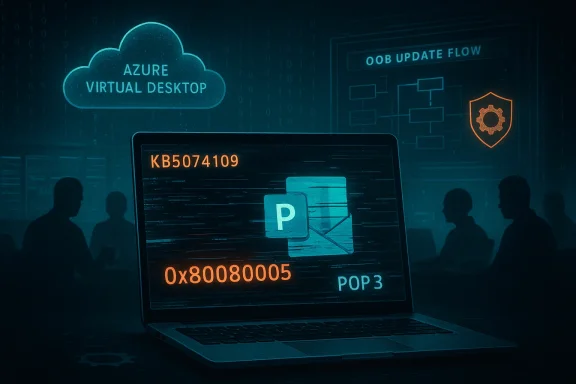
A laptop screen displays code with a POP3 icon amid Azure Virtual Desktop cloud visuals.Background​

Microsoft published the January 13, 2026 cumulative update as KB5074109 for Windows 11 (advancing affected SKUs to OS builds 26100.7623 and 26200.7623). The package bundled a Servicing Stack Update (SSU) with the Latest Cumulative Update (LCU) and included fixes that ranged from Neural Processing Unit (NPU) idle‑power regressions to Secure Boot certificate management improvements. The combined SSU+LCU packaging improves forward servicing but also complicates rollback paths for administrators. Within 24–72 hours of broad rollout, telemetry and community reports identified several distinct fault classes—some configuration‑dependent and some application‑level—that rapidly escalated support load and prompted emergency mitigations. Microsoft acknowledged several of the higher‑impact faults and issued OOB fixes on January 17, 2026, while other user‑reported symptoms remained under investigation.

What happened: the faults, symptoms, and immediate response​

Black screens and display anomalies​

A subset of users reported brief black screens (desktop disappearing for a few seconds) during normal use and occasional wallpaper desktop background to solid black. These display anomalies were reproduced on machines with a variety of GPUs (NVIDIA and AMD were both mentioned in community reports), suggesting a platform/driver interaction rather than a single‑vendor driver bug. Most occurrences were transient but disruptive—espec setups, during presentations, or while streaming video. Independent outlets and community threads catalogued the symptoms, but Microsoft did not initially list the brief black screens among the primary OOB fixes. Important distinction: the black‑screen reports were widely observed in user telemetry and forums, but they were less uniformly reproduced than the other regressions Microsoft explicitly addressed, so treat them as community‑reported, configuration‑dependent symptoms pending vendor confirmation.

Outlook Classic (POP) failures — not exiting, hangs, and missing Semost operationally painful failure for many end users was an interaction between KB5074109 and the Win32 Outlook client when configured with POP account profiles. After installing the update, some users discovered that closing Outlook did not terminate the process—OUTLOOK.EXE remained running in background—preventing normal restarts and causing intermittent hangs, failed send/receive cycles, and occasionally Sent Items not being recorded. Microsoft published a dedicated the Outlook POP profile hang and labeled the issue Investigating. The Outlook and Windows engineering teams were reported to be collaborating on diagnosis and remediation.​

Community takeaways:
  • The regression primarily affected classic Outlook with POP3 profiles and PST stores, a configuration still common in small businesses and ISP‑hosted mail environments.
  • Workarounds included killing the lingering outlook.exe process via Task Manager or rebooting the PC; some administrators temporarily uninstalled KB5074109 for affecting the security risk of uninstalling a cumulative security rollup.

Azure Virtual Desktop (AVD) / Windows 365 authentication failures​

Remote desktop scenarios were hit hard: the Windows Remote Desktop App and the Windows App client for Azure Virtual Desktop/Windows 365 experienced credential prompt failures that blocked session creation. Users often saw immediate authentication errors—commonly repro error code 0x80080005—and could not connect to Cloud PCs. Microsoft documented the failure and included the Remote Desktop sign‑in fix in the January 17 OOB package KB5077744 for Windows 11 24H2/25H2 (and corresponding OOB updates for other branches). Administrators were also provided Known Issue Rollback (KIR) guidance and group policy artifacts as a mitigation path.

Shutdown/hibernate regressions on Secure Launchdows 11 23H2 devices configured with System Guard Secure Launch, selecting Shut down or Hibernate sometimes produced a restart rather than powering the machine off. This was a configuration‑dependent but severe regression for enterprise and IoT images (where Secure Launch is commonly enabled). Microsoft fixed that behavior in the OOB January 17 and suggested command‑line workarounds in the interim (for example, shutdown /s /t 0).​

File Explorer / desktop.ini LocalizedResourceName regression and other oddities​

A rts described File Explorer ignoring LocalizedResourceName entries in desktop.ini and localized folder names reverting to physical filenames. These usability regressions were widely reported in forums and by independent blogs, but they were not universally acknowledged as high‑priority known issues by Microsoft during the initial OOB wave. Treat these as credible community telemetry while Microsoft investigates.

Timeline — concise chronology​

  • January 13, 2026 — Microsoft publishes KB5074109 (January cumulative).
  • January 14–16, 2026 — community telemetry and enterprisressions (Outlook POP hangs, Remote Desktop failures, Secure Launch shutdown regression, black screens, desktop.ini anomalies).
  • January 15, 2026 — Microsoft posts a dedicated Outlook advisory marking the POP hang as Investigating.
  • January 17, 2026 — Microsoft issues out‑of‑band cumulative updates (KB and KB5077797 for 23H2) to address the most critical regressions and publishes KIR guidance for managed environments.

Technical analysis — why a single update caused multiple symptoms​

SSU + LCU combination and rollback complexity​

Microsoft’s increasingly common practice of bundling an SSU with the LCU changes servicing semantics: once the SSU portion is committed, simple uninstallation via wusa.exe may not remove the lower‑level servicing changes. That raises the operational cost of rolling back an LCU and narrows options for administrators who must carefully balance immediate security exposure against operational disruption. Multiple community posts emphasized that removing the DISM /Remove‑Package with precise package identities and additional care. This complexity shaped many of the mitigation choices observed in the field.

Early‑boot protections and power semantics​

The Secure Launch regression demonstrates how early‑boot virtualization protections interact with servicing commit phases. Updates that alter early‑boot or pre‑OS commitments can affect shutdown/hibernate semantics on devices where Secure Launch is active, causing a restart rather than power‑off when the system attempts to commit changes offline. Because Secure Launch is configuration‑dependent, reproducers were concentrated in enterprise/IoT fleets rather than consumer PCs.

Application‑level and third‑party interactions​

The Outlook POP hang and other application faults reveal fragile boundaries between OS servicing and application runtime state legacy protocols and add‑ins. POP accounts use PST stores and local MAPI stacks; persistent background processes or altered threading/notification behaviors in the OS can prevent clean application shutdown. Similarly, third‑party sync clients (for example, older Golds) were implicated in prior rollouts; those interactions demonstrate that cumulative updates can expose latent incompatibilities across vendor boundaries. Microsoft’s advisory for the Outlook issue and earlier safeguards for third‑party client interactions point to this systemic risk.

Impact assessment — who should be worried​

  • Small businesses and home users still using POP3/PST‑based Outlook setups faced the most acute productivity pain: a stuck Outlook process can block send/receive, hide Sent items, and force reboots or manual process kills.
  • Organizations that depend on Azure Virtual Desktop, Windows 365 Cloud PCs, or the Windows Remote Desktop App experienced partial or full remote‑access outages that directly affected business continuity.
  • Enterprises and edge/IoT fleets that enable System Guard Secure Launch had critical maintenance and scheduling disruptions because machines restarted instead of powering off.
  • Consumers and power users with multi‑GPU or complex display setups reported transient black screens and wallpaper resets, creating annoyance and occasional data‑loss risk during presentations or recordings. These cases appear less widespread but were still numerous enough to be loudly discussed on forums.
Crucially, the outage scope was configuration‑dependent—not every machine saw every symptom. The most reliable guidance is to inventory affected endpoints and map update exposuce of POP profiles, Secure Launch enablement, and Cloud PC usage.

Practical mitigations and step‑by‑step remediation checklist​

Follow these prioritized steps depending on your role (end user, helpdesk, or IT admin):
  • Confirm whetherrresponding 23H2 KB) is installed by checking Windows Update history. If it isn’t installed, defer non‑critical installs while you validate pilot machines.
  • For Remote Desktop/Cloud PC sig the January 17 OOB update (KB5077744 or KB5077797)** for your Windows build via Windows Update, WSUS, or the Microsoft Update Catalog. Microsoft lists the Remote Desktop fix in the OOB notes.
  • If Outlook Classic (POP) behaves as described (won’t exit, hangs): temporarily use Outlook on the web (OWA) or another client for sending/receiving while awaiting a permanent fix; avoid repeatedly killing PST files or force‑terminating processes where possible—back up PST files before any forced action. Monitor Microsoft’s Outlook advisory for a hotfix.
  • For Secure Launch shutdown issues on affected 23H2 devices, install KB5077797 OOB or use the temporary command‑line shutdown workaround: shutdown /s /t 0 until the patch is applied.
  • Update GPU drivers to the latest vendor releases (NVIDIA/AMD/Intel). Driver vendors frequently issue compatibility updates that address display‑freey OS servicing changes.
  • Use Known Issue Rollback (KIR) and the Microsoft‑provided Group Policy artifacts for managed devices where appropriate; prefer KIR where possible rather than uninstalling SSU‑coupled combined packages. Microsoft documents how to deploy KIR for enort.microsoft.
  • If uninstall is unavoidable, use DISM /Remove‑Package with caution and authoritative package identity guidance rather than wusa.exe uninstall; SSU changes can complicate simple rollback. Document every step and ensure you have image‑based recovery available.
  • Communicate transnstruct affected teams to pause updates for non‑critical systems, designate fallback access methods (web clients, alternate remote clients), and route tickets for POP users to prioritized remediation.
  • Back up PST files and critical user data before attempting risky remediation; repeated forced termination of Outlook raises the risk of PST/ Maintain a tight pilot ring and require representative hardware/feature coverage—GPU workstations, AVD users, and legacy POP clients—before deploying monthly rollups to the broader fleet.

Critical analysis — strengths, weaknesses, and risks​

Notable strengths in Microsoft’s response​

  • Speed: Microsoft identified the most critical regressions and delivered targeted OOB updates within four days, restoring Remote Desktop flows and Secure Launch power behavior for most customers. That rapid triage reduced the window of major outages for many enterprise customers.
  • Tools: The Known Issue Rollback mechanism and Group Policy artifacts provided administrators with a surgical mitigation path that avoided broad uninstalling of security updates in many cases.

Weaknesses and systemic risks​

  • Testing gaps: The clustering of regressions across power management, authentication, display stacks, and application behavior suggests that a combined SSU+LCU rollout touched several brittle integration points that were not fully exercised by telemetry and pre‑release rings. This indicates a regression in the effectiveness of end‑to‑end validation for certain configuration combinations.
  • Rollb bundling complicates simple rollback, forcing administrators into DISM‑based operations or KIR usage that many smaller IT teams may not be prepared to execute safely. That friction magnifies operational risk when a security update introduces a regression.
  • Legacy surface exposure: The Outlook POP hang underscores that legacy protocols (POP/PST) and older add‑ins remain a real threat vector for operational disruption. Enterprises that retain legacy configurations face higher support costs and fragility during modern servicing.

Longer‑term hazards​

  • Repeated high‑impact regressions will erode confidence in automatic update models and may push more users and organizations to delay critical security updates—paradoxically increasing their exposure to the very vulnerabilities Microsoft is attempting to close. Carefully staged deployments and robust pilot telemetry are now more essential than ever.

What this means for Windows users and administrators going forward​

  • For administrators: tighten pilot rings, include GPUs and Cloud PC scenarios in validation suites, inventory legacy Outlook/POP usage, and build rollback/runbook playbooks before monthly rollout. Use Known Issue Rollback where available rather than broad uninstalls.
  • For end users: keep software (drivers and Office clients) up to date, back up PST/OST files, and be ready to use web fallbacks for email and remote desktop while fixes roll out.
  • For Microsoft: this episode is a reminder that heavy servicing packages touching early‑boot components must be staged conservatively and validated against a broad matrix of real‑world configurations—particularly those that use legacy protocols or third‑party sync clients.

Conclusion​

The January 2026 Windows 11 servicing wave demonstrates both the goals and the perils of modern cumulative updates: a single monthly package can close many vulnerabilities and improve platform behavior, yet it can also surface multiple, configuration‑dependent regressions that disrupt productivity and availability. Microsoft’s rapid issuance of OOB fixes and KIR artifacts limited the worst outcomes, but the still‑open Outlook POP investigation and the suite of community‑reported display and Explorer anomalies underline the enduring need for rigorous pilot validation and robust rollback planning. Administrators should inventory exposure, apply the OOB fixes where appropriate, and prefer Known Issue Rollback paths over wholesale uninstalls; end users should keep backups and favored web fallbacks at hand until a permanent Outlook resolution ships.
(If your environment is affected, prioritize the mitigations above—install KB5077744 / KB5077797 where relevant, update GPU drivers, and consult Microsoft’s release health advisories for the latest status on outstanding issues.

Source: Пепелац Ньюс https://pepelac.news/en/ampposts/id...update-issues-black-screens-outlook-failures/
 

Windows 11 users trying to roll back the Janduary 2026 security update (KB5074109) are now reporting a new obstruction: the uninstall itself fails with error 0x800f0905, leaving machines trapped between a buggy patch and a broken uninstall path — but there are reliable workarounds that can get systems back to a working state without a full wipe.

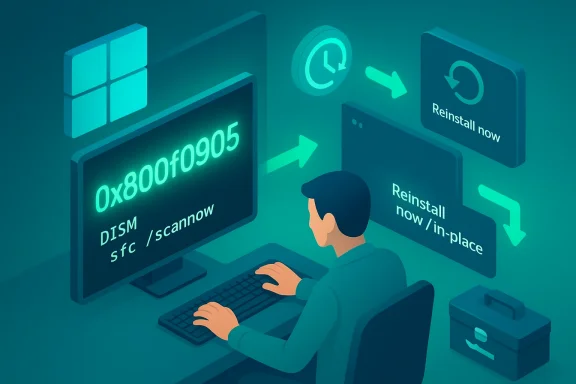
A person at a computer troubleshooting Windows repair with DISM and reinstall options.Overview​

Microsoft released the January 13, 2026 security update identified as KB5074109 (OS builds 26200.7623 and 26100.7623). The patch addressed a large set of vulnerabilities and platform fixes, but also produced a collection of regressions affecting diverse scenarios: Remote Desktop / AVD authentication failures, Outlook hangs for certain POP/PST setups, NVIDIA-related display problems, sleep/power regressions on some older hardware, and more. Microsoft’s KB describes the problem and recommends mitigations including a Known Issue Rollback (KIR) for managed environments and specific hotfixes for some symptoms. Shortly after Microsoft publicly advised affected users to uninstall KB5074109, a subset of users found that the uninstall operation failed with 0x800f0905 — an error typically tied to servicing pipeline or component store issues in Windows. Popular troubleshooting guides and community threads have converged on two practical, low-risk repair paths that let you either undo the update via a restore point or repair the current installation so the uninstall can succeed. Independent reporting from major outlets documented the user reports and the suggested fixes. This article summarizes the situation, verifies key technical details, explains step-by-step fixes proven in the field, and weighs trade-offs for home users and administrators. It also outlines additional advanced fixes for stubborn cases and gives safe, practical advice for mitigating future update pain.

Background: what KB5074109 changed — and what went wrong​

What the update was supposed to fix​

KB5074109 was a January 2026 cumulative security update addressing numerous vulnerabilities (the public advisory lists a large set of CVEs and platform fixes). Among the notable fixes were a patch for an actively exploited Desktop Window Manager issue and several security hardenings. The update applied to Windows 11 versions 24H2 and 25H2.

Where it went wrong​

Soon after rollout users reported multiple regressions:
  • Authentication and credential prompt failures impacting Azure Virtual Desktop (AVD) and Windows 365 when launched via the Windows App client. Microsoft published KIR artifacts and a targeted hotfix (KB5077744) for some symptoms.
  • Application hangs (notably Outlook for POP/PST users with cloud-synced PSTs).
  • Graphics and sleep regressions on some hardware, particularly with certain NVIDIA drivers and older S3 sleep hardware.
  • General component-store/servicing instability on some machines causing uninstall attempts to fail with servicing-related error codes such as 0x800f0905.
Those latter uninstall failures usually indicate the servicing stack, the component store (WinSxS/CBS), or related servicing metadata is in an inconsistent state, preventing the rollback mechanism from applying the change correctly. Community troubleshooting and Microsoft-recommended repair flows therefore focus on repairing the component store or using restore points to revert the entire syar.com](]) [HR][/HR] [HEADING=1]Why 0x800f0...ils with error 0x800f0905. Here's how to fix.
 

Microsoft has told some Windows 11 users to uninstall the January 13, 2026 cumulative security update (KB5074109) after a wave of post‑patch regressions left classic Outlook profiles unusable for many and prompted emergency fixes for other serious problems.

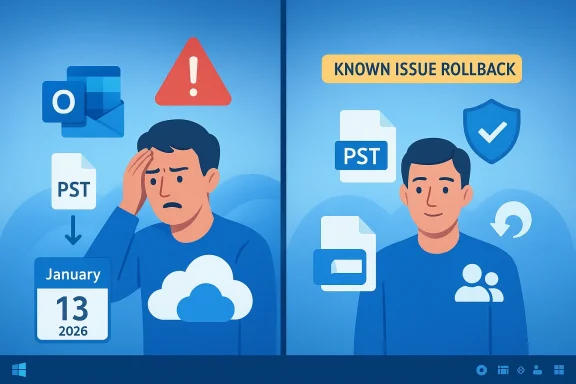
Left: worried person with PSTs and calendar; right: Known Issue Rollback and security icontinuens.Background / Overview​

The January 2026 rollup for Windows 11—delivered as KB5074109 and applied to OS builds such as 26100.7623 and 26200.7623—was a large Patch Tuesday package that addressed a broad set of security issues and included several quality fixes. The security portion of the release patched about 114 CVEs, including an actively exploited Desktop Window Manager (DWM) vulnerability, and a non‑security fix that targeted unwanted power use on devices with Neural Processing Units (NPUs).
Within days of the public rollout on January 13, 2026, administrators and end users began reporting a constellation of problems. The most disruptive, and the one Microsoft has publicly acknowledged as “investigating,” affects the classic Win32 Outlook client when used with POP profiles or when local PST files are stored inside cloud‑synced folders (notably OneDrive). Symptoms include Outlook hanging with “Not Responding,” OUTLOOK.EXE remaining in memory after you close the window, sent messages not appearing in Sent Items, and repeated redownloading of messages — behavior that can render the desktop client effectively unusable for affected users.
Other issues surfaced in the same window: black screens or display problems on some systems (with a notable set tied to specific GPU/driver combinations), desktop personalization or File Explorer regressions, and Remote Desktop/Windows 365 sign‑in or shutdown failures that required Microsoft to ship out‑of‑band (OOB) updates for those particular faults. Because KB5074109 was packaged alongside servicing stack updates (an SSU + LCU delivery), rollback behavior and remediation complexity increased; in some cases, uninstall operations initially failed or were blocked by the servicing stack.

What Microsoft is saying and advising​

Microsoft published formal support advisories that reflect both the scale of the security content in KB5074109 and the reality of the regressions discovered after rollout. The vendor’s interim guidance for the Outlook problem is blunt and pragmatic:
  • Use webmail (Outlook on the web) or an alternative client instead of the classic desktop client while engineering investigates.
  • Move PST files out of cloud‑synced folders such as OneDrive, ensuring the mail store lives on a truly local folder.
  • If those workarounds are not possible or effective, uninstall the January cumulative update as a temporary mitigation.
For enterprises, Microsoft recommends deploying a Known Issue Rollback (KIR) or specific Group Policy artifacts that neutralize the behavioral change without removing the entire security rollup — a safer approach that preserves the security fixes while restoring functionality on affected systems. For certain other regressions (Remote Desktop/AVD sign‑in failures, shutdown/hibernation problems on some SKUs), Microsoft issued targeted out‑of‑band packages to patch the immediate breakages.

Why this is serious: trade‑offs and operational risk​

This incident illustrates a difficult trade‑off that organizations and individual users face when Windows cumulative updates include both critical security fixes and deep platform changes.
  • Security vs. availability: KB5074109 closed more than a hundred vulnerabilities — including at least one actively exploited flaw. Removing the update restores functionality in many affected cases but reopens the attack surface that those fixes closed. That makes uninstalling an inherently time‑limited and high‑risk mitigation.
  • Legacy workflows exposed: Classic Outlook + POP + PST workflows are aging but still widespread in small businesses, legacy hosting environments, and user setups that rely on local archives. Those legacy I/O patterns interact poorly with modern cloud‑sync clients, and an OS‑level timing or filter change can expose brittle assumptions.
  • Servicing complexity: Because the January package was often delivered as a combined SSU + LCU, the servicing stack component can persist across reinstalls and complicate simple rollback. Where uninstall fails or returns errors (for example, upgrade/uninstall errors reported in some cases), recovery becomes more invasive.
  • Support costs and productivity: For help desks and IT operations, an outage of a core productivity app like Outlook means elevated ticket volumes, emergency interventions, and potential data integrity investigations if PST writes were interrupted during hangs.

Technical anatomy: why PST + OneDrive is a fragile surface​

The most consistent repros point to an interaction between classic Outlook’s file‑based PST model and the file‑interception behavior of cloud sync clients:
  • Outlook expects synchronous, local I/O semantics for PST operations: atomic writes, predictable flushes, and reliable handle behavior.
  • OneDrive and other sync clients interpose on file system operations: they present placeholders, upload in the background, and may momentarily hold or rehydrate file contents.
  • An OS change that subtly alters caching, file handle semantics, or timing can create a contention or deadlock where Outlook waits for an I/O operation that the sync client will not complete in the expected window.
  • The result: the Outlook UI blocks on I/O, the process hangs, and forced termination or system restart becomes the only path to recover — with a risk of PST corruption if termination occurs mid‑write.
This interplay is plausible and consistent with community repros and engineering explanations, though Microsoft’s advisory and the vendor‑level investigation had not yet published a definitive root‑cause at the time of the public advisory. Treat that statement as the vendor’s current position: there is a reproducible failure mode tied to PSTs in cloud‑synced folders, but the exact chain of code‑level causality remains under investigation.

Verifiable facts and timeline (confirmed)​

  • Release date: January 13, 2026 — Microsoft published KB5074109 as the Patch Tuesday cumulative for Windows 11.
  • Affected OS builds: reported installs raised systems to OS Build 26100.7623 and OS Build 26200.7623, among others tied to the January release.
  • Security scope: the January 2026 Patch Tuesday set patched roughly 114 CVEs, including at least one actively exploited DWM vulnerability.
  • Microsoft action: support advisories (marked “Investigating”) were published within days, temporary workarounds recommended, and OOB updates were pushed for some other regressions. Known Issue Rollback artifacts and Group Policy mitigations were provided for enterprises as an alternative to uninstalling the entire cumulative package.
  • Common symptoms: Outlook Classic (Win32) with POP profiles or PST files stored in OneDrive may hang, show “Not Responding,” fail to exit, or lose Sent Items visibility; apps accessing cloud storage can freeze; some systems exhibited black screens or shutdown failures that required emergency patches.

How to check whether you are affected — a short checklist​

  • Open Outlook → File → Account Settings → Data Files and inspect the path(s) for any PST. If any PST is inside a OneDrive folder (or other cloud‑synced folder), you are on the primary risk surface.
  • Confirm the Windows update was applied: Settings → Windows Update → Update history → Installed updates — look for KB5074109. Alternatively, run winver.exe and check the OS build number.
  • Reproduce the symptom safely:
  • Close Outlook normally. Open Task Manager → Details and search for OUTLOOK.EXE. If the process remains running without UI, that matches the reported hang.
  • Send a test message and confirm it appears in Sent Items. If it disappears or re‑downloads, consider the profile suspect.
  • If you see these signs, adopt mitigations before attempting heavy remediation.

Practical mitigations and step‑by‑step options​

Important preamble: back up your PST files and any local mail stores before making changes. Treat uninstall or advanced servicing actions as temporary diagnostics, not permanent posture changes.

Immediate, low‑risk steps (recommended first)​

  • Pause OneDrive sync temporarily for the account that contains PSTs. Right‑click the OneDrive tray icon → Pause syncing → test Outlook.
  • Move PST files off OneDrive to a local folder (for example C:\Users\<you>\Documents\PSTs), reattach them in Outlook, and test. Back up the PST before moving.
  • Use webmail (Outlook on the web) to maintain continuity while desktop issues persist.
  • Disable problematic add‑ins in Outlook (File → Options → Add‑ins) — third‑party scanning or archival add‑ins can exacerbate timing issues.

If workarounds fail: uninstall the update (consumer path)​

  • Back up data and ensure you have a recovery option (System Restore, full image, or PST backup).
  • Settings → Windows Update → Update history → Uninstall updates.
  • Look for “Security Update for Microsoft Windows (KB5074109)” and choose Uninstall. Reboot when prompted.
  • After reboot, verify Outlook behavior and confirm the OS build reverted to the previous version.
Caveat: because KB5074109 was often installed as a combined SSU + LCU package, the normal uninstall route may not remove the LCU portion in every case. If Settings/wusa uninstall is blocked or not present, proceed cautiously to advanced methods below or contact support.

Advanced removal (power users / admins)​

  • Use DISM to enumerate and remove the LCU package:
  • Open an elevated Command Prompt.
  • Run: dism /online /get-packages | findstr /i 5074109
  • Identify the exact package identity and remove it with: dism /online /remove-package /PackageName:<exact-name>
  • Reboot and verify system behavior.
  • If the system is unbootable or uninstall fails in the running OS, use the Windows Recovery Environment (WinRE): Troubleshoot → Advanced options → Uninstall Updates → Uninstall the latest quality update or the latest feature update.
Important caution: DISM removal is powerful and can leave the system exposed to the security fixes the update applied. Only proceed with an exact backup and an escalation path.

Enterprise guidance: KIR, pilots, and risk management​

For managed environments, uninstalling a security rollup across a fleet is rarely ideal. Microsoft’s recommended enterprise path is:
  • Deploy Known Issue Rollback (KIR) artifacts or the Group Policy package Microsoft published that temporarily disables the behavioral change causing the regression. KIR neutralizes a specific code path without removing the whole cumulative update, preserving the security content.
  • Pause and pilot: use WSUS, Intune, or your patch management tool to halt KB5074109 deployment to later rings until a corrective update is available or KIR has been validated.
  • Test thoroughly in a pilot ring with representative configurations (PST in OneDrive, POP profiles, third‑party AV and add‑ins) to validate mitigations before broad rollout.
  • Collect logs and escalate: gather Event Viewer, WindowsUpdate logs, and Outlook logs to share with vendor support if you escalate to Microsoft or third‑party app vendors.
Enterprises must weigh the risk of exposure from removing security fixes against the operational risk of broken user productivity. In many organizations a KIR or Group Policy toggle will be the better compromise.

Known uninstall failure modes and recovery tips​

Some users reported errors when attempting to uninstall the January cumulative, including 0x800f0905 and similar servicing pipeline errors. If uninstall fails:
  • Attempt System Restore to a pre‑update point if available.
  • Use the in‑place “Repair Install” (the Windows “Reinstall now” flow that preserves files and apps) if rollout errors leave the servicing stack damaged.
  • If DISM removal fails, collect CBS (Component-Based Servicing) logs and escalate to Microsoft Support for assisted recovery.
  • Always verify PST integrity using Inbox Repair tool (ScanPST.exe) after forced terminations or suspected corruption.

Strengths in Microsoft’s response — what went right​

  • Rapid acknowledgement: Microsoft published dedicated support advisories and marked the Outlook issue as investigating within days of community reports.
  • Targeted emergency fixes: For other regressions (Remote Desktop sign‑in failures, shutdown/hibernation issues), Microsoft shipped out‑of‑band updates promptly to restore critical functionality.
  • Enterprise controls: The vendor supplied KIR artifacts and Group Policy guidance that allowed many IT teams to neutralize the regression without sacrificing the security content of the monthly rollup.
  • Transparency of symptoms and mitigations: Support advisories were explicit about the risk surface (classic Outlook + POP + PSTs in OneDrive), enabling clear triage in help desks and self‑help by affected users.

Weaknesses and remaining risks — critical analysis​

  • Patch packaging complexity: Delivering the SSU + LCU together simplified installation for typical users but complicated rollback for affected customers. This packaging choice can make recovery harder when regressions are configuration‑dependent.
  • Legacy surface area risk: The fact that a modern OS cumulative update can still break long‑standing legacy workflows (POP/PST + cloud sync) speaks to the fragility of mixed architectures and the continued need to test across edge‑case workflows.
  • Security trade‑offs: Microsoft’s own guidance to uninstall a security rollup — even as a stopgap — creates a painful choice for admins: restore productivity or maintain full security posture. That choice is costly in time and risk.
  • Update reliability optics: This episode follows a year where windows servicing had several high‑visibility regressions and emergency releases, eroding some user confidence in update reliability and emphasizing the need for more robust preflight testing across varied environments.
  • Residual edge cases: Even where KIR exists, deploying it correctly across mixed‑managed environments — BYOD, offline devices, unmanaged home PCs — remains operationally difficult.

Practical recommendations (concise)​

For home users:
  • Back up PSTs now. Move PSTs out of OneDrive if you use the classic Outlook client.
  • Use webmail until a confirmed corrective update is released.
  • If you must uninstall KB5074109, do so only after backing up and weigh the security ramifications; reapply security updates as soon as a fix is available.
For small businesses and IT teams:
  • Pause KB5074109 rollout in your update management system and pilot KIR or the relevant Group Policy in a test ring.
  • Prioritize endpoints that can be exposed (internet‑facing, high‑privilege) for rapid remediation.
  • Maintain backups of PSTs and confirm recovery and ScanPST workflows.
For enterprises:
  • Deploy KIR via Group Policy/Intune where available rather than removing the LCU, to preserve security coverage.
  • Validate third‑party antivirus, endpoint agents, and file‑sync clients in a test ring before re‑rolling monthly cumulative updates.
  • Keep support scripts ready for quick migration to Outlook on the web for affected users.

What to watch for next​

  • Microsoft’s permanent fix: engineering has classified the Outlook issue as “investigating” and an update to neutralize the regression (without removing security fixes) is expected in a forthcoming release. Watch official guidance for the availability of that targeted fix and KIR expansions.
  • Post‑fix validation: ensure the corrective update explicitly states that it addresses the Outlook hang for PSTs in cloud‑synced folders and validate in a pilot before broad rollout.
  • Continued servicing changes: Microsoft’s servicing model and out‑of‑band cadence may continue to evolve; administrators should keep tight controls over pilot rings and maintain rapid rollback/repair playbooks.

Conclusion​

KB5074109 was a heavyweight January rollup that closed a large number of security holes and delivered several important quality patches, but it also surfaced painful, configuration‑dependent regressions—most notably a regression that can make the classic Outlook client unusable for POP/PST users who store mail stores in OneDrive. Microsoft’s current, pragmatic stance is to advise temporary mitigations (webmail, moving PSTs) and, if necessary, uninstall the update while they work on a fix. Enterprise customers are strongly advised to prefer Known Issue Rollback or targeted Group Policy mitigations over wholesale uninstalls so that security protections remain in place.
This episode is a reminder of the tradeoffs inherent in modern, cumulative patching: security, reliability, and legacy compatibilities collide in production environments. The best immediate actions are conservative and practical: back up mail stores, move PSTs out of cloud folders, pause wide deployments until a tested fix or KIR is in place, and avoid treating uninstall as a long‑term solution. When the corrective update ships, the recovery path should prioritize restoring both functionality and the critical security protections KB5074109 provided.

Source: Digital Trends Microsoft tells you to uninstall the latest Windows 11 update
 

Microsoft's own guidance for some Windows 11 users is now blunt: if the January 13, 2026 cumulative update (published as KB5074109) has left your system unstable or Outlook unusable, remove it — temporarily — while Microsoft investigates and prepares a true fix. This is an uncommon public rollback recommendation from the vendor and it reflects the scale and severity of the post‑patch regressions reported across consumer and enterprise environments.

Left: PST email with error KB5074109; right: Outlook cloud sync illustrating migration.Background: what shipped and why this matters​

Microsoft released the January 2026 servicing wave as a combined package that included the Latest Cumulative Update (LCU) and servicing‑stack elements for multiple Windows 11 channels. The package arrived on January 13, 2026, and moved affected systems to OS build numbers reported as 26100.7623 and 26200.7623 on different SKUs. The update bundled routine security fixes — a large number of addressed vulnerabilities — alongside quality and platform changes intended to improve reliability and device behaviour.
Combined servicing packages can harden the servicing stack but also complicate rollback. When an LCU is paired with an SSU, the uninstall surface is different from a standalone cumulative update; in some instances uninstall operations may fail or be blocked by servicing components, increasing remediation complexity for end users and administrators. Microsoft’s advisory and community reports reflect that practical reality.

The trigger: legacy workflows meet cloud sync semantics​

The most disruptive regression documented since the roll‑out affects the classic (Win32) Outlook client — specifically POP profiles and local .pst file workflows — when PSTs are stored in cloud‑synchronised folders such as OneDrive. The root failure pattern looks like a timing and file‑I/O compatibility regression: Outlook performs assumptions about synchronous local writes and handle behavior that cloud sync clients (OneDrive, Dropbox, etc.) alter by presenting placeholders, performing background uploads, or managing file handles differently. When the OS or servicing stack changes scheduling or file‑system filter behaviour, that interposition can create races or blocking conditions that leave Outlook waiting indefinitely and the UI frozen. Multiple community reproductions and Microsoft's acknowledgement align on this mechanism.

What users have experienced​

Reports gathered from support forums, community threads, and vendor advisories show a consistent set of symptoms that enterprises and individual users are encountering after installing KB5074109.
  • Classic Outlook (Win32) may hang, show “Not Responding,” or fail to close cleanly; the process (OUTLOOK.EXE) can remain running after the window closes.
  • Sent Items can fail to reflect sent mail, and Outlook may repeatedly redownload previously delivered messages — a clear sign of local state inconsistencies.
  • Systems reported black screens during or after login, desktop settings reset to defaults, and File Explorer customisations no longer applied.
  • Applications that access cloud‑backed files (OneDrive, Dropbox) may freeze or crash when attempting to read/write those files.
These failures are not universal; they concentrate on a particular compatibility surface: legacy file formats (PST) colocated with modern cloud sync services. That combination is common in heterogeneous environments where users or organizations retain older POP/PST workflows while adopting cloud storage for convenience or backup.

Microsoft's interim guidance and the unusual rollback recommendation​

In recognition of the operational impact, Microsoft published support guidance that acknowledged the Outlook/PST issue as “investigating” and offered practical mitigations. The vendor’s short‑term recommendations include:
  • Move PST files out of cloud‑synced folders (for example, from OneDrive into a local folder) and reattach them in Outlook.
  • Use Outlook on the web (webmail) as an interim alternative to the Desktop (Win32) client.
  • For the most severely disrupted users, uninstall KB5074109 via Settings → Windows Update → Update history → Uninstall updates, or use the Known Issue Rollback (KIR) for managed deployments. Microsoft openly documents the removal pathways while warning about the security trade‑offs.
That combination of advice — pragmatic mitigations plus a vendor‑endorsed uninstall path — is rare. Microsoft typically urges users to remain patched; direct guidance to remove a monthly security update indicates the vendor considers the immediate operational harm to outweigh the short‑term security exposure for certain users.

The security trade-off: stability vs. protection​

Uninstalling a cumulative security update exposes systems to the vulnerabilities fixed in that release. The January servicing wave contained a substantial set of security fixes (the assembled notes and community summaries reference well over a hundred CVEs addressed by the rollup). For organizations, the decision to remove a security LCU is a measured trade‑off: a non‑functional email client that blocks business activity can be a greater operational risk than the marginal exposure from several unpatched CVEs for a short period — provided compensating controls are applied.
Enterprises have better mitigation options than home users:
  • Deploy the Known Issue Rollback (KIR) to disable the offending change while keeping security fixes in place where feasible. KIR is a targeted, lower‑risk remediation path that Microsoft published for managed environments.
  • Restrict network exposure to vulnerable services (network segmentation, conditional access, firewall rules) while waiting for the corrective cumulative update.
  • Apply monitoring and logging to detect attempted exploitation of any vulnerabilities left unpatched during the rollback window.
Home users have fewer options. For many consumer devices the most practical path is:
  • Back up PSTs and critical local data.
  • Move PSTs out of cloud‑synced folders (OneDrive) to a local folder and reattach in Outlook.
  • If Outlook remains unstable despite moving PSTs, consider uninstalling KB5074109 while accepting the short‑term security trade‑off and plan to re‑apply updates once Microsoft issues the corrective package.

Technical analysis: why PST + OneDrive is fragile​

Understanding the interaction between legacy Outlook PST semantics and cloud sync clients explains why this bug is both reproducible and hard to catch in pre‑release testing.
  • PST expectations: The classic Outlook client expects local, atomic file I/O semantics. It performs synchronous writes, relies on immediate file handle release, and updates internal indices and metadata with deterministic timing. Any deviation can leave the client waiting for operations to complete.
  • Cloud sync client behaviour: OneDrive and similar clients intercept filesystem operations to implement placeholder files, differential uploads, and scan‑on‑write behavior. They can hold handles, delay commits, or interpose I/O in ways that change observed timing. These strategies are excellent for saving bandwidth and enabling "Files On‑Demand," but they increase the surface area for race conditions when combined with other system changes.
  • Servicing stack timing changes: A servicing update can alter scheduling, filter driver ordering, or the way opportunistic flushing is handled. Small timing shifts can convert intermittent race conditions into deterministic hangs for certain workloads. When the update changed or exposed such timing differences, the PST + cloud sync path appears to have hit a deadlock or long wait condition that freezes Outlook.
Because cloud sync behaviour varies across device hardware, OS configuration, and client versions, this class of issue can be hard to reproduce in normal lab testing and is more likely to surface in broad rollouts — which is what happened here.

Practical, step‑by‑step mitigations​

The following checklist distils vendor guidance, community best practice, and safer administrative choices into an actionable set of steps for both single users and IT departments.

For individual users (home or small offices)​

  • Confirm whether you use a POP profile and store PST files in OneDrive (or another cloud‑synced folder). If not, the risk of this specific hang is lower.
  • Back up your PST files to an external drive or another safe local path. Reducing corruption risk is critical before you alter Windows servicing components.
  • Move PST files to a local folder (e.g., C:\Users\<you>\Documents\Outlook Files), then open Outlook and reattach the PST from its new location. Pause OneDrive sync if necessary while moving files.
  • If Outlook still hangs, try starting Outlook in Safe Mode (Outlook.exe /safe) to rule out add‑ins. If Safe Mode helps, disable add‑ins and reintroduce them one at a time.
  • If none of the above restores usable behaviour, consider uninstalling KB5074109 via Settings → Windows Update → Update history → Uninstall updates. If uninstall fails or is blocked, use the Windows Recovery Environment (WinRE) > Troubleshoot > Advanced options > Uninstall Updates. Always backup beforehand.

For IT administrators and MSPs​

  • Pause broad rollout of KB5074109 in your update rings, and pilot KIR artifacts in a representative test ring that includes users with cloud‑synced PST workflows. Prefer KIR over full LCU removal where possible.
  • Identify and inventory users who still rely on POP/PST workflows and prioritize them for remediation (PST relocation, webmail fallback, or KIR).
  • Collect diagnostics: Windows event logs, OneDrive logs, and Outlook crash dumps. Open a Microsoft support case if there is production impact; escalations often speed access to targeted OOB fixes.
  • Use deployment controls (WSUS, Intune) to block or defer the problematic cumulative update until the corrective build is validated.

Strengths of Microsoft’s response — and where it fell short​

Microsoft’s strengths in this incident:
  • Rapid acknowledgement and publication of mitigation advice, including explicit guidance to move PSTs, use webmail, and (in extreme cases) uninstall the cumulative update. That transparency helps administrators make timely operational decisions.
  • Provision of Known Issue Rollback (KIR) artifacts and out‑of‑band updates for other severe regressions in the same servicing wave, showing the company can deliver targeted mitigations without removing all protective fixes.
Where the response and process showed limitations:
  • The regression surfaced in a compatibility surface that long‑standing testing pipelines do not always exercise: legacy PSTs colocated with modern sync clients. This indicates gaps in pre‑release validation that need explicit coverage.
  • Packaging the LCU alongside SSU elements complicated rollback for some customers and increased support friction for users who attempted to remove the update. The uninstall path in combined packages can be brittle and, in a small number of cases, initially failed with servicing stack errors.

Longer‑term implications for Windows servicing and enterprise patch strategy​

This incident underscores several recurring themes for consumers and enterprises alike:
  • The growing complexity of the Windows ecosystem — where legacy Win32 applications, new cloud sync clients, and frequent servicing updates coexist — increases the probability of narrow but impactful regressions. Testing and pilot rings must be broadened to include real‑world sync clients and legacy workflows.
  • Administrators should maintain a conservative pilot period (for example, 7–14 days) for broad rollouts of monthly cumulative updates. That window balances timely patching with early detection of regression patterns.
  • Enterprises should plan to use KIR artifacts when available, maintain robust recovery tooling (System Restore, WinRE images), and keep well‑documented fallback processes for essential services like email.

Caveats and unverifiable claims​

Several community summaries referenced the precise count of CVEs or the exact number of security fixes included in the January rollup. While the uploaded advisory excerpts and community posts consistently describe “over a hundred” security fixes and cite large CVE counts, precise enumerations can vary between vendor release notes and third‑party summaries. Treat specific CVE counts as approximate until confirmed by official Microsoft release notes. Where the uninstall operation initially failed for some users with error codes such as 0x800f0905, multiple community reports corroborate the difficulty; however, the exact incidence rate across all devices is not publicly verifiable from the available telemetry.

Final assessment and practical recommendation​

The KB5074109 incident is a cautionary case of modern servicing trade‑offs: the need to deliver regular security fixes at scale competes with an increasingly diverse endpoint landscape that blends legacy local workflows and modern cloud patterns.
For most users with no legacy PST + OneDrive configuration, leaving the update installed remains the best security posture. For organizations and individuals who rely on classic Outlook with PSTs stored in cloud‑synced folders, the operational impact can be severe enough to justify Microsoft’s unusual rollback guidance — provided that teams take compensating security measures and follow a cautious remediation plan.
Practical recommendation summary:
  • If you are unaffected (no PSTs in cloud folders and no Outlook hang): keep KB5074109 installed and monitor Microsoft’s Release Health for the corrective cumulative update.
  • If you are affected and need immediate productivity restored: back up PSTs, move PSTs to a local folder, pause OneDrive, and reattach in Outlook. If that fails, consider uninstalling KB5074109 while documenting risk and preparing to reapply updates once Microsoft publishes the fix.
  • If you manage fleets: prefer Known Issue Rollback (KIR), pause broad deployment, and gather diagnostics for Microsoft support escalation. Maintain network compensations while the rollback window is in effect.
This servicing episode should prompt a renewed emphasis on including real‑world sync clients and legacy application workflows in pre‑release validation. Until the permanent fix is published, the practical path for administrators is to weigh security risk against operational impact carefully and use the targeted rollback tools Microsoft provided where possible.

Microsoft is continuing to investigate and plans to deliver a broader fix in a future release; for now, affected users must rely on the mitigations above to balance continuity and security.

Source: Tech Edition Microsoft advises users to remove the latest Windows 11 update after widespread issues
 

Microsoft has done something it rarely does: told affected Windows 11 users to uninstall its January 13, 2026 security update (KB5074109) while engineers investigate widespread system and application breakages that followed the patch's rollout. The guidance comes after reports of severe disruption — most notably the classic desktop version of Outlook becoming unresponsive for users who keep POP accounts or PST files inside cloud‑synced folders such as OneDrive — and represents a high‑stakes tradeoff between restoring productivity and maintaining protection against newly fixed vulnerabilities.

Blue-toned collage of Outlook screens: a new message draft and a system uninstall prompt.Background​

Microsoft released the January 2026 cumulative security update, identified as KB5074109, on January 13, 2026. The package updated Windows 11 systems to OS builds including 26200.7623 and 26100.7623 and bundled a servicing stack update (SSU) with the latest cumulative update (LCU). The release addressed a large number of security issues and non‑security fixes — security trackers and vendor notes put the January release at roughly 114 patched vulnerabilities, including at least one actively exploited zero‑day — which is why Microsoft pushed the update broadly and quickly.
Within days of the rollout users began reporting a range of failures: Outlook Classic hangs when PST files live inside cloud‑synced folders, apps freezing when accessing OneDrive or Dropbox files, black screens on some systems, and other regressions across File Explorer and personalization settings. Microsoft has acknowledged multiple specific issues and published advisories and support articles listing symptoms and short‑term mitigations.

What Microsoft is telling users — the official position​

Microsoft’s support guidance enumerates three practical, immediate options for users who encounter the Outlook and cloud‑file regressions:
  • Use the Outlook web app (Outlook for the web) as a temporary alternative to the desktop client.
  • Move PST files out of cloud‑synced folders (for example, relocate PSTs to a purely local directory that OneDrive does not sync).
  • If the workaround options are insufficient, uninstall the January cumulative update (KB5074109) as a short‑term mitigation — but only after weighing the security tradeoffs.
Microsoft has also deployed targeted out‑of‑band (OOB) updates to address some regressions introduced by the January release, such as remote desktop credential failures and shutdown issues, and later shipped an OOB update intended to address the broader file‑system/cloud‑backed file problems; however, the classic Outlook PST behavior persisted long enough that the uninstall recommendation remained a pragmatic option for many impacted users.

Symptoms, scale and who is affected​

Outlook Classic and PSTs in cloud folders​

The most visible failure has been with Outlook Classic profiles that rely on POP mailboxes or local PST files stored in cloud‑backed folders (OneDrive, Dropbox and similar). Affected users report Outlook windows showing “Not Responding,” inability to restart the client without terminating the process, sent items not appearing, and repeated redownloads of previously received mail. The symptom set is severe: in some cases the desktop client becomes effectively unusable for daily email workflows. Microsoft’s advisory specifically calls out PSTs stored in OneDrive as a configuration that may trigger the problem.

Broader app and system regressions​

Beyond Outlook, users reported a cluster of other problems tied to the same update cycle:
  • Black screens or display instability on certain GPU configurations.
  • Apps becoming unresponsive when opening or saving files stored in cloud‑backed storage.
  • Reset desktop personalization or File Explorer misconfigurations after the update.
The mixture of UI, file‑I/O, and service‑level failures suggests interactions between low‑level servicing changes and cloud‑file drivers or synchronization agents, which increases the difficulty of repro and root‑cause analysis.

Timeline: release, emergency patches, and advisory updates​

  • January 13, 2026 — Microsoft releases KB5074109 (2026‑01 Security Update). The update includes both SSU and LCU components and patches dozens of vulnerabilities.
  • Within days — Widespread user reports surface describing Outlook hangs and other regressions; Microsoft acknowledges the problem publicly and posts a support advisory describing symptoms and workarounds.
  • January 17, 2026 — Microsoft issues an out‑of‑band update (KB5077744) that resolves some regressions such as Remote Desktop sign‑in failures.
  • January 20, 2026 — Microsoft updates the Outlook advisory and reiterates the temporary mitigations (webmail, move PSTs, uninstall if necessary).
  • January 24, 2026 — Microsoft publishes another OOB update (KB5078127) intended to address file‑system issues where apps become unresponsive when accessing cloud‑backed storage; that update explicitly lists the Outlook/PST hang scenario among the fixed symptoms. Despite this, many users still needed to follow Microsoft’s uninstall or PST‑relocation guidance before their systems were restored.

Why uninstalling a security update is a fraught choice​

Uninstalling a cumulative security update is never a decision to take lightly. KB5074109 fixed a large body of vulnerabilities — security analysts and vendors counted approximately 114 CVEs in January’s Patch Tuesday release, including at least one actively exploited zero‑day. Rolling back the patch immediately reopens systems to those known flaws until a subsequent fix is applied. For individual users and enterprises running sensitive workloads, that exposure can be materially dangerous.
At the same time, Microsoft’s recommendation to uninstall under particular circumstances is an explicit recognition that for some users the productivity and data‑integrity hit from a broken application (for example, Outlook failing to send or persist mail correctly) is more damaging than the short‑term vulnerability risk — especially when the affected machine is isolated or when other compensating controls (strong endpoint protection, restricted network access) can be used while waiting for a fixed cumulative update. Microsoft framed the guidance as a temporary mitigation while engineering investigates and ships a safe, comprehensive resolution.

Technical analysis and likely causes (what we know — and what we don’t)​

Microsoft’s support language describes the problem as apps becoming “unresponsive or experience unexpected errors when opening files from or saving files to cloud‑backed storage, such as OneDrive or Dropbox.” That description points at a file‑I/O regression or a change in how Windows mediates file access or caching for cloud providers, rather than an Outlook‑only bug. Community diagnostics and vendor reporting have converged on the hypothesis that the update altered a low‑level file system or sync behavior which, when combined with Outlook’s locking and I/O model for PST files, can create a deadlock or a hang.
However, that is currently probable but unconfirmed. Microsoft has not published an engineering root‑cause analysis with stack traces or code‑level explanations. Until Microsoft releases a formal postmortem or developer‑level bulletin, any precise claim about a single code path causing the hang should be treated as speculative. The right takeaway for administrators is to treat the failure mode as a systemic I/O/compatibility regression that manifests most visibly in Outlook when PSTs sit in cloud‑synced folders.

The uninstall problem: not always a simple rollback​

Several practical complications make uninstalling KB5074109 harder than the “Settings → Uninstall updates” guide suggests:
  • KB5074109 was shipped as a combined SSU+LCU package in many distributions. The standard Windows Update uninstaller (wusa.exe /uninstall) will not remove the SSU portion, and in combined packages a simple rollback may be blocked or require more advanced DISM commands to remove only the LCU component. Microsoft documents how to use DISM to enumerate and remove packages when necessary.
  • Some users attempting to uninstall have encountered error 0x800f0905 (servicing/component store related errors), which prevents rollback through the normal UI. Reported workarounds include using System Restore (if available), running the Windows Update Troubleshooter, running DISM and SFC repair commands, or performing an in‑place repair reinstall that preserves apps and files. These steps are nontrivial and underscore why the uninstall route is not a routine consumer action.

Practical guidance: what to do now​

The appropriate action depends on your role and risk profile. The following guidance is prioritized and sequenced for clarity.

For home users and individual power users​

  • Back up first. Create a full image backup, or at minimum copy critical data (including any PST files) to an offline location or external drive. Do not move PSTs while Outlook is running.
  • If you are experiencing the Outlook hang and your PSTs are stored inside OneDrive (or other cloud‑synced folders), move PST files to a local folder that OneDrive does not sync. Then repair the PST with ScanPST.exe and restart Outlook. This fixes the issue for many users. Make sure Outlook is fully closed (Task Manager) before moving PST files.
  • If the above fails and you cannot work, consider uninstalling KB5074109 as a temporary emergency step, but only after you: (a) have a full backup; (b) understand that you are losing protections for dozens of CVEs; and (c) plan to either isolate the machine or reapply patches as soon as a Microsoft fix is available. Use Settings → Windows Update → Update history → Uninstall updates, or follow the DISM instructions Microsoft provides when a combined package prevents a normal uninstall.
  • If uninstall fails with errors (for example 0x800f0905), try System Restore to a restore point created before Jan 13, 2026; run the Windows Update Troubleshooter; or consider an in‑place repair reinstall using “Reset this PC” with the option to keep files and apps — but only after backing up.

For small business and onsite IT​

  • Inventory quickly: identify users with PST files stored in OneDrive or other cloud locations and classify affected systems by criticality. Communicate clearly to impacted users about the temporary mitigations (webmail, move PSTs, uninstall only if necessary).
  • Use the Known Issue Rollback (KIR) mechanism where available, or apply Microsoft’s OOB updates if they address your specific symptoms. Microsoft publishes KIR policy MSI files for enterprise deployment and details on using Group Policy and Intune to push KIRs; these are safer than broadly uninstalling security updates across the fleet.
  • If you choose to permit uninstall on a small set of users, document the decision, control the rollback scope, and ensure compensating mitigations such as network segmentation and enhanced endpoint protection are in place.

For enterprise administrators​

  • Do not take a blanket uninstall approach for the entire fleet. Use telemetry and targeted testing to identify only devices that show the failure. Leveraging KIR or targeted OOB patches is the preferred path because KIR disables just the change that caused the regression without removing the security fixes. Microsoft’s guidance for deploying KIR via Group Policy or Intune should be followed for managed devices.
  • Prioritize systems exposed to the internet or handling sensitive workloads for immediate remediation and testing; do not leave internet‑facing servers or admin workstations unpatched without strong compensating controls.

Recovery checklist (step‑by‑step)​

  • Back up PSTs and other critical data to offline storage.
  • Close Outlook cleanly and stop OneDrive sync temporarily.
  • Move PST files to a local folder outside the cloud‑sync root.
  • Run the Inbox Repair tool (ScanPST.exe) against each moved PST.
  • Restart the PC and test Outlook behavior. If resolved, reintroduce OneDrive sync only after confirming a fixed cumulative update is available.
  • If unresolved, create a restore point and either uninstall KB5074109 (with full awareness of security consequences) or apply vendor‑recommended OOB updates. Use DISM only if UI uninstall is blocked and you are comfortable with command‑line servicing.

Security tradeoffs — a measured perspective​

The January cumulative update fixed a substantial set of vulnerabilities — including at least one actively exploited zero‑day — which means uninstalling the LCU leaves systems temporarily vulnerable. For many users the right answer will be to tolerate the update until Microsoft succeeds in delivering a targeted fix or KIR that removes only the problematic change. However, when a critical productivity application like Outlook becomes unusable, and when the affected machine is dedicated to low‑risk tasks or can be segregated, reverting becomes defensible as a triage step. The most important principle is to treat rollback as a temporary, documented measure and to reapply security updates when Microsoft confirms a safe build.

What Microsoft should (and appears to be) doing​

Microsoft’s rapid deployment of out‑of‑band fixes, KIR policies, and targeted advisories shows the company recognizes the scale and severity of the regressions. The next necessary steps from an engineering and quality perspective are clear:
  • Publish a more detailed, technical root‑cause explanation so enterprise defenders and third‑party developers can match workarounds to the underlying failure mode.
  • Improve pre‑release telemetry and hardware/driver coverage for combined SSU+LCU packages, because bundling servicing stack changes with critical security fixes increases the chance that edge‑case hardware and sync agents will encounter untested code paths.
  • Continue to expand KIR tooling and make rollback activation simpler for managed environments while preserving the security posture for non‑affected endpoints.
Microsoft has a difficult balancing act: shipping urgent security patches for dozens of vulnerabilities while preserving application and driver compatibility across a vast hardware and software ecosystem. The January incident is a stark reminder of how fragile that balance can be.

Final verdict and practical recommendation​

The Microsoft advisory to uninstall KB5074109 when necessary is an extraordinary but pragmatic response to a disruptive regression that affected core productivity workflows. For most users, the best path is:
  • If you are not seeing any symptoms, do not uninstall — keep the protections in place.
  • If you are impacted and rely on Outlook Classic with PSTs in cloud folders, first try moving PSTs to a local folder and using webmail as an interim measure. If those steps fail and the machine is critical to your daily work, a controlled uninstall is an acceptable emergency measure — but perform a complete backup and understand the security exposure.
  • For organizations, use KIR and targeted OOB fixes rather than broad uninstalls, and treat rollback as a short‑term mitigation while monitoring Microsoft’s release health updates for the definitive fix.
Microsoft has already shipped multiple fixes and is investigating the root cause; users and admins should watch for the next cumulative update or advisory and reapply patches as soon as Microsoft validates the resolution. Until then, the recommended approach is deliberate: protect your data with backups, reduce exposure if you must roll back, and prioritize recovery options that preserve security for high‑risk systems.
Conclusion
A security update that reduces system safety while simultaneously breaking core productivity tools presents one of the more difficult decisions IT teams and users face: protect against remote attackers or preserve day‑to‑day function. Microsoft’s temporary recommendation to uninstall KB5074109 reflects the severity of the regressions and the company’s acknowledgement that, in some contexts, the operational cost of the bug is higher than the short‑term security risk. The responsible course is to follow Microsoft’s mitigations in order — move PSTs, use webmail, apply OOB fixes or KIR — and only choose rollback when you have a clear backup and a plan to restore security protections once a validated fix is available.

Source: Moneycontrol https://www.moneycontrol.com/techno...atest-update-here-s-why-article-13789872.html
 

Microsoft’s January 13, 2026 cumulative security update—KB5074109 (OS builds 26200.7623 and 26100.7623)—has triggered a wave of stability problems across a wide range of Windows 11 devices, including black screens, failed boots, Remote Desktop authentication errors, and application hangs. While Microsoft lists multiple fixes and mitigations in the official KB article, real‑world reports from users and independent outlets show the update has produced severe side effects on certain hardware and software configurations, prompting Microsoft to publish follow‑ups and urging some users to remove the update until targeted fixes roll out.

A technician in a dim setup repairs Windows using DISM, with a GPU on the desk.Background​

Microsoft shipped KB5074109 as part of the January 2026 security release on January 13, 2026. The update bundles quality improvements, security patches, and a servicing stack update (SSU) and touches several subsystems including networking, Secure Boot targeting data, and core components such as WinSqlite3.dll. Microsoft documents both the improvements and a non‑trivial list of known issues that emerged with this release, plus follow‑on patches that address specific problems.
At a glance, the update:
  • Introduced fixes and quality improvements to Windows 11 builds 26200.7623 / 26100.7623.
  • Includes a servicing stack update (KB5071142).
  • Contains known issues affecting Remote Desktop/Azure Virtual Desktop sign‑in, cloud storage file operations (OneDrive/Dropbox), and a handful of other scenarios.
  • Has spawned a number of user‑reported hardware interactions—particularly with GPU drivers—that in some cases result in black screens, boot failures, or systems that won’t complete installation.

What users are seeing: Symptoms and scope​

Common, reproductible symptoms​

  • Black screens during or after boot, where the system appears to power on but no video appears, or the display alternates between a normal desktop and a blank screen. Many reports involve NVIDIA and AMD GPUs but accounts span multiple vendors and desktop/laptop form factors.
  • Applications freezing or hanging when accessing cloud storage, notably Outlook hanging for users with PST files on OneDrive. Microsoft acknowledges this behavior and lists a targeted fix for it.
  • Remote Desktop / Azure Virtual Desktop authentication failures, where credential prompts fail and sessions refuse to connect. Microsoft identified this as a known issue and released an emergency follow‑up addressing some of those problems.
  • Failures to install or to uninstall the update. Some systems time out during installation, while others encounter rollback and uninstall errors such as 0x800f0905, blocking remediation attempts.

How widespread is it?​

Quantifying the affected population is difficult. Microsoft’s official KB lists known issues and targeted mitigations but does not provide precise telemetry counts. Independent reporting and community threads show a concentrated number of incidents tied to specific drivers, firmware, or device families; however, large swathes of Windows 11 devices appear to have installed the update without trouble. In short: the update is broadly available and occasionally triggers severe failures in particular environments.

Why KB5074109 is risky on some systems: technical analysis​

Bundled SSU + LCU and the servicing complexity​

KB5074109 combines a servicing stack update (SSU) with the monthly cumulative update (LCU). Bundling low‑level servicing changes increases the chance that a single, complex installation sequence will interact with device drivers or firmware in unexpected ways. If the SSU modifies how certificates or secure boot data are handled, or if the LCU replaces binaries used by drivers, an edge‑case ordering problem or a mismatch in the component store can lead to failed installations or misinitialised drivers at boot. This makes the update harder to safely uninstall or roll back in some environments.

GPU driver interactions and firmware edge cases​

A significant cluster of reports implicates GPU drivers—especially around graphics initialization during or after update installation. Some systems report the GPU failing to initialize on resume or after reboot, producing a black screen even though audio or other subsystems remain active. Where UEFI/firmware or driver hand‑off is fragile (older firmware, certain BIOS/UEFI settings, or specific video outputs), the update’s changes can amplify preexisting instability. Third‑party GPU vendors have pushed new drivers and occasional firmware updates, but the interplay between Windows servicing changes and vendor firmware remains a likely contributor.

Component store / servicing stack corruption​

Multiple community posts and a Microsoft Q&A thread indicate that some installs time out or fail due to servicing stack inconsistencies. When the component store (WinSxS) does not reconcile with the update payload, the update session can fail or leave the system in a partially updated state. Standard servicing tools (DISM / RestoreHealth) can sometimes repair this, but not always.

Verified fixes and Microsoft’s official guidance​

Microsoft’s support page for the January 13, 2026 release documents the known issues and lists targeted follow‑up updates:
  • The Remote Desktop credential prompt failures were addressed in KB5077744 (an out‑of‑band update).
  • The apps‑become‑unresponsive issue when saving to cloud storage is addressed in KB5078127.
Microsoft’s KB also explains workarounds and notes that installations containing the Secure Boot certificate rollout are being staged using targeted telemetry to reduce risk. For many affected scenarios, Microsoft’s guidance is to apply the subsequent out‑of‑band fixes where applicable, or—if necessary—uninstall the problematic update. But uninstalling a security update carries trade‑offs that will be discussed below.

Practical recovery steps for end users​

If your PC is unstable after KB5074109 or fails to boot, these are the most pragmatic, verified steps to diagnose and mitigate. (Cross‑referenced with Microsoft’s guidance, Windows Central reporting, and community troubleshooting threads.)

1. Basic diagnostics (do this first)​

  • Try a forced reboot and observe whether the system boots to the Windows logo, recovery, or a black screen.
  • Disconnect nonessential peripherals (USB webcams, external drives, dongles) and attempt a clean boot. (Some users reported USB peripherals interacting poorly during resume.)

2. If Windows won’t boot to desktop​

  • Force three failed starts to trigger Windows Recovery Environment (WinRE).
  • In WinRE choose Troubleshoot > Advanced options > Startup Settings > Restart and select Safe Mode.
  • In Safe Mode:
  • Open Device Manager and roll back or uninstall GPU drivers.
  • Run System Restore if a restore point exists from before the update.

3. Uninstalling KB5074109 (if advised)​

  • Microsoft and independent tech outlets documented cases where uninstalling the cumulative update restored stability. If you can boot to Safe Mode or WinRE, uninstall the update from Settings > Windows Update > Update history > Uninstall updates, or use wusa.exe with the appropriate KB identifier. Be prepared to use System Restore if the uninstall fails.

4. If uninstall fails with errors such as 0x800f0905​

  • Run DISM /Online /Cleanup-Image /ScanHealth and then /RestoreHealth. If corruption is found and repaired, try uninstalling again. If uninstall still fails, the “Repair install” (in‑place upgrade using the Media Creation or recovery tools) can reinstall Windows while preserving files and apps and often resolves servicing stack trouble. Microsoft support forums and Windows Central have documented these workarounds. Always back up data before attempting a repair install.

5. GPU‑specific recovery​

  • If the system boots but displays flicker or black screens, consider using a clean driver uninstall tool (Display Driver Uninstaller / DDU) in Safe Mode to remove vendor drivers completely, then reinstall the latest vendor‑supplied stable driver. Community threads and vendor advisories have recommended this approach for drivers that hang at boot. Note: DDU is a third‑party tool—use it with caution and follow vendor instructions.

6. Short‑term mitigations​

  • Move Outlook PST files out of OneDrive or use the Outlook web client if Outlook is hanging.
  • Use Microsoft’s out‑of‑band fixes (KB5077744 and KB5078127) where they apply to your issue rather than immediately uninstalling KB5074109—this lessens security exposure.

Enterprise considerations and IT admin guidance​

Audit and controlled rollout​

IT teams should treat KB5074109 as a high‑risk update for environments with legacy drivers, GPU‑intensive workloads, or extensive use of Azure Virtual Desktop/Windows 365. Perform a phased deployment: pilot with a small representative cohort, monitor telemetry and user reports, and hold deployments for at least 48–72 hours after broad availability if you manage critical systems.

Group Policy and Known Issue Rollback (KIR)​

Microsoft references Known Issue Rollback (KIR) mechanisms and Group Policy options to revert problematic behaviors in managed environments without fully uninstalling an update. IT admins should review the KB guidance for KIR application and consult Microsoft’s enterprise documentation before wide remediation.

Update management best practices​

  • Maintain image backups and recovery media for rapid restoration.
  • Ensure restore points and system state backups are enabled where practical.
  • Validate backups of PST files and other cloud‑synced data stores prior to mass update windows.

Risk vs. reward: should you uninstall KB5074109?​

Uninstalling a security update eliminates the fixes that update addresses. For home users with clear, reproducible issues (black screens, unbootable systems), uninstalling the problematic update is often the fastest path back to a working machine—but it raises security exposure until a patched release is applied. For enterprise users, remediation should be weighed against corporate security policy and compliance: sometimes applying a Microsoft out‑of‑band fix (when available) is preferable to removing the security update. Microsoft has published subsequent patch KBs that target the most impactful regressions; where those are available, apply them first.

What’s been fixed so far — and what remains uncertain​

Microsoft’s follow‑up patches (for example KB5077744 and KB5078127) address specific, documented regressions introduced by KB5074109, especially Remote Desktop sign‑in problems and cloud storage related app hangs. Those targeted patches reduce the need to uninstall the whole cumulative update in many cases. Nevertheless, some device‑level interactions—particularly with GPU firmware and vendor drivers—remain messy and often rely on vendor driver or firmware updates to fully stabilize. Community evidence shows that some users needed to fully reinstall Windows when an unstable driver + servicing change left the system in an unrecoverable state; these are comparatively rare but serious.

Unverifiable or anecdotal claims to treat cautiously​

  • Social media posts and forum threads describe “bricked” GPUs or permanent hardware damage after the update. These accounts are alarming but largely anecdotal and lack vendor confirmation that the hardware itself failed due to the update. Treat such claims as unverified until corroborated by hardware vendors or systematic telemetry. When community sources recommend complete OS reinstallations, confirm whether that was necessary due to driver conflicts or to actual hardware failure.

Practical checklist: what to do if you rely on your PC​

  • If you are stable: defer the update for a few days until Microsoft’s targeted fixes and vendor driver updates are widely available.
  • If you’ve already installed KB5074109 and have no issues: monitor vendor driver updates and Microsoft’s KB guidance; avoid immediate change if the system is stable.
  • If you’re broken: attempt booting into Safe Mode, roll back GPU drivers, and apply Microsoft’s out‑of‑band patches when they map to your symptoms. Use System Restore if available. If uninstalling, plan to reapply security updates once Microsoft and vendors release coordinated fixes.

Final analysis and recommendation​

KB5074109 is an example of how modern OS servicing complexity can create outsized effects on heterogeneous hardware and software ecosystems. The update contains essential security fixes and servicing stack changes that are important for long‑term platform health, but bundling the SSU with the LCU and introducing targeted Secure Boot certificate logic increased the risk surface for certain configurations. Microsoft has acknowledged the key regressions and issued follow‑up fixes, but the real‑world noise—black screens, failed installs, and blocked uninstall attempts—means individual users need to exercise caution.
For most home users, the safest path is:
  • If you haven’t installed KB5074109, defer the update until after the next coordinated vendor and Microsoft fixes.
  • If you installed it and are seeing problems, follow the documented recovery steps (Safe Mode, System Restore, DISM repairs) and apply Microsoft’s targeted KBs when they match your symptoms.
  • If uninstall is necessary, accept the temporary security trade‑off and plan to re‑patch as soon as Microsoft and hardware vendors confirm a stable resolution.
Enterprises should treat this as a cautionary tale: maintain conservative update rollouts, ensure robust backup/restore practices, and use KIR or managed deployment windows to limit user impact.
The underlying lesson is that Windows remains a vast, interoperable system of OS services, drivers, firmware, and cloud integrations; even well‑intentioned security and servicing changes can interact with those layers unpredictably. Microsoft's willingness to publish follow‑ups and roll targeted fixes is a positive sign, but until the ecosystem stabilizes, users and IT teams must balance security, stability, and the practical need for a functioning device.
Conclusion: KB5074109 solved important problems but also introduced significant regressions for a nontrivial subset of Windows 11 devices. If you depend on your machine for critical work, proceed with caution—defer, pilot, and apply fixes in a controlled manner rather than rushing to blanket installs.

Source: Windows Report https://windowsreport.com/kb5074109-update-causes-boot-failures-on-windows-11-devices/
 

Microsoft has confirmed a new and potentially catastrophic side‑effect from its January 2026 Windows 11 security update: a limited but serious set of devices are failing to boot entirely after installing KB5074109, showing the stop code UNMOUNTABLE_BOOT_VOLUME and requiring manual recovery to restore functionality.

Person holds a USB drive in front of a monitor displaying UNMOUNTABLE BOOT VOLUME recovery screen.Background​

Microsoft shipped the January 13, 2026 Patch Tuesday cumulative update for Windows 11 under KB5074109 (OS Builds 26200.7623 and 26100.7623). The package fixed more than a hundred security issues but quickly became associated with multiple regressions — initially affecting shutdown and sleep behavior, then Remote Desktop credential prompts, and later causing app hangs with cloud storage scenarios. Microsoft issued out‑of‑band (OOB) follow‑up updates to address several of these problems, but reports of boot failures emerged afterward.
The vendor's public notice says the number of affected devices is “limited,” and that the problem appears to be confined to physical devices rather than virtual machines. Microsoft is actively investigating and has advised impacted users to contact Support or file feedback through the Feedback Hub. For enterprise administrators, Microsoft has also documented Known Issue Rollback (KIR) and Group Policy options for mitigating other KB5074109 side effects.

What users are seeing: symptoms and immediate impact​

The black screen and the stop code​

Affected PCs commonly boot to a black crash screen (a BSOD-like stop) that reports UNMOUNTABLE_BOOT_VOLUME. The machine displays “Your device ran into a problem and needs a restart. You can restart,” but the device cannot successfully complete startup and requires manual recovery steps. In practical terms, that means the PC is effectively unbootable until recovery or rollback actions are taken.

Who's affected​

  • Windows 11 versions 25H2 and 24H2 are the only versions Microsoft has flagged as impacted by this specific boot failure after installing KB5074109.
  • Reports to date indicate physical, non‑virtual devices; virtualization hosts and VMs have not been widely reported as failing in the same way.

Scope and severity​

Microsoft calls the reports limited, but “limited” does not mean trivial in this context. A relatively small percentage of devices failing to boot is still a major incident for anyone affected — particularly in business environments where devices are part of critical workflows. Multiple outlets have documented consumer and enterprise reports of the issue appearing on diverse hardware, including cases discussed in forums and tech news sites.

Timeline — how this unfolded​

  • January 13, 2026: Microsoft releases KB5074109 for Windows 11 24H2 and 25H2 with security fixes and other changes.
  • Within days: Users report shutdown/sleep regressions, Remote Desktop credential failures, and cloud‑storage file save issues (including Outlook hangs when PSTs are stored on OneDrive). Microsoft responds with out‑of‑band updates (for example, KB5077744 and KB5078127) to address some of these immediate bugs.
  • Late January 2026: Users begin reporting boot failures with the stop code UNMOUNTABLE_BOOT_VOLUME after KB5074109 and later updates. Microsoft acknowledges limited reports and opens an investigation.
This pattern — a high‑priority cumulative security update followed by incremental out‑of‑band patches and then a new, serious regression — is what has left many administrators feeling they are playing whack‑a‑mole with updates rather than receiving stable, tested fixes.

What Microsoft has said and offered​

Microsoft has posted status updates on its Windows release health pages and Support articles, confirming the company is investigating and describing the impact and workarounds for some of the related problems. For other KB5074109 regressions, Microsoft has:
  • Released OOB updates to address Remote Desktop credential prompt failures and cloud‑storage app hangs.
  • Published Known Issue Rollback Group Policy packages to mitigate specific enterprise impacts of the January update. Administrators are encouraged to deploy these GPOs and restart machines to apply the rollback settings.
  • Asked users to file Feedback Hub reports and, for business customers, contact Microsoft Support for assistance with devices that will not boot.
Critically, Microsoft has not yet posted an automatic hotfix specifically for the UNMOUNTABLE_BOOT_VOLUME boot failures; its public guidance so far emphasizes investigation and manual recovery for affected devices.

Recovery options: what to try if your PC won't boot​

If your machine displays UNMOUNTABLE_BOOT_VOLUME after the update, immediate action will be necessary. Below are standard recovery options; the exact steps that will work depend on the device state (BitLocker, dual‑boot, RAID, Type of drive). These steps are technical — proceed carefully and back up any salvageable data where possible.
  • Boot into Windows Recovery Environment (WinRE)
  • Repeatedly press the PC's boot key to enter WinRE, or boot from Windows installation media to reach the recovery options.
  • In WinRE, use "Troubleshoot" → "Advanced options" → "Uninstall latest quality update" if available. This option removes the last cumulative update and often restores bootability. Microsoft explicitly references "manual recovery steps" as the route for these cases.
  • Use System Restore (if enabled)
  • From WinRE, choose "System Restore" to roll back to a previously saved restore point. This depends on having System Restore points available prior to the update.
  • Repair the boot configuration and file system (if you can access a command prompt)
  • From WinRE "Advanced options" → "Command Prompt", run:
  • chkdsk /f C:
  • bootrec /fixmbr
  • bootrec /fixboot
  • bootrec /rebuildbcd
  • These commands can fix corrupted boot records and file system inconsistencies that trigger UNMOUNTABLE_BOOT_VOLUME, but they require familiarity with Windows recovery tools.
  • Disable or suspend BitLocker (where applicable) before attempting fixes
  • If BitLocker is enabled and you cannot access the BitLocker recovery key, do not attempt modifications that might render data inaccessible. Contact your organization’s help desk to obtain the recovery key or follow BitLocker recovery procedures.
  • If rollback or repair does not succeed, reinstall Windows using the "Keep files" option or restore from a full system image. This is a last resort and should follow data salvage attempts.
If you are uncomfortable performing these steps, contact Microsoft Support or your IT department. For enterprise customers, Microsoft recommends using support channels for guided recovery and to provide telemetry to help the investigation.

Why this might have happened — informed analysis and plausible causes​

Microsoft's public statements have not assigned a definitive root cause for the UNMOUNTABLE_BOOT_VOLUME incidents. External reporting and technical analysis by the community suggest several plausible contributors; none of these are confirmed and are presented here as hypotheses that need verification:
  • Storage driver or firmware interaction: The stop code itself (UNMOUNTABLE_BOOT_VOLUME) points to a problem the OS had accessing the system volume. Historically, updates that touch storage stack components can expose incompatibilities with certain NVMe or SATA controller firmware, or with third‑party storage drivers. Previous similar incidents were sometimes traced back to early firmware revisions or vendor drivers rather than the OS alone.
  • Component servicing / update sequencing issues: Complex cumulative packages and servicing stack interactions can, in some edge cases, leave the component store (the Windows servicing database) or boot records in a transiently inconsistent state, which only manifests on reboot. Reports of uninstall failures (error 0x800f0905) in some environments hint at servicing stack corruption in addition to the boot failures.
  • Encryption and BitLocker interactions: Systems with full disk encryption add an extra layer where a faulty update can break unlock sequences or alter volume metadata in a way that leads to UNMOUNTABLE_BOOT_VOLUME symptoms. No definitive public proof ties BitLocker to these incidents at scale, but it remains a plausible amplification factor on encrypted devices.
  • Hardware/driver permutations and OEM customizations: The diversity of preinstalled OEM drivers, storage controller firmware and BIOS/UEFI versions across the Windows ecosystem can produce rare, hardware‑specific failures that pass Microsoft’s internal regression tests but still affect a subset of devices in the wild.
Because Microsoft’s bulletin emphasizes the issue is limited to physical devices and not VMs, the finger points at physical hardware interactions (drivers or firmware) rather than purely virtualized environments. That test point narrows down causes but is not conclusive. Microsoft and independent researchers will need to correlate telemetry, hardware IDs, driver versions, and pre/post‑update logs to isolate the true root cause.

Enterprise risk assessment and recommended actions for IT admins​

This incident is a reminder that even security updates carry operational risk. For business and managed environments, follow a conservative, layered approach:
  • Pause deployment of KB5074109 and associated updates until Microsoft publishes a definitive fix or guidance. Use Windows Update for Business, WSUS, or your RMM tools to hold the update. For devices already patched, prioritize verification and fallback planning.
  • If devices are impacted and cannot boot, escalate through your standard incident response path and open a Premier/Unified Support ticket with Microsoft. Provide detailed telemetry, hardware inventory, and failure logs where possible. Microsoft’s support channels will want Feedback Hub records for individual repros.
  • Deploy Known Issue Rollback (KIR) Group Policy packages where appropriate. Microsoft has published GPO packages that can temporarily disable the change causing certain regressions; apply and reboot to see if devices recover for those specific symptoms that KIR addresses. Note that KIR is targeted and will not necessarily resolve UNMOUNTABLE_BOOT_VOLUME unless Microsoft explicitly targets it.
  • Revisit backup and image strategy: Verify that system images and bare‑metal recovery procedures are tested and available. A robust imaging/restore plan is the fastest path to recover multiple devices in a domain if rollback fails.
  • Communicate clearly to users: If you manage endpoints, inform users not to install the January update until your organization has validated it. Show them how to check build numbers and, where appropriate, provide instructions for seeking help.

For home users: practical do’s and don’ts​

  • Do not panic, but act deliberately. If your PC is working normally, you may prefer to wait for Microsoft to release a targeted fix rather than risk a local rollback that could complicate matters.
  • If you're already impacted and see UNMOUNTABLE_BOOT_VOLUME, follow the WinRE recovery options listed earlier. If you cannot perform recovery, seek professional support.
  • If you must uninstall KB5074109 and encounter uninstall failures (for example, error 0x800f0905), try System Restore (if available) or the “Repair this PC” option from installation media to preserve files while reinstalling the OS. Back up data before attempting risky recovery steps.

Strengths and weaknesses of Microsoft’s handling so far​

Notable strengths​

  • Microsoft has been relatively prompt in acknowledging multiple distinct regressions and in issuing targeted out‑of‑band fixes for several problems tied to the January update. The company’s Known Issue Rollback tooling and the ability to publish targeted Group Policy packages give IT admins useful mitigation levers.
  • Public release health pages and support articles provide concrete workarounds and instructions for some of the problems, which helps enterprises take coordinated action.

Key weaknesses and risks​

  • Test coverage and rollout telemetry gaps: The recurrence of multiple, divergent regressions within a single update cycle suggests either insufficient test coverage for the broad hardware ecosystem or insufficient early‑adopter telemetry to catch edge cases before full rollout. The fact that boot failures can occur after a security update — the type of update organizations prioritize and push quickly — is particularly troubling.
  • Recovery complexity and uninstall reliability: Reports that some systems cannot uninstall the update (error 0x800f0905) or that the uninstall itself may require advanced recovery increase the operational burden on IT staff and create risk of data loss. Uninstalling a security update is not an attractive or risk‑free option for many organizations.
  • Messaging clarity: While Microsoft has acknowledged the issue, the “limited number of reports” phrase is unhelpful to organizations trying to quantify risk. Enterprises need clearer telemetry‑based guidance: which OEMs, controller drivers, or BIOS versions are implicated? Without that, administrators must take defensive measures broadly, which slows deployment and increases workload.

What to watch next​

  • Microsoft’s root‑cause report and a targeted hotfix: The priority is a targeted security update or servicing fix that explicitly addresses the UNMOUNTABLE_BOOT_VOLUME failures and reliably restores affected devices without complex manual intervention. Watch Microsoft’s release health and support pages for this notice.
  • OEM and driver vendor advisories: If the issue traces to a vendor driver or firmware, expect OEMs (Dell, HP, Lenovo, etc.) and storage controller vendors to publish firmware updates or driver guidance. Administrators should monitor vendor support portals and coordinate firmware updates carefully.
  • Community diagnostics and patterns: The AskWoody, Microsoft Tech Community, and other forums will be a rich source of field reports that may reveal patterns (specific SSD models, BIOS revisions, or drivers). Correlating those signals often helps narrow root causes faster than waiting for an official longform investigation.

Bottom line and practical guidance​

The January 2026 Windows 11 cumulative update cycle demonstrates the trade‑offs organizations and users face: security patches are essential, but when a patch induces operational failures — especially unbootable machines — the cure can be worse than the disease for the people directly affected.
  • If you are an IT admin: Pause KB5074109 deployment, apply Known Issue Rollback where it helps, validate recovery images, and prepare escalation routes with Microsoft Support. Encourage users to avoid manual installs until you’ve validated compatibility across your hardware fleet.
  • If you are a home user: If your system is running normally, consider waiting for Microsoft’s follow‑up fixes. If your PC is unbootable, follow WinRE recovery steps or seek professional help; do not attempt risky operations without a backup of important files.
  • For both audiences: Track Microsoft’s release health pages and the major independent outlets covering the issue for confirmation of a fix and for any hardware‑specific advisories.
This episode is a reminder that cumulative updates touch many moving parts in Windows’ global hardware ecosystem. Until Microsoft closes the loop with a definitive root‑cause explanation and a reliable fix, caution and conservative update practices are the best protection against becoming one of the machines that won’t boot.

Source: PCMag Australia Windows 11 January Patch Now Stops Some PCs from Booting Altogether
 

Microsoft has confirmed that a limited number of Windows 11 systems that received January’s cumulative update (KB5074109) — and some of the subsequent out‑of‑band patches — are failing to complete startup and are showing the UNMOUNTABLE_BOOT_VOLUME stop code, forcing manual recovery on affected physical devices.

Blue Windows error screen on a dark circuitry background with a hard-drive illustration.Background​

January’s Patch Tuesday (released January 13, 2026) delivered the monthly servicing bundle for Windows 11 versions 24H2 and 25H2 as KB5074109 (OS builds 26100.7623 and 26200.7623). That cumulative package combined a Servicing Stack Update (SSU) with the Latest Cumulative Update (LCU) and included security fixes, servicing improvements, and a handful of non‑security quality changes. Microsoft’s own KB page documents the package metadata, the list of addressed issues, and the early known‑issue guidance that followed the rollout.
Within days of that release multiple regressions were reported by administrators and community forums: shutdown or hibernation failures on some devices, Remote Desktop/Azure Virtual Desktop credential and connection problems, and apps becoming unresponsive when interacting with cloud‑backed storage (notably Outlook when PST files live in OneDrive). Microsoft issued rapid out‑of‑band (OOB) updates to address several of those problems — including an emergency release on January 17 and a follow‑up OOB package on January 24 (KB5078127argeted cloud‑file hang issues. Despite those emergency patches, Microsoft acknowledged it is investigating a distinct and more severe symptom: some physical devices failing to boot with UNMOUNTABLE_BOOT_VOLUME after installing KB5074109 or later updates.

What users are seeing right now​

  • Symptom: Affected machines typically power on but halt very early in the startup sequence. Users report a black screen with the message “Your device ran into a problem and needs a restart” and the stop code UNMOUNTABLE_BOOT_VOLUME (Stop Code 0xED). The system does not reach an interactive desktop and requires mawscen
  • Scope: Microsoft describes the reports as limited in number and has indicated sightings primarily on physical devices rather than virtual machines. The vendor’s bulletin ties reported cases to the January update builds 26100.7623 and 26200.7623 (24H2 and 25H2). Microsoft has not published a public, quanti a hardware fingerprint list.
  • Recovery: For many impacted systems the only reliable mitigation at present is to use the Windows Recovery Environment (WinRE) to uninstall the most recent quality update. In cases where standard uninstall flows fail, recovery can require more advanced steps (DISM /Remove‑Package, offline repairs, or, in the worst case, a clean reinstall). Reports ncounter uninstall errors such as 0x800f0905 when attempting to roll back the combined SSU+LCU package.

Why this is serious (and why admins should care)​

At a glance, UNMOUNTABLE_BOOT_VOLUME is a low‑level symptom: it means the early boot environment cannot mount or access the system volume. That can be caruption, storage controller or driver failures, damaged Boot Configuration Data (BCD), or driver/firmware interactions that break early disk access. When such a failure follows immediately after an update, the update becomes the most plausible common factor — and when systems cannot boot, productivity stops and helpdesk load spikes.
There are two operational reasons this incident deserves special attention:
  • The update in question was delivered as a combined SSU + LCU. That increasy because the SSU portion cannot be removed once installed; rollback of only the LCU often requires DISM or other advanced servicing commands. Where uninstall flows are blocked (for example, by errors like 0x800f0905), administrators may be forced into offline or media‑based recovery scenarios that consume time and escalate costs.
  • The reports appear concentrated on physical hardware, implying firmware, OEM drivers, or pre‑boot security features could be part of the causal chain. That means a fix may need co‑ordination with OEM firmware updates or driver updates, rather than being solvable wholly within a single Windows binary patch. Early‑boot interactions are fragile because they run before the full OS is available, which is why a small, configuration‑specific regression can have a disproportionate impact.

What Microsoft has published (and what it has not)​

Microsoft’s KB for the January 13 rollup (KB5074109) lists the affected builds, describes the update contents and improvements, and known issues and mitigations. The KB explicitly notes the combined SSU+LCU packaging and provides guidance on how to remove the LCU via DISM when necessary — and it points to the Release Health and update history pages for ongoing status. Microsoft’s January 24 OOB KB5078127 documents the fix for cloud‑file hangs (OneDrive/Dropbox and Outlook PST problems) but does not claim to resolve the UNMOUNTABLE_BOOT_VOLUME boot failures.
What Microsoft has not published publicly yet is:
  • A definitive root‑cause analysis explaining which file, driver or firmware interaction triggers the boot‑time failure.
  • Telemetry counts or a precise failure rate — the company uses “limited number of reports” language, which is common but opaque to admins trying to make risk decisions.
  • A remediation patch (as of the latest public bulletins) that explicitly says “this fixes the UNMOUNTABLE_BOOT_VOLUME cases.” Microsoft’s engineering investigation is ongoing.

Independent reporting: corroboration and divergences​

Multiple independent outlets and community threads corroborate the core facts: KB5074109 was rel; multiple regressions surfaced quickly; Microsoft issued OOB fixes; and Microsoft is now investigating device‑boot failures with UNMOUNTABLE_BOOT_VOLUME on some physical devices. Reporting from mainstream tech outlets and community summaries consistently matches Microsoft’s public statements about the symptom and recovery guidance, while also adding user‑reported anecdotes about uninstall failures and hardware‑specific reproductions. That consistency lends confidence that the phenomenoible in at least a subset of environments.
Where coverage diverges is primarily in scale and attribution. Community posts occasionally conjecture that the update “bricked” drives or permanently damaged hardware; those claims lack independent verification and should be treated cautiously. Microsoft’s advisory and independent analyses point to driver, firmware or servicing interactions — not physical device damage — as the likely mechanism. Until Microsoft publishes a post‑mortem, claims of permanent hardware failure remain unverified.

Technical anatomy: plausible mechanisms​

We cannot assert a single root cause yet, but engineering‑plausible mechanisms — each consistent with what Microsoft and the community have observed — include:
  • Driver or filesystem filter regression: The update may replace or alter an early‑loading storage or filesystem driver (or change the load order), producing a compatibility issue on certain firmware or controller combinations that prevents the OS from mounting the boot volume.
  • Servicing commit mismatch from combined SSU+LCU: Combined SSU+LCU packages change the offline installe artifacts (WinRE, BCD, boot drivers) are updated but the commit sequence leaves the volume in a transient state, subsequent boots might fail to mount the volume. The KB explicitly warns about uninstall complexity of combineason.
  • Interaction with pre‑boot security (Secure Boot, System Guard Secure Launch): Systems using advanced hardware hardening features alter early boot behavior and driver validation. Updates that change certificate handling, driver signing behavior, or binary layouts can expose timing or ordering bugs specific to those configurations. Microsoft’s KB flags Secure Boot certificate handling as an area of change in this servicino
  • Third‑party driver or OEM firmware edge cases: Because the problem primarily affects physical devices, OEM firmware or vendor drorage, RAID, NVMe controllers, or even GPU firmware in complex I/O paths) remain plausible contributors. Identifying the precise vendor/firmware permutations requires telemetry from affected systems, which is why Microsoft is requesting diagnostic reports.
All of these hypotheses are evidence‑based and consistent with the reported symp confirmed as the exclusive root cause. Microsoft’s engineering investigation is the authoritative path to confirmation.

What you should do right now — for home users​

If your system is working normally:
  • Pause non‑critical updates for a short window. If you don’t need to apply the January cumulative update immediately, staging until Microsoft publishes a clear remediation reduces risk. Microsoft’s advisories and community guidance recommend cautious rollout when a boot‑impacting regression is under investigation.
  • Ensure you have backups and BitLocker recovery keys stored off the device. A full system image or recent file backup is the fastest route to recovery if manual repair fails.
If your system a74109 and won’t boot:
  • Trigger WinRE: Force Windows into WinRE by powering the machine on and off three times. From WinRE choose Troubleshoot → Advanced options → Uninstall Updates → Uninstall latest quality update. This often removes the LCU and restores boot.
  • If the Uninstall flow fails or is unavailable: Boot from recovery media (Windows installation USB) → Repair your computer → Troubleshoot → Advanced options → Command Prompt. Run chkdsk /f C: to repair basic filesystem issues, then attempt LCU removal via DISM if needed (this is advanced and should be performed by experienced users).
  • If DISM fails with component store er0f0905): consider using System Restore (if available), or perform an in‑place repair or a clean install as a last resort after extracting data. Windows Central and community threads document uninstall failures and offer System Restore or repair‑install as pragmatic workarounds.
If you are not comfortable doing these steps, contact your OEonal. For BitLocker‑protected machines, ensure you have recovery keys accessible before attempting off# What IT teams and enterprises should do
  • Pause broad rollout: For managed fleets, pause deployment of KB5074109 (and related January updates) into productsoft confirms a remediation or provides targeting guidance. Use pilot rings that include representative hardware (older firmware, legacy drivers, vendor images).
    Rollback (KIR) and out‑of‑band mitigations where Microsoft provides them: Microsoft has shipped OOB updates for other January regressions; apply those to pilot groups if they directly address observed symptoms. For enterprise-managed clients, KIR may provide a targeted rollback without removing security coverage.
  • Prepare recovery playbooks: Test WinRE recovery media, DISM uninstall flows, and offline image restores against representative devices so your helpdesk can execute restoration steps quickly. Create escalation paths with OEM partners for firmware/driver troubleshooting.
  • Collect telemetry and escalate: Use internal telemetry, WDAC/Device Guard logs, or OEM diagnostics to capture failing device signatures. Submipackages to Microsoft through enterprise support channels and the Feedback Hub when possible — this accelerates correlation and root‑cause analysis.

Recovery checklist (concise)​

  • Confirm OS build: Settings → About → Windows info → check OS build (look for 26100.7623 or 26200.7623). If you aren’t on those builds and you can delay, hold off installing.
  • If unbootable: Force WinRE → Troubleshoot → Advanced options → Uninstall latest quality update.
  • If Uninstall fails: Use Windows recovery media → Command Prompt → rpt DISM /Remove‑Package with the precise LCU package identity.
  • If DISM and repair fail: Extract data (attach drive to another system or use live USB), then perform a clean install. Keep BitLocker keys and backups ready.

Strengths and weaknesses of Microsoft’s response so far​

Strengths:
  • Micnsive: it acknowledged multiple January regressions publicly, issued rapid out‑of‑band updates to address several high‑impact problems, and published known‑issue guidance and recovery steps. That speed reduced bact for some scenarios.
  • The vendor’s KB pages are explicit about the complexity of combined SSU+LCU packages and provide DISM guidance for manual removal — usef admins.
Weaknesses / Risks:
  • Lack of transparent telemetry makes risk assessment difficult for IT teams. Phrases like “limited number of reports” are accurate but unhelpoyment strategy across thousands of endpoints. Administrators are left balancing imminent security posture against the operational risk of potential mass outages.
  • The combined SSU+LCU packaging increases rollback difficulty. When uninstall fmponent store errors, recovery can devolve into image restores or clean installs — both expensive and disruptive.
  • The incident exposes the fragility of early‑boot code paths and the need for broader hardware/firmware testing, particularly around Secure Boot, System Guard, and other platform hardening features that change the boot sequence. Coordinated testing with OEMs and ISVs is essential but remains uneven.

How this episode should change your update posture​

  • Treat Patch Tuesday as a change event, not a background job. Always validate updates in a representative pilot ring before broad deployment. Include legacy configurations, Secure Launch‑enabled devices, and cloud‑synced workflows in that pilot.
  • Improve recovery readiness. Maintain up‑to‑date recovery images, ensure technicians can perform DISM offline uninstalls, and escrow recovery keys centrally. Practice runbooks for WinRE and offline restores.
  • Demand better telemetry and transparency. Enterprises and OEM partners should press for more detailed failure counts and hardware signatures from Microsoft so that risk assessments can be precise rather than conservative guesses. Microsoft’s tooling (KIR, targeted slow rollouts) helps, but greater visibility would materially improve deployment decisions.

What remains uncertain — and what to watch for​

  • The precise root cause(s): Microsoft has not yet published a post‑mortem that points to a single failing component. Expect an official analysis to follow once engineering has correlated telemetry and matched hardware signatures. Until that analysis is public, multiple hypotheses remain plausible.
  • Scope and prevalence: Microsoft’s phrase “limited number of reports” could mean anything from dozens to tens of thousands depending on telemetry sampling; watch for any follow‑up KB or Release Health update that quantifies affected devices.
  • Whether an upcoming cumulative or OOB patch will fully resolve the boot‑failure cases: Microsoft has already issued OOB fixes for other January regressions; the timeline for a targeted fix that explicitly addresses UNMOUNTABLE_BOOT_VOLUME incidents is not public. Keep an eye on Microsoft’s Release Health and corresponding KB updates for the definitive corrective package.

Final assessment​

The January 2026 Windows servicing wave delivered important security and servicing updates, but it also underscored the trade‑offs of cumulative, platform‑wide rollouts. When early‑boot components or servicing behavior change — as with a combined SSU+LCU package — the potential for disruptive, configuration‑specific regressions increases. Microsoft’s rapid OOB responses reduced damage in some areas, but the currently investigated UNMOUNTABLE_BOOT_VOLUME cases remain serious precisely because they prevent normal recovery flows on affected physical devices.
For individual users: proceed with caution, keep backups, and avoid forcing the update if you don’t need it immediately. For IT teams: pause broad deployment, expand pilot coverage to include diverse hardware and legacy workflows, prepare recovery runbooks, and work with Microsoft/OEM partners to escalate diagnostic telemetry.
Until Microsoft publishes the engineering root cause and a definitive patch, the best defense is conservative rollout, rigorous recovery preparedness, and an emphasis on measured, telemetry‑driven deployment decisions — because when a device refuses to mount its boot volume, the operational cost is immediate and severe.


Source: PC Gamer Some PCs are failing to boot after this month's Windows Update
 

Back
Top