Understanding Windows Fast Startup: Pros, Cons, and When to Disable

  • Thread Author
Fast Startup is designed to shave seconds off cold boots by saving a partial OS state to disk, but because it deliberately preserves kernel and driver state between shutdowns it can also hide faults, block other operating systems from safely accessing Windows volumes, and interfere with certain update, encryption and firmware workflows—so the convenience of a slightly faster boot comes with trade-offs that every Windows user should understand. ])

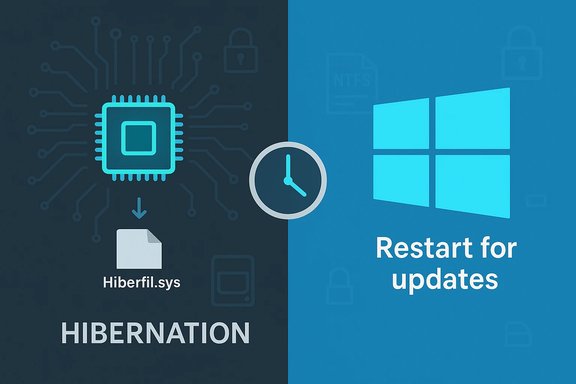
Split image: left shows Windows hibernation (hiberfil.sys); right shows “Restart for updates.”Background / Overview​

Fast Startup (sometimes called “hybrid shutdown” or “hybrid boot”) is a Windows feature introduced in Windows 8 and retained in Windows 10 and Windows 11. Instead of performing a full kernel teardown on shutdown, Windows logs off user sessions but hibernates the kernel session, writing a kernel image and loaded drivers to Hiberfil.sys and restoring that image on the next power-on. That approach cuts the time needed for kernel and driver in reduces the time-to-desktop by a measurable amount on older machines and hard-disk-based systems. This is not the same as full Hibernate. In full Hibernate the entire user session (open apps, windows, and user state) is saved and restored. Fast Startup saves only the kernel session and drivers, giving the feel of a fresh start with less work for the firmware and OS startup code. Importantly, Fast Startup is applied on shutdown → power on, but not on Restart; Restart always triggers a full cold boot. That distinction explains many of the headaches users see when updates or drivers appear not to have applied after a shutdown.

How Fast Startup works (technical summary)​

The mechanics in plain lwith Fast Startup enabled, Windows closes user sessions but serializes the kernel session and kernel-mode drivers to the hibernation file (Hiberfil.sys).​

  • On Power On, Windows loads the serialized kernel image from Hiberfil.sys instead of reinitializing every kernel component and driver. That bypass short-circuits portions of the full boot.
  • On Restart, Fast Startup is intentionally bypassed so the system performs a full cold boot; installers and update processes typically require Restart to guarantee a clean kernel state.

Key technical points verified against vendor documentation​

  • Fast Startup depends on Windows’ hibernation infrastructure; disabling hibernation disables Fast Startup. The administrative command to toggle hibernation is powercfg /hibernate on|off (or powercfg -h on|off). Disabling hibernation removes Hiberfil.sys.
  • Fast Startup is enabled by default on many Windows installations, but it is not universal; hardware and firmware (ACPI S-states) determine availability.

Common Fast Startup issues — what goes wrong and why​

Fast Startup’s model—preserving a portion of system state—introduces a set of predictable failure modes. These are repeatable and widely reported by vendors and community troubleshooting guidnstallers appear incomplete
Some updates and driver installs require a full kernel restart to complete. Because Shutdown with Fast Startup preserves kernel state, simply shutting down and powering on may leave updates unapplied. Restart is the reliable operation that triggers a full initialization and forces updates and driver replacements to finish. This behavior explains why installers explicitly ask you to Restart, not just Shut down and power on later.

Dual-boot and cross-OS filesystem access​

When Windows uses Fast Startup, the NTFS volume may be left in a state similar to hibernation. Other operating systems—most notably Linux—refuse to mount NTFS partitions that appear hibernatedAs a result, dual-boot users often see missing or locked Windows partitions unless Fast Startup is disabled. This is one of the clearest, most concrete reasons to turn Fast Startup off on multi-OS machines.

Encryption and third‑party disk tools​

Full-disk or container encryption tools such as VeraCrypt have documented warnings about Fast Startup. Preserved kernel or driver state can leave cached key material or mounted volumes fter a Fast Startup shutdown, producing inconsistent behavior and potential security surprises. Users performing disk operations, imaging, or offline antivirus scans should disable Fast Startup while troubleshooting or working on volumes.

Device and peripheral initialization failures​

Because Fast Startup restores a previously initialized kernel and driver set, some hardware—particularly older or buggy drivers—may fail to reinitialize correctly at the next boot. Symptoms include missing USB devices, network adapters that don’t wake, or devices that appear in Device Manager only after a full Restart.

Firmware and BIOS access difficulties​

Because Fast Startup reduces the time between power on and OS handover, the window to trigger firmware hotkeys (F2, DEL, Esc, etc. can be very short or appear inconsistent. e, adjusting UEFI settings, or deliberately booting to alternate media may find Fast Startup interfering with their workflow. Temensures a predictable firmware entry window.

Edge behaviors: phantom wakes and battery drain (anecdotal)​

There are anecdotal reports ofigher-than-expected battery draw on some laptop models when Fast Startup is enabled. These claims appear hardware-dependent and are not universal; treat them as empirical observations to be tested on the specific device rather than as a universal property of Fast Startup. If you observe such symptoms, disabling Fast Startup is a lo step.

When you should disable Fast Startup (decision tree)​

Fast Startup is safe and convenient for many single‑OS, consumer-grade systems with modern drivers and SSD storage. But in the following situations you should disable it immediately:
  • Dual‑booting Windows with Linux or another OS (to avoid NTFS hibernation states).
  • Using third‑party encryption (VeraCrypt, certain BitLocker scenarios) or preparing disks for offline operations or imaging.
  • Frequently entering BIOS/UEFI, flashing firmware, or changing boot media—these workflows demand deterministic access to firmware menus.
  • Experiencing updates or driver installs that appear not to apply after shutdown, or devices that consistently fail to initialize unless you Restart.
  • Running server or enterprise imaging workflows where a deterministic, repeatable cold boot is required (test via Group Policy/MDM before mass deployment).
When you can safely leave it on:
  • Single‑OS consumer laptops/desktops with modern NVMe or SATA SSDs and up‑to‑date drivers, where the typical cold-boot win is a few seconds and you value the convenience. Even here, adopt the habit of performing a weekly Restart after updates.

How to check whether Fast Startup is enabled and how to disable it​

There are several ways to view and change the setting—GUI, command line, Group Policy, or Registry. Use the method that best fits your comfort level; the GUI is reversible and preserves hibernation, while the command-line option that disables hibernation removes Hiberfil.sys altogether.

Option A — Control Panel (recommended if you want to preserve hibernate)​

  • Open Control Panel → Power Options.
  • Click Choose what the power buttons do.
  • Click Change settings that are currently unavailable.
  • Under Shutdown settings, uncheck Turn on fast startup (recommended).
  • Click Save changes and perform a full shutdown to verify behavior.
    This approach disables Fast Startup while keeping hibernation available.

Option B — Command line (disables hibernation, removes Hiberfil.sys)​

  • Open Command Prompt or PowerShell as Administrator.
  • Run: powercfg /hibernate off (or powercfg -h off).
  • To re-enabl on.
    Note: Disabling hibernation also disables Fast Startup and deletes Hiberfil.sys. Use this only if you do not use hibernate.

Option C — Group Policy (for Pro/Edu/Enterprise / enterprise rollouts)​

  • Computer Configuration → Administrat → Shutdown → Require use of fast startup. Use Group Policy or MDM to enforce settings across fleets after broad pilot testing.

Option D — Registry (if the GUI option is missing)​

  • If the Fast Startup option is missing in Power Options it often means hibernation is disabled or hardware does not support it. The registry key HiberbootEnabled at HKLM\SYSTEM\CurrentControlSet\Control\Session Manager\Power controls the behavior; however, editing the Registry requires care and is best done only when recommended by support or after a backup.

Practical step-by-step: safe troubleshooting workflow​

  • Identify the problem type (dual‑boot mount error, updates not applied, device initialization failure).
  • For dual‑boot or disk operations, disable Fast Startup via Control Panel and reboot using Restart to ensure a clean kernel.
  • If you need to remove hibernation entirely (for disk space or other reasons), use powercfg /hibernate off but be aware this deletes Hiberfil.sys and removes hibernate from power options.
  • After disabling Fast Startup, reproduce the problem; if it’s resolved, keep Fast Startup off for that workflow. If not resoltinue troubleshooting drivers, update logs, and firmware.

Measuring boot time and validating the impact​

Subjective impressions are misleading. Use objective metrics before and after any change:
  • Event Viewer → Applicat → Microsoft → Windows → Diagnostics‑Performance → Operational. Look for Event ID 100 (BootDuration) to compare cold boot times. This avoids stopwatch variability and gives reproducible numbers.
  • For quick checks, measure time from power-on to desktop across multiple runs and average the result. If you rely on Fast Startup and care about deterministic freshness (e.g., after updates), schedule weekly Restarts.

Critical analysis — strengths, limitations, and risks​

rtup produces materially faster cold boots especially on mechanical drives where kernel and driver initialization is more expensive. It’s a low-friction optimization that benefits many non‑technical users.​

  • It’s reversible and configurable; administrators can push policies or individual users can toggle it as needed.

Limitations​

  • The absolute gains on modern NVMe SSD systems are often measured in seconds; for many SSD-based machines the convenience gain is marginal. Systems with modern controllers and optimized firmware already boot quickly, so Fast Startup’s benefit is smaller.
  • Fast Startup creates problems: updates that require full kernel reinitialization, cross‑OS mounting problems, and encryption edge cases. Those are not transient bugs but a consequence of the design trade-off.

Roncerns​

  • In enterprise imaging or firmware rollout scenarios, Fast Startup can produce inconsistent results. Managed environments should pilot changes and use Group Policy/MDM to standardize behavior.
  • Disabling hibernation via powercfg /hibernate off will permanently remove Hiberfil.sys until re-enabled and can remove the user-visible Hibernate power option—take care if you rely on hibernate forflows.
  • Some claims in community forums (battery drain, phantom wakes) are anecdotal and hardware dependent; they should be tested on the specific device rather than assumed. Flag these as empirical observations, not guaranteed effects.

Recommendations — what to do, when, and how long to test​

  • Dual‑boot or encryption users: disable Fast Startup permanently. The risk of data corruption or inconsistent encryption behavior outweighs a modest boot time gain. Test the configuration immediately by mounting partitions in the secondary OS or running the encryption workflow you need.
  • Single‑OS consumer with SSD: leave Fast Startup enabled if you value the small convenience and you don’t perform firmware operations frequently. However, adopt the habit of doing a full Restart after any system update, driver update, or firmware change.
  • IT admins and fleets: pilot changes across representative hardware. Use Group Policy/MDM to push settings and document procedures to suspend BitLocker and disable Fast Startup during firmware or imaging operations.
  • If you see odd peripheral behavior, missler messages that insist on a Restart, disable Fast Startup as an early troubleshooting step before deep driver-level debugging.

Troubleshooting checklist (quick reference)​

  • If Fast Startup option is missing: ensure hibernation is enabled (powercfg /hibernate on), or check the HiberbootEnabled registry key.
  • Need a guaranteed clean boot for updates/drivers? Use Restart explicitly.
  • Dual‑boot mount errors? Disable Fast Startup, then verify from the other OS.
  • Disk or encryption operations failing? Disable Fast Startup and repeat the operation with a cold boot.
  • Want to reclaim Hiberfil.sys? Run powercfg /hibernate off (but remember this removes Hibernate permanently until re-enabled).

Conclusion​

Fast Startup is an elegant, low-risk performance trade-off that makes everyday boots a touch snappier by preserving kernel state between shutdowns. For most single‑OS consumers with modern hardware it is a convenience; for power users, dual‑booters, encryption workflows, firmware updaters, and managed fleets it is a variable that introduces real operational risk. The practical approach is simple: measure first, apply Restart for reliability, and disable Fast Startup when you need determinism or cross‑OS access. When in doubt, disable it temporarily for troubleshooting—toggling Fast Startup via Control Panel is reversible and preserves hibernation, while powercfg /hibernate off is a more permanent removal of the hibernation file and should be used deliberately. This balance—small convenience versus deterministic, predictable behavior—summarizes the design trade‑offs built into Fast Startup. For anyone managing systems, the safe path is to document your decision, pilot any fleet-level changes, and verify outcomes with objective boot metrics and hands-on tests across representative hardware.

Source: Guiding Tech Common Fast Startup Issues and When (and How) to Disable It
 

Microsoft's choice to bundle and publish the bulk of Windows security updates on a single weekday — the now‑famous "Patchch Tuesday" — is the product of two decades of operational learning, security pressure, and the practical needs of IT teams. The pattern isn't arbitrary: Microsoft formalized a monthly release cadence in October 2003 to make patching predictable and more manageable for administrators, and Tuesday emerged as the optimal weekday because it balances operational realities (Monday incident triage, weekday support windows) with the need to leave time before weekends for remediation. This operational design reduces distribution chaos, enables coordinated testing, and encourages other vendors to align schedules — but it also concentrates risk, creates exploitable predictability, and forces trade‑offs between speed and safety.

A computer monitor displays a calendar reading PATCH TUESDAY in a tech-security themed scene.Background: how Patch Tuesday started and what it means today​

Microsoft introduced a predictable, consolidated monthly security bulletin cadence in October 2003 following high‑profile worms and wide‑scale insecurity that made ad hoc patching untenable for enterprises. The formal cadence moved the industry from a "ship when ready" approach to a scheduled cycle that vendors, enterprises, and end users could plan around. That schedule solidified into the widely recognized practice of releasing security updates on the second Tuesday of each month. Beyond the strict monthly rollups, Microsoft also publishes smaller "C" and "D" releases later in the month, and occasionally issues urgent "out‑of‑band" updates when a critical vulnerability requires immediate mitigation. While the second‑Tuesday release remains the anchor, the platform does allow deviation in exceptional circumstances. Microsoft's public narrative emphasizes predictability and a lower operational burden for administrators. The Security Response Center blog and other official communications highlight that a predictable schedule helps customers plan testing windows, coordinate vendor interactions, and reduce the chaos of unscheduled emergency patches.

Why Tuesday? The operational logic behind the weekday​

Monday is for triage — Tuesday is for release​

The most commonly given explanation is simple and pragmatic: Monday is kept free to handle issues that bubbled up over the weekend (incidents, outages, or newly discovered problems). Releasing patches on a Tuesday gives administrators one full business day to respond to weekend incidents before introducing changes that might themselves require triage. This sequencing reduces the chance of simultaneous, unrelated emergencies colliding and overwhelming support teams.

Midweek gives time for testing and remediation​

Releasing early‑to‑mid week leaves several business days before the weekend for administrators to detect and remediate issues introduced by updates. If a patch breaks a critical workflow, teams have time to roll back or deploy fixes without the pressure of an imminent weekend. This is especially important for organizations that conduct staged rollouts, pilot testing, and compatibility checks across diverse hardware and software ecosystems.

Predictability lowers coordination costs​

A single, regular release day enables:
  • Scheduled testing windows in patch management processes.
  • Vendor coordination (drivers, firmware, and third‑party app updates).
  • Communication cadence with help desks and end users.
Consolidating the set of security updates reduces fragmentation (fewer disparate mini‑releases) and enables centralized documentation and post‑release telemetry and analysis. These are practical, measurable benefits for large enterprises running thousands of endpoints.

The real‑world benefits IT teams see from a Tuesday schedule​

  • Predictable planning: Teams can reserve the second Tuesday every month for patch validation and deployment, integrating it into maintenance windows and staff rotas.
  • Coordinated vendor updates: Hardware vendors, antivirus vendors, and ISVs can align drivers and compatibility fixes to ship alongside Microsoft updates.
  • Easier testing & rollback: A predictable batch of changes simplifies smoke tests and regression testing; issues are typically isolated to a known set of updates.
  • Consolidated documentation and telemetry: Security advisories, KB articles, and update metadata are published together, simplifying vulnerability triage.
These practical benefits are why many other vendors (including Adobe and some enterprise vendors) shifted update schedules to align with Microsoft’s cadence: alignment reduces the "what changed when" problem for administrators.

The flip side: predictability creates risks and attack windows​

Exploit Wednesday and an asymmetric advantage for attackers​

One widely observed dynamic is that publishing patches and vulnerability disclosures on Tuesday gives threat actors a narrow window to analyze the fixes and engineer exploits. Historically, researchers and attackers often publish or weaponize proof‑of‑concept exploits within days of Microsoft’s disclosures, a phenomenon sometimes called "Exploit Wednesday." The predictability of Patch Tuesday makes it possible for attackers to concentrate reverse‑engineering efforts and start scanning for unpatched hosts almost immediately after publication.

Concentration risk​

Concentrating many fixes into a single day creates a large, simultaneous change event across millions of devices. That concentration can:
  • Amplify the impact of any single faulty update.
  • Produce widespread compatibility issues (drivers, firmware, enterprise apps).
  • Increase the administrative load on help desks and support channels immediately after release.
When a widely used patch causes issues, a single problematic update can have much broader operational consequences than if fixes were staggered.

The trade‑off between speed and verification​

Patch Tuesday’s monthly cadence is a compromise: grouping fixes speeds distribution and simplifies testing at scale, but it can delay the release of urgent fixes — unless Microsoft issues an out‑of‑band patch. The 2017 cancellation of a Patch Tuesday release and the occasional out‑of‑band emergency patches underscore that the balance between thorough verification and timely mitigation is delicate. When serious, actively exploited vulnerabilities surface, vendors must shorten the window between discovery and distribution — an operational strain that Tuesday scheduling alone does not eliminate.

How Patch Tuesday changed the ecosystem: vendors, admins, and attackers​

Vendor alignment and the update calendar​

Microsoft’s shift to a predictable monthly schedule incentivized other vendors to coordinate their own patch days. This ecosystem alignment simplifies compatibility testing and reduces the number of independent change events admins must manage in a given month. The result is a de facto global update calendar that many IT teams now plan around.

IT process evolution: automation and staging​

Patch Tuesday accelerated the professionalization of patch management. Enterprises invested in:
  • WSUS and on‑premises update distribution points.
  • Configuration Manager (SCCM) and Intune for staged rollouts and ring‑based deployments.
  • Automated testing frameworks for smoke and integration tests.
  • Policies for emergency out‑of‑band handling and rollback procedures.
These process investments allow organizations to deploy monthly rollups with greater confidence.

The attacker calculus​

The regular release cadence gave attackers a predictable timetable for prioritizing reverse engineering. The industry has observed that exploit development often spikes after disclosure. This has forced defenders to accelerate patch deployment, harden detection capabilities, and rely on layered defenses like endpoint protection, network segmentation, and application whitelisting.

The mechanics: what actually happens on a Patch Tuesday​

  • Microsoft publishes an advance notification (sometimes) and then releases the consolidated security updates early on Tuesday (often around 10:00 a.m. Pacific Time for visibility on Windows Update metadata).
  • Knowledge Base (KB) articles and Security Update Guide entries are published to provide technical details and mitigation steps.
  • Windows Update and Microsoft Update Catalog begin hosting the packages; WSUS and Configuration Manager sync packages to on‑prem systems.
  • Administrators run staged deployments (pilot → broader rings) and monitor telemetry, patch telemetry, and user‑reported issues.
  • If critical issues are detected, organizations apply mitigation workarounds or trigger rollback procedures; Microsoft may then release hotfixes or out‑of‑band patches if necessary.

Practical guidance for administrators and power users​

For IT teams: a disciplined monthly routine​

  • Maintain a patch calendar and reserve the second Tuesday for validation and deployment work.
  • Use staged deployment rings: pilot group, targeted broad deployment, then general availability.
  • Automate preflight checks and smoke tests against representative configurations.
  • Validate backups/restore plans before applying monthly rollups.
  • Maintain communication lines with vendors for driver and firmware updates that must coincide with Microsoft’s patches.

For small businesses and home users​

  • Keep Automatic Updates enabled for security updates, or schedule regular checks no later than the day after Patch Tuesday.
  • Apply critical security updates promptly but consider waiting a short (24–72 hour) window for reports of major regressions if downtime tolerance is low.
  • Ensure data backup and system restore functionality is active in case a rollback becomes necessary.

For high‑risk or regulated environments​

  • Run full regression and compliance testing in a controlled lab before broad deployment.
  • Use phased deploymentetect compatibility or performance regressions.
  • Maintain an incident response plan specifically for patch‑related failures, including documented rollback steps.
These steps reduce the operational risk of monthly rollouts while enabling timely mitigation of vulnerabilities.

What the Neowin piece adds — a concise summary​

The Neowin article reiterates the practical rationale behind Microsoft’s Tuesday‑only policy for monthly Windows patches: Microsoft wants to give administrators a predictable cadence and avoid compounding weekend incidents by releasing fixes on the second Tuesday of each month. The article emphasizes the historical context (the post‑worm push for consolidated updates) and the operational benefits for IT teams, while acknowledging that Microsoft can and does issue out‑of‑band updates when necessary. It frames Microsoft’s choice as pragmatic — designed to reduce complexity and to protect the broad base of Windows users — while also noting the persistent trade‑offs inherent in any centralized patching model.

Strengths of the Tuesday‑only approach​

  • Predictability: Organizations can plan, budget, and staff around a fixed release day.
  • Economy of scale: A consolidated update reduces the number of distribution events and associated overhead.
  • Coordination: Vendors and third parties can align their patches for the same window, simplifying compatibility testing.
  • Administrative efficiency: Patching becomes a monthly, repeatable business process rather than an ad‑hoc emergency function.

Notable risks and limitations​

  • Predictable disclosure aids attackers: The window between disclosure and widespread installation can be exploited if defenses lag.
  • Concentration of change: A single faulty update can propagate broadly and cause systemic disruption.
  • Delay in critical fixes: Waiting for the monthly cycle is not always acceptable when active exploitation is occurring — hence the need for out‑of‑band patches and emergency response capabilities.

When the model breaks: out‑of‑band patches and last‑minute cancellations​

Microsoft explicitly reserves the right to publish urgent, out‑of‑band updates when a critical vulnerability requires immediate attention. There have been instances (including a notable cancellation in 2017) where Microsoft adjusted the schedule due to extraordinary circumstances. These deviations underline that the Tuesday rule is a cadence rather than an immutable constraint. Administrators must therefore keep processes in place to receive and act on out‑of‑band advisories.

Looking forward: is Patch Tuesday still relevant?​

Patch Tuesday remains relevant because the organizational benefits are real and persistent. The cadence has matured into an industry rhythm that simplifies global patch management and reduces operational friction. However, the security landscape is evolving: faster disclosure cycles, improved telemetry, cloud‑driven mitigations, and zero‑trust architectures change the balance between scheduled releases and rapid response.
Enterprises should view Patch Tuesday not as a ceiling but as a baseline: it's the expected, planned update event, but it must be complemented by robust detection, telemetry‑driven prioritization, and an ability to respond to emergencies outside the monthly cycle.

Final takeaways for Windows administrators and enthusiasts​

  • Patch Tuesday exists to make large‑scale patching manageable. It was created after a painful era of ad‑hoc updates and remains valuable for its predictability and coordination benefits.
  • Tuesday was chosen pragmatically: it gives organizations time to address weekend incidents, allows multi‑day remediation, and reduces the chance of compounding problems near the weekend.
  • The cadence brings both operational benefits and security trade‑offs. Expect increased attacker interest immediately after disclosures; mitigate that risk through rapid but controlled deployments, layered defenses, and vigilant monitoring.
  • Maintain processes for out‑of‑band patches and be ready to deviate from the monthly plan when security or stability demands it.
  • Treat Patch Tuesday as a predictable anchor: schedule pilots, automate tests, and coordinate vendor updates — but keep an emergency playbook handy.
This approach is less an edict than an operational compromise: it reduces the chaos of continuous ad‑hoc updates while accepting the need for agility in a landscape where both defenders and attackers race to adapt. For sysadmins and power users, the safest posture is pragmatic discipline: use the predictability of Patch Tuesday to prepare, but build processes that let you respond quickly when the security picture changes.
Source: Neowin https://www.neowin.net/news/here-is-why-microsoft-rolls-out-monthly-windows-patches-on-tuesday-only/
 

Microsoft’s decision to lock its monthly Windows security updates to a single weekday — the now‑familiar “Patch Tuesdayy” — is the product of operational hardening, industry coordination, and a set of trade-offs that still reverberate through enterprise IT teams and home users nearly two decades after the policy began. The cadence gives administrators predictability, vendors a common calendar, and Microsoft a manageable release process — but it also concentrates risk, creates an exploitable rhythm for attackers, and forces decisions about speed versus verification whenever a severe flaw is discovered.

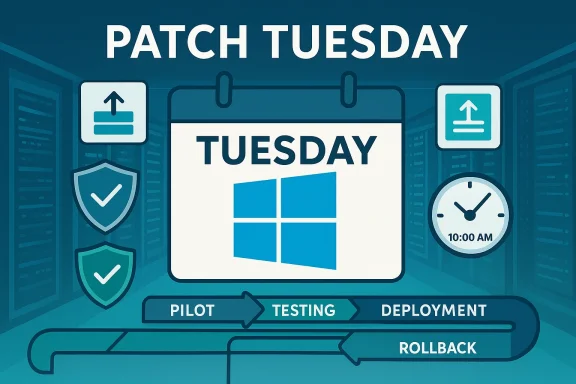
Patch Tuesday infographic showing a Tuesday calendar, Windows update, and deployment pipeline.Background​

Microsoft formalized a monthly security bulletin cadence in 2003 as part of the wider Trustworthy Computing push, moving from the old “ship‑when‑ready” approach to a predictable second‑Tuesday schedule so organizations could plan testing and deployment windows more efficiently. The change followed a painful era of worms and fast‑moving exploits, where ad‑hoc patching left many organizations exposed and overwhelmed. Patch Tuesday is colloquially known as the “B” release in Microsoft’s servicing shorthand; smaller, optional, or non‑security rollups land later in the month (the “C” and “D” updates), and Microsoft will occasionally ship urgent “out‑of‑band” fixes when an active exploit requires immediate mitigation. Updates typically start to appear globally around 10:00 a.m. Pacific Time on the designated Tuesday.

Why Tuesday? The practical reasons behind the weekday​

Monday is for triage; Tuesday is for release​

The most commonly cited operational reason for choosing Tuesday is straightforward: reserve Monday to manage any incidents that surfaced over the weekend, then push changes on Tuesday when teams have a full week ahead to detect, respond, and remediate if something goes wrong. This sequencing reduces the risk of overlapping emergencies and gives engineers and administrators breathing room to address unexpected regressions introduced by updates.

Mid‑week gives time to remediate before the weekend​

Releasing early‑to‑mid week gives organizations several business days to identify and roll back problematic updates, contact vendors for compatibility fixes, or deploy mitigation measures. For large enterprises that stage rollouts across pilot rings, a Tuesday rollout fits neatly into a predictable weekly cadence and reduces the chance that a major update will leave systems broken over a weekend when staffing is thin.

Predictability reduces coordination costs​

A single, regular release day enables coordinated testing, vendor alignment (drivers, firmware, and third‑party app patches), and simpler internal communications. Many large software and hardware vendors have aligned their release schedules to Microsoft’s cadence to reduce “what changed when” confusion for administrators managing heterogeneous environments. The result is a de facto industry update calendar that simplifies lifecycle planning.

How Patch Tuesday works today​

The components and delivery channels​

  • Security updates (monthly cumulative rollups) that include fixes for vulnerabilities across Windows and other Microsoft products.
  • Servicing Stack Updates (SSUs) that ensure the update mechanism itself can apply future patches reliably.
  • Optional preview or “C/D” releases later in the month for non‑security quality improvements.
  • The Microsoft Security Response Center (MSRC) publishes guidance and the Security Update Guide for technical details; updates appear via Windows Update, Microsoft Update Catalog, WSUS, and enterprise management tools like Configuration Manager and Intune.

Timing and ecosystem effects​

Releases generally begin at 10:00 a.m. PT so the metadata, Knowledge Base (KB) articles, and packages are synchronized worldwide; administrators in other time zones see availability roll out based on their offset. Vendors including Adobe and some hardware suppliers historically moved to coordinates with Microsoft’s schedule to simplify compatibility testing and joint rollouts.

The benefits: why the model endures​

  • Predictability: IT teams can reserve a calendar slot each month for patch validation and deployment, making change windows and staff planning simpler.
  • Operational efficiency: Bundling fixes into a single release reduces the number of change events and reboots across fleets, saving logistical overhead.
  • Vendor coordination: Third‑party vendors can align driver and software updates to ship alongside Microsoft’s fixes.
  • Testing discipline: Administrators can build repeatable deployment pipelines (pilot rings → broader deployment) and automated smoke tests tailored to Patch Tuesday’s scope.
These benefits translate to measurable decreases in surprise outages and an overall reduction in the friction of large‑scale patching for complex environments. For many enterprises, using the Patch Tuesday anchor enables a predictable, auditable security posture that suits compliance regimes and change‑management policies.

The risks: concentration, predictability, and the attacker advantage​

Concentration risk: a single faulty update, amplified​

By concentrating dozens or even hundreds of fixes into a single event, a single buggy patch can ripple through millions of devices. History has shown that update regressions can produce widespread compatibility issues — from broken printing stacks to shutdown or sleep regressions — forcing emergency rollbacks or urgent fixes. The larger the batch, the greater the blast radius when anything goes wrong.

Predictability aids reverse‑engineering​

When Microsoft publishes patches and technical details, attackers and security researchers alike gain the artifacts needed to reverse‑engineer fixes and identify the underlying vulnerability. The predictable timetable creates a concentrated window of attention — sometimes called “Exploit Wednesday” — during which exploit development often accelerates. That narrow window increases pressure on organizations to apply updates quickly while still validating compatibility.

Delayed fixes for issues discovered mid‑month​

If a serious zero‑day or actively exploited vulnerability is discovered mid‑month, waiting for the next Patch Tuesday can be dangerous. Microsoft mitigates this with out‑of‑band updates, but relying on such exceptions is not a strategy; it’s a contingency that can strain processes. In some cases, organizations must decide between rapid deployment with potential side effects or staged mitigation while attackers probe unpatched systems.

Notable historical inflection points​

The worms that forced change: Blaster and Sasser​

Large‑scale worms in 2003 (Blaster, Sobig) and early 2004 (Sasser) infected vast numbers of machines and highlighted the need for a predictable delivery and broader adoption of patches. Microsoft’s October 2003 move to a consolidated monthly cadence was explicitly a response to that era of fast‑moving malware and uneven patch uptake.

Out‑of‑band and exceptional fixes: WannaCry and XP​

WannaCry in May 2017 demonstrated that the usual cadence cannot always cope with real‑time crises; Microsoft released emergency patches — even for unsupported systems such as Windows XP — to contain the outbreak. That willingness to break the schedule underscores that Patch Tuesday is a cadence, not a constraint, but it also illustrates the heavy administrative burden of extraordinary fixes.

Cancellations and surprises​

There have been rare occasions when Microsoft has adjusted or canceled a scheduled release due to unforeseen issues; specialists observed a cancellation in February 2017, which prompted industry discussions about the interplay between vulnerabilities, disclosure, and vendor readiness. Those deviations are unusual but reveal the operational trade‑offs underpinning the cadence.

How administrators should treat Patch Tuesday today​

Systems teams that run Windows fleets should treat Patch Tuesday as the baseline for routine, predictable change — and plan accordingly.
  • Reserve the second Tuesday of each month in capacity planning and staffing rotas.
  • Maintain a small pilot ring to test updates for critical workloads before broad deployment.
  • Keep backups and rollback procedures tested; verify restore points prior to mass installs.
  • Monitor vendor advisories for driver and firmware updates that should be co‑deployed.
  • Maintain an out‑of‑band response plan for urgent patches and a process to evaluate emergency fixes quickly.
These steps reduce the operational shock of a monthly rollup and make it easy to scale the same approach across distributed teams and cloud‑native environments.

For home users and small businesses​

  • Keep Automatic Updates enabled for security patches, or at minimum check for updates the day after Patch Tuesday.
  • If downtime tolerance is low, consider waiting 24–72 hours to watch for widespread regression reports before applying non‑critical updates.
  • Ensure system restore points and backups are configured, and that data is recoverable before a mass update.
For most consumer devices, the security risk of not applying monthly patches outweighs transient compatibility concerns; automated updating remains the simplest defense.

Critical analysis: Does the Tuesday model still make sense?​

Patch Tuesday was an intelligent operational compromise for a world of patchy telemetry, inconsistent update uptake, and a sprawling, heterogeneous Windows ecosystem. It traded immediacy for manageability — an appealing exchange for enterprise administrators who needed predictable maintenance windows. The model also catalyzed industry alignment, which made life easier for sysadmins responsible for multi‑vendor stacks. But the environment has changed. Modern telemetry, cloud‑first mitigations, and more rapid disclosure practices tilt the calculus toward faster fixes and continuous delivery. Microsoft itself has evolved: cumulative monthly updates, SSUs, preview releases, and out‑of‑band fixes acknowledge both the strengths and limits of a once‑radical schedule. For many organizations, Patch Tuesday remains the right balance — but it must be paired with agile incident response, robust detection, and the ability to deploy emergency patches outside the cadence when necessary.

The tradeoffs, in short​

  • Strengths:
  • Predictability that streamlines planning and compliance.
  • Economy of scale for testing, distribution, and communications.
  • Vendor coordination that reduces cross‑vendor surprises.
  • Weaknesses:
  • Concentration risk: a single faulty update can cause widespread impact.
  • Predictability as an attack vector: disclosure-centered windows can accelerate exploit development.
  • Potential delays in addressing urgent zero‑days unless out‑of‑band patches are issued.

The future: rebalancing cadence with agility​

  • Microsoft and the industry will likely continue to keep a monthly anchor while expanding the capability to react quickly when necessary.
  • Investment in telemetry and patch‑impact analytics could reduce the verification burden, enabling faster safe rollouts or selective, per‑device fixes.
  • The rise of cloud‑managed endpoints (and the ability to apply server‑side mitigations) shifts some of the patching burden away from client‑side release mechanics — but it also increases the need for cross‑vendor coordination on firmware and hardware fixes.

Where claims get fuzzy — caveats and unverifiable points​

Some popular explanations around Patch Tuesday are plausible but not fully documented in public records. For example, the precise internal decision‑making that fixed on Tuesday rather than Wednesday or Thursday is described in public retrospectives as pragmatic and operational, but the minute political or calendar reasons are not all part of formal public records. Statements attributing the choice to a single internal memo or a lone individual’s preference should be treated cautiously unless confirmed by Microsoft’s internal documentation or MSRC commentary. When encountering such claims, rely on Microsoft’s public retrospectives and independent technical reporting rather than apocryphal explanations.

Conclusion​

Patch Tuesday is a mature compromise: it brings order to an inherently chaotic domain while carrying built‑in risks that demand complementary operational hygiene. For organizations, the solution isn’t to fetishize the cadence or to abandon it; it is to use Patch Tuesday as the backbone of a more adaptive security posture — one that pairs predictable monthly maintenance with rapid response capabilities, telemetry‑driven prioritization, and robust rollback processes. Microsoft’s schedule will likely remain the global anchor for some time, but the real progress will come from improving the speed and safety of patch adoption across the entire ecosystem.
  • Key takeaways:
  • Patch Tuesday delivers predictable monthly Windows security updates, a practice formalized in 2003 after high‑impact worms underscored the cost of ad‑hoc patching.
  • Tuesday was chosen for operational reasons: reserve Monday for weekend triage and preserve mid‑week time to remediate before the weekend.
  • It is both a defensive tool and a defensive weakness: consistency helps admins but gives attackers a focused window to develop exploits.
Administrators and power users should continue to respect the Patch Tuesday cadence — but they must also invest in agility: staged deployments, tested backups, continuous monitoring, and a clearly defined out‑of‑band response path. That is the only way to keep the benefits of predictability while minimizing the concentrated risks that follow from a single, global update day.
Source: Neowin https://www.neowin.net/amp/here-is-why-microsoft-rolls-out-monthly-windows-patches-on-tuesday-only/
 

Back
Top