

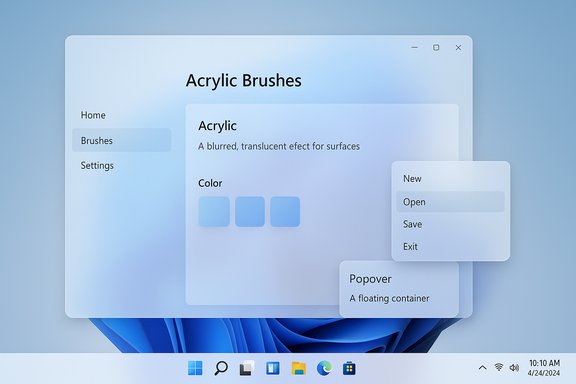
If you’ve noticed more frosted glass around Windows 11 lately, you’re not imagining things: Microsoft’s Fluent visuals are quietly evolving, and the platform is giving developers finer control over where and how the familiar Acrylic blur appears inside apps. What used to be an either/or choice — apply blur to an entire window surface or not at all — is shifting toward a model where Acrylic and related backdrop materials can be targeted to individual UI elements such as menus, flyouts, and popups. That means more selective translucency, richer layered depth, and new opportunities (and trade-offs) for designers and developers who want a subtler, more tactile Windows 11 interface.
Windows 11’s visual language is built on the Fluent Design System, whose material vocabulary includes Mica, Acrylic, and other backdrop effects that add depth, color, and translucency to windows and UI surfaces. Over time Microsoft has optimized these materials for performance and accessibility: Mica is tuned to be low-cost and wallpaper-aware for app backgrounds, while Acrylic is intentionally more translucent and suited to transient UI like context menus and popovers. Recent updates in the Windows App SDK / WinUI surface-level APIs make it possible to apply these materials at increasingly granular levels — beyond the whole-window backdrop — enabling per-element application of Acrylic and in-app Acrylic brushes. This is already documented in Microsoft’s WinUI guidance and backing API docs. Why it matters: this change lets developers emphasize or de-emphasize UI surfaces without forcing broad visual changes across an entire window, improving hierarchy and focus while keeping performance considerations local to specific controls.
Microsoft’s move to provide explicit per-element controls reduces the need for such hacks and places responsibility on proper platform-level APIs with managed fallbacks and policies — a clear win for stability and consistency. Still, community experiments often push the UI envelope and have historically influenced platform choices; keeping an eye on community patterns can surface emerging best practices and pitfalls early.
For end users, the experience will be pleasant if platform and app teams use Acrylic sparingly and with accessibility in mind. For developers, the platform’s official APIs (SystemBackdrop, DesktopAcrylicBackdrop, AcrylicBrush) are the right path forward — and Microsoft’s docs already capture the recommended patterns and constraints. Test early, measure impact, and default to legibility and battery life over gratuitous visual flair.
Aging UI tropes aside, this is one of those small but tangible improvements that make day-to-day interactions feel a little more polished: more frosted glass where it helps, less visual clutter where it doesn’t — provided designers and engineers treat Acrylic as a tool for clarity rather than decoration.
Source: PCWorld Windows 11 is getting blurrier (in a nice way)
 Background / Overview
Windows 11’s visual language is built on the Fluent Design System, whose material vocabulary includes Mica, Acrylic, and other backdrop effects that add depth, color, and translucency to windows and UI surfaces. Over time Microsoft has optimized these materials for performance and accessibility: Mica is tuned to be low-cost and wallpaper-aware for app backgrounds, while Acrylic is intentionally more translucent and suited to transient UI like context menus and popovers. Recent updates in the Windows App SDK / WinUI surface-level APIs make it possible to apply these materials at increasingly granular levels — beyond the whole-window backdrop — enabling per-element application of Acrylic and in-app Acrylic brushes. This is already documented in Microsoft’s WinUI guidance and backing API docs. Why it matters: this change lets developers emphasize or de-emphasize UI surfaces without forcing broad visual changes across an entire window, improving hierarchy and focus while keeping performance considerations local to specific controls.What changed: per-element Acrylic and in-app brushes
The technical shift
Historically, in many WinUI app patterns the system backdrop was applied either to the Window itself (Mica or Desktop Acrylic as a backdrop) or used as an in-app brush for general surfaces. Newer API patterns — particularly the SystemBackdrop model and element properties exposed in the Windows App SDK — let developers set a SystemBackdrop on a number of UI targets, not just the top-level Window. Controls like FlyoutBase, MenuFlyoutPresenter, Popup, and other transient surfaces expose a SystemBackdrop property, allowing background Acrylic materials to be rendered behind those specific elements rather than forcing the whole window to adopt the same backdrop. In-app AcrylicBrush resources remain available for painting element backgrounds inside the app frame. What this accomplishes:- Apply DesktopAcrylicBackdrop to a context menu or flyout to reveal and blur the desktop behind the transient UI.
- Use AcrylicBrush (in-app) to create layered translucency inside panels, sidebars, or nav panes without altering the window’s system backdrop.
- Respect system accessibility policies: Acrylic falls back to solid colors when transparency is disabled, battery saver is on, or hardware is constrained.
Developer-facing APIs and resources
Microsoft’s Windows App SDK docs list the relevant types and example usage patterns, such as setting Window.SystemBackdrop to a MicaBackdrop or applying DesktopAcrylicBackdrop to Flyout elements. The AcrylicBrush API (and WinUI theme resources for in-app acrylic) provides configurable properties — TintColor, TintOpacity, BackgroundSource, and fallback behavior — so designers can tune hue, saturation, and translucency. These API affordances make per-element acrylic a first-class tool rather than a hack.Practical examples: where you’ll see the blur
- Context menus & right-click menus: expect firmer, frosted-glass visuals on the menu itself while the rest of the app remains unchanged.
- Flyouts and popovers: tooltips, autocomplete suggestions, and transient panes can use DesktopAcrylicBackdrop to visually tie them to the desktop or to the app content beneath.
- Popups and non-modal overlays: notification toasts, compact panes, and quick settings could adopt a selective Acrylic feel without forcing a full-window Mica background.
- In-app navigation panes: partial translucency in nav drawers or sidebars using AcrylicBrush for a sense of layered depth.
Strengths: what this enables for UI and UX
- Improved visual hierarchy: selectively applying Acrylic to transient elements makes them feel above the content without making the entire window visually noisy.
- Personalization-friendly: Acrylic samples the wallpaper or host backdrop in background acrylic modes, so transient UIs can reflect user personalization in subtle ways.
- Design consistency with modern apps: app teams can adopt Fluent materials in measured doses, producing interfaces that match Microsoft’s design language while avoiding overuse of blur.
- Performance-aware defaults: the platform’s fallback behavior respects battery saver and hardware capability, limiting the worst-case impact on CPUs/GPUs and batteries.
- Developer control: direct APIs (SystemBackdrop properties and AcrylicBrush resources) give devs a clear path to implement polished visuals without resorting to private hacks or heavy custom composition.
Risks and trade-offs
Performance and power
Acrylic and blur are inherently GPU- and memory-intensive. While Microsoft has tuned materials and provides performance fallbacks, large or poorly optimized usages of Acrylic can increase GPU load and reduce battery life on laptops and tablets. Developers must be mindful of where they place blur and should rely on platform checks (IsSupported methods and runtime policy) to decide when to enable effects. The docs explicitly warn about GPU-intensive rendering and automatic disabling in low-power modes.Legibility and accessibility
Blurred backgrounds can reduce contrast between foreground text and background content. Microsoft’s design guidance cautions against accent-colored text on acrylic and recommends strict contrast checks. In practice, designers must test across wallpaper types, dynamic wallpapers, and high-contrast modes to avoid unreadable UI states. The OS will often fallback to solid fills in High Contrast or user-disabled transparency scenarios, but apps must still ensure accessible defaults.Fragmentation of look-and-feel
If developers exercise the new per-element controls inconsistently across apps, users could experience visual fragmentation: some apps will have rich frosted menus while others stay flat. That inconsistency can harm perceived polish if third-party apps flood interfaces with heavy, gaudy acrylic that conflicts with system or other apps’ aesthetics.Compatibility and platform variance
Different Windows releases and OEM drivers behave differently with composition features. Some bleed-edge Insider builds may change behavior, and older hardware may not support background acrylic at all. Relying on runtime capability checks is mandatory to avoid crashes and rendering anomalies. Third-party tools and community projects already exist to emulate or extend Acrylic on older OS versions, but these come with security and stability caveats.Developer guidance: how to use Acrylic responsibly
- Respect the platform: check controller IsSupported methods (MicaController.IsSupported, DesktopAcrylicController.IsSupported) before enabling high-cost backdrops.
- Use Acrylic for transient surfaces: prefer DesktopAcrylicBackdrop or Flyout/SystemBackdrop for menus and popups, and use in-app AcrylicBrush for small supporting surfaces.
- Always provide fallback styling: set FallbackColor and test with Transparency disabled — make sure the UI is legible and functional with acrylic disabled.
- Profile GPU and power usage: test on a range of hardware (integrated GPUs, older discrete cards, low-power laptops) and measure frame rate and battery impact.
- Avoid layering multiple acrylic surfaces side-by-side: the docs warn about visible seams and visual noise when acrylic panes meet; design to extend acrylic to edges where appropriate to reduce seams.
- Set a SystemBackdrop on a Flyout or MenuFlyoutPresenter to apply Desktop Acrylic to a context menu.
- Use an AcrylicBrush as Background for Grid/NavView sections for in-app depth.
Where this came from — verification and provenance
The idea that Windows 11’s Acrylic is becoming available at finer granularity is supported by Microsoft’s Windows App SDK and WinUI documentation, which explicitly identify controls that expose a SystemBackdrop property and describe both in-app and background acrylic recipes and usage patterns. Those docs explain the difference between Mica (optimized for performance as window backdrop) and Acrylic (intended for transient, light-dismiss surfaces), and they list the exact controls and APIs that developers should use. This is a primary, authoritative source for the change. Independent signals from the Windows community — including open-source projects that extend blur effects and UI modders — indicate strong demand for more granular control of blur and translucency. Projects like ExplorerBlurMica and DWMBlurGlass demonstrate community experimentation with applying acrylic-like effects to specific UI surfaces, though these projects operate outside official APIs and carry stability/security caveats. Those community experiments are useful proof-of-concept evidence that both users and developers want more nuanced visuals. That said, community projects are not substitutes for platform APIs and can introduce risks when used on production systems. A recent reporting thread summarized these developments and pointed to a WinUI Community Call demo referenced in coverage; however, explicit recordings or show notes from that particular call were harder to locate at the time of verification. The core technical claim — that controls expose SystemBackdrop and that DesktopAcrylicBackdrop and AcrylicBrush are the official mechanisms — is fully documented by Microsoft, which is the highest-trust source for these platform changes. Readers should treat anecdotal reports about specific developer calls or timelines as secondary and subject to change unless corroborated by official Microsoft channels (blog posts, docs, or repo updates).Real-world implications for users and IT
- Consumers: visually richer context menus and popovers will be increasingly common in stock Windows apps and modernized third-party apps. The change is largely cosmetic but contributes to a cohesive, modern desktop experience.
- Power users: expect more subtlety rather than radical UI upheaval. Users still on Windows 10 will not gain these platform-level facilities unless apps implement alternative approaches or the OS is upgraded.
- IT admins and enterprises: the effects themselves carry no direct security implications, but the underlying dependencies (drivers, GPU acceleration, personalization policies) can introduce variability across corporate fleets. Enterprises that standardize desktop images should validate driver compatibility and power/policy settings before broad rollout.
- Accessibility teams: validation of contrast, fallback behaviors, and high-contrast mode integration will remain essential, and audit checklists should include testing with Transparency disabled and on battery saver.
What designers and product managers should consider
- Make acrylic a purposeful accent, not a default style for everything. Use translucency to reinforce relationships between UI layers and to signal temporariness.
- Adopt brand-safe tints; test them across a range of wallpapers and content to avoid unpredictable color blending.
- Create design tokens and theme resources for acrylic tints and fallbacks so teams can apply consistent rules across components.
- Build automated tests that render UI against a sample set of wallpapers and themes to verify legibility, seam artifacts, and fallback states.
Community and ecosystem notes
Open-source modders and community tools have long tried to restore or emulate Windows’ historical blur/glass aesthetics on different Windows versions. Those projects provide useful insights into the visual possibilities and user appetite for blur, but they also highlight the fragility of unofficial approaches: compatibility issues, security risks, and driver instability are common failure modes.Microsoft’s move to provide explicit per-element controls reduces the need for such hacks and places responsibility on proper platform-level APIs with managed fallbacks and policies — a clear win for stability and consistency. Still, community experiments often push the UI envelope and have historically influenced platform choices; keeping an eye on community patterns can surface emerging best practices and pitfalls early.
Short checklist for Windows developers (actionable)
- Confirm system support at runtime using the provided IsSupported checks.
- Prefer DesktopAcrylicBackdrop for transient, light-dismiss surfaces (menus, flyouts).
- Use AcrylicBrush for in-app panels that need subtle depth but must remain within the app frame.
- Set FallbackColor and test with Transparency disabled for accessibility and on battery saver.
- Profile GPU and battery impact across low-to-high-end hardware before shipping.
Final assessment: subtle refinement, not revolution
This per-element Acrylic capability is a meaningful refinement to Windows 11’s visual toolkit rather than a transformative platform overhaul. It gives developers measured control and empowers designers to craft interfaces with clearer depth and contextuality. The biggest practical upsides are improved hierarchy and more tasteful use of translucency across apps; the biggest risks are performance, accessibility regressions, and inconsistent application by third-party apps.For end users, the experience will be pleasant if platform and app teams use Acrylic sparingly and with accessibility in mind. For developers, the platform’s official APIs (SystemBackdrop, DesktopAcrylicBackdrop, AcrylicBrush) are the right path forward — and Microsoft’s docs already capture the recommended patterns and constraints. Test early, measure impact, and default to legibility and battery life over gratuitous visual flair.
Aging UI tropes aside, this is one of those small but tangible improvements that make day-to-day interactions feel a little more polished: more frosted glass where it helps, less visual clutter where it doesn’t — provided designers and engineers treat Acrylic as a tool for clarity rather than decoration.
Source: PCWorld Windows 11 is getting blurrier (in a nice way)
