

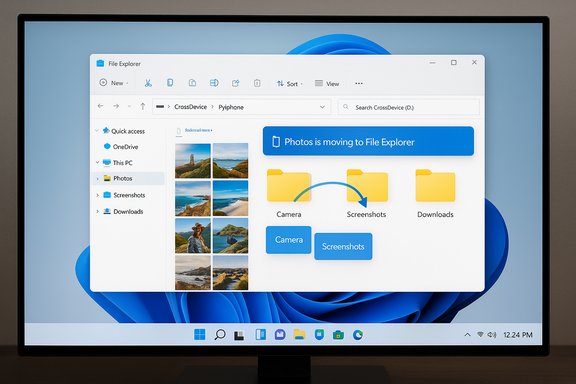
Microsoft has quietly started redirecting the Phone Link app’s built‑in photo gallery to File Explorer, effectively removing the “Photos” viewing experience from Phone Link and asking Windows 11 users to manage mobile images through File Explorer instead. This change is already visible as an in‑app alert that reads “Photos is moving to File Explorer,” and Microsoft points users at the Settings → Bluetooth & devices → Mobile devices → Manage devices switch that enables a paired phone to appear inside File Explorer. The shift is framed as an “upgrade” — File Explorer adds multi‑select, copy/paste and drag‑and‑drop capabilities for mobile photos and media — but it also raises practical and privacy trade‑offs for everyday users who relied on Phone Link’s simpler gallery view.
This change also highlights platform partnerships: Samsung’s close integration with Link to Windows (and the historical migration of DeX to Microsoft’s stack) means Samsung users will often get the smoothest experience, widening the gap between OEMs in the Windows/Android integration story.
Practically speaking, users should test the new workflow on a trusted PC, check for unexpected local copies and storage impact, and keep a wired alternative ready for mass backups. Administrators must update endpoint guidance and consider the security posture of enabling mobile device access on shared systems. Microsoft’s move also hints at a larger strategy: fold device file management into Windows while keeping Phone Link focused on communications and mirroring — a rational separation if the company smooths the UX gap for casual photo browsing.
Expect some friction in the short term. The best outcome will be one where File Explorer gains a lightweight gallery view or Microsoft improves the “recent media” discovery so the convenience of Phone Link’s photo previews isn’t lost in the name of consolidation.
Source: PCMag Microsoft Will No Longer Let You View Photos in the Windows 11 Phone Link App
 Background
What changed and why it matters
Phone Link (previously Your Phone) has been Microsoft’s bridge between Windows and Android devices for several years, offering notifications, messages, calls and a view of recent phone photos. That photo view has been convenient for quick previews, screenshots and snappy one‑off copies to a PC. Microsoft’s announcement — visible as guided messaging inside Phone Link — signals that the company no longer wants to present mobile photos in two places and is consolidating that capability into File Explorer where the phone appears like a connected device. That means the in‑app, MediaStore‑style gallery that aggregated recent screenshots and camera captures will be replaced by File Explorer’s storage‑level view.Timeline and rollout
The File Explorer integration for Android phones arrived in Windows 11 over the last year as part of ongoing updates to Phone Link and the Link to Windows ecosystem. Microsoft’s support documentation now describes the steps to enable a phone inside File Explorer and documents the requirements and behavior for the feature. The recent change is a user‑facing nudge: when users open Phone Link’s Photos tab, they now see a banner pointing them to File Explorer. Early coverage of the change appeared in technology news outlets the day the banner was spotted by multiple outlets and testers.Overview: how the File Explorer phone integration works
Requirements and prerequisites
To access an Android phone from File Explorer, Microsoft’s docs list a short set of requirements: an Android device running Android 11 or later, a Windows 11 PC, and a recent Link to Windows build on the phone. File Explorer access is enabled through Settings → Bluetooth & devices → Mobile devices → Manage devices; once a device is paired you toggle Show mobile device in File Explorer to expose the phone inside the Explorer tree. Microsoft also notes that only one mobile device can be displayed at a time.What you’ll see in File Explorer
After enabling the feature, your phone appears as a connected device under a CrossDevice location in File Explorer. You can browse the phone’s file system, open or stream media, rename or delete files, and drag and drop files between PC and phone. Because File Explorer exposes full storage as a virtual shell, you can access videos and other folders not shown in Phone Link’s Photos view. Microsoft’s documentation explicitly describes the ability to browse folders and move files from phone to PC.Supported transfer methods and limits
File actions in Explorer are translated into remote file operations on the phone using the Link to Windows host and Cross‑Device Experience broker. For some advanced drag‑and‑drop features (notably certain Samsung phone integrations), Microsoft requires both devices to be on the same Wi‑Fi network; other transfers can use the Link to Windows channel. There are documented limits for drag‑and‑drop: single file size caps and per‑session limits apply to some features, and some phone vendors enable richer capabilities (like mirroring or larger drag‑and‑drop) when the manufacturer’s Link to Windows implementation supports it.Step‑by‑step: enabling your phone in File Explorer
- On your PC open Settings → Bluetooth & devices → Mobile devices.
- Click Manage devices and confirm your phone is paired; if not, choose Add device and follow the pairing flow.
- Find your device in the My Devices list and toggle Show mobile device in File Explorer to On.
- If prompted on your phone, accept the Link to Windows permission dialog to allow storage access.
- Open File Explorer and expand the CrossDevice or mobile device node to browse phone storage.
Strengths: what File Explorer gives you that Phone Link didn’t
- True file management: File Explorer’s interface supports multi‑select, copy/paste, rename, move and batch operations that Phone Link's lightweight gallery lacked. This transforms the phone into a fully browsable device within the Windows file system.
- Video access and broader folders: Unlike Phone Link’s Photos tab, which focused on recent images, File Explorer exposes videos and arbitrary folders on the phone. That’s useful for users whose media lives outside the Camera folder or who need to move app data or downloads.
- Drag & drop to apps: When supported by your phone, you can drag files from phone to desktop folders or into opened apps — a native, uninterrupted workflow that replaces clumsy copy‑and‑share hacks. Microsoft documents device and network requirements for drag‑and‑drop.
- Single place to manage files: Consolidating storage access inside File Explorer aligns phone files with existing PC workflows and Explorer search, context menus, and organization features.
Weaknesses and user risks
Loss of the gallery‑first UX
Phone Link’s Photos view provided an app‑like, MediaStore‑style aggregation of recent images and screenshots across app folders. File Explorer, by contrast, exposes storage hierarchically — you’ll need to navigate into the Screenshots, Camera, or WhatsApp directories to find specific images. Casual users who used Phone Link as a lightweight gallery will find the file‑centric view less friendly. Several reviewers and testers have already noted this friction.Performance and speed caveats
Not all transfers are equal: the Link to Windows channel can operate over Wi‑Fi for certain features, but other operations fall back to slower transfers akin to Bluetooth speeds. Practical tests and community reports show that bulk previewing of very large camera folders (tens of thousands of images) can be slow because thumbnails and metadata must be generated over a remote connection. Users who moved from a fast USB‑C cable workflow will notice a significant slowdown when trying to preview or copy large photo libraries. Bluetooth and network conditions dramatically affect throughput.Local copies, disk usage and privacy
When you browse phone files in File Explorer, Windows can create local cached copies under the CrossDevice folder. That behavior has created surprises for some users: local storage usage can spike when large phone folders are opened or files are copied across devices. Microsoft documents how to remove local copies and notes that toggling Show mobile device off will stop the connection, but administrators should be aware of possible duplication and residual cached files on the PC. Granting File Explorer access to phone storage also increases the attack surface if a PC is shared or compromised. Administrators and security‑conscious users should audit the CrossDevice folder and understand what permissions are required on the phone.Single device limitation and ecosystem fragmentation
Microsoft’s documentation states that only one mobile device can be shown in File Explorer at a time. For users with multiple phones or tablets, switching between devices requires toggling devices in Settings. Meanwhile, certain premium Phone Link capabilities (screen mirroring, deeper integration) remain best‑in‑class on Samsung phones because of vendor partnerships. That leaves users of other Android OEMs with an inconsistent experience and a mixture of Phone Link and third‑party tools for parity.Practical recommendations for everyday users
- If you copy tens of gigabytes of photos frequently, keep using a USB‑C cable or a fast cloud backup service for full‑library backups; File Explorer’s wireless access is convenient but slower and more suited for on‑demand transfers.
- Before enabling Show mobile device in File Explorer, ensure the PC has sufficient free disk space and check the CrossDevice folder after significant transfers. If you see unexpected local copies, turn the feature off and follow Microsoft’s documented removal steps.
- Use File Explorer for batch edits and drag‑and‑drop; use Phone Link for messaging and calls where you still prefer the app’s real‑time interface. Keep both apps updated and verify Link to Windows permissions on the phone.
- For privacy‑conscious workflows, connect phones only to trusted PCs, and disable Show mobile device when not actively transferring files or when using shared machines. Administrators should add this setting to endpoint checklists.
Troubleshooting: common issues and fixes
I don’t see my phone in File Explorer
- Confirm the phone is paired under Settings → Bluetooth & devices → Mobile devices → Manage devices and that Show mobile device in File Explorer is toggled on.
- Ensure the Link to Windows app on your phone is updated and that you accepted the storage permissions prompt.
- Verify both devices are signed into the same Microsoft account if the onboarding flow requires it. Microsoft’s support pages and community Q&A list these steps as the first line of troubleshooting.
Previews and thumbnails are slow or missing
Large camera folders can take time to generate thumbnails remotely. If you need immediate access to many photos, copy them in smaller batches or use a wired connection for an initial sync. Also check antivirus or backup software that might slow thumbnail generation by scanning files as they’re accessed.Files don’t transfer or drag & drop fails
Certain drag‑and‑drop features require both devices to be on the same Wi‑Fi network and, in some cases, vendor‑specific Link to Windows support (Samsung phones get the deepest integration). If a single transfer is blocked, try the Phone Link share flow (Share → Phone Link) or use File Explorer’s copy/paste to the Downloads folder as a fallback. Microsoft documents these alternate paths and the limits for drag‑and‑drop.Bigger picture: what this change signals about Phone Link’s future
Consolidating photo handling into File Explorer simplifies the product boundary between Phone Link and Windows itself. That move can be seen two ways: it’s a sensible unification, bringing file management into the OS’s canonical tool; or it’s a step toward trimming Phone Link to core realtime features (calls, messaging, notifications) while folding file management into Windows. Microsoft’s broader File Explorer roadmap — including AI actions and richer context menus — suggests the company wants Explorer to be more than a file browser and to act as a hub that orchestrates device‑to‑device workflows. At the same time, the shift raises questions about Phone Link’s long‑term scope. Removing features from an app rarely improves the user experience if the replacement is harder to use for casual scenarios. The gallery UX problem is nontrivial: many users treat Phone Link as a cross‑device gallery rather than a file manager. If Microsoft intends to expand File Explorer’s mobile experience, it should invest in a gallery‑like view or provide a robust “Recent media” virtual folder that aggregates screenshots, camera images and app images — otherwise users will look for third‑party utilities that keep the simple preview workflow intact.This change also highlights platform partnerships: Samsung’s close integration with Link to Windows (and the historical migration of DeX to Microsoft’s stack) means Samsung users will often get the smoothest experience, widening the gap between OEMs in the Windows/Android integration story.
Security and privacy implications — what to watch for
- Granting Link to Windows storage permissions effectively allows the PC to enumerate and request files on the phone. That’s necessary for the feature, but users should evaluate whether a given PC is trusted before enabling it. Enterprise admins should coordinate these settings with endpoint policies.
- Cached local copies are stored under CrossDevice and can consume space or persist after a transfer. Microsoft documents how to remove these copies, but users should proactively clear caches and confirm that backup or sync tools aren’t duplicating mobile content to cloud storage inadvertently.
- Because only one device can be shown at a time, switching devices can be an administrative step — ensure the right device is published on shared hardware to avoid accidental exposure of another user’s files.
Alternatives and complementary workflows
- USB‑C cable remains the fastest, simplest way to copy entire photo libraries and avoid cache or permission issues. For full backups, a direct wired transfer or a dedicated backup app is still the most reliable option.
- Cloud sync services like Google Photos or OneDrive are convenient if you want continuous backups and cross‑platform access without manual transfers. They also give you web‑based galleries and sharing controls that File Explorer does not.
- Manufacturer solutions (Samsung Quick Share, DeX, or vendor desktop tools) may offer optimized experiences for specific phones, sometimes with higher transfer speeds or richer mirroring. These are especially relevant for power users with Samsung devices.
Conclusion
The migration of Phone Link’s photo viewing into File Explorer is a pragmatic consolidation: it gives Windows users more file management muscle, richer multi‑select and drag‑and‑drop capabilities, and access to videos and other folders that Phone Link didn’t surface. For power users and IT pros who treat phones like another networked file system, that’s a net positive. For casual users who valued Phone Link’s gallery simplicity, the change is a regression unless Microsoft provides an intuitive “recent media” aggregation inside Explorer.Practically speaking, users should test the new workflow on a trusted PC, check for unexpected local copies and storage impact, and keep a wired alternative ready for mass backups. Administrators must update endpoint guidance and consider the security posture of enabling mobile device access on shared systems. Microsoft’s move also hints at a larger strategy: fold device file management into Windows while keeping Phone Link focused on communications and mirroring — a rational separation if the company smooths the UX gap for casual photo browsing.
Expect some friction in the short term. The best outcome will be one where File Explorer gains a lightweight gallery view or Microsoft improves the “recent media” discovery so the convenience of Phone Link’s photo previews isn’t lost in the name of consolidation.
Source: PCMag Microsoft Will No Longer Let You View Photos in the Windows 11 Phone Link App
